

Intro
Hi, Eddie here with a mini review of my favourite tool of 2026, so far, and what I use it for.
It’s VS Code, a Microsoft product that I stumbled upon when deciding to creating our website at jerntonkoi.com using Hugo, as told previously, and I have fallen for it head-over-heels.
The problem that VS Code is solving for me is letting me work with AI on a large number of documents.
I’m going to approach this review by describing how I use it in a variety of situations, always with that problem in mind: how can I work with AI on multiple documents? It’s a mini-review because I’m not going to even attempt to cover all the things it can do, just my uses for it, and why the software is so good for me.
First, a little about me, as it does shape this somewhat. It’s relevant, I promise.
I’m an upper school Physics teacher, so that’s pre-university, and for that I have been working on my schemes-of-work, my lesson plans, all those documents that state what I plan to teach. I’m also a leader in the data at the school, and have for years worked with Google Apps Scripts to do things such as Question Level Analysis, where we can create custom feedback sheets for individual students after a test. I’m also a prolific hobbyist, currently working as editor, publisher, and marketer for Jern.
That’s some of my myriad activities, some uses of VS Code, and one is a little weird, so let’s start with that.
Project: Schemes-of-Work
VS Code is designed for helping users write code. It’s in the name. So, I’m going to begin this by talking about a use that has zero coding and nothing to do with programming.
We teach a standard A Level syllabus, so there are certain things that need to be covered, which is all in a PDF provided by the examination board, so I started this project by downloading it and converting the parts I needed to a text file in markdown format. This is simply because AI can reliably read text documents more easily than PDFs.
I already have the lessons I want to give and the order of them in a spreadsheet, so I got AI to help me convert this into separate markdown files, one for each lesson. All of this is in a simple, consistent format that is easy for both me and AI to read.
This gives me a single, clearly named syllabus document and hundreds of clearly named lesson documents.
Now, I’m ready to begin with AI, using VS Code as the conduit.
VS Code is designed to work with folders of files, so upon opening the app, I go to the File menu and select Open Folder…. This puts the tree structure of the selected folder into the left pane of the window. I can now select individual files, and they will open and display in the main, central window of the app. This gives an easy-to-use, perfunctory text editor that is perfectly fine for working in. I can go in, change a lesson plan, and plan how to teach. If I want to, I could very easily set up a git repository in this folder to track changes. And, now that I have listened to most of the series on git within Programming by Stealth, I know that I really should, as it is so simple and so useful.
Next, I want to start developing my lessons. I want to start putting keywords in, common misconceptions, maybe even videos beyond the ones I made. This is something I have wanted to do for years, but never had the time–but with AI, that has gone away. I’m not going to ask ChatGPT to design or teach my lessons (having taught this for 20 years, I know how I want to do it), but I can ask ChatGPT to suggest keywords for a lesson, for a topic, or for a whole syllabus. Not only that, but put them into my lesson plans.
To do this, I installed a plug-in for VS Code made by OpenAI, the creators of ChatGPT. It’s called Codex, and once installed, it becomes one of the options for the left pane of VS Code. Thankfully, there is an option to move it to the right, so now I have my folder tree on the left, my main window with the document open in the middle, and a chat pane on the right.
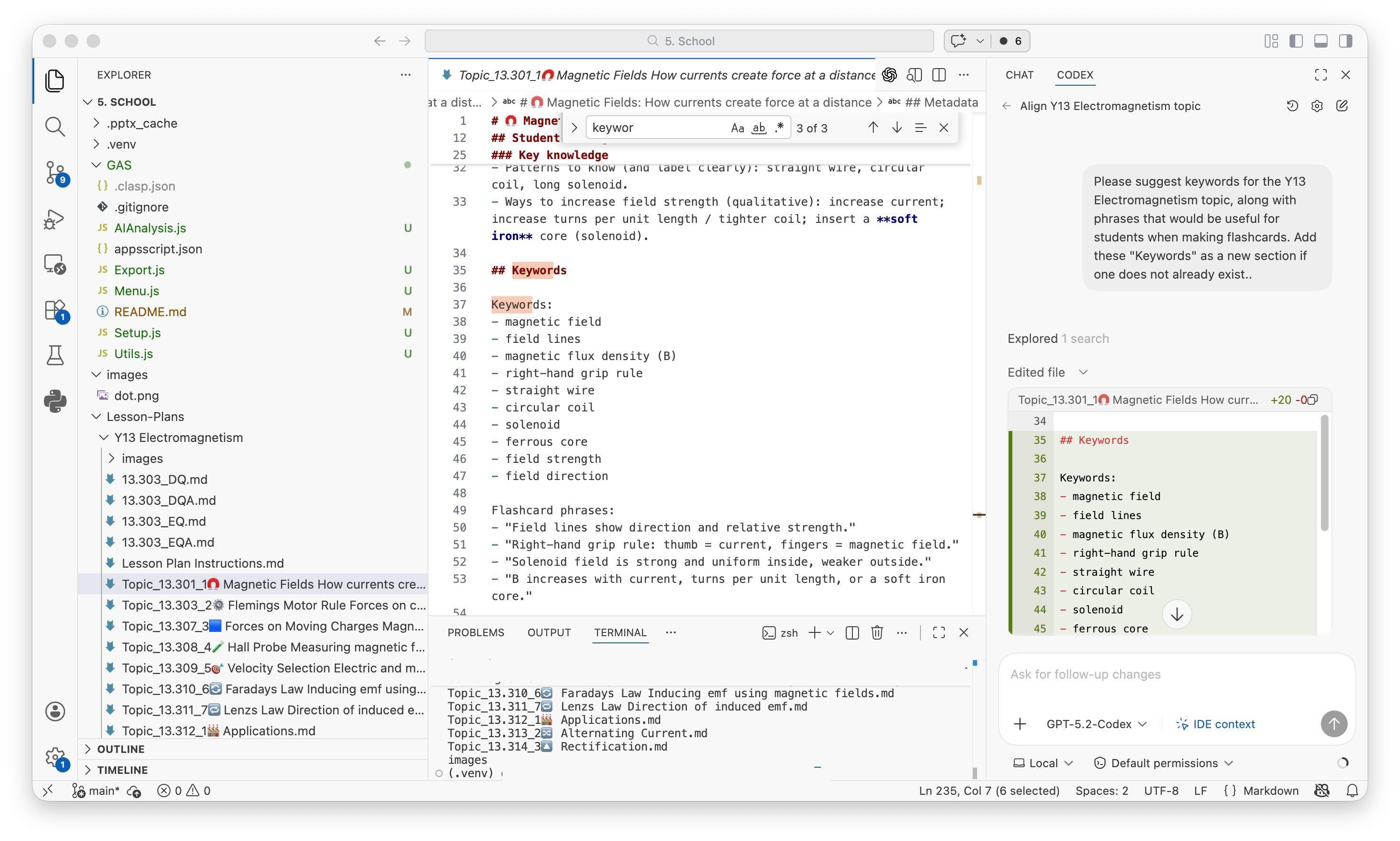
My typical VS Code layout: folder tree on the left, the document I’m working on in the centre, the AI assistant on the right, and the built-in terminal below for running commands like clasp.
I logged in to my ChatGPT Plus account and got options to use GPT-5.3-Codex, GPT-5.2-Codex, GPT-5.1-Codex-Max, GPT-5.2, and GPT-5.1-Codex-Mini. Since I am going to work with text files, not code, I chose GPT-5.2.
Now I can do some work, with a prompt like this:
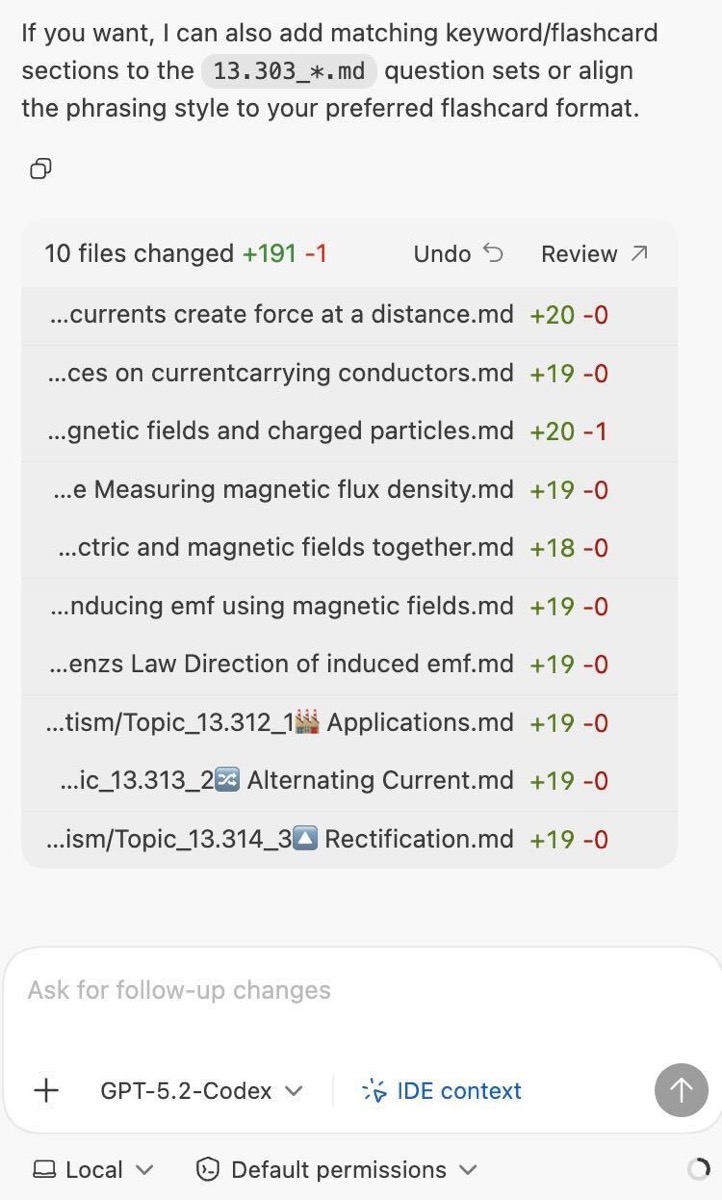
Please look at the Syllabus document for A2 Physics, and the lesson plan documents for the Electromagnetism topic in /lesson-plans/year-13/electromagnetism/. Please think of relevant keywords for each lesson and add them into a new section title Keywords. In addition, add a section called Flash Cards to the end of each lesson and provide each keyword along with its meaning written at an appropriate level. Where relevant, provide phonetic spelling.
Without me having to upload specific files or doing anything else, ChatGPT goes and finds the relevant files, analyses them, and updates their contents. Note to self: make sure git is used to help check the differences.
I can then check the documents, think up new things to do, and iterate. Or decide I’m happy and send ChatGPT off to repeat the task on another topic.
Now, I could do this by uploading files to an AI and working that way. But this is fast. It’s not fast in the sense that I have to wait for ChatGPT to think and make changes, but it feels fast. It feels like I am bouncing ideas off a partner. It feels like I am doing a week’s worth of work in an afternoon. And it’s high-quality, productive work. It’s what I do, only more.
So, for this project, VS Code is working as a folder-based text editor with integrated agentic AI, and it is allowing me to finally do things I have genuinely dreamed of doing for over 15 years.
Phew. Where to go from there? Let’s pick a coding project.
Project: Coding
I’ve talked about Hugo before, so I’ll skip that. I’ve talked about ETNA, my spelling and grammar checker, so I’ll skip that, too. Let’s instead look at a fun new project I just started last week, working with Google Apps Scripts.
At school, I created a script attached to a Google Sheet that teachers can use when preparing a test. They type in information about the test, then a series of scripts run to turn the input into a spreadsheet for data entry. After the test, teachers enter what each student scored for each question, and we get a nice spreadsheet showing areas we need to reteach, and students who struggled in certain areas. There’s also another script that generates a PDF report for each student and saves it in their personal folder. I created it around 8 years ago and made a few improvements, but nothing major.
I want to upgrade it for the next school year, and I wondered if I could do it in VS Code rather than through the clumsy web interface. So, editing web code on a local machine, which just sounds troublesome, right? Well, it turns out I just needed 3 lines in the Terminal. To do this, I select View > Terminal in VS Code’s menu to open a Terminal window in the lower part of the central pane, then type:
npm install -g @google/clasp
This installs Google’s clasp, a tidy backend Google created for just this kind of thing.
clasp login
To log in to my school Google account.
clasp clone <SCRIPT_ID>
And this clones the scripts to my directory in VS Code.
That’s it. I can edit the code, then just use push and pull to upload my changes and download from the web respectively.
clasp push
clasp pull
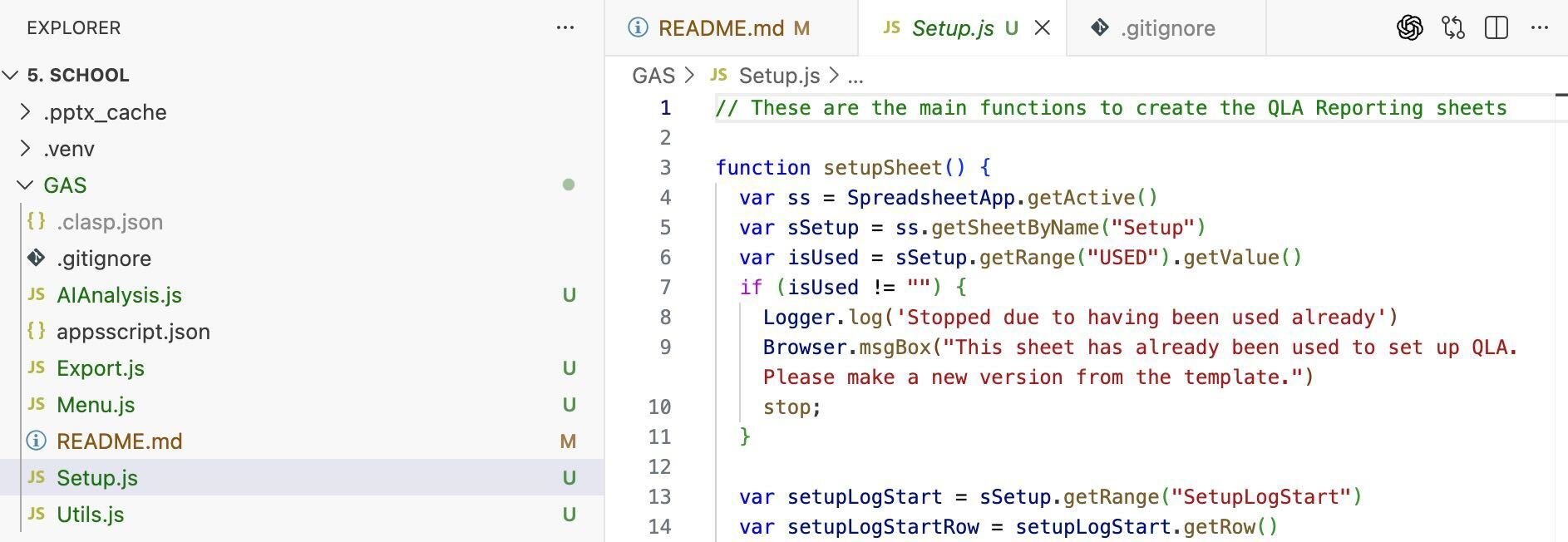
So, I now have VS Code open with the directory tree in the left pane showing the scripts and a few other files I’d best ignore. Selecting one opens it in the upper section of the central window. The lower section still has the Terminal, so I can either close that or just make it smaller as I don’t need it much. The right side should have Codex open.
This time, I’ll choose one of the Codex models. I’ll be a bit mindful which one, because I really don’t have the feeling of infinite use with Codex on my Plus plan. In fact, at the bottom of the right-hand pane there’s a little button that says Local, and if I click that it gives me an option to show my Rate limits remaining, which will tell me how much use I have remaining in the next 5 hours and in the next week. Because using ChatGPT within VS Code is so powerful, looking at multiple files and really understanding what it’s doing, it is quite expensive in terms of usage. So, I won’t be frivolous.
I wrote what might seem like a vague prompt, and it did the job refactorising and preparing for modularisation without error, as far as I can tell right now. I’ve already enabled git for this one!
I would like you to help me with making sensible changes that will objectively improve the code without changing any of the functionality. Once that is done, we will be adding new features and possibly revamping the whole thing, so modularity is likely to be a powerful feature. And organisation! If splitting things into new files helps, let’s do it. For now, let’s not look at any changes and optimise the current codebase.
This is, I think, vibe coding and has the potential to be quite dangerous. However, coding it by hand also has the potential to be quite dangerous. That means that I do need to make sure I review and understand the code that is generated, auditing it carefully. I believe the use of AI in VS Code is going to let me improve the scripts for the spreadsheet in a way that improves student outcomes, again letting me do something I have wanted to do but not had time. Eight years of dreaming, this time.
Outro
So, was that a review of VS Code? Maybe, maybe not. I did sing its praises, and I did outline a couple of its features, even including the pane layout.
I was clearly more excited about the functionality, however, or rather what it was enabling for me.
There are only a handful of apps that integrate with AI like this. Some apps let AI see a single document at a time. That’s nowhere near as powerful. Some apps, on the Mac, let the ChatGPT app peek into their window, but most of those do it through allowing Accessibility features, which is a bit scary for me; as a sidenote, VS Code is better at this, letting the ChatGPT app see inside natively, but it is flaky compared to working within VS Code. I could upload up to 10 documents to ChatGPT and do essentially the same thing as I’m doing here. But that does not feel fast, it’s clunky.
VS Code lets you focus on a folder of documents, and it lets AI see all those documents, choose what it needs to read, and work for you enacting your vision.
If you use AI to help you work faster or work better with text documents, whatever their content, then consider using VS Code. It has streamlined my process and I could not be happier.