
One of my favorite Tiny Mac Tips is how to enable Control-scroll to zoom in on your display. I usually use Apple Maps for the demo because no matter how far you zoom in, they shrink the font right back down so you can’t read the text. I’ve explained this tip quite a few times before, but let me go through it again before telling you a funny story of trying to demonstrate it during a video user group meeting.
The Control-scroll to zoom feature can be turned on by going to System Settings → Accessibility → Zoom → and then toggling on “Use scroll gesture with modifier keys to zoom”. Once enabled, you choose what modifier key to use to trigger zoom, and the default is the Control Key. Next, you can choose the zoom style, which is defaulted to full screen.
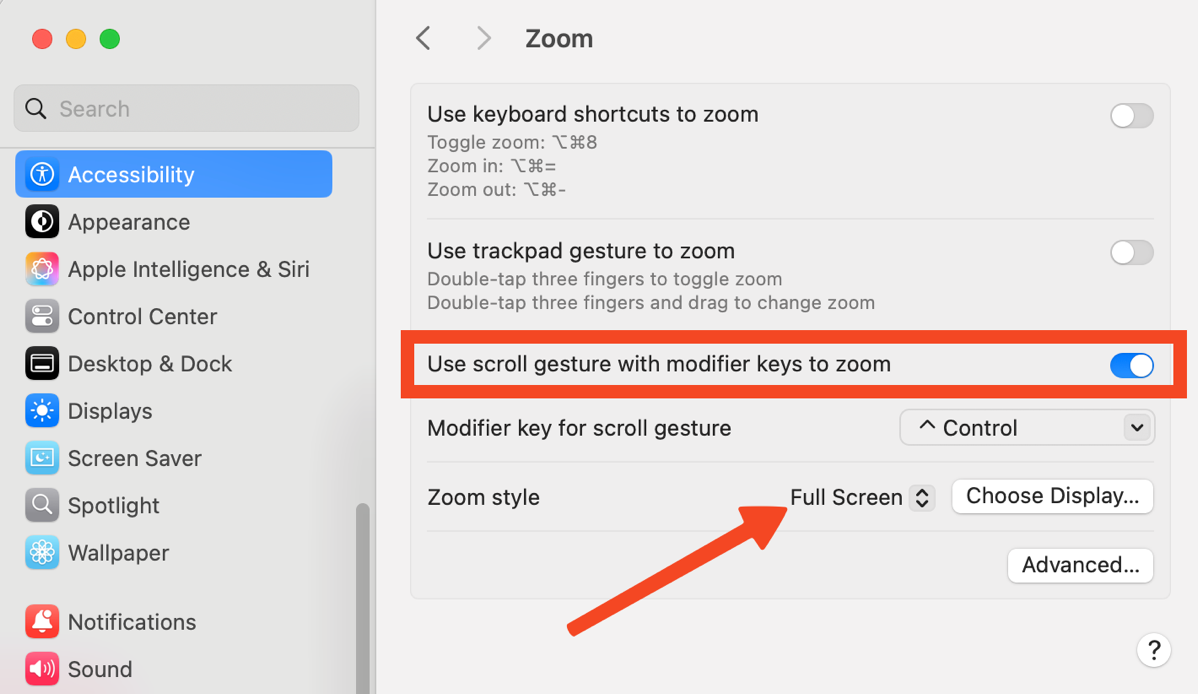
I like the full screen style because it feels like you’re just shoving your face right up against the screen with no other weirdness going on. There’s also a split-screen option, which is super weird. It puts a narrow strip across the top of your screen, and the zooming happens up there, with the rest of your screen still looking normal. I don’t favor that one at all.
The third option is picture-in-picture, which isn’t bad. It creates a little floating window that’s zoomed in. If you move your cursor to the edge of the floating window, the little window starts to follow your cursor around the screen.
So why am I talking about the accessibility zoom feature yet again? Because the other day, I tried to demonstrate it during a user group presentation over a video call on Zoom, but they couldn’t see the effect. I had the zoom control set to full screen, and while I could see the screen zooming in, there was no change in the screen sharing they were watching of my screen.
This particular user group, SBAMUG, is one I’ve presented to many times, and a few of the people in attendance are old friends of mine. The audience was on the smaller side this time, so I thought maybe they’d give me latitude to do some experiments and figure out how I could show them this effect. I came up with a solution, and it’s so cludgy and janky I just have to tell you about it.
Since they couldn’t see the screen zooming in over screensharing, I figured I needed to have a way to point a camera at my screen. I was using my Logitech webcam to show them my face, and if I’d had a longer cable, I might have been able to swing it around and point it at my screen instead, but that would have been a bunch of faffing about with swapping out cables.
Then I thought maybe I could do it with my iPhone. I briefly considered using Continuity Camera and changing from the Logitech to my iPhone. That probably would have worked, but Continuity Camera is a bit twitchy to select, and I wanted something less fiddly.
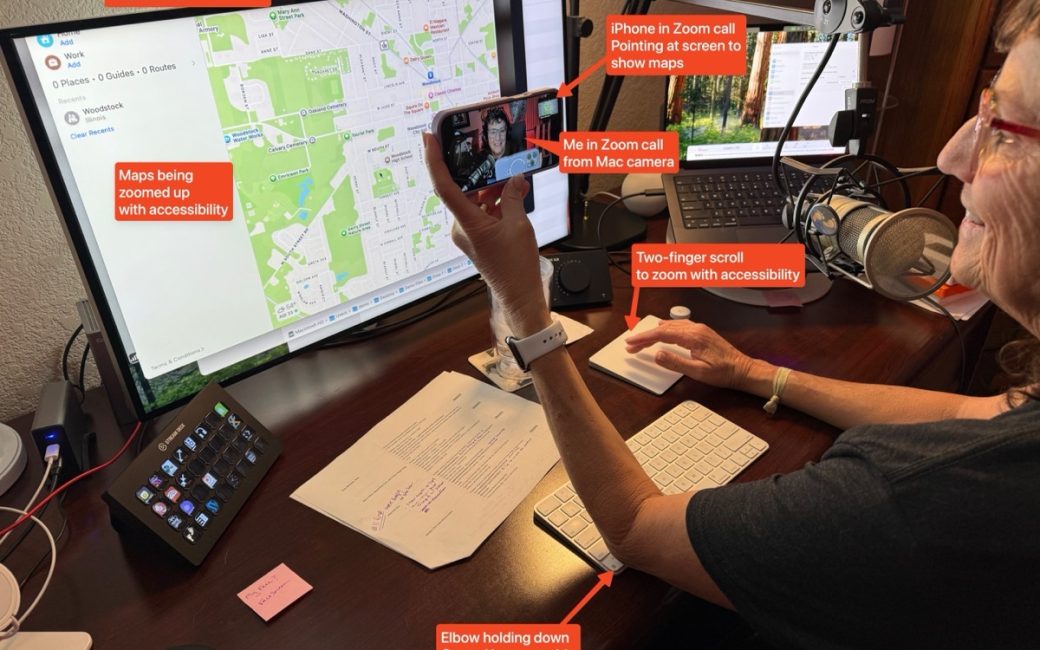
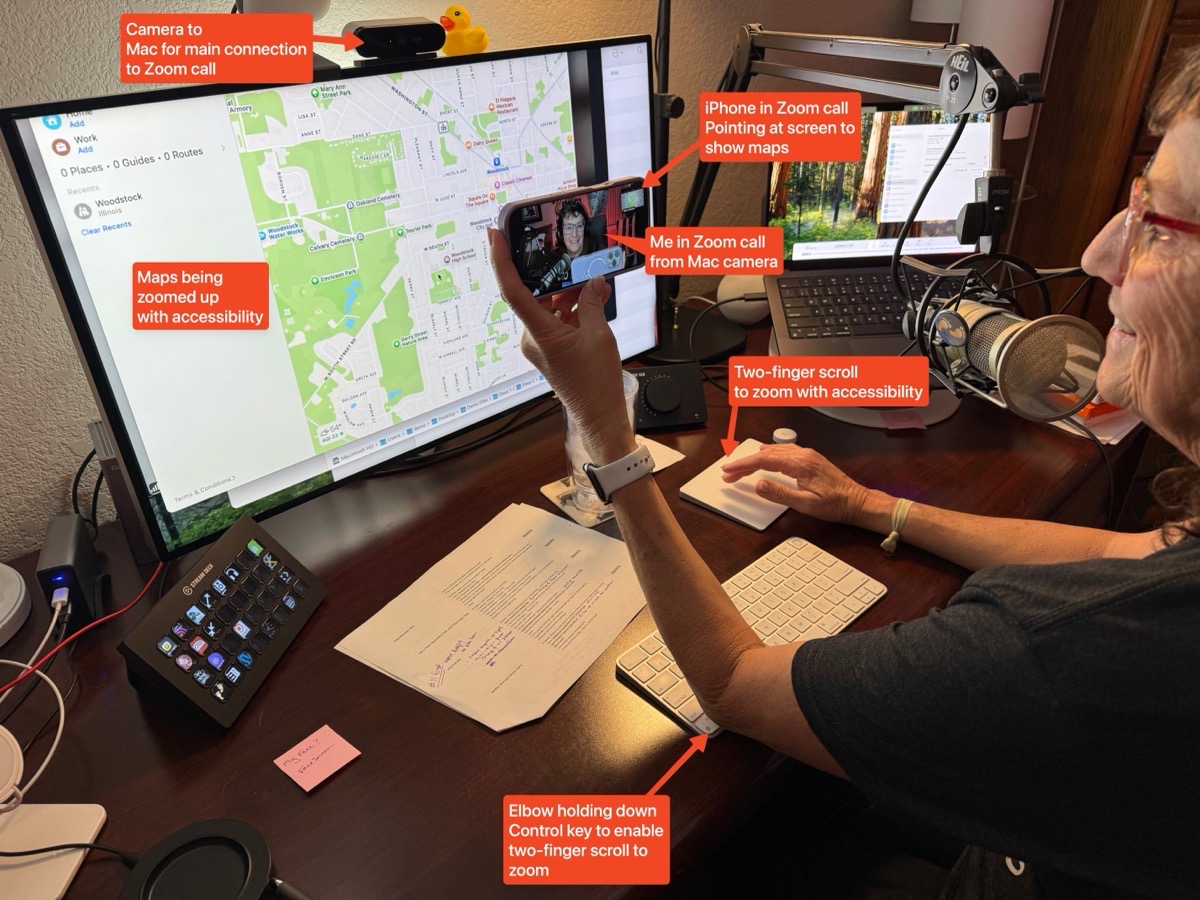
My solution was to log into Zoom a second time, but from my iPhone. Instead of pointing the camera at my face, I turned the camera on the iPhone so that it was facing my screen. In theory, when I used Control-scroll to zoom up on Maps, they’d see it in the video version of me in the Zoom call from the iPhone. With me so far?
This would have worked but for one problem. By default, whoever is talking always takes over the video for all of the participants of the Zoom call, unless someone is doing the job of controlling what people see. Every time I started talking into my big girl microphone, the video from my Logitech camera would take over their screens so they wouldn’t see the video from my iPhone’s camera.
I wasn’t sure how to do that globally for the whole audience, so I asked each person to simply click on the video that showed Maps, and that worked to keep that as their video source and not switch when I started talking.
I had everything set up for success. I could hold the phone’s camera relatively still, pointing at my display so they would be able to see when I zoomed in, but there was one problem. The accessibility zoom gesture requires two hands! I have to be able to hold the phone while holding down the Control key, while simultaneously using two fingers on my trackpad to scroll.
Well, that’s why we have elbows, folks. I had to be very careful, but I was able to put my pointy left elbow just onto the Control key, which actually helped me create a stable support to hold the phone. With my elbow firmly in place on the Control key, while holding the phone, I could scroll with my right hand on the trackpad. And it worked!
I asked Steve to come to my office and take a photo so we could record my genius for posterity. I’ve annotated the image so you can see each piece of the puzzle!
As I was writing this up, I realized that there was a more elegant solution than using my elbow to hold down the Control key. I remembered that Apple has a feature called Sticky Keys. This mobility accessibility aid is designed for those who can’t use two hands. Under System Settings → Accessibility → Keyboard, there’s a toggle to enable Sticky Keys.
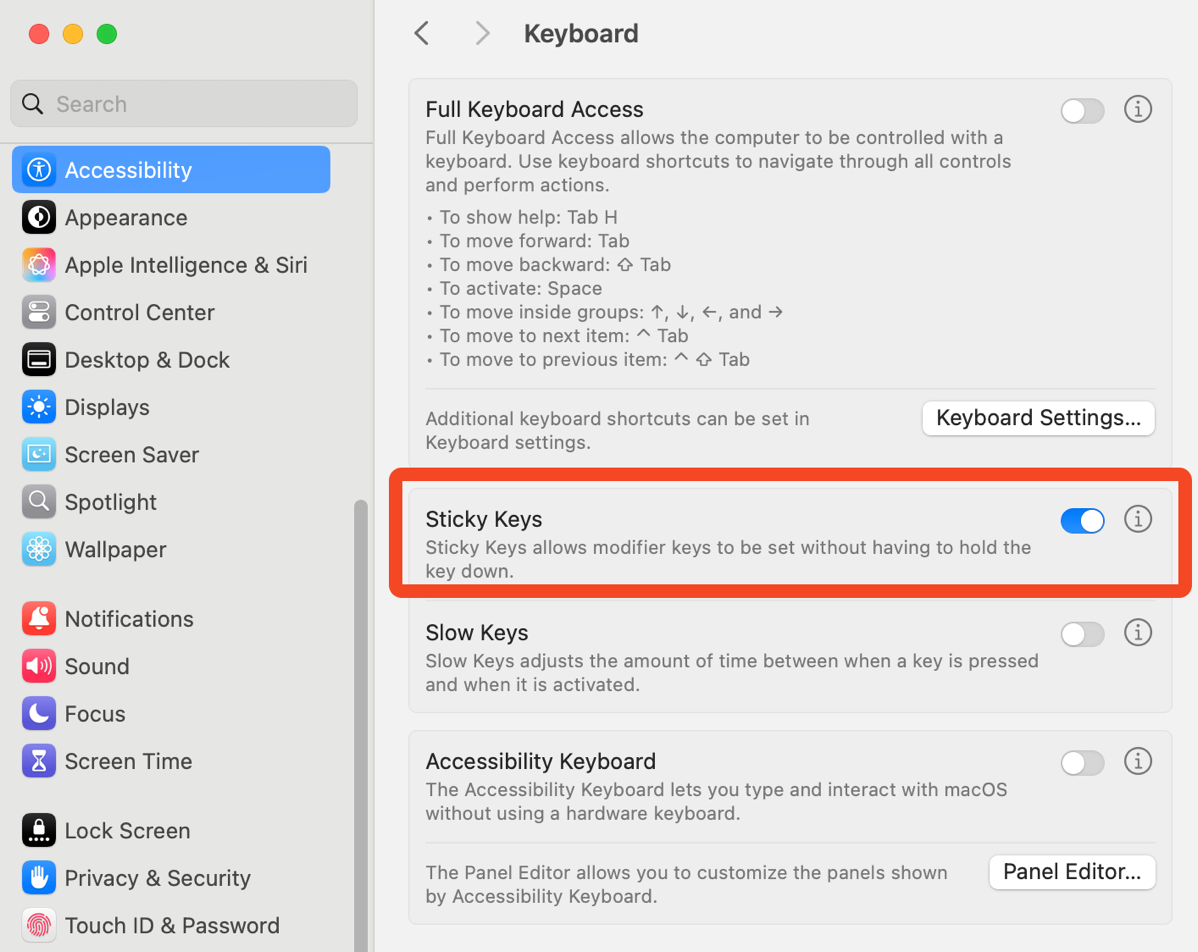
Once enabled, tapping the Control key once keeps it on until you tap it again. There’s also an indicator in the upper right of your screen that shows the key that has been selected, and the indicator disappears when you select the key again.
I tested this out, and I can now use Control-scroll with one hand, so I have a hand free to hold my iPhone as a camera. But the rest of my idea of using the second device as a Zoom participant was genius, right?
After I showed my technical genius, understanding of accessibility, and physical dexterity, I showed them the picture-in-picture version of Control-scroll to zoom … and they were able to see it just fine in the screenshare. Interesting that it works when full screen zoom does not.
One of the reasons I enjoy playing around with functionality on my iPhone and Mac is not just to solve immediate problems, but to add tools to my tool belt for when I need them. I’ll keep my elbow around just in case, but now I know Sticky Keys can come to the rescue, too.