
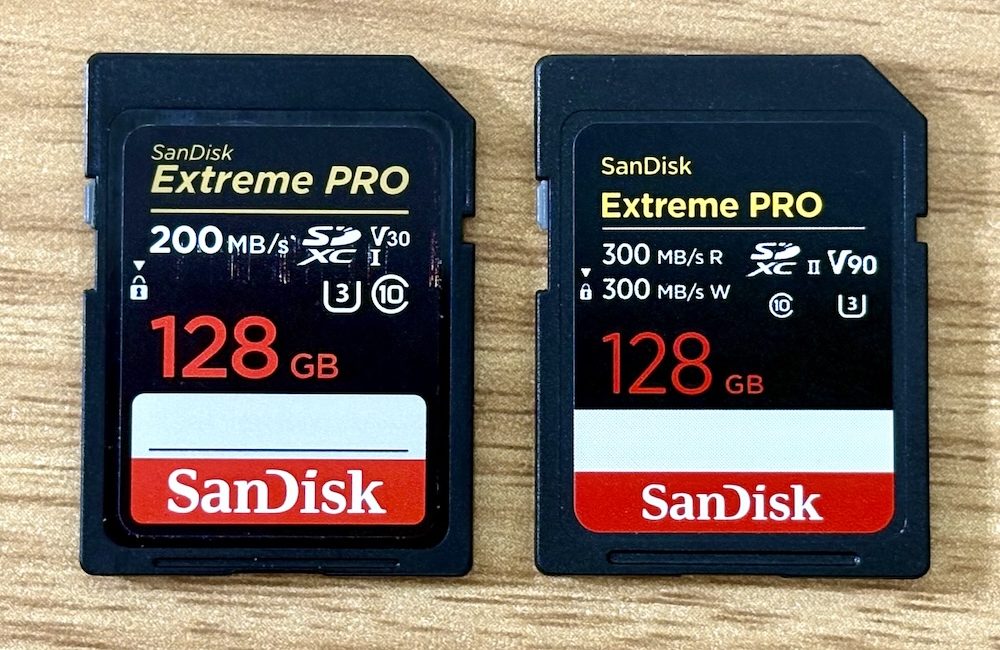
Early in 2025, my new DSLR camera arrived. It’s a Pentax K-3 III and it’s outstanding. One of the features it has that improves over my earlier Pentax KP is a UHS-II high speed SDXC memory card slot. Faster sounds better, so I thought I’d buy a faster SD card. Should be easy, right?
The card I initially focused on was the SanDisk Extreme PRO 300 MB/s SDXC C10 V60 U3 UHS-II 128 GB. Clearly the best one for the task, right? OK, I need to be able to decipher that soup of letters and numbers to know what I am getting. Let’s find out about what we collectively call “SD cards”.
First, there are three completely independent classifications in play — the physical size, the capacity class, and the speed class. Let’s first look at physical size.
The original SD card was introduced in 1999 and is about the size of a postage stamp. Kids, ask your parents. With the advent of smaller and smaller electronic devices, this was too big for many. A slightly smaller miniSD form was introduced in 2003 targeted at mobile phones but only a year later the tiny MicroSD was launched. It measures slightly less than half the dimensions of the original. MicroSD has become very popular in phones, as well as small consumer electronics devices. Also in any small crevice where you might drop one.
Next comes the capacity class. The original SD card standard maxed out at 2 GB. I recently found an old card in a box that was 8 MB! That’s not even enough for one RAW photo on my camera! As time and technology marched on, the 2 GB barrier needed to be raised. Enter SDHC in 2006. The HC stands for High Capacity. This raised the limit to 32 GB. It is also worth noting that the smallest size of SDHC was 2 GB.
In 2009, the capacity was increased again. The SDXC — eXtended Capacity — standard encompasses 32 GB up to a whopping 2 TB. Who’d need more than that on a single card, right? In 2018, SDUC — Ultra Capacity — was introduced. It starts at 2 TB and tops out at an astonishing 128 TB. SDUC is a nascent format, with the world’s first 4 TB card due for release in 2025. For my camera, that’s enough space for over 64,000 photos in RAW format — more than I have amassed in 20 years of digital photography — or 168,000 JPEGs.
OK, that’s the easy stuff covered. There are different physical sizes and different logical sizes. miniSD is rare, in my experience, but you can generally get the HC or XC capacities in either SD or MicroSD size.
So that just leaves speed — the bit I was really trying to find out about. Buckle in.
The first wrinkle we have to deal with is that there are four speeds to consider. Minimum and maximum write speed, and minimum and maximum read speed. For the most part, minimum read speed is not talked about, so, yay, we only have to worry about three. Except… we also have to deal with three different ways of classifying speed!
The early cards had a “speed class”. These are marked on the cards as a number enclosed by a large letter C — essentially a circle with the right side cut out. These speeds were one of 2, 4, 6, or 10 MB/s and denoted a minimum write speed. In 2025, you’ll be unlikely to find a new card that has anything besides C10, as few modern devices will even operate at lower speeds.
Next came the UHS speed class. This is denoted on cards as a number enclosed in a stylised letter U. It looks like the symbology for a beaker you might find in a science lab. There are only two UHS speed classes. U1 is 10 MB/s, the same as C10, and U3 is 30 MB/s. Again, these are minimum write speeds.
But wait… progress demands change, right? More recently introduced is the Video Speed Class, so called as it was introduced to satisfy those shooting 4K video. This is represented on cards as a slightly stylised letter V followed by a number. One of 6, 10, 30, 60 or 90. Perhaps unsurprisingly, the number is the same measure as for UHS speed class — Megabytes per second. I find it curious that V6 exists, where the U numbers did not cover the 6 MB/s speed.
Video Speed Class is the standard currently in use, but there is an Express Speed Class already defined. This is represented as a capital E followed by a number that is one of 150, 300, 450, or 600. These will all outperform V90, as the number is again Megabytes per second.
Note that everything I have described so far is minimum write speeds. It is, after all, the speed that matters most. You want your photos, video, audio, or whatever to be written to the card quickly so you don’t miss what’s coming next.
What about read speeds or maximum write speeds? There are no standards for these, so card manufacturers put whatever they want on their cards. This is where you can easily be misled. I tested a V30 card which claimed 200 MB/s on it. If you only see one such speed on a card, that will almost certainly be the maximum read speed, which is often the highest speed the card can attain in any operation. But note it is the highest speed, not a sustained speed. My tests showed the sustained read speed was around 90 MB/s and the write speed 70 MB/s. There is no doubt something to be said for understanding the test methodology and equipment, but it does clearly show that real speed may differ substantially from claims. Newer SDXC cards may show both a read and write speed on them. Again, these are claimed maximums, not an indication of real-world performance.
So back to my chosen card, the SanDisk Extreme PRO 300 MB/s SDXC C10 V60 U3 UHS-II 128 GB. Now we know what most of that soup means. 300 MB/s is the claimed maximum read speed. SDXC is logical because of the capacity; 128 GB. We can also see that some of it is redundant. C10 is a minimum write speed of 10 MB/s, U3 is a minimum write speed of 30 MB/s, and V60 is a minimum write speed of 60 MB/s. The C and U numbers are eclipsed by the V number. The only reason they are still there, I believe, is because some equipment manuals still refer to the old standards.
But hang on… I said my camera has a UHS-II card slot, and this is reflected in the card name, too. What does UHS-II mean? Whoops, did I miss out a speed class? Not really.
Whatever the claims on the cards, the standards have maximum theoretical speeds based on the electrical design. The original SD cards maxed out at 25 MB/s. All standards from SDHC onwards have access to UHS design speeds. UHS-I raises the limit to 104 MB/s, UHS-II is 312 MB/s, UHS-III is 624 MB/s. Finally, because what’s a standard if you don’t change names mid-stream, SD Express tops out at an eye watering 3,940 MB/s. Of these, UHS-II is the current state of the art. Many devices are still UHS-I, but UHS-III and SD Express are still not really a thing.
Incidentally, if you have a Mac Studio, MacBook Pro introduced in 2021 or later, iMac introduced in 2020, or a Mac Pro, then you have a UHS-II reader built in.
So, do I need a UHS-II card? It comes down to this: the electrical design allows for three times the data rate of UHS-I, regardless of the other factors. But the V class says what I am guaranteed to get. Obviously, real-world use depends on the device, but there’s one more measure we can use to get a feel for this. Price.
Using 128 GB SDXC as the basis, and in New Zealand dollars from a local photographic retailer, a UHS-I V30 costs $59, a UHS-II V60 costs $129, and a UHS-II V90 costs $279.
Did you notice that the first card was UHS-I and the other two were UHS-II? It appears that, at least in the SanDisk range, a V30 card will be UHS-I and a V60 or V90 card will be UHS-II. From this, we can infer that a V60 or greater card would be pointless in a UHS-I device. In my camera, for maximum performance, I should choose between V60 and V90. Given the V90 is just over twice the price, I think the V60 seems like the sweet spot. Or is it?
We need to consider maximum versus real-world speeds. A card from a reputable manufacturer should live up to the minimum claims, based on the C, U, or V number, but the maximum attainable in use will vary by use case. Importantly, those claimed maximums are generally given for sequential operations. If your device is not doing sequential reads or writes, the speed will drop dramatically. Reading and writing at the same time will also reduce speeds.
Earlier, I mentioned my test results of 90 MB/s read and 70 MB/s write. For testing, I found an app on the App Store which specifically tests SD cards, and includes several modes of reading and writing. More on that in as bit. By the way, if you’re familiar with BlackMagic Disk Speed Test, that only does one type of reads and writes which is, apparently, not fully reflective of typical use for devices using SD cards.
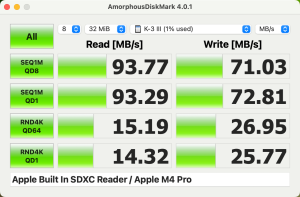
The single-threaded, sequential write speed of my V30 card measured 72.81 MB/s. That’s a healthy margin over the claimed minimum of 30. Good so far. The single-threaded sequential read speed measured 93.29 MB/s. Under half the claim on the label. Now the label is a maximum speed, but for the real-world test to be less than half, I think they’re stretching credibility.
But wait… am I using a UHS-I or UHS-II reader? My M4 Pro MacBook Pro’s built-in port is UHS-II so it should not be a bottleneck. It got me to wondering what speeds I would get with the Apple USB-C SDXC card reader I bought for my old M1 MacBook Pro? I’m fairly sure this is also a UHS-II reader, but the stats on the old card were woeful, with the highest of the figures being a paltry 44.42 MB/s.
At this point, I started looking more closely at the new card I had chosen. The V60 card actually shows both a read maximum of 280 MB/s and a write maximum of 100 MB/s. For twice the price of my old one. But I’m already getting 72 MB/s write, so is it really worth it?
This was turning into a real minefield. Would I just have to buy the V60 and see how it performs? It seems like an expensive way to go. What I really need is for someone else to have done all the work. So I searched for SD card speed tests, and I hit pay dirt. I found a site called Have Camera, Will Travel by David Coleman, and a page titled “Fastest SD Cards – Real Speed Test Results / 2025”.
David’s page makes interesting reading as he explains what he’s doing, how he’s doing it, and why. He also explains what software he uses — on a Mac — to do the tests. It’s the same one I had found on the Mac App Store, called AmorphousDiskMark. It’s free and simple to use.
One intriguing point on David’s page is he said he had variable results depending on the reader he used. Since 2016 he has been doing measurements of SD cards, using an external reader, and publishing the results. I found what I believe to be my old card, and he declares he gets a write speed of 102.4 MB/s and a read speed of 180.3 MB/s — substantially more than I get. I would have hoped that Apple’s own UHS-II internal reader would get the fastest rates, but apparently not. David’s Mac has one, and he doesn’t use it.
The most useful part of David’s list, however, and he points this out, is that whatever your equipment, he has comparisons of all the cards he has tested on the same high-performance equipment. Assuming my camera is high performing equipment, I can make a judgement on my new card.
So how do the SanDisk cards fare? The V30 I already have scored 102 and 180 — a very respectable result compared to the claim of 200 MB/s. The V60 is not listed, and this is where it gets interesting. He has a card which is U3 and UHS-II, and he lists the claimed speeds as 260 and 300 (though achieving nowhere near that in real performance). The V60 card I am looking at on vendor sites claims 100 and 280. Clearly, SanDisk are iterating on these products, making it even more complicated. David lists a V90 with a claimed 300/300 speed, and this achieves an impressive 306 and 304. David ranks this card as the current one to beat. He says:
Combined with SanDisk’s strong support network, wide availability, and competitive pricing, this card looks to be a winner.
He also says:
Something to watch out for, though, is that there are multiple cards that carry the Extreme Pro name.
No kidding. I checked my preferred retailer and the V90 card listed does not match David’s description. Sigh. I am guessing, from what I have seen, that the SanDisk Extreme Pro cards that list both speeds on the card label are the newest and likely to meet or exceed their claims.
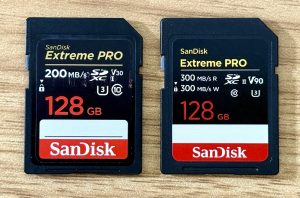
B&H Photo have two versions of the V90 card with pictures that bear out the descriptions David gave. The V90 with a single claimed speed printed on it retails for $109. The one with both claimed speeds is $129 and bears the label “New Arrival”.
So my final determination is that the V60 card is likely faster than my V30, but the latest V90 is state of the art. I also read somewhere, before I started any of this detailed research, that no-one needs anything more than a V30 card in a Pentax K-3 III for stills photography. So you know what I did, right?
I generally recommend buying from B&H for two reasons. First, they have long-established trust in the photographic community. You’ll get what you see, not a knock-off. Second, they have fair prices. I asked the B&H site to estimate the cost to me in NZD, and it came to $374.64. Looking at local prices of the older, cheaper version of the card, they range from $169 to $519! The crazy part is that the B&H estimate includes a rather hefty shipping cost of $111.24. Ultimately, I trusted in Amazon for AUD$201 plus shipping that is a lot less than B&H would charge, even though it ships from Amazon USA.
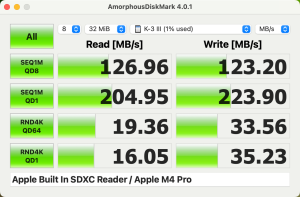
Oh, you want to know my test results of the new card? It claims 300 MB/s read and write.
The single-threaded, sequential write speed is over three times as fast as my old card at 223.90 MB/s. The single-threaded, sequential read speed is over twice as fast at 204.95. These are the most important speed measures, so it’s good to see such dramatic increases. All of the other measures are greater, but by lesser factors, ranging from 12% faster on single-threaded random reads, to 73% faster on multi-threaded sequential writes.
Money well spent? It’s likely any other card would not perform as well as this one, so I think yes. Certainly when I am importing my photos from the card into Lightroom, it is visibly much faster than with the old card. I’m calling it a win.
Believe it or not, there is even more to the SD speed story than I have covered. There are other classifications and speeds that have been used, but what I have described is the standard as it has come to be used in the mainstream. One speed measure was the “x” speed, expressed for example as 100x, which relates to the speed of CD-ROM drives!
The final take-away is this: If your modern device supports only UHS-I, then your best bet is a U3/V30. If it supports UHS-II, then you may decide on V60 or V90, but V30 is probably perfectly fine unless you’re recording 8K video. The only way to know what you’ll really get is to read reviews from people like David, or by using your device with the card.
Hi, Allister – here with a somewhat different take.
I didn’t see a reference in your post to the buffer size and speed of your camera. That can matter in your SD card selection.
At one extreme, and, no, this isn’t a DSLR, the DJI Osmo 5 Action Cam has 64 GB of internal storatge, 47 GB of which is available for user recording. Its competition, the GoPro 13 Black won’t function without a MicroSD Card.
DSLRs have buffers, memory that’s faster than their ability to write files to SD cards. Depending on what you’re doing, for example, taking bursts of RAW images, the buffer can fill up – and while the camera may not shut down completely, it will only be able to keep storing photos as it clears its internal buffer by writing files to the SD card.
If you’re doing that kind of burst photography, you want the fastest SD card which will function in your camera.
Another reason you want the fastest card you can buy (or afford) is that while your current camera / computer may not be able to take full advantage of it, there’s a chance the card will survive and be useful in your next camera / computer.
My luck with pasting links here hasn’t been good, but I’m going to try pasting this one with a better and more detailed explanation of camera buffers than I wrote above: https://photographylife.com/camera-buffer-explained
Another contrarian piece of advice. Buy the smallest SD Card that can reasonably be expected to hold a day or two’s photos / videos, and unload the card regularly. Why? Thankfully, I’ve had more SD cards die than cameras. Just last month one died in my Olympus. If you’ve not unloaded the card, those photos may be gone, pfffft.
After using 32 GB for years, I’ve recently moved up to 64 GB as the price point dropped. Full disclosure, I’m taking stills, not video. 32 GB will store LOTS of still photos.
Apple USB-C tops out at 10GB/s throughput. As the fastest SD card read speeds I found were much slower than that, your transfer speed from card to your Mac will be limited by the card’s maximum read speed and the read speed of your card reader, not by your Mac’s USB-C port.
As Allister points out, at this time, UHS-II is the fastest available. The lateest MacBook M4 Pros have built in UHS-II SDXC card readers which, per Everymac.com, top out at 250 MB/s.
I have an Anker USB-C UHS-II reader for my MacBook Air that’s rated at 312 MB/s, somewhat faster than the M4 Pro’s built in one.
Here’s an Apple link that will enable you to determine if your Mac’s built in card reader is UHS-I or II, but you’ll have to look up what throughput your particular system provides to determine if there’s a possible transfer speed benefit moving files from your camera card.
https://support.apple.com/en-us/102352
Hi George. Thanks for your comments. At something like 15+ minutes, I did choose to leave out some factors I might have included. Allison mentioned speed in the camera, which I did think of and then forgot about, but this also ties in with your comment about the buffer, which I admit did not cross my mind. A buffer will run out when it runs out. As I am not a big burst shooter, it is rare for this to happen to me. My goal was a theoretical one and, in the end, as you will have read/heard, I just went for the fast because I could. Your point about my next camera is a good one.
Regarding the size, I also used to subscribe to the theory of small cards. Prior to my (previous) 128 GB card, I had a selection of 8 GB cards for precisely this reason. I totalled three of these initially, which was based around a single day at a good air show, going on my previous experience. By my calculations, a 32 GB card would barely meet this need today. It would hold just over 1,000 images and my yardstick all those years ago was 900 images. When it comes to traveling overseas for 3 weeks later this year, I won’t be shooting at anything like the rate I would at an air show, but I will be spending about 20 times the number of days. My experience to date with SD cards is not a single one has failed on me in 19 years. For the last 15 or so years I have exclusively used Sandisk cards. That may be a factor.
Regarding losing photos, I almost never leave photos on the card for more than a day. When at home I will offload them onto my Mac and this will see them included in two automatic backups (one offsite) and, when I get around to it, an offline archive (no deletes). When travelling, I will also offload them to the Mac daily (and where bandwidth allows back them up offline), and leave them on the card, and copy them from the Mac onto a separate USB device (carried in my wallet, so always with me). So even if my 128 GB card fails at the end of a day, I’m still only losing at most a day’s worth of shots — the same as I would if I used a 32 GB card. I also have a dual slot in my new camera so I could write to both in parallel. Interestingly, the second slot is only UHS-I speed, so I’d lose the speed benefit at shooting time. For this planned travel, I think that’s what I will do.
On the USB port speed, I would guess the built-in reader on the Mac uses a USB channel of its own, but that may not be the case. It is most interesting that Apple’s own external (UHS-II) reader is markedly slower, and that David Coleman’s external reader is markedly faster than the internal one. It seems not all readers are created equal. I know my MacBook Pro’s reader is UHS-II because it’s on the spec page and, I think, I found it in the System Information app. I could not find any information on the Apple external reader I have. If I could see the pin arrangement, it would be easy to tell (UHS-II has an extra row) but I cannot. My memory of when it launched (it was the first USB-C one and I bought it for my iPad Pro at the time) was that it was UHS-II.
Hey, Allister – Your backup strategy is impressive. If I’ve ever been away from home for three weeks at a stretch, I don’t remember it. Currently I transfer photos from camera to Mac when I come in with photos to transfer, then back those up to my personal Synology, which I back up to an SSD using using Synology’s Hyper Backup utility.
I guess I should say that I really don’t backup photos to my Mac but to a 2 TB Samsung T7 I leave permanently connected to my M4 Mini. Or to a 2 TB T7 Shield I carry with my Air. Both computers are only 512 GB, and I prefer not to fill their hard drives and burn write cycles.
The weakness in my backup plan is that I use my Pixel 9 phone for a lot of casual photos but prefer not to upload them all to Google Photos. I recently discovered a great application, LocalSend, which enables fast wireless transfer from the Pixel to a Mac. – LocalSend is device agnostic, working across all platforms. I can, and do, connect the Pixel 9 directly to the T7 Shield as the Android file manager allows creation of folders and both copy / move of files to the drive.
Sifting through photos to ID the keepers is always a problem. Easier to just keep them all. One reason I prefer the smaller cards – since when is 64 GB small? – is it forces me to triage images and delete some.
FWIW the card I mentioned failing in my Olympus is a Sony 64 GB. I hadn’t used the Olympus for some time, its battery had died, so perhaps the failure wasn’t the Sony’s “fault?”
I don’t have a current MacBook. In the old days Macs had PCI – Peripheral Component Interconnect – which let industry standard peripherals plug in. I found references to card readers in old Macs running on PCI. My 2007 MacBook Pro even had a handy PCIe slot I used to slide in a SCSI adapter for Zip Drives.
A friend who has an M1 Pro checked his and reported the card reader is listed on the USB Bus. My daugther has an M2 Pro. The card reader is listed separately in info. It returned Vendor id 0x17a0 which is Samson (not Samsung) Technologies Corp.from the online USB ID Database – which I take as evidence that card reader is on the USB Bus.
My two current Apple Silicon Macs report no PCI devices. The only Silicon Mac I could find that supports PCI is the very expensive Mac Pro that’s sold in tower or rack mount format. That expansion ability must be the reason it can still be sold as its M2 Ultra chipset is reported to be slower than the M4 Max available in the much less expensive Studio.
Oops. I do have a current Mac laptop, an Air. I just think of it is an Air, not a MacBook.
Marketing.
I also used to store my photos on a Samsung T5 (1TB) then T7 (2TB). When I got my current (M4 Pro) MacBook Pro, I paid the Apple Tax to get 4TB of internal storage so I don’t need to, any more. If I was just using a desktop Mac, I’d have stuck with the (excellent) Samsung units, but when traveling, it was an extra two items to carry (drive and cable) and getting it to sit on a tiny hotel room table was sometimes fun.
I didn’t think to look at the USB Bus. Mine does not show a card reader on it. The Card Reader section shows Vendor 0x17a0, device 0x9755. From what I recall, Thunderbolt is essentially PCIe over a cable. I suspect the card reader may just be a PCIe connection?
Oh, and I also have all my iPhone photos — deemed way less important in my mind — whose process is… iCloud. Probably.
[…] matches these claims. You need to look beyond the labels and comprehend the actual capabilities. Manufacturers’ claims are often based on sequential read/write tests under ideal conditions, which may not reflect everyday usage. Peak speeds are often exaggerated; cards may claim 300 MB/s […]