
The Problem to be Solved
Certain hardware devices seem to go into vogue, and everyone who’s anyone with a microphone seems to be talking about it, and then after a while, you don’t hear anything about it. When everyone first started talking about the Stream Deck from Elgato, I wanted to be one of the cool kids and bought the 32-button version. I programmed up quite a few buttons, and even created multiple profiles to give me easy access depending on the task at hand.
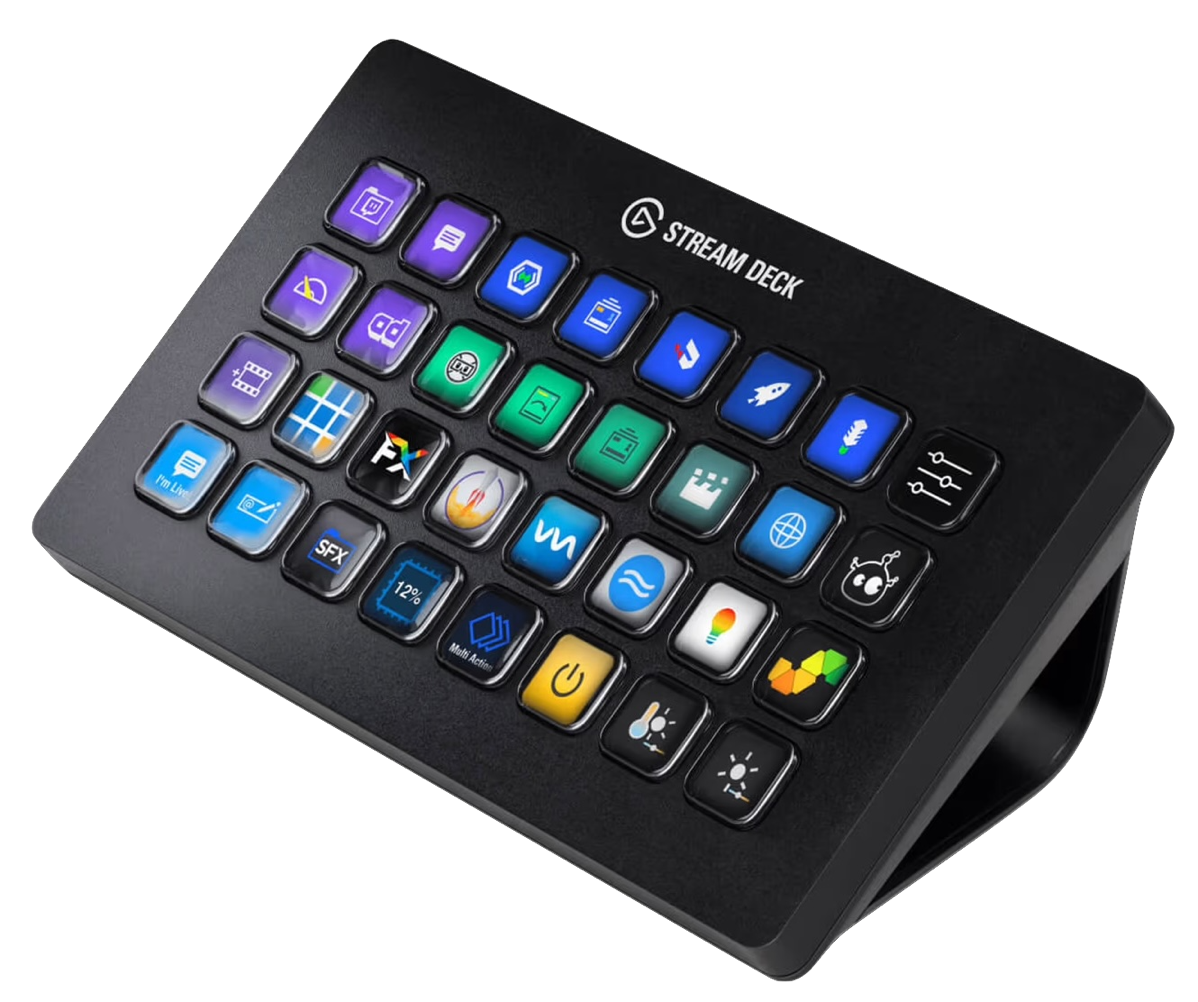
Unlike many fad devices, I still use my Stream Deck, but I have to be honest and tell you that there’s one thing that holds me back from using it as much as I thought I would. I use a MacBook Pro connected to the Stream Deck on my desk, but I also use a MacBook Air that’s very rarely connected to the Stream Deck on my desk. I travel a fair bit, and I often want to or need to do things that are programmed into the Stream Deck, but I’m not going to carry it with me. This means that I have the cognitive load of remembering two ways to do the same thing.
Let’s take a simple example. When I import the recording of Bart and me from Security Bits into my audio editing software Hindenburg, the file comes in on one stereo track. For editing, I want to split that stereo track into two mono tracks.
Under the Tools menu in Hindenburg, you can select Split Stereo. I found choosing from a dropdown menu tedious, so years ago I convinced the developers of Hindenburg to add a keystroke, and I suggested Option-T and they added it just for me. Sweet. When I got my Stream Deck, I took it up a notch and designed a little graphic that made sense to me, and assigned the hotkey Option-T to the button.
When I’m on my MacBook Air doing recording and editing, I need to remember to use Option-T, and when I’m at my desk, I need to remember to reach with my left hand, look at the Stream Deck to find the split button, and then push it. That’s two different actions to perform the same function. I don’t know about you but I can barely remember how to do things one way, let alone two ways. Option-T is easier and works in both places, so I sincerely forgot until recently that I even had that button on my Stream Deck to split tracks in Hindenburg..
Let’s take a weirder example. When I’m done recording the NosillaCast and I’m waiting for it to be transformed by the wonder that is Auphonic, I make a copy of everything in my top-level blog post for the episode in MarsEdit, and move it over to Feeder in a different format. The blog post has every major link I want to include in the shownotes for your podcatcher, but it’s also got a lot of other flotsam I need to remove. I want the feed to have just the links, followed by my referral links, and I want it all in a bulleted list.
In 2021, I wrote up how I automated this process: Fun Automation Project – Moving Blog Post Links to the Podcast Feed
With a little bit of help from Allister and a few other folks, I wrote my own Regular Expression to find just the links, and I wrapped it in a Keyboard Maestro macro. The macro copies everything from the blog post in MarsEdit, runs it through the Regular Expression to reformat it, adds the referral links (which calls a TextExpander snippet), and then pastes all of it into the open entry in Feeder for the current show. It’s quite magical to watch.
I just reread my blog post and at the end I said that it took me seven hours to write, but will only save 5 minutes a week. I calculated that it wouldn’t be for another 19 months till I’d break even. But guess what? That was in April of 2021, so I’m now 31 months ahead! Anywho, back to the plot at hand. I was running out of keystroke ideas when I wrote the macro, so I just mashed down most of the keys on my keyboard to run the macro: Command-Control-Option-Shift-U.
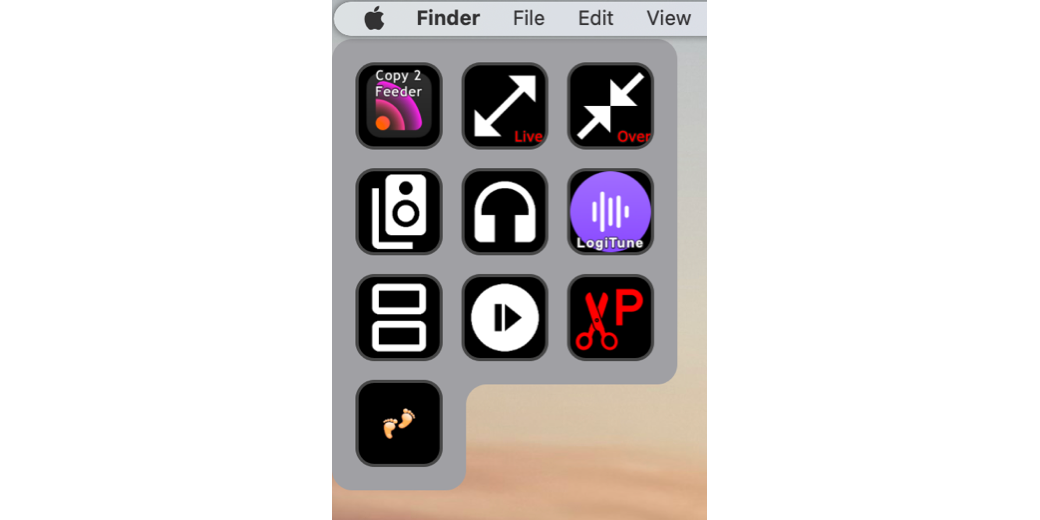
If anything sounds like a candidate for a button on a Stream Deck, this should be it. I assigned a button, added the Feeder logo, splatted “Copy 2 Feeder” on top of it, and assigned Command-Control-Option-Shift-U to the key.
Even though this is an absurd keystroke to keep in my little pinhead (as Dorothy would say), I still forget I have a button on the Stream Deck for it. Sometimes, like when I’m on the road at Lindsay’s for the live show, I still have to mash those keys down because I don’t carry the Stream Deck along. Also, I learned to mash all the keys down before I got the Stream Deck, so it’s sort of stuck in there.
I started this article by saying I still use my Stream Deck, and I do, but the utility is reduced by not having it connected everywhere I go. I could have paid for the iOS app, which lets you use your phone or iPad as a control surface, but it was a monthly subscription, so I never pursued it.
Enter Virtual Stream Deck Devices
Elgato, makers of Stream Deck, have come out with something even cooler than a mobile control surface. Version 7 of the Stream Deck (currently in early access), allows you to create a virtual Stream Deck device. With a virtual device, you can put buttons right on your Mac’s screen to run your automations without the Stream Deck hardware.
Before you get too excited, you have to own a physical Stream Deck to create virtual devices. Once you install Version 7 of the Stream Deck software and then plug in a physical Stream Deck, you’ll get a new menu choice under the dropdown in the upper left. For a long time, you could add a mobile device, but now you’ll see “Add Virtual Device”. I think I remember reading that you have to plug in a physical device every 30 days or so to retain this capability. Seems like a legit way to make sure people still pay for what they’re getting.
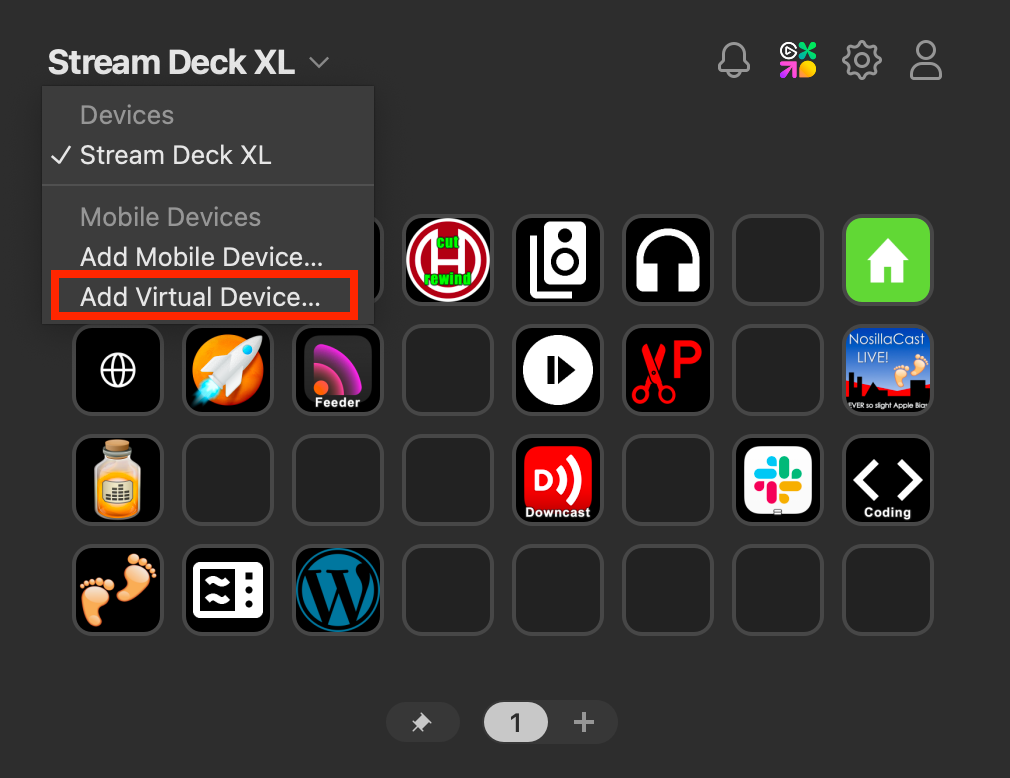
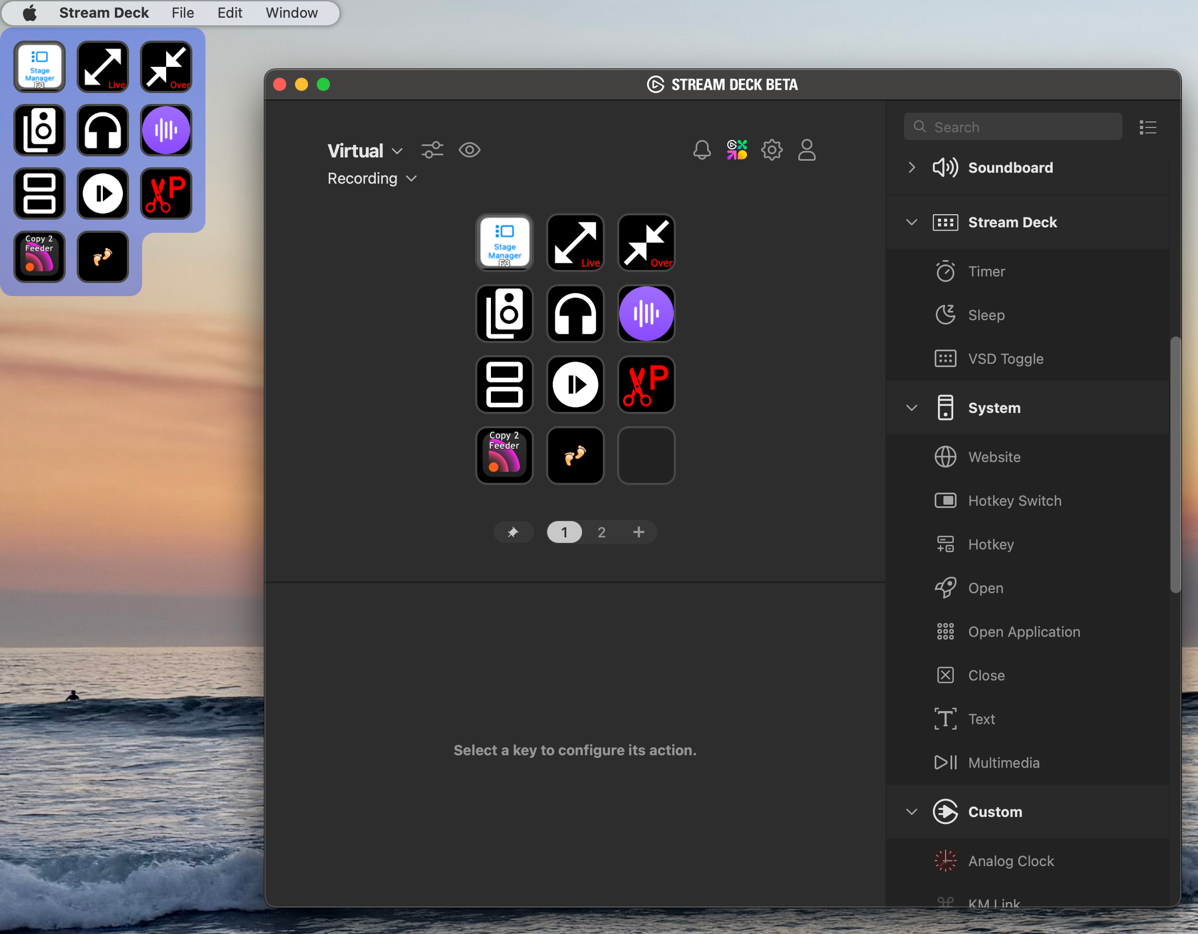
Choosing Add Virtual Device… from the dropdown will create “Virtual Stream Deck 1”, which you can rename. In the software, it will default to a 3×2 matrix of empty buttons, and the same empty buttons will appear in the upper left of your screen. Just like with a real Stream Deck, you can add actions to the buttons and graphics and assign macros. As you work in the app, you’ll see the buttons filling in accordingly in the virtual on-screen Stream Deck device.
It seemed natural to me to build a virtual Stream Deck that gave me quick access to the buttons I actually use most often from my physical Stream Deck. Rather than recreate them, I decided to copy them from the originals on my physical device.
This is an easy but tedious process in the Stream Deck application. You have to flip back and forth between the real and virtual Stream Deck devices using a dropdown menu, and ⌘C and ⌘V do not work to copy from one device to the other. You have to right-click and pull down to copy, use the dropdown menu to flip to the other device, then right-click and choose paste. For a device that’s all about efficiency and automating things, I’d sure love to see a drag-and-drop process for this! Ok, enough whining.
Virtual devices can have separate profiles and folders for organization, just like a real Stream Deck device. I’ve never enabled this function, but virtual and real Stream Deck devices can have a profile of buttons that appear based on one specific application being open. You can even add multiple pages to profiles for virtual devices.
Display Settings
I mentioned that when you first add a virtual device to your screen, you get a 3×2 matrix of buttons. Unlike a physical Stream Deck, you’re not constrained to that layout configuration or to only six buttons. To the right of the name of your virtual device, there’s an icon that looks like two sliders. Which gives you a whole slew of display settings.
You get an area to control the layout with the number of rows and columns you’d like, with up to an 8×8 grid.This is super handy because if you lay in some buttons but then realize you want to rearrange them, you can add more rows or columns to give you holding places while you’re moving them around. It’s like that kids’ game with a matrix of little squares you have to slide around to form a pattern, but there’s only one empty square, so you have to keep moving one thing over to move something else up to move something else to the left. After you’re done sliding the buttons around in the Stream Deck interface, you can go back to the Display settings and collapse the number of rows and columns to fit.
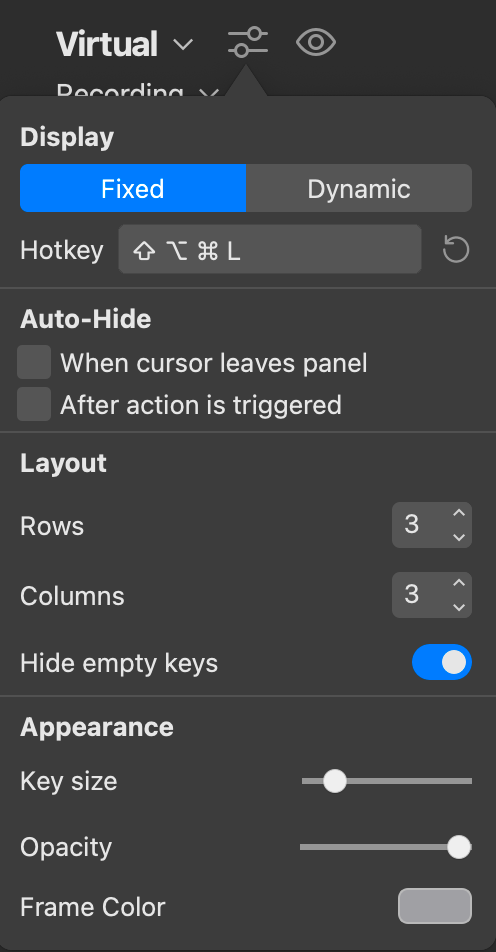
In the same settings panel, you can set a hotkey to toggle your virtual device on and off, but this hotkey only works when the Stream Deck app is running. It’s probably a good time to mention that in past versions (6 and below), Stream Deck was one of these weird apps that’s running but you can’t see it in ⌘-tab for app switching or in the Dock. I have never known what that kind of app is called, so I asked Claude, and it said these apps are called “agent” or “background” applications, and more specifically, it means they have their Launch Services User Interface Element set to “true”. So now you know. I’ll keep calling them “those weird apps that don’t show in ⌘-Tab or the Dock”.
Version 7 beta of Stream Deck is now a normal app, not a weird app. But it’s still a little bit weird. Like I said, using the hotkey to toggle on the virtual Stream Deck doesn’t work if you quit the app. By quit the app, I mean use ⌘-Q or from the menu, File → Quit. I know that sounds obvious, but here’s why I’m being so specific. If you use the red dot in the upper left of the Stream Deck interface, the app disappears from being a foreground app as though you’ve quit it, but the virtual Stream Deck remains on screen. This means you can use the hotkey you’ve assigned to toggle the virtual Stream Deck on and off without having to launch Stream Deck. After using the red dot to close Stream Deck, it’s no longer visible in ⌘-Tab, and it’s gone from the Dock, but it remains as a menu bar app. Now what do we call it? Half-weird?
Let’s get back to what else you can configure in your virtual Stream Deck. You can set the onscreen buttons ( evidently called the panel) to auto-hide when the cursor leaves the panel and/or after an action is triggered. In my initial testing, I thought I wouldn’t like either of those options, but as I learned more, I found a good reason at least one of them might be great. We’ll get to the reason in a moment.
Let’s say you’ve created a 3×4 grid of icons, but you’ve only filled 10 of the 12 available slots. In layout settings, you can choose to hide empty keys. By default, the panel on which your buttons sit is a light grey rounded rectangle. If you choose to hide empty buttons, the rounded rectangle beautifully sculpts around that one button alone on the row. It’s really a delightful effect.
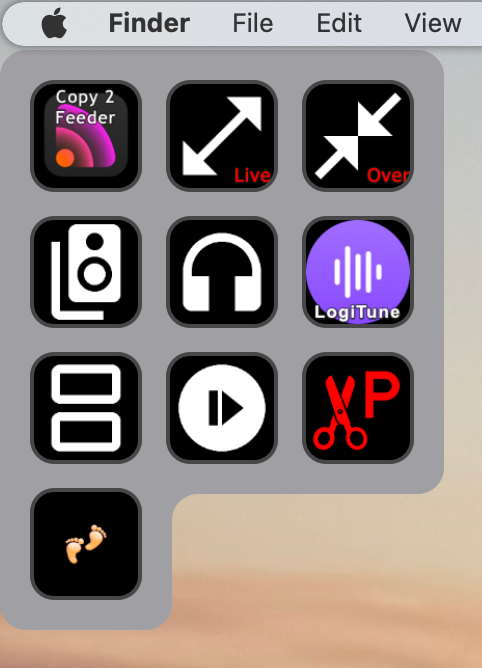
From the display settings, you can also change the size of the keys, their opacity, and the color of the panel around them. I messed around with some truly garish colors for the panel around the keys, but then found that by reducing the intensity, I could create a pleasing look that was noticeable but not quite so jarring. Increasing the size of the keys could make the virtual Stream Deck more accessible to those with low vision, but don’t kid yourself into thinking anything else in Stream Deck is accessible. VoiceOver can’t access most of the interface, I’m afraid.
At the top of the display settings dropdown, there are two tabs: Fixed and Dynamic. I found this very confusing at first, because toggling between the two tabs at the top doesn’t change what options are available below. You might think the auto-hide features had to do with dynamic, but that’s not it either. I asked the bot on the Elgato support pages for help, and it took me to some documentation that cleared it up, but only because they used different terminology than in the app. Instead of calling the two tabs Fixed and Dynamic, they called them Docked and Dynamic.
Fixed (or docked) means the virtual keys are always available in a consistent location on your screen. Dynamic means that when you hit your hotkey to enable the keys, they show up wherever your cursor happens to be when you toggle it on. My first thought was to be repulsed at that level of anarchy. But what if you set the virtual keys to show up dynamically and turned on auto-hide after the action is triggered? With that combo, you could toggle it on, barely move your cursor to hit a key, and then have it automatically disappear. There when you want it, gone when you don’t. With a big external display on my Mac, I’m finding that combination to be more efficient. I don’t have to drag my cursor 32 inches across the display to hit a button.
One caveat on Dynamic vs. Fixed. If you have it set to Dynamic and the last place it opened was some rando place in the middle of your screen, and you switch it to Fixed, then that’s where it will be docked. If you want it fixed say in the upper left (or any other specific location for that matter), open it there in Dynamic mode first, and only then switch it back to Fixed. At first, I thought it was a bug, but it’s actually a feature if you get to choose where the fixed/docked location is on your screen.
Bottom Line
The bottom line is that I’m super excited about having virtual Stream Deck devices. The one thing I wish for is a way to sync Stream Deck settings across devices. While you can export a backup of an entire device (physical or virtual) and import it on another Mac, that’s pretty clumsy when you just want to tweak a single button. I’d like to be able to sync my new virtual device on my MacBook Pro over to my MacBook Air, but I haven’t yet figured out the best way to do that.
Wes Higbee produced a video entitled StreamDeck Profiles Sync b/w Accounts and Machines that seems promising. The video is not for the faint of heart as he spends most of his time in Terminal traversing the user Library and Application support files from Elgato. He does this to explain how he figured it out and to prove that his solution works. His actual solution is just one step, but still a bit nerdy.
He moved the folder that stores all of the profiles into Dropbox, and then created a symbolic link in each of the official Library/Application Support locations on two Macs that point to the Dropbox folder. Now when he opens the Stream Deck software on either Mac, the symbolic link modifies the appropriate files in Dropbox so the other Mac picks up the changes automatically.
I gave it a try but I borked it up so I had to back out. I’ll probably revisit this idea when I get more time, but for now, I’ll do the profile backup dance like an animal. I also tried an app I’m testing to sync the files (even one way), but I haven’t gotten that working either.
But one more time, virtual Stream Deck devices from Elgato are super cool.