

I love the Apple community, and this week I especially love the Apple community on Mastodon. Hashtags are super powerful there, so when I needed help this week, I added the hashtag #Apple, people came out of the woodwork to help me.
Here’s the problem to be solved. I’m working on my presentation for Macstock. I am very good at procrastinating creating charts because I hate charts. In the book “The Presentation Secrets of Steve Jobs”, Carmine Gallo explained that Steve Jobs didn’t use words on his charts. He used simple pictures and then told a story. Gallo used the example of one time when Jobs was talking about an anniversary for the Company, he simply put up a picture of a birthday cake. This book changed the way I do presentations.
But I still procrastinate making my charts. Jill from the North Woods and Chris Cooke were both done making their charts weeks and weeks ago, and I just started this week. One of my two talks is about ways people can share what they know to help others. I created nine charts with cute little graphics and zero words on them, all with the help of ChatGPT. There are lots of words in the speaker’s notes so that I remember what my silly little graphics mean. I was pretty happy with it.
At this point, I was done with the touchy-feely part about why you should share information and all the different ways you can contribute in user groups, but I wanted to switch gears to talk about the tools I use to help other people in sharing what I know.
Making screenshots and annotating them is one of the most important tools I use. I figured I wouldn’t start with the fancy tools like Shottr and CleanShot X, but instead, I would start with the simple screenshot tool built into macOS. Screenshot.app is hiding inside the Utilities folder inside Applications.
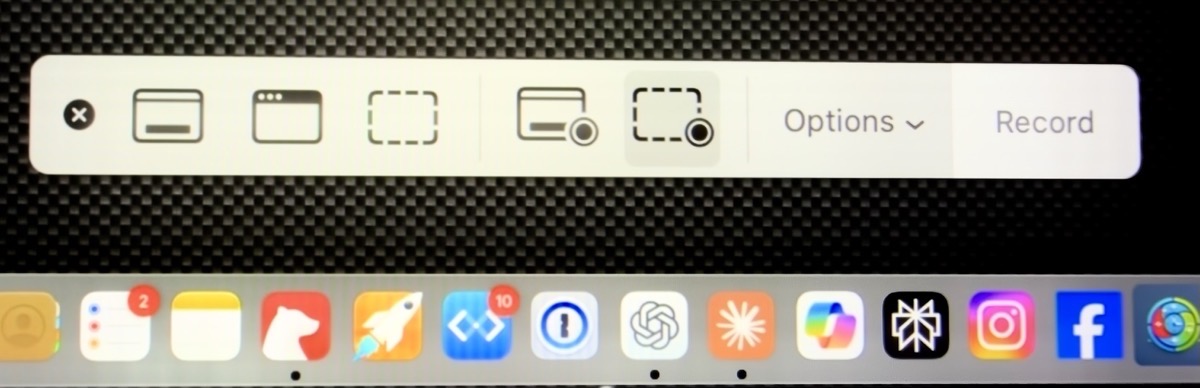
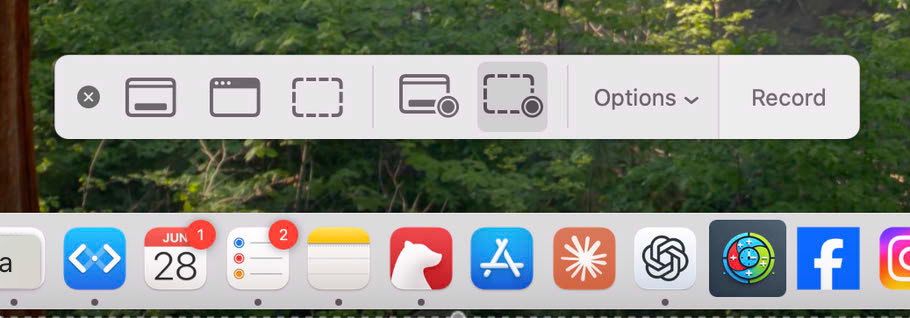
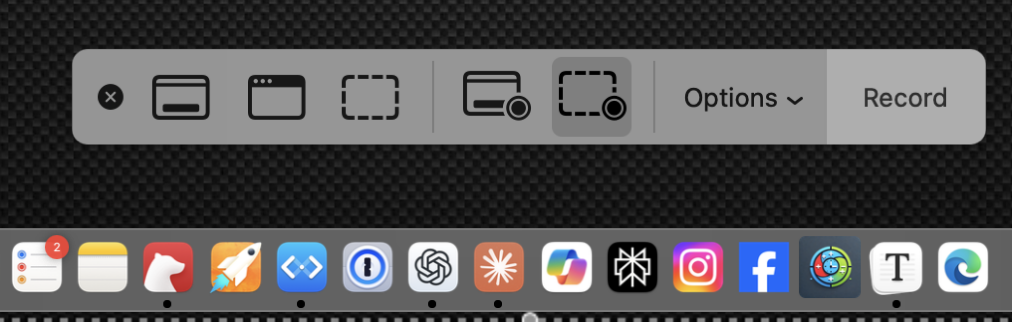
When you launch Screenshot.app, you get a little overlay on your screen that has buttons to take a full-screen screenshot, or a window screenshot, or an area screenshot, and also has buttons for making video recordings. I wanted to put a screenshot of the Screenshot.app on the chart that I was working on, but I couldn’t figure out how to take a screenshot of Screenshot.app.
Shottr and CleanShot X Couldn’t Do It
I started by launching Screenshot.app and then tried to use Shottr’s keystroke to capture the area that included the Screenshot.app overlay. But nothing happened. Then I tried using CleanShotX by going up to the menu bar and trying to click on the menu to take a screenshot. But I couldn’t do that while Screenshot.app had frozen my screen.
Took a Photo
I grabbed my iPhone and took a picture of the screen while holding it very still. One of the problems with taking a photo of a screen is that you get these interference patterns because of the shutter speed of the camera versus the refresh rate of the screen. If you hold still enough when you take the photo, and you take it as a Live photo with an iPhone, you can change the Live photo to long exposure and get rid of the interference patterns. They kind of blend together. If you don’t hold still, you’ll get a blurry image, though.
This looked okay, and I was able to trim the photo and then do a little bit of editing to try to make the contrast and the brightness look okay. It wasn’t great, but technically I had a picture of the screen and the Screenshot.app application.
I put out my plea on Mastodon, and I got a whole slew of good answers. I’ll give you the ideas in chronological order rather than giving value judgements up front on which one was best.
Screen Record and Screenshot the Video
@[email protected] came back with the first ingenious idea. He suggested I create a video recording of my screen when I launch Screenshot.app, and then take a screen grab of the video. I told him I was embarrassed that I didn’t think of it myself. I AM a screencaster after all!
I figured since this was a quick and dirty job, I’d just use QuickTime to record my screen. But guess what Screenshot.app uses to do video recordings? You guessed it, QuickTime! When you launch QuickTime and choose File → New Screen Recording from the menu bar, it launches Screenshot.app to record your screen.
It was time to bring out the big-girl software. I launched ScreenFlow, told it to record the screen, launched Screenshot.app, and stopped recording. I exported the video as an MP4, and then opened it up and took a screenshot of it. This was SO much better than my photo from my iPhone!
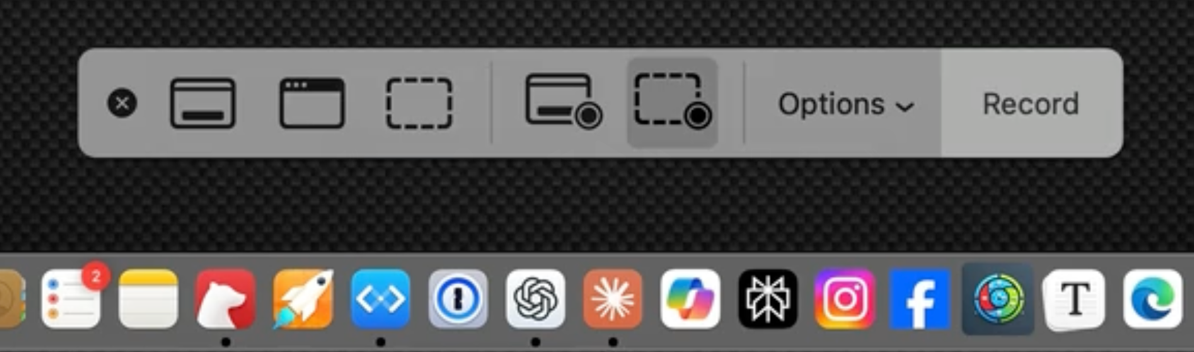
I later realized that this could look even better. Why on earth did I export the video as an MP4 before taking the screen grab of it? That compressed the video instead of using all of its glorious pixels. I went back to the ScreenFlow file, embiggened it on my screen, and took a screenshot that looked perfect.
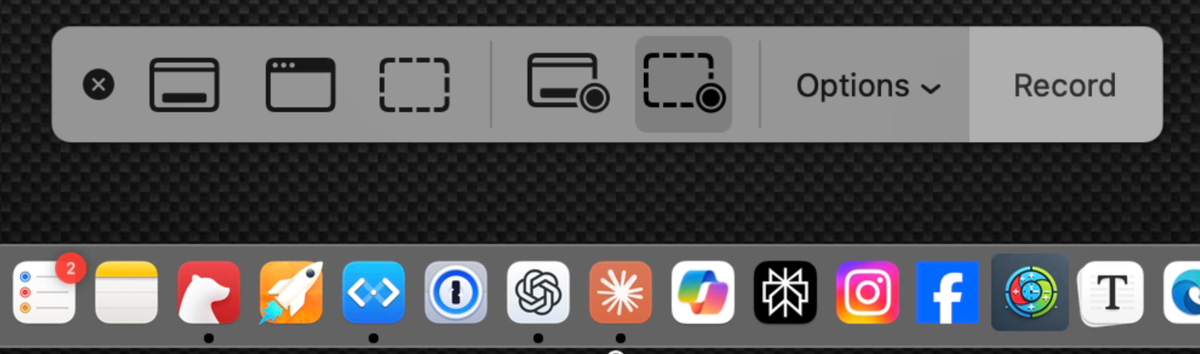
I thanked my new friend Tage for the solution to my problem.
Screen Sharing
Waye Dixon and Joop came up with the same idea. They both suggested screen sharing into the Mac from a different device. Joop taught me about a terrific, free app for the iPad to let me do this, but I’ll save that as a teaser and make it a dedicated article so it doesn’t get lost in this story.
I know all about screen sharing, but it never occurred to me to try it to solve this problem. Right next to Screenshot.app in your Utilities folder inside Applications, you’ll find an app called Screen Sharing.app. If you have another Mac on the network, you can screen share right into it, assuming you know the IP address and/or network name of the device.
There’s an easier way. In the left sidebar of the Finder, there’s a section called Locations, which may be folded up with a hidden disclosure chevron. If you don’t see anything under Locations, hover over it and flip down the chevron. With any luck, your other Mac on the network will be visible in the left sidebar. You’ll be invited to connect to it by giving your login credentials, which you can choose to save in Keychain.
Once you’ve connected, you can navigate the file system of the other computer, or you can click the Share Screen… button. No need to know the network name or IP address or any of that falderal.
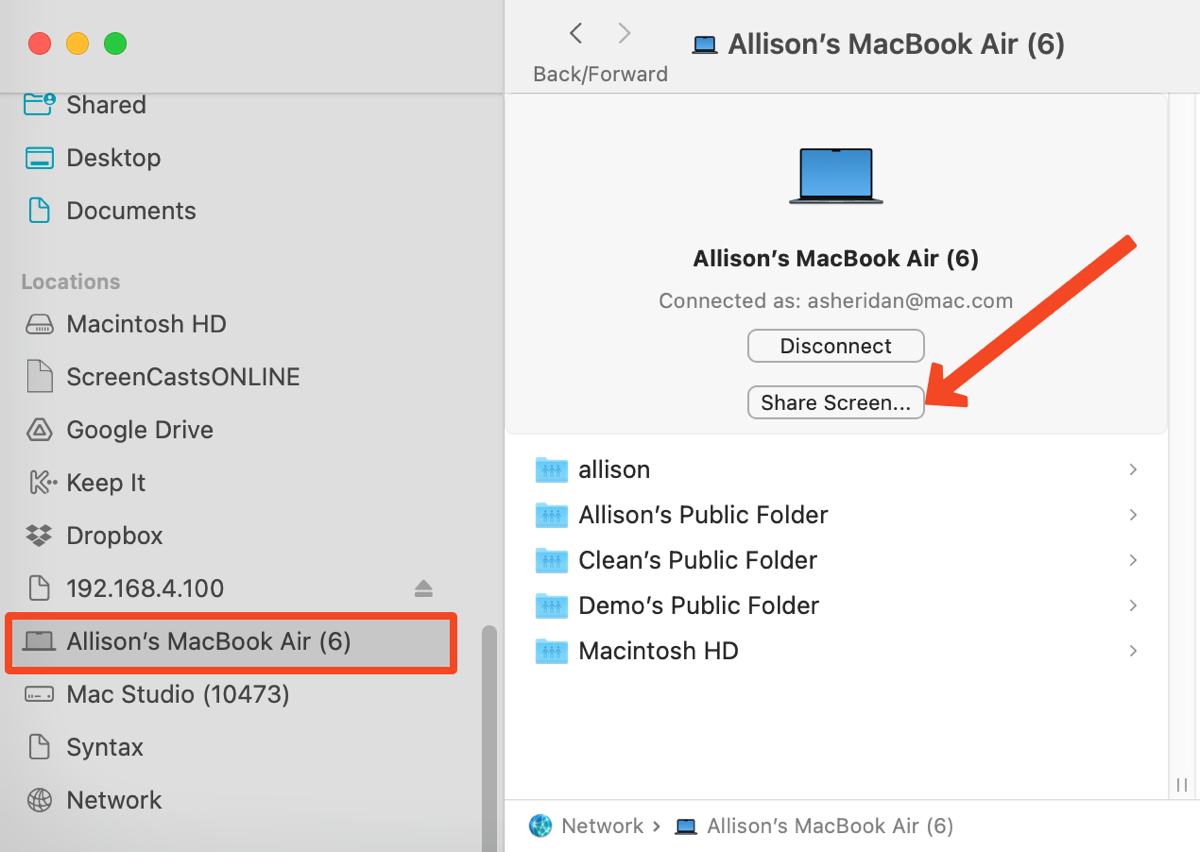
If you don’t see these options, on the Mac you want to connect into, open System Settings → General → Sharing, and make sure Screen Sharing is toggled on.
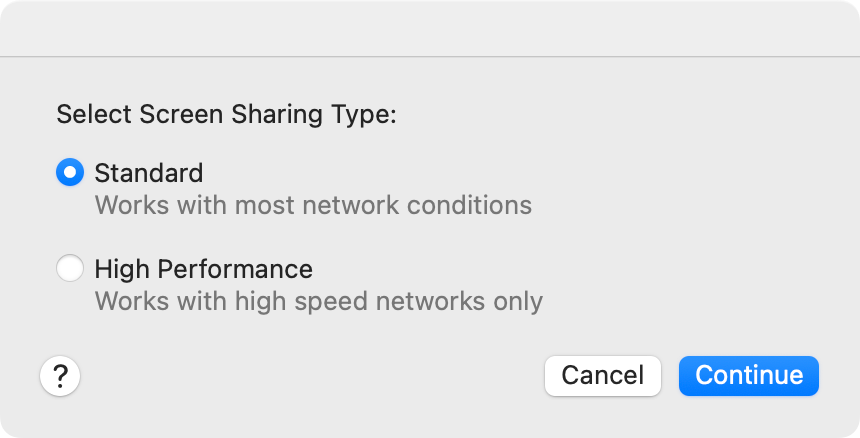
When you select Screen Sharing to the other Mac, the Screen Sharing app will automatically launch, and you’ll be asked to choose the screen sharing type: Standard or High Performance. I’m not sure it makes a difference for this particular task, but I went with Standard.
Using this technique, I connected from my MacBook Pro to my MacBook Air, and I was able to easily screenshot Screenshot.app and it looked gorgeous.
CleanShot X Works After All
Now here’s the funniest part of this story. Remember early on I said it wasn’t possible to take a screenshot of Screenshot.app using CleanShot X? Imagine my surprise when Tim Stringer on Mastodon also replied and said, “I was able to take a screenshot of Screenshot using CleanShot X. Specifically, I did a full-screen screenshot and cropped it down.” He even included the screenshot proving he’d achieved the goal.

Baffled, I asked him to give me a step-by-step since it hadn’t worked for me. The difference was that I’d tried to use the CleanShot X menu bar icon while Screenshot.app was invoked, and he used a keystroke to invoke a full-screen screenshot from CleanShot X.
The reason this didn’t occur to me is that while I do use CleanShot X regularly, my main go-to is Shottr. That’s where I have all of my keyboard shortcuts mapped, so I didn’t have a full-screen screenshot set up with a keystroke in CleanShot X. I launched the app from the menu bar, assigned a keystroke to full-screen, and sure enough, just like Tim said, I was able to capture the screen with CleanShot X. It was quick work to crop it down like Tim did and get a nice, clean shot.
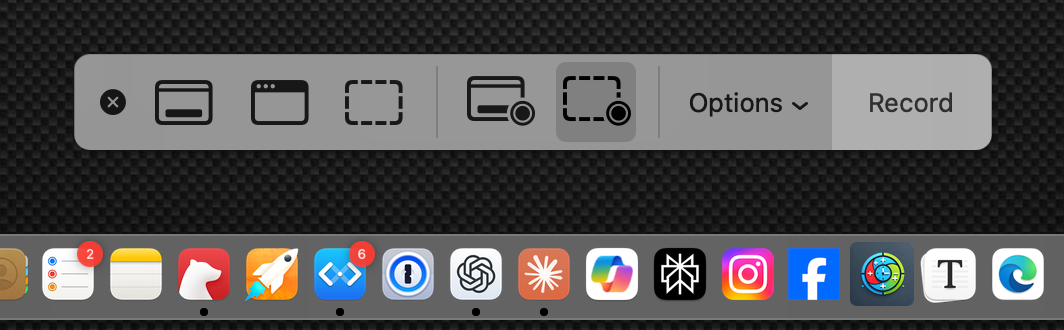
That got me thinking. If CleanShot X could take a screenshot of Screenshot.app using full-screen capture, maybe Shottr could do it too. In my initial tests, I’d only used my keystroke for an area capture with Shottr. Sure enough, using the full-screen capture method in Shottr I was also able to capture Screenshot.app!
Bottom Line
The bottom line is that I made this a lot harder than it needed to be, but I got to play with old friends and new friends on Mastodon. Knowing there’s a community of people out there ready to throw out ideas when you’re stuck is just wonderful. I enjoyed the mental gymnastics of each of the different solutions, too.
If you’re curious, the screenshot from the video recording in ScreenFlow was the highest resolution version, so Tage’s idea, while complex, gave me the best result.
The only problem is that now I have no excuse but to get back to work on my presentation for Macstock. All this work was to make one slide that didn’t have words on it.