
Podfeet.com is on a virtual server hosted by DigitalOcean. Bart and I have both been enjoying their services for quite a few years. A few years back, Bart convinced me to rent a second server to host the WordPress database. This setup has been working great.
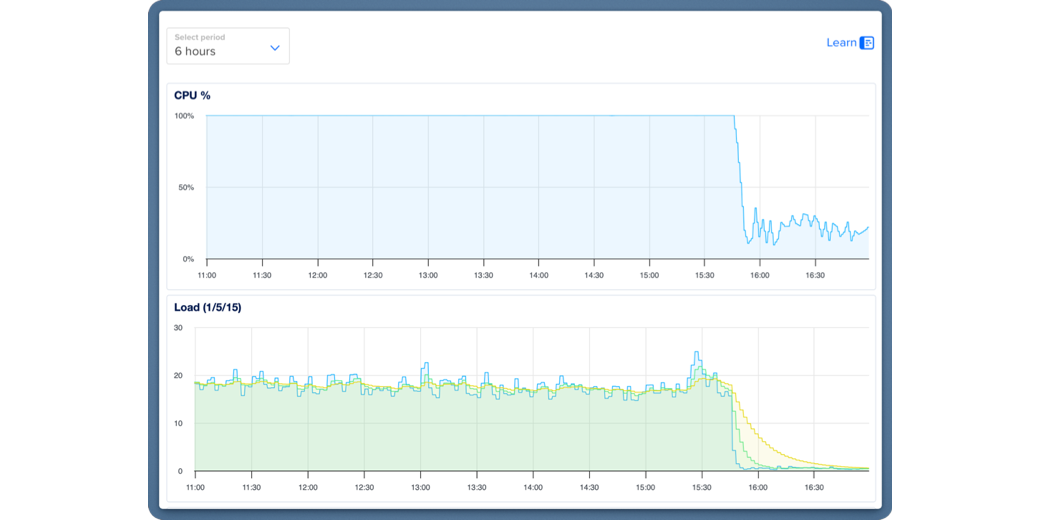
But then a few months ago, I noticed in the DigitalOcean interface that my server’s CPU was getting positively hammered from time to time. And by hammered, I mean 100% of the CPU was being used for hours at a time.
Bart is super busy these days, so rather than bothering him, I spent some quality time with ChatGPT trying to figure out what was wrong. ChatGPT had me look at various log files and came to some conclusions, but it was during this discussion that I discovered my server was on a deprecated version of Linux.
That’s when the awesome Tage Bushman stepped in and helped me perform The Great Podfeet Server Migration of 2025. We debated whether to copy everything over as-is or do a fresh install of WordPress, just in case that might stop the server slamming problem. In the end, we copied everything over.
Over the last month or so, I kept an eye on the DigitalOcean CPU graph, and the web server wasn’t getting slammed. But then I got an email from Marc Loehrwald telling me that podfeet.com was down. Sure enough, it was, and when I looked at the graphs on DigitalOcean, it had been down for a day and a half! I can’t believe nobody else told me sooner.

I launched Core Shell and secure shelled into my server, and restarted the nginx webserver, and it came back up. While I fixed the symptom, I didn’t know why the server went down. A bit after that catastrophic event, I realized that my new server wasn’t able to automatically keep my WordPress plugins up to date. When I tried to do it manually, I was met with an error telling me I needed to enter my Secure FTP credentials to proceed.

While figuring out why my website went down and why my site keeps getting hammered are pretty important, out-of-date WordPress plugins are possibly the most dangerous thing you can do on the Internet.
I figured these problems might be interesting enough to tickle Tage into another playdate. Remember when he said he was sad we didn’t have an excuse to have more playdates? He’ll rue the day…
Tage Saves the Day
The day Tage and I sat down to tackle these problems, to our great luck, my server just happened to be getting slammed. I say great luck, because I had not yet observed it happening even once since we’d done the migration to Rocky Linux. This gave us the opportunity to try to fix it, and if successful, we’d get instant gratification.
Think about it like you take your car into the shop, but when you bring it in, it’s no longer making that funny noise. The mechanic could try a bunch of stuff, but you’d never know if it fixed anything. Ideally it makes the horrific noise while you’re there.
We started with two diagnostic steps that we’d used before, and which ChatGPT had suggested. The first was to use the top command, which shows you what processes are using the most CPU. It’s essentially what you see when you use Activity Monitor on the Mac to find processes that are out of control. You can run top in the Terminal on a Mac if you’d like to see it for yourself.
During this latest playdate, the top command showed us what it had shown us every time, that about a dozen or more processes called php-fpm were all using maximum CPU percentages. I don’t entirely understand what php-fpm is, but ChatGPT says:
PHP-FPM stands for PHP FastCGI Process Manager. It is a server component that manages pools of PHP worker processes to handle web requests efficiently.
The most information I get out of that is that this has something to do with WordPress.
Another diagnostic step that ChatGPT suggested, and which Tage and I had tried before, was to look at the access log to see what all this processor load was all about. The access log for my server is called access.podfeet.log. The way you look at a log file in real-time is to use the command tail with the flag -f, which shows you the latest entries as they’re being written to the log file. Pretty simple command, actually.
tail -f /var/log/nginx/access.podfeet.log
What’s not simple is watching this log file being written to real time. As you watch the log file flying by with each line of the file wordwrapping 2-3 times so the screen, it is just covered with gibberish. Somehow, with a super-human skill I’ve never witnessed before, Tage will say, “Oh I see the problem…” I could discern literally nothing looking at the screen as all this slop flew by. I don’t have a screenshot of it when this was happening, or better yet a video, but I did capture it when it was a bit calmer after Tage saved the day and fixed the problem.

Just like the last time we looked at the access log, Tage’s super skills spotted xmlrpc.php flying by over and over again. Again I can’t really explain what XML-RPC really is, but I know that MarsEdit requires it for me to be able to push blog posts to Podfeet. ChatGPT’s definition is:
XML-RPC is a remote procedure call protocol that uses XML to encode data and HTTP as the transport.
Like I said, I don’t understand it, but I know I need it. It was obvious, though, that this was a hot target for bots to try to break into my server. The last time we tried to solve this, we tried having MarsEdit write xmlrpc.php to a different location on my server, hoping that by obscuring it from the known location for WordPress would confuse the bots. It was unsuccessful.
The other thing that Tage spotted in tailing the access log, which we hadn’t noticed the last time, was that bots were hammering at wp-login.php. I didn’t have to ask ChatGPT what that one meant. Clearly, this is a very bad thing.
Cloudflare for the Win
At this point in the story, Tage had a genius idea. I’ve mentioned before that I use a service called Cloudflare to manage my DNS entries for Podfeet.com. Cloudflare’s offering is based on the philosophy of increasing the security and performance of websites. You can use their DNS servers with your router and be pretty sure you’re getting the fastest and most secure connection to the web. But you can also have them do more if you manage any servers.
They have a lot of paid features, but they give a fair bit away for free. Tage thought that maybe I could use Cloudflare to block access to the two PHP services that were getting hammered on my server.
In the Cloudflare interface, under Security in the left sidebar, you’ll find a section for security rules. Not to get Tage’s head all swole up with all these compliments, but somehow, never having seen this interface before, he knew what to choose in dropdowns and what to type in each field. I might have figured it out after spending quality time with Cloudflare’s excellent documentation, but he seemed to know it intuitively.
Under security rules, there was a dropdown to show all rule types, and the option he told me to select was called rate limiting rules. From there, we clicked the button to create a rule.

Cloudflare asks you to name the rule. Again with Tage guiding my every move, we chose from the Field dropdown, “URI Path”, and then for Operator chose “contains”, and finally for Value I typed in xmlrpc.php. In retrospect, that makes sense. The XML-RPC file they were attacking was defined by a URL of its path.
We ran into a limitation on paid vs. free on Cloudflare when we tried to apply a rate limit. The section was entitled “When rate exceeds…” They have a dropdown for the number of requests, and then how long to block the requests. I could enter a pretty big number for requests, but I could only choose a period of 10 seconds. That wasn’t a big limitation since the bots were hitting that file at least a few times a second, so once every 10 seconds would catch all of it, and would be way more often than I would hit XML-RPC with MarsEdit.
We ran into the same limit when we got to the “Then take action…” section. We chose Block from the dropdown, but we could only block the requests for 10 seconds.

We were hopeful, but we also took a look at the options for paid accounts just in case this didn’t work. If I have to pay for this service, you’d get a much harder press for the panhandling section of the NosillaCast.
The rate-limiting rule section has the option to add more rules. We chose “or” to add the URI path to wp-login.php as well and saved the rule.

We held our collective breaths as I frantically and unnecessarily refreshed the DigitalOcean graphs for my CPU (unnecessarily because it auto-refreshes). After a little bit of time, we saw the most glorious thing – the CPU and load graphs falling off a cliff. CPU went from 100% to 25% or so right at the timestamp when we asked Cloudflare to rate limit those two files.

I’m jumping ahead a little bit, but when we finished this call, I thanked Tage profusely, and he said, “This was all worth it to see that graph.”
Back on the security rules page, we can see my fancy new rate-limiting rule, but it also shows the number of Events blocked in the last 24 hours. As of the time of my writing this up, which was a few days after Tage and I finished our play date, it shows only 117 events blocked with a tiny little graph.

If I select the number of events, I can see the country of origin and the IP address for each event. I suspect that each IP address is sending zillions of requests each. Right after we first set up the rate-limiting rules, we saw 94 requests almost immediately, and then the graph dropped to zero. The vast majority (all but a half dozen) were coming from Singapore. Now that it’s been a few days, the bots seem to be coming from many different countries, including Singapore. Maybe most of the Singapore bots got offended by my rate limiting them and moved on.
While this is most definitely a whack-a-mole effort, after months and months of this, I can’t tell you how great it feels to have this server hammering slowed way down.
WordPress Plugin Updates – SELinux is to Blame
Tage had one more action item on my list, and that was to figure out why WordPress couldn’t run auto-updates to my plugins. Even I couldn’t push the button in the WordPress interface to update them without being hit by a request to supply my FTP credentials.
Again, this was something I couldn’t have solved on my own, and ChatGPT wasn’t even any help. Tage guessed that Security-Enhanced Linux (aka SELinux) was not giving permission to read and write to my WordPress directory. For the full-scale nerds, I dropped the command into the shownotes that fixed the problem.
# semanage fcontext -a -t httpd_sys_rw_content_t "/srv/websites/podfeet/public_html/blog(/.*)?"
# restorecon -Rv /srv/websites/podfeet/public_html/blog/
In future, I plan on always blaming SELinux when things go wrong. Gained a few pounds over the weekend? Probably SELinux. Can’t find my glasses? I bet SELinux moved them. Goofed around too much on TikTok? SELinux made me do it.
As soon as we beat SELinux into submission, I was able to update my WordPress plugins to keep my site safe again.
One More Thing
After I finished writing up this article, I pushed the Send to Blog button in MarsEdit. I had a lot of screenshots attached, but it seemed to take longer than expected. After about a minute, an error popped up saying it couldn’t upload the file. Oh no… did all of our great work to block bots from attacking XML-RPC block MarsEdit?

I popped back over to Cloudflare, clicked on the little graph showing a big spike in blocks, and opened the first in the list of IP addresses. Sure enough, it was my IP address. It even helpfully told me that the user agent was MarsEdit.

I went into the rules and changed it to 10 requests every 10 seconds, which might be more than I need, AND might start letting bots attack again, but I’m confident I can tweak that number until I can legitimately post to the blog from MarsEdit without any bots tailgating in behind me.
Bottom Line
The bottom line is that I know how incredibly lucky I am to be surrounded by a helpful community of nerds to help me when I don’t know how to do things. Tage has proven himself to be a peach of a human being whom I’m happy to call my friend. He never makes me feel stupid or even unknowledgeable when he pulls off these feats of genius, and he seems to genuinely enjoy helping me.
Here’s each of my fingers and toes crossed that we’ve finally banished these demon bots for good.
Cheering
I know you’re happy for me, but I bet you’re really happy it didn’t have to be you this time! It’s so lovely to have a deep bench and I don’t take it for granted.