
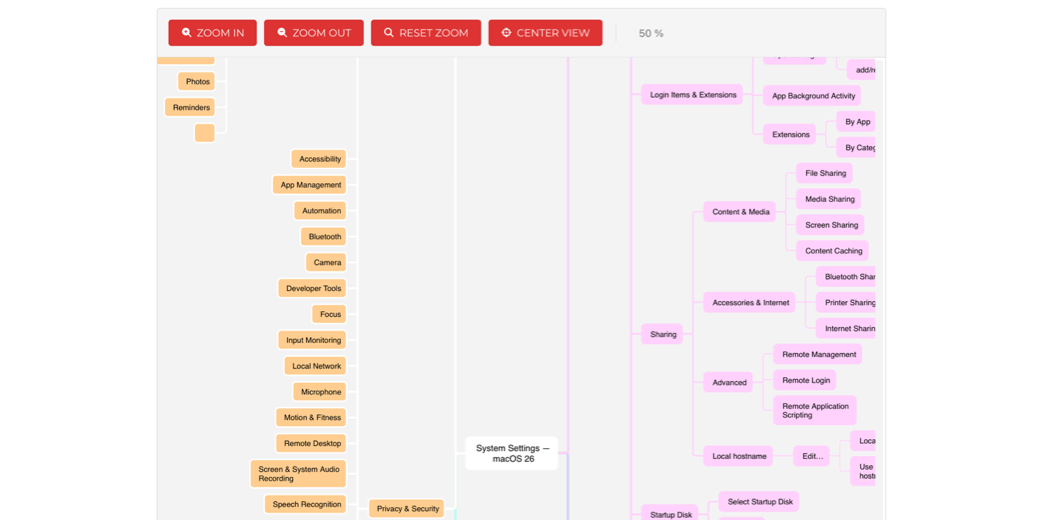
I’m still basking in the glory that is my Mind Map of Doom (™️Donald Burr) of every single dang setting in macOS 26. In my how and why I did such a crazy thing post, I told you that Brett Terpstra was instrumental in making the mind map actually useful to present on the web, and that I would tell you the story someday. That day is today.
How I Tricked Brett Into Helping Me
On Thursday, November 6th, around noon, I sent Brett an email telling him about my mind map and asking him if he had any advice on the best way to present it on the web. I explained that I had a Markdown version, OPML for outlining apps, and I could present it with HTML, but that didn’t feel right. I wanted it to also be the real mind map in a pretty format, and more importantly, I wanted it to be searchable.
He asked some great questions and even uploaded my mind map to a collaborative mind-mapping service called MindMeister. It wasn’t quite what I was looking for, but his questions made me think more about what I was looking for. I tried to put myself in the eyes of the viewer, not my own. While I think it’s impressive to look at a comically large and unsearchable PNG image, it doesn’t have any value whatsoever to people who just want to figure out where Apple hid a particular setting!

As we noodled, I figured out I could export an SVG version of the mind map. SVG stands for Scalable Vector Graphics, which means that no matter how far you zoom in, the image scales while staying crisp and sharp. Oddly enough, an SVG is a text file that describes the paths to create the image. An SVG would be the perfect format to post this giant mind map to the web.
But embedding an SVG into a blog post proved to be trickier than I imagined. Brett’s first idea was,
I bet you could pretty easily embed the SVG in a container and then use a tiny bit of JavaScript to center it… just to avoid people assuming it was a blank image.”
Brett is a professional developer and could execute that maneuver with his eyes closed. I explained that I would run off with my friend ChatGPT for a while and try to figure it out. Brett offered to take a swing at it if that path didn’t work out.
ChatGPT “Helping”
After a couple of hours arguing with my pathological liar friend ChatGPT, I had made no progress. I had several problems to be solved, one of which Brett referred to. The SVG exported from MindNode left a giant white space at the top, so when first viewed in a browser, you would assume you had a blank page. It was only by scrolling around that you’d eventually discover a small portion of the mind map.
I uploaded the mind map to ChatGPT and asked it to clean things up so the top wasn’t empty. The resulting file didn’t have the white space, but it only allowed me to pinch in partway. After abandoning that whole path, ChatGPT told me to embed it in my web page with an image tag (<img>), but that turns it into an image, so it’s not searchable.
Next, it suggested an inline tag for an SVG with some styling provided in CSS format. CSS stands for Cascading Style Sheets, which is the way a website can have consistent formatting for headings, links, graphics, etc., without specifically formatting every item. I wasn’t sure how this path would work, but I decided to give it a go.
ChatGPT wanted me to paste the entire text of the SVG file between the opening and closing <div> tags. This SVG file is 7596 lines long, and it probably took 30 seconds just to paste the text into my WordPress interface.
<div class="svg-inline">
  <!-- paste the entire raw <svg>…</svg> file here -->
</div>
Worse yet, this massive text dump pretty much brought WordPress to its knees. After thinking I’d saved the post in draft format, when I tried to view the preview, a message popped up asking, “Do you want to leave this page?” That’s WordPress’s way of telling you that you have not actually saved the page. I gave up on following the suggestions from ChatGPT at this point.
Brett Jumps In With Both Feet
You’ll remember I mentioned that I first asked Brett for advice at noon on Thursday. Friday morning at 8:21 AM, I told Brett that I had failed in my efforts, and he was good to his word and agreed to take a look at a way to solve this for me.
The first thing he did was run my SVG through an optimizer (I had no idea these things existed!), and not only did the optimizer fix the white space problem, but the file size went from 3.8MB down to 1.5MB! I don’t know which optimizer he used, but a quick search revealed that there are quite a few web-based tools out there to provide this service. I found one called svgomg.net/… that has a whole bunch of toggles to help optimize your file the way you want, if you want to see what these tools can do.
Anyway, his reply came in at 9:40 AM, and in the same message about the optimizer, he wrote:
So now I’m about 80% of the way through building you a WordPress plugin to:
- Enable SVG uploads to the media library
- Add a shortcode to insert SVGs into posts, with attributes like height, initial zoom, max zoom, zoom increment, etc.
- Display a viewer in a post/page with zoom controls and a centering button
- Considering building in handling for MindNode SVGs that automates the process of fixing the viewbox and optimizing the SVG, but that might be a 1.1 thing
Now you know why I’ve been giving you timestamps. I wrote to him at 8:21 AM on Friday, telling him I’d made no progress, and by 9:40 AM (a mere hour and nineteen minutes later), he was 80% done writing a WordPress plugin to fix my problem. 🤯
At one minute to noon on Thursday, Brett sent me a link to version 1.0.0 of his BT SVG Viewer WordPress plugin on GitHub. He referred to this as a “rush” job, but it wasn’t just a link to download some code to put on my website. It was a fully documented tool. I’m talking about a Read Me with everything you need to know to use the plugin, including changing the presets for zoom and height.
With his plugin installed on Podfeet’s WordPress, and a few variables defined by me, the viewer could now see an embedded SVG with buttons to zoom in and out, center the graphic, and reset to the original position. It was a beautiful thing.
Over the next day, Brett released five more versions of the plugin. With his first version, I had to calculate where to center the image when it first came up, and plug those numbers into what WordPress calls a short code. A short code is some text between two square brackets with key/value pairs. For example, to start at a zoom value of 50%, you would write zoom=”50″. It was a bit tricky to figure out where to center the SVG. I had to know how tall and wide my SVG was so I could calculate the values of center_x="3257" and center_y="35866".
As he iterated on the plugin code, he removed even that tiny bit of friction. By version 1.0.5, the plugin allowed me to enter all of the values by hand. I could use a preview pane with the same zoom in/out and center buttons as the viewer sees, and once I get it the way I like it, I can press a button to “Use Current View for Initial State”. This removes the burden of figuring out where the center is and entering zoom start points iteratively until it looks right.
There are so many easily understandable controls in Settings for Brett’s SVG Viewer plugin that it took two long screenshots to illustrate what you can do.
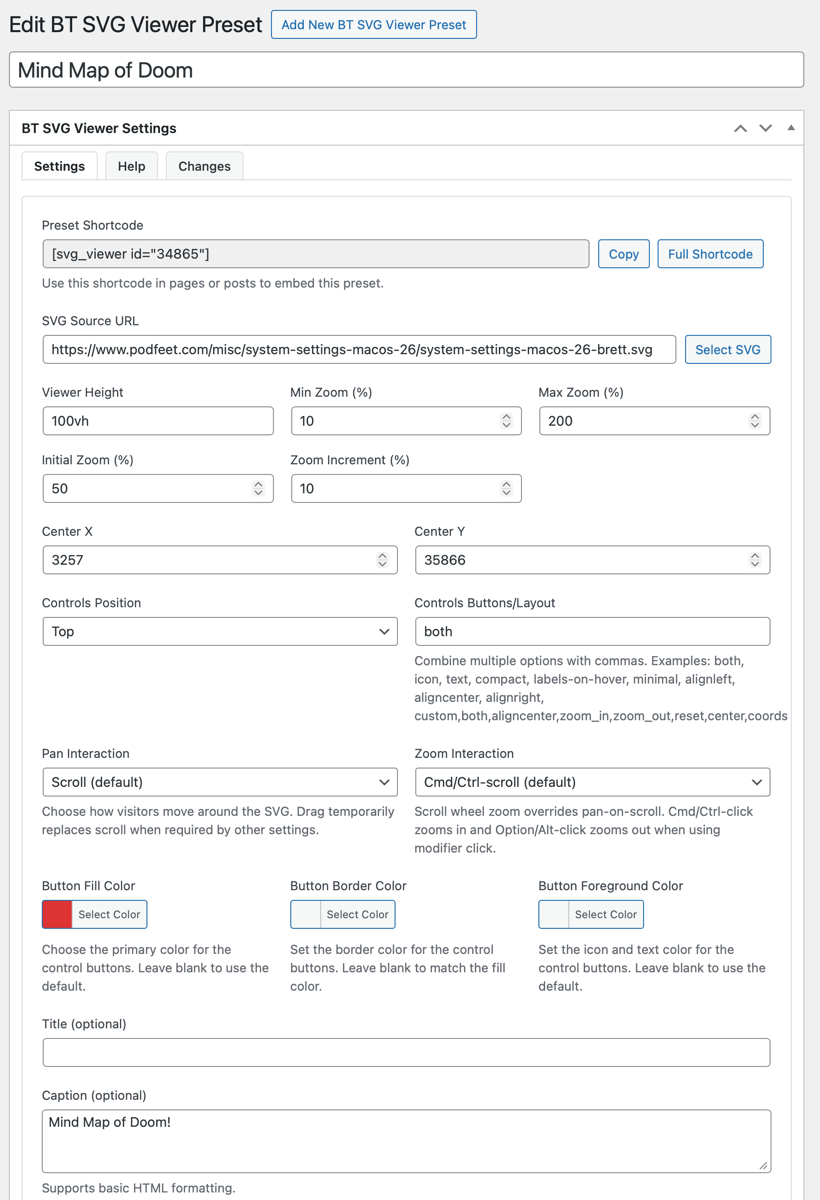
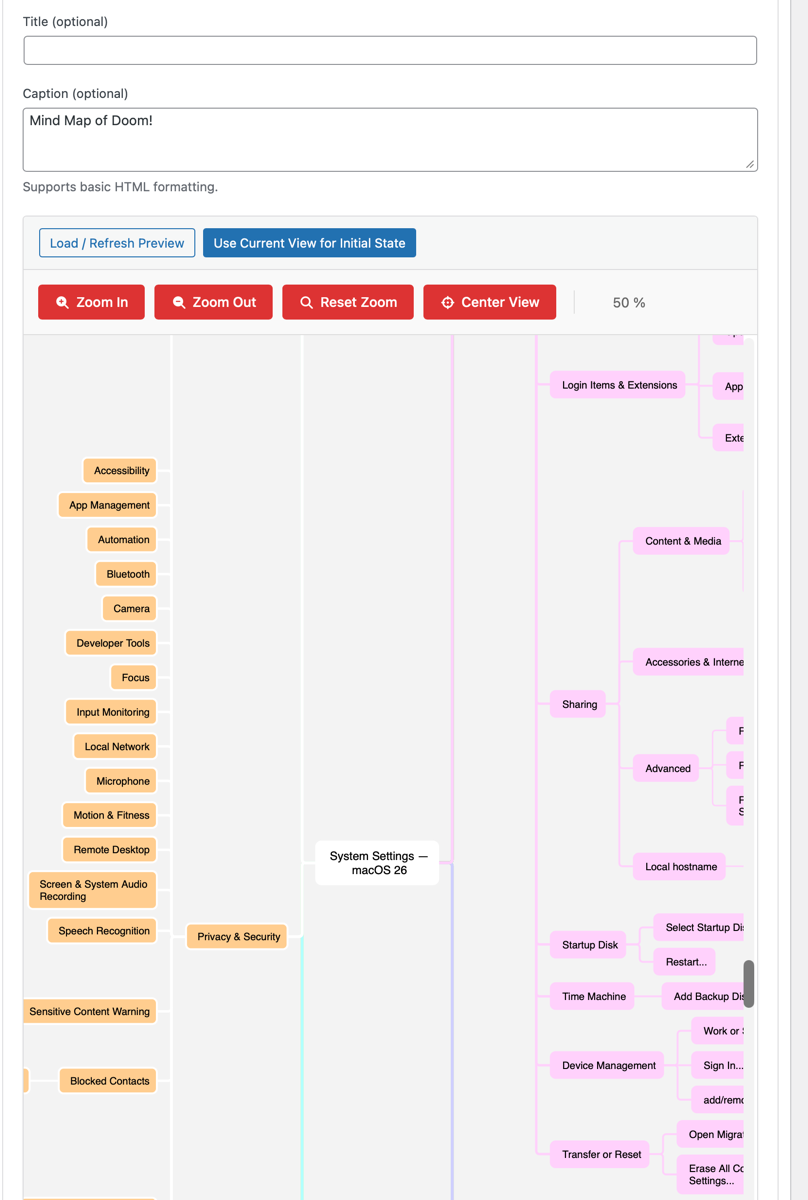
In the configuration screen for BT SVG Viewer, he’s even got a Help page. And I don’t mean a three-line, get-you-started page. He included a table of contents to walk you through installation, a quick start, a reference guide to the shortcode, and 7 more sections.
I asked him how he managed to write all of this in the elapsed time since we started the project. He explained that he gives ChatGPT his php code and tells it to write the documentation. As his next step, he follows the documentation steps written by ChatGPT, which helps him find bugs in his code, all while checking that the documentation makes sense. Brilliant.
Brett’s plugin is amazing and does so much more than I ever could have even dreamed of asking for. Makes me want to go create some more SVGs!
Hey … I wonder if I created separate mind maps for each of the 30 top-level sections, whether they would be even more useful to people since they’d each be more manageable? I know how to embed them now with Brett’s SVG Viewer Plugin!
Bottom Line
Brett Terpstra is a gift to the tech community. In barely more than a day, he had written, documented, and published a plugin for WordPress that solved my problem. The plugin will be available soon from the WordPress.org plugin repository. If you want to get the plugin or peruse his other open source code, go to github.com/ttscoff.
Now here’s the thing. While Brett is a friend of mine and I successfully tickled his brain with the problem I was trying to solve, he actually codes for a living. Along with writing his own apps like the terrific Markdown viewer Marked, he’s also recently launched a consulting business called Bear & Glass, specializing in Apple and Unix-based automation, and he’d be happy to help you or your business — bespoke WordPress plugins are definitely an option!