
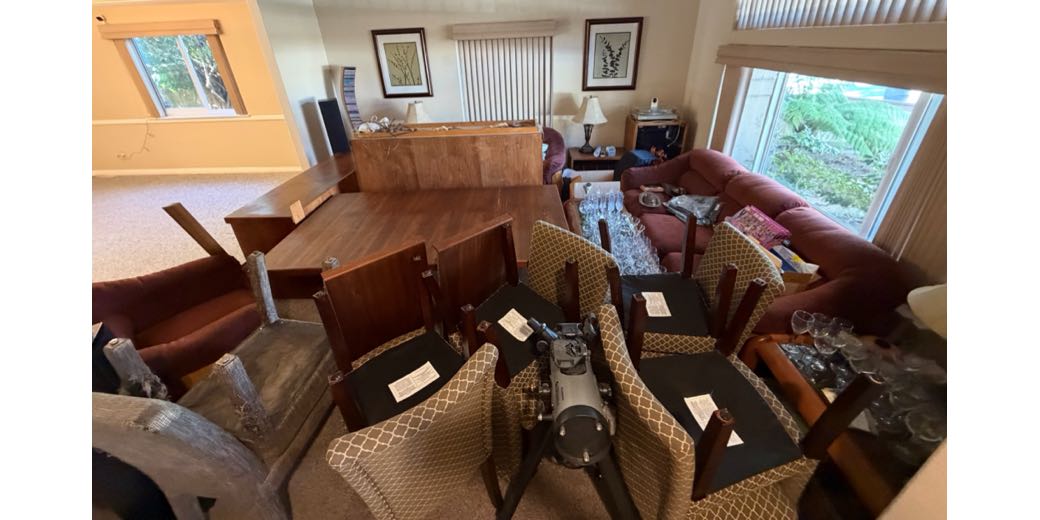
We just had our entire house recarpeted this week, and holy cow was that a lot of work. It’s like moving … but not. While it is tempting to give you all the details of things like putting two bookcases’ worth of books and photo albums into our bathtub, instead, I’m going to talk about the tech angles to the project after giving you some background.
Miracle Workers
I’m always amazed by people who can do things I can’t even begin to understand how to do. Three guys, in three days, moved every bit of furniture from four bedrooms, a living room, a dining room, and a family room into each of the other rooms like a giant version of that kids’ game with the 15 plastic square moving round with only one empty square.
They tore out the old carpeting, tore out the old padding, pulled up all the wood tacking boards with scary giant staples, scraped the glue off the floor, vacuumed, and then measured and cut new padding and carpet. Through what looked to me like witchcraft, they stretched the carpeting to fit tightly into every single corner. And I mean perfectly. I’m super nitpicky, and I haven’t found anything they missed. Oh, and then they vacuumed again.
And again, they did all of this in three days.
The job for us was to stay ahead of them, emptying everything but furniture out of the rooms one at a time, and then, when they were done for the day, shuffling everything back into the previously emptied rooms and emptying new rooms. You’d think we could do some of that while they were working during the day, but we’d get trapped on one side of the house, or upstairs when they were doing the stairwell, or a room we needed to get into was halfway done. It was exhausting, and my back may never be the same!
My Studio
I chose to have my studio/den done on the first day because I wanted as much time as possible to put it back together. The first thing I did was crawl under my desk and take a photo of the back of my UPS, and work up a hand drawing of how everything was connected, using Notability on my iPad.
Ergonomically, it was a nightmare because I was lying face down, arms just clearing under the back panel of the desk, trying to draw on an iPad while shining a light on the UPS. I felt like I was doing one of Marimba’s crazy pilates exercises on Fitness+! Hey, maybe that’s why I was able to do this at 67 years old!
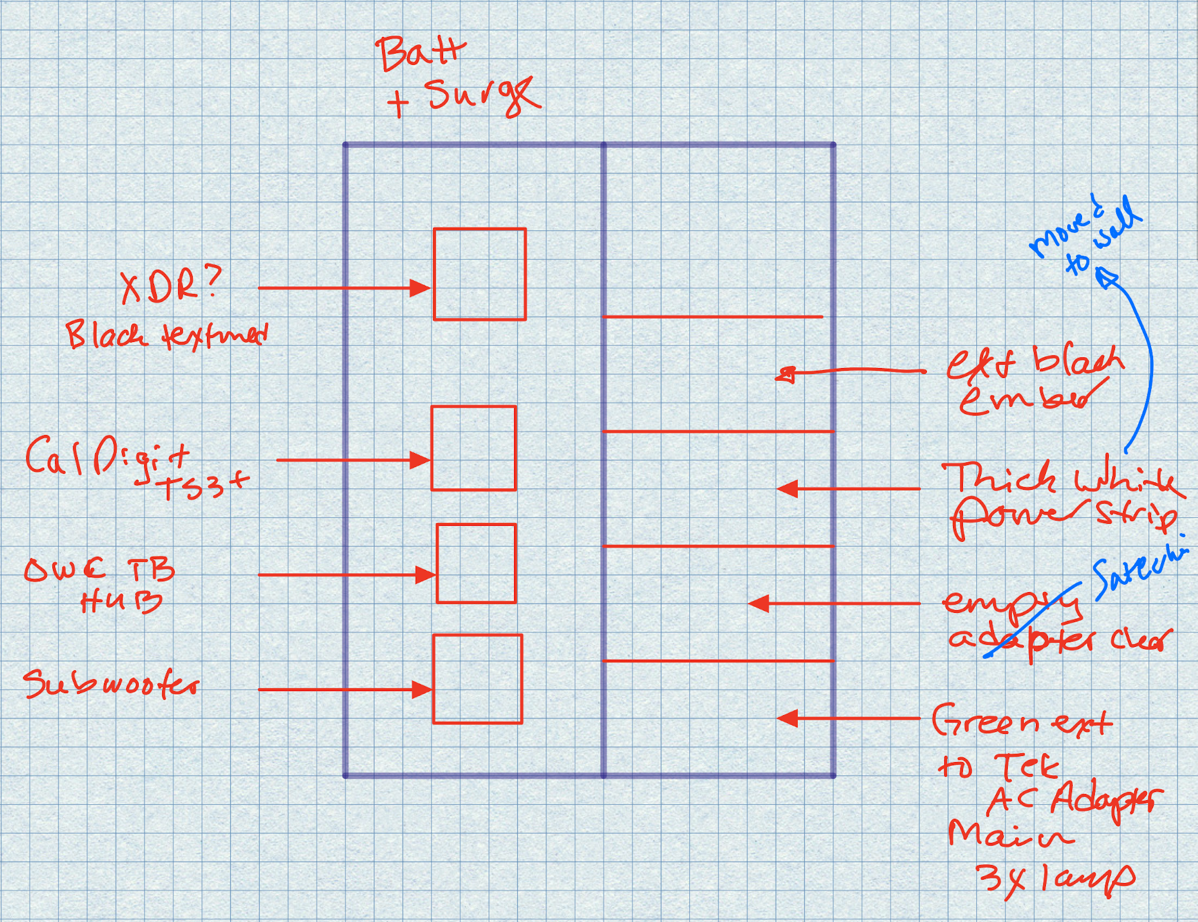
I drew this diagram because I figured that I’d put some thought into how I set it up originally. Why figure it all out again? Why not trust past Allison? Uninterruptible Power Supplies have two sides to them. The surge protector-only side, and the battery plus surge protection side. I wanted to document my decisions on what devices were battery-worthy.
Those devices were my Pro Display XDR, CalDigit Thunderbolt dock, OWC Thunderbolt hub, and Logitech subwoofer.
At this point, the alert amongst you might be thinking, “Wait, don’t Allison and Steve have a whole-home battery? Why would they need to have a UPS battery as well?” I’m glad you asked. I think it’s down to trust. I like a belt and suspenders on equipment this expensive and critical to my happiness.
When the power goes out, and our Tesla Powerwall batteries kick in, there’s a slight flicker of the lights. During that slight hiccup, I can hear my UPS kick on briefly, so there might be enough surge to cause some damage. It’s also nice to hear that, because otherwise we wouldn’t know our neighbors have lost power and be able to offer them refrigerator space and a cup of Internet.
It was time to disassemble all of my studio equipment.
Steve and I gently removed the Pro Display XDR from its VESA mount and carefully took down the boom arm holding the Heil PR-40 mic, wrapping them both in pillows and blankets to stay protected and cozy for the day. The rest of my equipment got thrown into boxes. Now think about all of the ancillary electronics gems you have in your computer area. I had tons of mics and cables and hubs, and switches … all packed up to go.
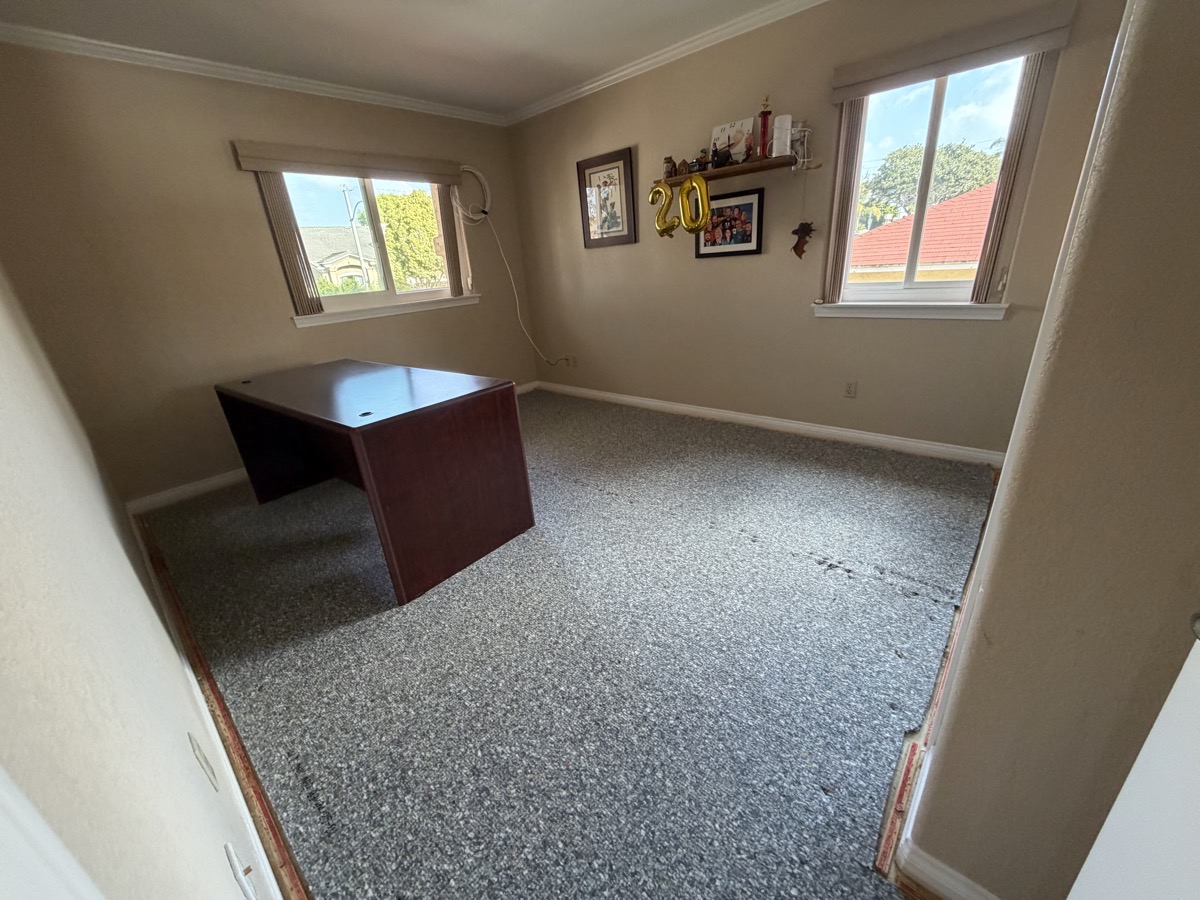
I put a photo in the shownotes of my studio, empty except for my desk, which they figured was easier to work around than drag through a tight doorway. You can see the little shelf that sits on the wall behind me, still sporting the 20-year balloons Steve got me for the big anniversary. If you’ve been to the live show, you know what I’m talking about.
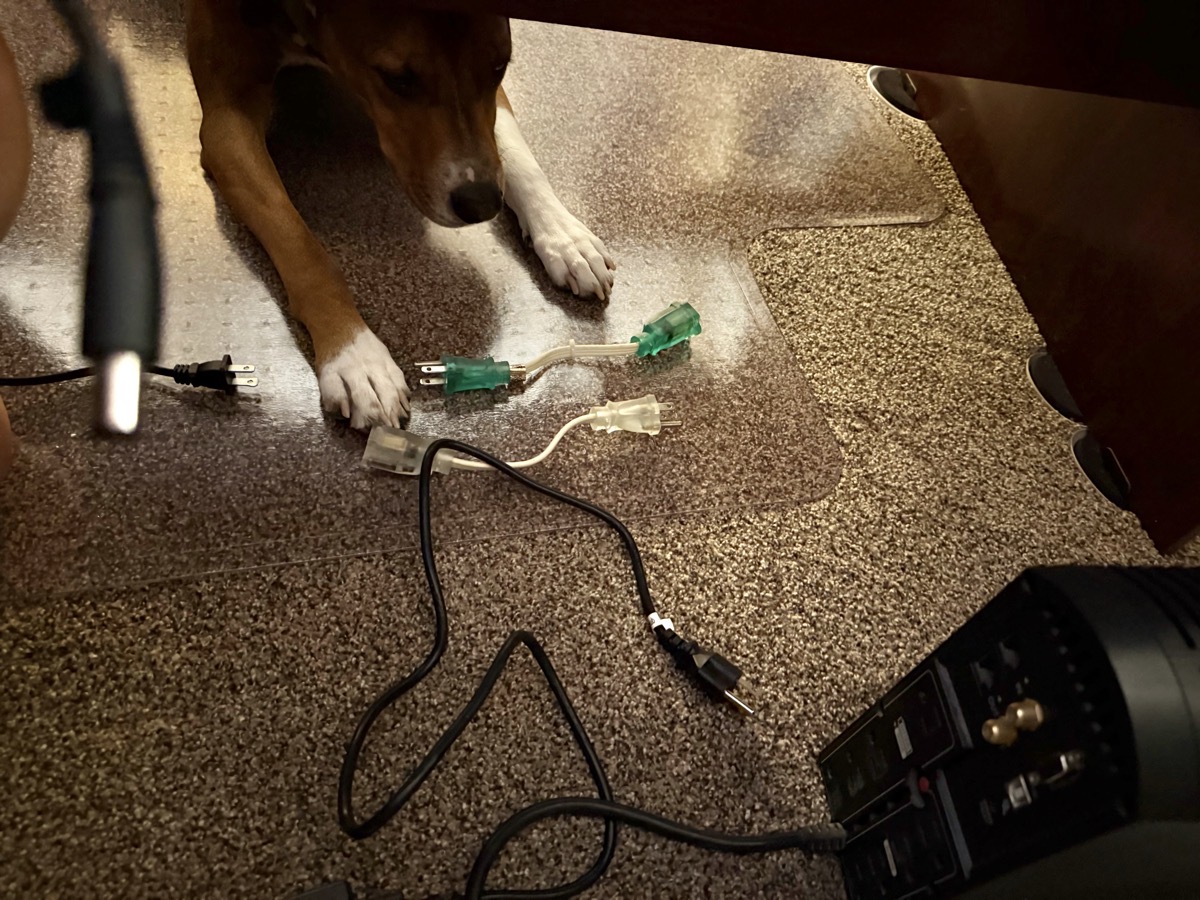
When it came time to reassemble my room, it was pretty easy to put the mic and display back on their mounts. Plugging everything back into the UPS was easy because of my handy-dandy diagram on the iPad. It was also easier because my desk was pulled away from the wall, so I could crawl around back there without doing a pilates move.
But the main reason it was easier was that Kepler the Good Boy was very attentive to my work. He crawled under the desk and assisted me in getting everything plugged into the proper positions on the UPS.
When it came time to connect all of my devices into my Mac, I remembered that I’d diagrammed that too, back when I added the OWC Thunderbolt 4 hub to the mix. Using Draw.io, also known as diagrams.net, I downloaded images of each of my devices, and drew interconnect lines so I could reproduce my setup in the future.
Unfortunately, I didn’t add enough detail to the diagram way back then. The tricky part is not just plugging in USB-shaped cables into USB-shaped holes. For example, while the Elgato Wave XLR mic interface can use a USB-C cable from the Thunderbolt hub, that same USB-C cable can’t be used for any of the other devices I plug into the Thunderbolt hub. One of the hardest parts to get right was connecting the CalDigit Dock to the OWC hub. Each of them has one Thunderbolt port that shows a little computer symbol on it. I never documented which devices go into each of those ports.
Obviously, neither of those ports connects to my computer directly because this whole mess is to be able to live the one-cable lifestyle on my MacBook Pro. I thought for a while that maybe one Thunderbolt cable went between the two “computer” Thunderbolt ports, but that was wrong, too.
I figured out it was incorrectly connected when my mic and headphones plugged into the Wave XLR weren’t even recognized by my system. I broke out draw.io again with the diagram, studied the problem, fixed it, and then edited the diagram a whole bunch to make it much more specific for next time.
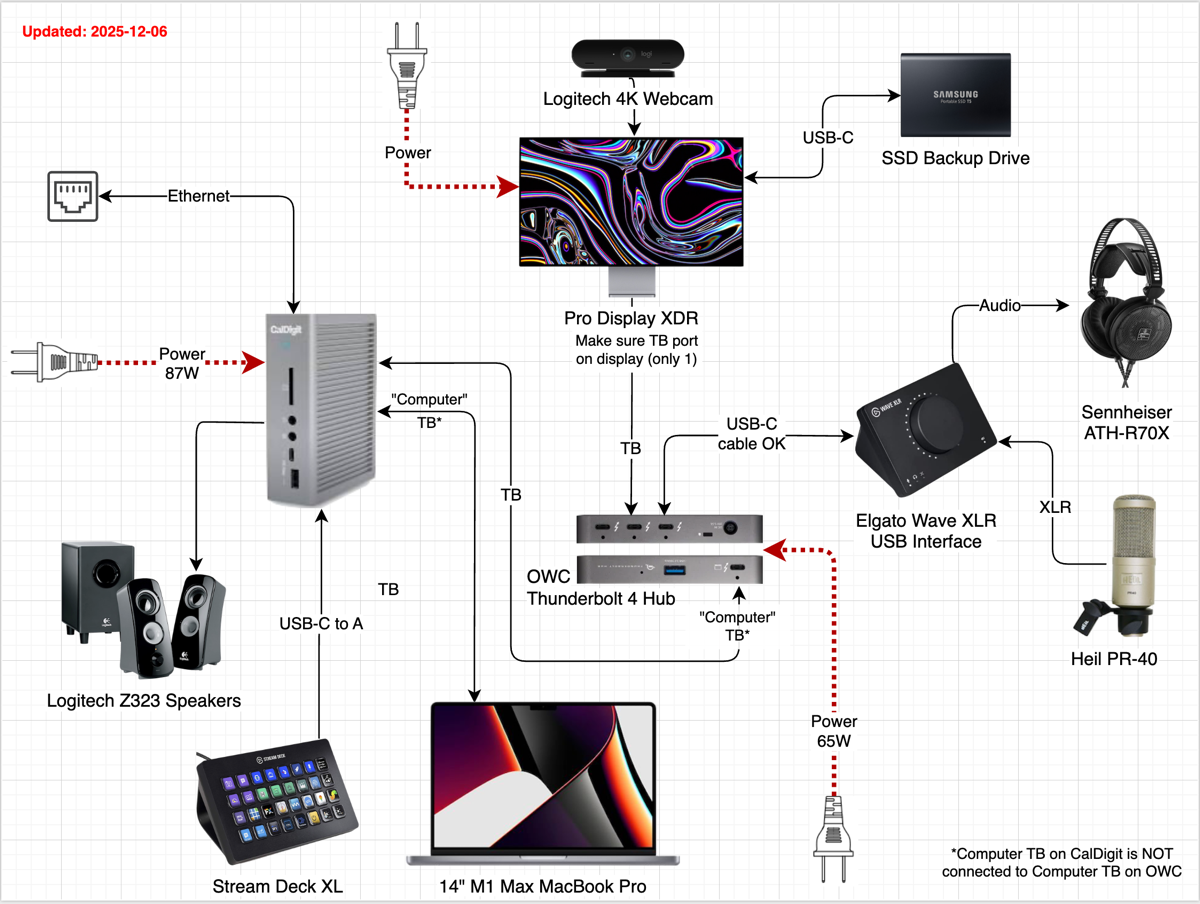
I have a super old set of bookshelf Logitech speakers that connect to a subwoofer. When setting those up, I got them left/right reversed, of course, but eventually got that sorted. While I followed my careful diagram to plug the subwoofer into the UPS, I’ve just discovered I didn’t connect it to the bookshelf speakers, so it’s not yet functioning. Not a big deal, just one more thing to figure out and add to my diagram for future me.
After I got my studio rebuilt, I stayed up late removing every single piece of glassware and china out of the china cabinet in the dining room, where I would instruct the workers to start first thing the next morning. My plan was that while they worked on the dining room, I would disassemble Lindsay’s old room, which is where the real network of the house lives. I would also tell them that my studio was not to have anything moved into it because I didn’t want them flinging furniture around anywhere near that Pro Display XDR!
Steve got up at 5 AM and removed all of his electronics equipment from his den, including his Mac Studio, Studio Display, LG 5K display, and his mic, so he was ready for them to remove all of his furniture by the time they arrived. The dining room and Steve’s den would be enough to entertain them for a few hours.
However, the next morning, while I was downstairs talking to one of the three guys about my carefully thought-out plan, another guy ran upstairs and started disassembling Lindsay’s room … moving things into my studio! By the time I caught on to what was happening, they’d actually flipped some of the furniture in my studio upside down on top of the bed!
To suggest I freaked out is to dramatically understate the situation. I told them they were forbidden to go into my studio, and that everything had to go in our bedroom. They whined, but they managed to do it.
Lindsay’s Room
As the guys started tearing down the dining room and Steve’s room, I was in a race against time to get Lindsay’s room disassembled. Her room hosts the following:
- Synology
- OWC RAID Drive attached to Synology
- Mac mini with an elderly but functional 27” Cinema Display
- Gateway Eero router
- 16-port Ethernet Switch
- Hue Hub
- Euphy Home Hub
- Flic Hub
- Ring hub for our alarm system
As I’ve already mentioned, it’s very important to document how things are plugged in before disassembling. I took a photo of the complete and utter ratsnest of cables going into the back of the cabinet … mostly for the comedy.
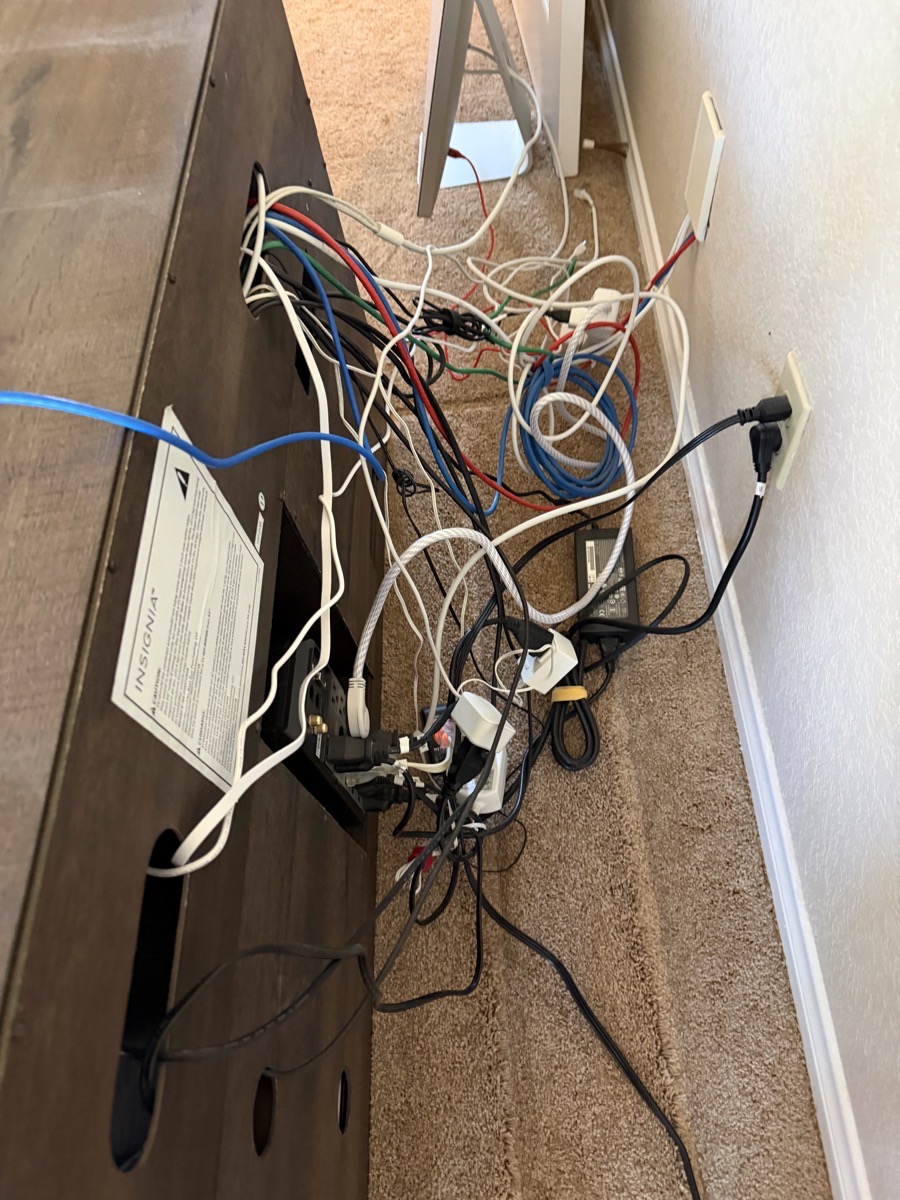
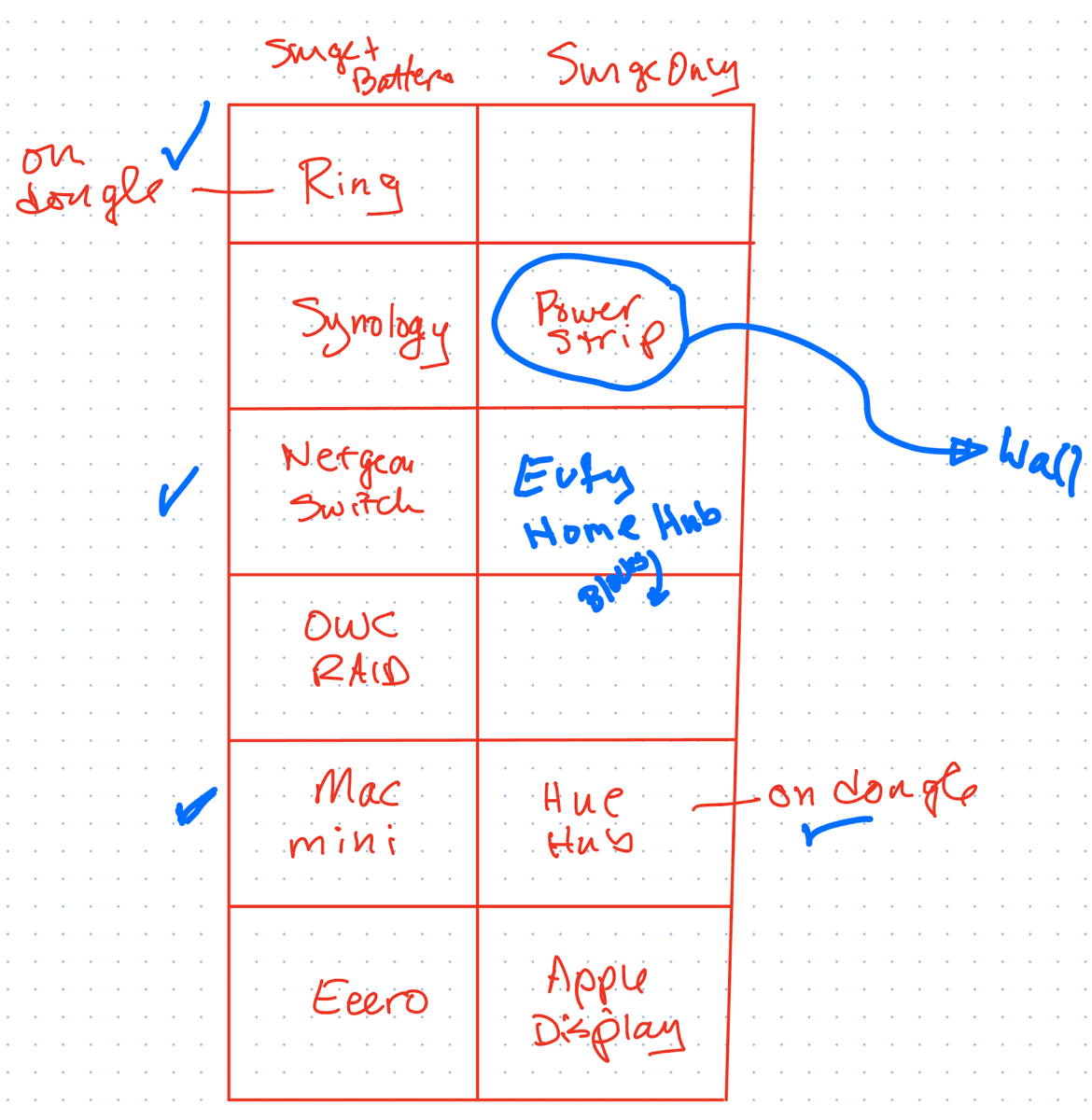
But seriously, the other thing I did was draw another diagram of the UPS managing all of those devices. The Ring, Synology, Ethernet switch, RAID array, Mac mini, and Eero router all made the cut for the Battery + Surge side.
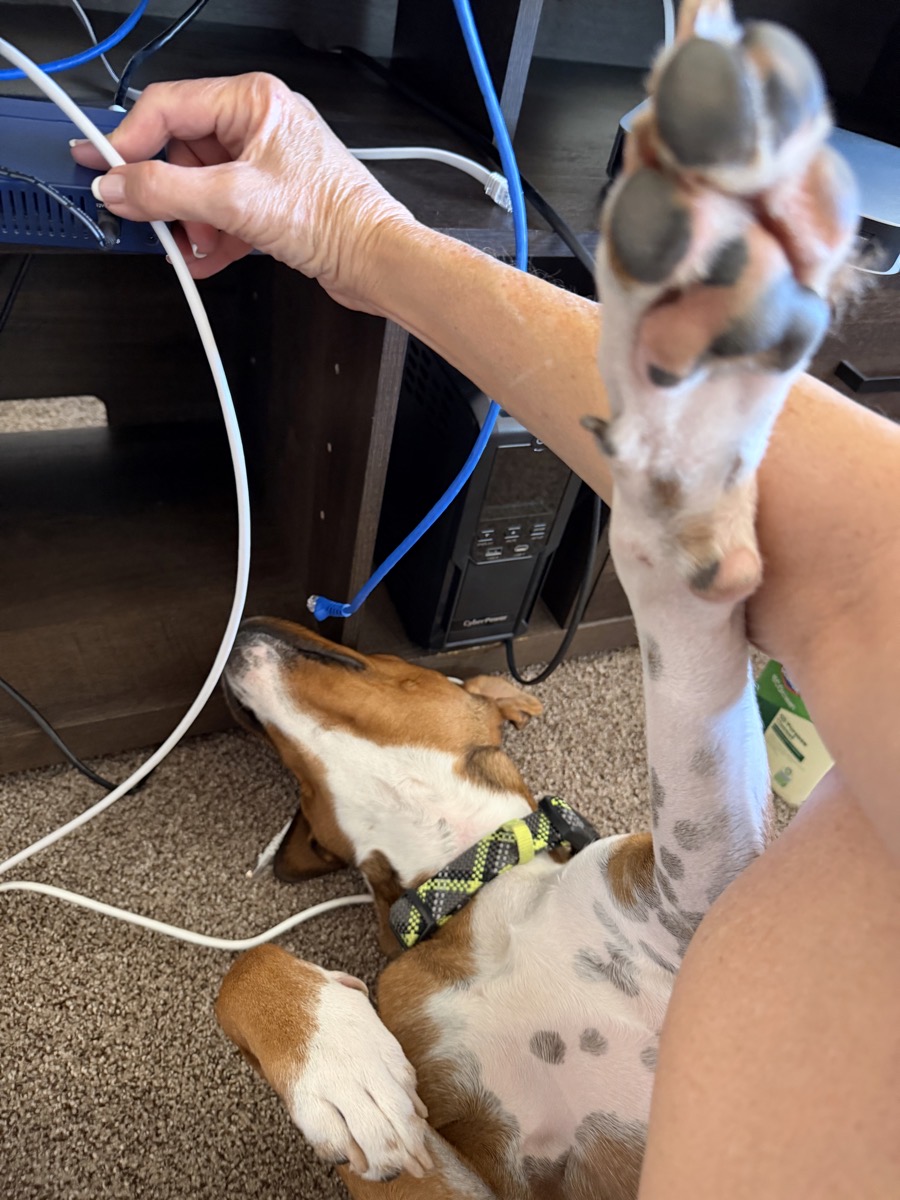
When it came time to plug everything back in, again, Kepler the Good Dog was even more helpful. The poor thing was banished to the back yard for most of each day, so when we let him back in, he felt that he really needed to up his supervisory game. I was running Ethernet cables into the switch when he rolled on his back between me and the switch, looked up at it from underneath, and blocked my arm from getting past my knee to the switch.
Because this wasn’t stressful enough, I decided to upgrade our network during the recarpeting adventure. I think you’ll agree it was actually good timing when I tell you how this happened.
A few weeks ago, we were out visiting Kyle & Nikki and their kids (our Houston grandkids). Our good friends David Roth and his wife Jennifer also live in Houston, so we made time to meet up with them for lunch. We were nerding out during lunch, as one does, and David told us that he’d recently swapped out his entire network with Ubiquity equipment.
If you haven’t heard of Ubiquity, I like to describe it as networking for people who secretly wish they were system admins. From what I understand, the equipment is rock solid, and the software gives you all kinds of fun controls and graphical ways of viewing and controlling your network. It’s also pretty pricey, but everyone who has gone down this path is very enthusiastic about how great it is.
I knew that David had previously installed all Eero Pro 7s in this house, so when he was done gushing about how much fun it was to play with Ubiquity, I asked him what he’d done with his Eeros. I remembered that they were the Pro 7s models, which are the top-of-the-line ones that I’d been too cheap to buy when I replaced all of mine with Eero Pro 6Es. David explained that the 7 Pros were just sitting on a shelf, and then said the most beautiful words he’s ever said to me. He said, “Do you want them?”
Seriously. And he refused any money for them. The Eero Pro 7s have come down a bit in price since I looked at them, but this is a THOUSAND DOLLARS worth of equipment he gave us!!! We managed to cram all four of them into our luggage for the trip home.
Now back to the carpeting story. Disassembling Lindsay’s room meant unplugging the Gateway Eero anyway (taking down our precious network), so I figured that was a perfect time to swap in the Eero Pro 7. Eero makes this so easy. You tap on Add a new device, and one of the options is to replace an existing Eero. It tells you to unplug the old one, plug in the new one, and hit next. Then it looks for the new Eero, and when it finds it, you’re done.
But it didn’t find the new one. I tried a couple of times, and then broke down and typed in the serial number of the new Eero, like an animal. And then I saw terrible words in the app, encircled in red:
This eero device is already registered. Please have the previous owner remove this eero from their network.

Well, that’s a fine kettle of fish! I texted David a screenshot of what I was seeing with no explanation, and in exactly 3 minutes, he wrote back the one word: “Done”. How’s that for customer service? I tapped on Add, and this time, the Eero app immediately found the new Eero Pro 7, and all of my devices were connected as they should be. I didn’t have to do anything to reconfigure the new Gateway Eero. I couldn’t have been happier, except for that one egregious error David made, of course.
As we disassembled and reassembled each room, we replaced 3 more Eero Pro 6Es with Pro 7s with no trouble at all. It really is a testament to how good the software is from Eero. I mean, it’s no Ubiquity, but it’s the right tool for me.
DVD Cabinet Like a Spreadsheet
One of the easier tasks during this project was emptying our DVDs from their cabinet into boxes. But even that had a tech angle. Our DVD cabinet is 7-shelves tall. There are shelves in both doors and the main part of the cabinet. That center portion has a vertical piece separating the left and right sides. The problem to be solved was how to get the nearly 300 DVDs back into the cabinet with the same basic structure we have right now.
For example, we know to look in the bottom rows for Christmas movies, series like Pirates of the Caribbean, and the Die Hard movies (which are also Christmas movies) are above that. Steve’s icky movies like Apocalypse Now, District 9, and Predator are over on the right side, with our James Bond collection below that. The top row is all Marvel movies, which we both like. My sappy movies like Driving Miss Daisy and How to Lose a Guy in 10 Days are on the upper left, with Pixar and Star Trek below that.
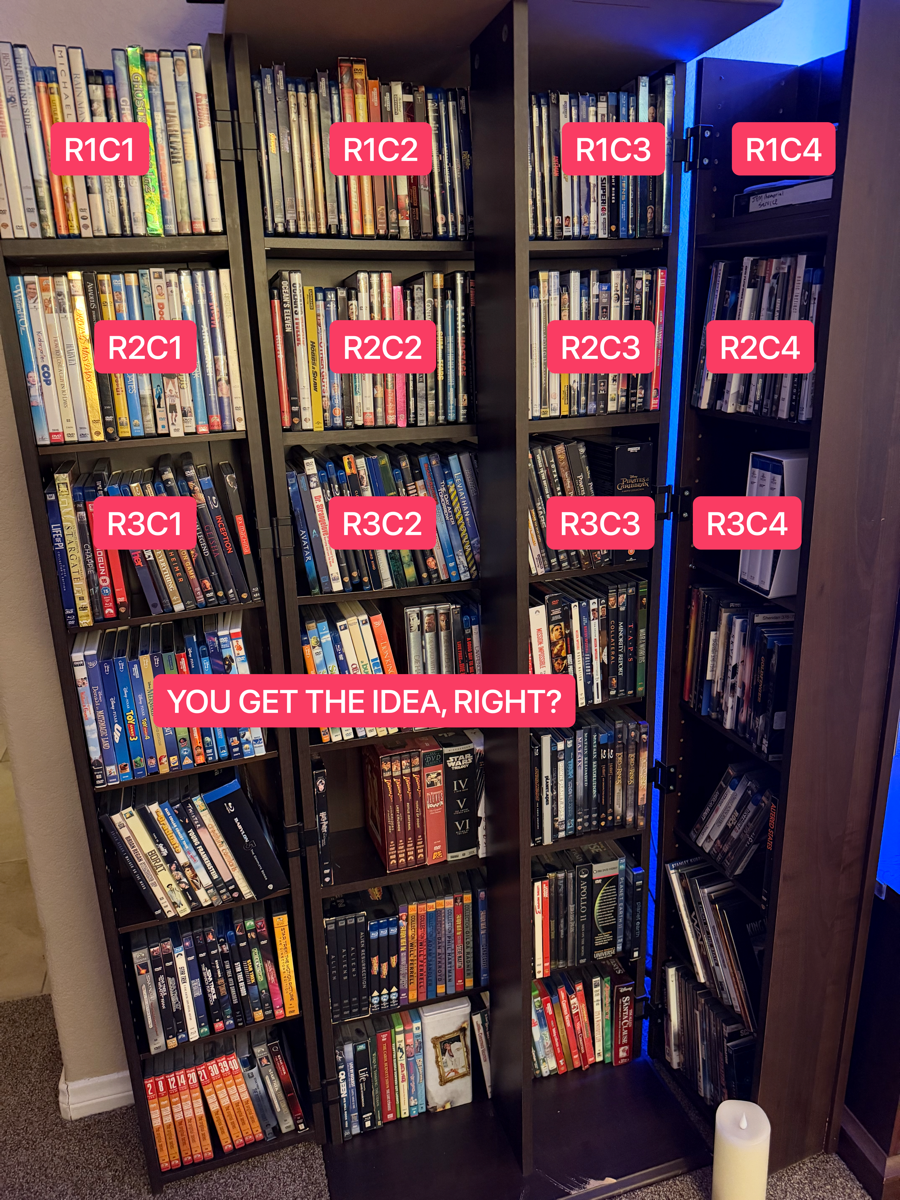
I wonder how many of you would think of the solution we came up with. I decided to view it as a spreadsheet, of course! The cabinet is 7 rows tall and 4 columns wide. All we had to do was pull out the top left section of DVDs, drop them as a stack into a box, and put a piece of blue tape on it labeled R1C1. Grab the next one across, and label it R1C2. Rinse and repeat until we get to R7C4. It worked beautifully.

I have to say, when you put two engineering brains together, you come up with great solutions like this.
Bottom Line
The bottom line is that having new carpeting is awesome, and it really doesn’t take all that long to get it done. The price hadn’t gone up that much since the last time we did this, fifteen or so years ago, which was surprising. Unsurprisingly, my back isn’t as young as it was fifteen years ago.
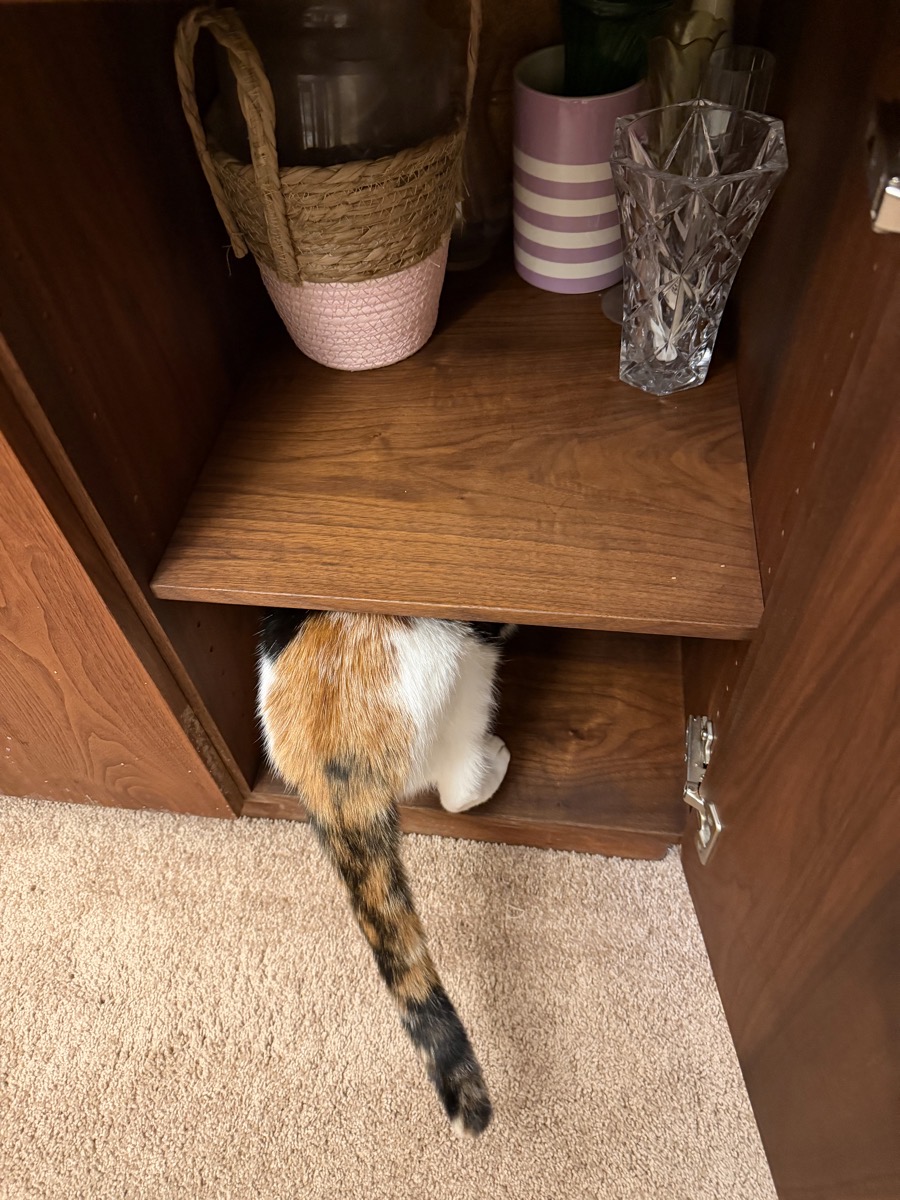
I’ve spoken at length about how helpful Kepler the Good Dog was during this strenuous adventure, but what about Ada and Grace? It turns out cats aren’t as helpful as you might think. Ada wasn’t bad, mostly performing inspections, like when she crawled into the china cabinet to make sure I’d removed all of the bud vases.
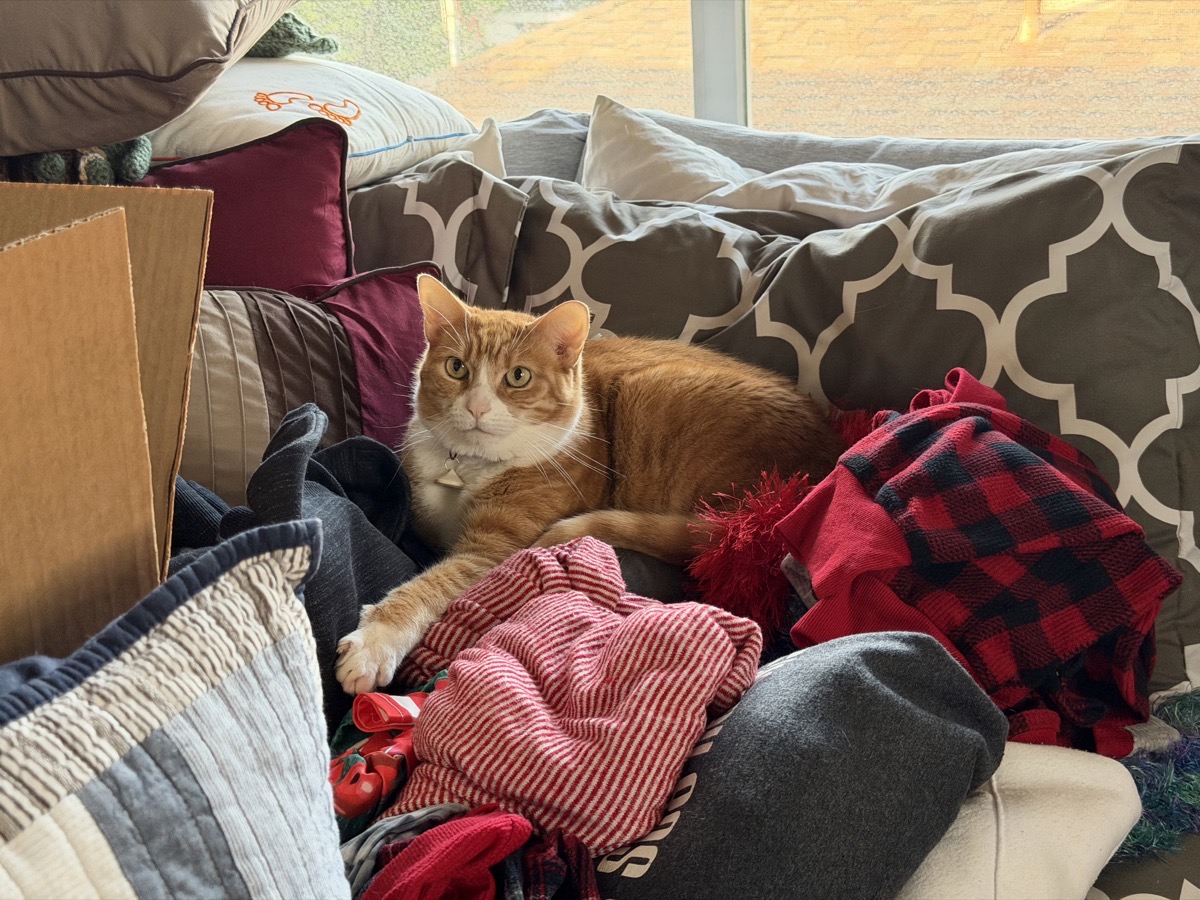
But Grace merely assumed that all efforts were to make cozy sleeping spots for her. She perched sleepily on top of loads of blankets, pillows, and comforters, and couldn’t have been happier. She did not raise a toe to help!
I’ll close by saying that our new carpet is yummy and soft and squishy. Steve may have captured a video of me doing a carpet angel to illustrate how happy I am with the new carpet.
Now, where does that darn subwoofer plug in?
The cats were working hard, guarding all your stuff to be sure to mice got into them.