
As you may have noticed, I love two things: automating things on my Mac and finding cool utilities to make my Mac do my bidding. As fun as this is, sometimes this can cause what Bart likes to call “spooky action at a distance.” Let’s start off with a scary story.
Story Time
One day, a few weeks ago, I was playing around on my MacBook Air pretending to get some writing done, when I noticed that the App Messages had simply disappeared. I don’t mean it crashed, I mean it vaporized. I wasn’t using it, but it was up on screen … and then it wasn’t.
A day or so later, the same thing happened with Apple Notes. Again, it wasn’t Notes, but it was running … and then poof! It was gone. I’m running a fully up-to-date version of macOS Tahoe, and I wondered, since these were both Apple apps, whether they had some kind of bug that transcended both apps.
And then it happened again. And again. It was driving me bananas.
Eventually, the same thing happened with a third-party text editor I use called CotEditor from coteditor.com/…. This clearly isn’t an Apple app. Now things are getting interesting. I suppose it could be a macOS Tahoe induced bug, but it seemed less likely with third-party apps having the same behavior.
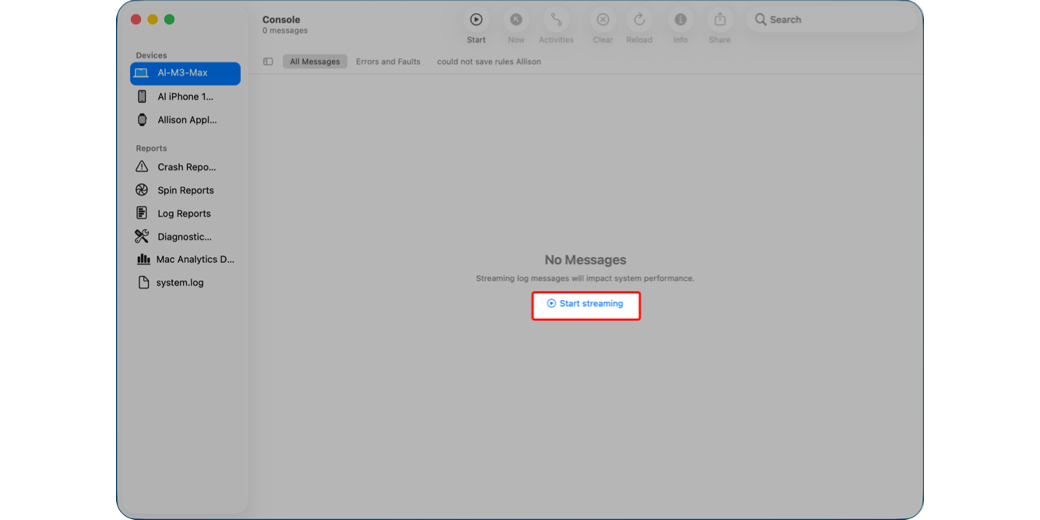
I decided to try to catch one of the apps in the act. I launched CotEditor and then brought up the Console app (/Applications/Utilities). With my Mac selected in the left sidebar, I tapped on “Start streaming” to collect all log file messages. I then went about my business, keeping a side eye on CotEditor so I’d know right when it vaporized.
I was rewarded a few minutes later when CotEditor disappeared. I switched back to the Console app, hit stop, and then filtered the output to any log entries containing the name CotEditor. Even with it filtered to just the app that interested me, it was still a giant pile of glop I didn’t understand.
I copied all of the logged messages that referenced CotEditor and threw them at Perplexity AI. I asked Perplexity to look for crashes or other information that would explain why the application had disappeared. I was pretty surprised when Perplexity came back and said that it could find no reference to crashing whatsoever, just that it simply stopped running.
I remained baffled over the course of the ensuing weeks as these same three apps would simply stop running.
Squirrel!
Amongst my strong suits, you will not find any reference to the ability to focus. I’m much better at juggling multiple things and doing a 90% job at each of them. This lack of focus ends up being the superpower that helped me discover why these three apps kept vanishing.
One day during the time the apps were disappearing, I was working on the latest Programming by Stealth challenge. We’re working on this fun project where we are styling a little web calculator with CSS. Bart suggested that I use some colors from my own website. In programming, when you need to define a color, you can use some simple names like red, yellow, or white. If you want a very specific color, you need to sample the color with a little picker to find the hex code that defines the color.
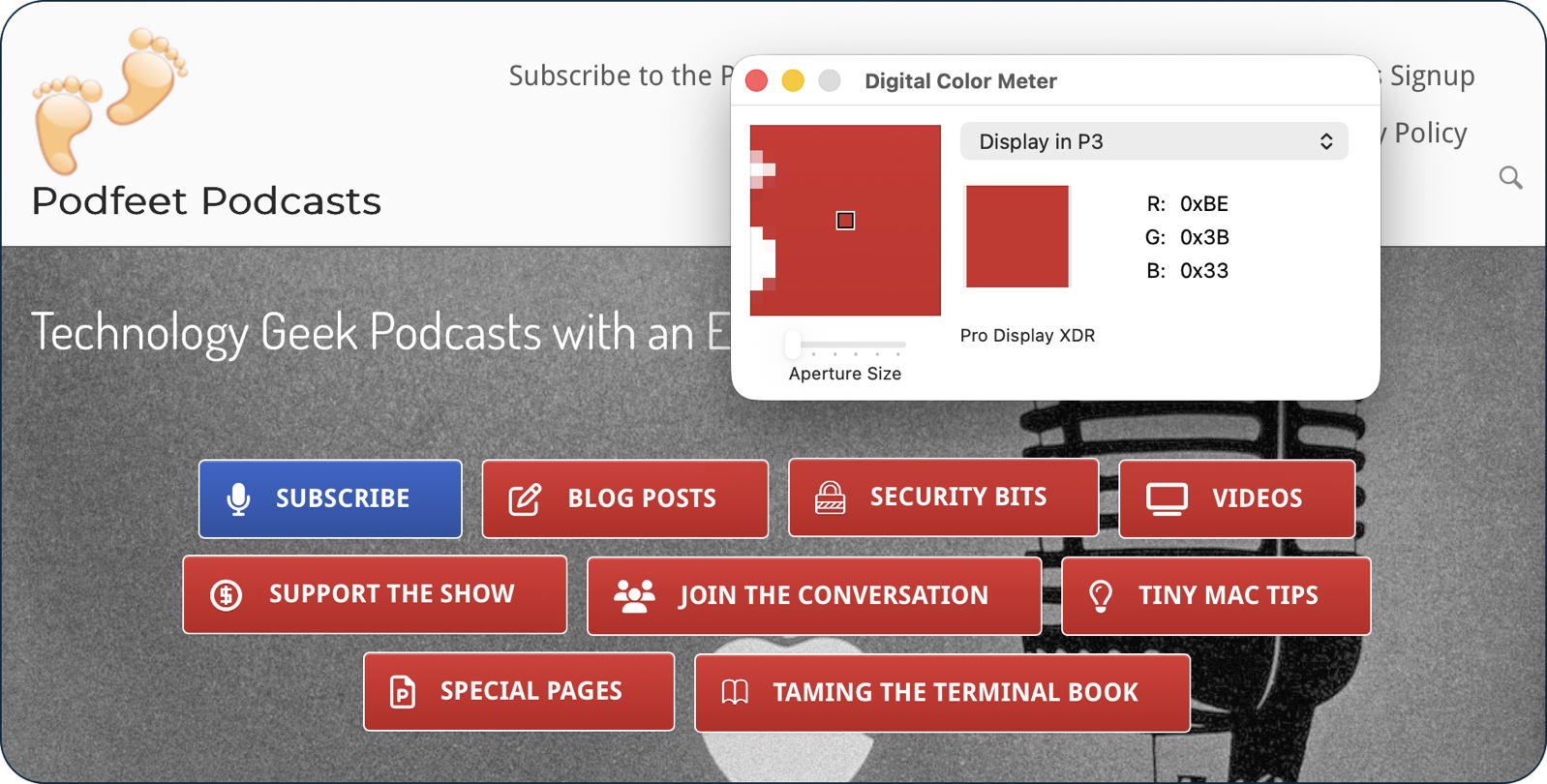
If you’ve got an image editor of any kind open on your Mac, you can usually find the color picker to sample a color, but there’s also a built-in tool to do this without any image editor running. The tool is called Digital Color Meter (/Applications/Utilities).
With this utility open, you simply drag your cursor around, and you’ll see the codes that define color changing. Under the View menu, you can change whether you see RGB color codes or hex values. Once you’ve found the color you want, if you hit ⌘-⇧-C, it will copy the code to the Clipboard. I’m sure you’re all wondering what the hex code is for the Podfeet red buttons — it’s #C33D36.
Now here’s where this gets back to the problem at hand — disappearing apps. When I wanted to pick a color for my Programming By Stealth calculator, I didn’t remember that the built-in utility was called Digital Color Meter. I thought it was Color Picker. So I popped open Spotlight using ⌘-Space and typed “color picker”.
Imagine my surprise when the first option said “Pick color” and “Supercharge” under it. The logo for the app was a colorful lightning bolt. A couple of hits down, it said “Pick a color as CSS hex” with the same “Supercharge” logo.
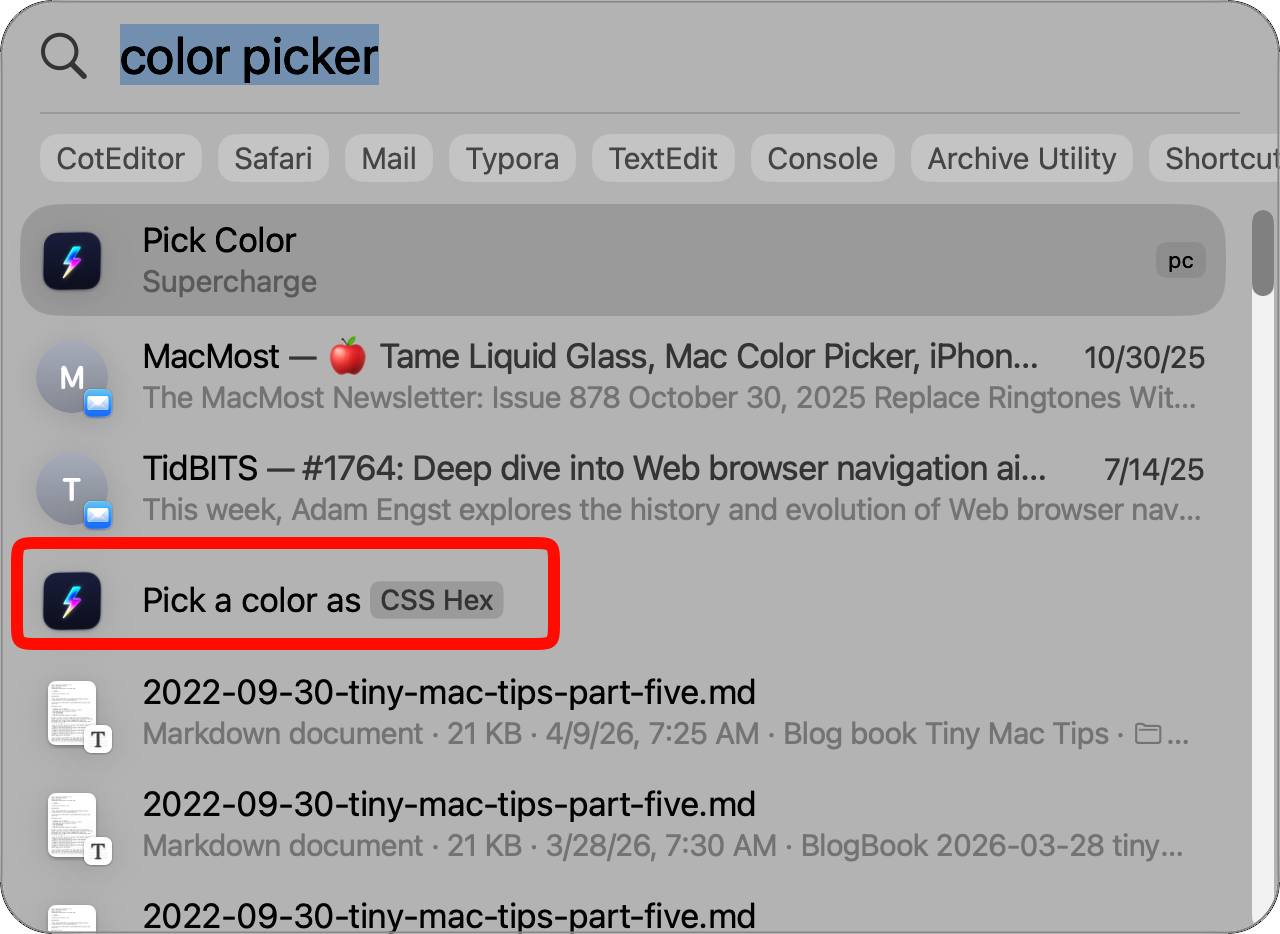
Even though this isn’t what I expected, it sounded like what I needed. I chose Pick a color as CSS Hex from Supercharge, and I was rewarded with a little floating circle that was clearly sampling the colors. I hovered over one of the red buttons on podfeet and clicked. The sampling circle disappeared, and Spotlight closed itself, making me think nothing had happened. I reopened Spotlight, and instead of the last thing I’d chosen, it showed the hex color code for the red button!
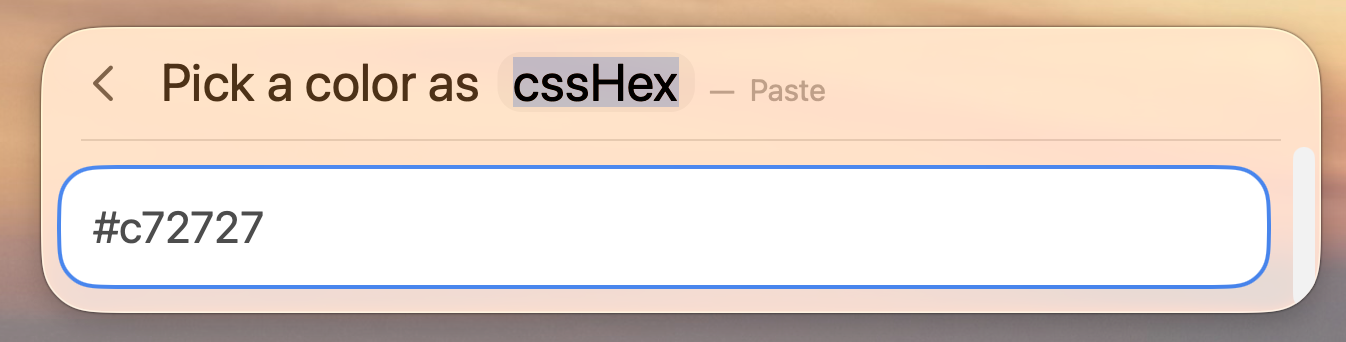
If you’re looking at the shownotes, and you’re a sharp observer, you’ll notice that the red this app found was different; it was #c72727. That’s because the red buttons are actually a gradient red. Anyway, with this color picker tool from Supercharge, you have two ways to grab the hex code from Spotlight. If you double-click on the hex code, it will automatically paste into whatever text editor you’re using at the time. Or, if you want to be fancy, you can drag the value into your editor. I found that cool Spotlight option by accident! Try using Spotlight to do a calculation for you, and when it shows the answer, just drag it into your text editor. Ok, people, focus. Let’s get back to the main subject.
You might think that I would have gone back to working on my Programming By Stealth homework, but you would be wrong. I got curious about Supercharge, the tool behind this color picker. I remembered installing it ages ago, but I’d not really played with it much. Supercharge is from the awesome developer (Sindre Sorhus). Supercharge installs as a menu bar app with a GAZILLION items in the dropdown. I’m not exaggerating — there are 34 items in this dropdown before you even get to Settings!
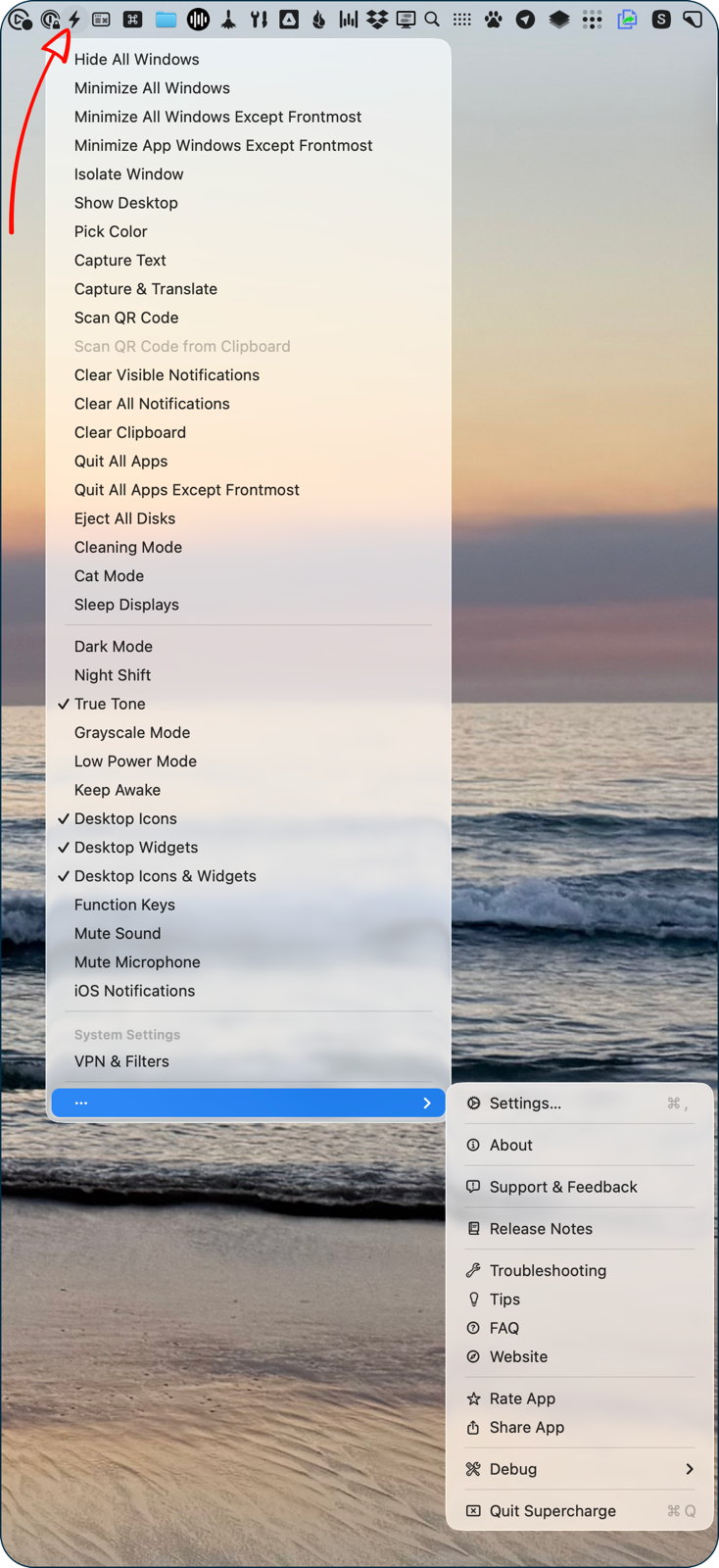
I want to do a deep dive into Supercharge, hopefully sometime in the near future, but on that particular day, I just started to poke around at the different features. I used it to do things like show and hide desktop icons, and change the color mode of my display. I don’t remember all of what I played with, but after doing some experimentation, I thought it might also be interesting to look at Settings.
I thought the capabilities in the dropdown were vast, but opening Settings showed me an incredibly deep and rich list of things you can do. To give you an idea of how much there is, just the Tweaks tab alone takes eight page scrolls to get from the top to the bottom.
I started poking around in these different settings, and almost to the bottom of the Tweaks tab, I found one tiny line that said, “Automatically quit or hide inactive apps”. The toggle was on, and it said, “3 apps”. Uh oh.
I tapped on the Configure button, and as you probably suspected, CotEditor, Messages, and Notes were all in the list set to quit automatically after 3 minutes of inactivity!
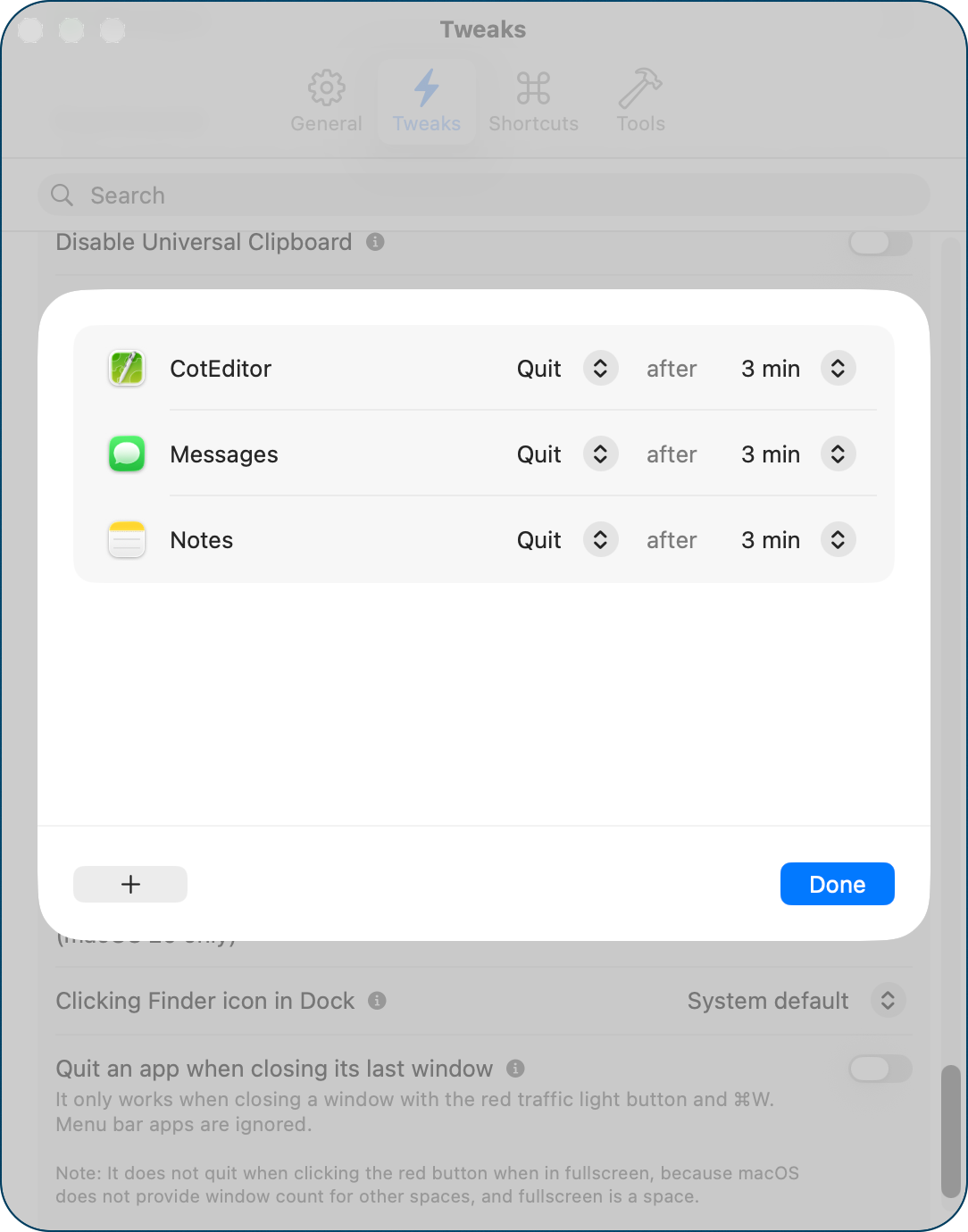
I thought this was hilarious. What are the chances that I’d just happen to type the wrong search term into Spotlight, and like the dog in the movie “Up” when he sees a squirrel, follow that unexpected app to its interface, and open Settings, and scroll down through the 12 gazillion options under Tweaks and find this? How long could this mysterious behavior have gone on before these chance circumstances aligned?
I’d like to say that I’ll never do anything like this again. That I’ll begin following a rigorous process of documenting any automation I do. That I’ll note the app I use to automate, and what hooks it has into other apps. But you know that’s not going to happen. What fun would that be?
Sounds like you need a digital exorcism of your Network :):)
Cool story on connecting the dots.
Tell your Life Robot about have such settings on things like this.
It records it out to a journal (database or a file).
Later onwards you ask, “hey Life Robot, what would cause apps to vanish after a while?”
It should be able to recall the reason, no matter what terminology you use.