
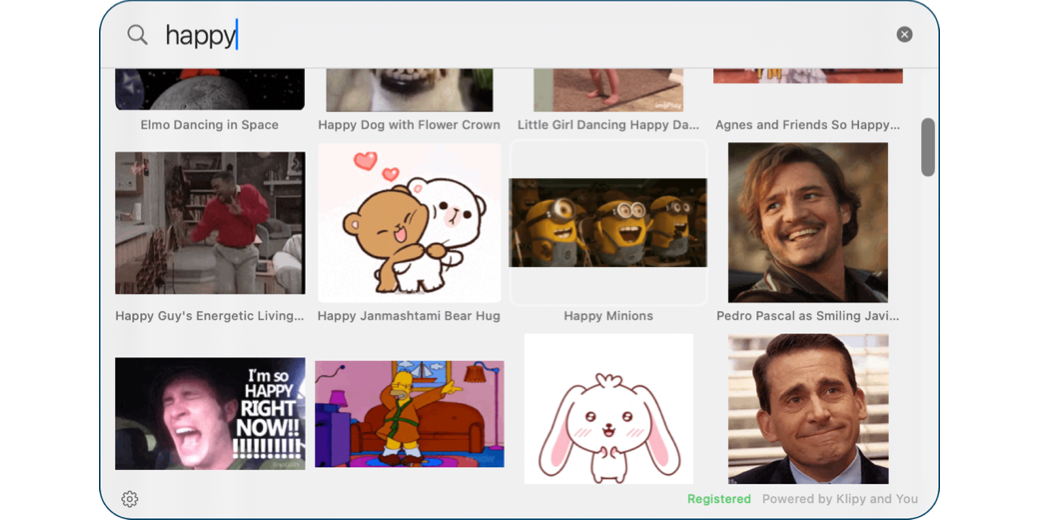
I am not one of the cool kids who can instantly come up with the right animated GIF right in the flow of a rapid conversation in services like Discord, but I want to be. I watch people like Mike Price and Jill from the Northwoods throwing in the right GIF at just the right time during the live NosillaCast and I’m always jealous. The only place I can quickly find and add a GIF is Telegram, because it’s built into the client.
Sure, I’ve tried going to sites like Giphy to search, and I often find the perfect GIF, but I don’t think I’ve ever successfully copied and pasted one that doesn’t turn it into an image instead of a GIF. It’s also slow, so the joke has usually passed by the time I get back.
But then I got a glorious email from Lex Friedman. You may know him as an Apple podcaster, but he also writes fun apps on the side. The app he was writing to me about is called Gnome, and it’s a tiny menu bar app that solves this critical problem I have. Before I tell you how delightful this app is, I want to explain the name, which will help you remember it. When you download the Zip, it is named “GAsInGnome.zip”. Get it? It’s a play on the rabid Internet debate on how to pronounce GIF, so it’s “g” as in “gnome”. Ok, let’s talk about how delightful this app is.
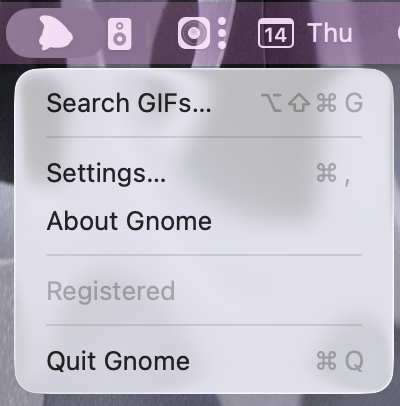
Once installed, you click the menu bar icon and choose Search GIFs.
This instantly pops up a floating window with a search bar ready for you. As fast as you can type, it’s searching for the perfect hilarious GIF. Now here’s the magic of Gnome. Just click the GIF you want, and it gets copied to the clipboard, ready to be pasted into your chat.
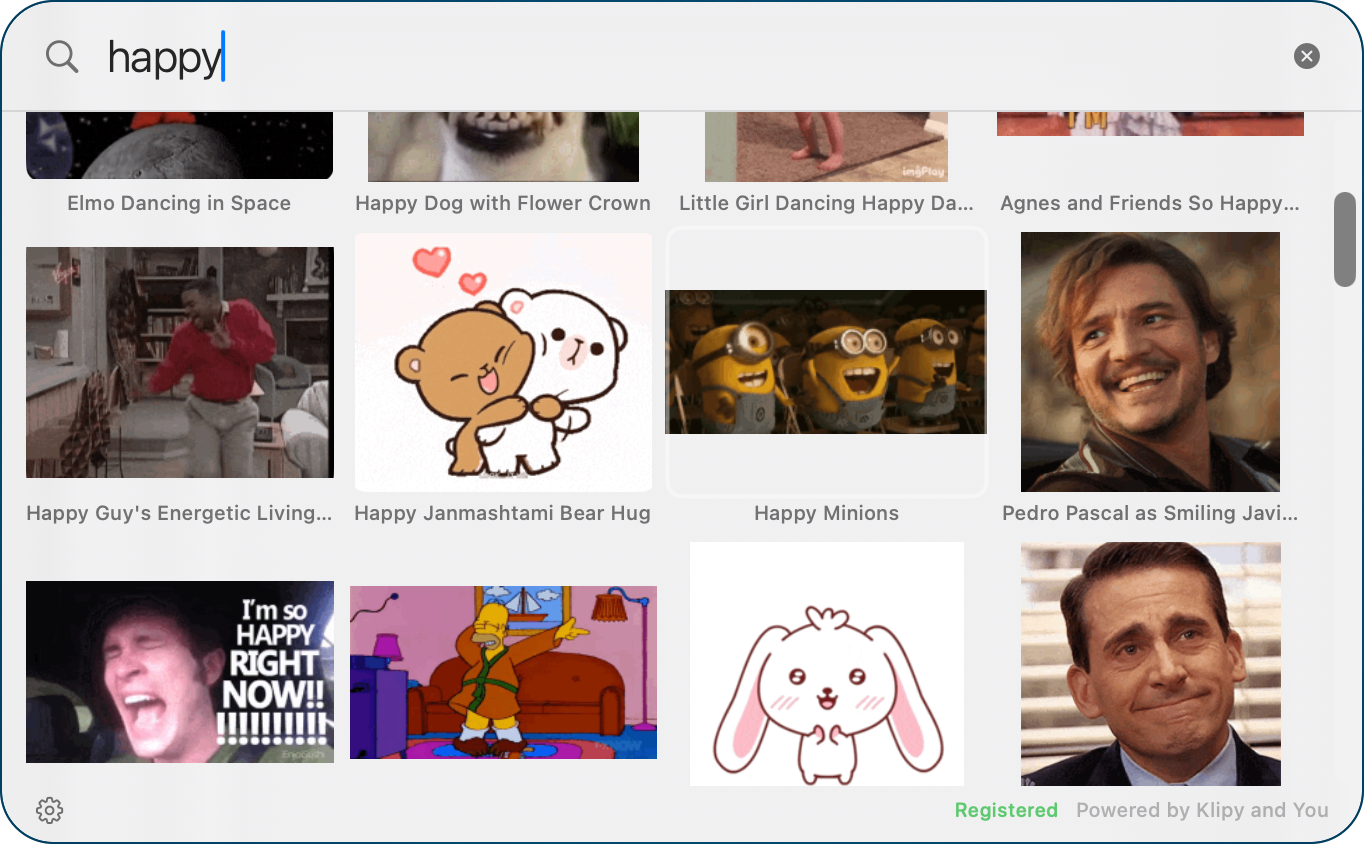
It could not be faster! Well, actually, it could. Instead of dragging your cursor allllll the way up to the menu bar and finding the Gnome icon amongst the crowded field, you can use ⌥⇧⌘G to pop open the Gnome window.
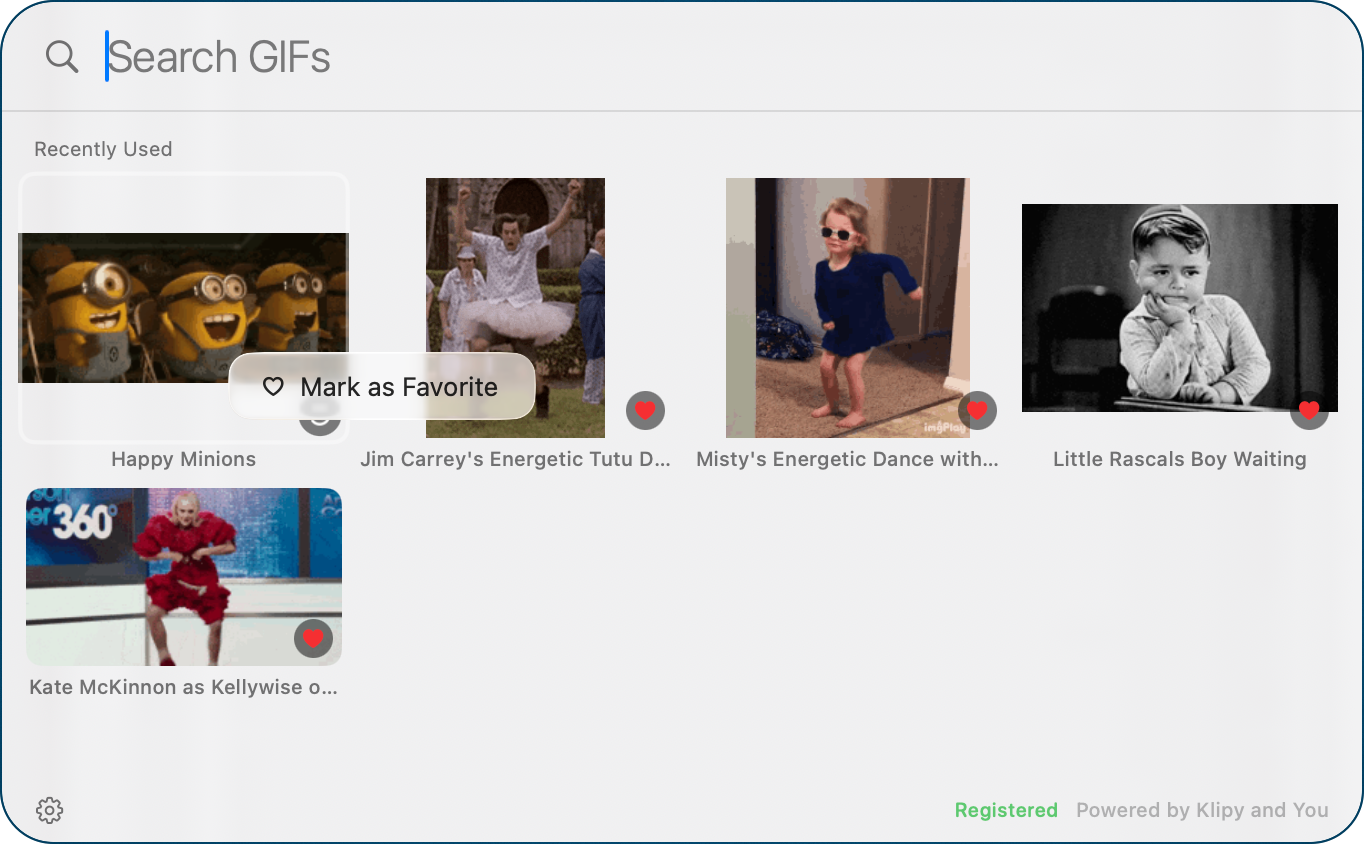
But that’s not all! After you select your first GIF from Gnome, the next time you open it, you’ll see Recently Used right below the search box. You can click on one of these to use it again, or if it’s one you really, really like, you can right-click on it and choose Mark as Favorite. That will keep it in this Recently Used list, even after you’ve done a lot more GIF selection.
Gnome has a few very useful settings. Under the General tab, after setting it to launch at login, you can change the hotkey. You can also toggle on “Paste GIFs automatically when possible”. That sounds terrifying to me, but if you’re bold and undaunted by this, I say, “You go, girl.”

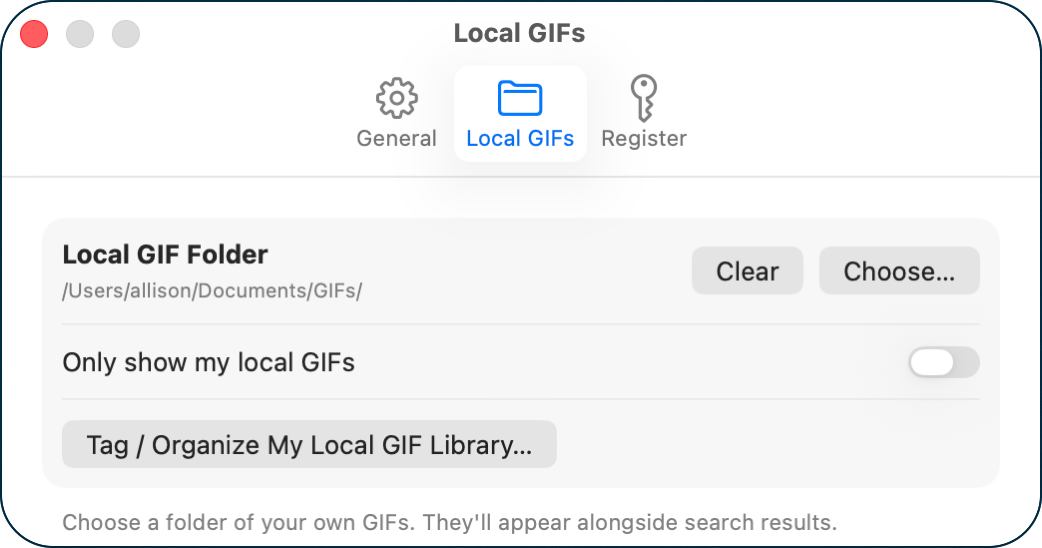
The second tab says Local GIFs, and in here, you can create a local GIF folder where Gnome will store your favorites.
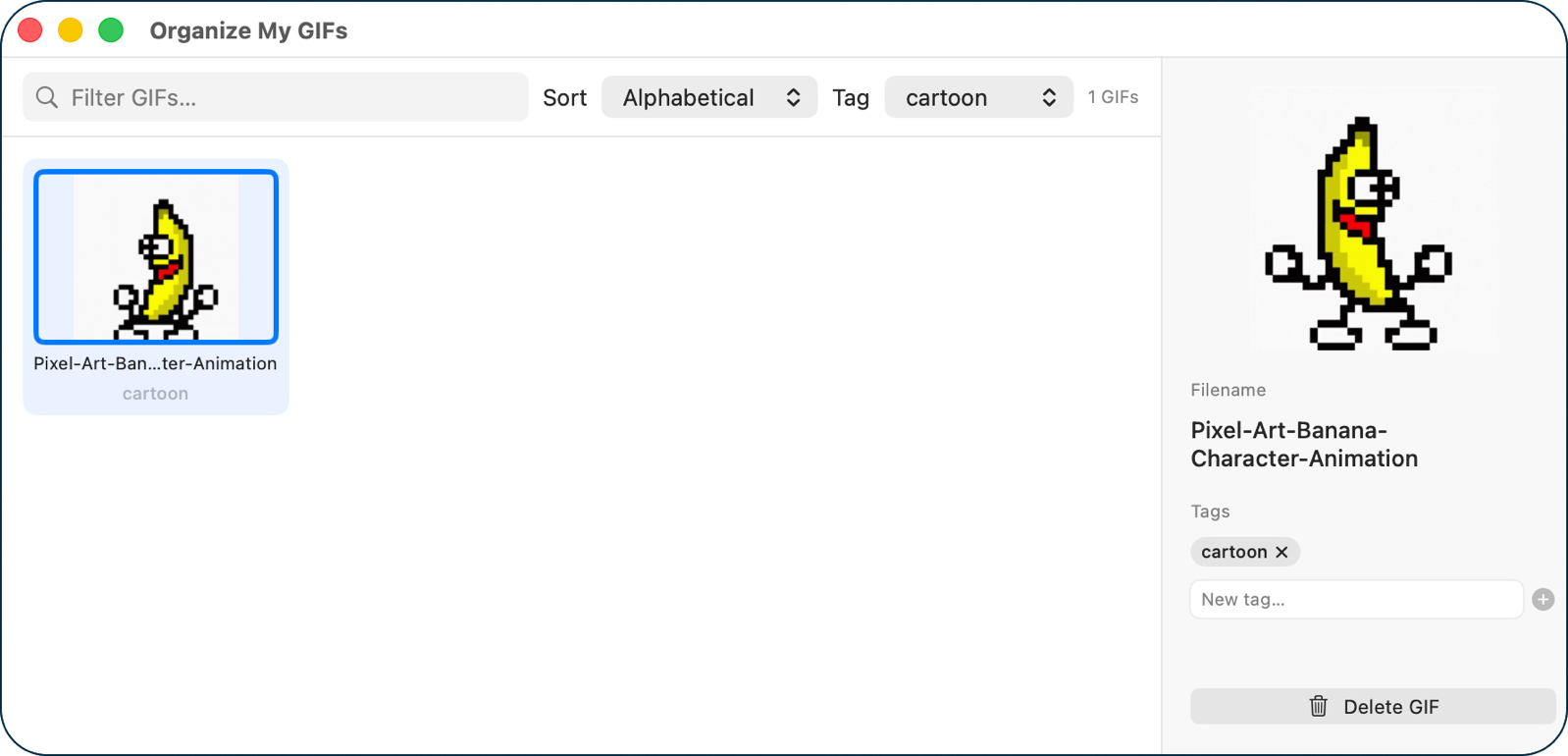
If you’re really crazy about GIFs, you can even tag and organize this local GIF library.
Gnome works for free for 5 minutes, and after that, no matter what you search for, you’ll be offered an array of GIFs of “Weird Al” Yankovic or Rick Astley. I think that’s hilarious. If you think you need more variety of GIFs in your life, Gnome costs a grand total of $7. Not $7 a month, just $7. You can go find GNOME at lexfriedman.com/…
I tested Gnome with VoiceOver, and found a few missing bits, so I let Lex know about them and lickety split, he had them all fixed. And by “lickety split”, I mean a few hours!
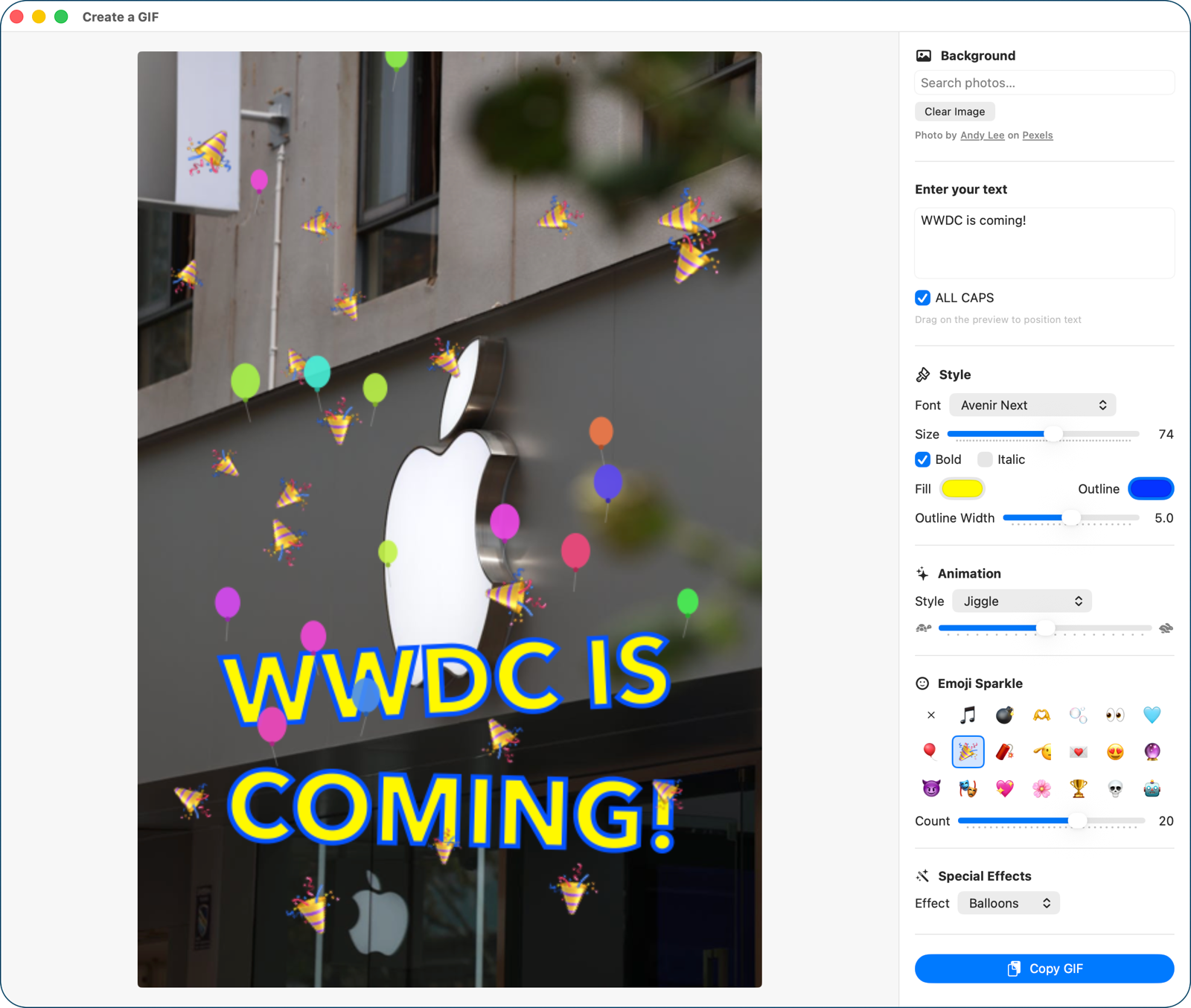
Even though I was testing a released version of Gnome, before I could finish writing up this review, Lex added a pretty big feature. You can now create a GIF from a single background using one of your own images or searching the built-in Pexels library. After writing the text that will be animated, you can style the color, font, and size of font. You can choose from a few different animation styles, add sparkling emoji, and add special effects like Confetti, Balloons, Fireworks, and Lasers. Just like with the other GIFs, simply tap the Copy GIF button and paste into your conversation.

The bottom line for those of you who know me is that there’ll be a lot more animated GIFs in our conversations. Blame Lex Friedman and his perfect GIF app, Gnome.

Thank you! I just bought GNOME and I love it!
Fantastic!
Thanks Allison, another app I didn’t know I needed. Looks very handy.