
Background — origins of “The Problem to be Solved”
When our forefathers invented the World Wide Web, their vision was that it would be stateless — that is, static pages would be available for viewing through your Web browser. It was a unidirectional thing — information was provided, period. Coming back to a page would result in a predictable and reproducible outcome, no matter what. There was no memory of the visitor. There was no keeping track of information, and everyone would see the same thing.
But as use of the Web evolved, it became clear that there were advantages to Web pages being able to keep track of some things, such as a visitor’s preference for Fahrenheit over Celsius. In those quaint old days, the Internet was completely non-commercial — it was the province of researchers (in fact, it was called “The Research Internet”). But once E-commerce started, it was necessary to retain information about the consumer, such as authentication state (confirming that the user was who they claimed to be by providing a valid password — and retaining that knowledge).
State needed to be added, so early browsers let websites leave behind little bits of data. These were originally called “magic cookies” — now simply known as “cookies.”
Like any tool, a cookie can be used for good, or for or for not-so-good purposes. Among the not-so-good purposes for cookies is tracking people all over the Internet, leading to what is now known as the Surveillance Economy.
Cookies can diminish your privacy by enabling websites to build up behavior profiles, engage in highly targeted advertising, and sell collected information about you to data brokers. In addition, websites can — and usually do — store additional bundles of information, such as caches to speed up revisiting. So, just in the ordinary course of using the Internet, your Web browser can accumulate a ++lot++ of extraneous stuff that you didn’t ask for, didn’t authorize, and probably don’t need.
I, for one, would prefer not to be tracked. The simplest way of doing that is to either turn cookies off entirely, but that is highly impractical because a lot of the Web would not work properly. Another way is to manually clear out all of the accumulated cookies and other debris with some frequency.
This brute force approach has a downside. There are quite a few cookies I really don’t want to delete. For example, if 1Password doesn’t detect its cookies in Safari, it will refuse to work until you go through a laborious process of re-authenticating. Less laborious, but also a pain in the butt, is to have to sign back into online publications (e.g., the NY Times and Washington Post) every time you want to read an article. And cookies is how some websites know you have already provided your second factor on that device, saving you from re-entering that six-digit code.
This leads me to the problem to be solved (“trademark Podfeet Productions”): How to selectively keep ++some++ cookies and delete all the others.
I used to do it in Safari by going to its settings, clicking on the Privacy tab, then clicking on the “Manage Website Data” button, hitting Command-A (for “select all”) and, while holding down the Command key, manually deselecting the sites whose cookies I want to keep, and then finally hitting the “Remove” button. That left only the cookies I wanted to retain.
What a time-consuming pain in the butt!
Problem Solved
This sounds like a job for software. And I found something that does the job nicely in the Mac App Store. It’s (cleverly) called “Cookie,” and it is exactly what I was looking for. A cautionary note here: Searching for just “Cookie” in the Mac App Store will lead to a lot of applications that aren’t what I am describing here. It is listed as “Cookie – Privacy Control”, and its icon looks like an old-style radar screen, in green, with a silhouette of someone’s head. Check out the show notes for a screenshot.

I primarily use Cookie on Safari, but it also works with Firefox, Opera, Edge, and Chrome, and is supposed to work with others (but I’ve only tested it with those five).
Diving into the Application
The user interface is fairly straightforward. On the left or sidebar, you can enable Cookie for the Web browsers you want it to work with. It will prompt you for permission access, exactly in accordance with Apple’s software privacy guidelines.
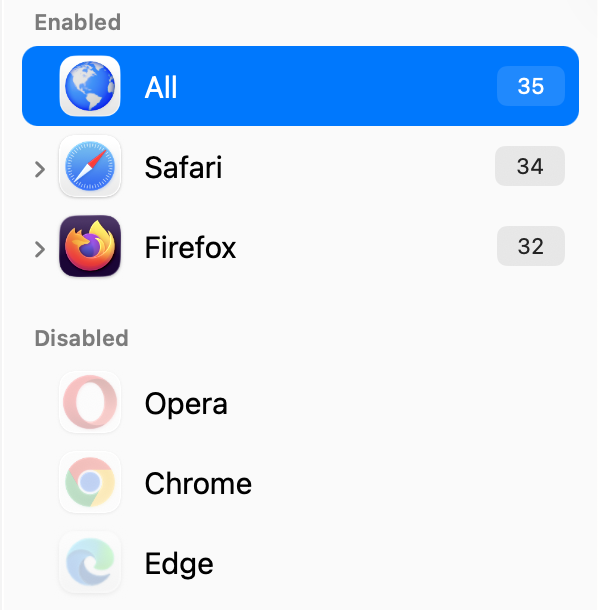
The majority of the window is for cookie management. There are four tabs.
The first one, the “Websites” tab, presents all the site cookies you currently have in a checklist format. Tick the checkbox next to the sites for which you want to allow to stay. Using a disclosure triangle, you can expand any website to see what they stored there, which gives you an extra measure of granularity. For example, I might want a site to leave a cookie, but not store SQLite data.
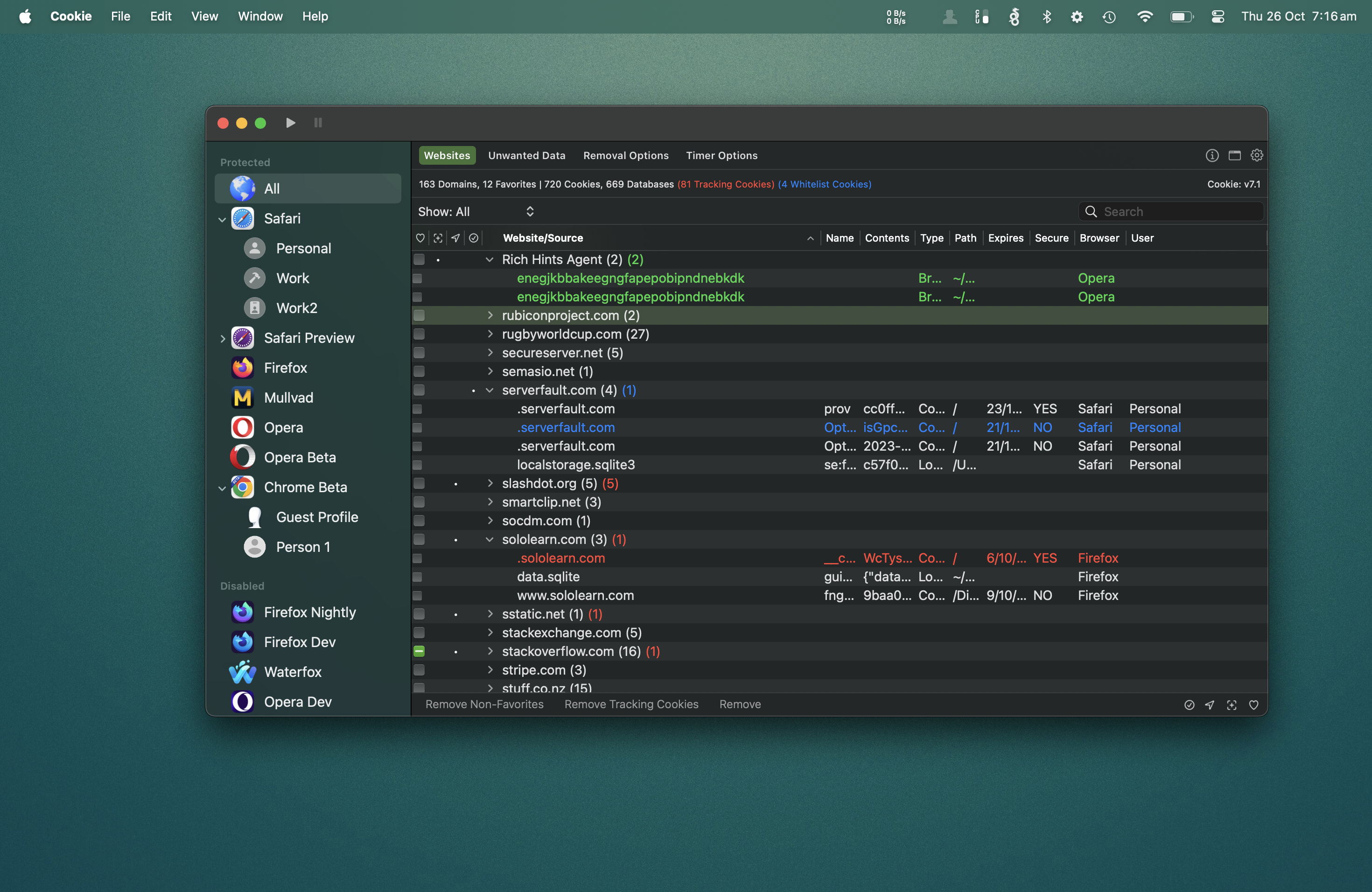
By doing this, you have essentially created an “allow list” of trusted websites that have the right to store cookies and other data on your computer. The Cookie app calls these your “favorites.”
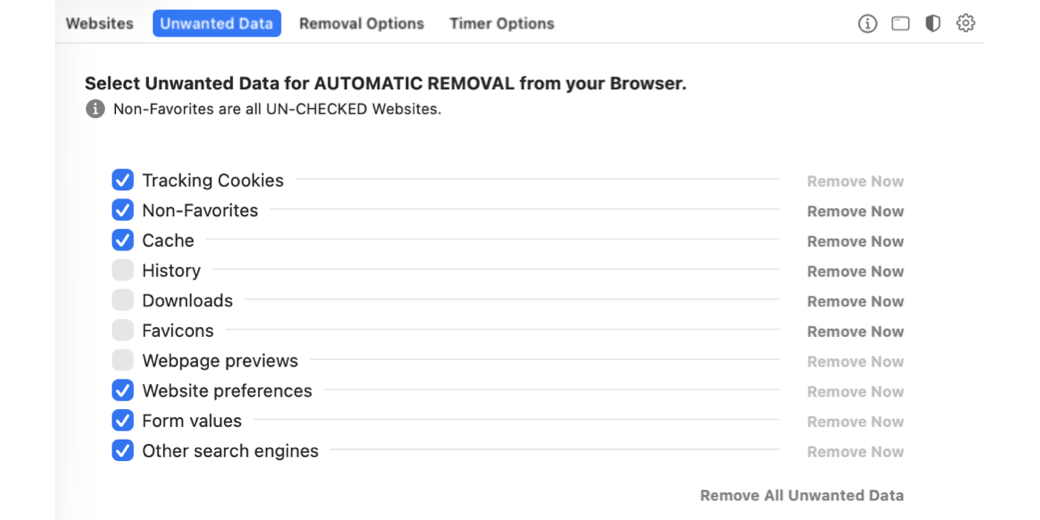
Once you have selected the sites you want to allow to leave behind data, you can proceed to the “Unwanted Data” tab, where there are “Remove Now” buttons to immediately remove tracking cookies, non-favorites, cache content, history, downloads, favicon (which are those little website thumbnails), website preferences, form values, and other search engines. In addition to buttons to remove these sites right now, there are checkboxes next to the different categories so you can select which ones are to be automatically removed based on the conditions you set in the next tab in the user interface. This is the magic of the Cookie app.
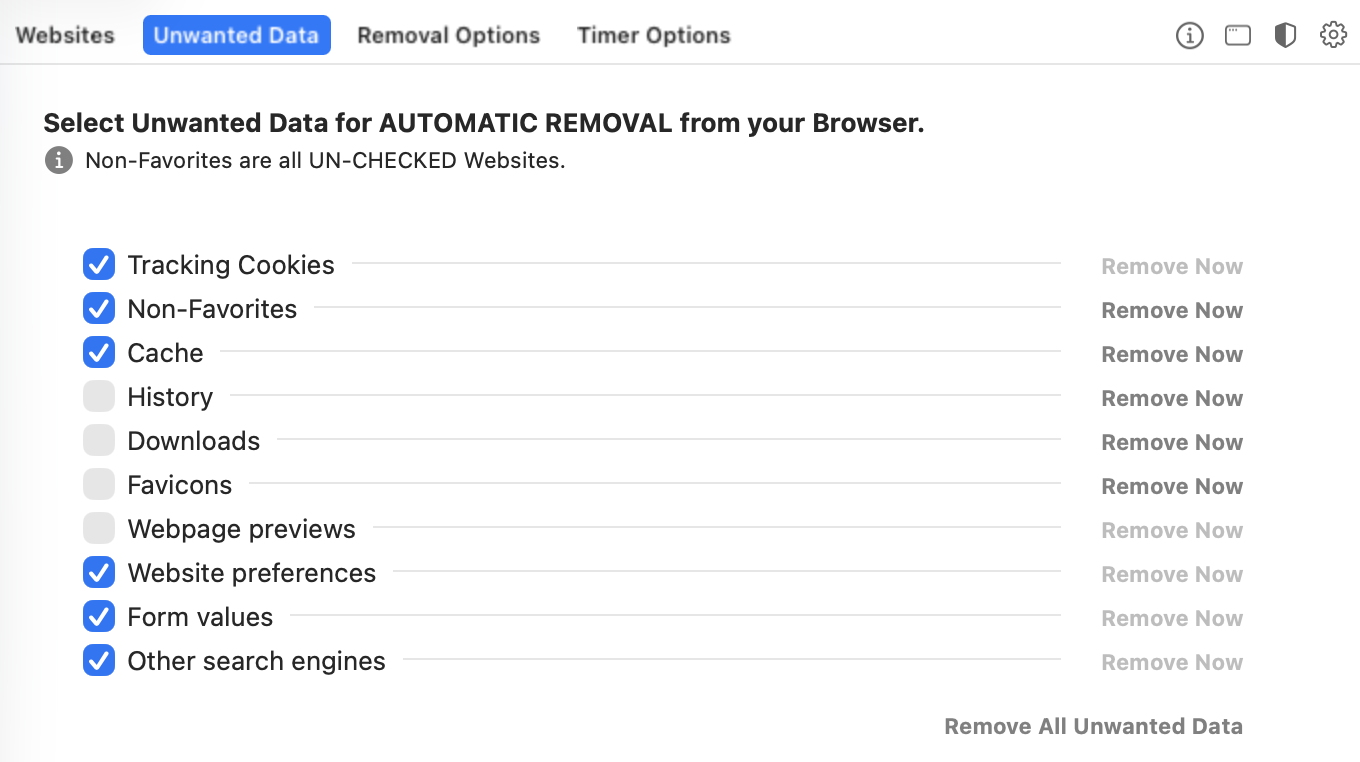
My recommendation is to leave the favicon, history, and downloads boxes unchecked since they are inoffensive and are not really a privacy risk. I think it’s great that this software gives you that level of control.
The next tab shows you automatic removal options. Your choices are On Cookie Quit, On Browser Quit, Every [so many] Minutes while the Browser is Open *(and you get to pick the number of minutes), *When the computer wakes from sleep and At Login. The ones I use are browser quit, after a period of time — I use 720 minutes, meaning it will happen roughly twice a week, and at login. Choice is good.
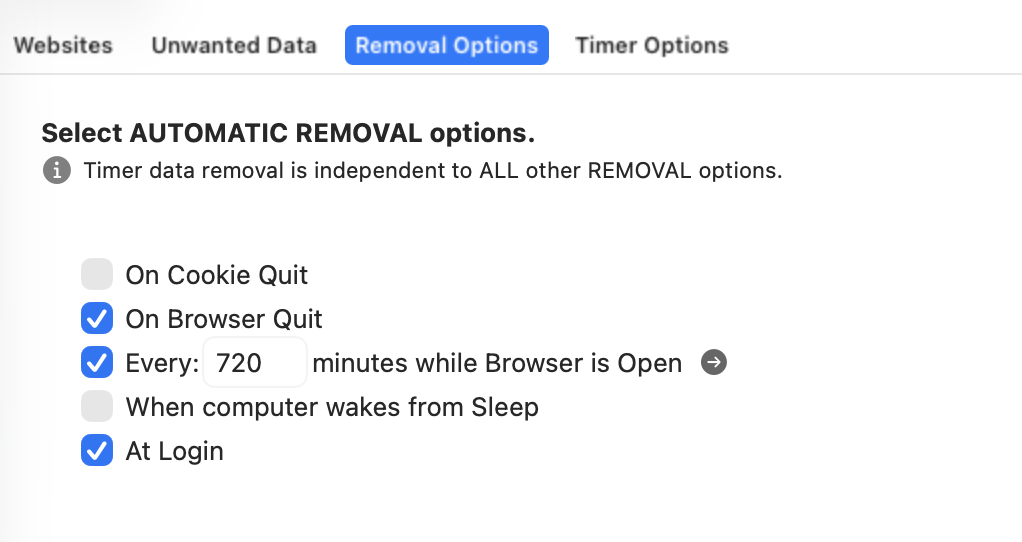
At the top of the window is a play/pause button pair that you use to turn the automatic Removal Options processes on (or off).

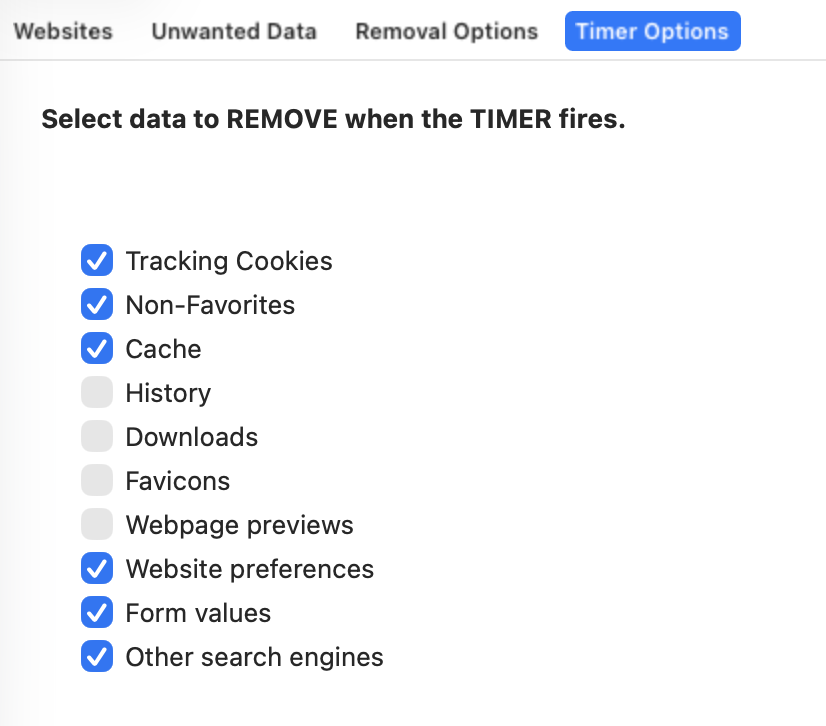
And the final tab, Timer Options, addresses the things you might want cleared when the timer goes off, which I have set to match what I have selected in the Unwanted Data — for the same reason. I don’t know why you would want to have timer operations do different things, but, as I’ve said, “Choice is good.”
If you are like me and use different profiles in Safari, you can be even more surgical and handle cookies for each profile, such as having some cookies be favorites in one profile and not others.
One of the things I like about Cookie is that it also explicitly identifies tracking cookies, which are denoted in red text in the user interface.

I found this helpful understanding, for example, Microsoft’s cookies because Microsoft uses both good functional cookies and a lot of evil tracking cookies. There is an option in the Advanced Settings to “Also remove Tracking Cookie (favorites) and that enables the Cookie app to remove Microsoft’s evil tracking cookies, but leaves the rest of my Microsoft cookies alone.
Finally, there are four small icons in the upper-right corner that give you quick access to certain tools and controls.

They are, from left to right: Information (which tells you about the selected control or screen), a toggle that switches you from normal advanced mode to a a highly-simplified mode that I find useless, a button that gives you statistics about what it has removed for you (as of this recording it has removed some twelve thousand items, about 60% of which are cached data, and about 10% tracking cookies).
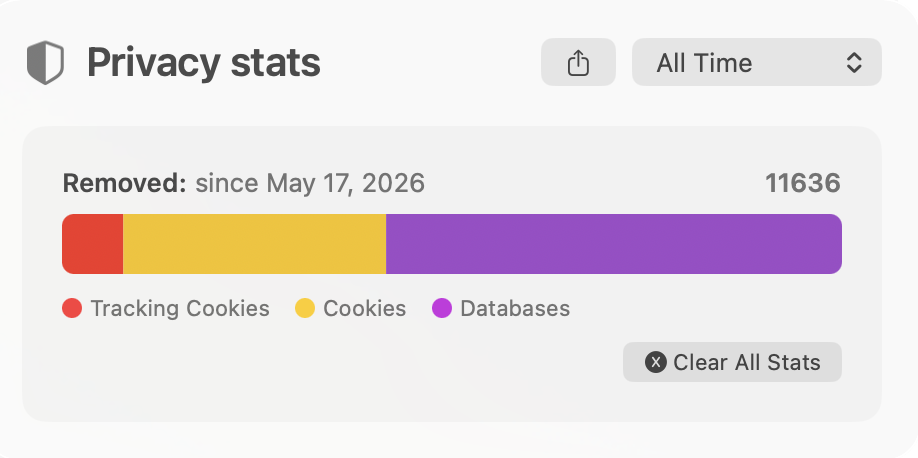
And the last item is a gear icon that takes you to its settings.
Cookie can be run hidden, accessible only from the Menu Bar, with the Dock icon suppressed, summoned by a hot key, or as a regular app. I prefer the latter at this point because I like the option of adding or removing favorites — yes, I’m a perpetual tinkerer. I appreciate the variety of options.
The Cost
Cookies gives you a two-week trial period, after which it charges according to your selected subscription period, such as $20 (USD) for an annual subscription, $13 (USD) for a semi-annual subscription, and $4 (USD) if you prefer to pay month-to-month.
Given how much time I used to spend painstakingly curating my cookies, $20 a year is well worth it for me. I think you’ll find it worth it too.
There is detailed documentation online at https://sweetpproductions.com/products/cookie8/help/index.htm
Steve, out.