
Early one evening, Allister Jenks sent me a fun Excel question. Unfortunately, that was 10 PM the day before for me, as he’s in New Zealand. I was so intrigued by the question that I told him I’d work on it tomorrow. And as no surprise to anyone, it was the first thing I thought of when I woke up the next day.
Allister asked:
Do you know if there is a way in Excel (for Mac) to find out everywhere a cell is referenced?
You know what I asked him before looking into this, right? “What problem are you trying to solve?” He answered with:
I have a complicated workbook with multiple sheets and all sorts of bespoke calculations. I have a set of values (numbers of days) that have been unchanged almost since I started working on this (months ago). It’s all finely balanced and results in real money going places, so before I change one of the values, I want to see what areas I need to consider. I could just look to see what changes but it would be easy to miss things.
Now I was invested in the solution. I mean, not financially invested, but mentally invested on behalf of my friend.
I have to confess that I had to search for the answer, and what I discovered was that there are two methods, both with their own merits.
Keystrokes to Find Dependents and Precedents
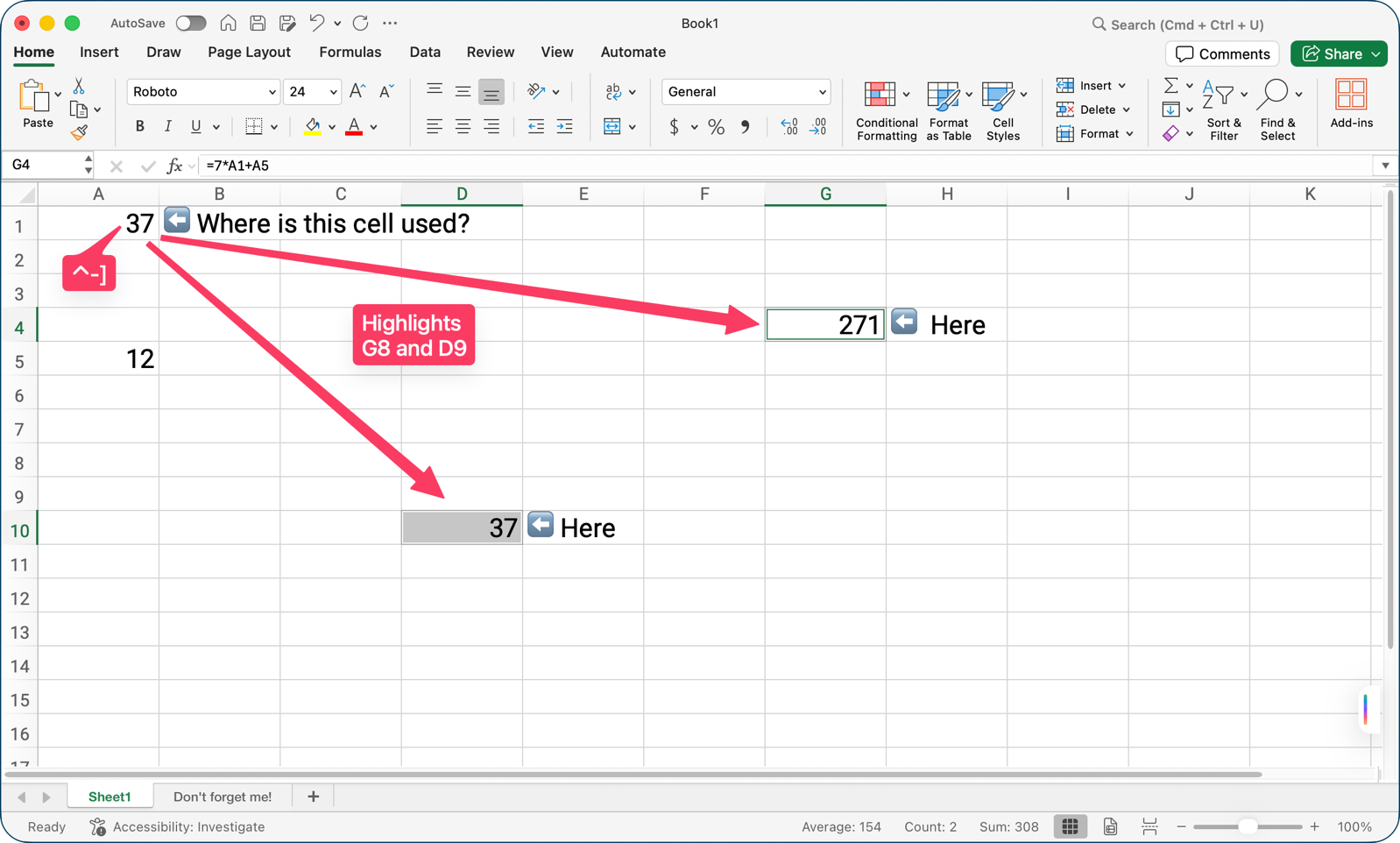
The first method is a hidden keystroke, not shown in any of the menus. Select the cell for which you want to see dependents, and then hold down ⌃-] and all dependent cells on the same sheet will be selected. Using this method, you could then tap the paint bucket icon in the Home tab to set them all to yellow, making them easier to find as you work on the spreadsheet.
If you want to find the precedents, meaning all cells on which the selected cell is dependent, you would use ⌃-[.
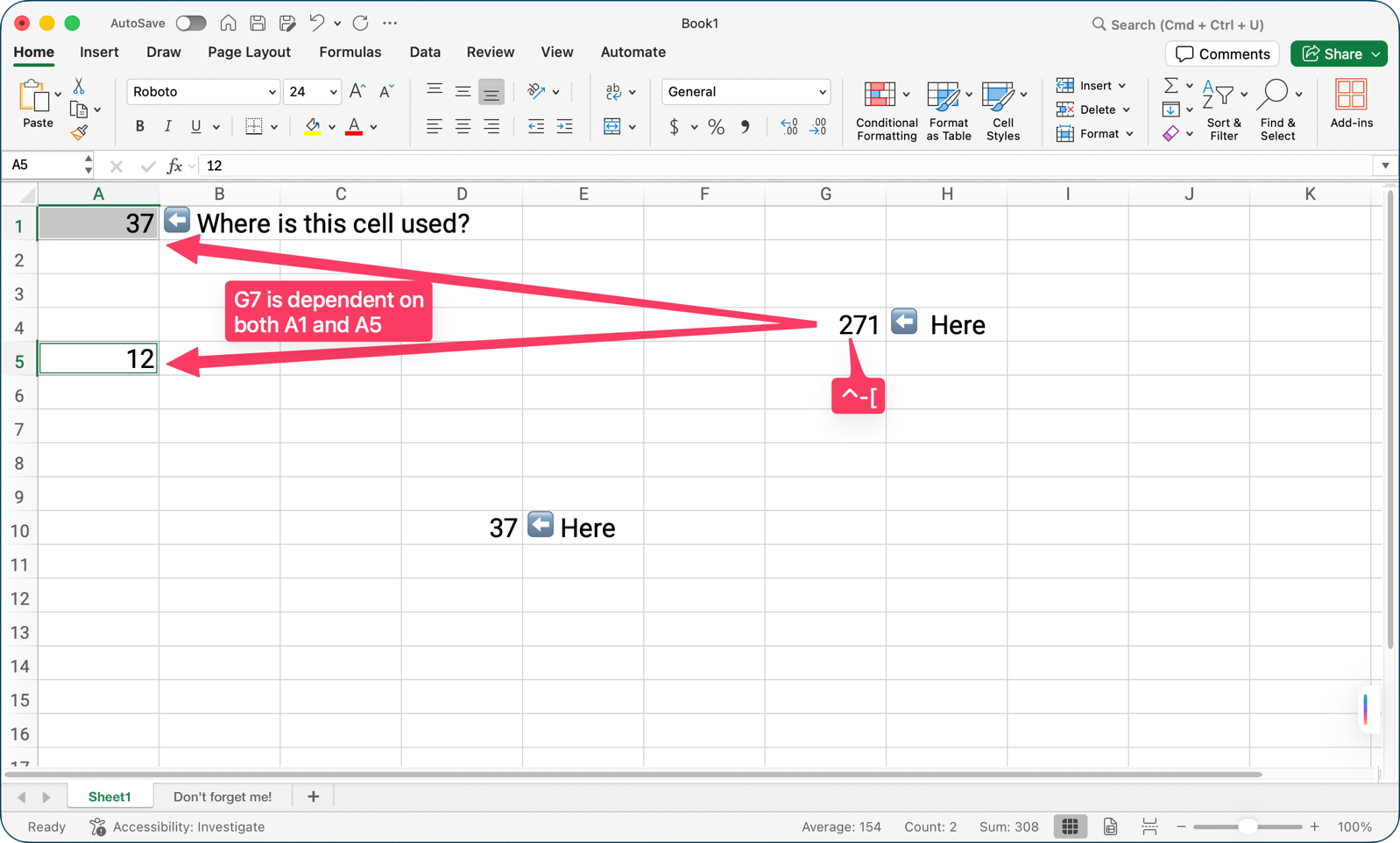
This is quite useful, but it won’t actually solve Allister’s problem, because it only finds dependents and precedents on the same sheet as the selected cell.
Trace Dependents and Precedents from the Menus
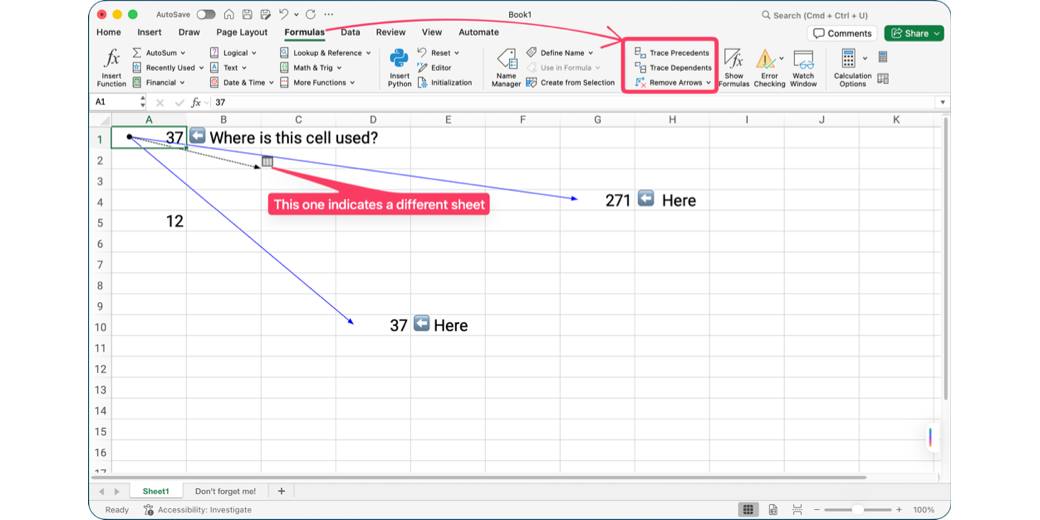
The second option is a more effective solution to Allister’s problem. It’s also quite clever and not like anything I’ve seen in Excel before. If you select the cell you want to trace, switch to the Formulas tab; you should see a section with three commands: Trace Precedents, Trace Dependents, and Remove Arrows with a downward chevron. As always with Microsoft Office, remember that if your window is too narrow, you may not see all of the options.
Now let’s talk about what happens if we select a cell and choose Trace Dependents from the ribbon. Excel draws arrows from the selected cell towards the dependent cells!
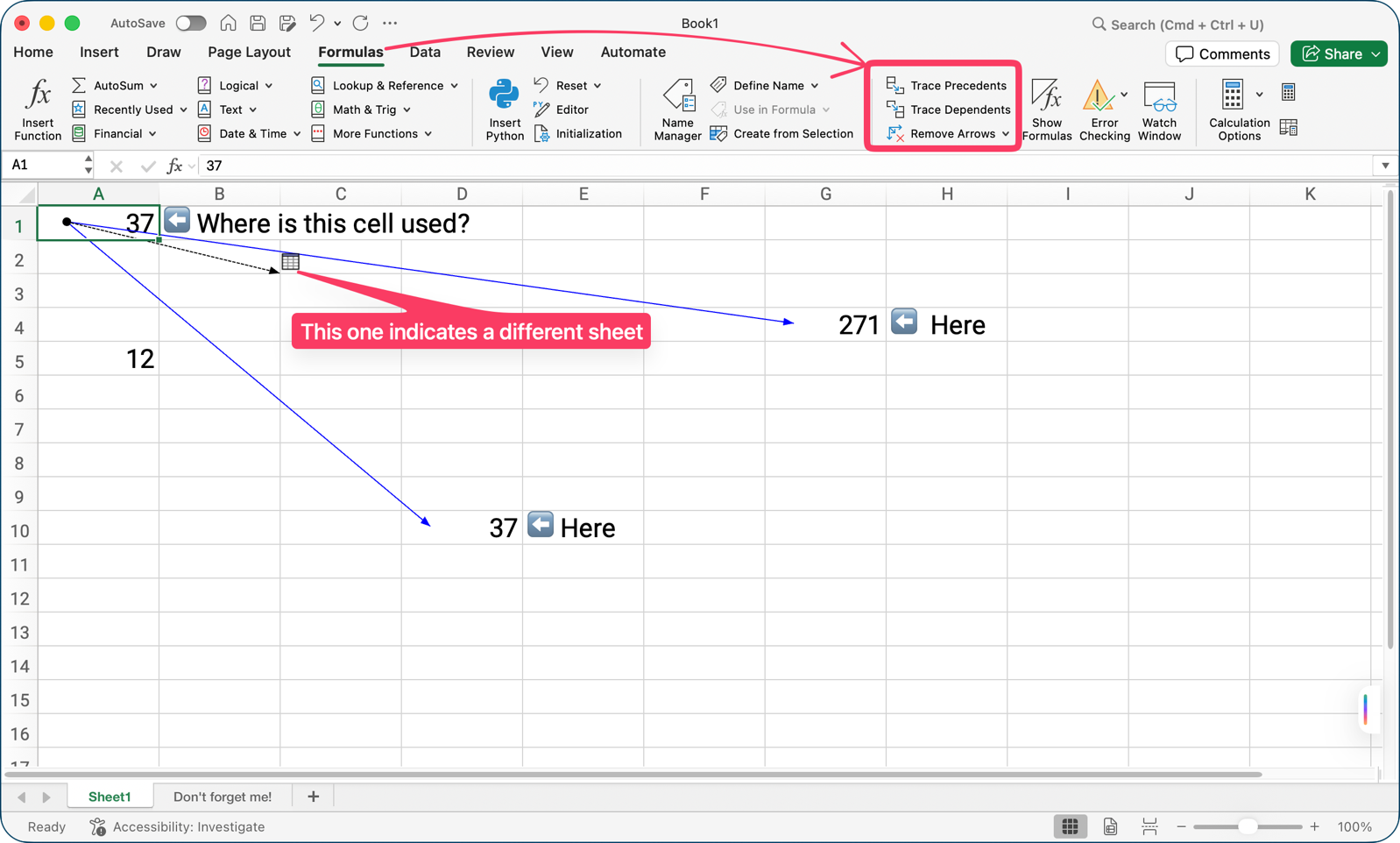
That’s great for the cells on the current sheet, but it also puts an arrow indicating any dependents that exist on other sheets. If you click on the arrow indicating other sheets, you get a little pop-up window that says “Go to:” and then lists all of the dependent cells. Click on any one of them, and their sheet will open with the cell selected.
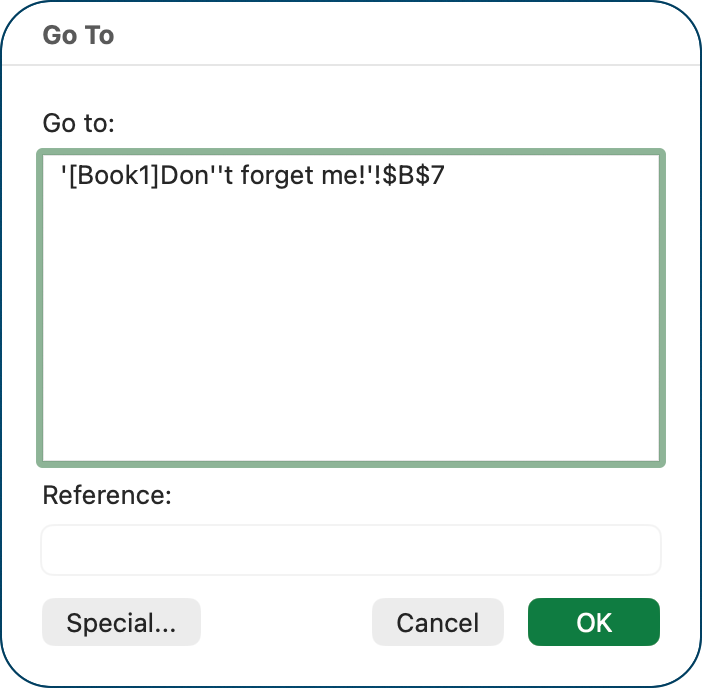
The arrows you apply stay on the screen while you’re working, but disappear when you save. As with the keystroke, I would suggest color coding the dependents so they’re easier to spot if you have to come back to the spreadsheet.
Excel also has a command in the same section of the ribbon to Trace Precedents, which finds all cells on which your selected cell depends and indicates those with arrows.
All these arrows flying about can get confusing. You can manually remove the arrows in the same section of the ribbon using the Remove Arrows dropdown. From there, you can choose to remove dependent arrows, precedent arrows, or all arrows.
If you don’t favor the ribbon, all of these dependent/precedent and arrow removal options are available from the menu bar for Excel in the Tools Menu under Auditing.
Copilot
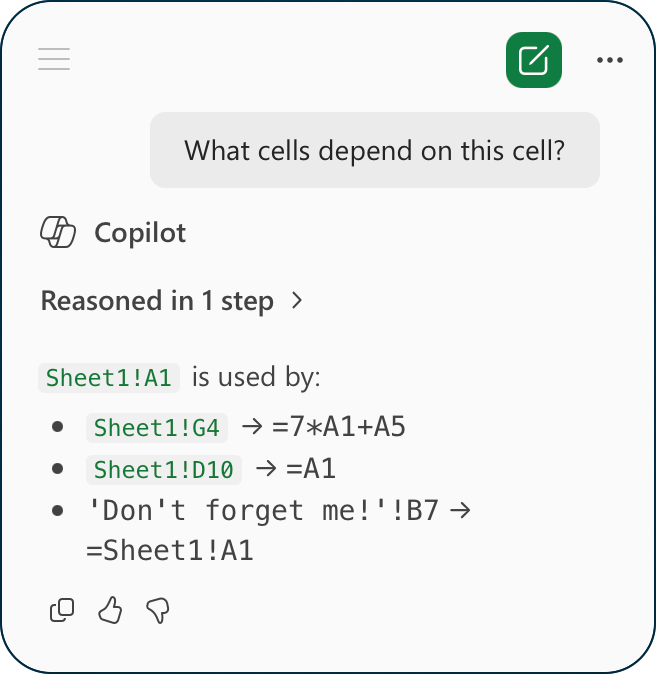
Or you can have all the fun of learning and exploration ruined by selecting a cell and asking Copilot, “ What cells depend on this cell?” I tried it, and it got the right answers. The good news is that it took a lot longer than tapping the Trace Descendants button, and it didn’t give me a handy “Go to:” dialog box to quickly navigate to the dependent cells.
Bottom Line
The bottom line is that I really enjoyed the discovery of a new trick in Excel. I’m sure I’ve had this same problem to be solved, but it never occurred to me to see if Excel could do this automatically and in such an intuitive graphical way. So thanks for asking the question, Allister!