
You may remember way back in 2008, when Bart Busschots taught us about site-specific browsers. A site-specific browser is kind of what it says on the tin: it’s a browser designed to go to one specific site. We’ll go through how site-specific browsers can be created, and I’ll explain what problems can be solved along the way. We’re going to look first at a way Apple provides, and then I’m going to tell you about a more advanced method using a tool called Unite by developer Binyamin
Goldman from BZG Apps.
Apple’s Solutions
With the advent of so many web-based services, it’s convenient to create a site-specific browser that opens just one website as though it was a “real” app. Apple allows you to do this on the iPhone with the Add to Homescreen option under the Share button. With the introduction of macOS Sonoma, you can do the same thing from Safari by going to File → Add to Dock…
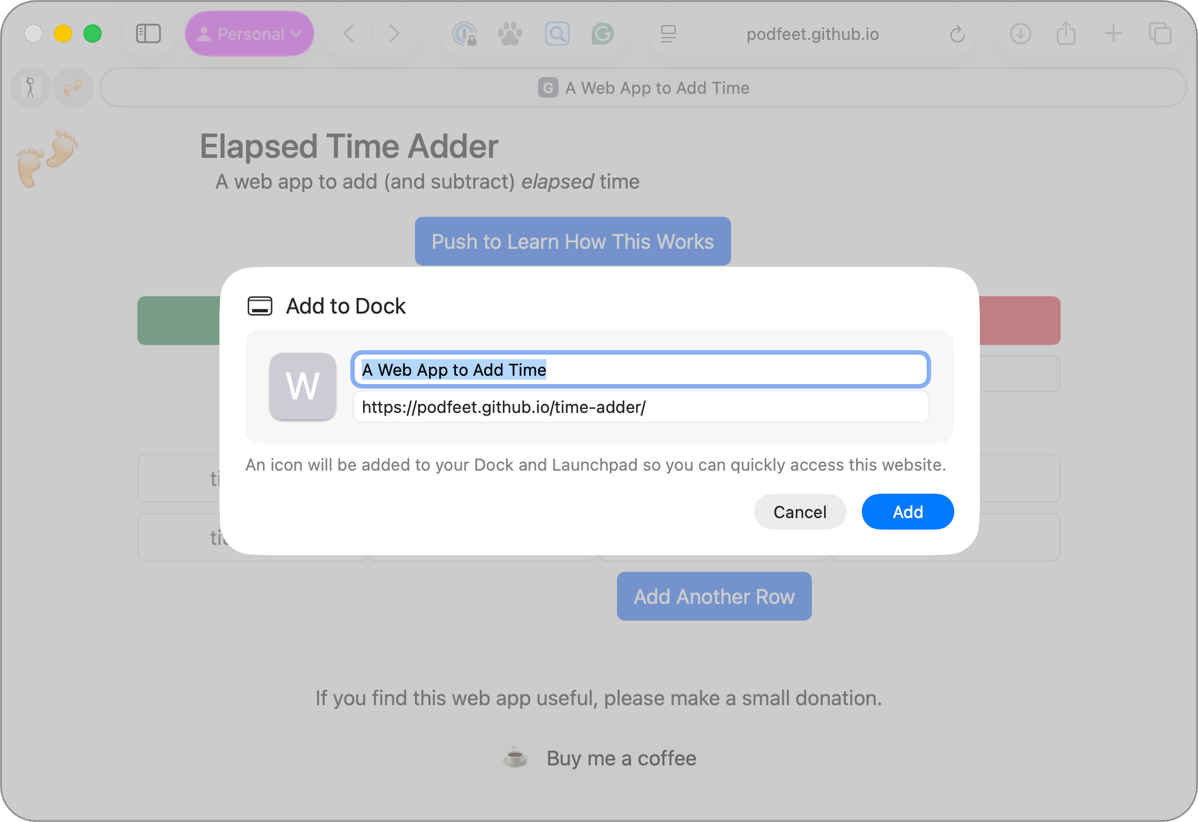
I’ll use my Elapsed Time Adder web app that I built and maintain over on GitHub’s servers. The URL isn’t pretty: https://podfeet.github.io/time-adder/, and remembering where it is might be hard. After navigating there and choosing to Add to Dock, I’m invited to change the name of the new app. By default, Safari sees the page name, “A Web App to Add Time”. I can change that to Elapsed Time Adder, which makes more sense to me. I don’t have a favicon for this site yet, so the app’s icon will be a generic W.
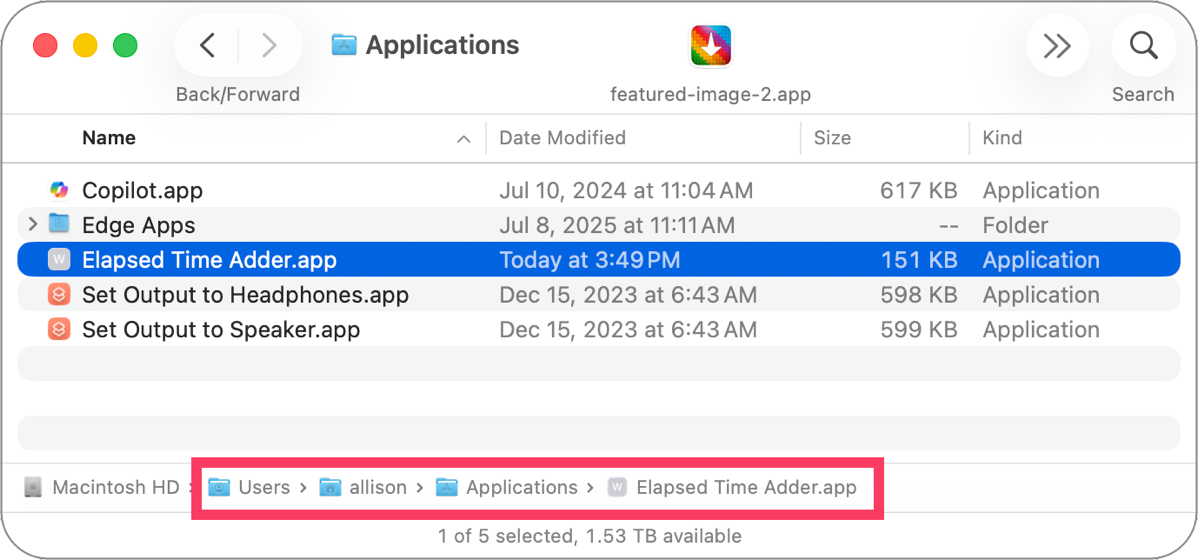
Once added to Dock, this also creates an app inside your user-level Applications folder, so not the one available to all users of your Mac. You can move it to the normal Applications folder if you like.
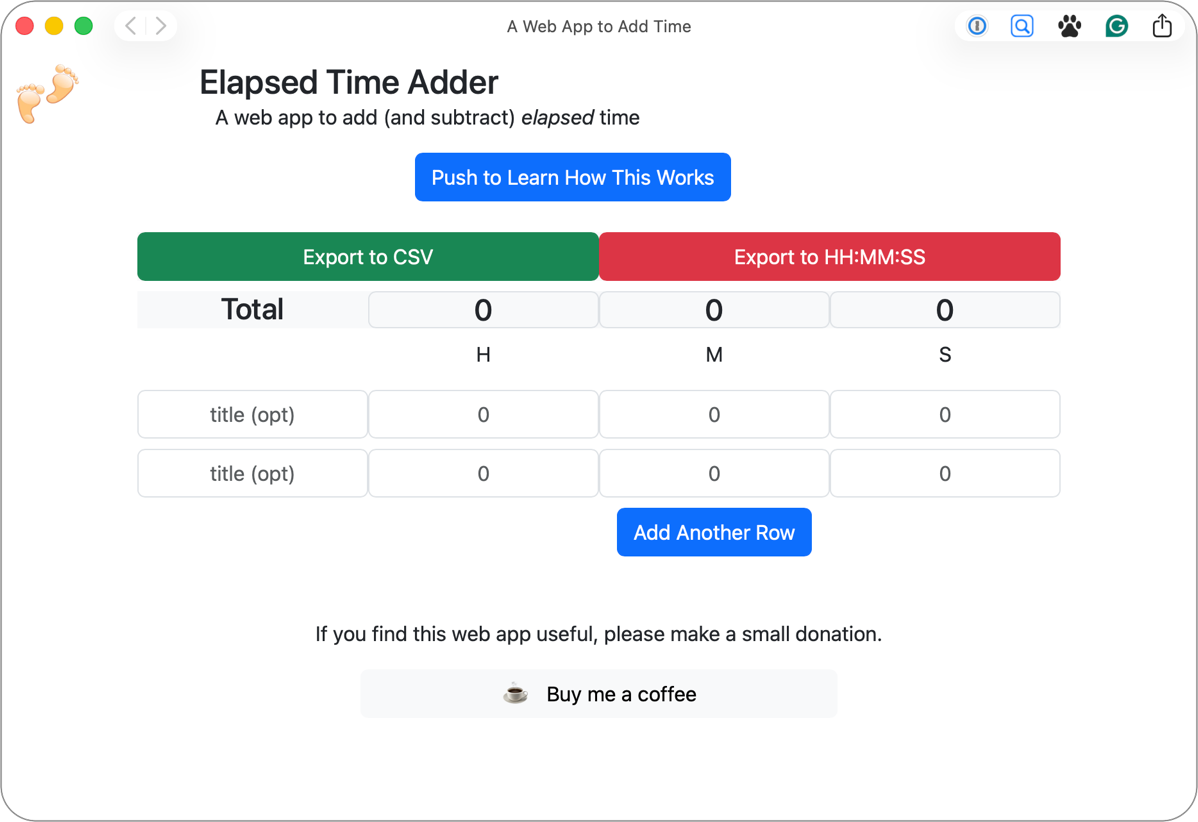
The resulting web app is kind of halfway between an app and a web page. It doesn’t have a URL bar at the top, so it looks more like an app than a browser, but it does have buttons for any plugins you have installed in Safari. I can see 1Password, Keyword Search, Velja, and Grammarly, along with the share icon. The window also has a forward and back button, which makes sense since you may navigate around while in this little web app.
But here’s where Apple’s implementation of site-specific browsers breaks down. Remember that my Elapsed Time Adder web app is hosted at podfeet.github.io. I have another web app hosted on GitHub, and that’s my Time Shifter Clock. Its URL is podfeet.github.io/time-shifter-clock/. If I click on a link to Time Shifter Clock app, it won’t open in my normal browser; it will open in my Elapsed Time Adder web app created by Safari.
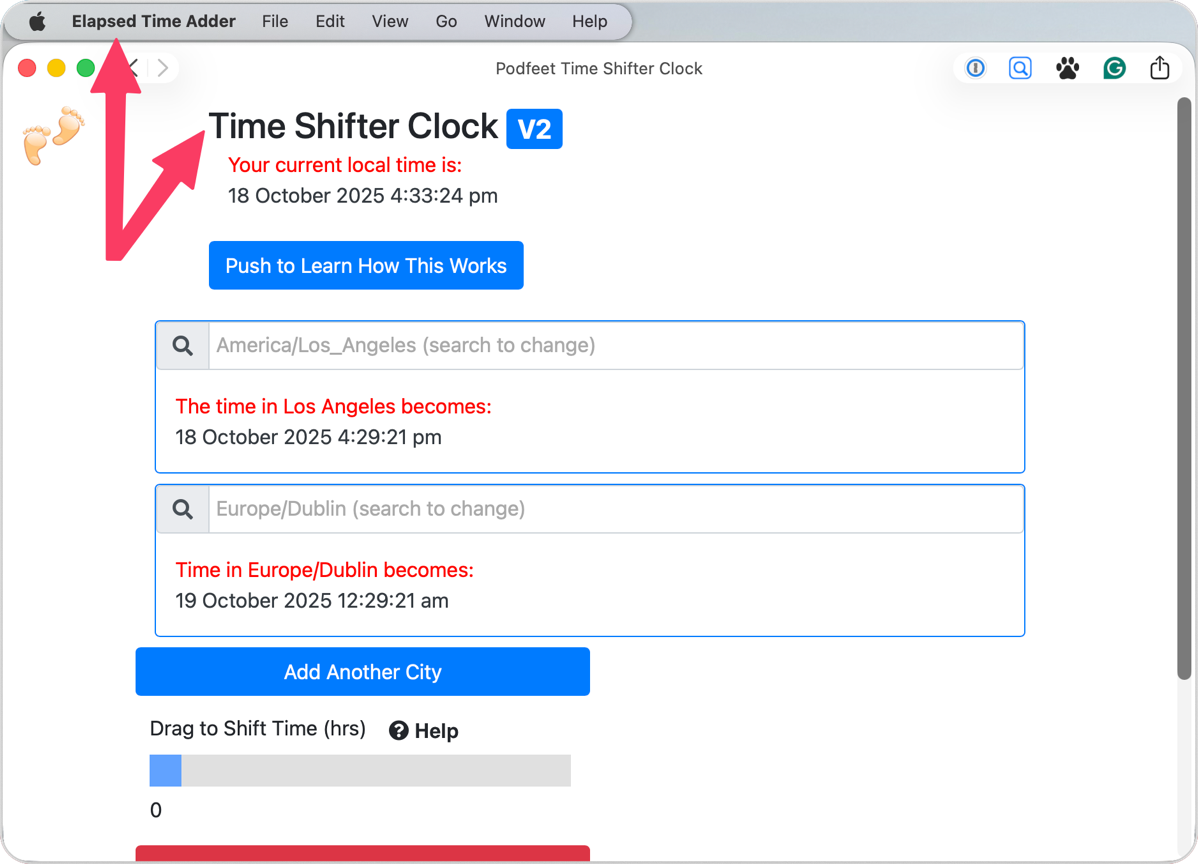
That example may have been too esoteric, so let me give you one you might actually run into. Imagine you’ve got a Google Sheet you work in all the time. It would be handy to have a web app for that sheet. Once you create it using Apple’s Add to Dock, all links to any Google Doc from any source will open in that site-specific browser. That makes the Add to Dock web app pretty much useless.
You also can’t be logged into two different accounts at the same time with a Safari-created site-specific browser. If you have a work account and a play account for Google, you would want them to be independent, site-specific browsers.
Enter Unite
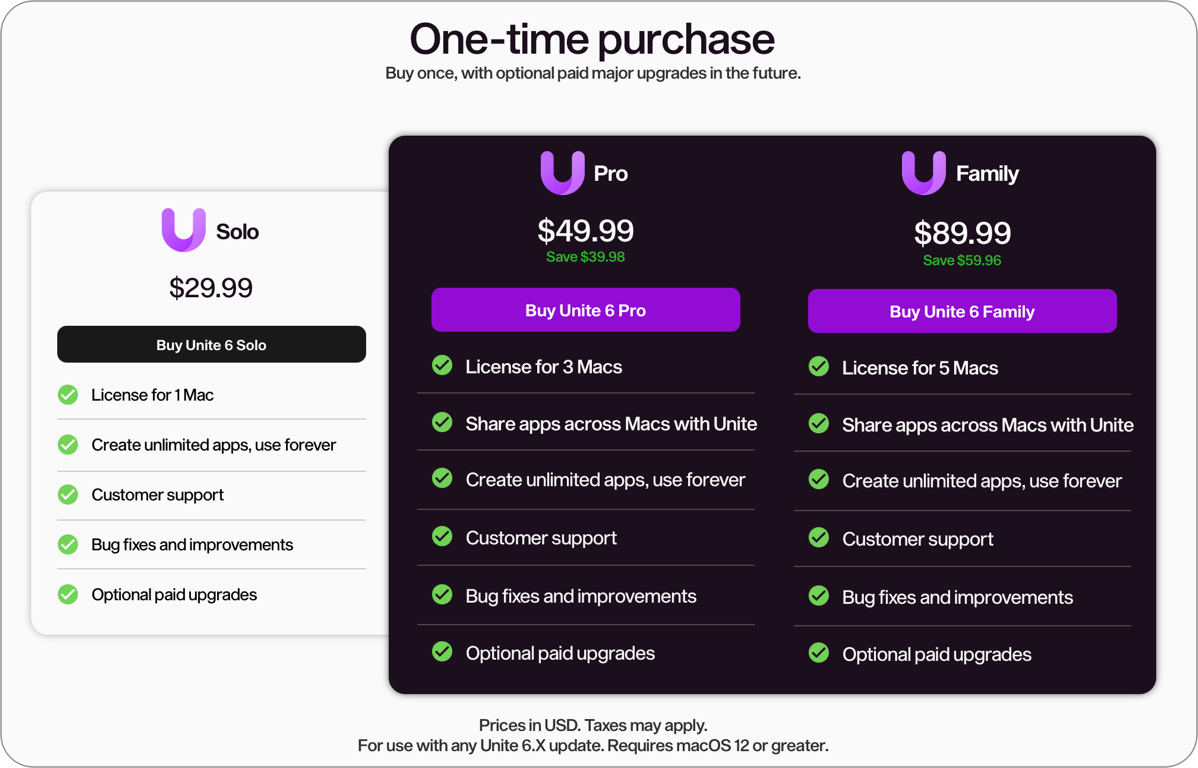
And that brings us to why I turned to Unite from BZG Apps. This is an app that is purpose-built to help you create site-specific browsers. It’s $30 for a solo license, which is for only 1 Mac. If you need a license for more than one Mac, you can get the Pro version for $50, or if you want to have fun for the whole family, the $90 Family license will give you a license for 5 Macs. Unite requires macOS 12 Monterey or later.
If you’re a Setapp user, you’ll be glad to know that Unite is also available with your existing subscription.
I would be remiss if I didn’t mention that Kurt Liebezeit told me about Unite two years ago. He even offered to do a review, but the new feature of Add to Dock had just been introduced in Sonoma, and we thought Unite had been Sherlocked. But like most examples of Sherlocking, Apple makes a minor feature available to all, but dedicated apps often have capabilities far beyond that simple offering.
Security
Most NosillaCastaways keep security front-of-mind, and we’re not fond of how websites leak data through the use of cookies. In the BZG Apps support article entitled Understanding Privacy in Unite, there’s a section on App Isolation I’d like to quote:
Each Unite app operates independently, providing a layer of isolation from other apps. This approach prevents the possibility of cross-app data leakage and ensures the safety of your data.
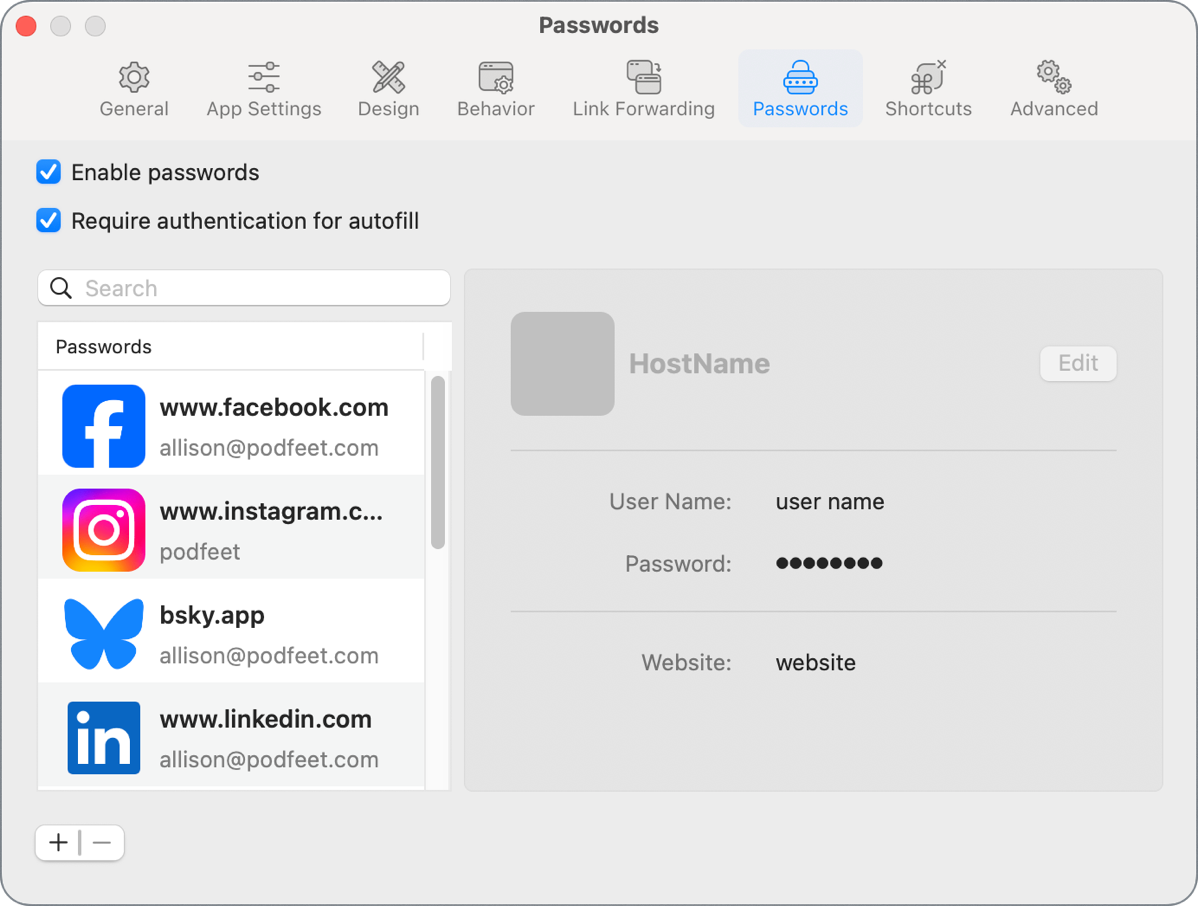
They also explain on that page that Unite apps are based on WebKit, the same browser engine that powers Safari. They chose WebKit because of its security, performance, and compliance with standards. Unite apps even come with their own built-in password manager, and they explain in the same article how it’s secured. You can toggle it off if you’re not interested in using it.
Setting up a Site-Specific Browser with Unite
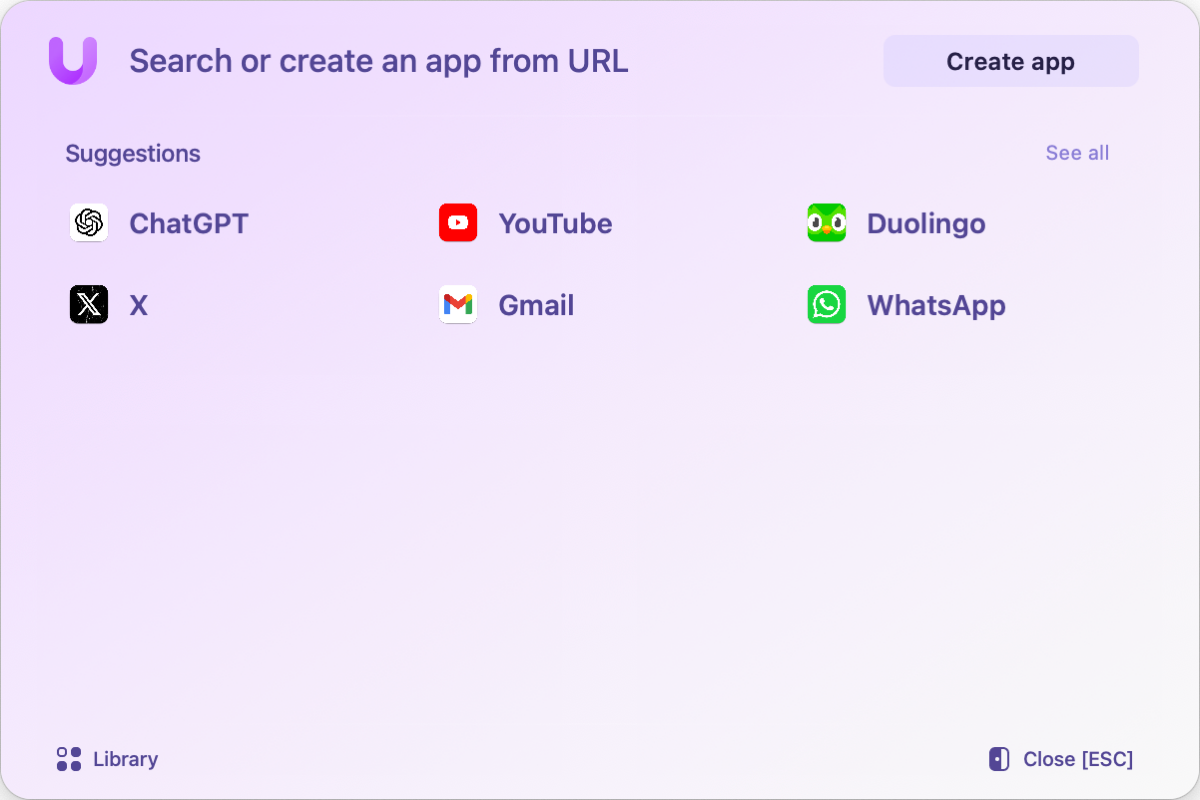
When you first launch the Unite app, you’ll see suggestions for six pre-built web apps. As of the time I’m writing this article, the suggestions are ChatGPT, YouTube, Duolingo, X, Gmail, and WhatsApp.
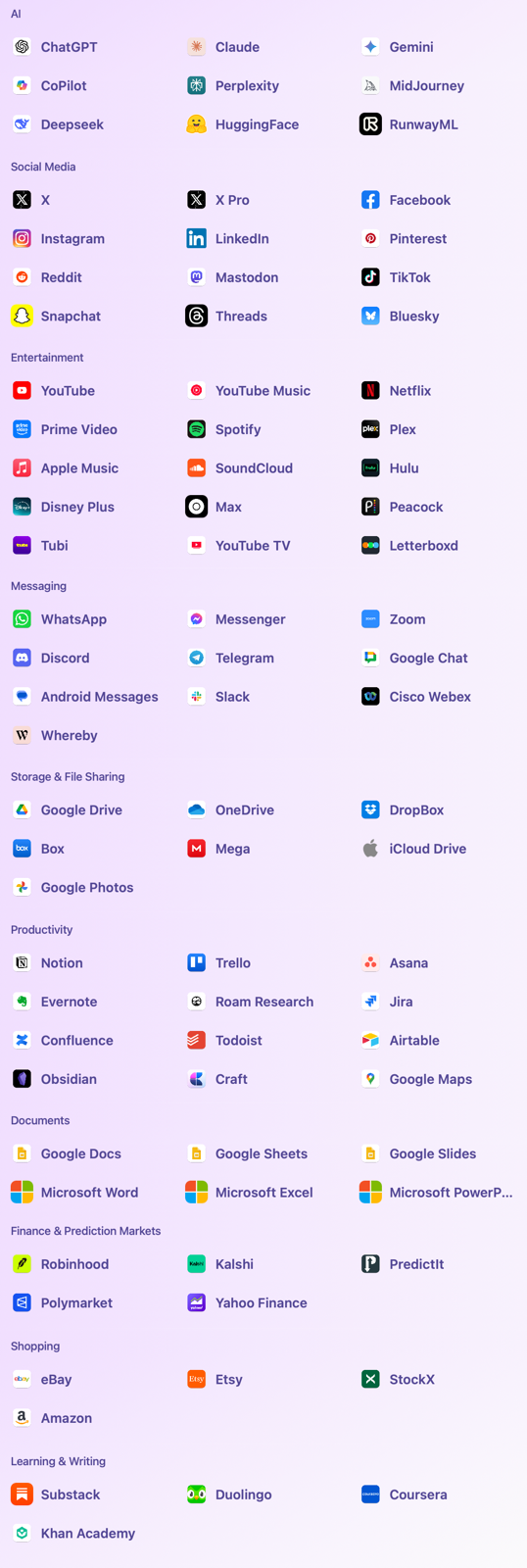
In the upper right, there’s a button that says “See all”, which reveals a GIANT list of pre-built web apps. I was too lazy to count them myself, so I asked ChatGPT, and it said there were 97 separate apps listed! Steve Mattan wasn’t too lazy, and as seems to be more and more frequent, the AI lied. There are 84 pre-built apps.
Luckily, they are helpfully sorted into categories of AI, Social Media, Entertainment, Messaging, Storage & File Sharing, Productivity, Documents, Finance & Production Markets, Shopping, and finally Learning & Writing. I highly recommend you take a look through these prebuilt web apps before constructing your own. You might just find the one you want to create is already in the list.
ChatGPT Unite App
Let’s create a ChatGPT app with Unite since it’s right there on the front page of suggestions. On the Create application page, you’ll see the name ChatGPT has been added, along with the URL of https://chat.openai.com. We can edit these fields, and I would suggest, as a best practice, adding the word Unite to the title. I find it useful from time to time to tell my “real” apps from my Unite apps.
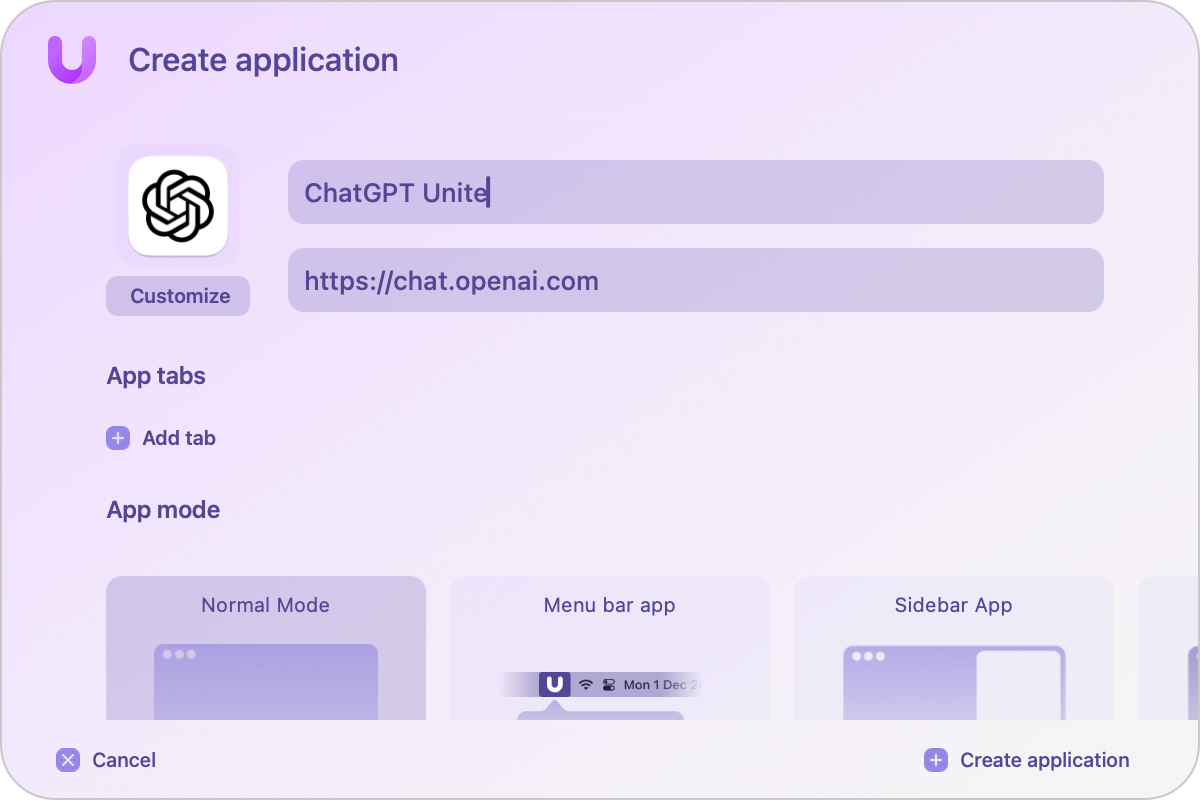
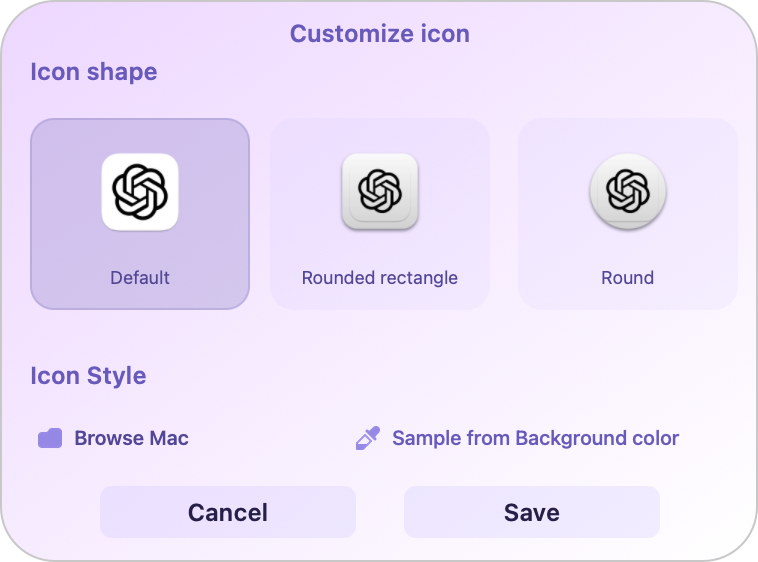
You’ll also see the ChatGPT icon to the left with a customize button which lets you choose from the default flat icon, to a rounded rectangle or circle with some depth. If this was an app you were creating from scratch, you might want to make your own icon or copy it from somewhere, so Unite lets you do that here by browsing your Mac for an appropriate image file.
There’s a lot more we can do in the creation of our Unite app for ChatGPT, but let’s use the Create application button to see how it looks right out of the box. After a second or two, you’ll be told your application was successfully created and be invited to launch it now.
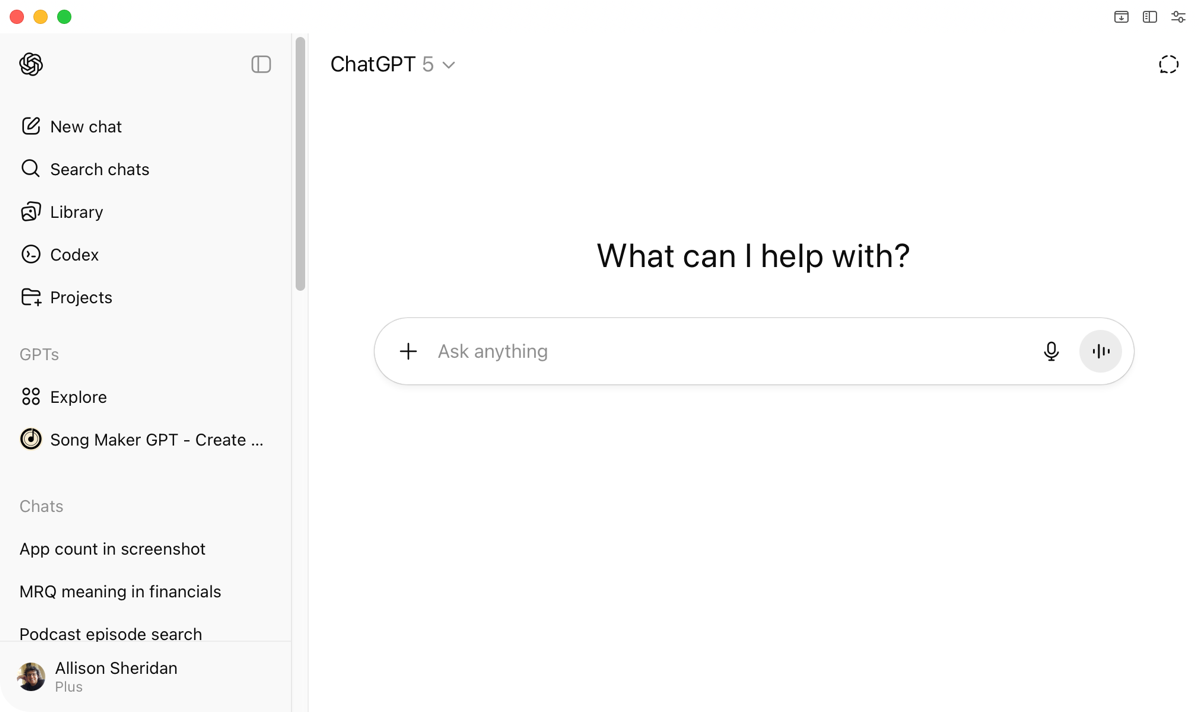
When your ChatGPT Unite app opens, you’ll see the familiar left sidebar for ChatGPT and the Ask anything text field in the middle, but you’ll notice it doesn’t really look like a webpage. It has the red/yellow/green buttons in the top left, but there’s no URL bar at the top. In the top right, you’ll see three tiny, little icons. The first button will unfold (and fold back up) the URL bar. Sometimes you do need it, but it’s nice to have a clean interface.
The next button is to open a vertical tab sidebar. Since this is a proper web browser, there will be times you’d like to have tabs. If you don’t enable the sidebar, they’ll be across the top like a traditional browser.
The final button opens some settings, but I’ll circle back to those in a bit.
Accessibility … Nope Mostly
The bad news is that all of the buttons I’ve just described are labeled simply “button”, so that’s all you’ll hear if you’re using VoiceOver. The share button, add a tab button, and refresh button in the URL bar are all also labeled “button”. Even worse, the stoplight buttons, home, back, and forward buttons are impossible to navigate with VoiceOver.
I thought maybe our screenreader friends could live without those buttons, but all of the settings for the entire app are labeled “button” as well. I’ve gotten to know the dev pretty well over the past few months as I’ve studied this app, and I sent him a note about the lack of accessibility with the hope that he’ll make it a high priority.
Update The dev wrote back and said:
Yes, this is a good catch. I am currently working on the next major version of Unite and will try to do better on this front as we reevaluate the overall architecture.
If I hear on the next version that Unite is accessible with a screenreader, I’ll be sure to let you know.
Different App Views
Unite apps can be presented in three distinctly different views. The default is the normal view, where the app is a regular window on your Mac. I mentioned a little settings button in the upper right. From the settings button, you can change Normal to Status bar view or Compact view.
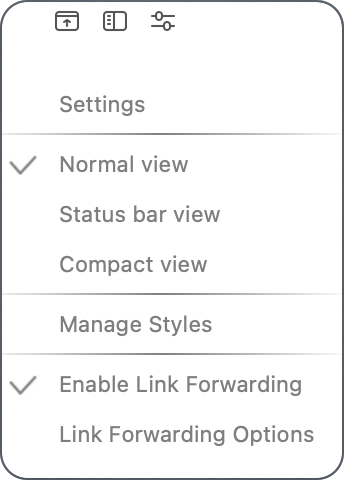
Status bar view changes the entire app into a menu bar app. Not every app would do well in this mode, but ChatGPT in particular is the kind of app you may want to jump into, ask a quick question, and then get back to work.
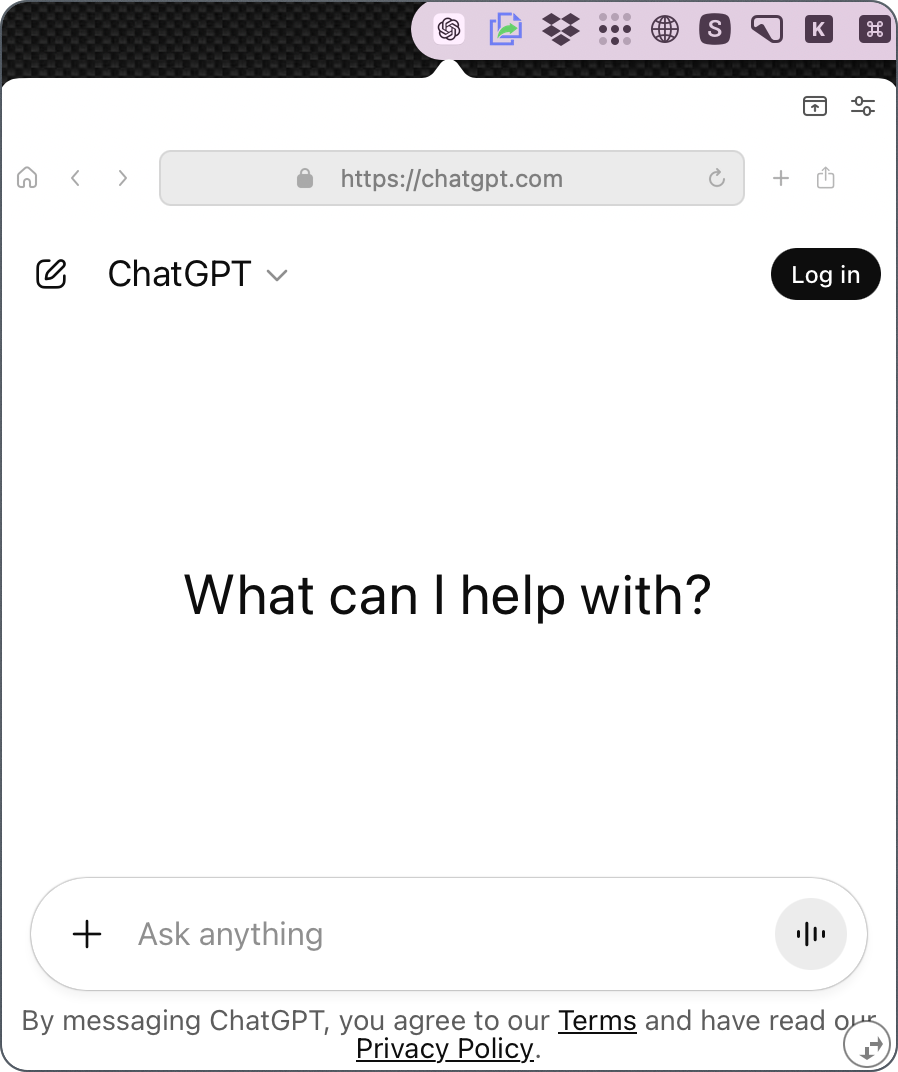
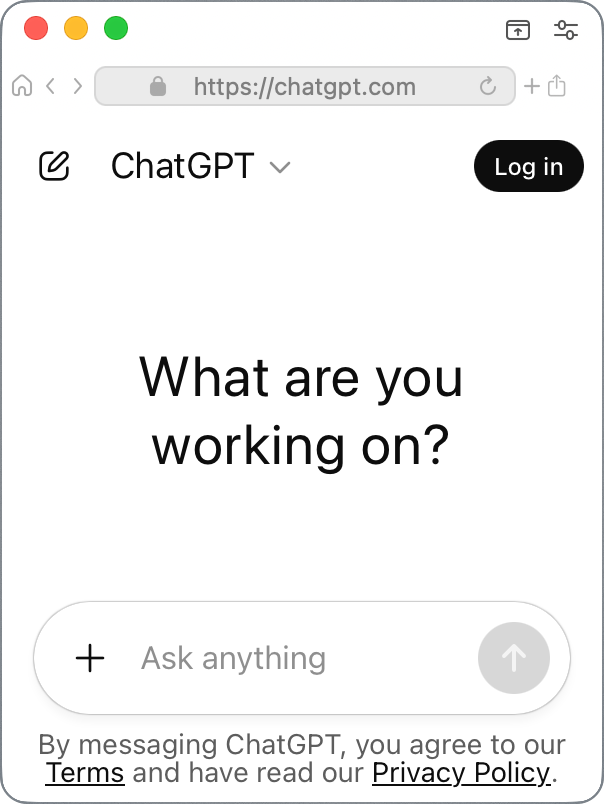
Compact view does what it says on the tin; it opens in a very small window. The size isn’t really the magical part, because you can drag the corner to embiggen it, and the size is remembered even if you quit and reopen. Compact view’s real power is that the window floats above all other apps. That would get on my nerves after a while, but I can definitely see times I’d like a persistent window to perform certain tasks. Incorrectly stated. However, you can in Settings/Design set any app to float no matter the view.
Editing an Existing App
After you’ve created an app, you can go back to Unite and edit the design. First, quit the app, then launch Unite. Under the suggested apps to build, you’ll now see “Recently added”, and your first app should be listed there. In my example, it’s called ChatGPT Unite. If you hover over the newly created app, you’ll see a downward chevron appear on the far right. When selected, the top option is to Edit.
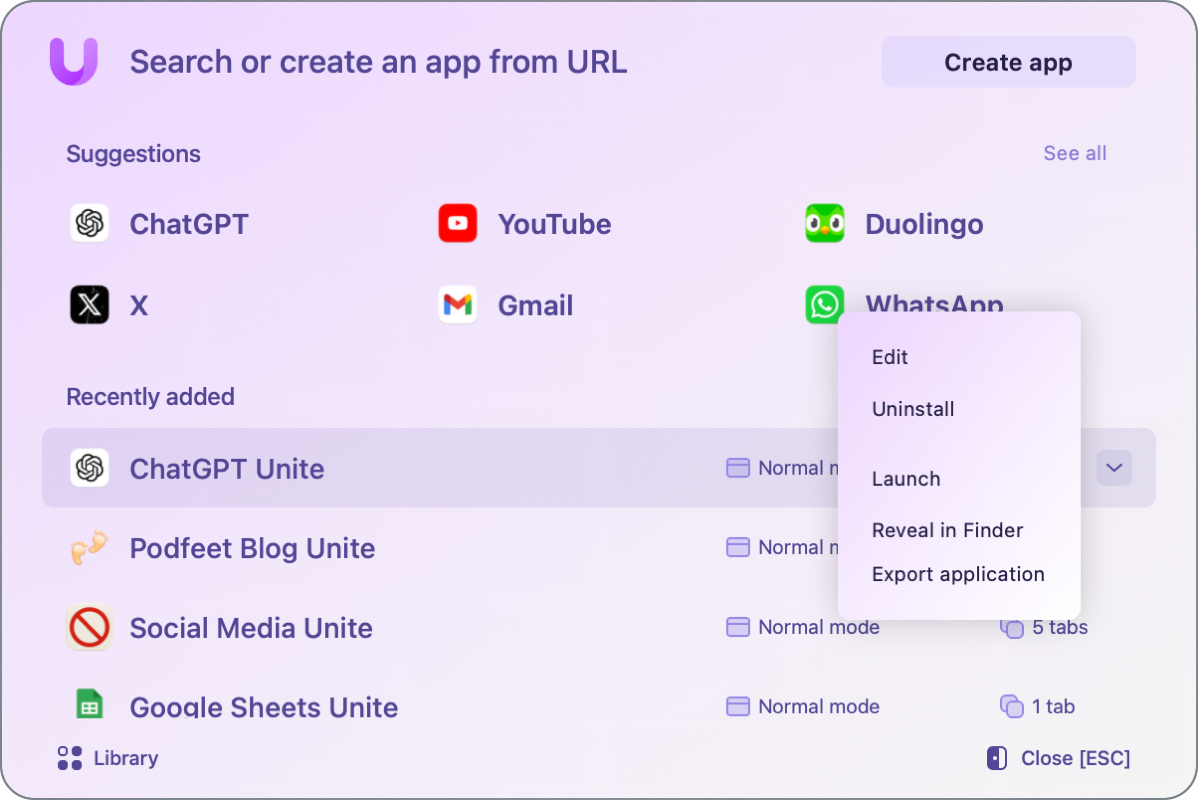
But we can also uninstall apps from this little pop-up window. It’s not hard to go to the Applications folder and delete an app, but it’s cleaner to do it from this window, because any leftover associated files can confuse Unite if you make a new app for the same service. We can also launch the app, reveal it in Finder, or Export the application. This will create an .uniteconfig file that you can share or use on another Unite-licensed Mac.
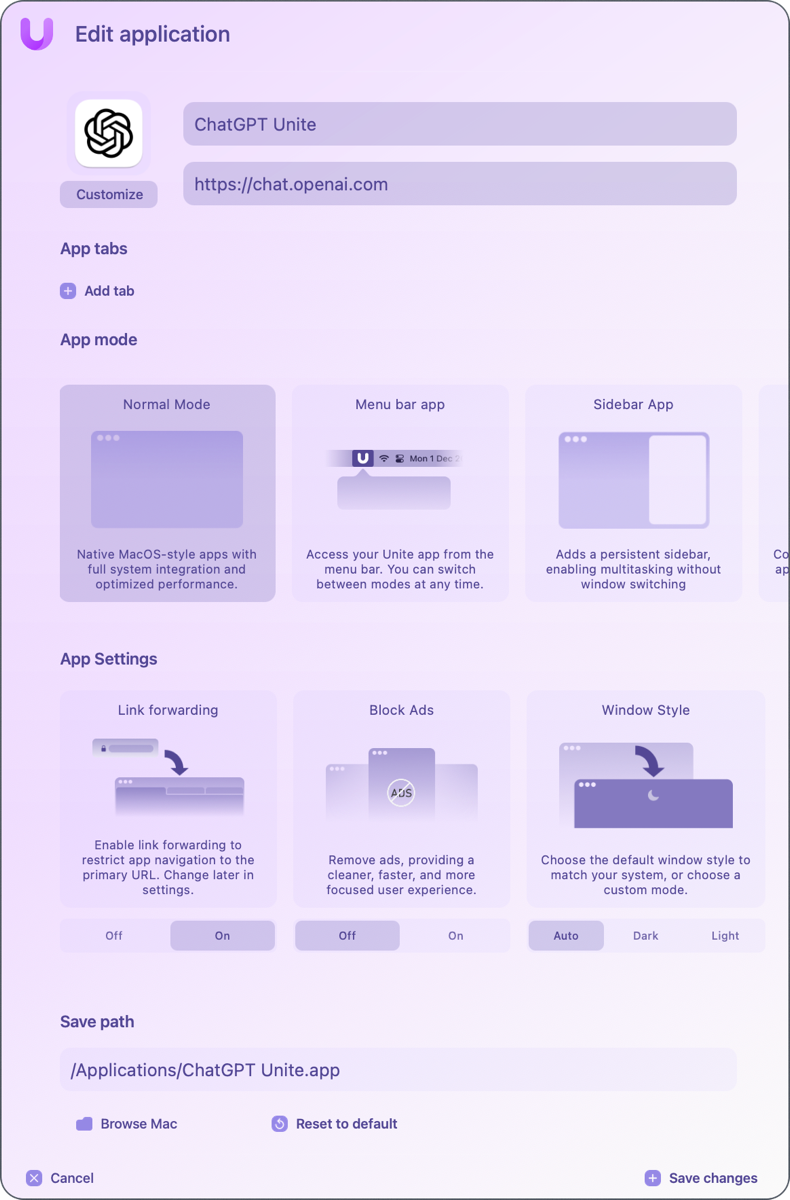
If we select Edit, we’re taken back to the same screen that we saw when creating the app. If I had one complaint about Unite, it’s that the window size can’t be increased, and there’s a lot of info on each page. I created a scrolling screenshot for the article so you could see all of the options at the same time.
The first option is App tabs, and I’ll come back to that because it’s super cool.
The second section is App mode, which almost correlates with the view options we looked at earlier, like Normal mode, Menu bar app, and Compact mode. But it also has an option for Sidebar app. Sidebar apps have a vertical tab list down the left (or right) side.
In a Normal view app, remember we had a button at the top to reveal and hide the URL bar, but with a Sidebar app, that option disappears, and you’ll only see an icon to hide and reveal the sidebar. But if you hide the sidebar with that button, it reveals the URL bar and changes your tabs to take the traditional horizontal positions. If you’re an Arc fan or you favor using plugins like Tree Style Tabs to get vertical tabs, you may want to experiment with making Sidebar apps.
App Settings
Next on the Edit application window are three options to modify the behavior of your shiny new app. You’ll see Link forwarding, Block Ads, and Window Style. Window Style is easy to explain; it’s just dark mode vs. light mode vs. auto to follow your system style. Block Ads is also self-explanatory and is a simple toggle from off to on.
Link forwarding is a bit more complex. Link forwarding allows you to be in control of how links are handled in your app. Do you want your app to open links within the app if they’re to other services, or would you rather have them open in your default web browser? Do you want them to open as background tabs, new windows, or maybe even replace the current tab? In the Edit application setup, you’ll see that Link Forwarding is on, but there’s no granularity to what that means.
Once you open your application, it will have Settings, just like any other app. It’s unusual, though, in that there are soooo many settings. One entire tab is dedicated to how Link Forwarding works.
Save Path
The last bit of setup when you’re editing (or creating) an app is the Save path. By default, it’s set to your system-level Applications directory, but you’re not restricted to that path. It might be a good way to organize your apps by creating a folder in your Applications folder called Unite Apps, and then changing the path to /Applications/Unite Apps/ so you can keep them all piled together. I might just do that!
App Tabs
Now, let’s back up to App Tabs and have some real fun. The problem App Tabs solves is when you want a group of tabs open to different sites, but all in the same app. Think about something you work on where you often need several of the same sources at the same time. Maybe you research the same 5 journals when working. Maybe you manage several websites (I’m looking at you, Jill from the Northwoods) and you’d like to have access to them all in one window. Maybe you want one app that has Google Docs, Google Sheets, and Google Slides.
My use case for it is to have all of my ickier social media sites all in one app. When I’ve published a blog post or a podcast episode, I like to announce it to the world. I launch Slack first and tell the most dedicated NosillaCastaways about what I just published. Then I launch Mona, my Mastodon tool of choice, and announce it there.
But then there’s LinkedIn, Threads, Bluesky, and two places on Facebook I like to spam. I don’t spend any amount of time in these tools and in fact, I work hard to not waste time playing around in them. I also don’t trust any of those services not to leak my data. If I wanted to protect my data between these services, I’d need to make separate apps for each one. I decided that I’d let them pollute each other, but not pollute my normal browsing, so I made one super app for all of the services together. I did that using App tabs.
To create an app like this, think ahead to which service you want to kind of the default tab. If you add a new tab in this app, it will be the same URL as the first one you identify. It’s also not easy to rearrange tabs after you’ve created them. Let’s say I create an app with five tabs, one primary and four more. In order to move the last tab to the second position, I’d have to delete all four added tabs, put in the new one, and add the other three back in. It might actually be easier to start over than do all that!
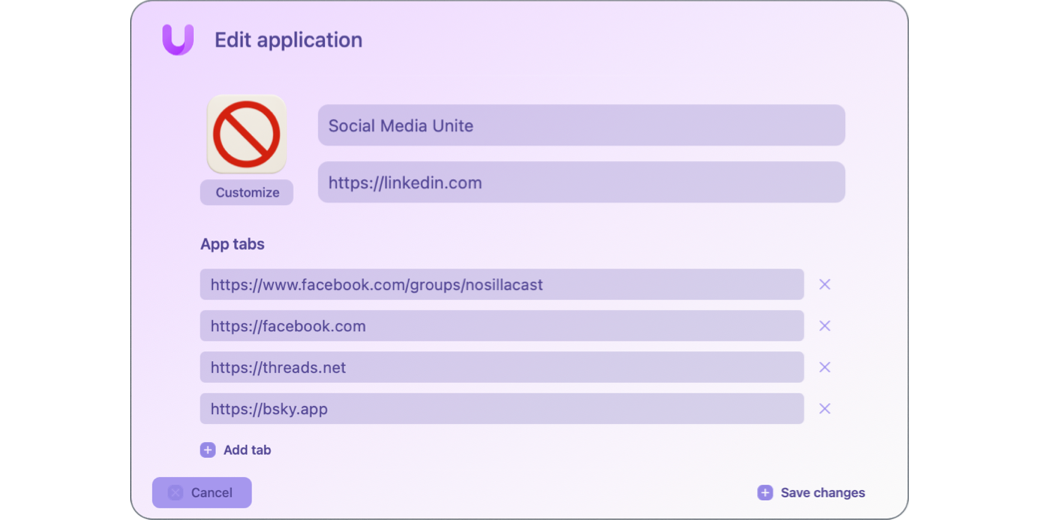
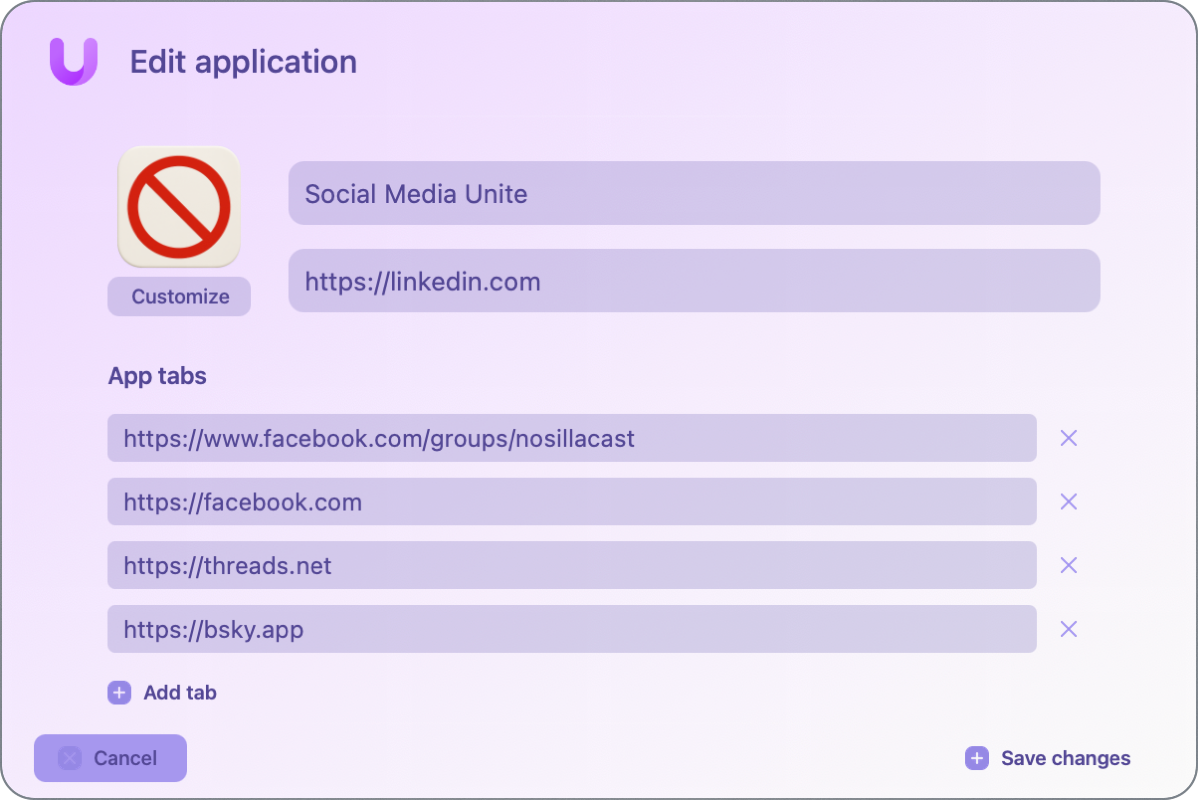
Let’s walk through how cool this is. I’ll call my app Social Media Unite. I had ChatGPT create me an app logo that has a red circle with a line through it — the universal symbol for “NO!” I can use the customize button to grab that logo from Finder and add it to the app.
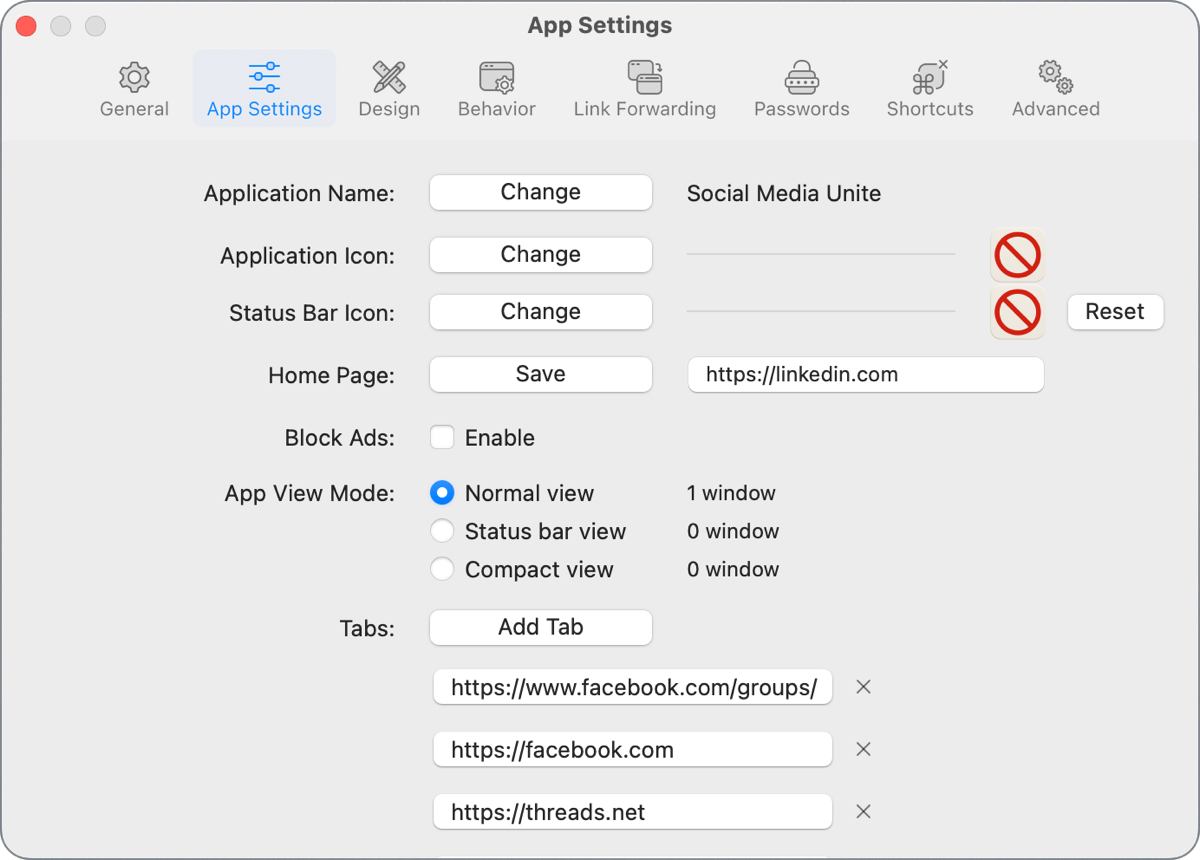
I’ll make the primary tab go to https://linkedin.com. Any new tabs will always open to LinkedIn.
Now I’ll add four new tabs. I mentioned I have two Facebook links where I post. One is a Facebook group for the NosillaCast, and the other is the main Facebook feed for my personal account. I usually start on the Facebook group first, post there, and then forward to my personal account. Technically, I don’t need my personal account in this app, but just these few times a week, I let myself take a quick look through any notifications I’ve received, answer any that sound interesting, and then move on.
I’ll add tabs to Threads and Bluesky to finish out the list, and hit Save.
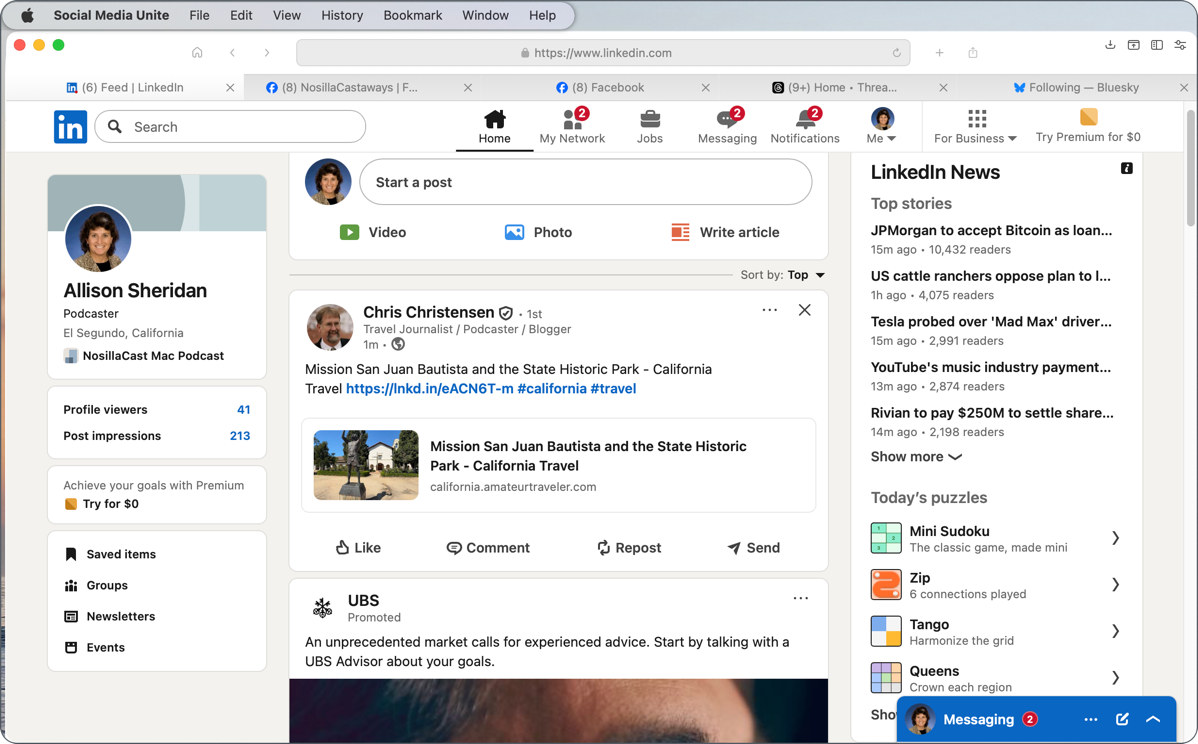
On the first launch of the new app, you’ll need to authenticate into all of the web services. This is further proof that this app is isolated. Even if you’re logged into Facebook on Safari, this new app doesn’t know anything about that.
Settings
You may remember about a year ago when I announced with glee that I had finally found a use for Tab Groups with Profiles in Safari, but a bit later on, I explained that they were too finicky because if you navigated away from their set URLs, the Tab Groups would remember the new URL.
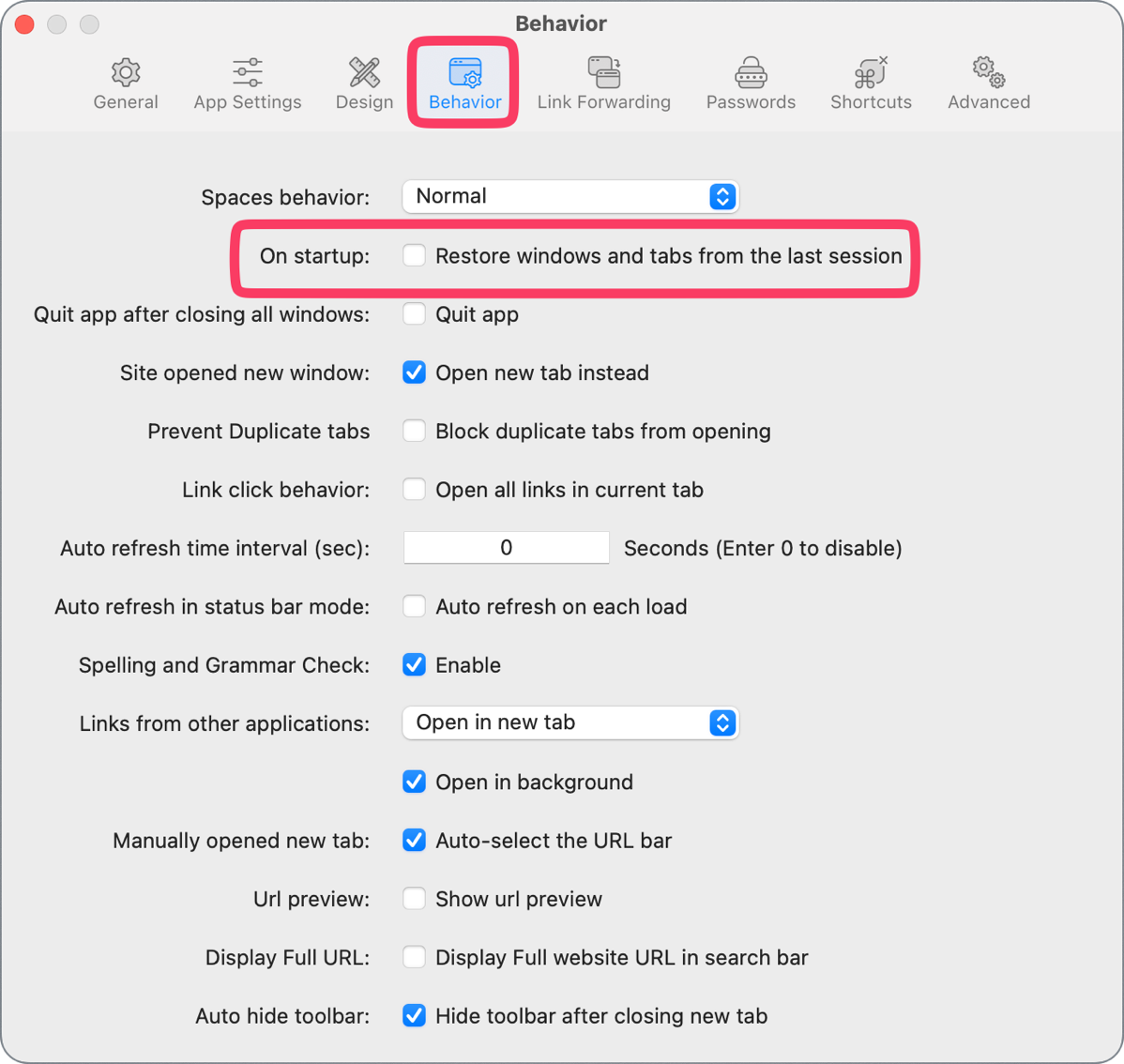
The beauty for me of Unite site-specific browsers is that I have a consistent experience every time I open one of the apps. I want to be able to open my Social Media app and always see those same five tabs for the same five social media services. By default, that’s not the way Unite apps behave, though; you have to change one little setting.
If you open Settings from the menu bar or using ⌘-comma, and select the Behavior tab, you can uncheck the box that says on startup to restore windows and tabs from the last session. You may like that behavior, but it’s not the way I want these apps to behave.
Now that we’re here, let’s explore settings a little bit. As I said earlier, the options in settings are vast, so I’m going to just hit on what I consider the highlights, or we’ll be here all day.
General
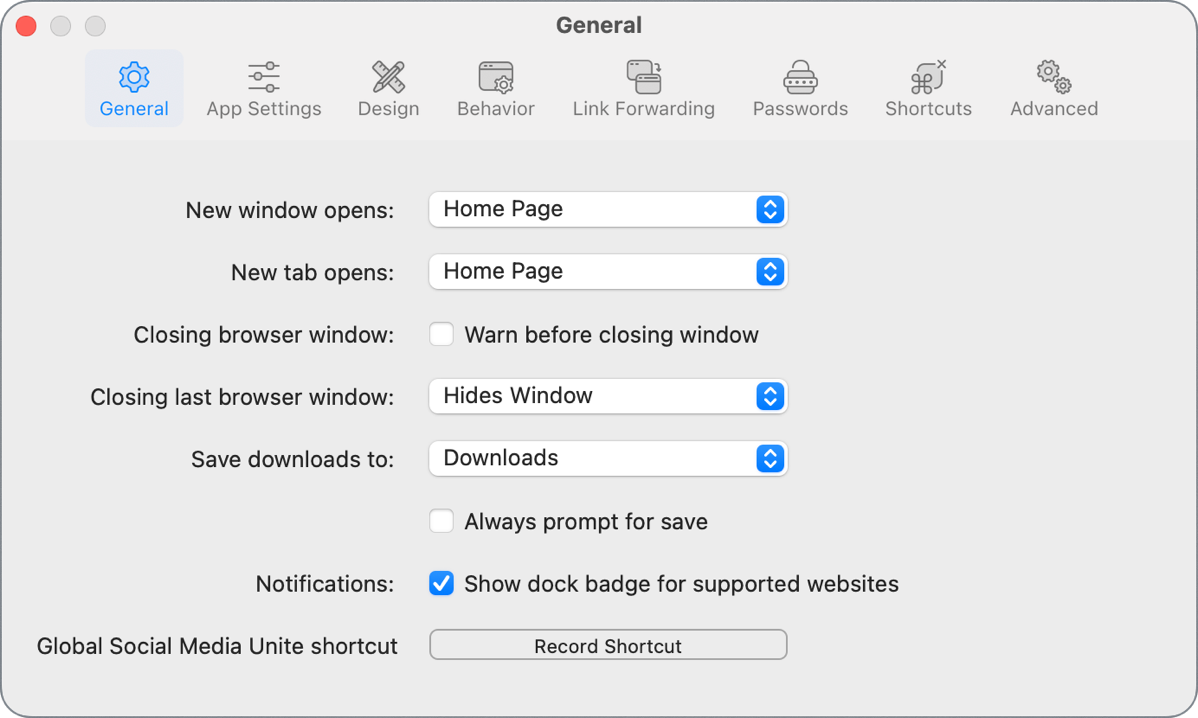
On the General tab, you can change what happens with new windows and tabs, with defaults set to open to the Home Page, but you can change that to an empty page. That might be handier since, by definition, you already have the home page open on your first tab. The rest of the settings are along the same lines — the same kinds of things you’d change with any browser, like where to save downloads.
App Settings
The App Settings tab lets you change some of the same things you set up or edited when creating the app inside Unite. For example, you can rename the app, change the app icon and status bar icon, change the home page, enable blocking of ads, and choose from the three views we talked about. You can even add and delete tabs from App Settings (but you still can’t reorder them).
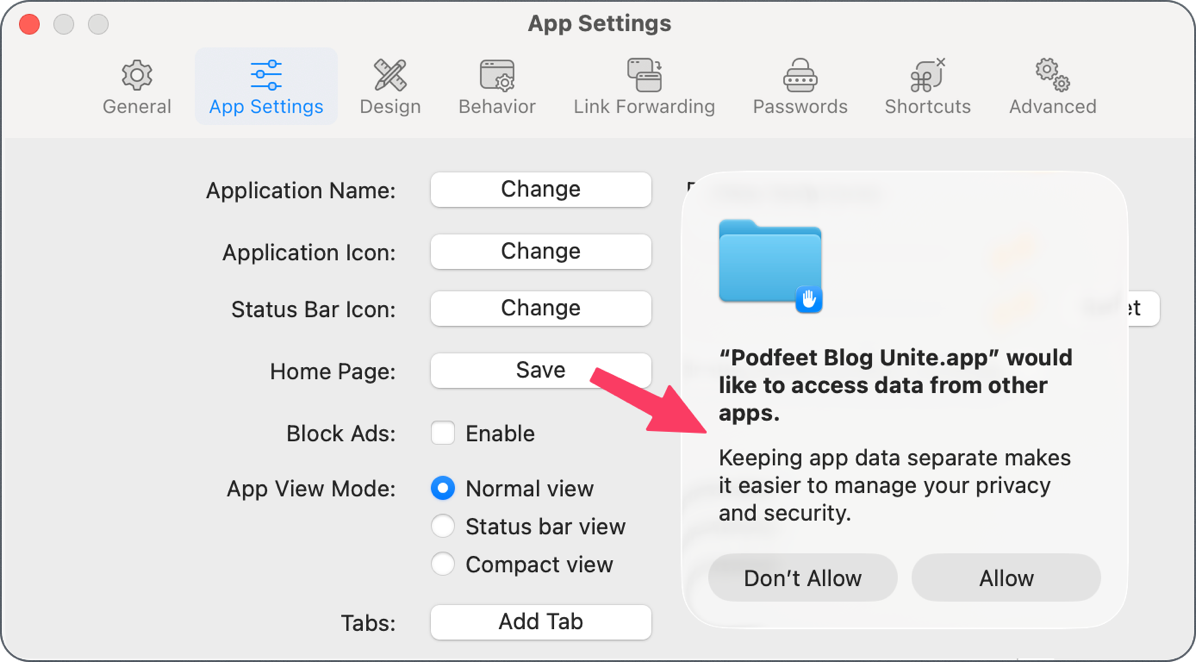
One super interesting and important thing happens if you change or just save the home page URL in Settings. It will trigger a pop-up window telling you that your newly created app would like to access data from other apps. I initially interpreted this request as a note from the developer warning us that the app would share data with other apps, but Binyamin clarified this for us:
When you rename a Unite app, you get this pop-up about managing other apps. The text in that dialogue is written by macOS, not me. The reason it asks for it is that the Unite-created app needs to communicate back to Unite to change the preferences of the app so the creation tool and the app itself are synced. If you select ignore, Unite will not properly sync the new name.
I saw this pop-up when I selected the Save button for the Home page, not when renaming the file, but I suspect it’s the same issue, so I’ll be selecting Allow from now on.
Design
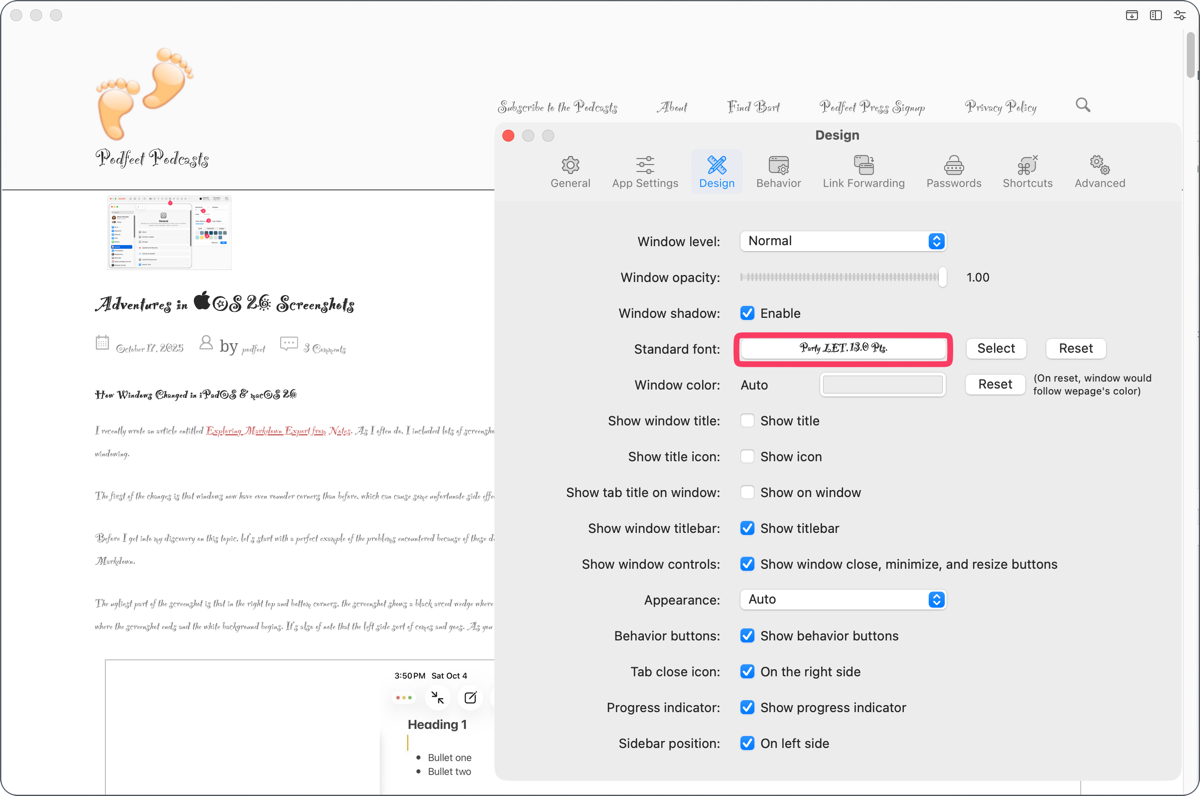
The Design tab for settings is kind of playful. You can make the window float over all others (kind of like compact view), and you can change the opacity of the window. I’m not sure why you’d want to, but maybe Liquid Glass isn’t yet quite hard enough for you to see, so you’d like to add more translucency to your apps.
You can disable window shadows, which again makes them harder to distinguish from other windows. You can actually change the font on websites (if the site allows you to!) I tried it on an app I built with Unite to just show me Podfeet blog posts. I chose a super silly, nearly illegible font, and sure enough, Podfeet changed, but only for this Unite site-specific browser.
I bet I know how the developer is doing this. The nerds amongst us will know that you can open the developer tools in your browser, and actually change the styles of things, just for the session you’re in, and displayed only for you. In any case, I think this option to change font could be super helpful if there’s a site or service you like but you find difficult to read. Feel free to experiment because there’s a handy reset button.
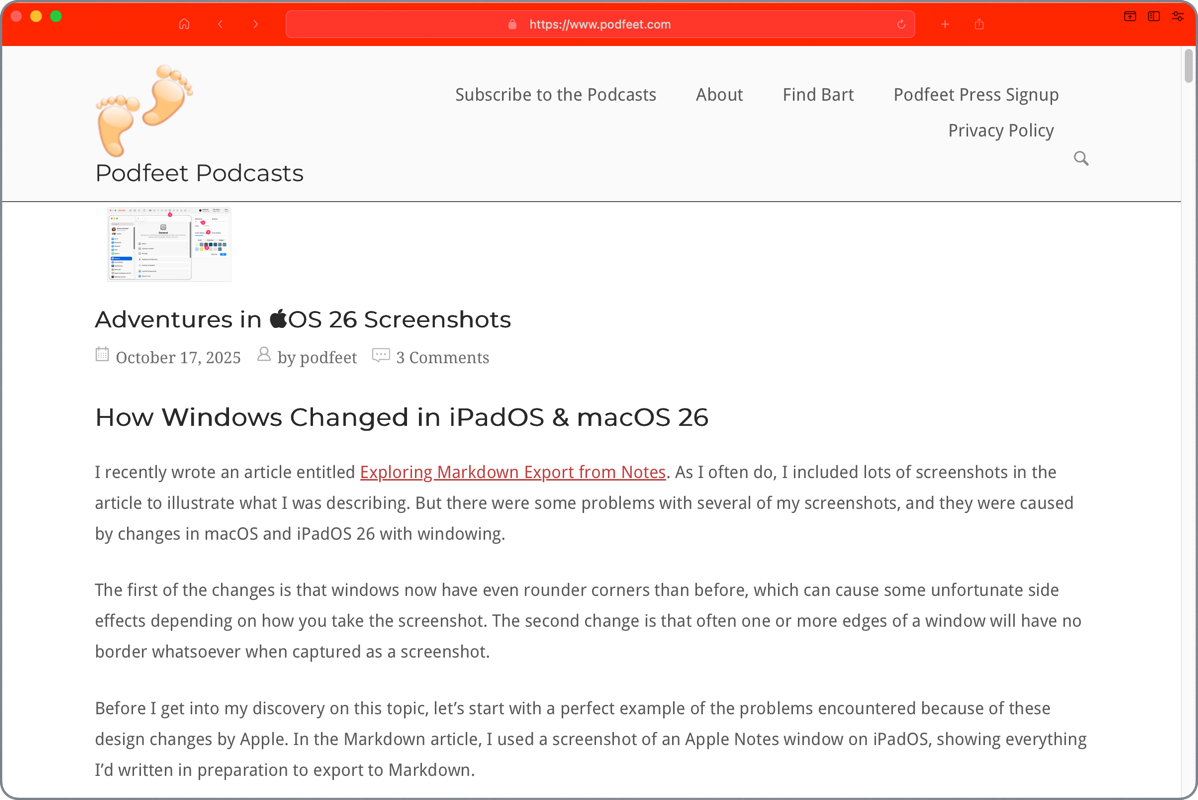
Starting probably a decade ago, Apple started forcing developers to make every window look the same in every app. It’s often hard to see which app you’re selecting amongst a bunch of windows. With Unite, in Settings, you can change the color of the window, which really means just the color of the toolbar.
There’s a lot more to play with under design. Remember earlier when I said you could have your tabs on the left or the right with the sidebar view? It’s at the bottom of the Design tab that you can uncheck the sidebar to be on the left, which moves it to the right.
Behavior
The Behavior tab has some interesting options. If you’re a Spaces fan, you can change whether your app shows in all Spaces or behaves normally. You can block your app from opening duplicate tabs and change link-opening behavior. If you’ve got an app like a news site or a stock trading app, you can set the auto refresh time in Behavior settings.
Link Forwarding
I mentioned Link Forwarding when we edited our application, but in the dedicated tab in Settings, you can control which URLs and subdomains are allowed, and what redirects you might want. I understand this conceptually, but I haven’t yet been able to figure out how to change these settings to get the behavior I want. I need to keep testing with it before I can give you any advice.
Passwords
I know Unite already does a lot but it has another big trick up its sleeve. It comes with a password manager. In the BZG Apps Help page at help.bzgapps.com/…, there’s a section where the developer explains that it’s encrypted with the Cryptoswift library and gives some more details. They also explain that you can toggle off the password manager if you like.
Shortcuts
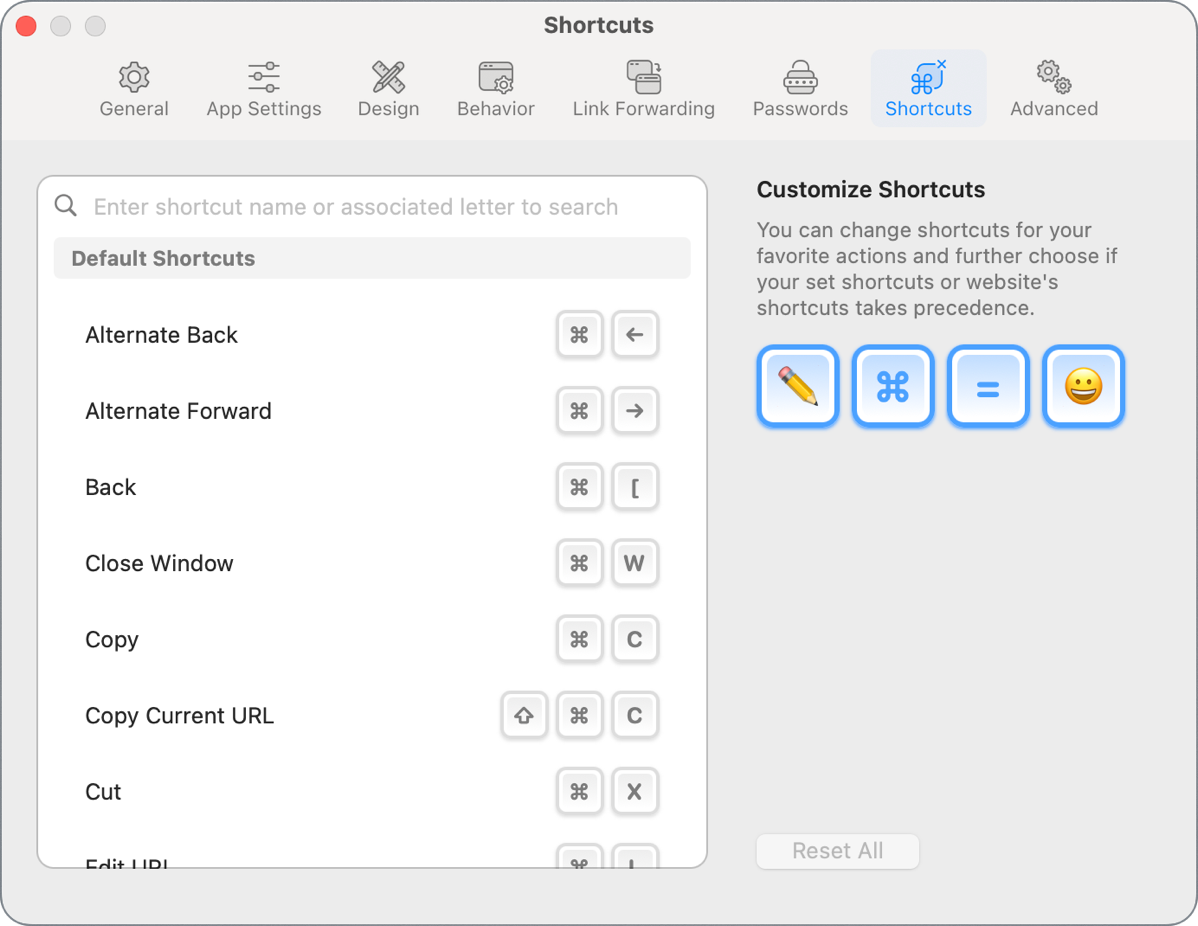
Like any good app, Unite apps have keyboard shortcuts, and you can customize them to your little heart’s desire. Even here, Unite is playful — You get cute little blue-outlined characters for your changes. The default shows a Pencil, then the ⌘ symbol, then an equals icon, and then a smiley face. I think it means that editing keyboard shortcuts will bring you happiness.
Advanced
We’re in the home stretch now, kids. The final tab in Settings is for Advanced features. You can disable JavaScript and plugins that are enabled by default, and you can block popups like any proper browser.
Since Unite apps are built on the WebKit engine, just like Safari, some apps and services may give you a hard time because they’re expecting Chrome, or maybe they want the iPhone view. You can often trick a website by changing what’s called the User Agent to a different browser. You can do this with other browsers, but Unite allows you to change it too, on the Advanced tab.
You can change your default search engine from Google to Duck Duck Go, Yahoo, Bing, Ecosia, or Neeva.
Unite vs. Coherence
Believe it or not, there’s more to learn about Unite, but I’m going to cut us off there and tell you about a slightly different site-specific browser app that’s also from BZG Apps. It’s called Coherence.
I asked developer Binyamin to explain why he sells two apps that sound like they do the same thing. He pointed me to a page he’s written that explains the differences:
The page explains that while they’re both site-specific browser tools, they excel in different ways. Unite emphasizes lightweight apps with deep customization and native macOS integration. Unite is based on the custom-made WebKit browser, and apps made with it run around 14MB each.
Coherence focuses on the power of Chrome extensions and browser flexibility, using Chrome-based browsers on your machine, including Chrome, Edge, Brave, Opera, and more. The apps created with Coherence are 90MB+, depending on how many extensions you add. Unite, on the other hand, doesn’t support extensions at all. The rest of the compare page explains that Unite is much more flexible in customizing the experience, and we’ve certainly seen a lot of the customizations possible.
Binyamin suggests that if you can’t decide between Unite and Coherence, buy a bundle with both! If you’re a Setapp subscriber, you can get Coherence and Unite through your subscription.
Bottom Line
The bottom line is that Unite solves a lot of different problems, and it’s super easy to create the app you want for any web service you like. You have tons of control over the behavior, and the customization options ensure you can make your apps behave the way you want. It’s a one-time purchase (no subscription!) and it’s in active development. I use one of my Unite apps at least daily, and it works so much better than any site-specific browser solution I’ve used before.