

Do you ever do some repeated operation on your Mac that’s not hard but you find it annoying? If you can’t think of one, I’ll go first.
The Problem to be Solved
When I’m done working on my Mac at my desk, I like to put my laptop to sleep to save energy. I use a MacBook Pro connected to a 32” Pro Display XDR with brightness cranked to the max, so leaving it on any longer than necessary is a huge waste of electricity. I also find that it sometimes doesn’t automatically go to sleep.
So here’s the scenario. I’ve been toiling away writing a long blog post for your education or entertainment, and Kepler has suggested that I’m late taking him for his afternoon walk. Never mind that he’s already been walked 4 miles in the morning; this afternoon walk is where I let him goof around sniffing anything he wants, taking 45 minutes or so to walk 2/3 of a mile. His vet calls this a Snifari.
I stand up, push in my chair, and start to walk away from the desk, when I realize I haven’t yet put the Mac to sleep. I have to awkwardly reach around to the Magic Trackpad and drag the cursor allllll the way up to the upper left to tap on the Apple logo. I know this sounds like a struggle, and it is, especially if the cursor was left over on the 14” MacBook Pro screen. I could potentially be dragging this cursor close to four feet!
Now, still awkwardly at an angle on the trackpad, I have to drag down to sleep and let go.
Now let’s take this annoyance up a notch. It’s not uncommon that I forget to put my Mac to sleep and only notice that bright screen still blazing away as I’m walking past my studio on my way to bed. If this happens, as soon as I walk into my room, the Hue light sensor notices my presence and turns on the lights. So now I have to do the awkward trackpad dance, and ask the S-Lady to turn the lights off in my studio again. To be fair, she’s often good at this, so it’s not terrible but it’s one more thing to do.
Keyboard Maestro + Stream Deck to the Rescue
After years of struggling with this incredible hardship, I solved the problem. My solution was to create a Keyboard Maestro macro and add it to my Stream Deck to give me a single button push to put the Mac to sleep.
If you haven’t played with Keyboard Maestro before, it’s a terrific automation tool from www.keyboardmaestro.com/…. The interface is a bit intimidating, but my little sleep macro was incredibly simple. I added a new macro using the + button in the bottom left and named it Sleep. I chose to use a hotkey as the trigger and set it to Control-Shift-Command-S.
I used the + sign that’s under the right-hand pane to add a single action. This pops up a long list of built-in actions. Rather than scroll around, I typed the word “sleep” into the search pane at the top of the list of actions. I was rewarded with an action called “Put Computer to Sleep”. That sounds like exactly what I needed.
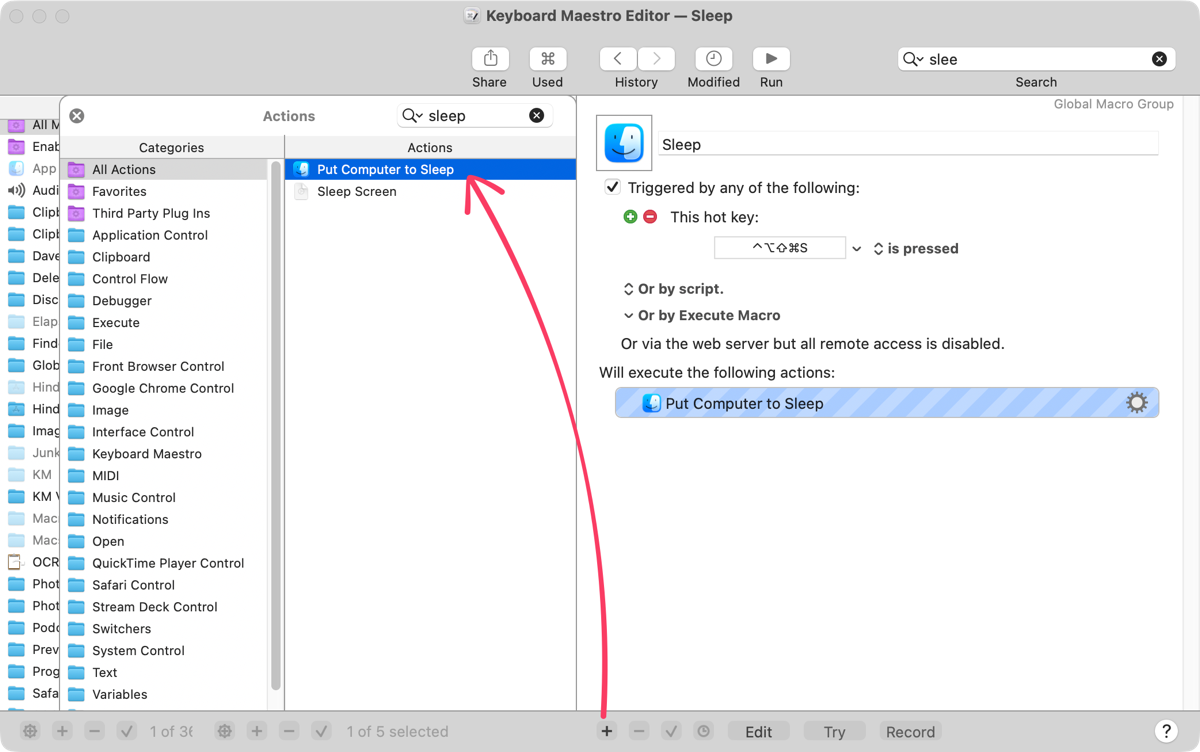
Believe it or not, that’s all there is to it. Now I can hold down that hotkey trigger and instantly put my Mac to sleep. That’s pretty nifty, but if I’m complaining about using the trackpad at an awkward angle, can you imagine how much I would whine if I had to type at an awkward angle? I’m certain I’d be insufferable.
Step two was to add this Keyboard Maestro macro to a button on my Stream Deck. While you can add buttons to Stream Deck that trigger Keyboard Maestro macros, you can’t do it directly. You need a plugin called KMLink.
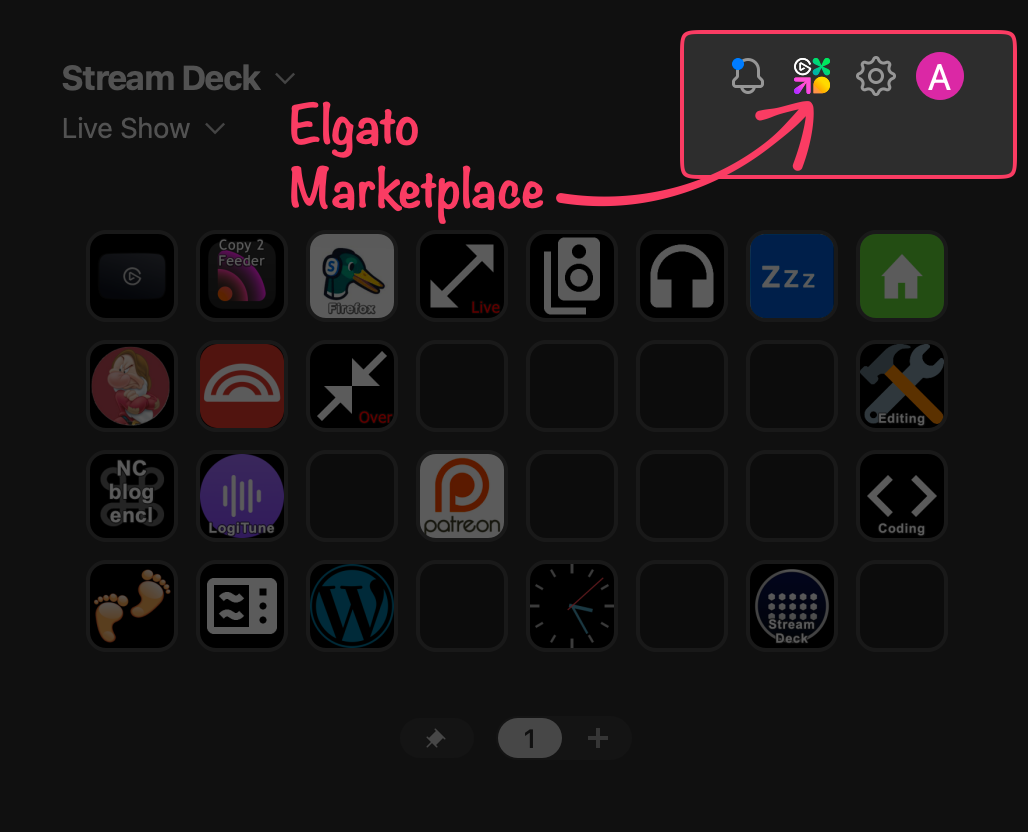
When you open the Stream Deck interface, there’s a colorful icon in the upper right that takes you to the Elgato Marketplace on the web. Think of it as a store for plugins, icons, screensavers, and more, both free and paid.
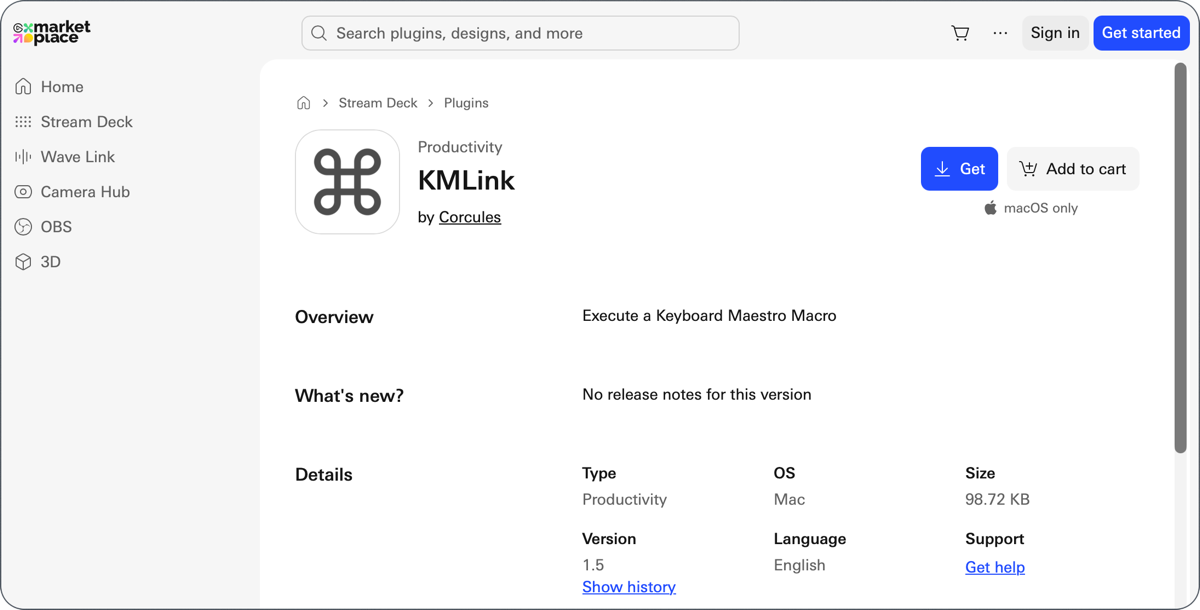
Use your Elgato credentials to log in to the Marketplace. A quick search for KMLink and you’ll see a blue “Get” button to download the plugin to your computer.
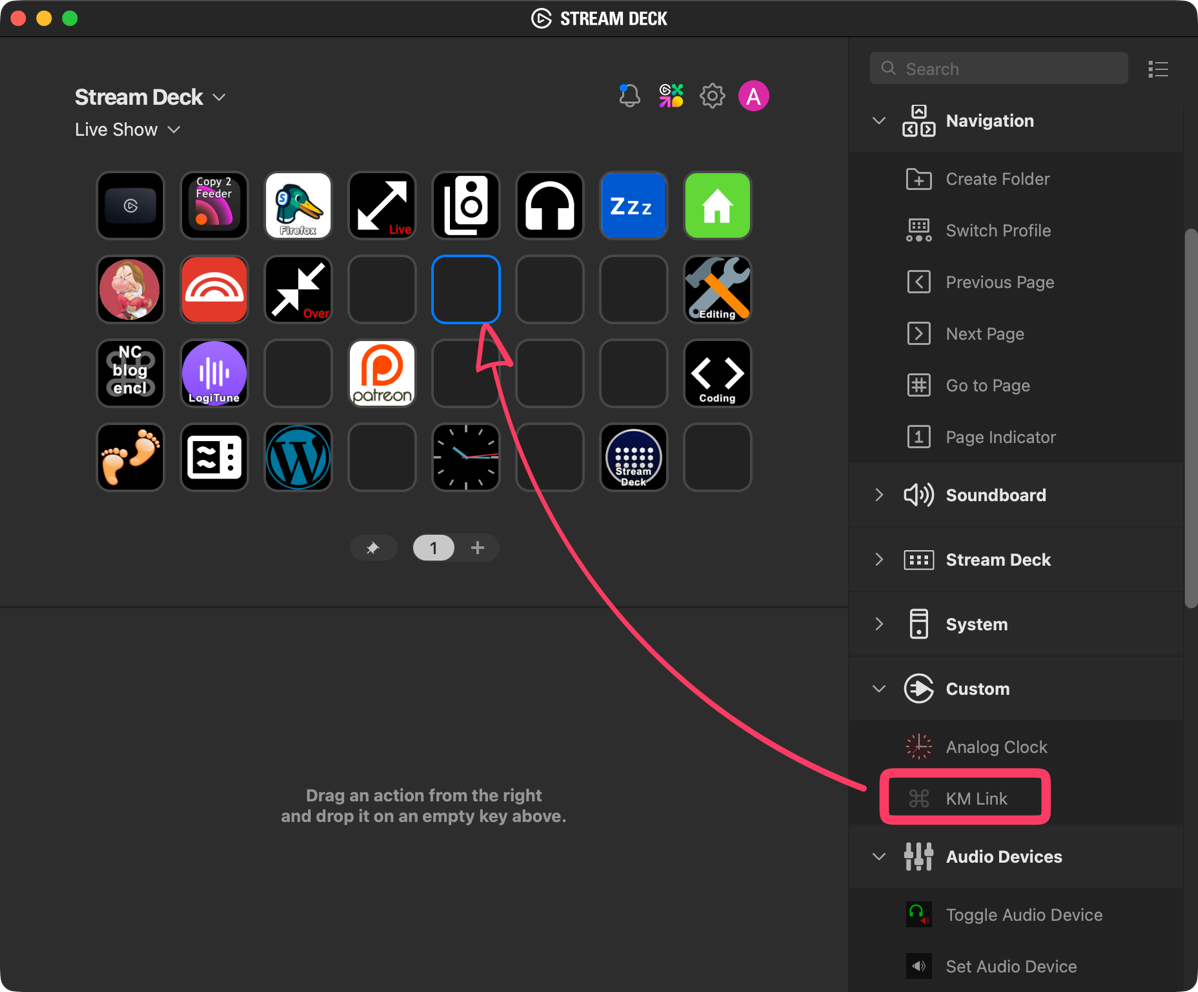
Once downloaded, a simple double-click will install KMLink onto the Stream Deck. In the right sidebar of the Stream Deck software, you can now drag the KM Link icon onto an empty button just like you do with the built-in buttons.
As soon as you drop it in, you’ll be invited to add a Title, assign a Macro, and add an optional Parameter. I haven’t messed around with parameters in Keyboard Maestro, but they’re a way to add an argument to a macro, which helps with the reuse of macros without having to duplicate them. We don’t need to pass any parameters to this very simple Macro.
To add the macro, you simply use the downward chevron that invites you to select a macro. If you have a lot of macros, it’s helpful to remember that you can type the first couple of letters in this standard dropdown to jump to the right one. I typed “sl” quickly, and it selected my fancy, single-action macro called Sleep.
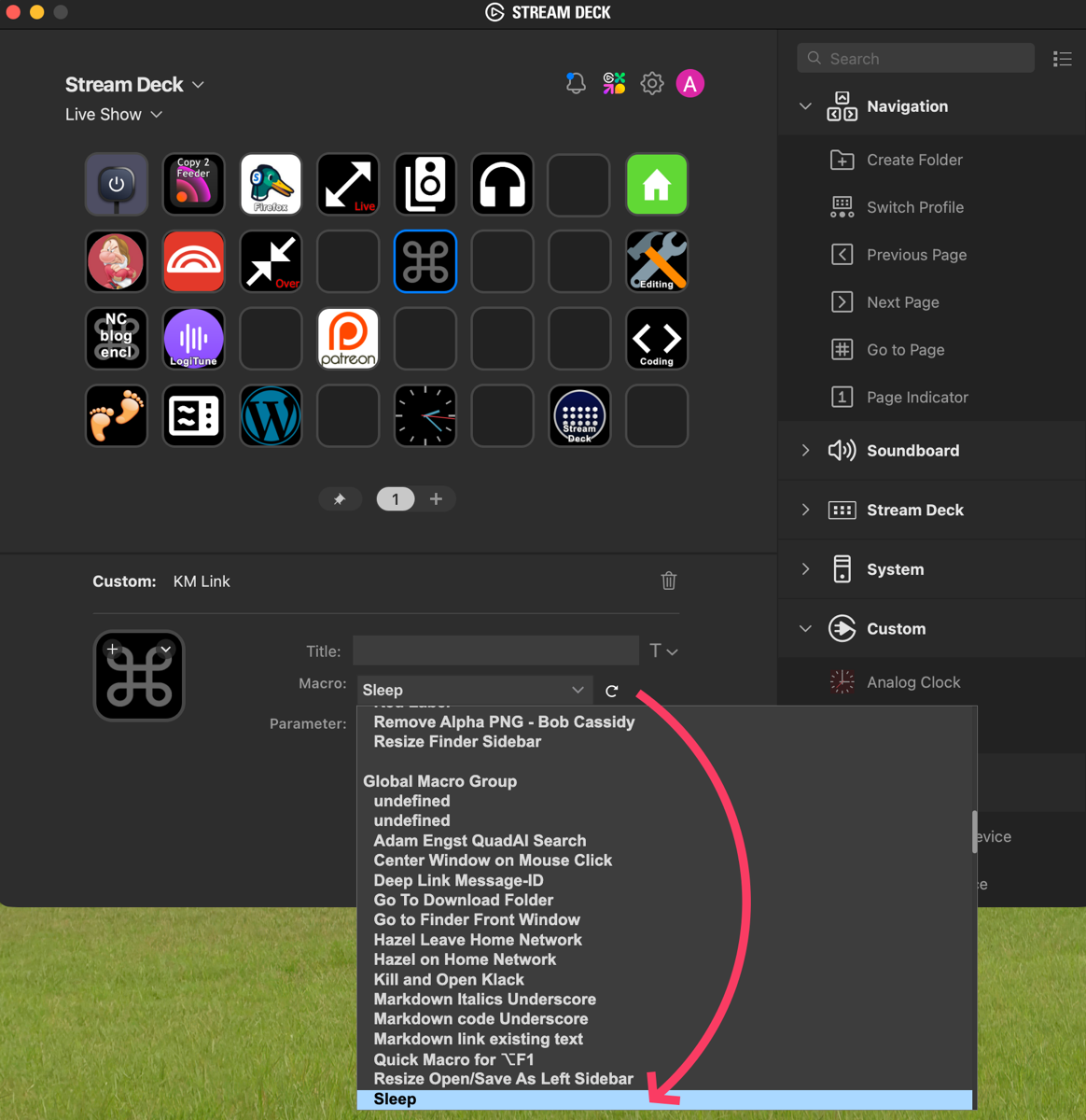
I could have typed the title Sleep in the Title field, but I had a better idea. I asked one of the Large Language Models to make me an icon with a blue background and white letters that said “ZZZ” where each subsequent Z is slightly smaller. Took a couple of tries but it made what I wanted in the end.
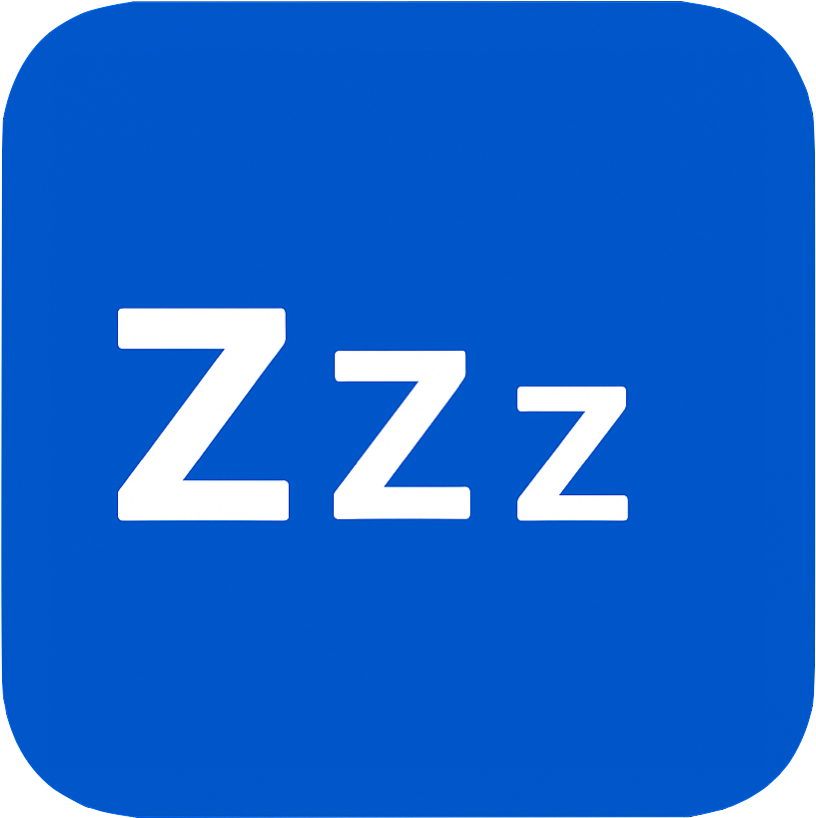
The last step in this incredibly complex method was to click on the plus button to add an icon from file and select my zzz icon.
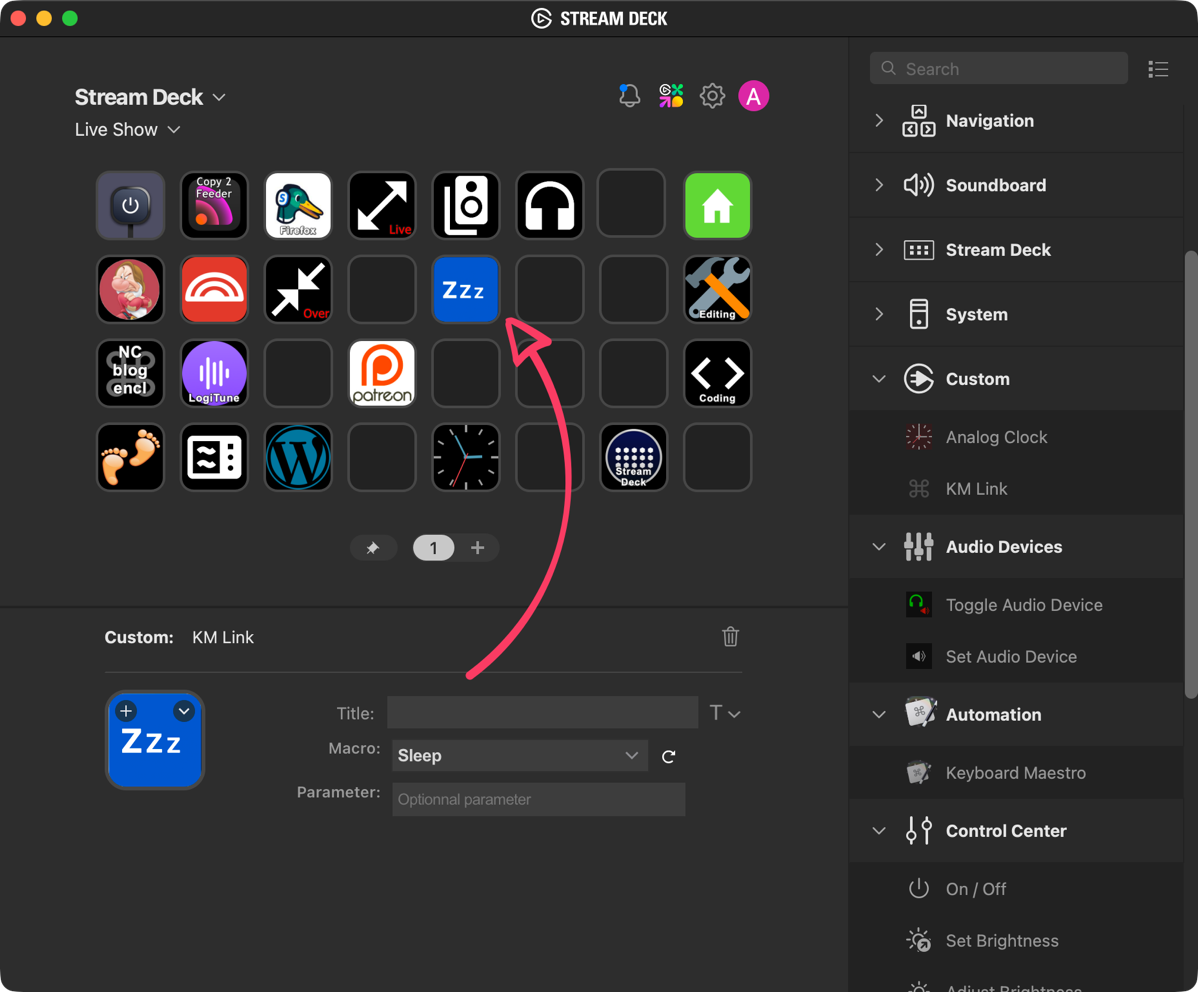
To make sure you could follow along, I added a lot of detail here to what is a very quick set of steps, so let’s review:
- Create a Keyboard Maestro macro with one action: Put Computer to Sleep
- Install the KMLink plugin from the Stream Deck Marketplace
- Add a KMLink action to your Stream Deck interface
- Set the Macro to your Sleep macro from Keyboard Maestro
- Add a cute icon (or be boring and title it Sleep
Now every time I leave my computer, whether it’s for the evening or just to go for a walk with Kepler the Good Boy, I simply tap my ZZZ button and my giant monitor stops slurping energy like a black hole.
Bottom Line
The bottom line is that automating something so simple and yet so repetitive and annoying is the classic “scratching your own itch” that Bart talks about in Programming By Stealth. I love my little sleep button so much!
Extra points for sarcasm. Unfortunately for my family and friends, this is my favorite form of humor.
You are my people, Paul. Amy Poehler put it best. She says that sarcasm is her love language.
Oh, this is incredibly cool and an excellent demonstration of your powers! I absolutely love it!
I’m curious to know what happens when you press the power button on the MacBook Pro. When I do the same, it takes me to the login screen and then puts the display and computer to sleep. I’ve also been a long-time user of Hot Corners on my computer. Whenever I leave the computer, I simply swipe the mouse pointer to the bottom-right corner of my display, and it starts the screensaver. Additionally, it requires a password to log back in. After 10 more minutes, the screensaver turns off, and the computer goes into sleep mode. However, one of the options that you can set in Hot Corners is to put the display to sleep. I’ve also recently discovered that this capability is available in Alfred with the Powerpack. Just by default I think one needs to initiate the Alfred activation key stroke and type Sleep. Cheers, and thank you for all that you do for the community.
Pressing the power button directly on the MacBook Pro does bring up the login screen, but I haven’t noticed it putting the display and computer to sleep. I guess I’d have to wait a while to see if that eventually happens?
I’ve not been a fan of hot corners because I hit them accidentally. I know you can force it to have a modifier key with the hot corners, but for some reason, I never got into that. I really do want the whole thing to go to sleep, not just put the display to sleep. Looks like it’s a great solution for you, though.
And thank you for being a part of the community too!