
If you’re a NosillaCastaway, there’s a 98% chance you give tech support to your friends and family. I would also venture a guess that the people you love the most provide some of the biggest challenges. Maybe it’s your partner, your mom or dad, your sibling, or even your children, but it’s often more difficult to help them than complete strangers. My theory is that when we truly love someone, we know how to push each other’s buttons.
I’m not sure if the challenges get harder or easier depending on the interest your loved one has in technology. If they are of low technical skill and really don’t care about tech, they may let you do everything for them. That gets rid of the discussion, but it means you have to do everything for them. But what if they’re high-tech people?
As you can imagine, Steve is highly technical, and he really does care about his computer and how it’s set up. He enjoys tech, but there are still times when he needs my help. We’re also born on the same day under the sign of the bull, which means a bit more head butting than with some folks, but we usually come to peace by the end of the day.
These lively “discussions” have revealed to me that even though Steve and I are very similar, we think differently when interacting with a computer. It was only a few years ago that I discovered Steve had no interest in learning keyboard shortcuts. His brain just isn’t wired that way. This is hard for me to wrap my brain around because one of the first two apps I install after a nuke and pave or when getting a new Mac is TextExpander (the other being 1Password, of course).
There are so many differences between us like this; don’t get me started on how different we manage our browser tabs!
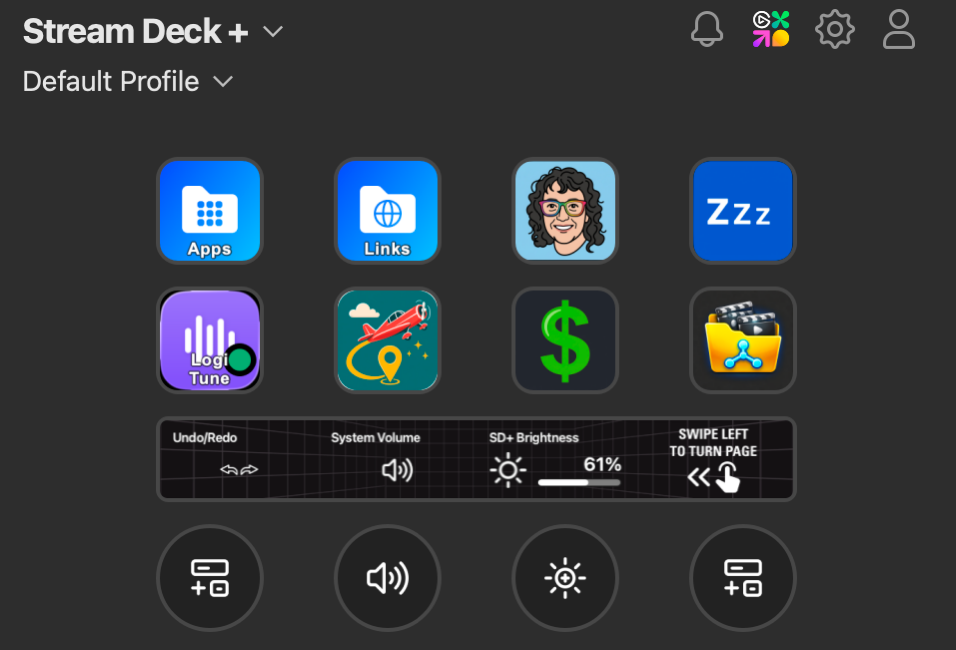
Even though we think so differently, I wondered whether Steve might like a Stream Deck as much as I do. I’m not an over-the-top user of my 32-button Stream Deck XL, but the buttons I remember to use are very helpful.
Getting him one without asking was a risky maneuver for the aforementioned reasons, but I was desperate to find a Christmas present for him that he wouldn’t be expecting.
Jill from the Northwoods has, I think, three Stream Decks and is an automation junkie, so I decided to noodle the idea of getting one for Steve with her. She explained all of the cool things she does with hers, especially in video editing, and that helped me think about what Steve might want to do with one. We also debated the merits of the various Stream Deck models.
Stream Deck +
After careful consideration with my trusted advisor, I settled on the $180 Elgato Stream Deck +. While my big-girl Stream Deck is littered with buttons, the Stream Deck + has just eight, but it has features mine doesn’t have. It’s got four programmable dials along the bottom and a touch strip above them. Think the old Mac Touch Bar, except something you might actually use.
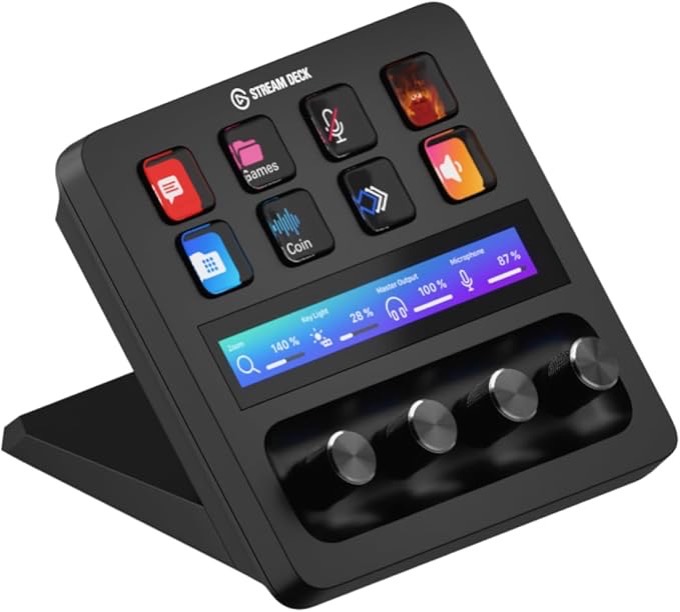
I didn’t think the limited number of buttons would be a problem because I wasn’t yet convinced Steve would take to this particular form of automation. If by some miracle, he did find it useful and wanted more buttons, with Stream Deck you can create multiple “pages” of button assignments. He could have one page for day-to-day use, one page for automating video production, and one page for setting up the live show for the NosillaCast.
At Christmas, I crossed my fingers and gave him the Stream Deck +. He didn’t seem to be faking when he said he thought this could be really cool.
And … four months went by, and he hadn’t yet opened it.
I realized that the problem was that he didn’t know where to start. I suggested we schedule a play date where we set it up for him and then brainstorm ideas for what he could automate.
Go to Sleep, Little One
The button that makes me happiest on my Stream Deck is a button that puts my Mac to sleep. That sounds weird, but I simply detest dragging my cursor alllll the way up to the upper left, then clicking on the Apple logo and dragging alllll the way down to sleep. I literally will not do it. I hate it so much. And yet I detest wasting energy even more. Leaving a 32″ display blazing away when I’m outside throwing a ball for Kepler is unconscionable. I don’t care if we do run our house off the sun; I can’t stand wasting energy.
I asked Steve if he, too, wanted a sleep button, and he thought that was a grand idea. Stream Deck buttons can open scripts, and that’s what we’d need to perform this incredible feat of putting the Mac to sleep. It’s a bit nerdy to create a shell script, but this is the simplest shell script ever written. The entire working part of the shell script says pmset sleepnow. Seriously, that’s it. You can open a Terminal right now and type that in, and your Mac will go to sleep!
Shell scripts all start with one line at the top called a shebang, which is a cute way of saying #!, followed by the path to the type of shell script you want to run. Modern Mac OS uses ZSH for shell scripts, so at the top of our script, we simply need to add #!/bin/zsh.
#!/bin/zsh
pmset sleepnow
That’s it. Ok, that’s almost it. By default, scripts you just wrote and saved are not executable, so we have to explicitly change their permissions so they’ll run. In the Terminal (don’t be scared), you enter the command:
chmod +x sleep-mac.sh
Ok, that was weird stuff if you haven’t done it before, but it’s not that hard. Two lines, change the permissions, and you’re done.
Now that we have our amazing, fancy, incredibly complex shell script written, we need to assign it to the Stream Deck. In the Stream Deck software, you can see the grid of buttons, and on the right panel, you have a bunch of different actions you can assign to those buttons. One of them is simply called “Open”. That’s the one we need.
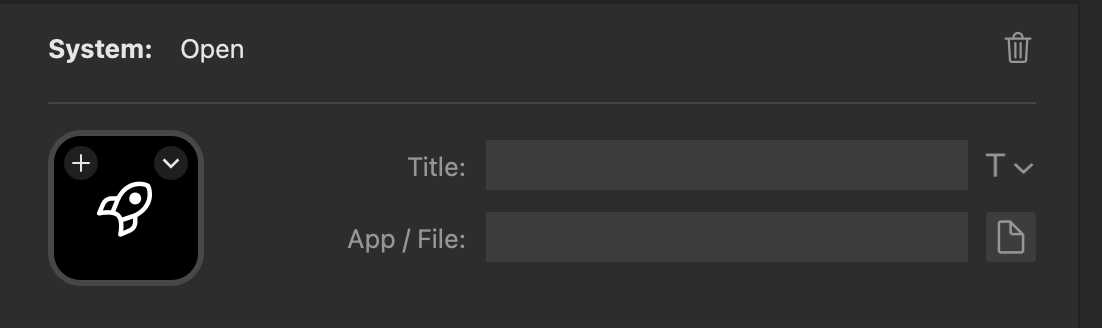
I dragged an Open key onto one of Steve’s buttons, and with the button still selected, there’s the option to add an app or a file. You could add a regular app and launch it with the button, but we pointed to our sleep script.
Once you’ve done that, you’ve got a simple one-button push to put your Mac to sleep. All the cool kids go a step further by adding a custom icon to the button instead of using the little rocket ship default. I asked an AI to make me a PNG suitable for a Stream Deck button icon that simply said “ZZZ” in white letters on a blue background.
Now when Steve leaves the room, at a glance, he can see which button to push to turn off his Mac Studio and his two 5K displays.
Accessibility Note
I’m going to take a quick accessibility pause so everyone can play. The Stream Deck software isn’t at all accessible. The whole drag and drop the actions onto button shapes doesn’t work with screen readers. However, I was listening to a recent episode of the fabulous Double Tap podcast, where Steven Scott and Sean Price had a blind developer on named Florian who explained his contributions to the open source project called Open Deck.
This sounds surprising, but you can replace the Stream Deck software with any interface written for it. Since Open Deck is open source, Florian was able to contribute to the code development project and make the app accessible. I haven’t tested Open Deck for accessibility myself, but I’m pretty confident that an app written by a blind person would pass a higher bar than any test I could conduct!
So if you’ve felt out in the cold on this whole Stream Deck fad, give Open Deck a try. Now let’s get back to Steve’s adventure.
Open Network Share Folders
Now that I had him hooked on one button, I had to start thinking like him. What does he have to do all the time that I could make easier for him, but not scare him away with too much complexity? The answer turned out to be opening folders on network shares.
We do a lot of travel, as you may have noticed, so we have a travel folder in Google Drive where we organize our trips. Some places we go to so often that they have their own folder, like “Macstocks” with a subfolder for each year. Anywho, when a trip is being planned, or it’s getting close, Steve goes in and out of that Travel folder all the time, adding plane tickets, printing documents to PDF in there, and adjusting the spreadsheet he keeps for cost. We decided that a button to open that folder would be grand.
You would think this would be trivial. You can point an Open button at a file, but oddly, you can’t open a folder with the Open action. Not to worry, now that we’re advanced shell script writers, we can create another one-line script that says open followed by the path to the folder. Easy peasy, as my friend Niraj loves to say.
open "/Users/allison/My Drive (MYGMAILADDRESS)/travel"
Hot tip: There’s a super easy way to get the path to a file without any typing. In Finder, first make sure the path bar is showing at the bottom of the window. If you don’t see it, go to the View menu and select “Show path bar”. I leave mine on all the time after reading Helma’s great great Tiny Tip on all the things you can do with it. Right-click on the file name in the path bar, and one option will be to copy the file name as Pathname.
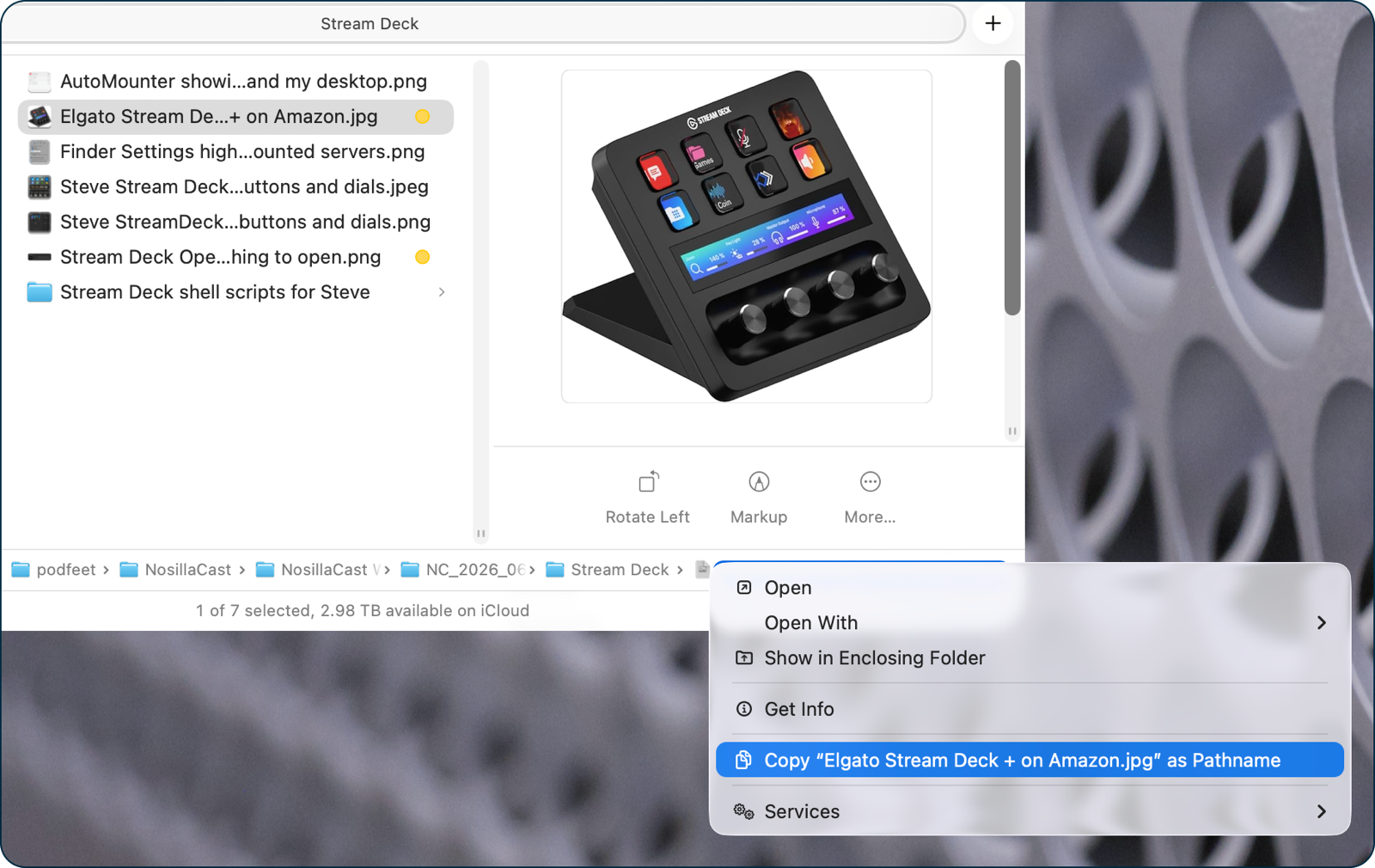
After changing permissions on the little script, his Open Travel button worked perfectly.
Once he saw that, he wanted a button to get to our Finance folder on our Synology, and another one to open his large video folder on the Synology. When he’s working on the videos for trade shows, one part of his process is to drop the audio-only file into a folder on my desktop. Instead of going to the sidebar, finding Network, then my Mac, then my user name, then my Desktop folder, now he can push one button on his Stream Deck to get right to it. He was giddy with how well this worked.
Mounted Servers
A day or two later, the automations for the Synology and my desktop stopped working. This was curious because the same automations worked on my Mac with my Stream Deck. After some careful sleuthing, I realized that two things need to be true for these automations to work. The Server (Synology or my computer) had to be mounted, and it had to have a consistent way to be addressed.
The app I favor for keeping servers mounted is AutoMounter from a New Zealand company called PixelEyes. It’s $10 in the Mac App Store and supports family sharing. This little menu bar app lets you set up SMB-mounted shares and keep them mounted.
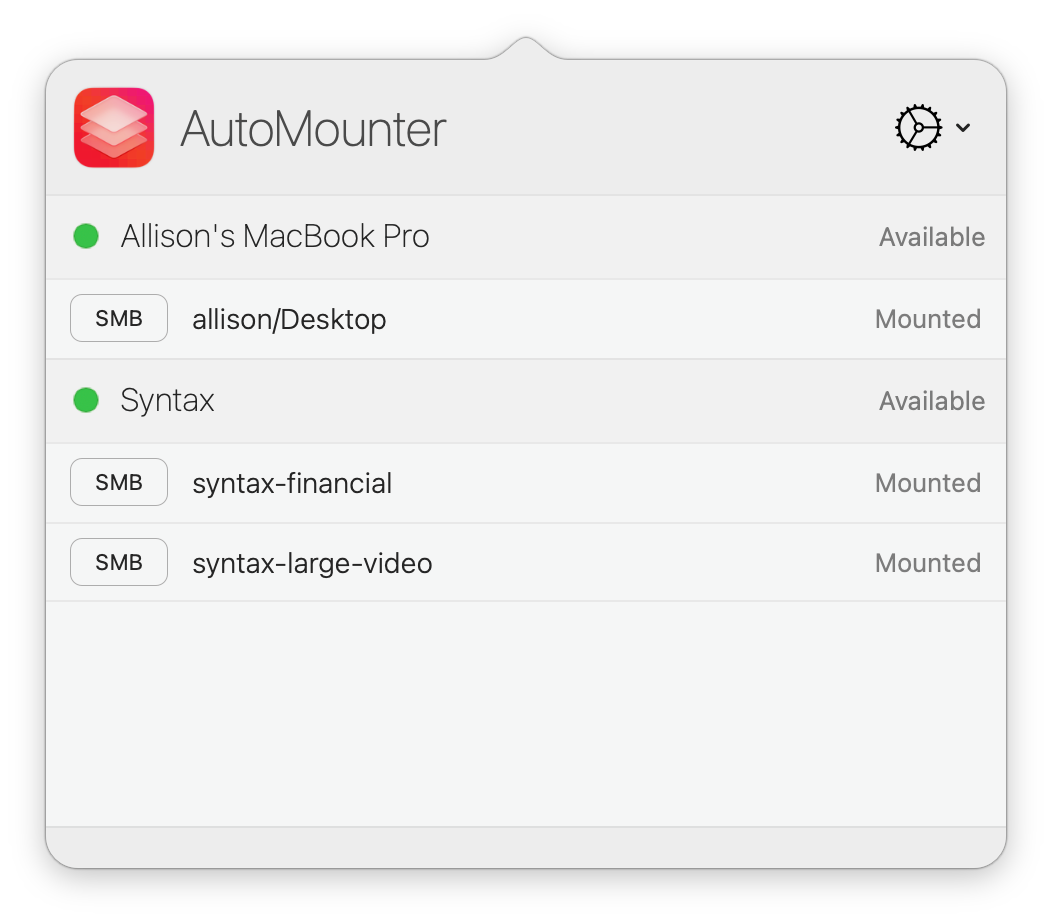
Once we had AutoMounter configured on his Mac to keep the servers mounted, we still needed a consistent way to address them. I’ve set up Tailscale on our network, which means no matter where we are in the world, the Synology and other network devices are always available as though we’re at home. The way I had the servers addressed in AutoMounter depended on Tailscale running, and it was disabled on Steve’s Mac.
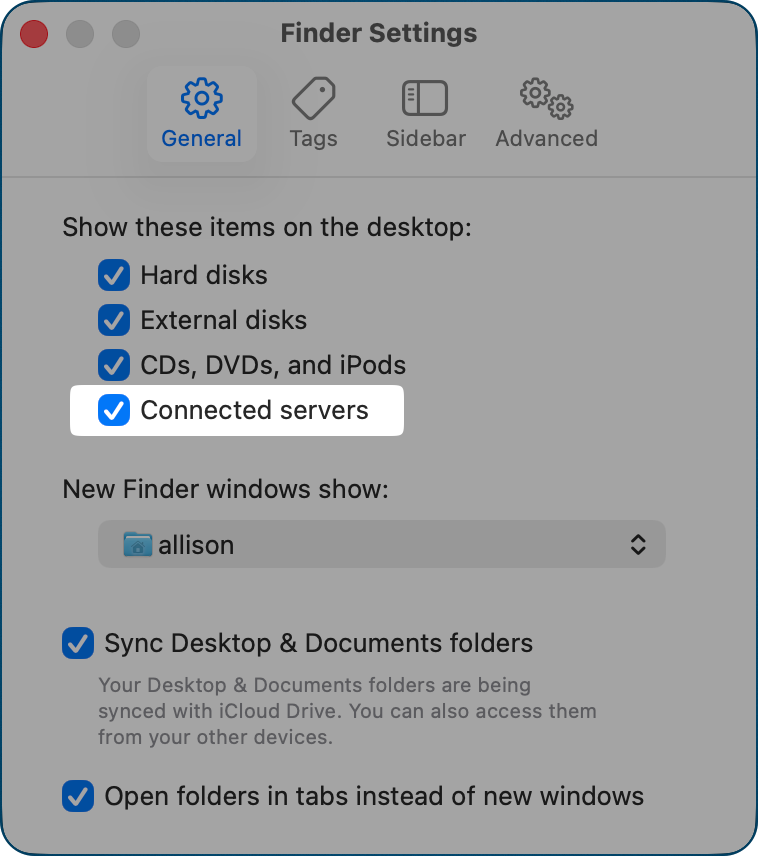
The only problem with this setup, and it’s cosmetic, is that the shares are displayed on his Desktop at all times, which adds clutter for him, and he didn’t like it. He wanted the servers to only show on the Desktop when he was actively using them. Unfortunately, that’s not possible. I showed him how, in Finder Settings on the General tab, you can choose not to show connected servers on the Desktop, which was a better solution for him.
Once we had all this sorted, I had Perplexity create some cute icons to represent travel, money, and video. My favorite one I had created was a cartoon image made from a real photo of me. It’s a little bit creepy looking, but Steve has no doubt when looking at his Stream Deck that he’s connecting to my Desktop with that button.
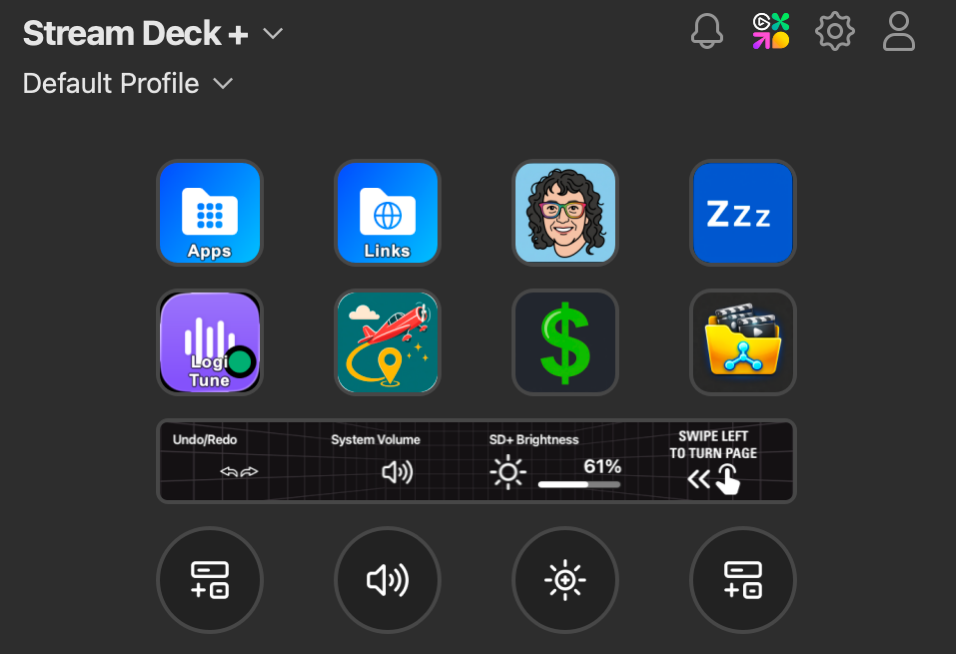
I let these little buttons of joy become a habit for him, and then a bit later, I was delighted when he asked if he could have a button to open LogiTune. This is a tiny app that lets you control the settings of any Logitech webcam, but also lets you turn on Logitech lights. Sadly, the lights aren’t able to be automated with HomeKit, but the LogiTune app itself can be configured to recognize if the camera is being accessed and turn on his Logitech lights. It’s not the kind of app you want running all the time, but now, with a press of a Stream Deck button, he can turn on the lights he uses when on video.
On my Mac, I’ve written a Keyboard Maestro macro that automates the entire setup process for the live show, from launching all of my apps (including LogiTune), shutting off WiFi, disabling cloud services and automated backups, and more. I hope to do this someday for Steve, but that will be for another day.
He still has two buttons he hasn’t programmed, and I’m waiting for a problem to be solved before guessing what he’ll want to do with them.
Dials
We haven’t really explored the dials and touch strip on the Stream Deck +. Each dial can be programmed to trigger three actions by rotating clockwise, counterclockwise, or by pressing the dial. Once you assign actions to a dial, the touch strip will allow you to tap to get the same action as pressing the dial. I’m not sure I completely understand how this works yet, but once we come up with some problems to solve, we’ll run some experiments.
For now, though, he’s pretty happy to have a volume dial on the Stream Deck + that was preprogrammed.
One Minor Problem
We did have an odd problem with the Stream Deck + that we still don’t completely understand. It was taking a full seven seconds to wake up after his Mac Studio woke up. Mine takes maybe a full second to wake up.
Being engineers, we did tons of controlled experiments. We upgraded the firmware. We uninstalled and reinstalled the software. We swapped out the cable. We moved it from his display acting as a hub to being plugged into the front USB-C port on his Mac. We even moved it to my Mac, and it still took 7 seconds to boot up.
We contacted the fine folks at Elgato, and they swapped his Stream Deck out for a new unit… and the new one took 7 seconds to wake up. Steve started an email conversation with Elgato support, and they solved it, but I don’t understand why the solution worked. The front of the 2022 Mac Studio has two USB-C ports (up to 10Gb/s). On the back, it has four Thunderbolt 4 ports. Moving the USB-based Elgato Stream Deck + from the front USB-C port to one of the Thunderbolt 4 ports fixed the problem. It now boots up in just about a second instead of seven seconds.
Bottom Line
With that one minor annoyance sorted, I’m happy to say that Steve is delighted with his dream deck. It really was a risk buying it for him, so it’s been really fun to have him enjoy it so much. I’m looking forward to finding more things to automate for him.