
You may take it for granted that you can collaborate on written documents using tools like Google Docs, Sheets, and Slides. If you and another person want to write something together, you just open the same URL and go to town. Almost magically, Google keeps track of what you’re both doing. If both of you edit at the same time, you’ll notice a little highlight where the other person is typing so you can stay away from changing stuff in the same place.
Bart and I use a completely different method to do the shared editing of the shownotes for Programming By Stealth and Security Bits. When I first started writing up this article, I was convinced that I could make it interesting for the non-programmers amongst you, even though this is a nerdy process. I did pretty well through most of it, but towards the end, I’m afraid I got pretty deep in the woods. If I don’t catch your interest early on, can I suggest that you use this material to help you fall asleep?
Git
In the programming world, developers collaborate on code using an amazing version control technology called Git. Multiple people can work on the same files at the same time, and Git keeps track of every change. This change tracking means you can always go back to an earlier version.
I want to give you a fundamental understanding of Git so I can tell my story, but I’m definitely not going to teach you how to use it. Luckily, Bart did a fantastic miniseries in Programming By Stealth on Git, starting with episode 101. I highly recommend you read/listen to this miniseries if you’re interested in really learning all about this amazing tool.
Unlike real-time collaboration tools, Git requires you to push and pull changes. When you want to start working on shared files, you first pull the changes to make sure you have everyone else’s changes before you start working. After you finish your own changes, you commit those changes to Git, and then push them back.
To commit, you put in a commit message that explains a little bit about what you changed, and that creates a version of the file that can be retrieved at any point in the future. You can make as many commits as you want before pushing, which is a swell way to keep track of changes as you work away. Imagine you’re making a brave change to some code; if you know you can always get back to a working version, it’s much easier to make that courageous change.
When you’ve gotten things in a state where you’re ready to stop for the day, you then push your changes to Git. When the other person is ready to play, they pull your changes and review your commit messages so they can see each of the changes.
You may be asking, “Where are you pushing and pulling the changes TO?” That’s a great question, and the answer is, it depends, but most people use an online service run by Microsoft called GitHub. You’ve probably heard of it, and it might sound mysterious and nerdy and kind of scary. There’s also GitLab, Bitbucket, and more. Think of these as a centralized place to host files that obey the push-me-pull-you system of Git. You don’t have to use one of them, and in fact you can use Git on your local network, pushing and pulling from your own network-attached storage.
Another interesting part about using Git is that it’s not just one file at a time. You can have a whole set of project files that get pushed and pulled every time you work with them. In a programming project, that makes sense because you’ll have maybe some JavaScript code, some HTML code, a README file that’s just a text file, and even maybe some images or Mermaid diagrams. They all get pushed and pulled through Git. This collection of files is called a repository, or as the cool kids say, a repo.
Git for Programming By Stealth and Security Bits
Bart and I use Git as a way to manage the text files that form the show notes for both Programming by Stealth and Security Bits. There’s no programming going on at all — these are mostly just text files with the occasional image that we’re pushing and pulling through Git so we can collaborate on them.
Bart starts the show notes on his computer and writes commit messages as he works on different parts, so he can remember what he’s created. He pushes them to GitHub, and then I pull them from GitHub and do spelling and grammar checks on what he’s written.
When I’m done reviewing a section, I will write a commit message that is normally something simple about typos. But with Programming By Stealth, I provide a bit more value. I read his work for clarity and to make sure that the examples work as they should. I will often put in little notes to him saying that I don’t understand a part, or I think maybe he skipped a section, or he could elaborate a little bit more on a topic.
He will pull my commits, look at the changes, and make judgment calls on what he thinks needs to be fixed.
Conflicts – Oh No!
90% of the time, this works just dandy. But every once in a while, he and I will make changes to the same part of the document, and this is where Allison panics. This is called a conflict, and I don’t like them one bit.
When you run into a conflict while writing code, the tools that people use for Git are well equipped to show where the conflict has arisen. Lines of code tend to be discrete pieces of text, so the tools highlight the entire section so you can see the problematic area.
But when you’re looking at a big block paragraph in our show notes, highlighting the entire paragraph makes it very difficult to find where Bart and my work have conflicted.
We use a tool called Git Kraken to pull and push our files and write our commit messages. It took me a while to get the hang of the interface, but I can now fairly confidently pull Bart’s changes, edit the files, write my commit messages, and push them back.
But every time there’s a conflict, GitKraken displays this giant wall of highlighted text with zero clues about what in the paragraph is different between our two versions. My robust, repeatable process is to throw up my hands in despair and tell Bart that I hate everything about using Git to collaborate. That’s not true, of course, but my panic brain isn’t very logical.
This story today is about my quest to find a better tool than GitKraken to help me resolve conflicts without breaking into a cold sweat. I’m going to tell you about the tools I tried, why most of them failed my tests, and then explain how I finally settled on one tool that I hope will work for me.
My criteria were:
1. Had to highlight the specific text within the paragraph that is in conflict between the two versions
2. Had to support word wrap of the paragraph
3. Didn’t cost a kidney
Test Case
In order to explain why this is so much harder with big blocks of text, I had to create a test case. I created an empty repo on GitHub called deleteme2 (the first one failed), and then put one text file in it called README.md. I went to one of the Lorem Ipsum generation sites and had it create two nonsense paragraphs for my README file.
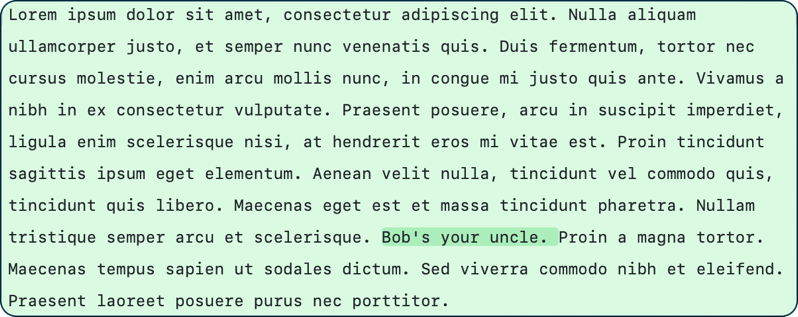
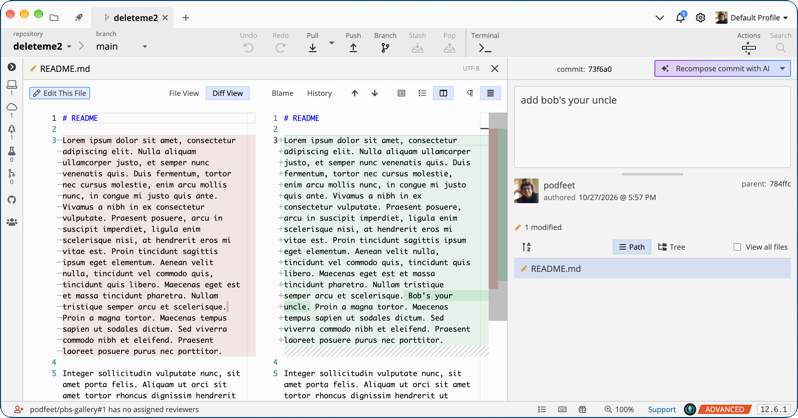
I pulled the repo to both of my Macs. Then on one Mac, I inserted the sentence, “Bob’s your uncle.” I pushed that change to GitHub and pulled it to the second Mac. So now our baseline is a bunch of gibberish text with the sentence “Bob’s your uncle.” in the middle. Both Macs and GitHub have the same “Bob’s your uncle.” sentence within the gibberish paragraph.
The next step was to create a conflict. On Mac #1, I changed “Bob’s your uncle.” to “Jimmy’s your uncle.” On Mac #2, I changed it to “Bunny’s your aunt.” (Three people will get why this is funny.)
Using GitKraken, I pushed the changes from the first Mac, and then tried to pull them from the second Mac. GitKraken threw alerts all over the screen, as expected. In the bottom left, it said, “Pull Failed Has conflicts”. At the top of the tree that shows all of the commits, it said, “A file conflict was found when attempting to merge”, and on the right sidebar where you normally get to see happy success, it said, “Merge conflicts detected”. See why I panic? It’s a three-alarm fire!
Now that I had manually raised my blood pressure, it was time to look at several different conflict managers to see if any of them would meet my needs.
Ian L in Slack suggested the beautiful and elegant diff/merge tool, Kaleidescope, but its subscription price of $96/year was way too steep for me. I appreciate him submitting the idea, but I’d rather make Bart fix our conflicts every time than spend a hundred bucks a year!
GitKraken
Since I already use GitKraken to do my non-terrifying Git work, let’s see in detail why I don’t find it helpful when I run into a conflict.
The conflict resolution window is separated into three panes: two side-by-side, and a third that spans the full width below the other two. The top left pane says “A: Commit on main” while the one on the top right says “B: commit on origin/main”. “main” is the branch on the local machine, and “origin/main” is the one coming in from the other Mac via GitHub.
The left pane has the conflicted paragraph highlighted in a light blue, while the right pane is highlighted in a light yellow. This is supposed to be showing me where the conflict is. But it’s not highlighting the conflicted part of the sentence; it highlights the entire paragraph of text.
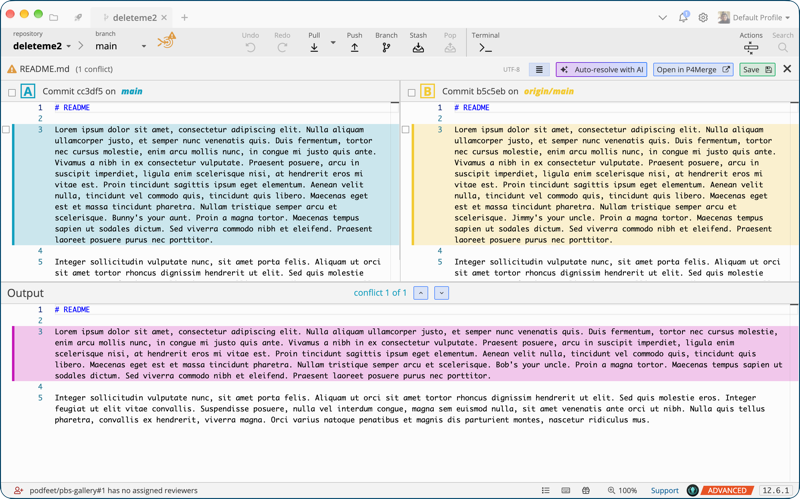
I should be grateful that at least the text word wraps in GitKraken. Bart calls this the “Allison feature” because a recent update added word wrap after I put in a feature request for it. Imagine flicking your eyes back and forth between the two panes as you scroll right and left, reading 110 words trying to spot the difference between the two! It’s hard enough to spot the difference in a giant paragraph with word wrap.
The pane across the bottom is called “Output”. and it shows the original “Bob’s your uncle.” in the middle of a pink-highlighted wall of text. I suspect, but I’ve never had the nerve to test it, that if I clicked the checkbox next to either pane A or pane B, the Output pane would change to show my decision.
Since GitKraken doesn’t show me the specific words that are different between the versions, I went on the hunt for a better merge/diff tool.
Meld
I put out the call on Mastodon asking if people had a better Git conflict resolution tool. @[email protected] explained that he uses the free tool Meld from gnome.pages.gitlab.gnome.org/…. After downloading this open-source tool, I right-clicked on my local version of the README file and chose Open in Meld.
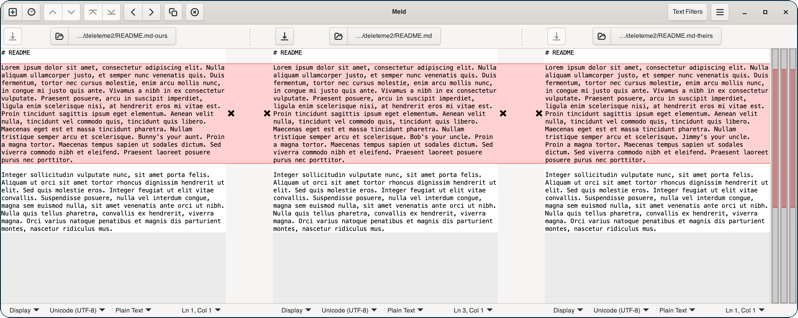
Meld opened three panes, each with the same word-wrapped paragraph highlighted in pink. Sadly, it didn’t show the specific words that were different, so it was just as bad as GitKraken. It took me a bit to figure out what the three panes represented, too. At the top of each pane was a little folder icon, and the last bit of the file path and file name. The center one said deleteme2/README.md. Ok, that’s the file we’re looking at.
Then I noticed that the one on the left said README.md-ours, and the one on the right said README.md-theirs. As long as I read closely, that is a great way to tell me which one is which. Sadly, Meld not highlighting the change meant it didn’t solve the problem at hand.
P4 Merge
I did some searching on the Internets for other options, and found P4 Merge from Perforce Software. This company has lots of professional services, but they describe P4 Merge as a free side-by-side file comparison tool. I liked the sound of that!
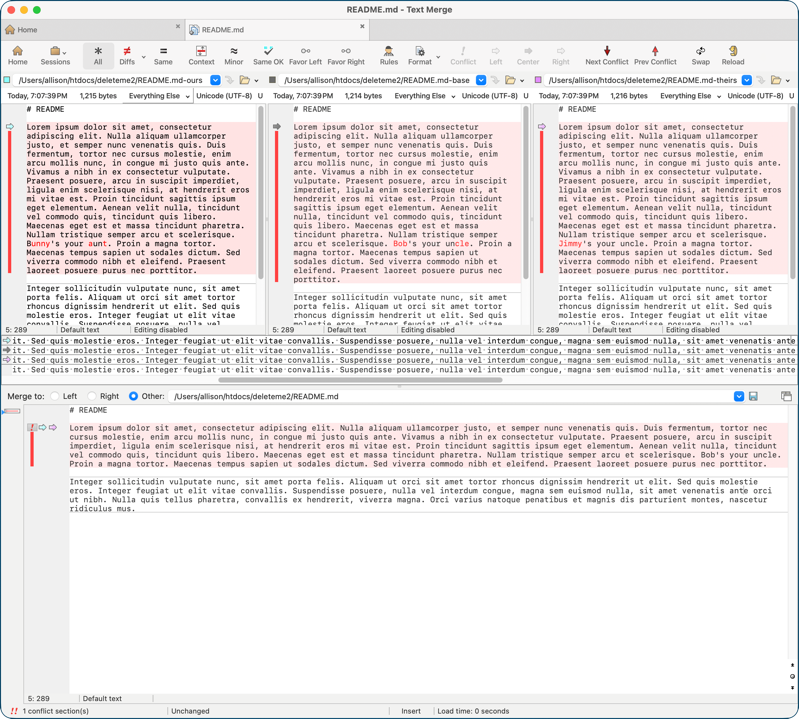
I opened my README file in P4 Merge, and it did a better job in many ways of helping me find what changed. There are three panes across the top, and a fourth across the bottom. Just like Meld, the three panes were -ours, -base, and -theirs.
Sadly, P4 Merge doesn’t have word wrap, so my giant paragraph is a lot of scrolling right/left to find the changed part. The good news is that if you do scroll near the conflicted bit, it’s highlighted in different colors, but if it doesn’t support word wrap, it’s not usable for this text-intensive work.
Beyond Compare
Beyond Compare was highly rated in my search, and more importantly, endorsed by Helma van der Linden in Slack. They have a Standard edition for a one-time purchase of $35, and a Pro version for $70. I’m a fan of free like anyone else, but $35 is well below my threshold of the price of a kidney. I’d even be willing to pay $70 as a one-time purchase if I had to. Let’s see how it does in my Lorem Ipsum who’s your uncle scenario before we worry any more about the price.
I’ve talked about opening my text file from Finder with these different diff/merge tools, but some of them can be integrated into GitKraken. Right at the panic moment, I could use a right-click menu to open directly into the tool that could help me resolve the merge conflict.
With some of the tools, like Beyond Compare, the user needs to install some command line tools in order to have the tool appear inside GitKraken. Made me a wee bit queasy, but Beyond Compare is well regarded and Helma-endorsed, so I went for it.
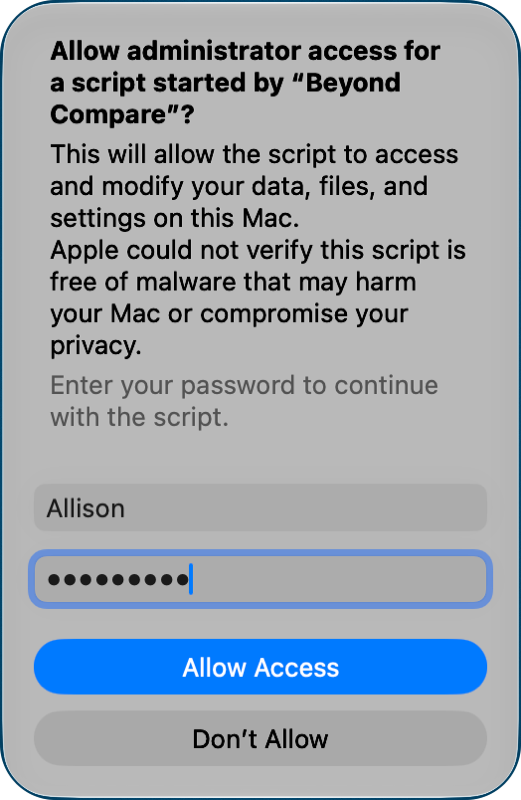
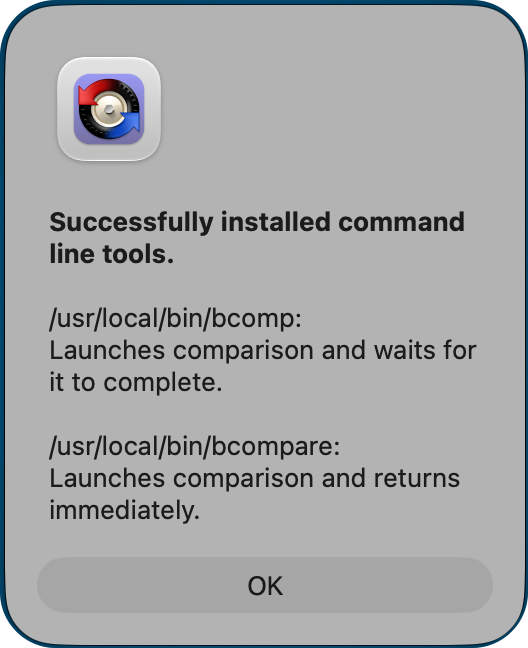
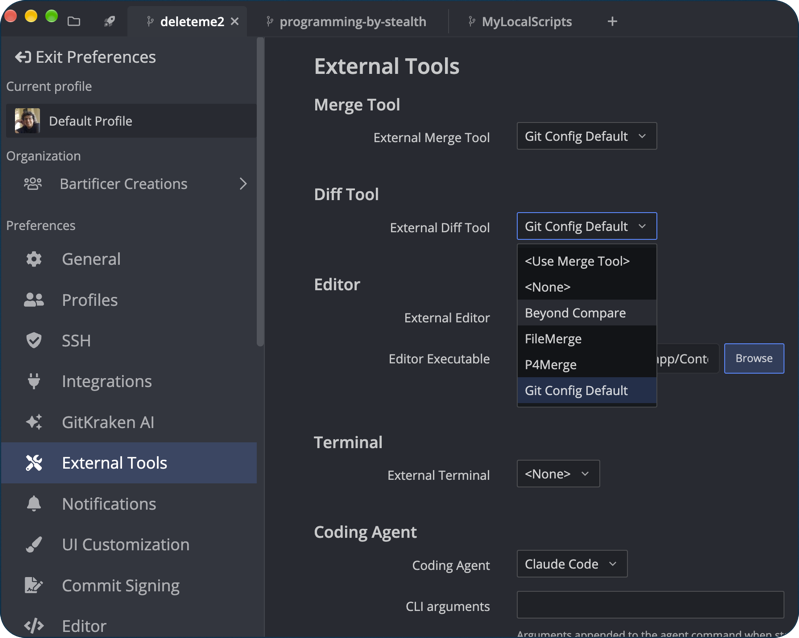
Once the command line tools are installed, in GitKraken Preferences → External Tools, I can set my external diff and merge tool to Beyond Compare from a dropdown. With this setting, now in the main window of GitKraken I can right-click on the conflicted file and select “Open in Beyond Compare”.
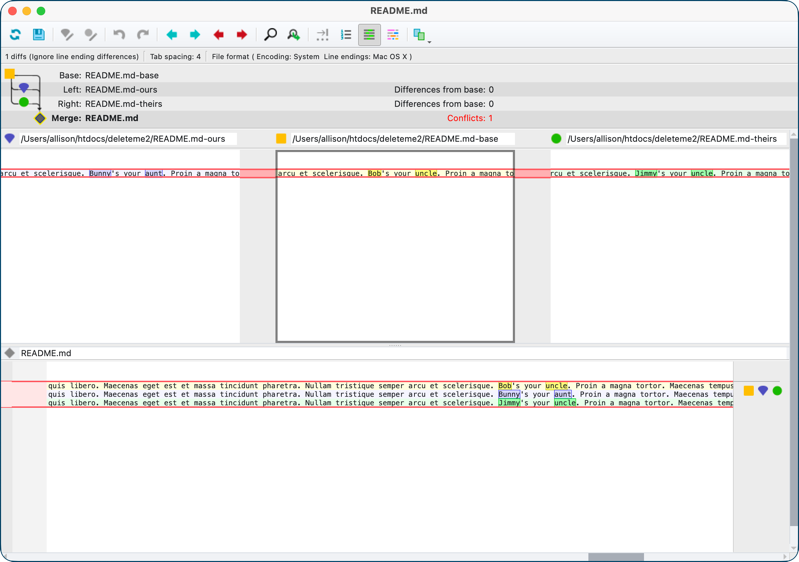
Beyond Compare opens with a three-pane window much like P4 Merge, and with a quick trip to the View menu you can set it to wrap the text.
The big paragraph with the tiny conflict appears in all three panes (-ours, -base, and -theirs) where each pane is highlighted in a different color. But better yet, the small sentence that’s in conflict is in red text instead of black! This red/black text is even down to the individual characters in the text string. So, for example, there’s a “un” in “aunt” but also in “uncle”, so the “un” is in black as not being a conflict. Seems silly in a text string but exactly what you’d want in code.
I know this was a lot of detail on this little nit, but remember if I ever do pick a tool, I’ll also have to figure out how to resolve these conflicts, so understanding the colors matters a lot!
So far, Beyond Compare is the tool to beat. It has word wrap, and it colorizes the text buried in the paragraphs so I can see the differences and make a decision on the merge! I chatted with Helma about Beyond Compare, and she’s pretty sure the $35 version doesn’t include the three-pane view, but it does include a two-pane view. That would be fine since I don’t really need to see the ancestor, just the local and remote views.
At this point, Beyond Compare is the tool to beat.
BBEdit
Steve Mattan in Slack suggested using BBEdit from BBEdit | Bare Bones Software. I’ve had BBEdit on my Macs forever and use it from time to time to solve small problems (like zapping gremlins). Bare Bones lets you test the latest version with every bell and whistle enabled, and then after a trial period they dial you back to a pretty darn capable text editor. I’ve been a fan over the years, and I’ve been wanting to justify buying it, but every time I check, the free version does what I want! When Steve suggested I try it as a merge tool, I really hoped it would finally break me through to a paid license.
Remember how, with Beyond Compare, if I installed the command-line tools, I could see the app in the drop-down to open the conflicted file from within GitKraken? BBEdit isn’t quite as well integrated. You do have to install the command-line tools for BBEdit, but it will never show in the drop-down menus. Instead, you modify your Git configuration to see BBEdit as your default tool.
Back in Git Kraken preferences, instead of choosing the specific app like we did with Beyond Compare, you choose the Git default. If you’re not switching tools all the time, it’s not a big deal, but it was kind of cool that Beyond Compare was right there in the menus.
git config --global merge.tool bbedit
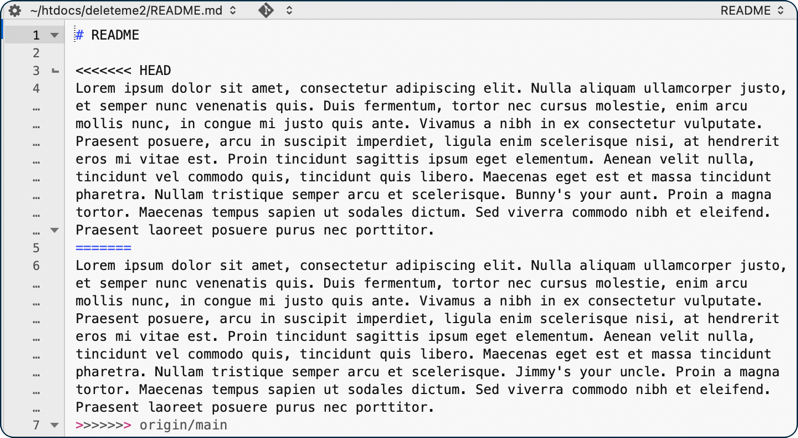
The first thing I did was open my little README from GitKraken in BBEdit, and it was the worst of all worlds. It showed the paragraph twice, one above the other, nothing in color, and no highlighting of the differing text. The only saving grace was that BBEdit allows you to do a soft wrap of your text.
But all was not lost; there was a solution. Siri AI was guiding me with all of this command line stuff, and it explained that there was a way to use BBEdit to give me a good merge tool interface, and believe it or not, it was to launch BBEdit from the command line with the very simple command:
git mergetool
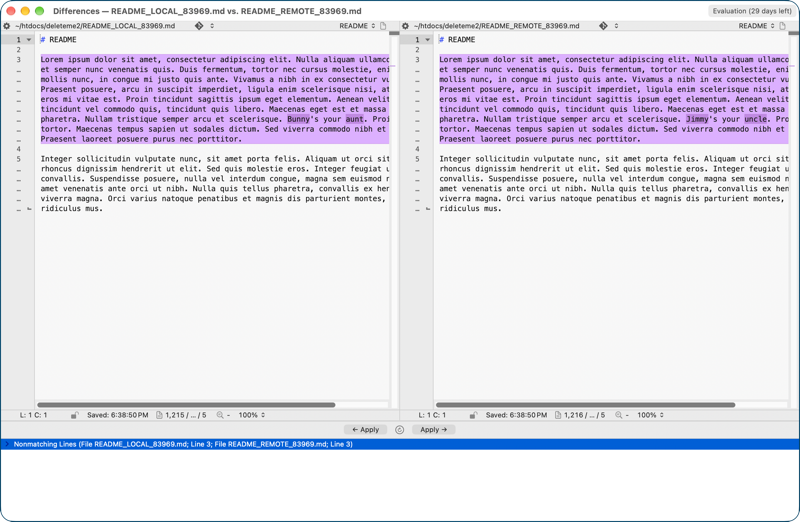
BBEdit opened with two panes: LOCAL on the left and REMOTE on the right. The paragraph containing the differing text was highlighted in purple, and the text that actually was different was highlighted. It wasn’t quite as clever as Beyond Compare. It didn’t notice that the “un” in Aunt was the same as the “un” in Uncle, but it was definitely good enough to be able to tell what I needed to fix.
It met all of my criteria, but it was a little weird that I had to launch the diff/merge tool from the command line.
Visual Studio Code
There was one more contender: VS Code from Microsoft. It’s a free coding app I use when I’m writing actual code, but I don’t normally favor it for our text file work. I like to view our text files in Typora, which renders the Markdown beautifully while also being an editor.
I was surprised when Siri AI suggested I try VS Code as a diff/merge tool. If you open a file in VS Code that has a conflict, you’ll see that annoying view we’ve talked about with other tools where it shows the two versions of the conflicted paragraph but with no way to tell what’s different between the two unless you read the entirety of both.
But if you have an eagle eye, you’ll notice at the bottom of the screen there’s a blue button that says, “Resolve in Merge Editor”.
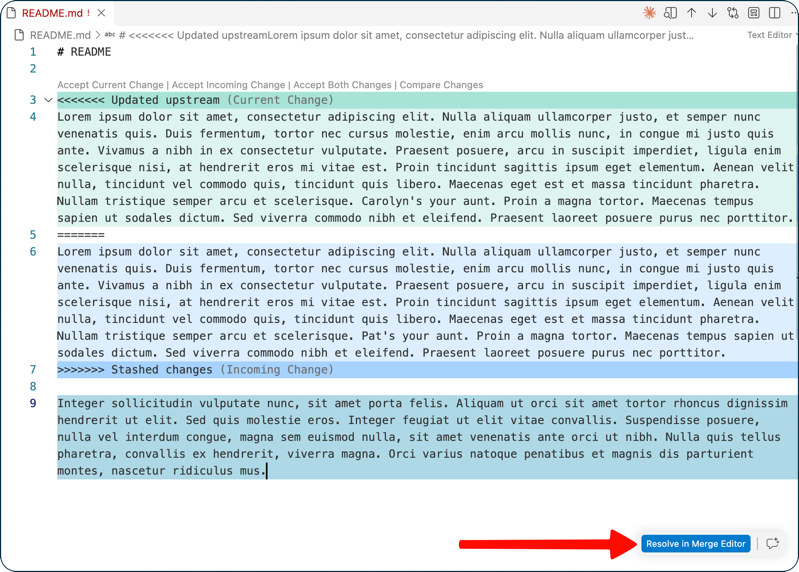
Just as I had hoped, this Merge Editor in VS Code shows the words that have changed in an extra highlight on the two panes for incoming changes vs. current changes locally. VS Code is free, it has word wrap, and it shows me the tiny differences in the giant paragraphs. And, unlike BBEdit, I didn’t have to launch it from the command line. I’m sad to say this kicked BBEdit off my list.
Beyond Compare vs. VS Code to Apply Changes
I now had two valid contenders for the final, head-to-head test: Beyond Compare and VS Code. Feels as exciting as the end game in one of those reality TV challenges, doesn’t it?
Beyond Compare costs between $ 35 and $ 70, while VS Code is free with no command-line requirement, but Beyond Compare opens nicely from within GitKraken. Which one will help me figure out which change to apply and how to apply it?
Beyond Compare Applying Changes
In Beyond Compare, there’s a wee tiny arrow in the upper left of the three panes. Let’s say I decided to keep “ours”, which is the “Bunny’s your aunt” version. Next to each pane there’s a wee tiny arrow from left to right, and hovering over the left one (Bunny version) it says “Take left section”. Once you’ve chosen left or right, there’s a wee tiny save icon of a blue floppy disk that appears to save the changes from this conflict resolution.
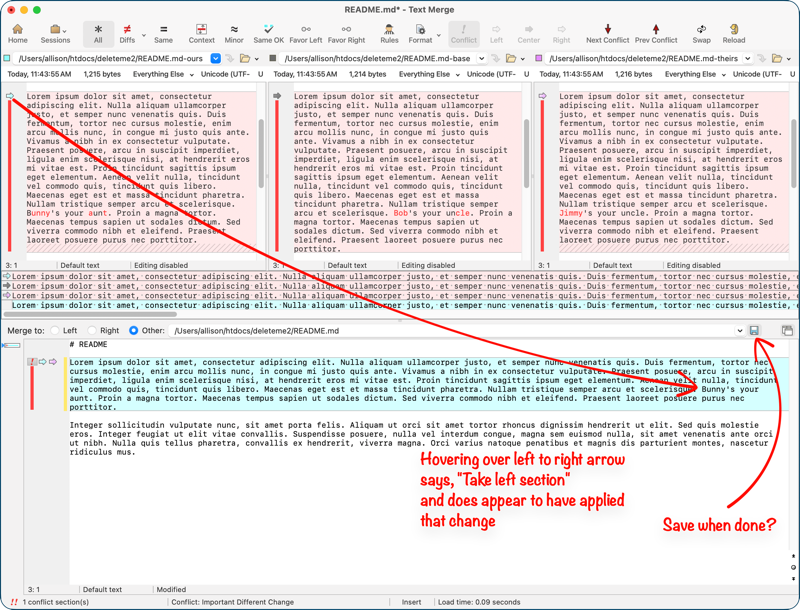
I chose the commit from Bart (-theirs) and hit the save icon. When I closed the Beyond Compare window, the main window of GitKraken got rid of all the conflict alarms, and I thought peace had returned to our world.
If everything had worked properly, I should have had a way to commit the changes, and then pull Bart’s version. But in GitKraken, it still indicated I had a change to pull and a change to push, which doesn’t make sense. I’ve said I want Bart’s change, so it should let me pull it. The only button that was available to me was to Abort Merge.
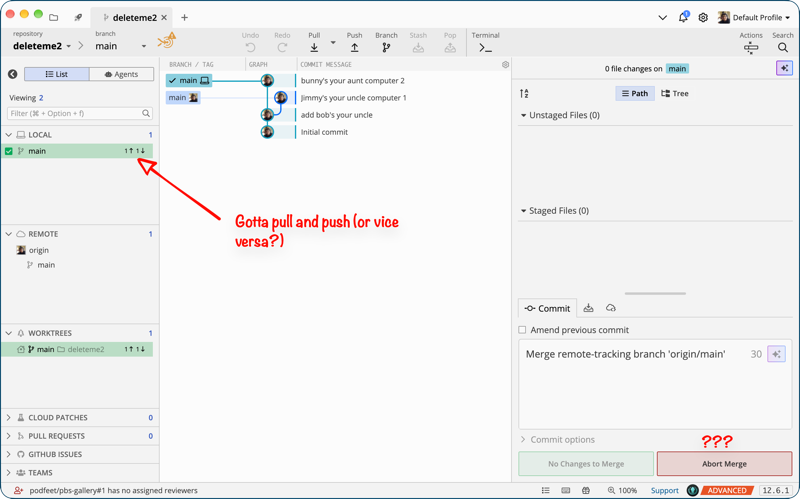
I had a chat with Bart and later Siri AI about this, and it explained that I need to commit the change I’d made over in Beyond Compare. I felt like HAL9000 when I said, “I’m sorry, Siri, I can’t do that” because there’s nothing to commit!
While my quest was to resolve conflicts in a pretty GUI, the only option I had to commit the change I’d saved in Beyond Compare was to do it from the command line! I argued a bit with Siri about this, and it patiently explained that since I chose to keep the incoming file exactly as it is with zero local modifications, GitKraken didn’t know what to do with that. I’m not sure that was the problem, but stay tuned for more info on that.
Since resistance was evidently futile, I typed git commit into Terminal and gave it the appropriate flag to add a commit message.
Back in GitKraken, I was now able to push changes, and it worked.
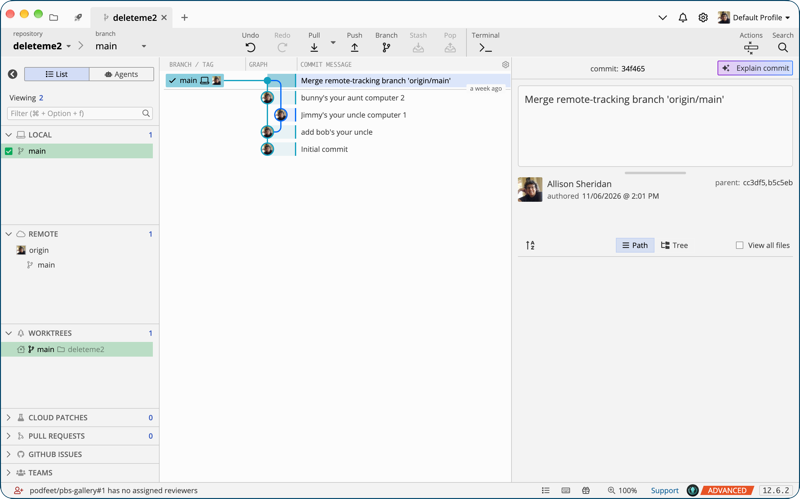
Technically, using Beyond Compare to resolve the conflict worked, but it was very weird that I had to go to the command line to commit what were essentially non-existent changes.
VS Code
Since I already resolved the conflicts about Bunny and Jimmy, I had to make a new conflict. This time it was “Pat’s your aunt” and “Carolyn’s your aunt”. Sadly, no one will know why that’s fun.
Let’s take a look at how VS Code performs. At the top of the two comparative panes, there is a set of double check marks. Hovering over the checkmarks on the left says “accept all incoming changes from left”, and the ones on the right say “accept all current changes from right”. That sounds pretty clear to me. More importantly there was a “Complete Merge” button at the bottom that Beyond Compare didn’t display.
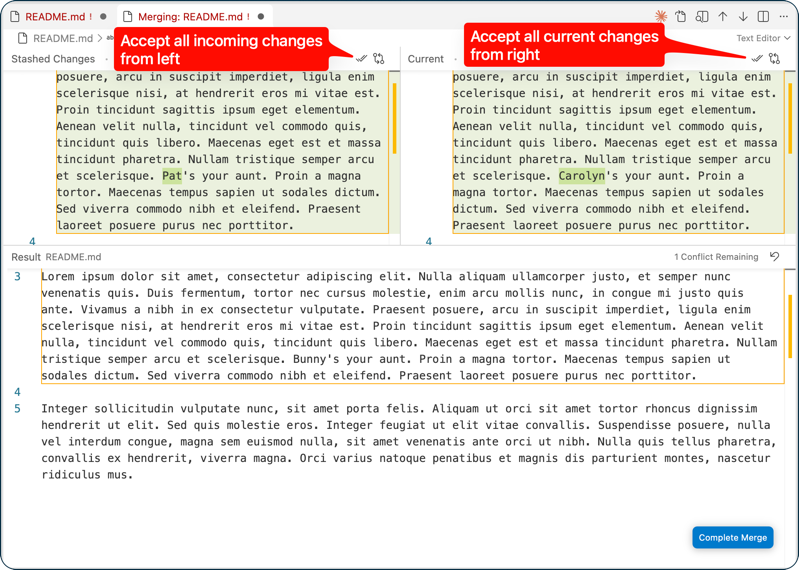
In VS Code, I accepted the incoming changes, tapped the “Complete Merge” button, and saved the file inside VS Code. When I went back to GitKraken … drum roll please … GitKraken DID allow me to commit the merge of nonexistent changes! After committing, it let me push, and now my local copy matches what’s on GitHub.
Winner winner chicken dinner, as my son-in-law would say!
Bottom Line
I hope you’ve enjoyed this trip through a few diff/merge tools for resolving conflicts with Git. I’m pleased that I was able to find a free tool already in my toolset that did the best job of all of them, at least for me.
Because this is a passionate subject for programmers, I fully expect that I will get responses to my analysis that start with, “Wait, you didn’t try…” or “Wait, you just didn’t understand…” And I absolutely welcome those comments whether in Slack or in email or on Mastodon. It’s all about learning so if I’m wrong or misguided, bring it on!
The bottom line is that I probably will still panic every time I get a merge conflict, but maybe, just maybe, I’ll be able to figure out what to do with those conflicts with the aid of my trusty VS Code.
Superb article.
Have you tried Tower? https://www.git-tower.com/