

Two weeks ago, I wrote an extensive article on the trials and tribulations of taking screenshots with macOS Tahoe and its fancy, rounded windows. The two problems to be solved were that some screenshot methods didn’t capture transparent corners for the rounded windows, and the windows in macOS don’t have borders on them, so they blend into white backgrounds, like on my blog posts.
I had two solutions to the problems. One was to use my beloved Shottr to add a tiny grey backdrop that matched the radius of the screenshot. It’s pretty simple and reliable, but I do have to mess with the radius from time to time depending on the shape of the captured window.
I also created a tiny bit nerdier process to achieve my goal. I created a pretty simple Retrobatch automation to add a nice, rounded border to my screenshots. I then embedded the Retrobatch action into Keyboard Maestro so I could add a keystroke to invoke it and then save the screenshot to the Clipboard. I was quite proud of having such a sweet solution.
But I mused at the end of the article on whether I could automate this even further. macOS comes with a command-line version of a screenshot tool called screencapture. There’s also a super-powerful open source library called ImageMagick designed to help you manipulate images. I wondered whether I could write one script that used both of these tools to take me end-to-end in capturing screenshots and adding rounded borders without Retrobatch.
The answer is yes, I can. Did I need this solution? No, I did not. Did I do it anyway? You know the answer to that.
Before I get into it, if you’re not into the super-nerdy stuff I do, you still might be interested because at the end, I have a much less nerdy solution.
screencapture from the Command Line
Using the screencapture tool from the command line is actually super simple. The command is screencapture and then you follow that with a hyphen and single letters that are called flags, which give the command instructions. I used three flags to make it do what I want.
I used -c to send the screencapture to the Clipboard. Then -i, to make the screencapture interactive, allowing me to switch between window and area capture with the spacebar, just like the normal way to screenshot windows. Finally, I want to make sure there’s no shadow, so I used the flag -o to disable the shadow.
Put all together, the command is simply screencapture -cio. You can try it right now by opening Terminal and typing that in. Your cursor will turn into a crosshair. Drag across an area, or hit spacebar to capture the whole window instead, and you’ll have a screenshot on your Clipboard. I think it’s super fun to know this exists and is surely what’s under the hood in tools like Shottr, CleanShot X, and the built-in Screenshot app from Apple.
ImageMagick to Round the Corners and Add a Border
The much harder part was to figure out how to use ImageMagick to round the corners and add a border. As I mentioned last time, ImageMagick is an open source library that is super powerful, but with that power comes a lot of complexity. In using it over the years, I’ve pretty much never written any of it on my own; I’ve always heavily “borrowed” from the work of others on the Internet.
I looked around for forums where people were working with ImageMagick, but I couldn’t find anything recent and certainly nothing relevant to the task at hand. It was time to turn to AI. I tried a new AI assistant that I hadn’t tried before (and for which I wasn’t paying to get the better version), and it had me running in circles. The main problem it had was that it kept trying to convince me that a particular paste command would work, it would apologize, and suggest something else that didn’t work. I’d correct it again, and it would go back to the first wrong idea it had again. After twice around that loop, I abandoned that AI assistant and switched back to ChatGPT.
The command the first AI assistant kept wanting me to use but wouldn’t work was pbpaste. This command grabs the content from the system Clipboard, but I believe it can only do text, not images. I decided to go back to ChatGPT, and it suggested I install another library via Homebrew called pngpaste, and that did allow my little script to access the system Clipboard containing the screenshot. I’m not saying ChatGPT didn’t send me down a bunch of wrong paths, too, but at least they weren’t circular paths!
After ChatGPT and I went back and forth for quite some time, I achieved my goal. I have no intention of explaining all of it to you, but I will share the final script and call out some highlights. The only reason I have a hope of understanding most of what the script is doing is that I asked ChatGPT to comment the daylights out of it. Let’s walk through some of the highlights.
The first section is to initiate the screenshot as I explained earlier.
screencapture -cio
The next section initiates some variables to store the captured PNG, store the output PNG, and, since it’s going to create a mask in order to make my rounded border, a variable for the mask PNG. Then it uses that pngpaste command to capture the screenshot from the Clipboard.
in_png=$(mktemp /tmp/clip.XXXXXX).png
out_png=$(mktemp /tmp/rounded.XXXXXX).png
mask_png=$(mktemp /tmp/mask.XXXXXX).png

pngpaste "$in_png" >/dev/null 2>&1 || exit 1
As I mentioned, the script is going to create a mask, and in order to do that, it needs to know the dimensions of the input PNG. ImageMagick, which is called with the simpler command magick, can query the image to find these values.
W=$(magick identify -format "%w" "$in_png")
H=$(magick identify -format "%h" "$in_png")
In my prompts to ChatGPT, I told it to make the desired radius for the corners 54 pixels, so it hard-coded into the script:
r=54
It’s only because of the comments that I have a hope of understanding the next part. The script will create a mask the same size as the image. First, it will be all black (which means it will be fully transparent). Then it will draw a white, rounded rectangle of the same width and height as the screenshot (minus one) and with a radius of 54. That white, rounded rectangle will be fully opaque, and that minus one keeps the stroke within the bounds of the original screenshot.
magick -size ${W}x${H} xc:black -fill white \
  -draw "roundrectangle 0,0 $((W-1)),$((H-1)) $r,$r" \
  "$mask_png" >/dev/null 2>&1 || exit 1
In the next bit, it draws the 2px medium-gray border inside the rounded shape, where medium gray is defined with the hex color code #888888. The code to do this step looks very much like a cat walked across a keyboard.
magick -quiet "$in_png" "$mask_png" -alpha set -compose CopyOpacity -composite \
  \( -size ${W}x${H} xc:none -stroke "#888888" -strokewidth 2 -fill none \
     -draw "roundrectangle 1,1 $((W-2)),$((H-2)) $r,$r" \) -compose over -composite \
  "$mask_png" -compose CopyOpacity -composite \
  PNG32:"$out_png" >/dev/null 2>&1 || exit 1
In a surprise turn of events, ChatGPT suggested using AppleScript to write the image back to the system Clipboard. I would have thought we could have used our fancy pngpaste command we learned earlier, but the comments suggest that you might end up with a TIFF if you do that. As we learned last time, the TIFF ended up with those opaque (or semi-transparent?) corners, exactly what we’re trying to avoid. In any case, Ray Robertson will be glad his beloved AppleScript comes to the rescue.
osascript -e 'set the clipboard to ""' \
          -e 'set the clipboard to (read POSIX file "'"$out_png"'" as «class PNGf»)' >/dev/null 2>&1
With the full script written and safely saved in my Git-controlled folder on my Mac, I pasted the contents into a new Keyboard Maestro macro, added a keyboard shortcut, and it works! I can use my keystroke, capture an area or window, and immediately hit paste into a document, and I see my lovely, rounded rectangle screenshot.
I have successfully replaced a perfectly functioning Retrobatch process with a shell script method. Maybe not a necessary step for me, but if you don’t own Retrobatch, you could use my fancy script for free.
But it Wasn’t Quite Right
While this works and does what I asked it to do, the screenshots were not quite ideal. Remember that developer Steve Harris told us that while the corners of the new macOS and iOS 26 windows have a large radius (he said 50 px, not 52), and windows without a toolbar are smaller at around 30 pixels. When I use my hard-coded 54 pixel radius in my script, all screenshots get the same radius. This means that when I take screenshots of windows with the smaller radius, visible elements can get cropped with the larger radius.
I thought maybe I could add just one more enhancement. I gave ChatGPT a copy of my completed shell script and asked it to change the r=54 radius assignment to give the user a choice. Since I was at it, I decided to make the two choices 52px and 32px to match up with Steve’s measurements (adding 2px for the border). ChatGPT enlisted our old friend AppleScript again to pop up a window offering 52 or 32, with 52 selected as the default.
r=$(osascript -e 'button returned of (display dialog "Choose corner radius:" buttons {"52", "32"} default button "52")')
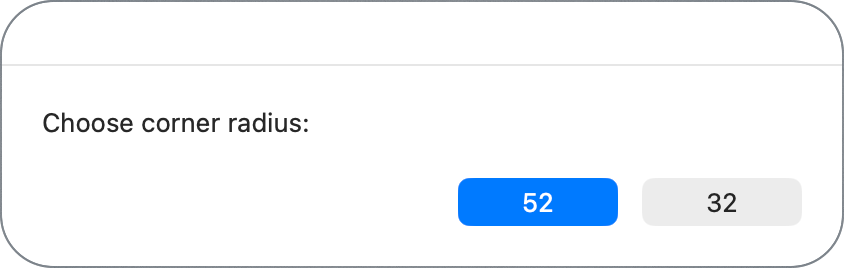
Now I can use my Keyboard Maestro keystroke, take a screenshot (windowed or selection), click the appropriate radius for the window I just captured, and instantly I’ve got my nice, rounded rectangle screenshot with a lovely medium grey, 2px border.
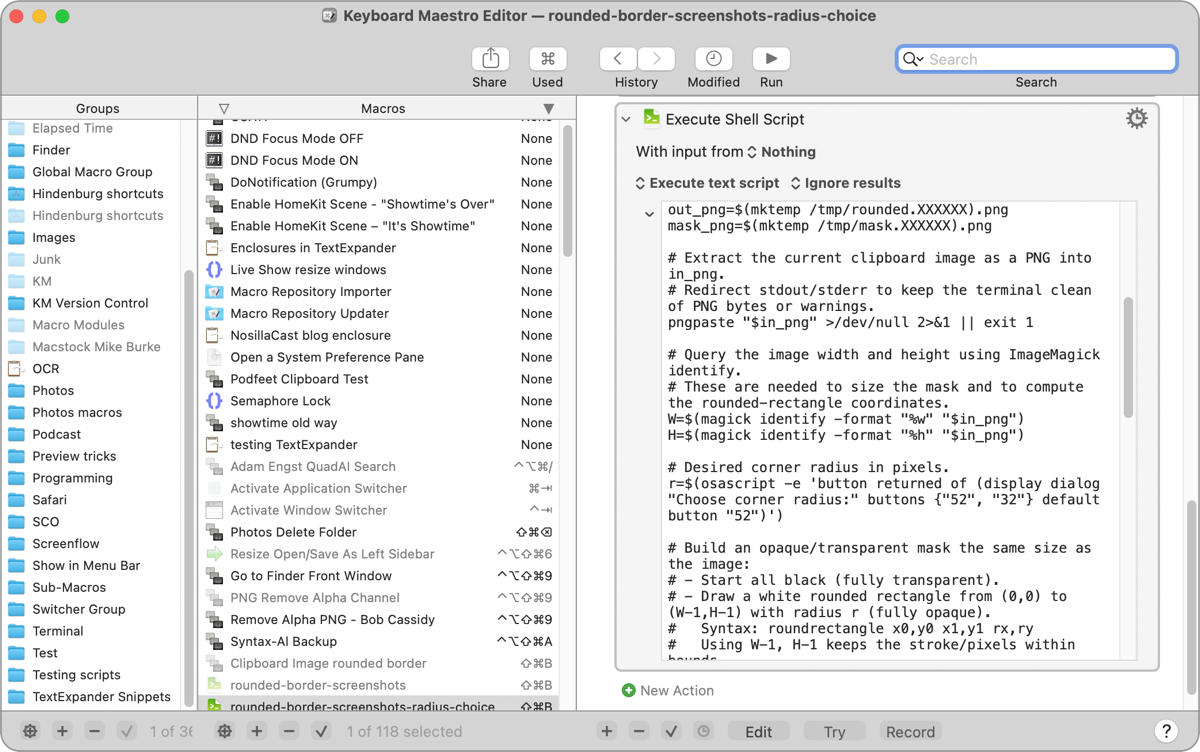
I’ve included the final, complete script, if you’d like it for yourself:
#!/bin/zsh

# -c means send to Clipboard
# -i allows interactive to switch between window and area capture
# -o means don't capture a shadow

screencapture -cio

# Purpose: Read an image from macOS clipboard, apply 54px rounded corners + 2px gray border,
#          then replace the clipboard contents with the processed PNG (with real transparent corners).
# Tools: ImageMagick v7 (`magick`) and `pngpaste` (Homebrew), plus AppleScript to set PNG data only.

# Create unique temporary filenames for the input PNG, output PNG, and the alpha mask PNG.
# mktemp returns a unique path; we append .png to ensure ImageMagick infers PNG format.
in_png=$(mktemp /tmp/clip.XXXXXX).png
out_png=$(mktemp /tmp/rounded.XXXXXX).png
mask_png=$(mktemp /tmp/mask.XXXXXX).png

# Extract the current clipboard image as a PNG into in_png.
# Redirect stdout/stderr to keep the terminal clean of PNG bytes or warnings.
pngpaste "$in_png" >/dev/null 2>&1 || exit 1

# Query the image width and height using ImageMagick identify.
# These are needed to size the mask and to compute the rounded-rectangle coordinates.
W=$(magick identify -format "%w" "$in_png")
H=$(magick identify -format "%h" "$in_png")

# Desired corner radius in pixels.
r=$(osascript -e 'button returned of (display dialog "Choose corner radius:" buttons {"52", "32"} default button "52")')

# Build an opaque/transparent mask the same size as the image:
# - Start all black (fully transparent).
# - Draw a white rounded rectangle from (0,0) to (W-1,H-1) with radius r (fully opaque).
#   Syntax: roundrectangle x0,y0 x1,y1 rx,ry
#   Using W-1, H-1 keeps the stroke/pixels within bounds.
magick -size ${W}x${H} xc:black -fill white \
  -draw "roundrectangle 0,0 $((W-1)),$((H-1)) $r,$r" \
  "$mask_png" >/dev/null 2>&1 || exit 1

# Apply the alpha mask to the original image:
# - Read original + mask.
# - Ensure alpha channel exists (-alpha set).
# - Use -compose CopyOpacity to copy the mask’s grayscale into the image’s alpha.
# Now the image has true 54px rounded transparent corners.
#
# Next, draw a 2px medium-gray border INSIDE the rounded shape:
# - Create a transparent drawing layer sized to the image.
# - Use -stroke "#888888" and -strokewidth 2.
# - Draw the same rounded rectangle, inset by 1px on each side (1..W-2, 1..H-2),
#   so the centered 2px stroke sits fully inside the edge and remains visible.
#
# Then, composite that stroked layer over the rounded image.
#
# Finally, re-apply the same mask as a safety step:
# - Compositing the stroke could theoretically paint into corners; copying the mask
#   again enforces fully transparent corners.
#
# Write the final image explicitly as PNG32 (RGBA) to out_png.
magick -quiet "$in_png" "$mask_png" -alpha set -compose CopyOpacity -composite \
  \( -size ${W}x${H} xc:none -stroke "#888888" -strokewidth 2 -fill none \
     -draw "roundrectangle 1,1 $((W-2)),$((H-2)) $r,$r" \) -compose over -composite \
  "$mask_png" -compose CopyOpacity -composite \
  PNG32:"$out_png" >/dev/null 2>&1 || exit 1

# Replace the system clipboard with ONLY the PNG flavor.
# Many macOS apps prefer the first pasteboard flavor (often TIFF) unless we set PNG explicitly.
# AppleScript reads the file as '«class PNGf»' and sets that as the clipboard, avoiding stale TIFF.
osascript -e 'set the clipboard to ""' \
          -e 'set the clipboard to (read POSIX file "'"$out_png"'" as «class PNGf»)' >/dev/null 2>&1

# Clean up temporary files.
rm -f "$in_png" "$out_png" "$mask_png"
Shottr
I wanted to give you an update on the Shottr method as well.
In my previous article, I explained that my beloved Shottr app was creating opaque corners, leaving ugly wedges in the corners. I told you I’d reported this to the developer and that he hadn’t yet been able to replicate the problem, but we had high hopes that it was something I was doing on my end that was causing the problem.
Last week, the lovely Max, developer of Shottr, got back to me about the problem with non-transparent corners. He got back to me with the discovery that I was half right that Shottr was messing up the corners. I had said they were opaque, and when he tested, they looked transparent, but it turned out they were semi-transparent! Who knew there was an option in between?
He fixed the problem, sent me a beta of Shottr to test, and now my Shottr screenshots are truly transparent! This means I can have a super quick workflow with Shottr that gives me everything I want. If I use ⌘-Shift-4, it invokes Shottr to take the screenshot, and then opens the app. If I hit the letter K, Shottr switches to the backdrop function I told you about last week. I can easily change the outer radius to match the radius of the given screenshot, and it looks fabulous!
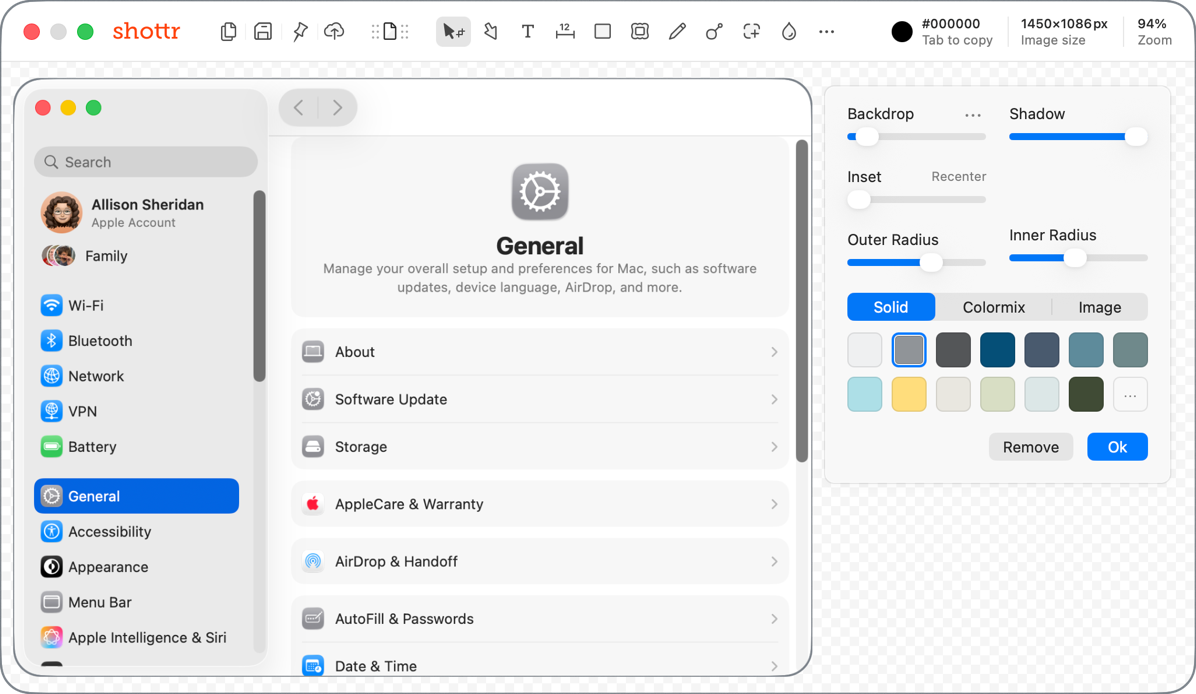
If you read my massive article on Unite to make site-specific browsers, or if you just scroll through to look at the pretty screenshots, you’ll see the work of Shottr using this workflow. I think there are 27 screenshots in that post, and they were all super easy to make. ⌘-Shift-4, space bar, K, ⌘-Shift-S to save.
Working with responsive developers is such a joy and one of the reasons I love doing this kind of work!
Bottom Line
As I was telling Bart about my joy at creating the shell script version of a screenshot tool, I also told him that now Shottr can do the same thing for me. I told him that while I do still love Shottr, I might love my little shell script tool a teeny bit more. He explained perfectly why that is. He said, “You made it yourself, so it tastes better”.