
This must be the season of injuries, because you’ve all heard about Allison’s horrible, horrible injury that she suffered recently. And while I’m not going to try to compete with that, I have an injury of my own that has forced me to look into alternative ways to use my Mac.
My name is Scott Willsey, and I want to talk about Wispr Flow today. Wispr Flow is a voice-to-text AI program. It’s dictation. Let’s just say it that way, okay? It’s dictation. Now, you’re probably asking, okay, dictation, that’s great. Don’t macOS and iOS already come with dictation built in? And the answer is yes. Yes, they do. The problem with the Apple built-in dictation is the same problem that Siri has, that Apple Intelligence has. It’s not very good. It does a lot of dumb things. It doesn’t understand a lot of words that I say. It doesn’t hear everything that I say unless I yell at the same volume for the entire sentence or paragraph. It is very comma and period happy. It divides my sentences up into sentence fragments that make no sense or it puts commas where commas don’t belong.
I’m sure you’ve heard all the comma jokes, such as, “A comma can save a life, let’s eat, grandma versus let’s eat grandma”. Or, “Back in the day, excessive use of commas was considered a very serious crime. It usually resulted in a long sentence”. So yes, commas and where they’re put in a sentence are important, and Apple dictation just does not do it for me.
So, what is my injury besides my obvious sense of humor? One day, a few months ago, I was kind of running down the hall towards my office to log on to get onto a meeting, and I had a cup of coffee in one hand and a cup of water in the other. I couldn’t see the floor because of that, and I tripped over something that was on the floor due to stuff being moved around my house. That’s fine. I spilled my coffee. I was wiping it up, and somehow I destroyed the tendon at the distal end of my middle right-hand finger. This resulted in a splint. It resulted in weird typing. And eventually it resulted in surgery. And I’m still recovering from that right now.
So I like to use a lot of dictation. I don’t want to type an email. I don’t want to type a message to my co-workers. I don’t want to do all that stuff. I just want to say it. And that’s when I started looking to see what other people use for dictation on the Mac that they find effective? What do they recommend? And overwhelmingly, I found that a lot of people recommend Wispr Flow. Wispr Flow is at wisperflow.ai. Wispr, W-I-S-P-R, Wispr Flow.
Wispr Flow has three plans. Flow Basic, which is free. You get 2,000 words per week on Mac or Windows, 1,000 words per week on Flow for iPhone. You get unlimited words per week on Android, for a limited time only. So unlimited for a limited time. You get custom dictionary snippets. You get support for 100 languages. So you get privacy mode, you get HIPAA ready.
And then if you want to go up a notch, you can get Flow Pro, which is for individuals and teams, which has everything that Flow Basic has, plus unlimited words per week on Mac, Windows, iPhone, and Android. You get prioritized support and feature requests. You get a command mode for editing. You get early access to new features. You get team collaboration features. Now, most of those I don’t care about, but I do care about the unlimited words per week.
Then there’s Flow Enterprise for teams who need advanced security and support. So, for example, if you want enforced privacy mode, so no data retention, if you want enforced HIPAA compliance, if you want SOC 2 Type 2 and ISO 27001 compliance, which are just certifications that you’ll know you need if you’re in specific industries, you can get that with Flow Enterprise. The reason those types of certifications and the reason for enforced privacy mode might be something you consider when you’re looking at the plans is because this product uses cloud-based AI. That’s why it’s fast. That’s why it’s accurate. And so you want to make sure that you’re not giving away anything you shouldn’t if you have clients, if you have patients, so on and so forth.
So what are the prices for these plans? Well, again, Flow Basic is free. Flow Pro, which is what I’m using, is \$12 per user per month, billed annually. And if you do the math, That’s \$144 per year, and I paid it because I’m using it for work situations. I personally, in my circumstance, can write this off, which helps. It’s still a cost, but I can write off the cost of it. And it’s fast and accurate. Again, comparing it to Apple Dictation, it’s not even close.
Flow Enterprise, the third plan, doesn’t give a price. It just says contact us, talk to sales. So this is where they want to know how big your team is, exactly what you’re doing, and so on and so forth, so they can come up with a nice custom price, which probably benefits them greatly.
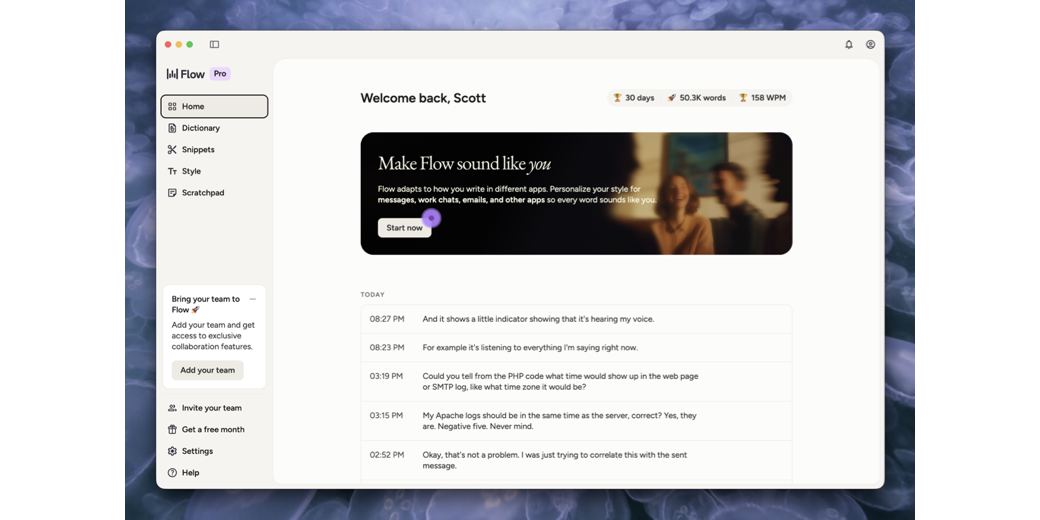
Okay, now that we’ve got pricing out of the way, let’s talk about the app itself. What happens when you install Wispr Flow? Basically, when you run it on the Mac, you see two or three things. One thing you see is up in the menu bar, there’s a little Wispr Flow icon, and that gives you some commands that I’ll talk about later. Then there’s the app window itself, which disappears from time to time, and sometimes it’s kind of hard to bring it back, but most of the time you’re not interacting with that. And then there’s the recording control itself. And this is what it looks like. Right in the middle of the bottom of the screen, there’s a little tiny lozenge, very small. And if you hover over it, it becomes bigger. And you hover over it, and it says, click or hold command right arrow to start dictating. Now, in my case, I have a keyboard shortcut set up so that really all I do is just hold the command key, the right command key. But the nicest way to use it is just to set a key on the keyboard that you hold down and record that way.
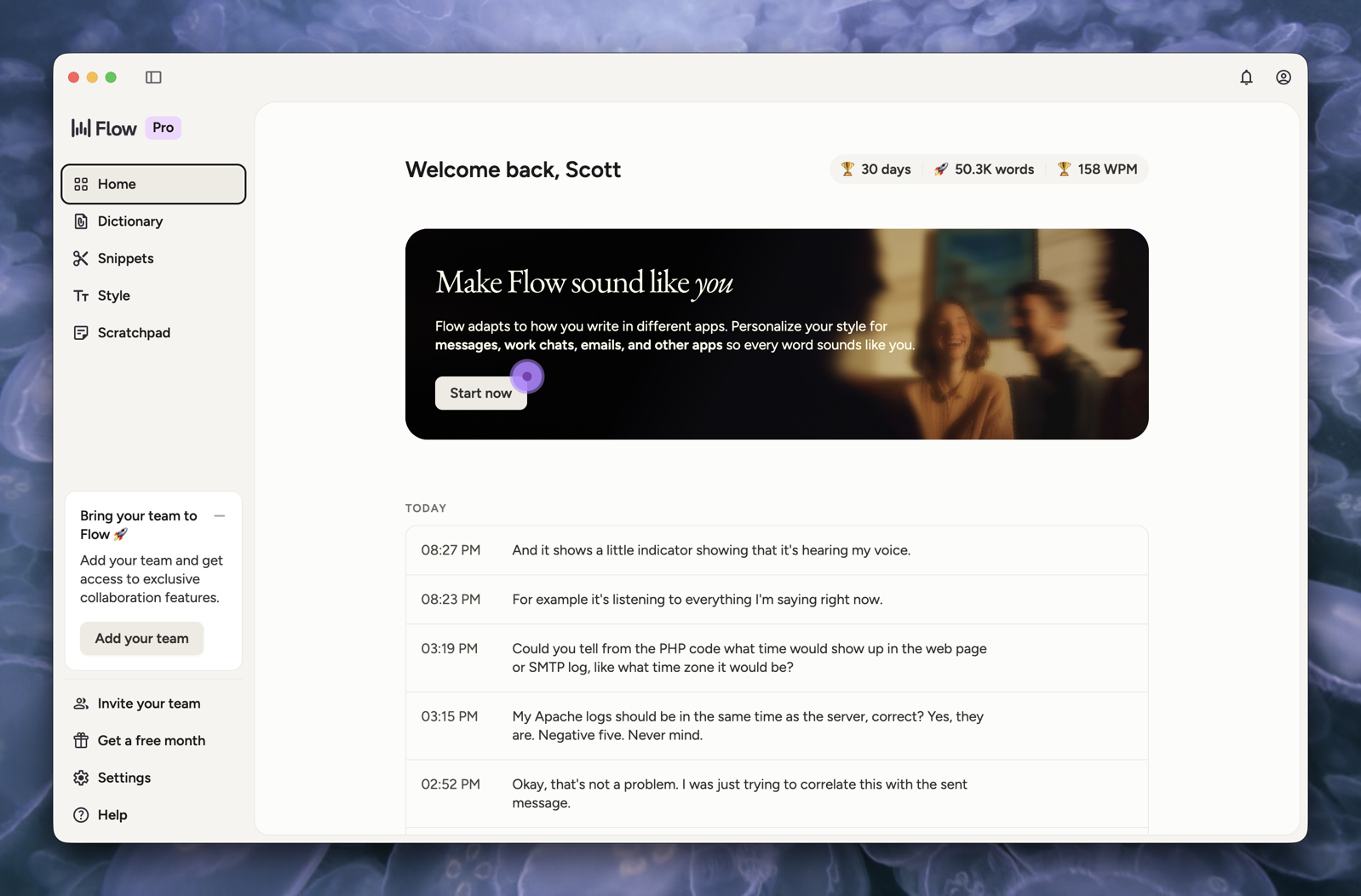

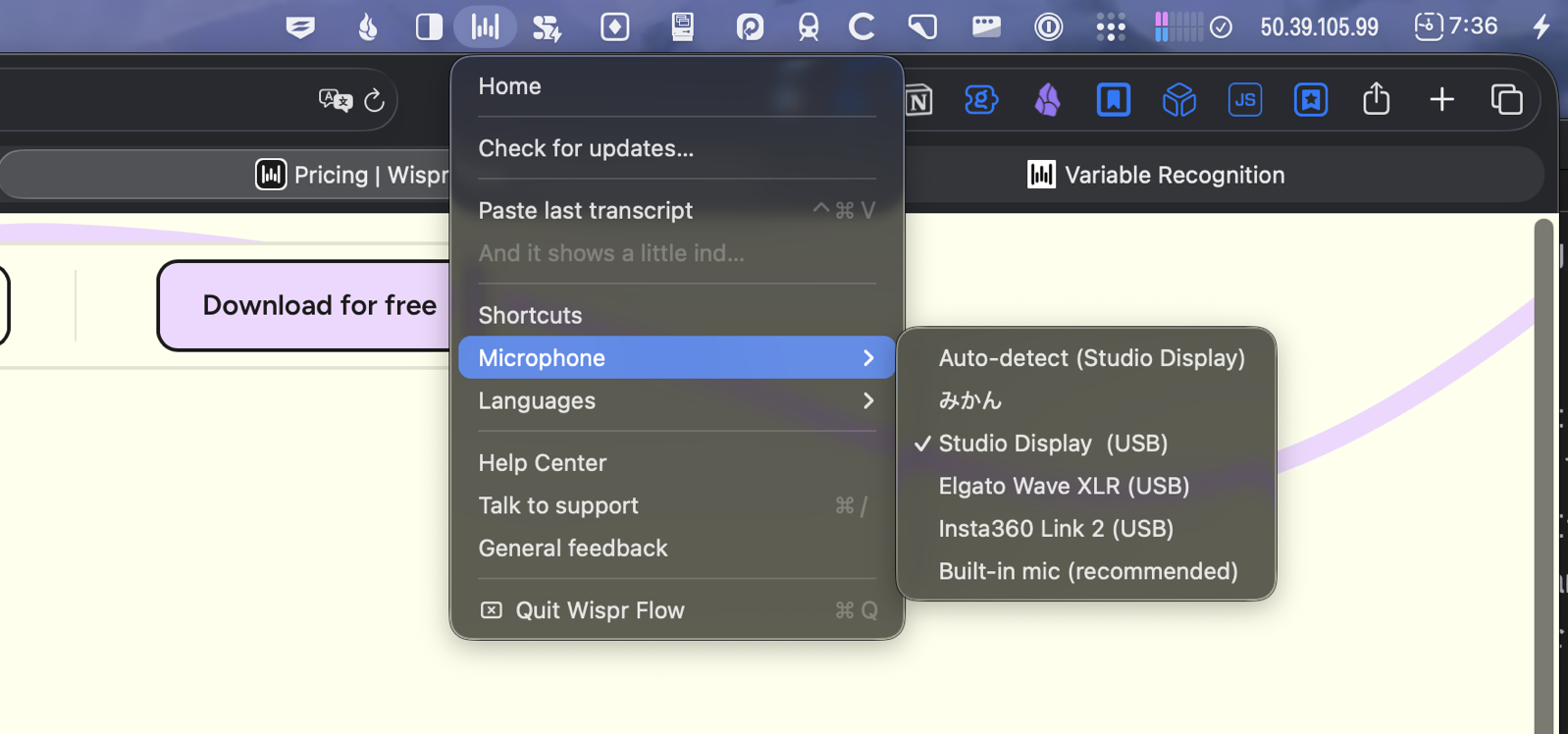
And it’s going to use whatever your current mic is set to. If my current mic is set to my MacBook Pro microphone, it’ll use that. If my current mic is set to my studio display microphone, it’ll use that. If my current mic is set to my you can have it launch the app at logon.
You can have it show the flow bar at all times, and the flow bar is that little lozenge at the bottom. You can show the app in the dock if you want to, which I do have it do. You can have it make dictation sound effects so that you know when it’s done recording something, and you can mute music while dictating if you want to. You can auto-add words to the dictionary. So if a word is corrected, it will automatically add those to your dictionary so that it knows those words in the future. It automatically formats dictation with smart formatting if you want. And I do have that enabled, and it sometimes results in some interesting formatting.
So basically, you create an account. You can add team members if you’re on the middle plan, like I am. I haven’t added any. There are plans and a billing section of settings, which lets you look at what plan you have. You can explore different features. You can manage your subscription. And then there’s a data and privacy thing.
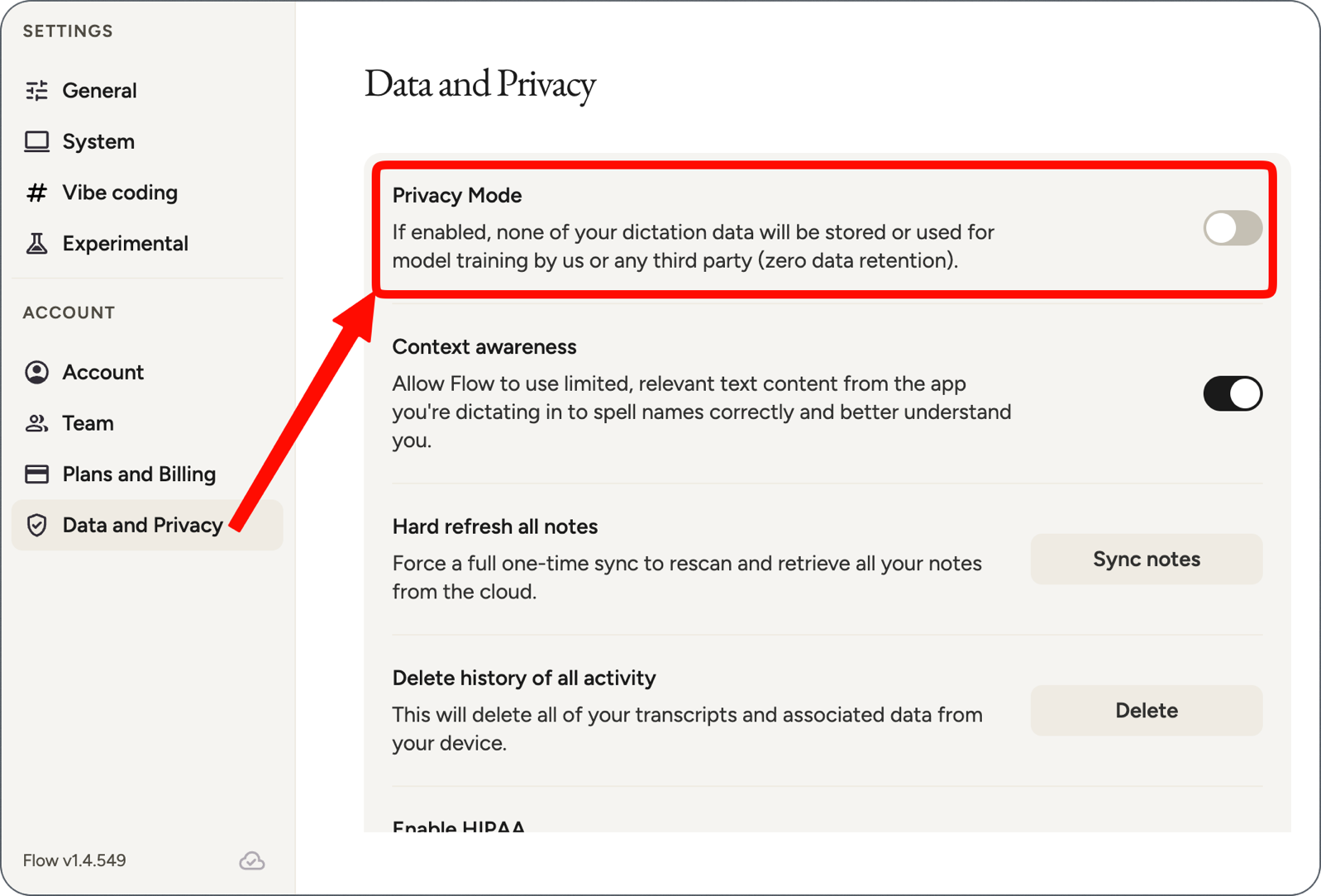
Now, I have privacy mode enabled. So none of my dictation data, according to them, will be stored or used for model training by them or any third party. They claim zero data retention. Also, I have context awareness turned on so that it will use limited relevant text content from the app you’re dictating in to spell names correctly and better understand you. But again, this is under data and privacy. And again, this is supposed to not be tracked in my case. You can delete the history of all your activity, which will delete all your transcripts and associated data from the device on which you do this, like the Mac. And you can also enable the HIPAA mode if you want to, which I don’t have enabled because I don’t have that requirement in my job.
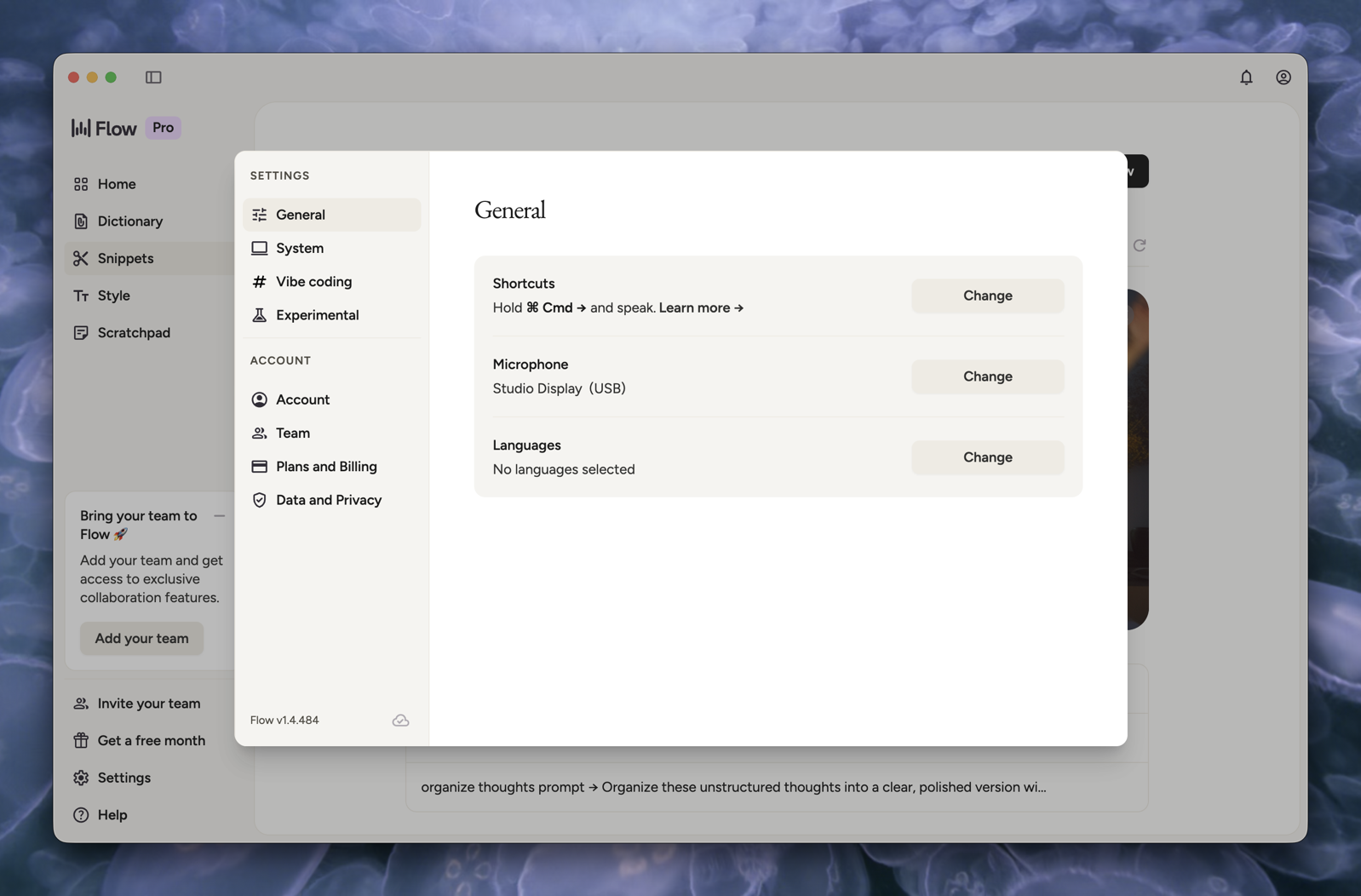
But what about the rest of the app? What is it like when you’re using it?
Well, normally, the app itself is out of view. As I said, there’s a little tiny lozenge that you can hover over if you want to. Or you can use your shortcut. So I hold down the right command key, and while I have it held down, I talk. The little lozenge expands, and it shows a little indicator showing that it’s hearing my voice.
If I were to have the Mac app window open at this time, I would see what I just said appear in the window. But that’s really not important, because I never use it that way. What I do is I have my cursor active in some application on the Mac, some window, like Microsoft Teams for my job, BBEdit, and browsers. I use all kinds of software. So for anything that I want to dictate into, I’ll just have the text box that I’m dictating into active.
I’m not even looking at the Wispr app, and I can tell from the lozenge that it’s picking up my voice, and then it puts whatever I dictated into whatever text box I have my cursor in. But again, if you want to, you can go to the app, and you can see your past transcripts, and you can copy them from there if you want to.
Then there’s a dictionary tab on the app, which lets you, at any point, add a new word to the dictionary. It also lets you add a new word and call it correct and misspelling. So if it’s coming up with something that you’re saying and it’s not spelling it the way you want, like let’s say it’s an industry term, or let’s say it’s a specific person’s name; I interact with a Jakob who has his name spelled with a K. He’s from Iceland. He doesn’t have a C. He has a K. So for him, I used “add new to dictionary”, and then I said, correct a misspelling. I put in J-A-C-O-B. And I corrected that to J-A-K-O-B. don’t interact with any other Jacobs. So that shouldn’t be a problem.
But you can do things like one time it recorded me saying Mac OS. And it put capital M, A, C, space, capital O, capital S. So now I have a correction for that. So it’ll put macOS the way Apple likes to say it, and things like that. I also see that it put MAC in all caps because I was writing something about MAC addresses. It added that automatically to the dictionary.
It also put HTTPS in all caps in there automatically. It put SOFOS, as in the security company, SOFOS in there automatically. It put bash in there automatically, all lowercase, because it sees that I work in bash a lot and I’m constantly talking about bash.
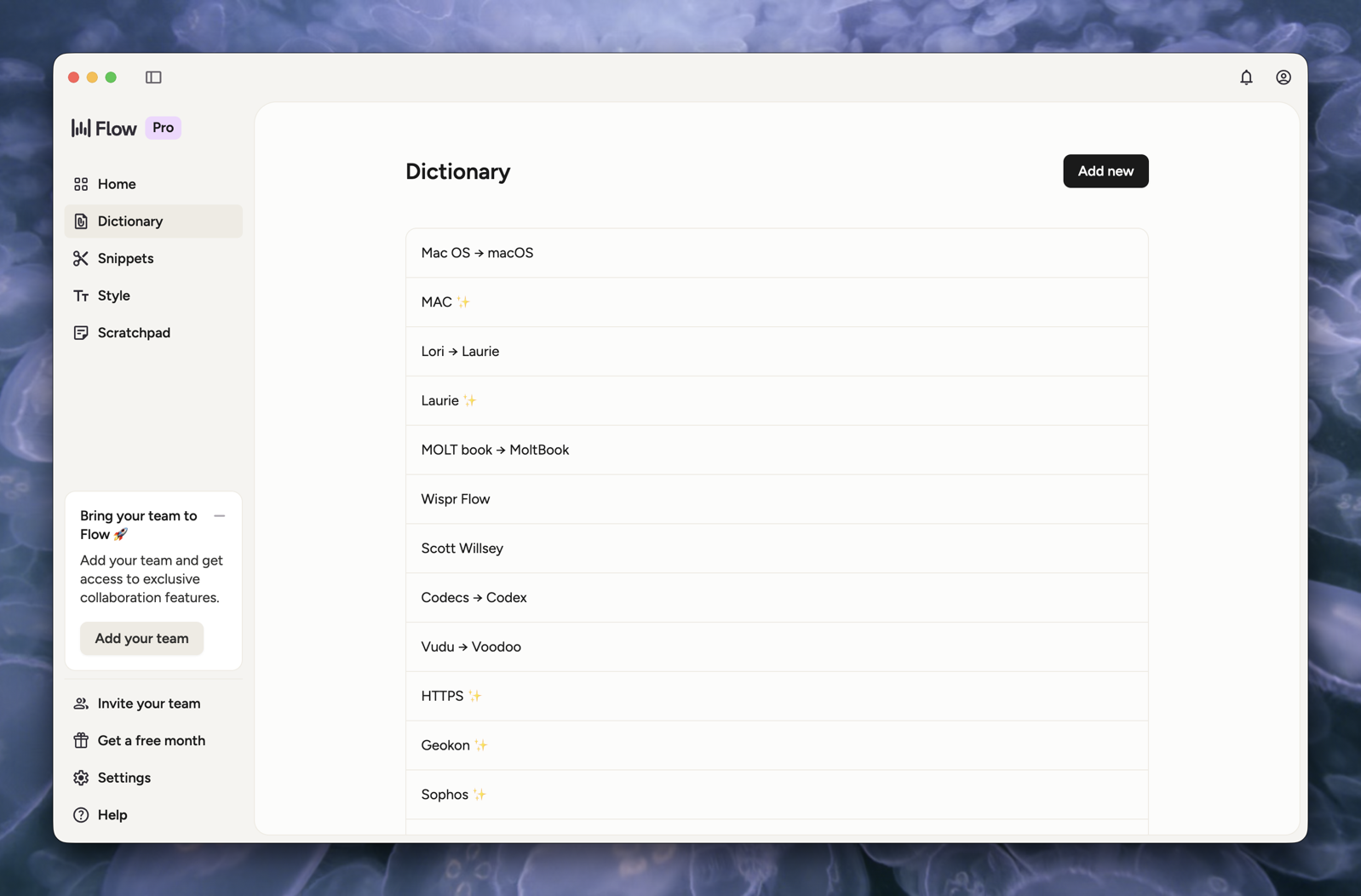
You can also have snippets, like I have a scheduling page so clients can schedule me when they want to talk to me. So now there’s a shortcut phrase that I can use to give the URL for that.
There’s also a style page where you can personalize your style for things like messages, work chats, emails, and other apps so that every word sounds like you. I haven’t done that so I’m not sure what it’s like. And then there’s a scratch pad where you can put notes. I don’t know why I would want that.
There are also some interesting stats here. I’ve been using this for 30 days. In that time, I’ve dictated over 50,000 words — 50.2k, in fact. And I guess I’ve recorded it at 163 words per minute. I don’t really know what that means. I guess that’s how fast I talk. I would think I would type as fast as I talk, but I don’t know. I guess it depends on how many times I hit backspace.
So again, in practice, usually what it looks like for me is I’m in an app. I have a text box. I hold down my right command key. I talk, and then words appear.
One of the really cool things that I haven’t talked about yet is that Wispr Flow will make corrections. For example, if you’re going along and you’re saying, yeah, I went to the sound bar. Oops, I mean, I went to the drinking bar. It’ll correct that. It’ll not transcribe the first part. It’ll only transcribe the corrected part. Or even if you sometimes say something as simple as, ” Let’s email Peter. Sorry, let’s email Benjamin”. It’ll type, “Let’s email Benjamin”, and that’s it. It won’t do the rest of it. It knows that you’re correcting what you’re saying, and it will take that into account, which is very, very nice. I have found that very useful, and I’m surprised most of the time at how well that works.
One of the things that I’m not so excited about is that in the inverse of the Apple dictation situation, where Apple dictation wants to use commas all the time, sometimes Wispr Flow will not put in commas where there really should be commas. Like if you start off the sentence with the word “well”, like for example,” well, in this case, I would”, it won’t put a comma, it would say, “well in this case I would”. I’m sure some people write that way, but I don’t. That’s just one example, but there are cases where it does create run-on sentences, and then I am like, no, I want a period here, and I want a comma there. And again, that’s the opposite of what Apple dictation tends to do for me, where Apple dictation tends to give me sentence fragments, tends to put commas after every other word. Well, slight exaggeration there. See, there would have been commas there, but maybe not with Wispr Flow. I just don’t know.
Now, what about the iPhone? Because you’re saying, wait a minute, I know how the iPhone works, and there’s no way this app can actually always be running and always be dictating. You’re right, except that this app has background activity. And here’s what you do. You install the app on your iPhone. You give it keyboard permissions because it has a little keyboard app. So you guessed it. You’re adding another keyboard to your input sources in iOS.
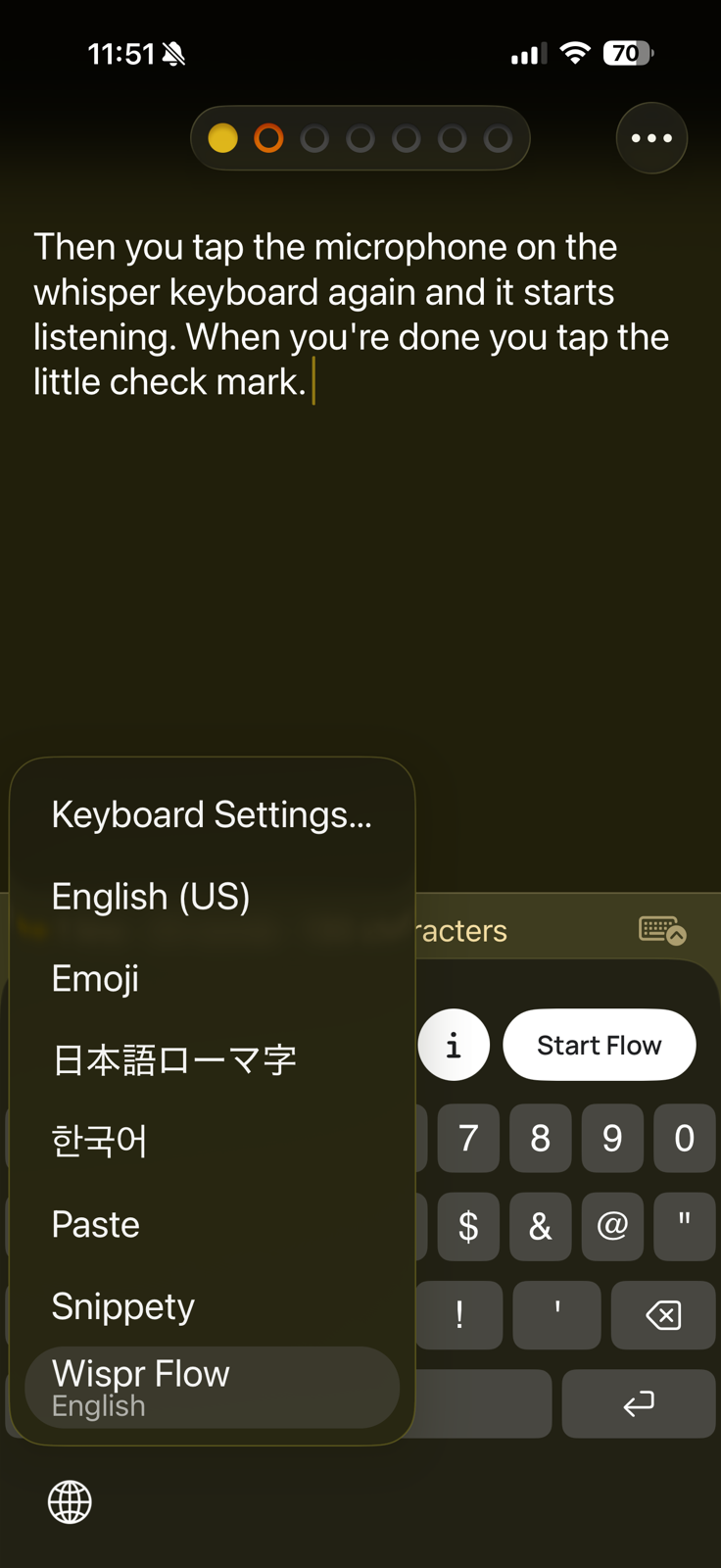
So now when you go into an app and you tap into the text box, you’ve got your little globe at the bottom for your entire list of keyboards. You’ve got a Wispr Flow keyboard, and it’ll tell you what language you have it set for. When you tap that, it opens the Wispr Flow keyboard.
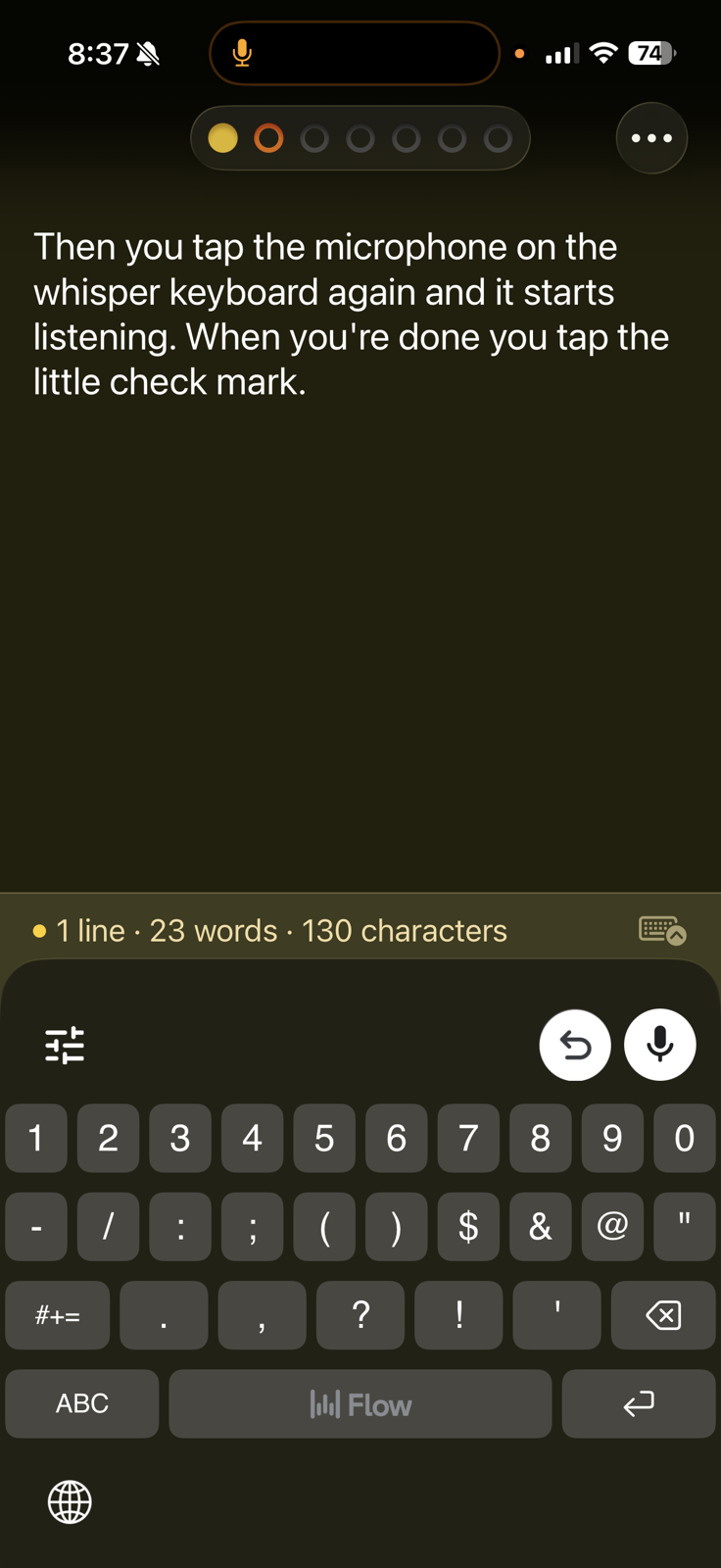
The Wispr Flow keyboard is basically a bunch of numbers and symbols and no letters. But there is a button that says Start Flow. You hit the button that says Start Flow, it switches to the Wispr Flow app, and then sometimes you have to swipe back to the app that you were in to continue, or sometimes it will go back to the app by itself. It depends on the app. I don’t know why. Once you have done that, then you tap the microphone on the Wispr keyboard again, and it starts listening. And when you’re done, you tap the little checkmark, and it puts everything in there that you’ve transcribed. And I will have a screenshot of me saying, “then you type the microphone on the Wispr keyboard again, and it starts listening. When you’re done, you tap the little checkmark.”
Now, is this as convenient as having it always running on the Mac and just holding down a key? No. Is it sometimes a pain to switch between keyboards when you’re using Wispr Flow and suddenly you want to correct some text, and you want to do it by typing, and you have to hold down the little globe and then select your English or other language keyboard? It’s not that convenient. Is it convenient in the fact that once you turn on the Wispr Flow keyboard and you start a flow, as it’s called, and then it switches back to your app; is it convenient that it keeps the microphone on for a little while because it’s background in the app? No, it’s not the greatest. However, it is still much better than using Apple Dictation on the iPhone, in my opinion, for most cases.
So for me, it’s worth the \$12 a month primarily for the Mac, because again, it’s for my work. I can write it off, and therefore it becomes well worth it to me while my hand heals. Having it on the iPhone is a plus. It’s a bonus. I would not pay $12 a month for it on the iPhone. I would do the free plan for it on the iPhone and get the limited amount of text, which would be fine. For me, the iPhone edition is really a big bonus. It is a nice bonus, but it is a bonus. I wouldn’t pay for that alone. For me, it’s primarily a Mac tool, and being able to easily edit the dictionary on the Mac, easily do all those things. That’s what makes it worth it.
So I do highly recommend Wispr Flow at WisprFlow.ai for dictation on the Mac and on the iPhone, since it’s not going to cost you any more regardless of which plan you choose. You know, if you have dictation needs, if you’re going to be dictating a lot, if you want accuracy, if you want speed, and you want convenience. If you’re in a work situation where you can afford to have work pay for it, or you can afford to write it off, I think it’s a no-brainer. Give your hands a break. Even if you don’t go running around, tearing tendons up while you’re cleaning up coffee spills, you still might benefit from Wispr Flow.
Thank you very much. I promise I will not be here all week. You can find me personally at scottwillsey.com. Or friendswithbrews.com, that’s B-R-E-W-S.com, which is a podcast I do with my friend Peter. We used to drink beer. Now we drink coffee or tea, and we talk about whatever interests us at the moment, which could be anything.
Allison, I am hoping for a very successful and very speedy recovery for you. And yeah, wow. Just please get better.
Allison here with a few quick comments about Scott’s review.
First of all, Scott, I feel so bad for your hand injury! I broke my right hand many years ago, and I remember making work pay for a dictation tool for me. I think it was Dragon NaturallySpeaking. It was clumsy and difficult, but it was better than not being able to type at all. The tragedy of your injury is having to explain it to people. You really want an injury where you can start the story with, “I was skiing down this hill so fast I nearly burst into flames!” and instead you have your story
Now to the audience. Scott was one of the early people to step up to help me with content while I’m on the injured reserve list. I was actually a little bummed when I found out he chose Wispr Flow because I was thinking about doing a review myself, but when I heard his review and read his content, I knew that he did a far better job than I would have done on this. I also learned some things.
Scott and I chatted back and forth a bit after he sent me his review, and we wanted to make a couple of clarifications. By default, the keystroke on the Mac is to hold down the function key or to double-tap the function key, so you don’t have to hold the key down. He had actually remapped it to the right command key.
One thing he didn’t mention in his review is that you can actually whisper to Wispr Flow. That sounds kind of silly, but if you are in an environment where you don’t want to be seen talking to your computer, it’s a terrific way to dictate.
Scott mentioned in his review that he says “oops” or “sorry” when he wants to correct a mistake he said. I tried “strike that” and it seems to work most of the time. If I’ve flubbed up an entire sentence. I may say “start over.”
One feature was working intermittently for me, and that’s saying “new line” when I want a new paragraph. I wrote to support, and I was astonished at how quickly they responded to me! I kidded around with the support person that I thought she was just sitting at her desk waiting for me to write in a message; she answered so quickly.
The documentation and the support person emphasized that in order to use a feature like “new line”, you have to give a pretty long pause after dictating; otherwise it thinks it’s part of the sentence. I have had to learn patience to get it to work. I’m glad I had the problem, though, because it gave me the opportunity to chat with support, and the support was phenomenal!
Scott was curious about the words per minute recorded by Wispr Flow. I suspect he doesn’t type 163 words per minute because that’s crazy fast! It’s possible, as I haven’t seen him type, but unlikely.
What I found was that early on, I was seeing very fast typing speeds, but it slowed down when I realized that one of the greatest things about Wispr Flow is that you can pause and gather your thoughts before continuing to talk. With Apple’s built-in dictation, you just have to keep talking as fast as you can, or it’ll just stop transcribing. This ability to pause is what makes Wispr Flow more valuable to me for writing long-form content. With my leg injury, I’m finding I’m in odd places where it’s a little difficult to type, so I’m using Wispr Flow almost exclusively now for typing long and short form content.
Wispr Flow doesn’t show you a transcription as you’re talking. This is the opposite of the way the built-in dictation works. This might seem disconcerting because you can’t tell whether it’s doing it right, but I find it makes me think more about what I’m saying and focus on what I’m trying to get across, rather than micromanaging that it misspelled a single word or forgot a comma.
Scott mentioned the small lozenge on screen on the Mac, waiting for you to start dictating. If you find this lozenge is in your way, like I did, you can disable it by opening Wispr Flow Settings, and under General, toggling off “Show flow bar at all times.”
I also wanted to clarify that privacy mode is available to you, even if you’re on the individual \$15 per month plan (\$12/month if paid annually). If you go into Settings > Data and Privacy, there is a toggle that says Privacy Mode. This toggle is turned off by default, but it says: “If enabled, none of your dictation data will be stored or used for model training by us or any third party (zero data retention)”.
Scott and I also wanted to make sure that you all got an affiliate link for Wispr Flow. This one is purely out of the goodness of our hearts. If you use the affiliate link, you get one month free, and we don’t get a darn thing other than your undying gratitude.
I was curious how my metrics compared to Scott’s because I am just wild about using this tool! I’ve only been using it for about a week, and I’ve dictated 30K words. I’m averaging 115 words per minute, and I’ve used it in 42 apps, so I guess I could say I’m a fan.
Thanks again to Scott for a terrific review, and I sure hope you do more in the future!