
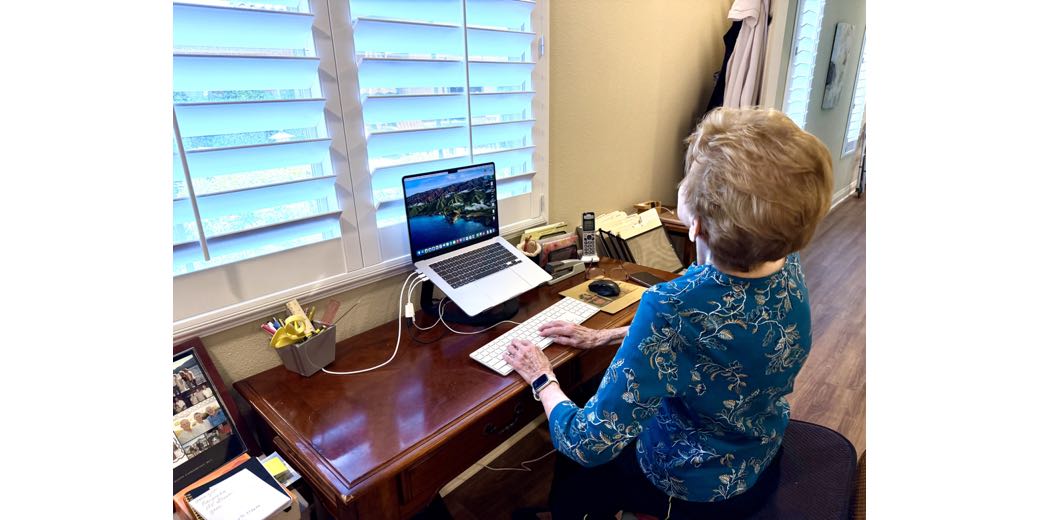
You may remember when Steve and I performed The Emergency Mac mini Upgrades of 2023 for Steve’s mom and dad, Merlee and Ken. We went to visit them (about 4 hours away), and while helping them with some computer stuff, we realized that their Mac minis were 9 years old with 5400 RPM spinning hard drives. As I said in my article about it, “Do you feel lucky?”
We replaced them with M2 Mac minis with 256GB SSDs and 8GB of RAM. I was amazed that we went from coming up with the idea early one morning and then bought the new machines, found all of the adapters to connect their ancient monitors to the new Macs at different stores, transferred all of their data — all in one day!
While these were quite modest Macs, they’re perfect for Steve’s parents’ modest needs.
They’ve just recently moved from independent living to assisted living in the same facility, and while the services are wonderful and the people delightful, the new apartment is less than half the size. They had to downsize from a two-bedroom apartment to just one, with a much smaller living room as well.
Before the move, Merlee had a desk for her computer, a desk for doing crafts, and an upright piano; in the new place, she was relegated to just a single desk and she had to lose the piano. She did get a piano keyboard, so that’s working out as a place to practice for her performances, but her Mac mini, display, keyboard, and mouse were taking up the entirety of her little desk.
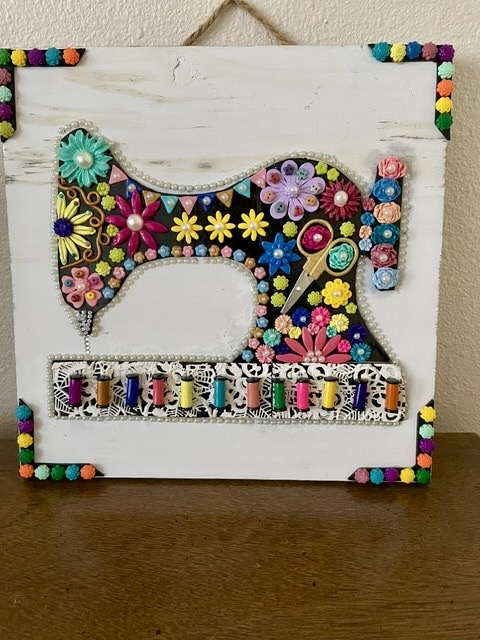
She suggested that if she had a laptop, she’d be able to move it off the desk when she wanted to do crafts. Her latest crafts are lovely cards she makes by hand and really cool wood wall hangings. She let me share a couple of photos of them with you in the show notes.

You know I love to help people spend their money on Apple gear, so I jumped into action.
While a MacBook Neo would be a perfect Mac from a capability perspective, she’d be going down from a 17” horrid old display to a 13” high-resolution display, and I thought that might be too small for her. I explained the trade-off of money vs. screen size with a 15” MacBook Air at double the price. Luckily, money isn’t tight for them, and she was able to choose the bigger screen.
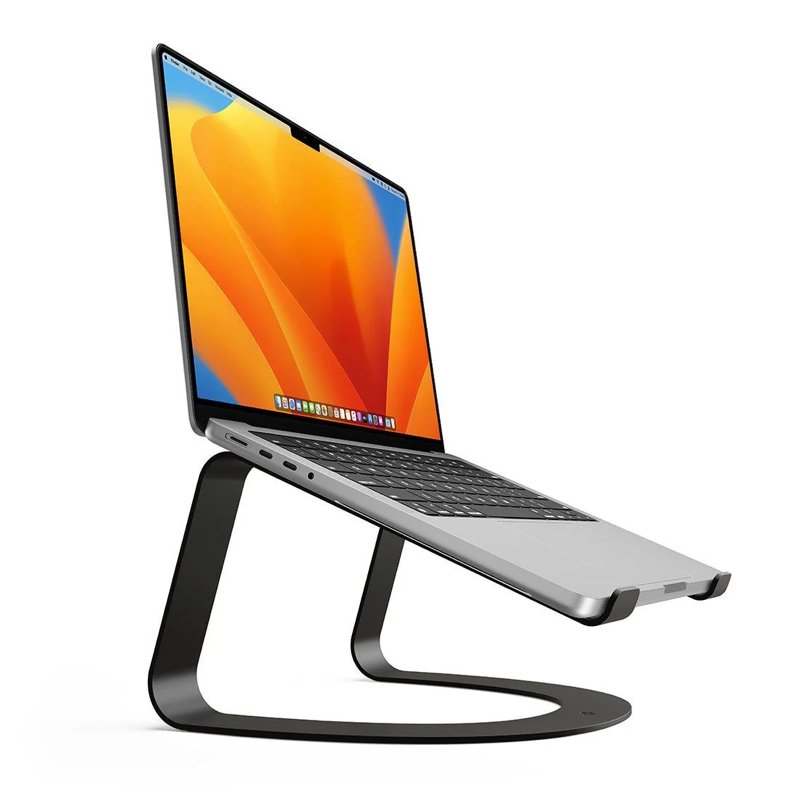
I recommended we get her the Twelve South Curve, which is an elegant stand to lift the laptop off the desk and put the display at a comfortable viewing height. It’s a very simple, single metal piece that swoops around to hold it at an angle. I have one on my desk and it lets me use my MacBook Pro as a display to my right in addition to my main display.
Merlee was an accountant in her working life and cannot live without the 10-key number pad on the extended Apple keyboard. She has a mouse she likes too. My goal was to let her keep those for comfort and familiarity.
An additional advantage of the Curve is that it gives you an open space underneath, which means she could stash her keyboard and mouse under the MacBook Air when not in use, which would give her temporary space to do other tasks. Maybe not a full-on art project, but at least a place where she could work with papers and maybe balance her checkbook.
The Mac mini had 2 USB-A ports and 2 Thunderbolt ports on the back, so we also had to figure out how to plug everything into the new MacBook Air. I made a FaceTime call with her and had her trace each cable around to see what we were working with.
I knew her keyboard was wired USB-A and that she had a USB-A dongle plugged in somewhere for her third-party wireless mouse. The good news was that the mouse dongle was plugged into the end of the keyboard.
For video calls, she had a Logitech C920 also plugged in via USB-A, and used wired headphones because the audio out of the Mac mini was nearly inaudible. Finally, she has an SSD for Time Machine via USB-A.
After counting up devices, it looked like I could simplify her setup with a single USB-C hub from Anker with 4 USB-A ports. I’d be able to harvest the two USB-A to USB-C dongles back to my stash as well. With MagSafe charging, she’d even have one USB-C port left open.
Installation & Data Transfer
You know I’m a big ol’ Fan of doing a nuke and pave when getting a new machine, but I know that Merlee doesn’t junk up her system with a lot of apps, so the amount of cruft she would have gotten transferred over the last two migrations was certainly minimal. It was worth giving Migration Assistant a chance.
I double-checked that her Time Machine backup was current, which it was. Plugged it into the new Mac and let Apple do its thing. She doesn’t have a lot of data, so the transfer only took about 15 minutes for all of her apps and data!
I should qualify that statement. They use a fairly specialized app at their facility to keep track of what’s going on in terms of entertainment, food, and menu options, and that app did not transfer. Because Microsoft just likes to make things difficult, Word and Excel also didn’t transfer. I knew I was about to descend into the seventh circle of hell with Microsoft, but I love Merlee dearly, so I crawled through the labyrinth of Microsoft’s website to get her precious Word and Excel back.
I asked Perplexity AI to find me the instructions to first uninstall Office 365 on the old machine. The instructions Perplexity gave me were ridiculously complicated, and I knew they had to be wrong, but I followed the link to the source at support.microsoft.com/…. Unbelievably, these arcane instructions are what you have to do:
- Put the apps in the trash (so far so good)
- In Finder, go to ~/Library/Containers
- Delete the following folders (some of which may not be present):
- Microsoft Error Reporting
- Microsoft Excel
- com.microsoft.netlib.shipassertprocess
- com.microsoft.Office365ServiceV2
- Microsoft Outlook
- Microsoft PowerPoint
- com.microsoft.RMS-XPCService
- Microsoft Word
- Microsoft OneNote
- In Finder, go to ~/Library/Group Containers
- Delete the following folders if present
- UBF8T346G9.ms
- UBF8T346G9.Office
- UBF8T346G9.OfficeOsfWebHost
- Remove the apps from the dock, and restart the Mac
Can you believe they ask normal people to do this??? I wonder if most people just go buy a new subscription instead.
The other tricky part about installing Office 365 is making sure you only install the parts you want. She wants Excel and Word, but not PowerPoint, not OneNote, not Outlook, or any of the other things in that giant bundle download. Luckily, I’m quite facile with installation packages, and I knew to keep my eagle eye out for the “customize” button and uncheck all the glop she didn’t want.
Once the new Mac was functional, we set it up on the Twelve South Curve, plugged in her keyboard and mouse, and had her take a look.
Her reaction was fabulous. She said, “I feel like I got new glasses!” You see, the 17” display we decommissioned had a sticker on top that said, “From Allison 2018”. It was super low resolution, and so dim you could barely see anything on it. When she saw the blindingly bright display of the MacBook Air, she was amazed. I’d been itching to replace that display for ages, but she’d seemed happy enough with it that I didn’t push her on it.
I was worried the smaller screen would be a problem, and she said that somehow the MacBook Air’s screen actually looked bigger. She has good vision, so I think she’s experiencing the higher resolution giving her even more on screen than she had before.
I started to look at how we’d connect the rest of the peripherals, and this is where we hit some good surprises. Remember that fancy Logitech C920 camera we bought her for her old Mac? That once-fancy camera is only 3MP, while the MacBook Air sports a 12MP sensor with computational video processing for low light.
I asked Merlee to open up Photo Booth on her new Mac to see how it looked, and when she saw herself on screen, she screamed with horror! She’s funny that way — she’s a beautiful woman. I told her that, as a treat, if she was good, I’d show her where in the Zoom settings I change the video to touch up my appearance to remove wrinkles!
The camera in the MacBook Air is so good, we decommissioned the C920 on the spot. We ran a test FaceTime call between my phone and her Mac, forgetting all about how she always used headphones before, and the speakers were so good she said she didn’t need the headphones either. The internal microphone on the MacBook Air was great too.
The elimination of the external camera made it possible to eliminate the little hub I’d bought for her, because all we had left was the Time Machine SSD and the keyboard. It meant I had to give back the USB-A to C dongles, but it meant even less clutter for her to deal with.
I gave her a lesson on how to break down her setup to use her desk for crafting. I had her practice removing the MagSafe charging cable and unplugging her keyboard from USB-C. I showed her how to gracefully eject her backup drive before unplugging it. She questioned what was so graceful about it. She was messing with me, but I also confessed to her that she might be able to get away with unplugging it without ejecting, but that it’s good practice to get in the habit of ejecting first.
Bottom Line
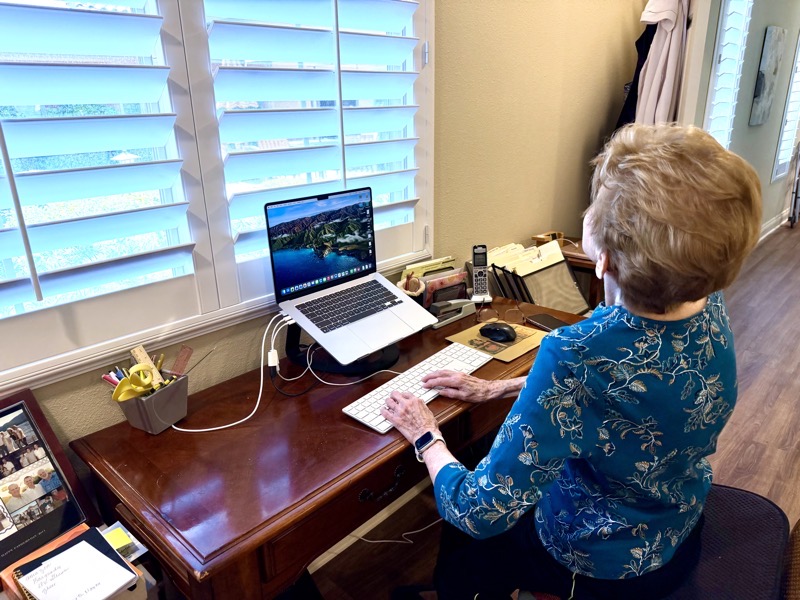
While I had great fun spending her money and setting up her new computer, the real test would be whether the new setup worked for her. Two days after we got home, she sent this message:
I am loving my new computer………it’s given me a whole new way of making things easier and more workable. I have more of a sense of control over being able to live the life I had before. Life is good!!
If that isn’t a seal of approval, I don’t know what is.
Glad that you are there to help sis with the conversion. I have Podfeet on my RSS feeds in addition to Mastodon, so I kind of keep up with your escapades, even though much of it is beyond my capabilities and interests. Your travelogues are a treat for people like myself who only travel vicariously anymore. I’ve kept all of your travel emails in a separate folder so I can go back to them whenever I wish. Anyway, just wanted to wave hello and give you kudos for your expertise.
Nicely done!
So nice to hear from you, Bob! I’m glad you enjoy the content even though I do get a bit nerdy.I’m especially delighted that you enjoy the travelogues! You can also go back and reread all of them at: http://www.podfeet.com/...
It was great fun helping your sister.