
As I said in my 2022 article introducing CleanShot X, I’m addicted to screenshot apps. I take a lot of screenshots for the podcast, as you can imagine, but I also find that screenshots are a very useful tool for sending bug reports to software developers. I do a lot of tech support for family and friends too, and it’s great to be able to point to a button with an arrow in a screenshot or add some helpful text.
You may be yelling at your phone, “But Allison, I thought you loved Shottr for screenshots?” You’d be right. I love Shottr too. The annotations are playful and easy to use, and for a simple screenshot, it’s still my go-to app. It also has a tool to drop a rounded border on screenshots that otherwise would be white, blended into a white email or article. But it turns out you can love two screenshot apps at the same time.
For example, I always reach for CleanShot X to take a scrolling screenshot. In my article about Brett Terpstra’s Marked QL app to render Markdown with Quick Look, I wanted to include the Settings screen for the app, but it was a long scroll to see all of it. No problem with CleanShot X; you can select an area, and then tap the button that says autoscroll, and it smoothly scrolls at a speed it can record. Shottr provides a scrolling screenshot option, but I favor CleanShot X for this task.
When I want to record a short video to explain a problem to a developer or teach a friend, that’s where CleanShot X shines. You can even upload your videos to CleanShot Cloud so you can link to them. We’ll talk more about that later.
You can get CleanShot X from the developer’s website at cleanshot.com (affiliate link), and you can get it through Setapp.
On David Roth’s advice, I finally broke down and started paying for the 4-Mac, 4-iOS device Power User plan on Setapp. Once I made that decision, I found I started leveraging the subscription, reaching for it first before buying apps outright, and Steve can join in the fun too.
Now why am I telling you all of this backstory that you probably already knew? Because CleanShot X just announced a HUGE new feature of the tool, called Studio Mode. If you have an active Setapp subscription, or you’re within the first year of your one-time license purchase, you don’t pay any extra for this amazing feature of CleanShot 5.0.
Studio Mode
Studio Mode is a brand new editor that turns CleanShot X into a quite capable screencasting application. I use ScreenFlow from Telestream for my video tutorials for ScreenCastsONLINE, and while CleanShot X isn’t quite ready to replace it yet, it does an awful lot of what I use the $200 ScreenFlow app for today. I’m especially interested in new apps in this space because Telestream doesn’t seem to be investing any time in ScreenFlow over the past few years.
But don’t let my need for a professional app put you off from listening to how cool Studio Mode in CleanShot 5.0 is for normal people. I should mention that I’ll sometimes call it CleanShot X because the app still says that, and sometimes CleanShot without the X because that’s how they write about it on the website.
New Recording Option: Studio Mode
When you initiate recording a video with CleanShot X, you are first asked to select a region of the screen or a window, and then given the option to record an animated GIF or a normal video. But now you have a third option: Record in Studio Mode.
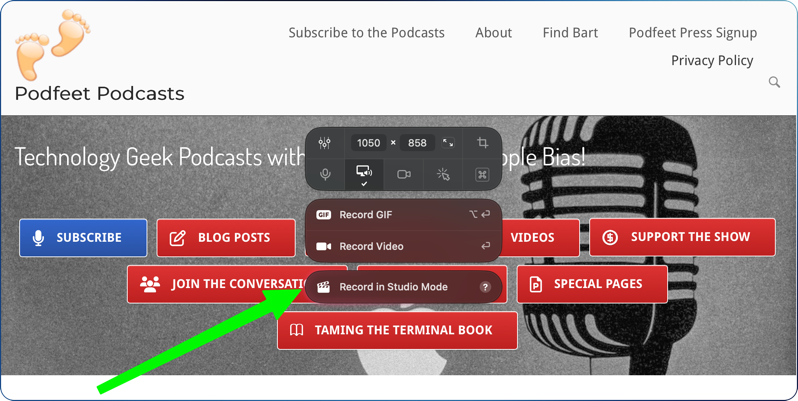
Once you’ve selected Studio Mode, you let it roll like any other video recording method while you work on whatever it is you want to demonstrate. The magic happens when you hit stop.
Your video opens in a very full-featured timeline video editor. You see your video in the upper right pane, with the timeline across the bottom. But that’s not the coolest part. CleanShot X adds automatic zooming when you do something in the video that it thinks could benefit from a zoom.
Zoom
For example, I recorded Activity Monitor and went up to the menu bar and chose View → All Processes, Hierarchically from the dropdown menu. CleanShot X automatically zoomed in on that action so those watching the video could see it more clearly.
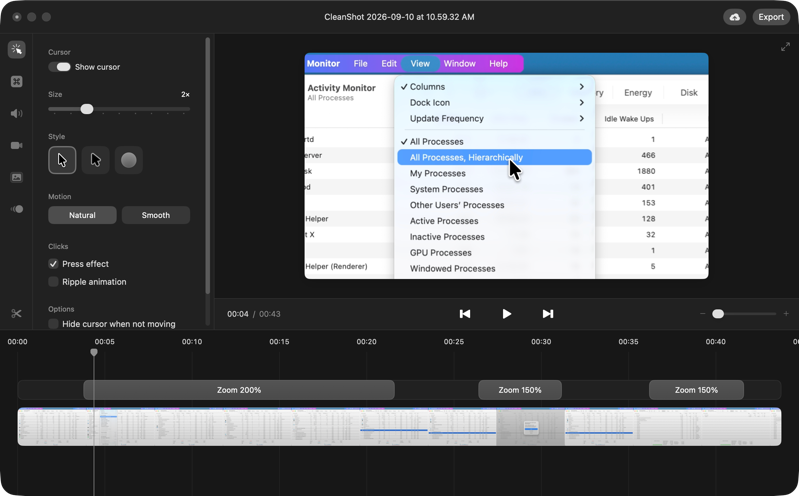
Having an auto mode like this is great, but what if it zooms up too much? You can change the zoom level and set it to the same level for all zooms. If you click on the zoom track in the timeline, it automatically adds another zoom. Grab either end of the zoom to shorten or lengthen the time it’s zoomed, and slide it left/right to change when it zooms.
The ability to have both the automatic zooming applied and full manual control to tweak the settings is the perfect sweet spot.
Editing the Recording
The video track can be trimmed from either end just by grabbing the handles. Additionally, you can split tracks either by moving the scrubber and holding down ⌘B, or by using the little scissors icon in the bottom of the left toolbar and clicking at your desired location.
With the scissors selected, as you move along the timeline, the preview is showing you exactly where you are, so it’s pretty easy to hit the right spot. Click the scissors again to get out of split mode.
To cut out a section, you need to select two spots to split and then uncheck the scissors and tap the section you want to remove. If you want more granularity when editing, you can zoom the timeline with a +/- slider above the timeline, or you can use your fingers to zoom in and out. You can also use the classic double expanding arrows icon in the upper right to make the video full screen and hide all of the tools and the timeline, leaving only a progress slider and a play/pause button. It’s a good way to check your edits before exporting your final video.
Cursor
Before you record your screen with CleanShot X, you have the option to enable animation of cursor clicks and whether to record keystrokes. But like fancy pants screencasting software, Studio Mode lets you enable these options after the fact even if you didn’t enable them.
In Studio Mode, there’s a left sidebar with six options, the first of which is the cursor. You can choose whether or not to show the cursor, change the shape and size of the cursor, and change the zoom between natural and smooth. You can choose to have a press effect, which makes the cursor shrink a little bit as the cursor is clicked so you really feel like you experienced a click.
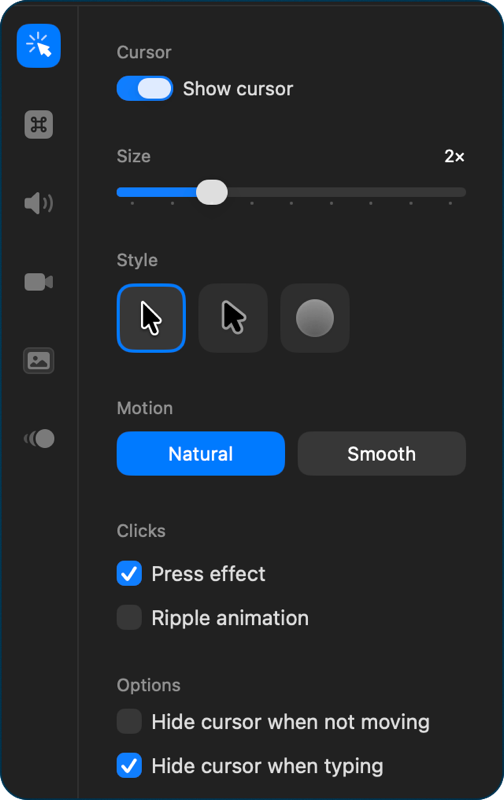
If that’s not obvious enough for your audience to notice, you can add a ripple animation to the click. This gives you a colorful circle that radiates out from the click. Still not enough options? You can change the color of the circle and choose whether to have it as a solid or hollow circle.
When you’re screencasting, it’s not uncommon to leave the cursor still while explaining something. In fact, it’s desirable to leave the cursor alone rather than frenetically moving it around. I find it’s often even better if the cursor disappears when I’m not moving it so there’s no distraction. CleanShot X’s Studio Mode lets you do that with a checkbox. There’s a separate checkbox to hide the cursor when typing, which is great, because it’s not uncommon for the cursor to sit in a weird place, covering up a field you’d like to be able to see.
Kick back and relax, we’re only done with the first section on Studio Mode!
Keystrokes
The second option on the left-hand side allows you to show keystrokes on screen if you used any. This can be a great way to help your audience understand how to replicate what you’re demonstrating to them.
We all have our own tastes, so CleanShot X gives you a lot of flexibility on how and where to show the keystrokes. There’s a slider for size. You can toggle between a dark background with white text or light with black text.
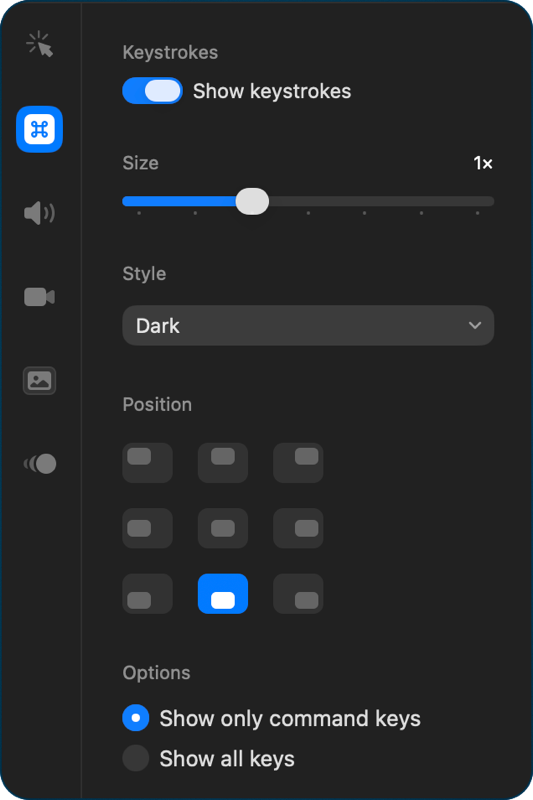
The text can be in any of the four corners, dead center, or centered at the top, bottom, left, or right. I’m curious whether anyone ever chooses anything but bottom center.
You often don’t want to show every single keystroke, so the default is to show only command keys like Option and Control, but if you do want them all, you can definitely show all keys.
When splitting clips, I expected to be able to show keystrokes on for one clip and not for the next, but the Show keystrokes toggle applies it to the entire recording. That’s an area for improvement.
Audio
When making recordings with CleanShot X, you have the option to enable your microphone. In Studio Mode, on the Audio tab, you can choose whether or not to include the microphone audio that was captured. You can also set the overall volume for the microphone.
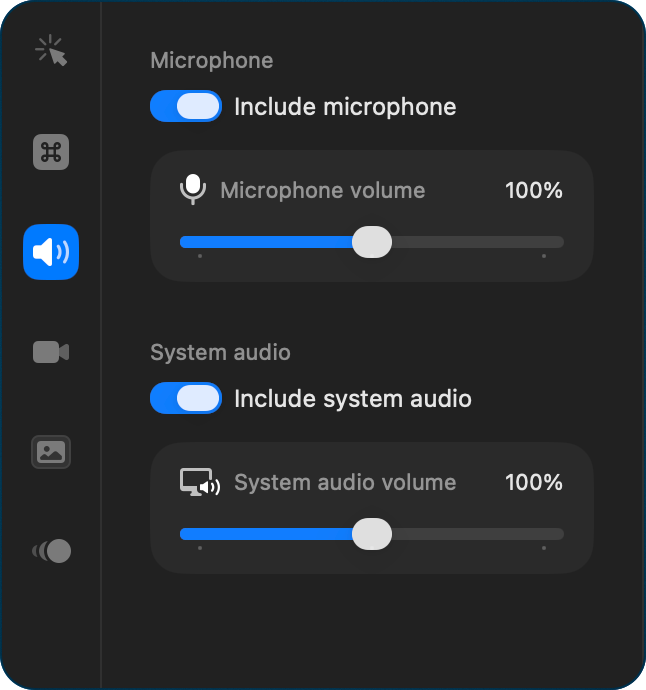
In some situations, it’s quite useful to record system audio while conducting a demonstration, and you can toggle that on and off and change its volume in the Sound section for CleanShot X.
Just like with show keystrokes, your settings for microphone and system audio affect the entire project, not on a per-clip basis. In fact, you don’t get any kind of audio track as you do for video.
Camera
I’m not a big fan of picture-in-picture of a talking head in demonstration videos, but if that’s your jam, you can record from your camera with CleanShot X in addition to your screen.
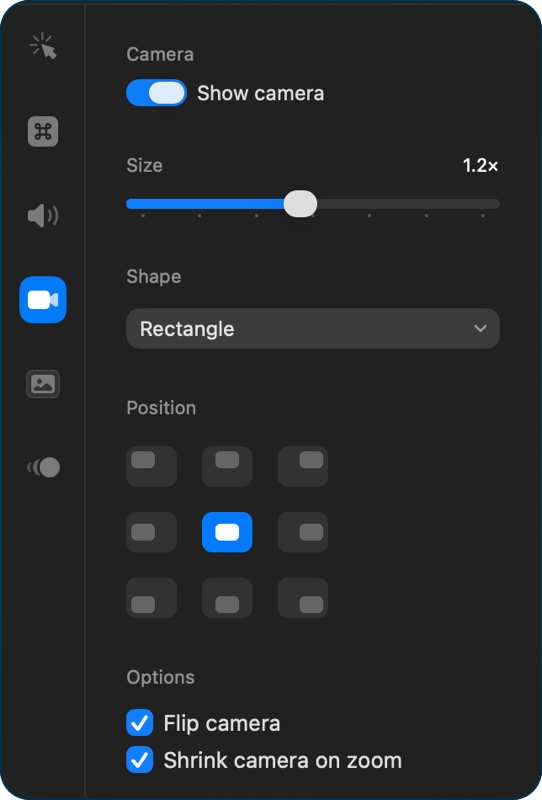
The camera tab in Studio mode allows you to toggle the camera on and off, change the size from .5x to 2x, and change the shape. Your choices are circle or square, or a portrait or landscape rectangular area. Oddly, though they’re both rectangles, they call the landscape version “rectangle”, and the portrait mode “vertical”.
Just like with show keystrokes, you have the same nine position options for your talking head. Maybe I’ll make a screencast where I make my camera huge, plop it in the center so nobody can see what I’m doing!
You can automatically flip the camera so your Star Wars nerd T-shirt text can be read properly. You can also choose to have the video automatically shrink when it’s being zoomed in. From my measurements, it shrinks the PIP to 80.8% of its original size. Kind of a nice subtle effect.
Background & Aspect Ratio
The next icon in the sidebar looks like the picture icon that usually would let you insert an image, but that’s not what it’s for. It reveals two controls that affect the look and feel of the video.
The top half of this control is dedicated to Background. By default, your video will fill the screen with no background, but if you choose one of the gradients, solid colors, or even wallpapers, your video will be offset from the edges with the background of your choice. It’s quite lovely and gives your video a professionally produced look.
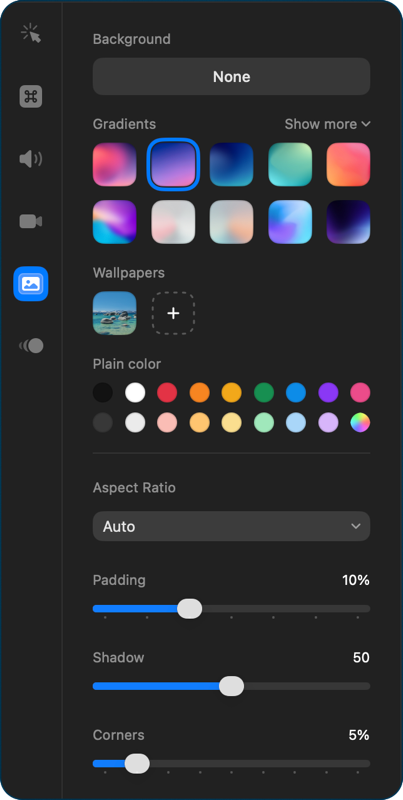
The aspect ratio controls are interesting. By default, it is set to auto, which means the video’s aspect ratio matches the area you captured. What if you want to make sure that your video looks good in the 16:9 video format on YouTube? You can change to that aspect ratio, and it does it automatically. Maybe you want to post this video on TikTok. You can choose something like 3:4.
You have control over the percentage of padding on the video, whether and how much shadow you want on your video, and how rounded the corners are, all done by percentage.
They do something quite clever while you’re changing these slider controls. If the video scrubber is on a zoomed portion of your video, while you’re moving the padding, shadow, and corner sliders, the preview window changes to full screen. That shows real attention to detail in the design.
Motion Blur
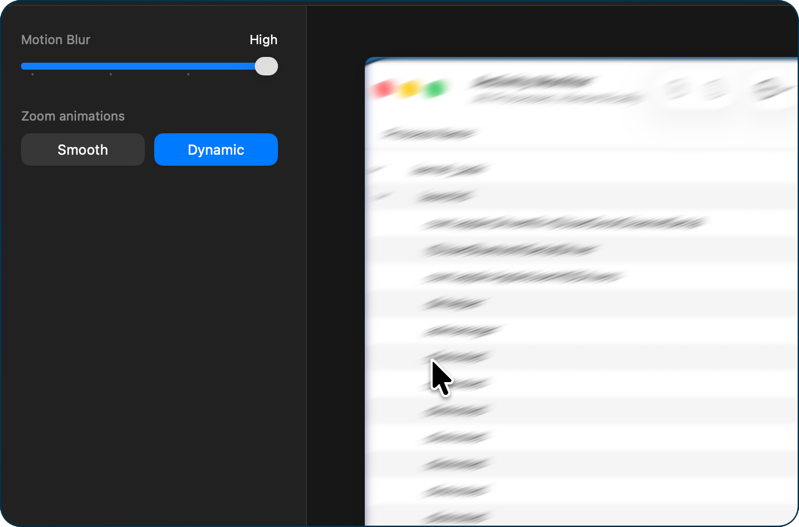
The final control in the left sidebar is Motion Blur. Motion blur has a slider from low to high, and then two zoom animations: smooth and dynamic. It took me a bit to figure out what this was doing and when.
While playing the video at normal speed, I couldn’t see the difference between the two animations, even with motion blur set to high. It wasn’t until I very slowly moved the timeline scrubber while a zoom was ending that I noticed the entire video was quite blurry. It also blurred rapid cursor movement.
I’ve been screencasting for around 15 years, and in all that time, I cannot think of a single time I’d wished I had a feature that would make my content blurry, but their marketing video makes it look slick. Maybe I’m just old school!
CleanShot X “Normal” Videos
When you record “normal”, not Studio Mode videos with CleanShot X, you can enable cursor animations, keystrokes, picture-in-picture, audio from your microphone, and system audio.
When you’re done recording these normal videos, they will open in the new interface for Studio Mode, but several of the features I’ve described will not be available.
Your keystrokes and mouse clicks, for example, will be permanently in the video, so you can’t disable or enable them. You can toggle the microphone and system audio on and off, but you can’t remove the picture-in-picture you recorded. You can add nice backgrounds and change your aspect ratio, and use that silly motion blur if it makes you happy.
Save Studio Mode Projects
You can save your Studio Mode projects in their native .cleanshotvideo format for editing later. One of my favorite things about CleanShot X is that they give you cloud storage for your videos. Instead of trying to squeeze a huge video file into an email to a developer to show them a problem you’ve found, you can tap the export button and save it to CleanShot X Cloud, and in a few seconds you get a link to send. In their web interface, you can name and tag the file, which helps with cleaning up the videos at a later date.
You even get a notification when someone views your video. I just sent one to a developer team I’m rather cross with right now, and I know they’ve watched the video, but they haven’t written back yet.
The pricing is amazingly good. If you buy CleanShot Basic, it’s $35, pay once and use forever, and it gives you one year of updates and 1GB of cloud storage. If you pay annually for CleanShot Pro at $10/month, you get all updates and unlimited storage for your videos. You even get a custom domain and branding and a few more features.
With the Setapp version of CleanShot X, you get 10GB of video storage in the cloud. I think that’s more than fair for all of those prices. Don’t forget, this is also a fantastic screenshot tool with excellent annotations!
Bottom Line
The bottom line is that CleanShot X has been transformed into a very capable screencasting tool with no increase in price, which is astonishing. I think for 90% of users, this will meet all of their needs. I would love to see it to grow into a replacement for ScreenFlow, in the following ways:
- Add an audio editor timeline
- Allow controls by clip, such as when to show the cursor or not
- Allow adding new video clips and even stills
- Add the ability to overlap tracks and create transitions such as a crossfade or page curl between clips
- Annotations such as arrows and rectangles (with transitions)
I will definitely be using every bit of what they’ve given us. Again, I still can’t believe we’re getting all of this with no price increase. If you want to check out this amazing tool, go to (my affiliate link) cleanshot.com/….
I agree with everything you wrote about CleanShot 5, Allison! I’ve been using it since the day it was released and it is so useful, and easy to use. I never did spend much time with Screenflow… I didn’t want to invest the time learning how to use it. And it is expensive. So I am curious, what do you do in Screenflow that CleanShot doesn’t do yet? BTW, I asked the developer and was told that they’re transitioning the name without the X. I guess they don’t want to be confused with the former Twitter app.
It really is amazing, isn’t it? As far as what I do in ScreenFlow, it’s the last five points under the Bottom Line header. I record 40 minute screencasts in 2 minute chunks over the course of at least a week, adding new recordings to the timeline. Being able to edit audio and video separately to fix voice booboos to add a bit of voiceover is critical. Since it takes so long to create the screencasts, it’s super hard (even with tools like Moom) to keep the interface from changing, so adding a nice transition between clips stops jarring jumps. Sometimes all that has moved is the cursor, so having the cursor (gracefully) disappear at a time when it’s not the focus and reappear later helps too. I don’t do a lot of annotations with arrows and rectangles, but in the one I just finished I had a couple. In fact, the annotations were on a PNG of the Mac keyboard.
I didn’t mention it (didn’t want to overwhelm), but the team at ScreenCastsONLINE has also developed a set of keystrokes to initiate a lot of actions in ScreenFlow. For example, a keystroke to close a gap, or to make a cut and then back up a smidge to hear and watch the transitions. A lot of this is done with Keyboard Maestro. There don’t appear to be menu picks to do those things in CleanShot (yet) so I’ll bide my time.