

Greetings NosillaCastaways. It’s Allister here with a review of an app you didn’t know you needed.
You know how macOS has Dynamic Wallpapers? Maybe you forgot. When macOS Mojave was released in 2018, the default wallpaper was a photo of a dune but, unlike traditional wallpapers, it changed tone throughout the day, representing the current time.
Really, dynamic wallpapers are just a sequence of images with a little extra info on when and to change between them. This is all stored in a single HEIC file. Dynamic Wallpapers should not be confused with Live Wallpapers which arrived with macOS Sequoia. Live Wallpapers are videos. While these are infinitely more variable, they can also be very distracting and do consume some resources.
So, back to Dynamic Wallpapers. How do you get them? The answer to that is easy. Apple provides a selection of them, thirty-four in Tahoe, right in the wallpaper picker in System Settings. A few of these are photographic, but most are abstract. There are also a handful of websites that offer some. What if you want something a little more… personal?
I don’t recall when or why I came across the free Equinox Wallpaper Generator on the Mac App Store but, when I saw it, I instantly downloaded it. I had a quick play with it at the time and then left it to come back to later.
Now it’s later. Much later.
I’ve been having fun setting up my new MacBook Neo as a replacement for my iPad mini. As with my MacBook Pro, I wanted to use my photos as desktop wallpaper. Because I mostly used the iPad, and now the Neo, in the evenings, I chose a couple of dark photos to put on the two separate desktops I’m using. Both are night scenes I shot in Singapore.
A quick sidebar here on screen sizes. You know how you can buy monitors with a 16:9 or perhaps 16:10 ratio? Do you know what the Mac laptop screen ratios are? I had thought they were 16:10, but I wanted to be certain, so I checked. My 14” MacBook Pro is 756:491 and the MacBook Neo is 1204:753. Yup, that is simplified as much as possible! For wallpaper purposes, they’re both pretty close to 16:10.
After picking my night photos for the Neo, I decided I wanted to change things up on the MacBook Pro. This spends most of its life plugged into a Studio Display which, by the way, is exactly 16:9. I set about choosing a set of photos I could edit into both 16:10 and 16:9 versions. I got 15 different photos, all cropped nicely to each aspect ratio, including the two night photos that I had not previously used on the Pro.
I like one of those night photos a lot — it was the view from our hotel window, including brightly lit buildings, some of Singapore’s attractions, and even some light trails from the traffic down below. I decided I wanted it on my Studio Display but… I wasn’t sure if I wanted it there during the day.
OK, I hope you’ll forgive the storytelling. It is now time for Equinox to properly enter the tale.
On launching the app, you are asked which sort of Dynamic Wallpaper you want to create. There are three choices.
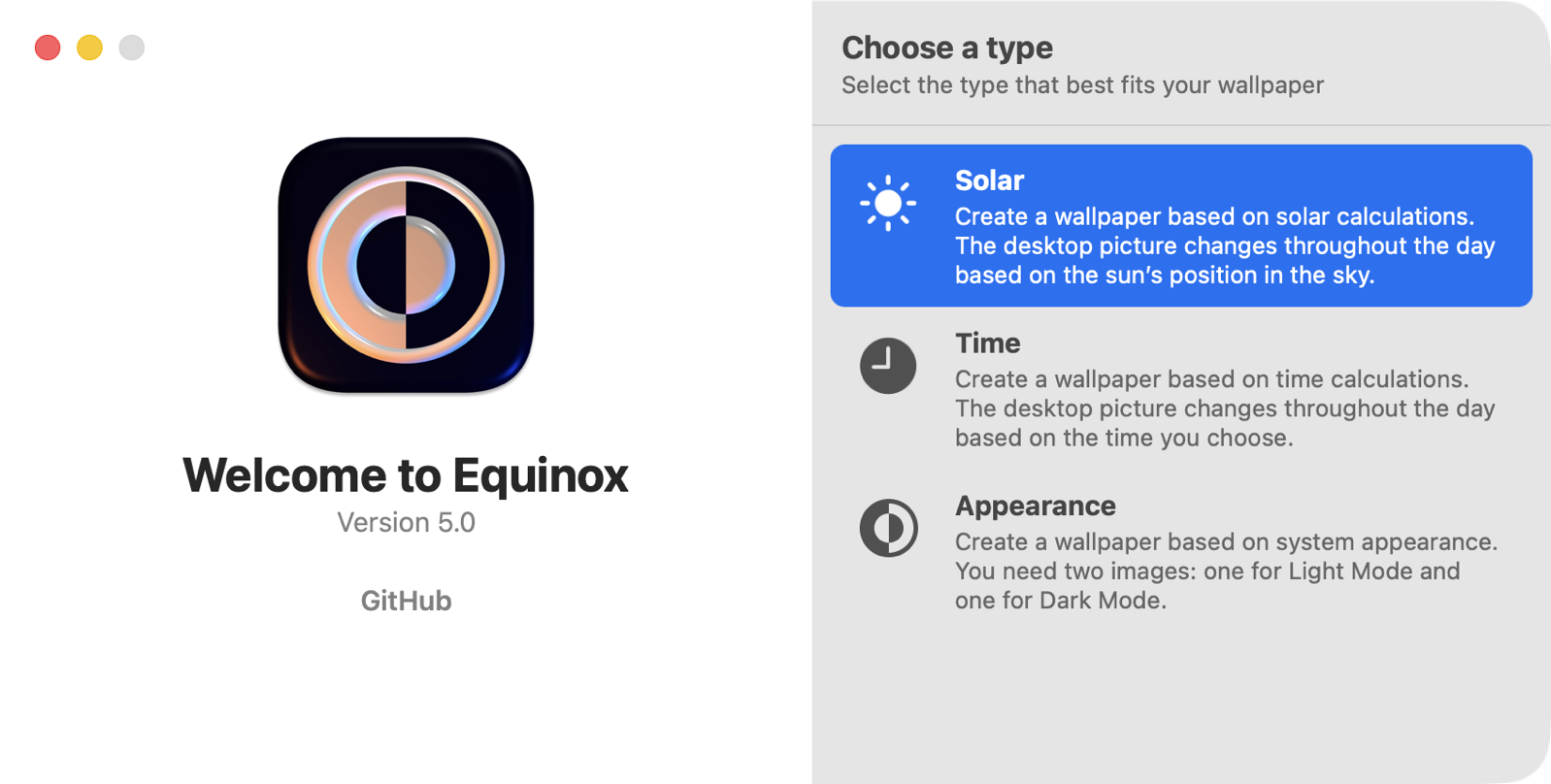
Solar changes the pictures based on the position of the sun throughout the day. This is the most complex type, and I confess I have not created any yet. I tried to understand exactly how this works, but the documentation is brief, to say the least. More on this a bit later.
Time changes the pictures based purely on the time of day.
Appearance is a simple, two-image option that displays one image in light mode and another in dark mode. If your Mac automatically switches between light and dark modes, then this is effectively a basic kind of solar switcher.
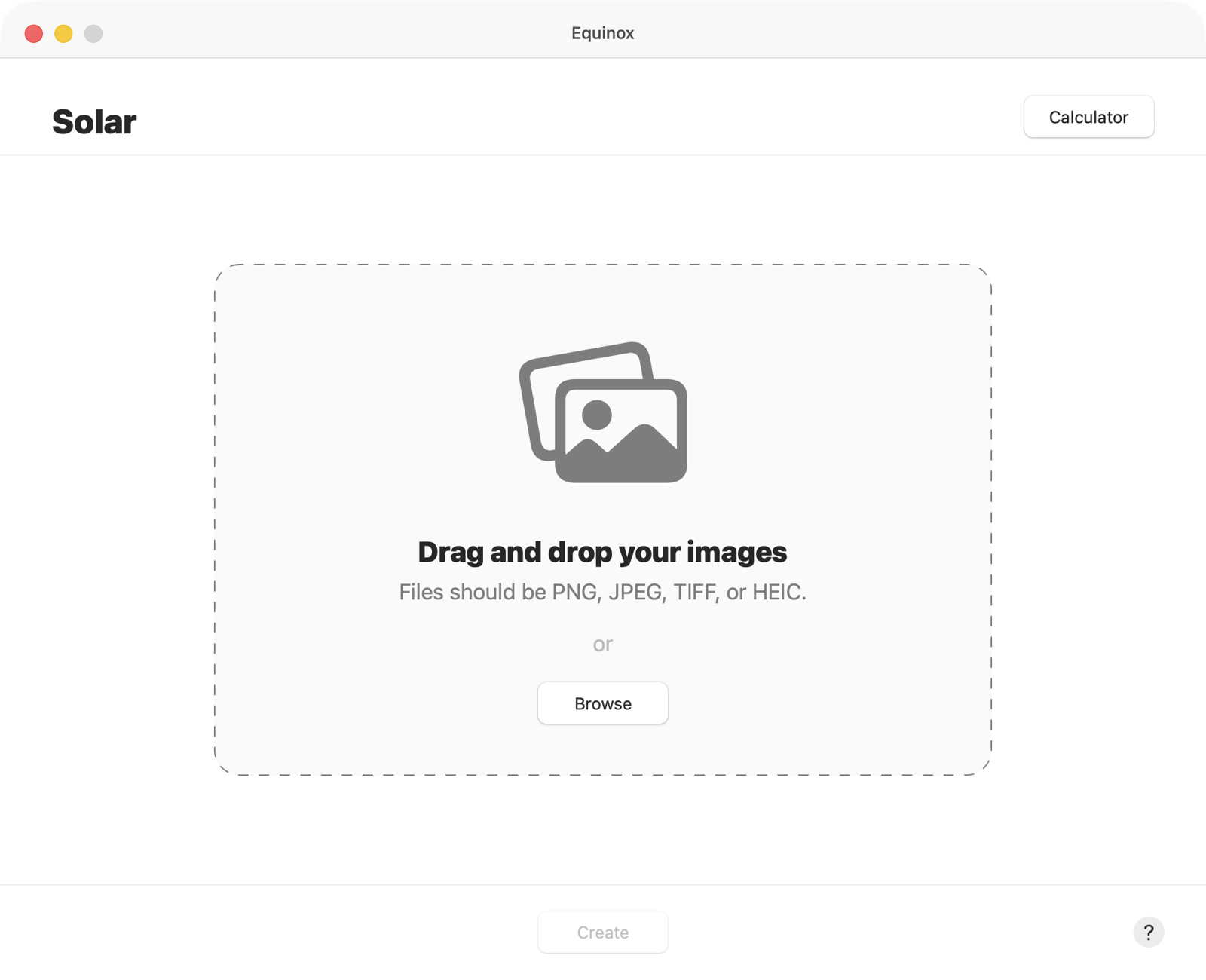
Once you double-click one of these choices, you are then shown a window where you can either drag and drop some images or click the Browse button to choose them using a standard Finder picker window. You needn’t worry about the order you select the images at first, as once loaded you can freely re-order them by dragging. You can also click on any image and press the Delete key to remove it.
Depending on the wallpaper style, you will see different controls with each image. I’ll cover the styles in reverse order, as that is from simplest to most complex.
In Appearance mode, you are limited to two images. If you drag in more, they are simply discarded. To change to a different image, you must first delete at least one of the existing ones.
Overlaid on each image is a two-part control. The top of this is either a white circle with black centre or black circle with white centre. These slightly confusing indicators denote light or dark mode. It’s easiest to just consider the outside colour of the circle.
If you click on this icon, a pop-up appears letting you choose dark or light. Thankfully, this has the words as well, so there is no confusion. As the two are mutually exclusive, if you change one, the other will also change.
The second icon is either a white circle or a blue circle. Only one image can have the blue circle. This image will be used as the thumbnail in the System Settings wallpaper picker. That’s it for this style. Pretty simple.
In Time style, you can add more than two images, and now you also have a Time entry field on each image. If you drag more than one image into an empty window, default times are provided that spread the pictures across a full 24 hours. For example, if you add four images, the times are 00:00, 06:00, 12:00, and 18:00. Subsequent additions will all default to 00:00.
You also get the light-and-dark mode and default image controls on each image. The light-and-dark indicator now has a third option; auto. All the images, except two, must be set to auto, and indeed if you try to set more than one image to either light or dark, you will find the application sets another to auto to maintain this constraint.
The way this feature should work is that in the System Settings wallpaper picker, you can choose from Dynamic, Light-still, and Dark-still. If you do this with an Apple-provided Dynamic Wallpaper, selecting one of the two still modes will set a specific image from the sequence, as decided by the creator. In my testing, this did not work for Equinox-created wallpapers. You may as well leave them all as auto.
The default image indicator has the same constraint as before. Only one image can have it, and this is the image that will appear in the System Settings picker as the thumbnail.
Be sure to check all your time entries. These are the time from which each will be displayed, until replaced by another picture at its allotted time. It is also worth noting that if two pictures have the same start time, the last one, as shown in the window, is the one that will be displayed. If the light-dark thing worked, you could use this to include pictures that are only displayed in the static modes.
Solar style is by far the most complex, and it took a quick chat with ChatGPT before I understood what was going on.
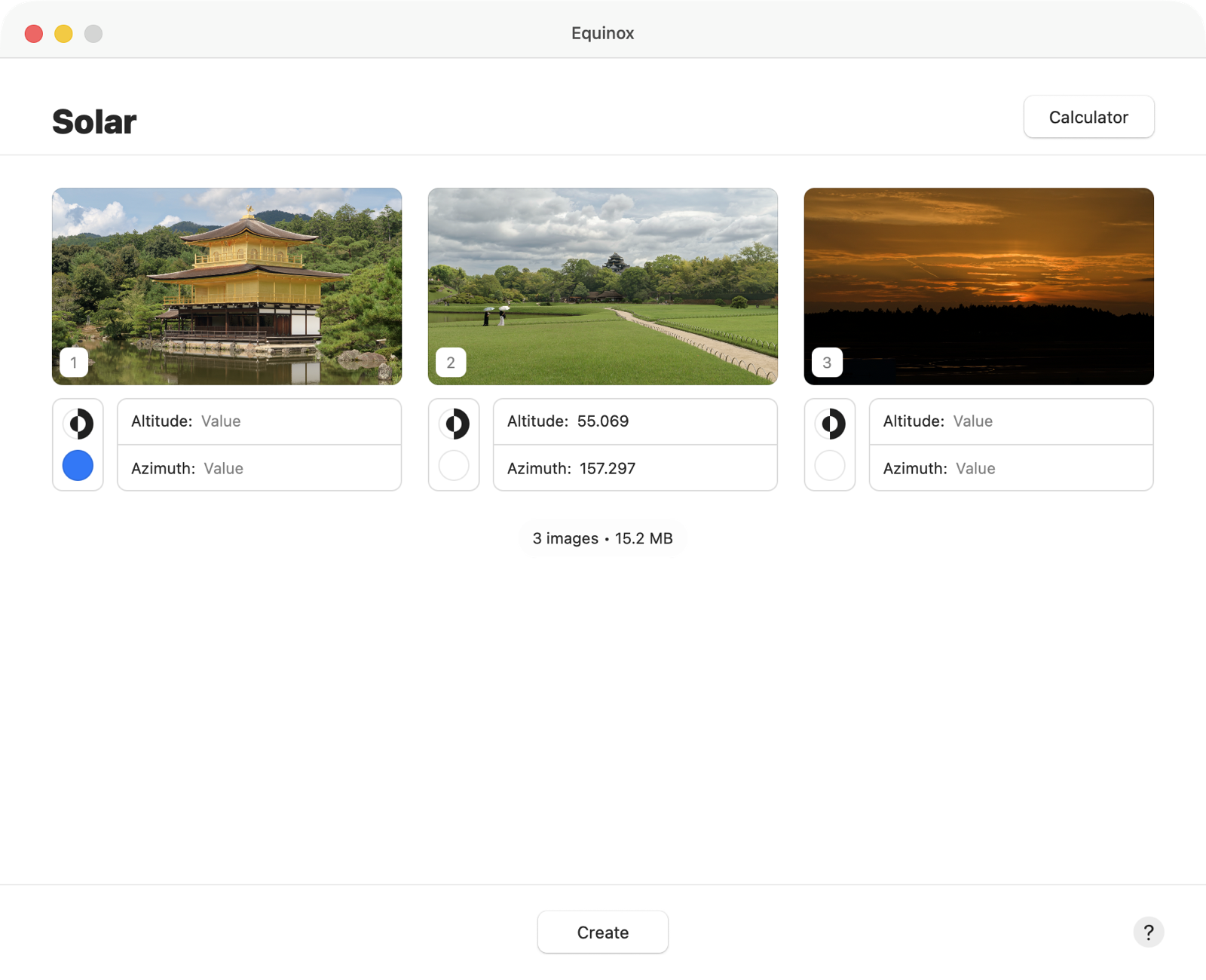
Let’s get the easy bit out of the way first. You still have the light or dark indicators and the default image indicator. Interestingly, the still-mode images do work with this style. Now, instead of a Time entry field, you have Altitude and Azimuth fields per image.
The goal here is to define the sun position at the time you took each photo. macOS will then display the photo that most closely matches the lighting conditions in the photo. Excepting weather, of course!
ChatGPT offered a bit of advice in how to construct a sequence. It said to primarily space the images out by azimuth, from east to west, and then the altitude can further tune the choice of image. A complication is that the further you are from the equator, the more variation there is in the daily range of the azimuth. The altitude should help filter out that summer sunset when it’s the middle of winter and already dark.
It sounds like it could be a complex task to enter all these values, but the app comes with a built-in solar calculator. This calculator would be a great app on its own! You can launch it from the Calculator button in the main window, which opens it in a new window.
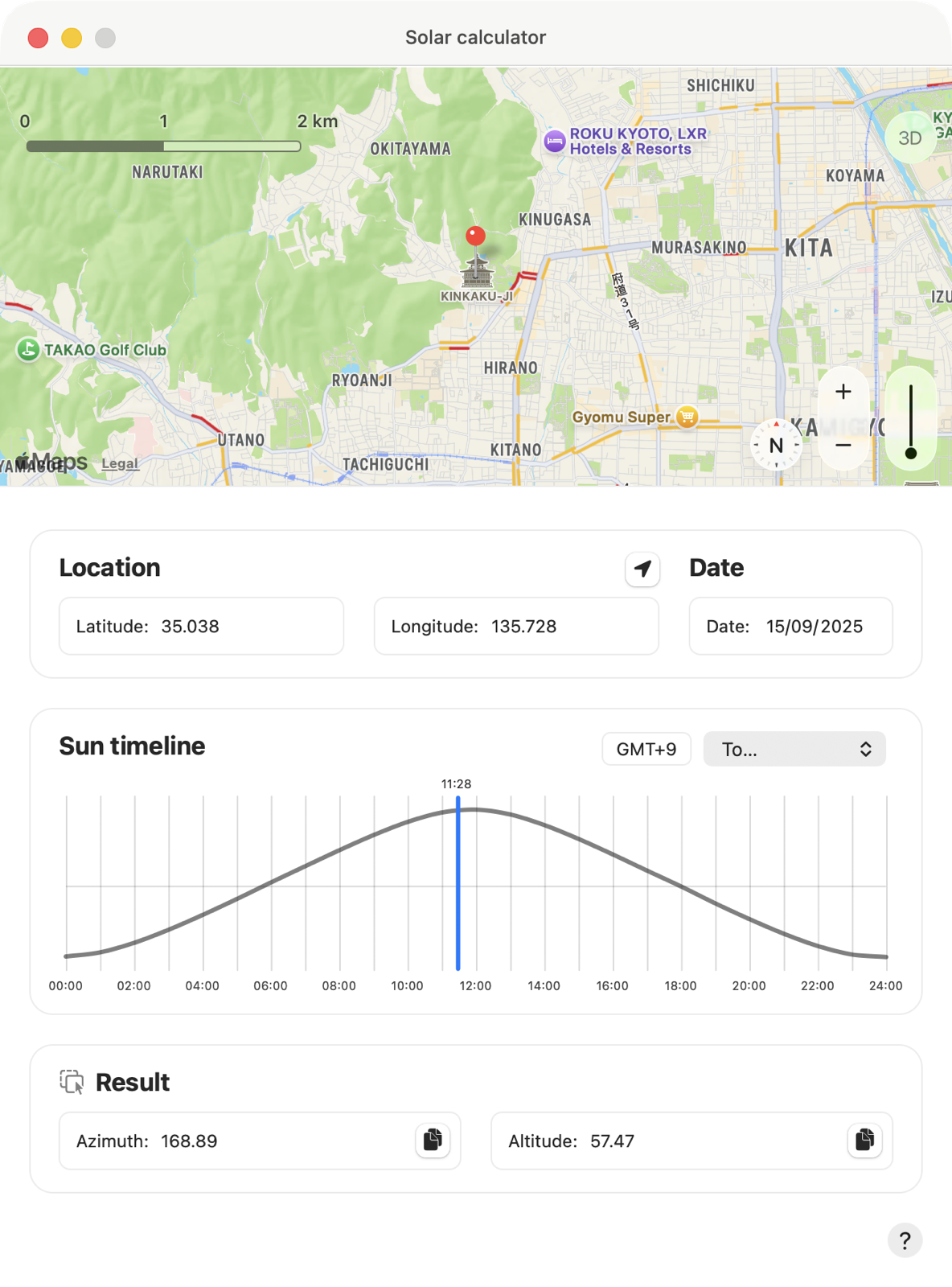
There is a map at the top of the window with a pin in the centre. You drag the map so that the pin is in the location you took the photo. You can zoom the map in and out to help with this.
Below the map, you will see the latitude and longitude indicated by the pin. Alongside these is a date picker where you should choose the date the photo was taken. Below these, there is a graph representation of the sun’s elevation throughout that day in that location. This is aided by another selection for the time zone. It might seem counterintuitive to have both a location and separately a time zone, but if your photo was taken with a camera that has no concept of time zones, this could be your saviour. Also, working out a time zone from a location is a world of hurt.
Once all of these things are set, you can now drag a vertical line along the graph to indicate the time. With this done, you can look at the result panel at the bottom which contains the azimuth and altitude figures for this time in this location, along with a copy button next to each. You can either copy and paste each number or, more easily, drag and drop the entire results panel onto an image to automatically set its values.
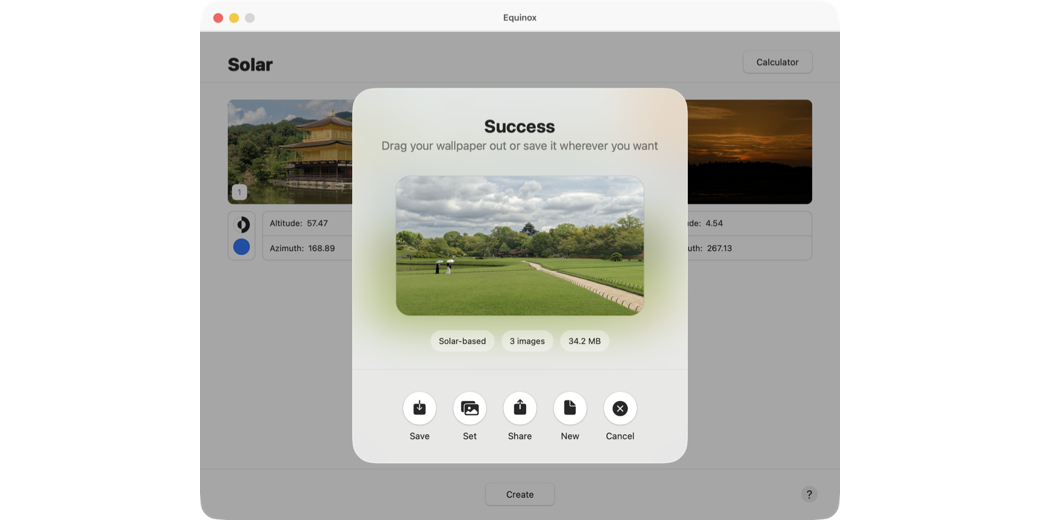
OK, so you have all your images loaded with their dark or light modes, defaults, times, or solar positions set. It’s time to click the Create button at the bottom of the main window. This brings up a pane that is going to give you the final results.
A short progress animation plays as the file is built, then you see an animated simulation of the changing pictures. Below this is some information: the style, number of included pictures, and the resulting file size. Below these are five buttons.
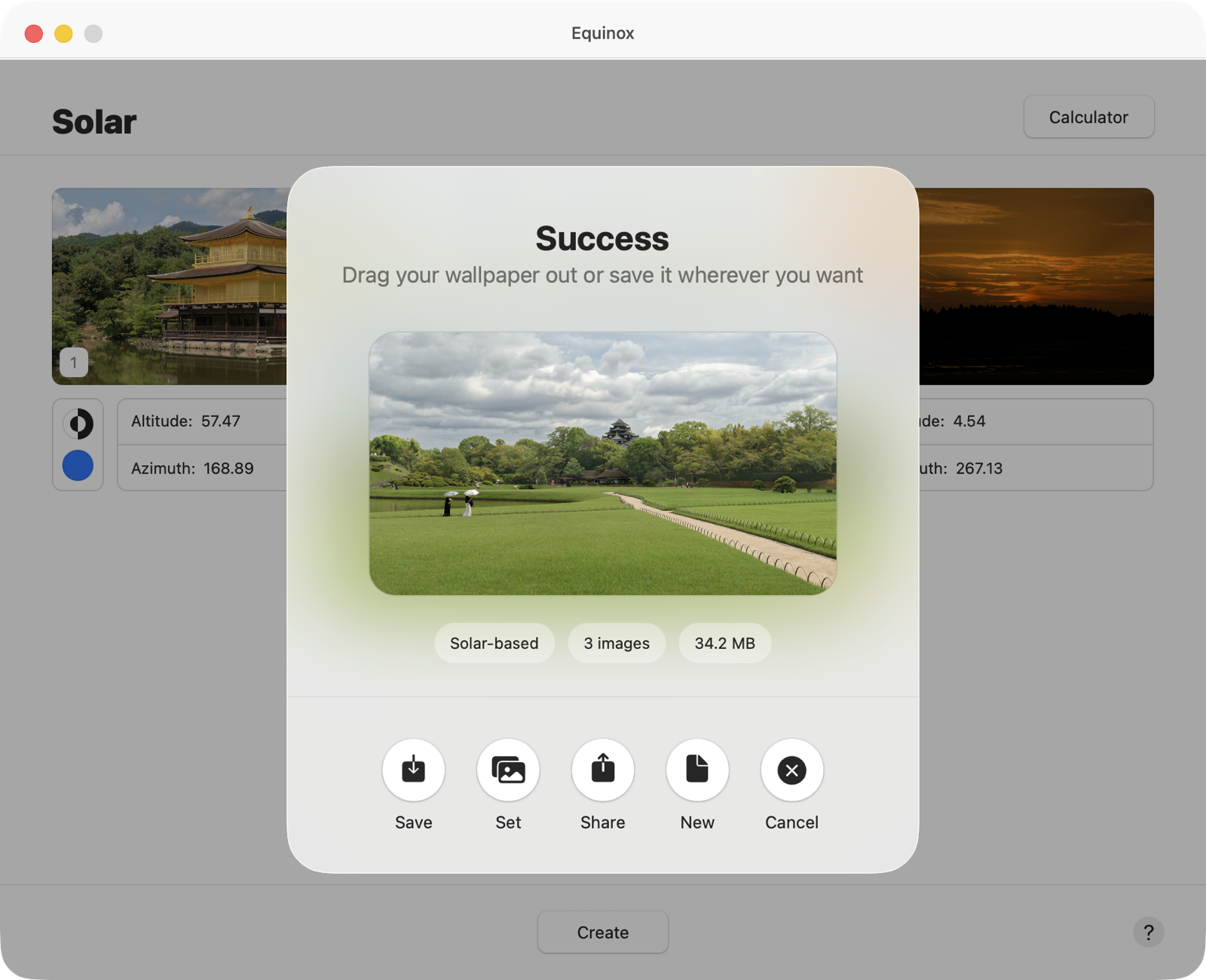
Save does what you’d think. Curiously, I found it wouldn’t actually save the file unless I left the default filename, “wallpaper”. You can also just drag the animated picture to save it somewhere. This will also be called “wallpaper”.
Set first asks you to save the file and then immediately sets it as the current wallpaper.
Share pops down the standard share sheet with all its usual actions. You will be sharing the HEIC file.
New lets you move on to create a new wallpaper file. A pop-up will appear for you to choose either to repeat the same style or to start from the beginning to choose a different one.
Cancel does the obvious thing. It leaves you with your current wallpaper and all the buttons just described.
I recommend you use a single folder to hold all of your wallpaper images. Not only does this make it easy to manage them, but you can add this folder to the System Settings Wallpaper page. Thereafter you can just choose them in the same way you would choose a built-in one.
You can identify Dynamic wallpapers in the picker by the small icon in the bottom left corner of the thumbnail. It looks like a half-and-half of the two light-dark indicators in Equinox.
In addition to being free in the Mac App Store, Equinox is available on GitHub. Here I found multiple open issues, including one each for the filename not being changeable and the fact that still images do not work in Time style.