
Every year, I like to reflect on what I learned or experienced at Macstock. My goal is to make it interesting for everyone, not just a “look how much fun I had and you weren’t there” post. It might encourage you to go, but even if Macstock isn’t something you can attend, I still want it to be interesting.
Spreadsheet Workshop Went Surprisingly Well
Last week, I wrote a blog post about how worried I was that my spreadsheets workshop was going to be a dismal failure. In the post, I described how it was going to be incredibly difficult to demonstrate even a handful of concepts in three different spreadsheet apps, one after another.
I was also very worried about whether the screen resolution of the projector would allow people to see what I was doing (especially from the back of the room) and whether the overhead chandeliers would wash out the display on the projector screen. Both of these are big problems during Macstock presentations, and I wanted to do everything to mitigate the issues.
From a content perspective, I was worried that, whatever I taught, individuals would be disappointed because they would wish that I had chosen something else in the vast array of things you could do with spreadsheets. My presentation was on Saturday, and on Friday, several people told me they had read my article. They were sure it was going to be great because they were so excited that I was going to teach (insert something here that I was not going to teach>. All of them mentioned pivot tables, which I had decided not to teach because it was too complicated!
Spoiler: the workshop went extremely well and exceeded my expectations. Let’s start with the easiest thing – the pre-work I did on screen resolution paid off. You may recall that the projector is 1920×1080, and I practiced at half resolution (960×540), which was like sitting in the center seat of five seats on an airplane trying to eat your dinner with a spork! I also practiced with 3/4ths resolution (1440×810) just in case that was easily visible from the back. Well before the time I was to present, I asked Steve to go to the back of the room and tell me what worked. I was delighted to find that the 1440×810 resolution was quite viewable from a distance.
Google Sheets had a bad habit of showing formulas in wee tiny text, even though my cells were formatted to 24-point. To combat this problem during the live demo, I used the accessibility zoom tool by holding down the Control key while scrolling up and down. Several folks told me afterward that it was a huge help.
I wish every presenter doing anything live (rather than slides) had done this because, for the most part, it was impossible to read a Mac’s screen at 1920×1080 even from close to the front of the room.
In my preparation, I had mused on whether having black spreadsheets with white text would be better with the overhead lights shining on the projection screen, but surprisingly, it turns out people who had dark (especially black) slides had the most washed-out materials. I just got lucky on that one.
In my article, I explained that to help people keep track of what I was doing, I made three separate desktop wallpapers for three separate Spaces that said the name of the tool vertically down the side. I had a green background that said Excel, red for Numbers, and blue for Sheets. Several people said it really helped, and many said they were going to adopt that trick themselves. That made me happy!
When it came to the content, it appears that I held their attention, which is half the battle. People asked questions, provided some tricks I didn’t know, and several times they helped me when I made mistakes!
Marina Epelman taught us all a great trick. If you hit Control~ in Excel or Google Sheets, all of the computed cells will toggle between showing the formula and showing the result. This turned out to be really handy to show people a formula after I’d typed it.
When I was trying to do VLOOKUP, I messed up the formula, but it was great because people were paying enough attention to be able to figure out what I did wrong and help me. It was an audience participation game that they seemed to enjoy. Luckily, I had explained before I started that I always struggle with VLOOKUP, so it wasn’t a surprise when it went haywire.
My plan was to teach how to transpose and how to create dropdown menus for people to choose from, but I decided not to show those two things. I looked at the clock, saw we had 15 minutes left, and decided to show the audience pivot tables instead since that’s what they really wanted. I didn’t exactly teach pivot tables, but I did tell them the story of the baby name database, how I found the end of Excel, and showed them what I learned from using a pivot table to analyze it. People told me that it gave them a good sense of why you’d even want to do a pivot table. I think that was a great trade-off and allowed me to end on time (which people really appreciate).
I got a lot of good feedback from the session, but my favorite might have been from George Brooks. He made a point of taking me aside to say, “Allison, your session confirmed my belief that I really don’t want anything to do with spreadsheets!” Isn’t that awesome?
In the original article, I talked about trying to figure out the best way to view my notes while teaching. You know what worked great? Paper. I had separate sets of pages for each topic, with sections for each spreadsheet app, and it was super easy to glance down to keep track of where I was and not fiddle around with an iPad as I’d planned.
I had a great time teaching this session, and I think writing that article beforehand was really cathartic.
I’m on deck to teach the same workshop to both the Silicon Valley Mac Users Group run by Lynda and Charles Gousha and then later the Tucson Mac Users Group run by Bob Wood. Should be fun!
And, as always, Steve recorded the whole thing on video, and he’ll be producing it in the next week or two so you can see it too!
Video of Allison’s “How the Cool Kids Really Use Spreadsheets” Workshop
Cool Chart Stories
While I’m not a big fan of using slides to tell stories, and I think AI-driven content is getting overdone, I was surprised to see that there were a few people’s charts that made me think some of this can be really cool.
Jill from the Northwoods was explaining how she compartmentalizes her life (including her home) in a way that helps her be intentional about how she spends her time. She explained being tempted to buy a new Xbox to game more … but she doesn’t want to spend her time gaming. She redesigned her home to have a room for reading, a room for prayer and reflection, and a studio for podcasting. She had AI create a graphic that showed her in each of these rooms, and it was really beautiful. It told the story she was trying to convey. By the way, I highly recommend subscribing to Jill’s podcasts and YouTube videos where everything good starts with small steps (start-with-small-steps.captivate.fm/…).
Dave Ginsburg had really classy-looking charts with great graphics telling the story of the last decade of Macstock and Apple, to coincide with his celebration of 10 years of his In Touch with iOS Podcast. Bruce from Alabama, Steve, and I were talking about how they had to have been AI-generated… and then we talked about how that was ok, because they were great charts, and again enhanced his narrative. I chatted with him for a bit about it after the show, and he said it was actually pretty hard to get them to look as good as they did.
Dave Hamilton from the Mac Geek Gab won the AI category, though. His charts were fantastic. They were simple and flowed really well to tell his story as he talked. But what blew us all away was that at the end, he told us that AI created his charts directly from prompts. He didn’t just have it draw graphics; he had AI create the entire thing using his iPad as he sat on his back patio sipping a cup of tea. It was amazing.
Brett’s Charts
Brett Terpstra did a talk on Markdown, and while I will confess that I didn’t follow everything he taught, his charts were crazy cool. He started by telling us to all go to a URL to view his charts: Markdown Publishing — Macstock 2026. Ok, that’s not so amazing. But get this — the charts on our devices advanced when he advanced! How did he do that?
If you wanted to back up a slide or go to a previous section, there were little arrows that would do that, but you could then catch back up to Brett, and they would be back in sync with him. You could even bookmark a slide to come back to it later.
Because he’s Brett, he also (very briefly) explained how he achieved this sorcery. He was teaching us about the power of Markdown and told us that the entire presentation was one simple Markdown file. He gave us a link to it at brettterpstra.com/…. To create the fancy HTML pages, he used reveal.js from revealjs.com.
I got curious about how this could be done, so followed the link to reveal.js and installed it myself locally. While it’s definitely high on the nerd scale, it wasn’t hard at all. You install reveal.js via the Node Package Manager (NPM), and it creates a working version with an index.html file you can open in a browser and see the slides moving.
The index.html file is all in HTML, but by adding a single element to it, you can point to a Markdown file that has the actual content. It’s easy to put words on the chart using, say, a hash to make a title, and asterisks for bullets. But Brett’s charts also had these bright arrows to the right and down to designate moving horizontally through the charts, or vertically. That’s a weird concept, right? You can embed charts within charts by using this concept.
I was curious how that worked, and it’s actually pretty easy. As you write the simple Markdown document, you type a set of characters to separate each chart from the next. In the index.html file, you define which characters you want to use for horizontal vs. vertical navigation. For example, Brett uses three carets ^^^ to put the next slide to the right, and three hyphens --- to put a slide vertically below.
I was pretty chuffed to be able to follow how he takes simple Markdown and makes beautiful slides. But there was one more piece to the puzzle, and that’s how we were all able to see his slides advancing from a URL we were watching on our own devices. He said he used a “socket server” with a “Multiplex plugin”. I had no clue what those were, but a quick search and I found the GitHub project for the Multiplex plugin with the instructions and all of the tools.
I have to confess that I ran out of time to get a socket server running myself, but I’ve given you the links to leave this as an exercise for the student.
This is what I love so much about Brett Terpstra. He lives in a world where so many things are possible, and I learn so much every time I get the opportunity to be near him. If you’d like to see all of the cool stuff he does, go to brettterpstra.com/…
There were so many great presentations, I can’t begin to describe them all. But there was one that stood out above them all.
David Pogue
Mike Potter managed to get David Pogue to come speak to us on Friday night, and he was amazing. Corky Heath helped create a plan for lots of folks to go out to a place called Portillo’s for dinner (classic beefsteak sandwiches and hot dogs) so we’d be able to make it back in time for David’s talk at 7:30. But as we were getting ready to leave, Corky saw David standing around talking to some folks and decided to invite David to come along.
Corky drove him over, and David hung out with us, showing off cool iOS 27 Siri AI stuff, and really seemed to enjoy the fun of being with a bunch of nerds. It was awesome. I think getting to know the crowd informed how he gave his presentation. At one point, he said he was going to “smarten up” (rather than dumb down) some of the stories since it was clear we were up for the challenge.
I can’t possibly capture the amazing experience of hearing David talk but he spoke for about two and a half hours, all about things he learned in his research for his book, “Apple: The First 50 Years” He told story after story, giving us fun tidbits that didn’t end up in the book, and telling us a lot about how hard it was to research and publish. Every once in awhile he would break into one of his silly songs about Apple, using a keyboard he had on stage.
He was hilarious and engaging for that full 2.5 hours, and then spent another two hours signing books for people. He talked to each person as though they were the only person in the room, put a unique signature in each book, AND posed for a photo with each person. He could not have been more awesome.
Bottom Line
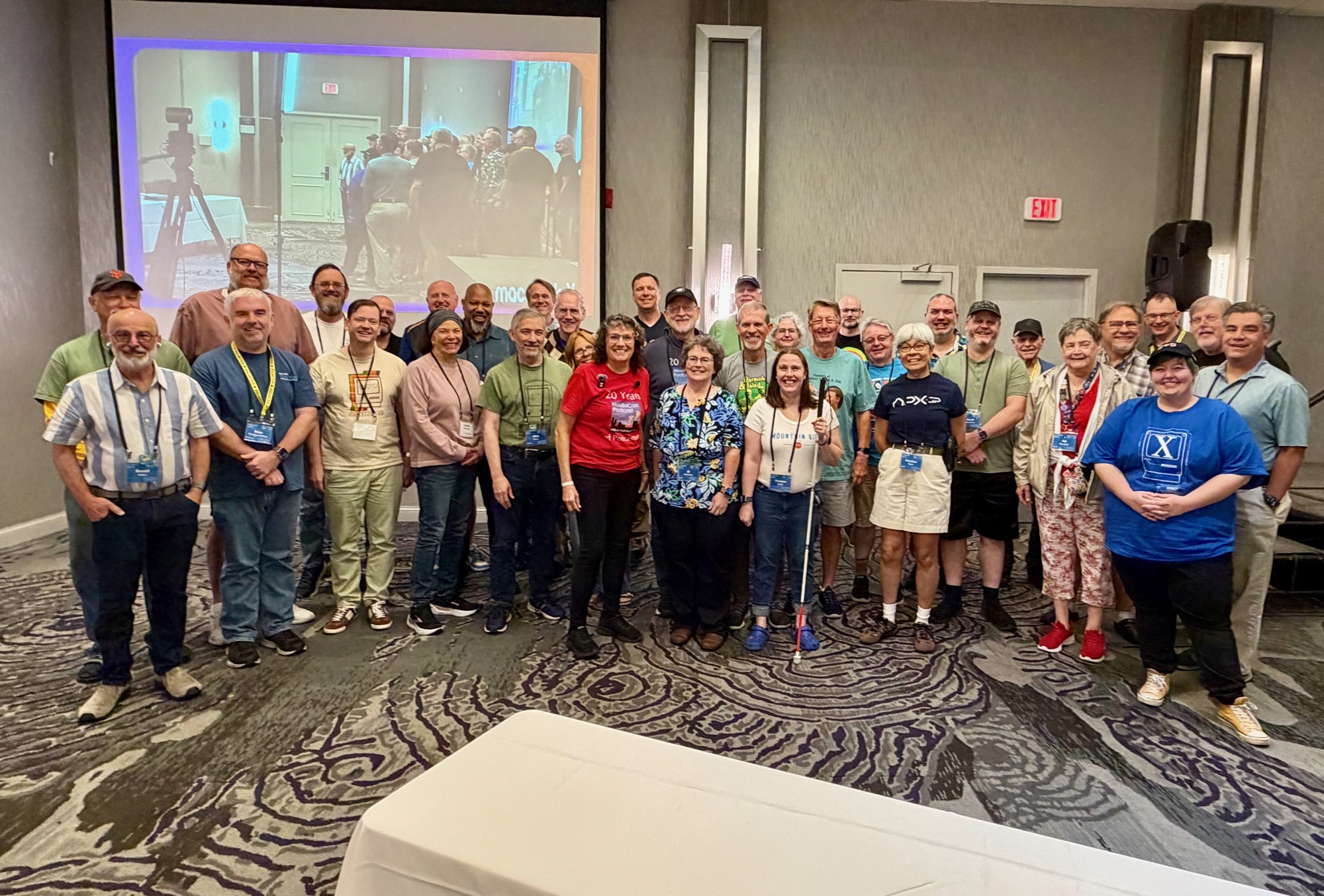
I have more things I learned at the show, but I’ll save those for next time. I can’t thank Mike Potter enough for creating such an amazing event. As always, it’s the people who make the difference at Macstock. I’ve included a NosillaCastaways family photo of the folks from the show. It warms my little heart that so many come to Macstock.
It’s always been an interesting time seeing presentations like yours that emphasize the live interaction side, after seeing so many carefully prepared and polished Keynotes and PowerPoints. (Special kudos to Jill McKinley and Jeff Gamet, who do a fabulous job with their slides!) My initial reaction was that you got derailed a bit too often by the audience, but in retrospect they really didn’t disturb the flow that much… and you were excellent at steering things back on point. Even as one of those “spreadsheet experts” I still learned new things! I’m looking forward to seeing what tweaks you may make on your future runs of this.
It is, as always, the people and the “family” of the Macstock people that makes it such a fabulous weekend. New speaker Alessandra White noted afterward:
which really sums it up. We’re already looking forward to next year!
For extra review, listen to Ken Ray’s review of Macstock weekend, posted Saturday (!!) July 18. I’m so happy he attended!
MacOSKen.com link
Uh oh, @Charles is expecting me to improve my talk when I do it for SVMUG?