

In my look back on Macstock X, I ended by saying that it’s the people that make this conference so special.
One of my favorite people I got to hang out with this year was Ken Case, the CEO of the Omni Group, maker of OmniGraffle, OmniOutliner, and more. We met back in 2019 at the Alt Conf during WWDC, and shortly afterwards I was honored to have him on Chit Chat Across the Pond episode 614. I just re-listened to that episode, and since it’s about Ken and his early education, it’s an evergreen episode I think you might really enjoy.
Ken and I hadn’t talked in ages, but during Macstock we got to chat quite a bit. We sat next to each other at dinner one night, and I tried out some of my favorite conversation starters to get to know him better. I asked him what he does for fun, and he talked enthusiastically about music. That didn’t get me too far since I’m not into music. So I tried one of Ken Ray’s starters, “Tell me a toy story”. This often works because you learn about someone’s childhood, their siblings, parents, and home. That didn’t work either. Finally, I tried one of Alan Alda’s 7 questions he asks at the end of every Clear and Vivid podcast: “What book changed your life?”
Ken thought for a moment, and then his eyes lit up when he said, “The Apple ][ manual!” He explained that when he was a young boy (I think 12 years old, possibly younger), his school got an Apple ][, but it was at the very end of the year. He went to the librarian and asked whether he could take home the manual set for the summer to study it, and they said yes.
His family took a long road trip to South Dakota (by way of Washington, Idaho, Montana, and Wyoming), and the whole way there and back, he studied that manual. As often as he could get away with while at their destination, he kept studying. He even wrote programs with paper and pencil in the back of the car so he’d be ready to try them when he got back.
To his dismay, there was just the one Apple ][ at the school, which meant each student only got a half hour with it every other week. His parents couldn’t afford an Apple ][, but they did buy him an Atari 800 (which he still has).
I thought this was such a wonderful story of someone finding just the exact right thing at the exact right time to form who they were meant to be. Listening to Ken tell the story with such enthusiasm was probably my favorite thing that happened at Macstock.
But more fun with Ken was yet to come.
VLOOKUP
We’re going to get a bit nerdy here, but don’t worry, it will get worse. I need to set up the next part of the story with Ken.
When I was doing my workshop on spreadsheets, one of the methods I taught is called VLOOKUP. Let’s start with an example of the problem VLOOKUP solves. Imagine you have a list of users with user numbers and user names in two columns. Let’s say some of these users have been involved in a data breach, but all you have is a list of the user numbers for those affected. With VLOOKUP, you can do a vertical lookup of the user numbers you have and return the users’ names.
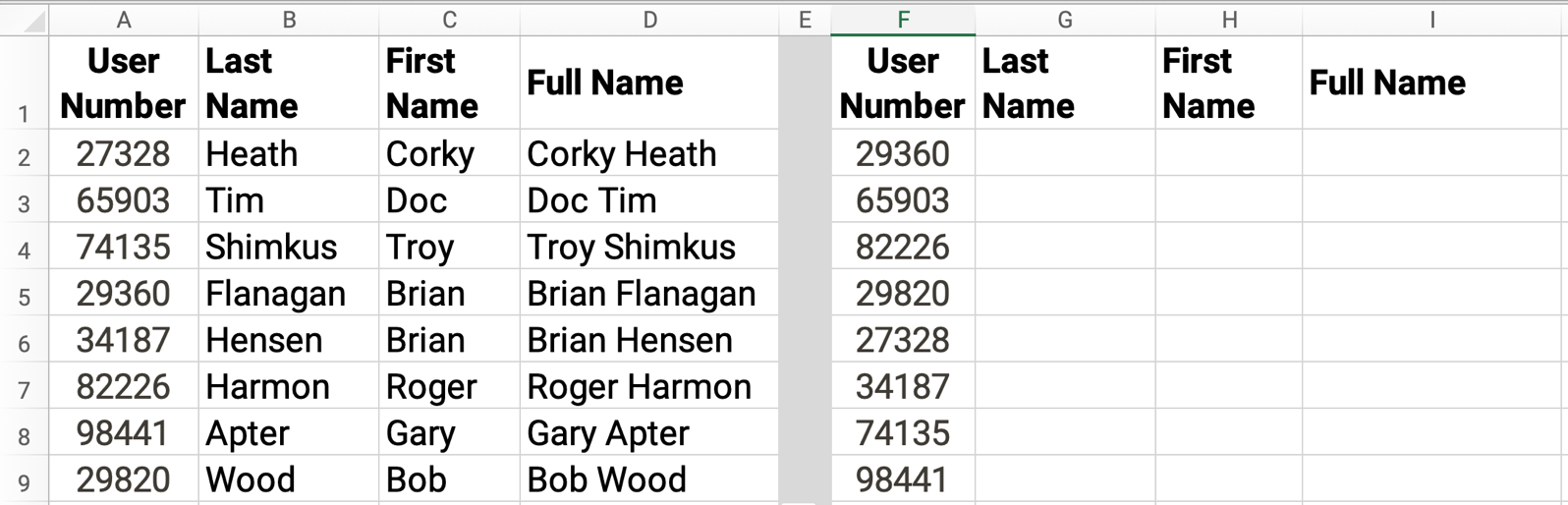
It’s a swell function, but it’s also weird. In VLOOKUP you tell it the value you want to look up (the user number of the person in the breach), then the table array to search (our list of user numbers with names) and then the column index number for the value you want returned. In other words, when it finds that user number in the first column, return the column number to the right that contains the users’ names.
=VLOOKUP(F1,$A$1:$D$9,4)
So far, this makes sense. What do you want to look up, where do you want it to look, and what do you want it to give back to you? But there’s one more element to the equation. Excel calls this element range_lookup and shows it in square brackets, indicating that it’s optional.
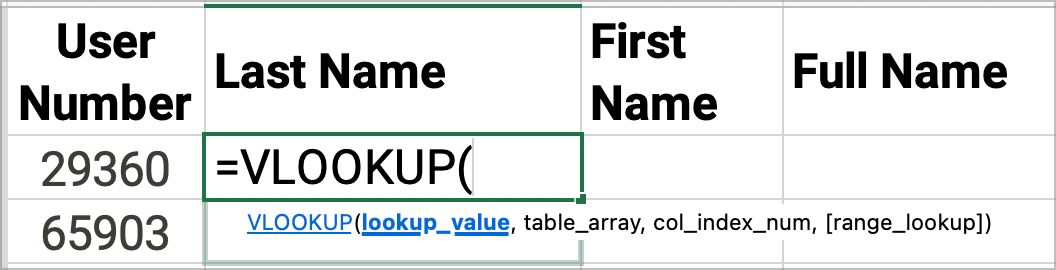
In the documentation for Excel, it explains that range_lookup should be either “TRUE” or “FALSE”, and if you leave it blank, it defaults to “TRUE”. Ok…what the heck does that mean?
“TRUE” means that the array is sorted by the first column with the user number. If your array is not sorted by that column, and you leave the default of “TRUE”, your VLOOKUP will not get the right answer!
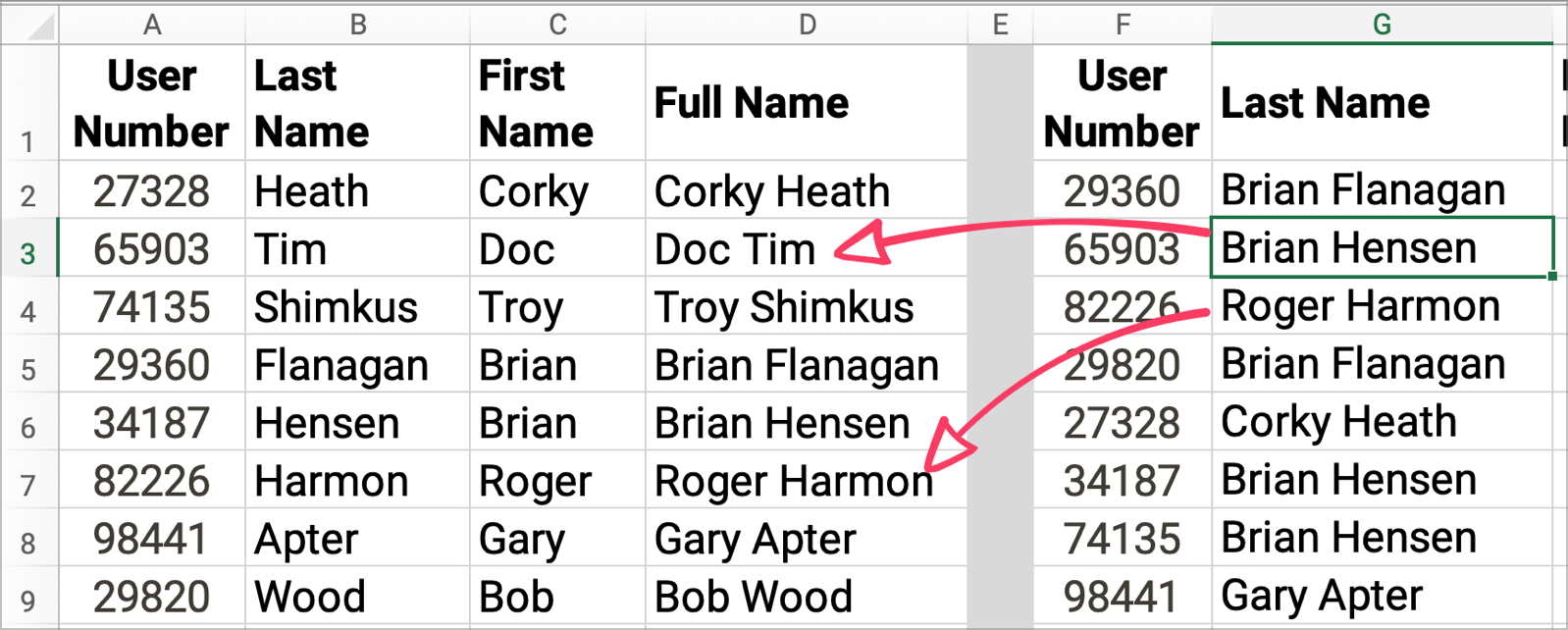
So if your table isn’t sorted, you must add “FALSE” to the end of the equation. During my class, I expressed how baffled I was at this weirdness in the VLOOKUP equation.
When I was done with my talk and had taken my bows (ok, not really), Ken Case came over to tell me why there was this concept of a sorted value list in a LOOKUP function. He explained that this comes into play when you’re looking for a value to be returned that might not actually be in the list. The example he gave was calculating taxes from an equation. In the US, we have tax rate tables that says something like, “If you make more than $50K, but less than $75K, take the amount more than $50K and tax it at this rate, and then add this dollar amount.” The next section in the table will be for people making $75-$100K.
Let’s say you make $52K. Ken explained that VLOOKUP would look through this table until it finds a number bigger than $52K, and then go back by one, thus properly finding the $50-$75K section. This will only work if the data is properly sorted.
Perhaps this is a complicated example of how “TRUE” for sorted would work, but at least there was a reason for it.
VisiCalc
Now let’s get nerdier. Someone mentioned to me after my talk that the first spreadsheet was called VisiCalc. (If you’d like to argue that point, please read VisiCalc author Dan Bricklin’s explanation: danbricklin.com/…) I’d heard of VisiCalc before, but it occurred to me that I hadn’t ever seen what it looked like. While listening and watching another presentation, I looked for a VisiCalc emulator, and I found one on the Internet Archive.
This VisiCalc emulator mimics the 1979 Software Arts original by Dan Bricklin running on an Apple ][e, though it was originally written for the Apple ][ of Ken’s childhood. I was so excited to get to play with this!
I started goofing around in it, but I couldn’t get it to work properly. The main problem I had was that I couldn’t use the arrow keys to move right/left through the spreadsheet. Well, I knew who to ask for help!
During the next break, I cornered Ken and asked him for help. We played around with it a bit without success, and then I wondered whether it might work properly in a Chromium browser instead of Safari, and sure enough, it worked great in Edge. As soon as we got it working, Ken and I went to town playing with it. Soon the break was over, but we didn’t stop there.
For the rest of the afternoon, the two of us played in VisiCalc, emailing back and forth across the conference room with cool things we figured out we could do. It was SO much fun!
Ken remembered a bit about how to use it, so he was able to figure things out by experimenting. I’ll have to admit that I actually read the 1982 user manual I found at www.bitsavers.org/… to figure out things I could do with VisiCalc.
Because I promised we’d get nerdier, I’m going to teach you a little bit about how to use VisiCalc.
I loved reading the VisiCalc manual because it’s written from the perspective of teaching someone who has never seen a spreadsheet before. Here’s an example where the author(s) explain how to move the cursor. Well, first they have to explain what a cursor even is.
The cursor’s position marks the point where you can begin writing on the electronic worksheet. Think of it as the point where your pencil or pen meets the paper.
Isn’t that adorable?
They go on to explain that to move the cursor to the right/left, you simply use the right/left arrow keys, However, you can’t use the up/down arrows to navigate vertically because the original Apple ][ keyboard didn’t have up/down keys.
In the upper right, you’ll see the letter C followed by a minus. This is telling you that cursor control is only left/right. To switch to vertical movement, you tap the space bar once, and now it will show C! in the upper right. This indicates vertical movement, but you don’t get to use the up/down arrows to do so. You still use the left/right arrows to move up and down. At first this was as clumsy as it sounds, but after a bit I was surprised that I was able to adapt.
You don’t have to scroll constantly like this to move to a specific cell. If you type the greater than symbol, in the menu bar at the top it will say “GO TO: COORD”, and you can simply type the cell coordinates you want to navigate to, say B2, and hit Enter.

To enter a formula, you don’t need to put in an equals sign; you just type it in as “25+75”. VisiCalc indicates in the menu bar whether you’ve typed a label (text) or a value (numbers or a formula) in a selected cell. It does this with L or V in parentheses.
You can, of course, do calculations, such as .6*B1 to calculate 60% of the value in B1. If typing the cell coordiantes is tedious, you can navigate with the cursor to cell B1 while you’re typing the formula. With all the space-barring required to toggle vertical vs. horizontal navigation, and having to remember that the left arrow goes up if there’s a C! in the menu bar, I find it quite a bit easier to type in the cell value.
In the manual, they explain with great enthusiasm how changing the value of cell B1 changes the calculation result in .6*B1. It’s kind of adorable.
An interesting feature of VisiCalc is that to execute certain commands, you type the slash. This is where Ken spent his time experimenting to remember what each of them does. When you hit that slash, it will print COMMAND: BCDFGIMPRSTVW- at the top. Each of those letters provides a different command.
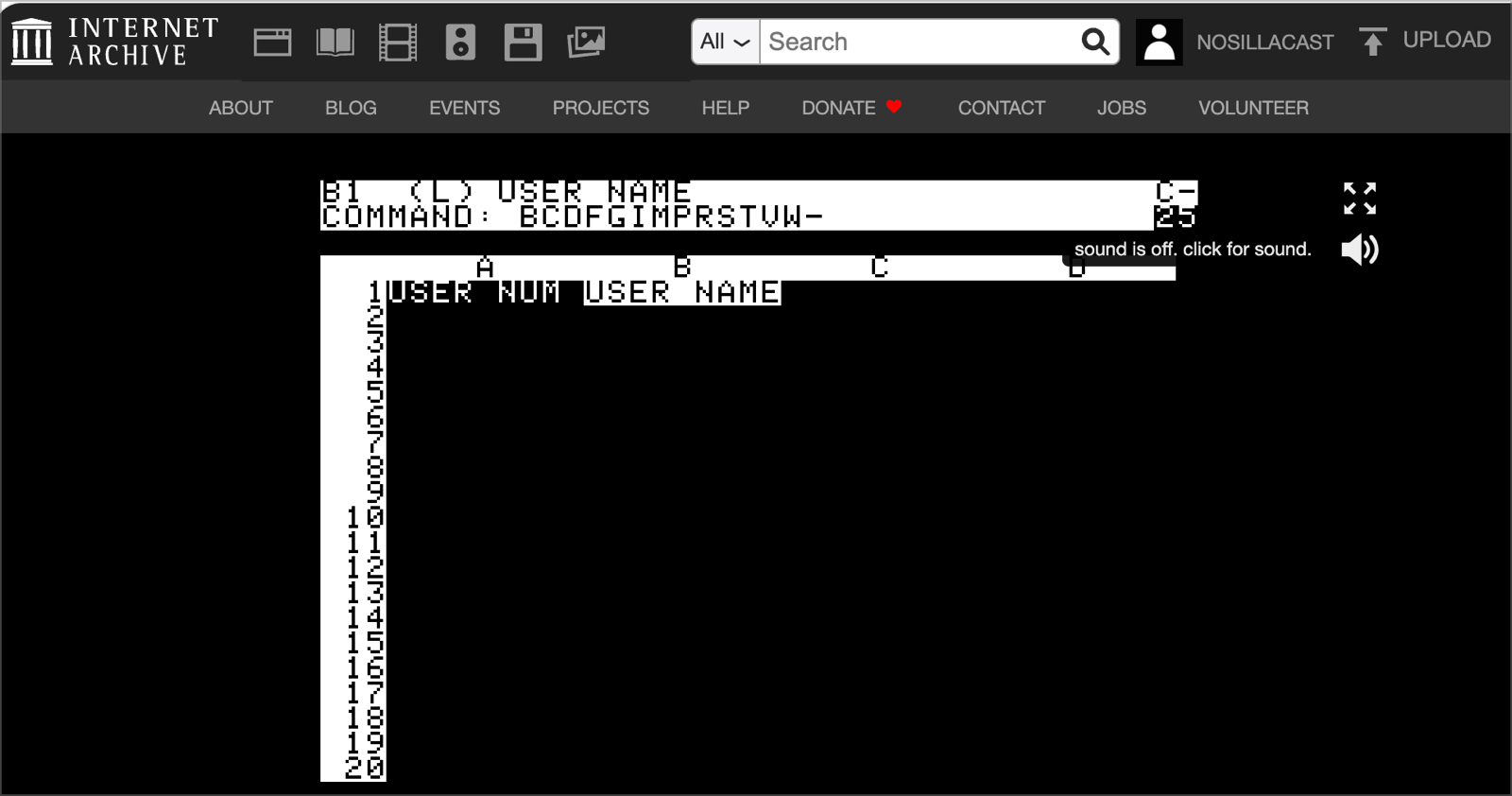
For example, if you want to erase the value of a cell, /B will blank out the cell. I have to say, I was jealous when I read in the manual that you can edit a cell by typing /E, but there is no “E” in the command list in the emulator. Evidently edit in cell was added between 1979 (the date of the emulator) and 1981 (the date of the user manual).
In the manual, I found a handy dandy tree diagram that explained exactly what each of these / commands does. I say “handy dandy” in air quotes because this diagram is crazy complicated and hard to read. Also, I found a typo (“integer” spelled “interger”). I fully plan to write a strongly worded letter to the authors about it.
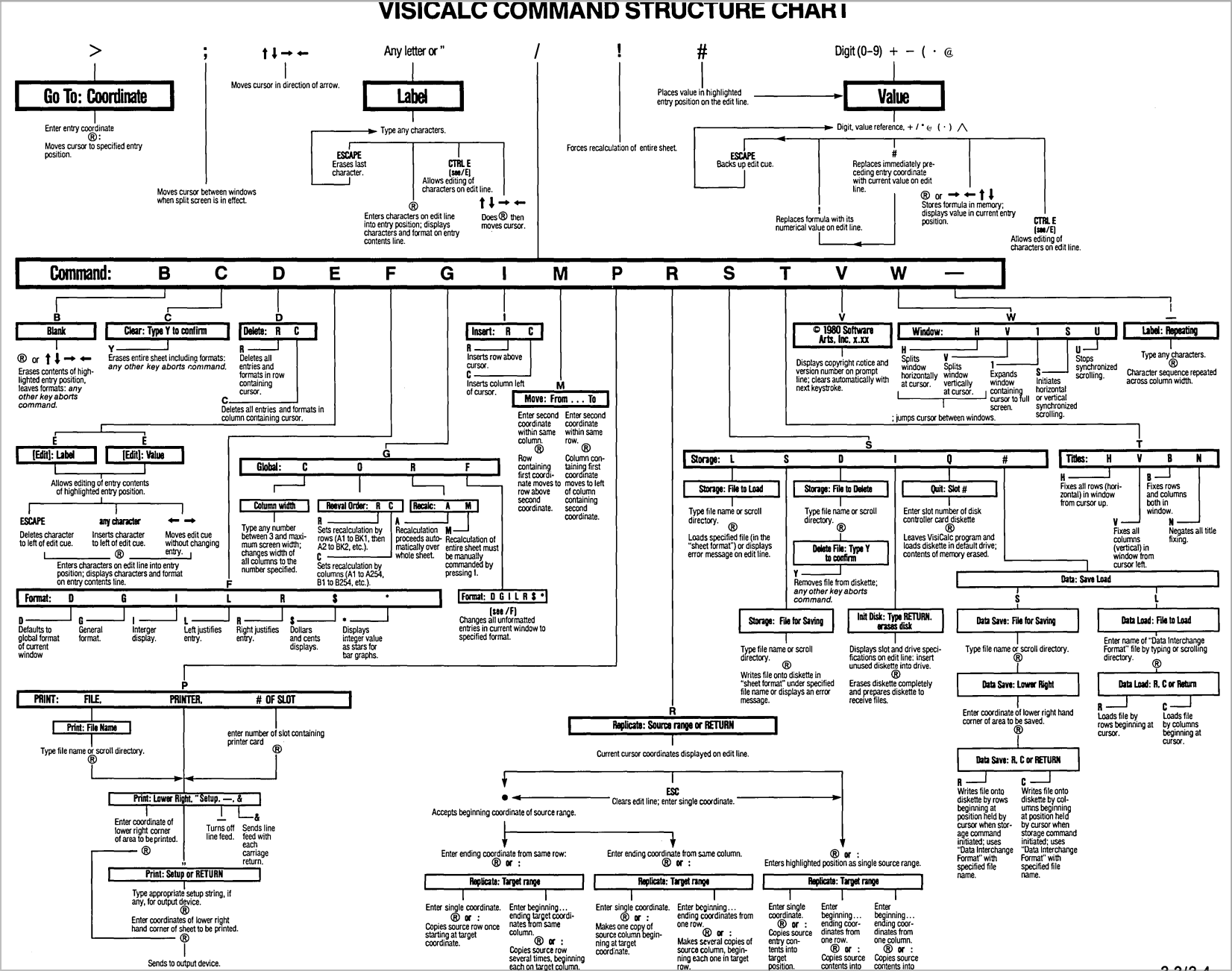
The diagram was well-intentioned but difficult to reference, so I asked Claude to make a simple Markdown reference table for the commands, which I’ve included in the shownotes. Even though I told it to use the 1979 version of VisiCalc, it also was only able to find the 1981 manual. I marked the table with an asterisk on the only two commands that won’t work with the 1979 version of VisiCalc: /E and /L.
Original VisiCalc Commands (Apple II, January 1982)
| Command | Function |
|---|---|
| /B | BLANK – Clear an entry position |
| /C | CLEAR – Erase entire worksheet |
| /D | DELETE – Remove rows or columns |
| /E | EDIT – Modify cell contents * |
| /F | FORMAT – Set cell display format |
| /FD | Format Default |
| /FG | Format General |
| /FI | Format Integer |
| /FL | Format Left justify |
| /FR | Format Right justify |
| /F$ | Format Dollars and cents |
| /F* | Format Bar graph |
| /G | GLOBAL – Change all cells |
| /GC | Global Column width |
| /GF | Global Format |
| /GO | Global Order of recalculation |
| /GR | Global Recalculate |
| /> | GO TO – Jump to cell coordinate |
| /I | INSERT – Add rows or columns |
| /IC | Insert Column |
| /IR | Insert Row |
| /L | LABEL ENTRY – Enter text * |
| /M | MOVE – Relocate rows/columns |
| /P | PRINT – Output to printer |
| /R | REPLICATE – Copy formulas/values |
| /RL | Repeating Label |
| /S | STORAGE – File operations |
| /SL | Storage Load |
| /SS | Storage Save |
| /SD | Storage Delete |
| /SI | Storage Initialize disk |
| /SQ | Storage Quit program |
| /S#S | Save DIF format |
| /S#L | Load DIF format |
| /T | TITLES – Fix rows/columns |
| /V | VALUE ENTRY – Enter numbers/formulas |
| /W | WINDOW – Split screen |
| /WH | Window Horizontal split |
| /WV | Window Vertical split |
| /W1 | Window single |
| /WS | Window Synchronized scroll |
| /WU | Window Unsynchronized scroll |
- not available in 1979 version of VisiCalc
Source
VisiCalc User’s Guide for Apple II & II Plus (VisiCorp, January 1982, Part Number 10911-2212)
Reference
- Manual: ~https://www.bitsavers.org/pdf/visicorp/apple2/10911-2212_VisiCalc_Apple_II_Jan82.pdf~
- Original 1979 version archive: ~https://archive.org/details/Visicalc_1979_Software_Arts_a~
I definitely won’t go through all of the / commands, but I distinctly remember the joy in Ken’s email when he told me during the conference how, with /F, you can right- or left-justify by adding R or L to the command.
⠀
VisiCalc and LOOKUP
Remember much earlier in your life when I explained how VLOOKUP works, and how Ken explained why you needed to add TRUE or FALSE at the end of the formula to indicate whether the data range was sorted? Your reward for sticking with me this long is that now we’re going to walk through an example exercise from the VisiCalc manual that illustrates what Ken explained to me. I knew you’d be excited. I was too when Ken told me it was possible in VisiCalc.
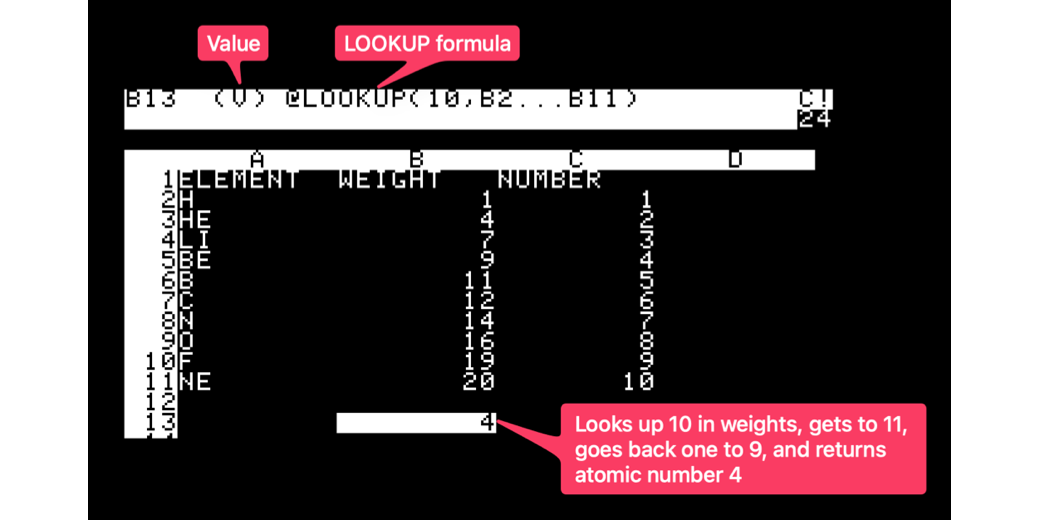
The example in the manual is a list of the first ten entries in the periodic table of the chemical elements, with their atomic weights and atomic numbers. I put a screenshot in the shownotes of how they tell you to create the table. It looks arcane but once you get the hang of how they write it, it actually makes perfect sense.
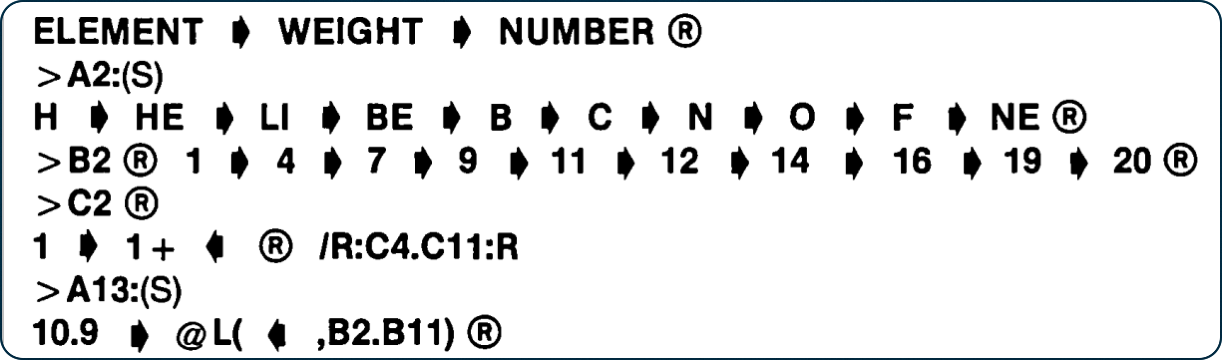
It was fun following along with these arcane instructions because I learned about the “R” function, which lets you replicate a function to another set of cells. Think “fill down” in a modern spreadsheet. Rather than typing 1 through 10 for the atomic number, the instructions start by showing how to create the formula to add 1 to the number above it. Then, to replicate the formula to a range of cells, you enclose the range between /R: and :R.
/R:C4.C11:R
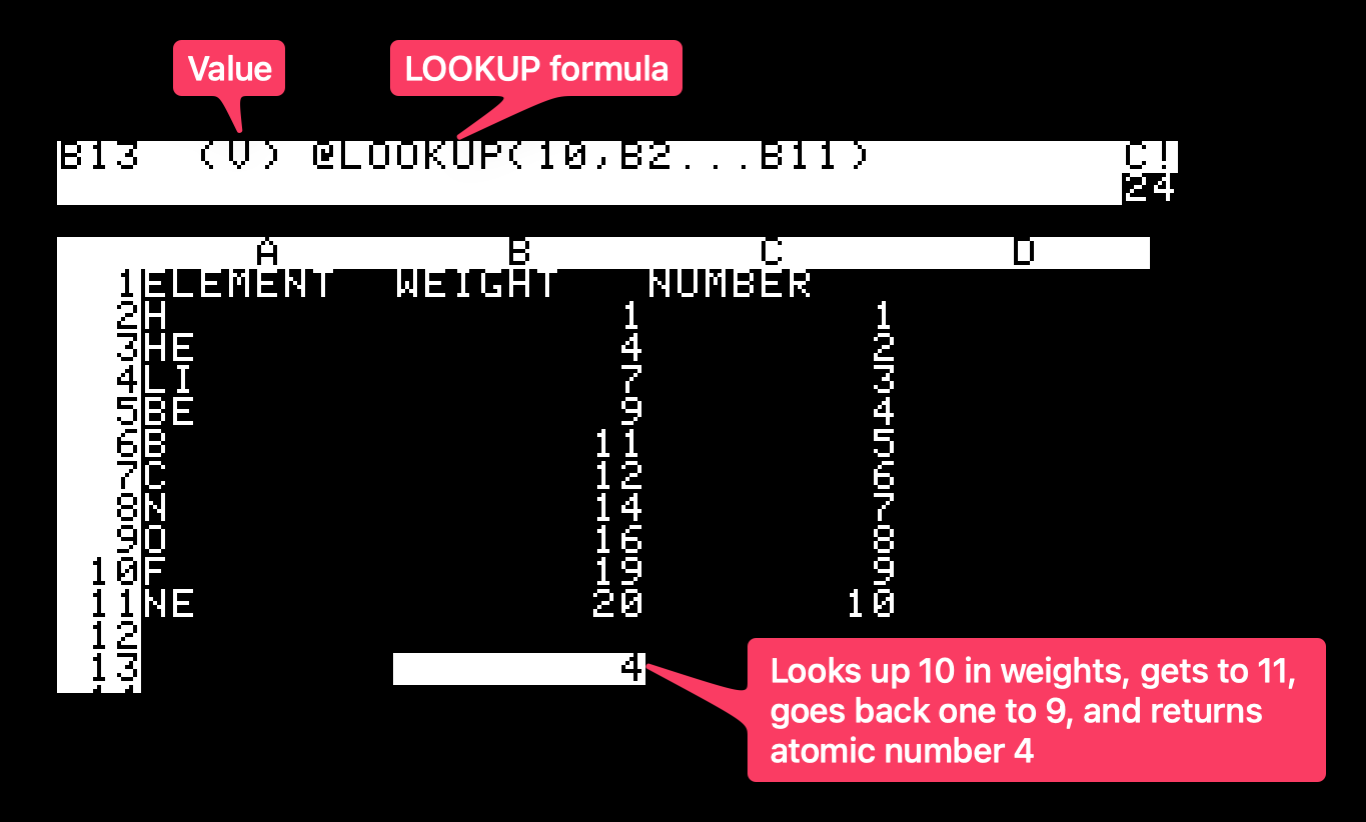
Now that we’ve got our fancy periodic table, we can finally play with the LOOKUP function (which is essentially VLOOKUP). We can’t type LOOKUP directly into VisiCalc, because it will interpret the function as a (text) label instead of a formula. Instead, we put the @ symbol before the word LOOKUP so it knows it’s a formula. Our formula to do a LOOKUP in the range B2 to B11 for the atomic weight 10 becomes:
@LOOKUP(10,B2…B11)
By design, with this sorted list, LOOKUP will try to find 10 as a match, and if it doesn’t, it will search till it finds a number bigger than 10 and return the value from one earlier. Let’s say that more specifically. LOOKUP searches through our atomic weights 1,4,7,9, and then finds 11 which is the first value greater than 10. It then backs up to 9. By design, LOOKUP returns the value in the column to the right of the range. To the right of atomic weight 9 is atomic number 4 for Beryllium. Huzzah!
I played around with LOOKUP to see if I could get it to return the element’s name instead of the atomic number. I rearranged the columns so the element name was to the right of the weight instead of the atomic number, but VisiCalc returned a value of 0 when I reentered the equation. Sad trombone.
Getting LOOKUP to work was great fun, and now I’ll never forget why we have to put FALSE at the end of our VLOOKUPs in modern spreadsheets if our lookup values are not sorted. I will also think fondly of Ken Case every time I do.
Bottom Line
The bottom line is that I had a blast getting to know Ken Case even better during this trip, and I had a blast learning how to use the first spreadsheet by playing with a VisiCalc emulator on an Apple ][ through the browser. Even though approximately 0.2% of you will be interested in doing this yourself, I have included links to the emulator and the user manual for VisiCalc for your learning pleasure. Now I’m off to learn how VisiCalc can execute net present value calculations…