
Over the last Christmas holidays, I saw a Toot on Mastodon from Rui Carmo saying that Apple Photos had dreadful exporting and archiving features. He thought there was a better way and so wrote a Mac command line tool, using Swift, to address what he saw as the shortcomings.
Reading the instructions on GitHub, it seems his primary concerns are around the filenames and the metadata. His tool writes each file using a timestamp for the name, and optionally outputs a JSON sidecar file with key metadata.
While I did like the idea of the timestamp filenames, the rest of it seemed… overkill for my purposes. If you think it sounds like something you might want, check it out over on GitHub.
However, listen on for how I had already been doing my own archiving. Mine is a little more involved, but for a periodic task, I don’t find it so onerous.
First, what is my problem to be solved? Put simply, my phone photos live only in iCloud Photos. If that gets hosed, or if access is lost (and I am primarily thinking of when I’m gone), then the photos are probably lost. For my DSLR photos, I have long had a rigorous, multi-layered archive process including “accessible” versions — small, medium quality JPEGs — of all photos. I wanted accessible versions of my iCloud Photos, too.
The first thing I did was work out how to incrementally ring-fence the photos that were yet to be archived. This was achieved with a Smart Album, which meant it had to be done on the Mac. Realistically, I think however this task is done, it’ll have to be on a Mac.
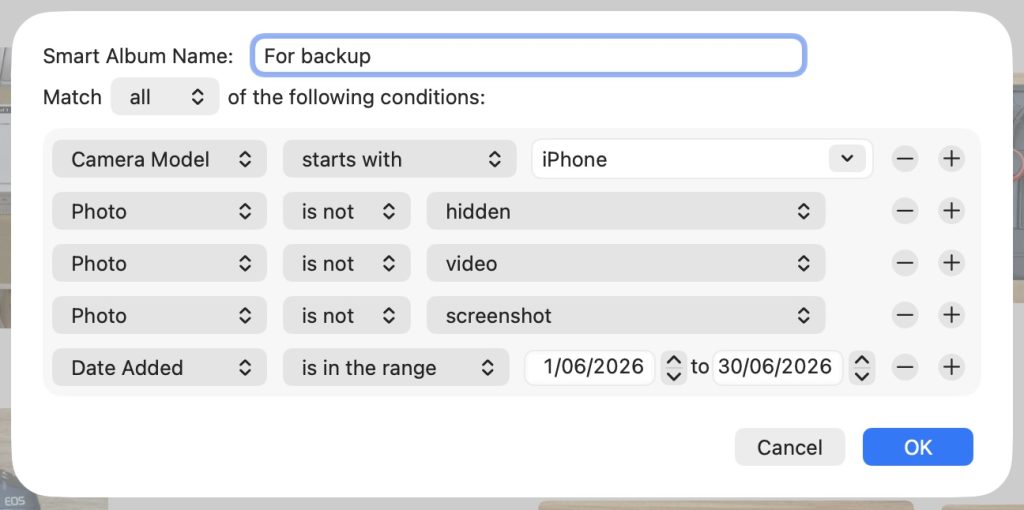
I had specific requirements on what I wanted to be included. Or, more specifically, what should be excluded. My Smart Album criteria say to match all the following:
- Camera model starts with “iPhone” — This excludes imported copies of my processed DSLR photos which, as previously mentioned, I archive in other ways.
- Photo is not hidden — I have a few medical images in my library which are hidden for good reason. No need for those to be preserved!
- Photo is not video — I don’t take many videos, and I decided the amount of space taken up by them isn’t warranted in this archive.
- Photo is not screenshot — I take far too many screenshots for various reasons. Again, these are not required for posterity.
- Date Added is in the range…
This last entry is what I update each time I perform archiving. Generally, I have been doing a month at a time. In fact, after being reminded of the task as a result of the Toot, I decided that from 2025 onwards, I will split them up into monthly folders. So this will now always have a range of dates from the first of the month to the last of the month.
Once I have updated the Smart Album to select a new month, I simply select every photo in it, with Cmd-A, then Export Originals, with Cmd-Opt-E. I select a special folder in my Pictures folder, called Exports. Using Export Originals means I get both HEIC files and the accompanying MOV files for any Live Photos.
Originally, that was the full export process, but with many old photos from old phones, I’d ended up with duplicate file names that macOS would suffix with numbers. My decision to segregate months would have addressed that, but Rui’s post got me thinking.
Now, the Exports folder is watched by Hazel, the automation app from Noodlesoft. Hazel runs a couple of rules that rename each file based on the date and time they were captured, addressing the duplicate name issue, and then sort them in to year/month folders based on the that.
Once Hazel has done its thing, I move them to a folder on an external hard drive that is included in my Backblaze backup. That’s it! I have the photos successfully grabbed from iCloud and placed somewhere more accessible. It generally takes me less time to update the Smart Album and select everything for export than it does for Photos to actually export 50–100 photos.
It’s easy to keep track of the last time I did the archiving task, too, because the Smart Album definition will show the last month I processed.
Maybe you prefer Rui’s approach, or perhaps you’ll prefer mine, or perhaps you’ll come up with a hybrid approach or even your own. But, please, do come up with something that makes your photos more accessible. There have been many words written about the impermanence of digital media over the years. We owe it to future generations to make it as easy as possible to access our recorded history.
Hi, Allister!
Years ago, when I became an Apple fanatic, I turned all my photo management over to iPhoto. It seemed to work, and back in the days of “MobileMe” I coiuld even share albums directly from my computer to anyone with an internet connection.
Then I had two problems:
(1) I had exceeded the INDEXING capacity of iPhoto and it just froze. As best I could tell, and I think this may apply to the contemporary Photos app, it was driven by an SQLite database. Apple updated iPhotos to extend its indexing capacity, and I was back in operation. But that led me to decide I wanted a backup for my photos, and with Google Photos then being new and free and supposedly unlimited, I decided to let Google slurp them in.
(2) Which it was sorta' able to do because Google had some really smart programmers and at that time I trusted their "don't be evil" pledge.(3) To do that effectively required my processing the iPhoto "blob" which was organized in essentially non-human readable structure. Not by how I would do it, chronologically in folders by date, but in folders, sub folders, and thumbnails it was very difficult to parse. And with many duplicates, so many I bought an application specifically to de-duplicate my iPhoto library --- eventually I had it ready let Google suck it up, and to do that left the computer on for days as our limited "broadband" was really, really tedious.
(4) Later a less naive me decided to accept Google's offer to let users retrieve all their photos in a giant download. Took forever, and kept breaking the huge zip file Google was trying to transmit.
That’s when I took all my photos and arranged them onto a couple of external backup drives into chronological folders with, when I had the time, added descriptive info in the file names. I’d given up on trying to embed metadata tagging because that seemed to get borked in transitioning from iPhoto to Google and back to managing photos and files in Finder and avoiding any connection to Apple’s extremely proprietary iPhoto structure.
I’m still doing the same, although they’re currently resident on a Synology NAS. Synology has a “Photos” program that works better than iPhoto did, but I usually just troll back through my Library using either Finder or the Synology “Files” app.
I found the app “Name Mangler” from Many Tricks extremely helpful. I reviewed it on the Nosillacast long ago. Then, ugh, as I recall Many Tricks required new payment with a version iteration, and I just wouldn’t. There are other macOS re-namers that go beyond what’s built into Finder, try at your own risk. If you’re running a Linux VM, try KRename, a free and powerful option.
I also had Hazel. Again, as I recall, I gave up on Hazel due to iterations requiring new payments. I’d also experienced some wonkiness as Hazel might send a file I thought would go into a specific target folder off into the ether where I would have to track it down. That was likely user error, by George!
I had an iPhone for about a month. And found it very frustrating after years of using the more computer OS like Android on Google’s Nexus then Pixel phones. It would happily send my photos by wire into the macOS Photos App, where I did not want them, or I could use macOS “Image Capture” for more granular but very tedious tranfer.
Instead I found the wonderful open source program “Local Send.” Which can be downloaded at LocalSend dot org – note I’m not typing it in as a web URL because doing so seems to get my comments bleeped.
LocalSend nearly made the iPhone tolerable. But I gave its $1,500 self to my son-in-law and ordered a Pixel 9. On which LocalSend works really well to send and receive any kind of file between my phone and Mac. It also works as a handy tool to send files back and forth across our local office network, and works on iOS, Android, Windows, Linux, and Mac.
Thanks George. This just goes to show two things — everyone has different wants and needs, and Apple continue to frustrate most!
Frustrate most?
I regularly think back to one of my more profound back-and-forths with Bart. Been a long time, but I believe it was while I was trying to cling tenaciously to Snow Leopard. Bart’s response was, essentially, just let Auntie Apple have her way, because she ultimately will. Given the ever-increasing millions who use (mostly iOS devices) Apple’s products, I’d say he’s right. If you’re happy within the Apple ecosystem, you’re likely happy.
It’s folks like me (and possibly, you, Allister) who are exposed to other operating systems that afford users more control who become frustrated. If I just let Apple manage my photos, and paid Apple for the iCloud storage to back ’em up, I might be walking on (more) sunshine.
FWIW I have the UTM virtual machine on my Mini M4 with Debian installed as a Linux VM. Works quite well. I just confirmed that KRename is available there for granular file re-naming.
PS > for anyone new to UTM who wants to try it out, get the Mac App Store version. I first used the free direct download, which did not auto-update the UTM host. The $10 at the App Store helps support the open source project AND keeps working where the direct free version can quit require a complete re-install.
In theory, it’s possible to run Windows, Linux, a variety of rate operating systems, and even old macOS from the Silicon era forward. I’ve only tried Debian, which is a Linux distro.