
You know the phrase, “Just because you can do something, that doesn’t mean you should“? I think there needs to be another phrase, something like, “Just because you might be able to do something, you should try.”
That’s the way I feel about the nearly two and a half hours I spent over the weekend trying to install an application on Linux in a really difficult environment. Let the record show that I didn’t need to do this. But every step of the way, I really felt that success was right around the corner. I knew that my time could easily have been better spent, but I couldn’t stop myself from trying even when the level of effort became absurd.
The Problem to Be Solved
In a desperate attempt to justify the time I spent, let me see if I can come up with a believable problem to be solved. I’m working on a ScreenCastsONLINE video tutorial that will include teaching how to use the menu bar app, Blip, from blip.net. Blip, as I explained in my article from 2025, Fast Point-to-Point File Transfer with Blip is an AirDrop-like application that works across macOS, iOS/iPadOS, Android, and Windows. I noted in the article that Linux was “coming soon”, which is normally French for “Don’t hold your breath.”
And yet, when I started working on a script for my tutorial, I discovered that Blip is now available on Linux! Even though the ScreenCastsONLINE audience is primarily Apple-biased, I knew that if I could demonstrate how even Linux gets to play, it would cement the concept that Blip is truly cross-platform.
I put out the call for help in the Podfeet Slack podfeet.com/slack in hopes of finding someone running Linux who could help me demonstrate the experience. The awesome and delightful Eddie Tonkoi said he’d be glad to help. The only problem is that we are 14 time zones apart, so creating a video of both sides at the same time would be impossible.
Eddie did end up making the final video for the tutorial by recording on his end, but let’s not muddy up the story with the relatively simple solution, shall we?
Linux on Synology
The story starts at 1:45 PM where I had a few hours to myself during naptime of the grandchild I was managing in Texas.
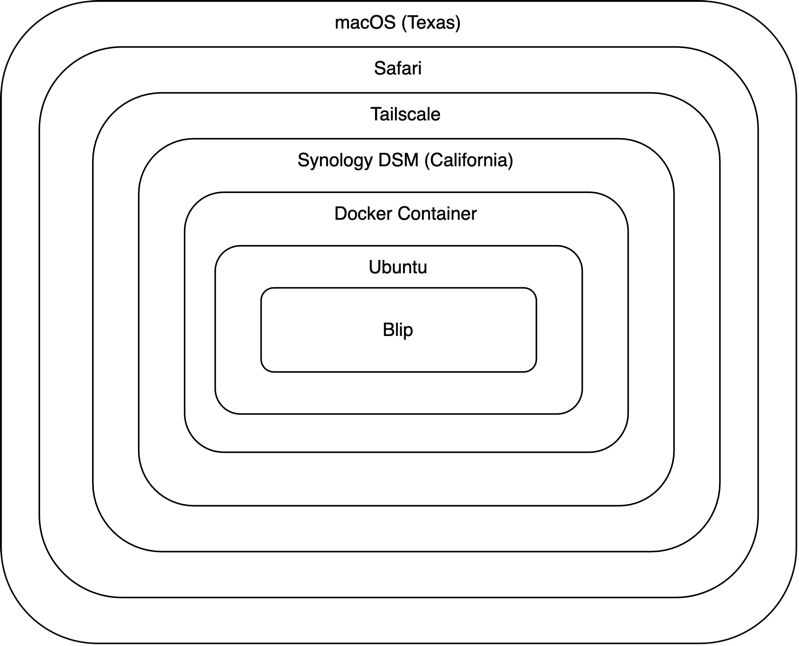
I don’t have a Linux box, nor do I have an old machine that could be repurposed for the task. What I do have is a Synology at home. I can see the Synology desktop from a web browser like Safari on my Mac due to the magic of Tailscale. So we have a Mac using Tailscale to open a web browser to view the Synology.
On a Synology, you can create Docker containers. I won’t go into the full, technical explanation of Docker containers, but it’s ok to think of them as being sort of like virtual machines with significant benefits.
If you want to understand how they’re different and why they’re cooler, I highly recommend you take a read and/or listen to Helma van der Linden explain the advantages of Docker containers in Programming By Stealth Tidbit 17. For this exercise, you only need to know that Docker containers can provide a full operating system, such as Linux.
Ok, my goal is then to have a Mac running Safari viewing the desktop of a Synology over Tailscale running a Docker container running Linux. The final step would be to install Blip.
To summarize again, I want Blip running on Linux running in a container running on a Synology being viewed in Safari via Tailscale on macOS. Should be simple, right?
Installing a Linux Container on Synology
I know my way around the Container Manager app on Synology’s DiskStation Manager (DSM), so I knew where to start. If you’re a super geek like Helma (or learned from Helma), you know how to build your own Docker containers. But if you’re a bit less nerdy, you can use the Registry tab to look for pre-built images, which will then build the Docker container.
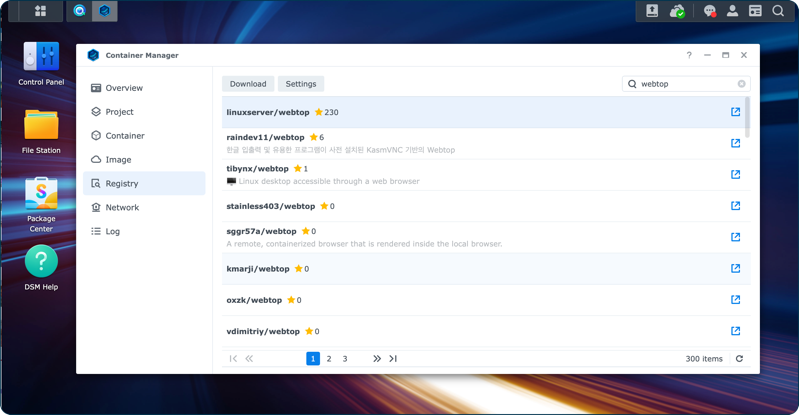
I asked my able assistant, Siri AI, for a recommendation of a “nice and light” version of Linux, and it suggested Alpine Linux. I succeeded with the installation inside the Docker container, but when they say “light”, they mean really light. Remember how we used to joke about how Spirit Airlines kept the prices low because you have to pay extra for a seat? Alpine is like that.
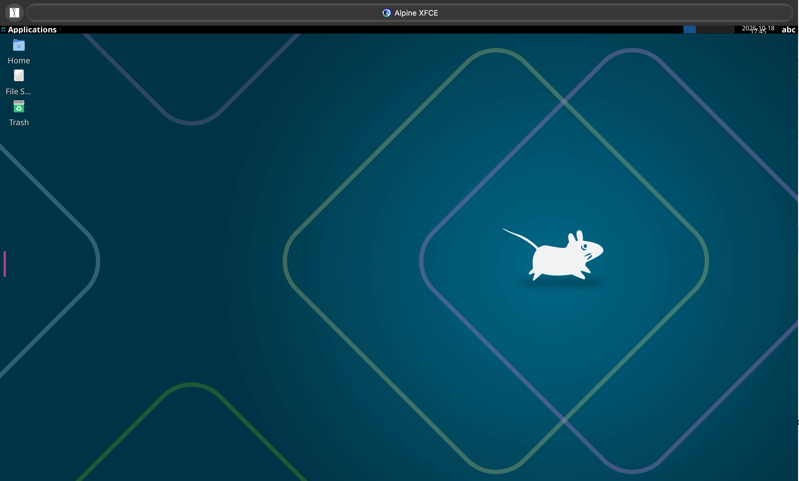
There wasn’t even an applications folder! I finally discovered that by right-clicking on the desktop, I could launch Terminal, but that was it. Time to abandon that whole path!
I downloaded the image again for linuxserver/webtop, and this time asked for a version of Ubuntu. That sounded pretty mainstream.
But get this. In the middle of following Siri AI’s instructions on how to install the Ubuntu container on my Synology, Siri AI ended the conversation! Say what??? You don’t get to just leave. Were you bored? Had more fun things to do? Where did you go?
With Claude, you can ask it to absorb a previous conversation, but Siri AI said, “Naw, no can do, man.” I may have said a non-Girlscout-safe word.
I gave it some context in a new conversation, and it successfully helped me install Ubuntu. When I went to the URL of my Synology on my Tailscale with the correct port, I was greeted with a very pretty desktop and an actual applications folder. I found what it called “Web browser” with no branding, but I saw it defaulted to DuckDuckGo for searching, so I knew I was in a happy place.
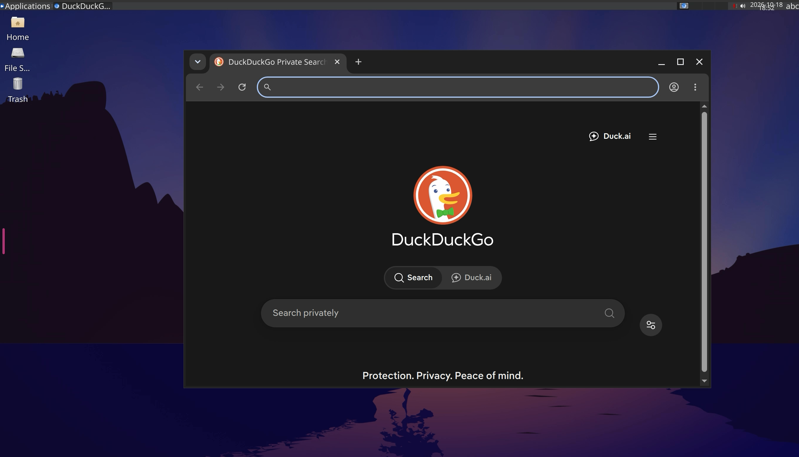
At this point, I sent a note to the Podfeet community in our Slack saying, “I HAVE MADE FIRE!” Now all I had to do was install Blip by going to blip.net. Easy peasy, right?
Seventh Circle of Hell
At blip.net, if you select Linux as your operating system, you see two shiny buttons to run the installer from a GUI: “Get it on Flathub” and “Get it from the Snap Store”. Below that are three tabs: Arch, Nix, and Other.
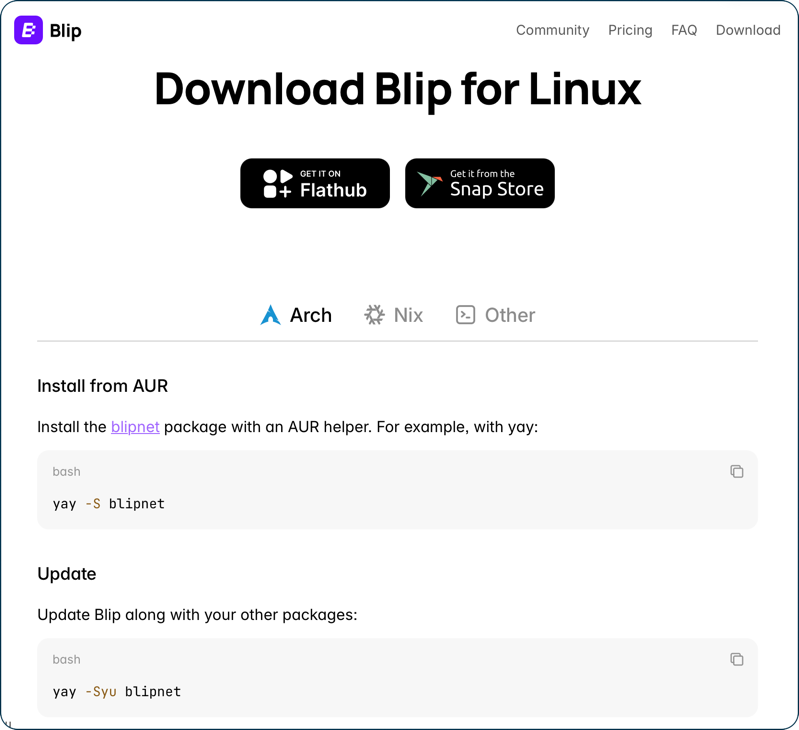
I asked Siri AI to explain the options. I learned that Flathub is a community-driven store that is the preferred choice for non-Ubuntu distros. Snap Store is developed by Canonical (the company behind Ubuntu). That Snap Store option sounds dandy.
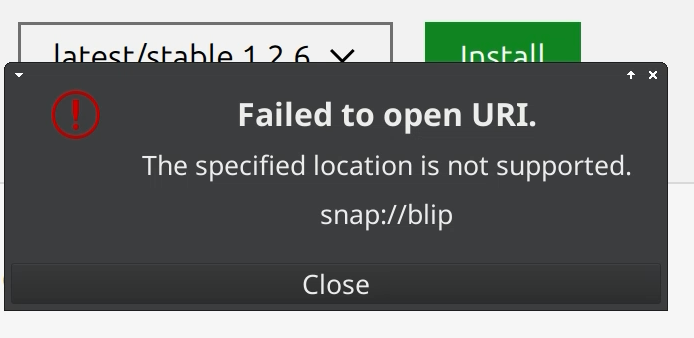
But dandy it was not. When I tried to install Blip from the Snap Store, I was greeted by an alert that said, “The specified location is not supported. snap://blip” with no options but to close. How rude!
Siri AI suggested I try installing Blip from the Snap Store, but this time from the command line. It gave me the very easy command: snap install blip. But this threw an error: “snap: command not found”. Silly goose, everyone knows that you have to install snapd with apt install snapd first. Now, can I install Blip with the snap command? Nope. Long, gloppy error telling me it can’t be done.
error: cannot communicate with server: Post “http://localhost/v2/snaps/blip”: dial unix /run/snapd.socket: connect: no such file or directory
At this point, Siri AI confessed that installing from the Snap Store will never succeed because I’m working in a containerized environment. As my friend Pat Dengler likes to say, “Le sigh.”
But remember those three tabs I mentioned: Arch, Nix, and Other? Each of those has a command line method of installation for different Linux distros. Evidently, Ubuntu is considered “Other”. In that tab was a relatively familiar curl command to fetch and run a shell script to install Blip.
curl -fsSL https://static.blip.net/linux/install.sh | bash
That threw an error, “Function not implemented”, which Siri AI told me was an error during the tar extraction (like opening a zip file). Guess what? It’s not supported by the underlying file system in my container. Cool cool.
At this point, would you have stopped and given up? Absolutely, and I would have supported your decision. But I still had that Flathub button I could try for the installation, so I soldiered on.
I was not to be rewarded for my tenacity. Clicking the Flathub button returned:
flatpak remote-add command not found.
Eventually Claude explained that this is a “known issue when trying to run modern sandboxed applications (like Flatpaks) inside older or incompatible container environments.” Now where have I heard that before?
Sidebar to talk about Selkies Clipboard Manager
I’m going to take an interlude from the main plot to explain something really interesting about this installation of Ubuntu. Remember that I’m working almost entirely on the advice of an AI, which means I need to copy and paste error messages and new commands back and forth between macOS and Ubuntu. Any hopes of doing ⌘C and ⌘V between them were quickly dashed.
Siri AI told me to look for a short, vertical red line on the left edge of the screen. This opened a set of options in a vertical column with the name Selkies at the top. The helpful section was entitled Clipboard.
This little window would accept a paste using the standard ⌘V from the Mac side. Once I pasted a command in there, I could use ⌃⇧V to paste into the Terminal in Ubuntu. To copy and paste in the other direction, I had to use ⌃⇧C in Ubuntu, ⌃⇧V to paste into the clipboard manager, and then ⌘V on the Mac.
It was certainly clumsy and very easy to get your brain broken remembering which OS I was talking to, but it was easier and less error-prone than typing in arcane commands.
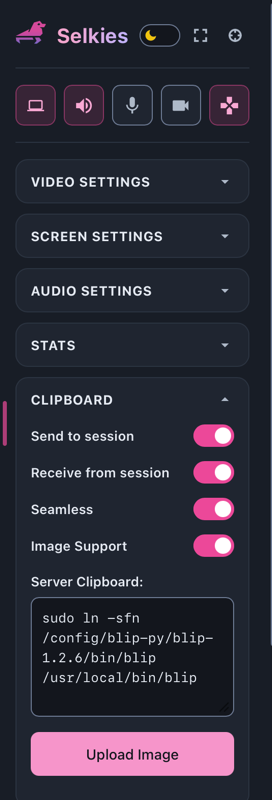
I don’t actually know what Selkies is, but I know it gives me a clipboard manager so that’s cool.
Back on Topic
Ok, where were we? Snap Store didn’t work, Flatpak didn’t work, Curl didn’t work … and then Siri ended the conversation again.
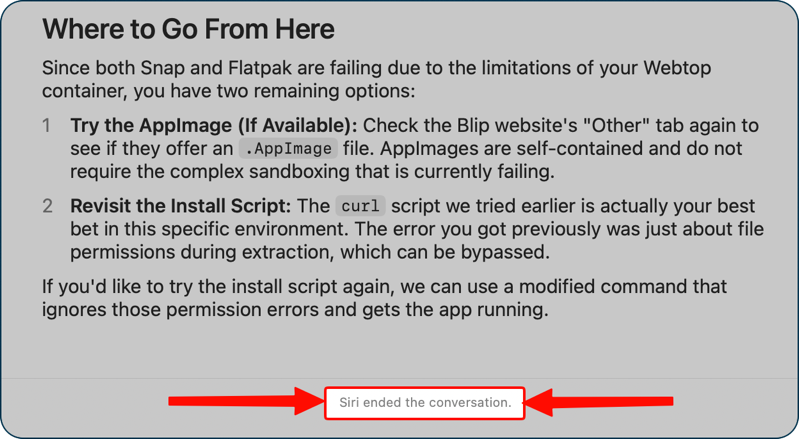
Siri AI does a great job … until it doesn’t.
I started this whole exercise at 1:45 PM. Other than taking a 15-minute break to watch my grandson practice hitting a baseball off of a T he got for his birthday, I’d been working on this pretty much non-stop.
It was 4:04 PM when I switched to Claude. I gave it some context, and it wanted to try all of the same paths I’d tried before. But it did have one idea. It explained that the errors I was running into could be eliminated if I just flipped a little switch for the container: “Execute container using high privilege”.
This is where I used my one superpower dealing with AI. When it tells you to do something you don’t understand, ask it what could go wrong, or if it’s dangerous.
When it suggested I give the container high privilege, I said, “That sounds like I’d be circumventing a safety measure”. Claude answered:
You’re right. Privileged mode gives the container broad access to the NAS, so I wouldn’t use it for this. Skip that.
Sheesh.
But then it finally came up with an answer. Remember I had used the curl command to download a tarball, but it wouldn’t unzip? Claude said,
GNU tar is the likely culprit, since it uses newer syscalls your container blocks. Python’s tarfile uses older, plainer calls.
And then gave me the command to open the tarball and extract all.
mkdir -p /config/blip-py && python3 -c "import tarfile; tarfile.open('/config/Desktop/blip-1.2.6-linux-amd64.tar.gz').extractall('/config/blip-py')" && ls /config/blip-py/blip-1.2.6/bin
When that command did not throw an error, it said to launch Blip with the command:
/config/blip-py/blip-1.2.6/bin/blip
AND IT WORKED! I did a happy dance, for sure. I asked it to write me an alias so I could just use the command blip instead of all that glop.
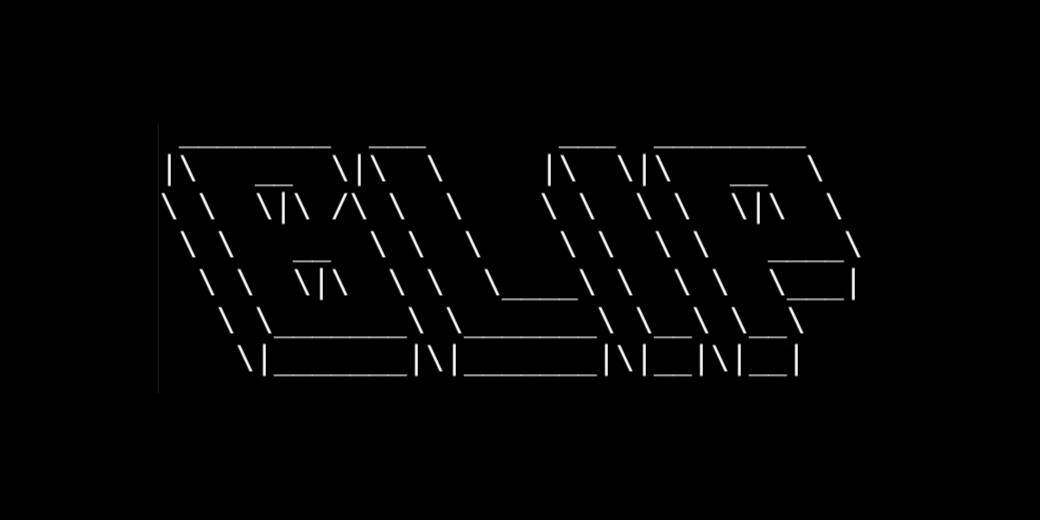
Technically, my shiny new Blip works, but it’s not exactly elegant. First of all, I’m launching it from the command line, and it also glops incomprehensible text all over the terminal before launching. I did enjoy that it wrote BLIP in ASCII text for me in the middle of all that glop.
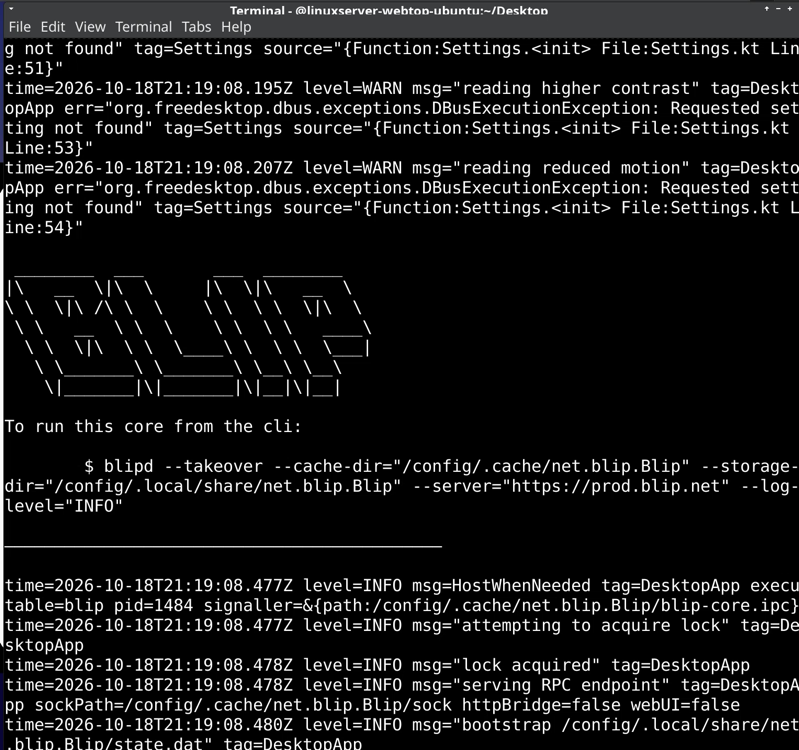
After that, I was rewarded with the Blip GUI, where I was able to send a file from Linux on the Synology over to my MacBook Air.
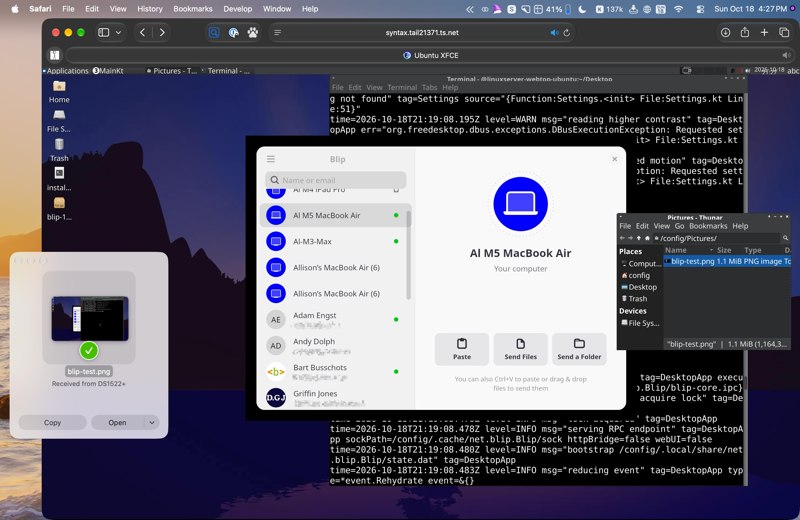
The time was 4:17 PM. Subtracting out the T-ball practice, that’s two hours and fifteen minutes from concept to success. For something entirely unnecessary. But boy, was I proud of myself.
Epilogue
After we returned home, while drinking my morning coffee, I was noodling how nerdy this whole path was, and wondered if there wasn’t a container that was more like “real” Ubuntu, not this linuxserver/webtop thingy. It’s really pretty janky with tiny icons and itty-bitty close buttons on the windows and all this command line glop. I asked Claude whether there was an easier way.
It suggested I just use a Virtual Machine, not a Docker container! Synology has an app called Virtual Machine Manager, and in about 15 minutes I had a much cleaner, “real” version of Ubuntu running on my Synology. And most importantly, it had something called App Center, which accesses the Snap Store, and it had a one-click install of Blip!
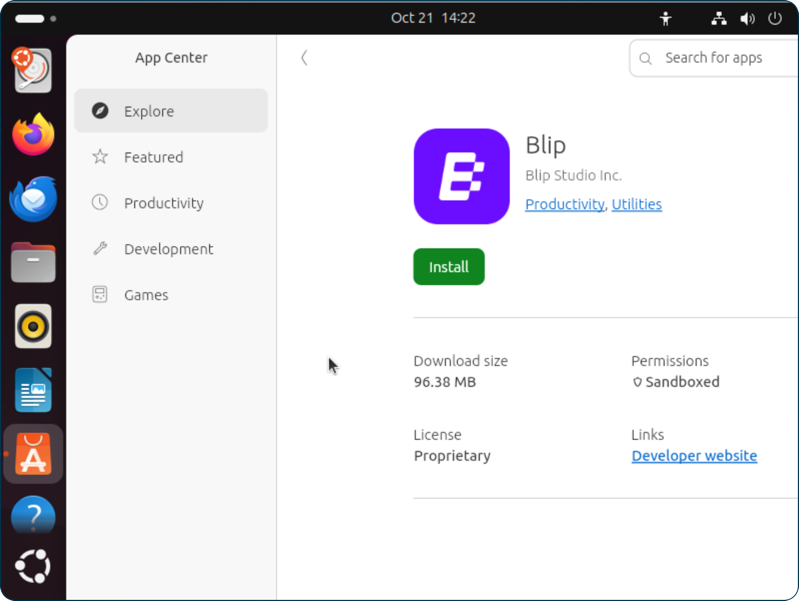
I mentioned to Tomaž, the developer of Blip, what I had attempted to do and he told me they’re working on creating a pre-built container for Blip just for NAS devices. Isn’t that amazing?
Bottom Line
I don’t regret the adventure at all, because I had a lot of fun. Did I need to do any of this? Nope. Would I do something like it again in the future? Absolutely, I would.