
I’m a big fan of the messaging app Telegram because of the user interface. Everything about it is better than Apple Messages. One of the things that I love about Telegram is that you can search within a conversation with a single person or a group conversation. With Apple Messages, there’s no way to select a conversation and then search within it. If you search, it searches every single message you’ve ever sent to anyone.
I’ve been annoyed about this for years, but just this week I started thinking about it again, and wondered if AI could find a way. I asked Siri AI for help. Her first answer was to just search all messages, and then in the left sidebar, click the person or group I wanted to search within, but that entirely missed the point.
I clarified a little bit, and then Siri AI gave me the start of a solution, and I messed around until I cracked the code. Maybe all of you knew how to do this, and this article will only serve as where I’ll go to refresh my memory on how to do it, but I’m ok with that.
Searching on macOS
I started with macOS so let’s start there and see if we can replicate the experience on iOS.
Let’s say I want to find something in a conversation I had with my daughter Lindsay. In the search field in the upper left, if I type in Lindsay, it shows me the different conversations I’ve had with her alone or including other people. My nickname for her is Lindsay Loohoo. I can click on any one of these, but that immediately opens the conversation with her, taking me out of the search field.
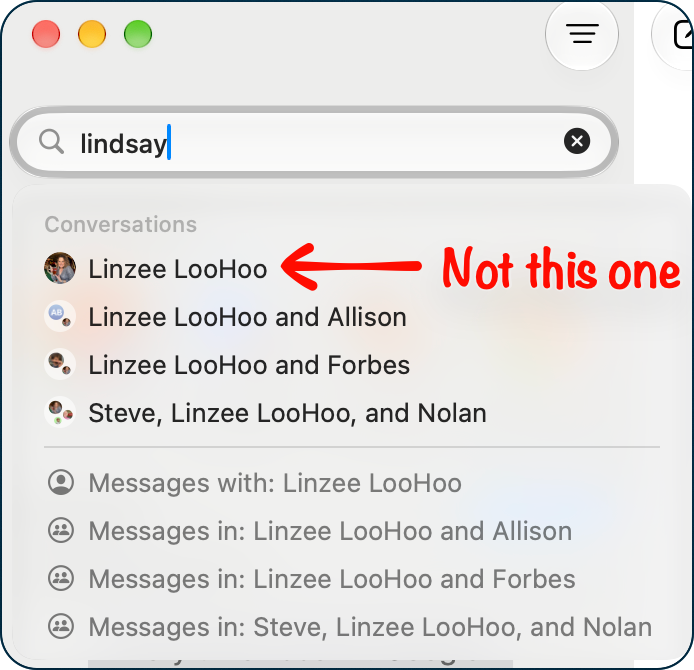
If you keep reading lower, there’s a horizontal rule and then a series of greyscale options. These are called search tokens. These include “Messages with: Lindsay LooHoo” and messages where she’s in conversations with other people.
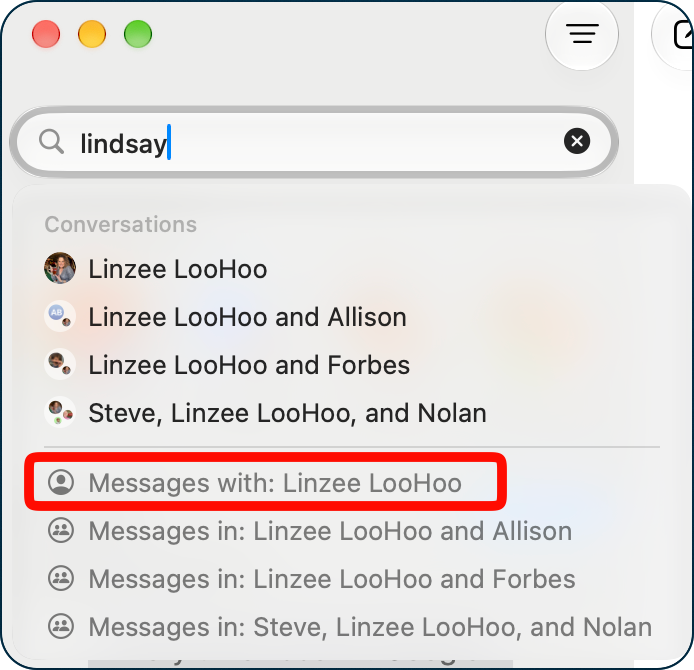
If you select one of these search tokens, the person or group selected becomes a token in the search field. Now you can type in a search term, but don’t hit Enter right away. After a brief pause, you should see images and videos at the top that matched your search, followed by text messages that might be what you’re looking for. I was rewarded with two photos and two videos of my grandkids around Halloween.

This also works well with named groups in Messages. We have a group called “CES Squad”, which is a subset of the folks we see at CES each year, and I’ll use that as an example. After entering that term, I could choose CES Squad from the grayscale list, making it into a token, then search for “ShowStoppers,” one of the press events we attend together. Without clicking anything or hitting Enter, I could see a series of messages. Each message discovered has a right-facing chevron, indicating that you can open the conversation right at that message.
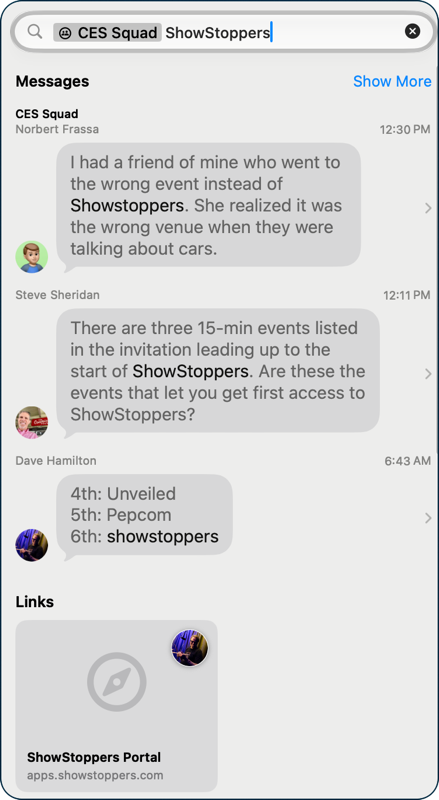
In my example, the first four results were three text messages and one link provided by Dave Hamilton to ShowStoppers. Let’s say I just wanted to find any links to ShowStoppers. Turns out there’s a filter to do that.
First, select which conversation you want to search; in my example, CES Squad. As soon as you do that, you will see four options in a dropdown: Links, All Photos, Locations, Documents.
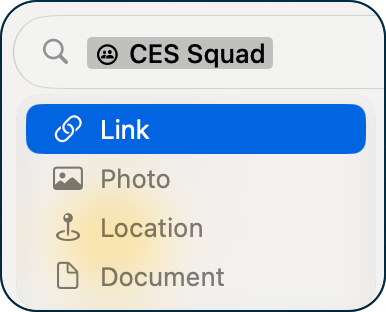
If I select Link and hit Enter right away, I’ll see all links posted to this conversation. But if I don’t hit Enter, I can type a search term, such as “ShowStoppers” and then in a second or so, it will filter every message we’ve had together down to only links that include ShowStoppers.
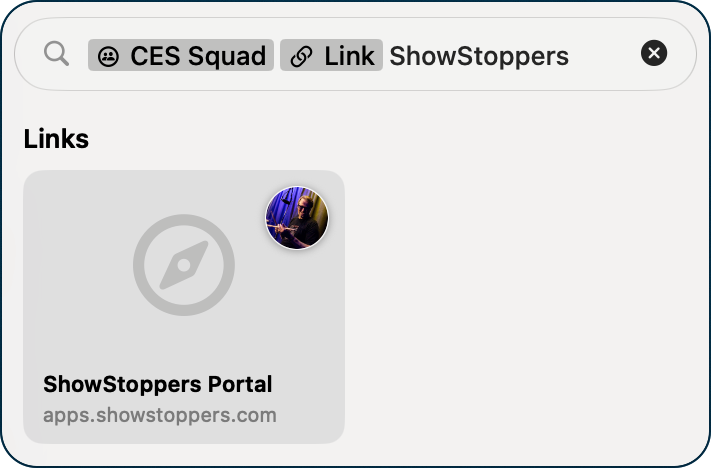
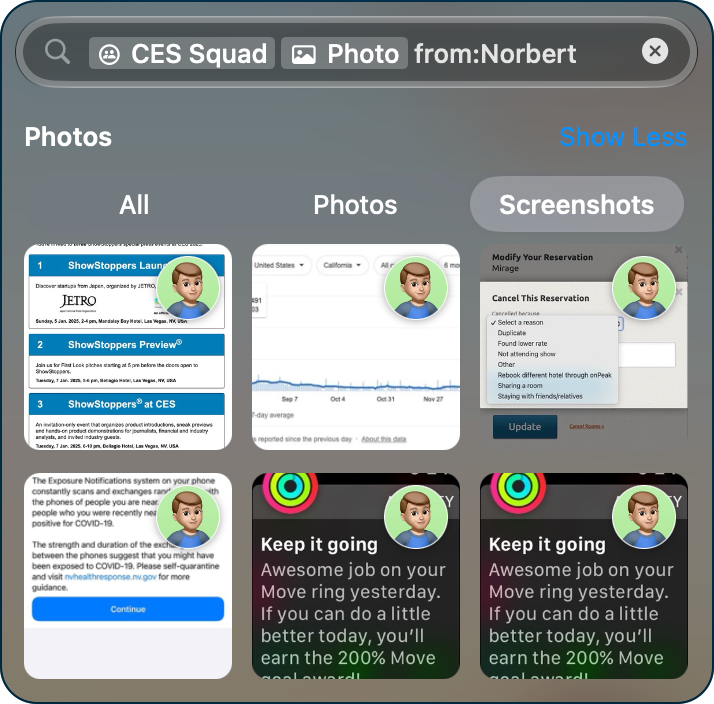
Very cool, right? While links are useful, try filtering by Photo to see every photo you’ve ever shared in the conversation (or search for specific photos). It even overlays the avatar of the person who shared each image.
At the top of the grid of images, you’ll notice tabs for All, Photos, and Screenshots so you can filter even further.

After the tokens to filter by CES Squad and Photos, on a lark I tried typing “from:Norbert” and amazingly I was able to filter down to just images from Norbert at CES.
At this point, I was getting pretty bullish on searching in Messages. It gets a little trickier if you don’t have a named group. For example, I have a message conversation with David Roth and his lovely wife, Jennifer. If I search for David Roth, I see 4 options in the search token section. One is with David alone, one is with David, Steve, and Jennifer, one is with David and my son Kyle, and one is with David and Doreen.
None of these options are for just David and Jennifer.

It took me a bit to crack the code to find the conversation I wanted if it wasn’t listed as a search token. It seems that those combos you see when you start to type in a name are just a few suggested groupings, but you can put together the group you’re looking for without using one of the suggestions.
The trick is to select the individual person from the search token list, making that first person a token for the search. Then start typing the second person’s name, and you’ll get an independent token for them. I typed Jennifer, selected her from the search token list, and then I was able to search for anything just the three of us chatted about.
I chose Document this time, and I could see where I had shared one of my world-famous international travel diagrams, and David had shared his energy bill.

Searching Messages on iOS
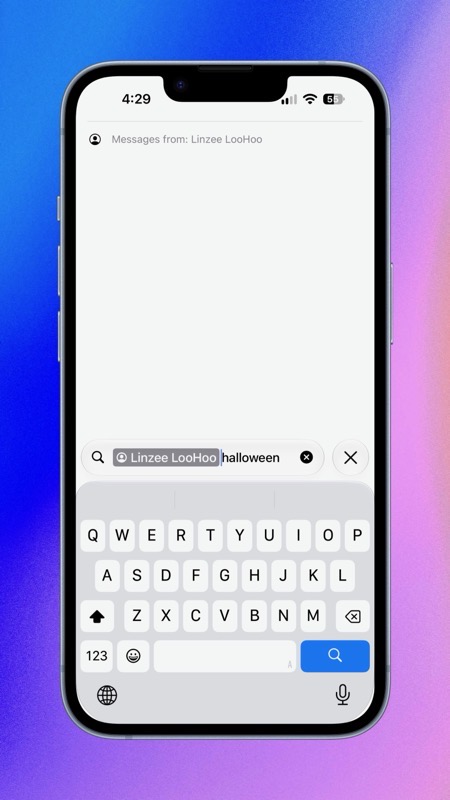
Let’s take a look at the same search methods on iOS to make sure it works there too. I searched for Lindsay, and when it gave me the search token options, I chose Linzee LooHoo, and then added “halloween” as the search term, just as I did on macOS. Sadly, it did not show me the Halloween photos and videos from my daughter, and in fact found no search results at all. I tried it several times, trying to determine if I’d done something different, but it never worked for me on iOS. I tried searching for other words, and they succeeded; just not the one example I tried for this article. ¯_(ツ)_/¯
I tried searching within CES squad for ShowStoppers, and this time I was rewarded with a few text messages and the link Dave sent to the event. Next to each section, there is a “See All” which would reveal all of the messages and links that match.

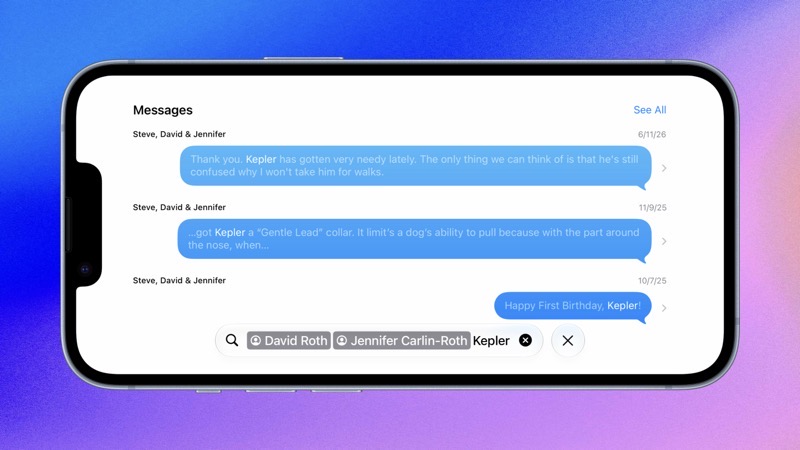
Let’s see if I can replicate searching within an unnamed group conversation on iOS. If I type in David Roth and select him from the search token list, and then I type in Jennifer, just like on macOS, I can select her in the search token list so I can add her as a second token. And now I can search for something we talked about together, like Kepler (we talk about dogs a lot), and it successfully finds discussions matching my query.
Bottom Line
The bottom line is that I’m delighted to have cracked the code on searching in individual message conversations. Sadly, search didn’t work at all in one of my queries, but hey, we’re used to that with Apple, amirite?