
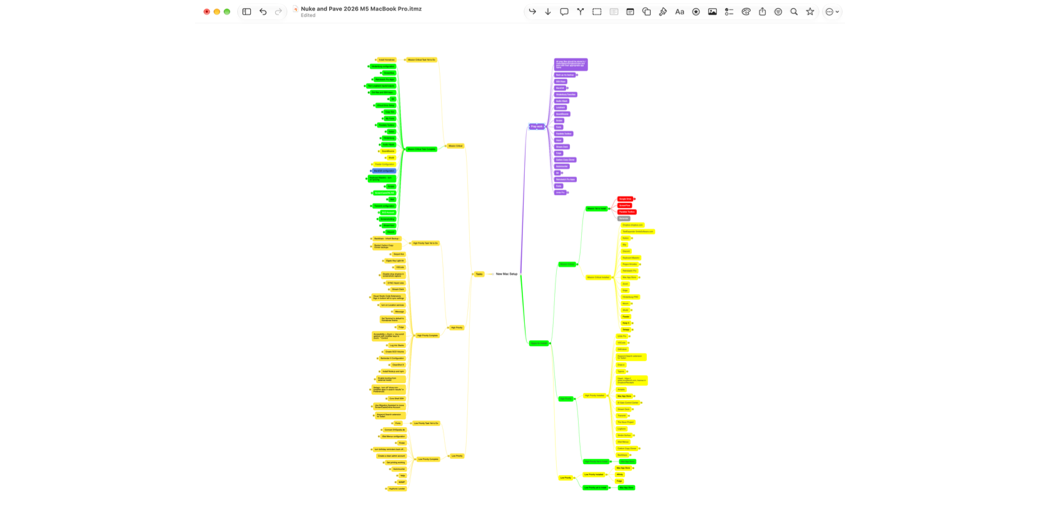
Over the years, I’ve been a big fan of doing a nuke and pave every few years, and I always do a clean install when I get a new Mac. But in 2024, when I bought an M3 Max MacBook Pro to replace my M1, I decided to use Migration Assistant because everyone else said it works just dandy. Migrating everything like that was also a passive-aggressive move on my part to try to prove that it wasn’t anything about my apps and settings that caused massive battery drain on the M1.
I felt compelled to document just how badly Migration Assistant worked for me in my article titled, Why Does Everyone Say Migration Assistant Works Great?. While nuking and paving is a long process, with good documentation it’s a very repeatable process. In stark contrast. Migration Assistant kept surprising me with things that didn’t work after the migration. It was not joyful to go spelunking through app settings and files to try to figure out why things were broken. It was constant papercuts, and I didn’t enjoy it one bit.
I decided that Migration Assistant wasn’t for me and that I would go back to my arduous but repeatable clean install process with my glorious mind map to guide me.
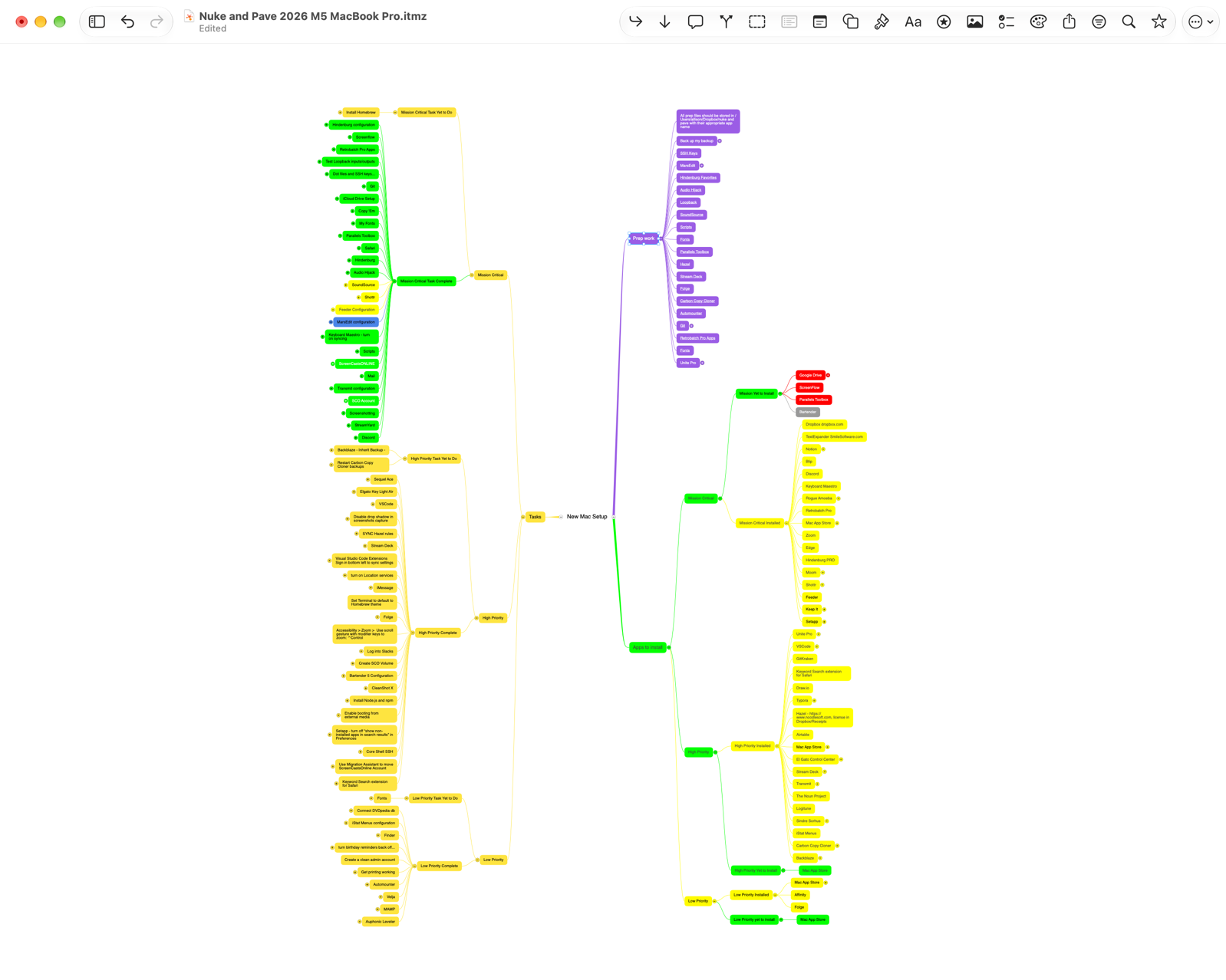
But this week, when I got the new M5 Max touchscreen OLED MacBook Pro, I accidentally stumbled into a new process that was the best of both worlds.
Use Migration Assistant AND do a Clean Install
In previous years, my clean install process was to manually drag over all of my data files from a backup drive, and then download every app from scratch. But this time, I used Migration Assistant to move just my files, and then did a clean install of all of my applications.
The big difference is that every little preference file buried deep into the file system, every little dot file, every configuration file, all were migrated over before I installed the apps. That meant as soon as each app was newly installed, it instantly worked as before. It was only in very rare circumstances that I had to configure anything at all!
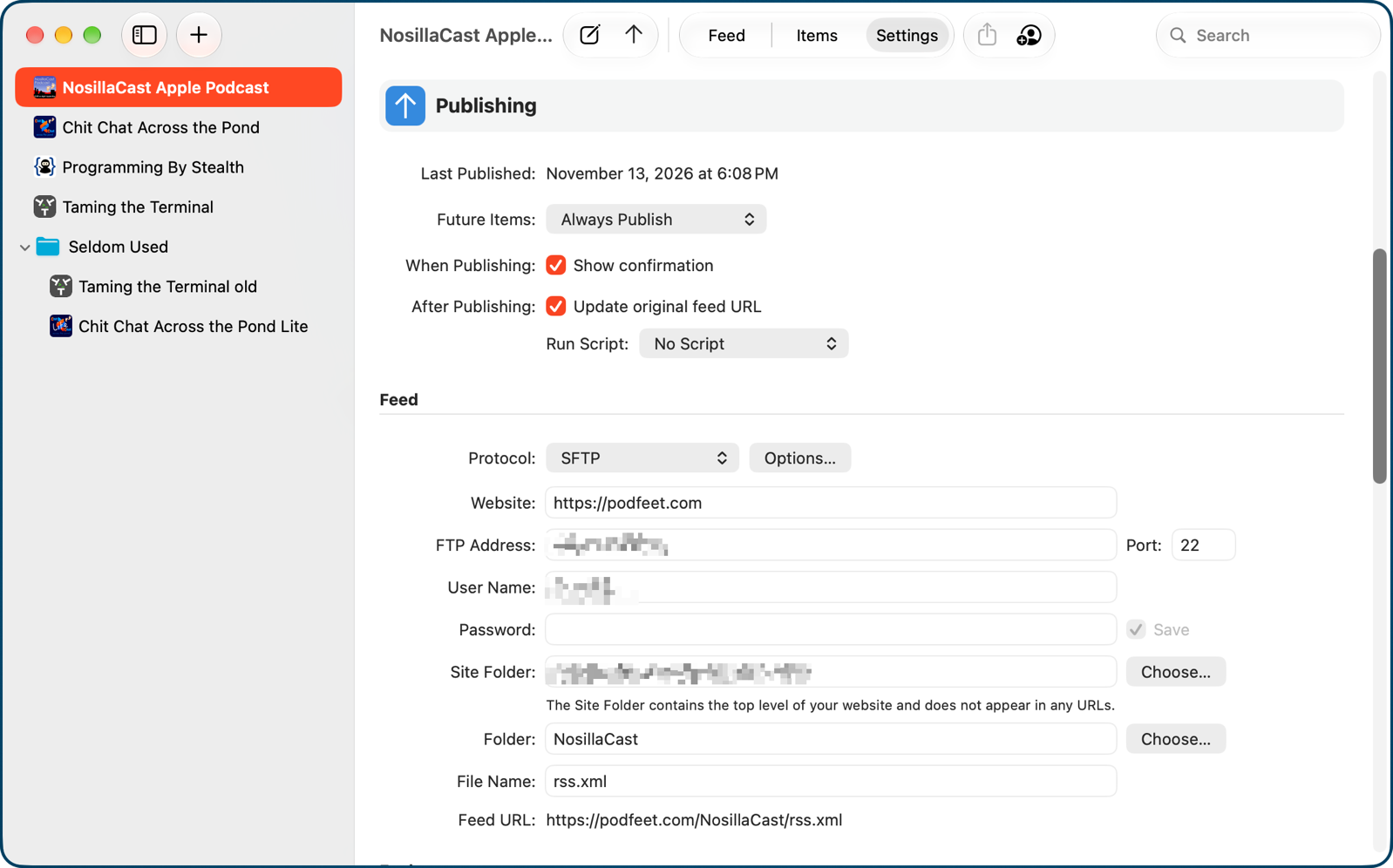
For example, with the application Feeder, which is what creates the podcast feeds for you, there’s an elaborate configuration of how the feed gets created, what kind of images go with it, and how to connect to my server. When I opened Feeder after a clean install, all of those configurations were there! The only thing I had to do was point to my public and private RSA keys to allow Feeder to connect to my server. But importantly, all of my RSA keys had been migrated over, so it was quick work to point to them.
Even simpler configurations came across. I use the app Wispr Flow for dictation, and I have overridden the default special keystroke with one of my own. After installing the app from scratch, it responded to my special keystroke!
A few applications made life harder. I use Unite Pro to create site-specific browsers for certain social media sites, and those applications would not open on the new Mac. I had to go back to the old Mac, export the configuration files, and import them one by one back into Unite Pro. That’s a pretty weird, specialized application, but it would have been niftier if it had just worked.
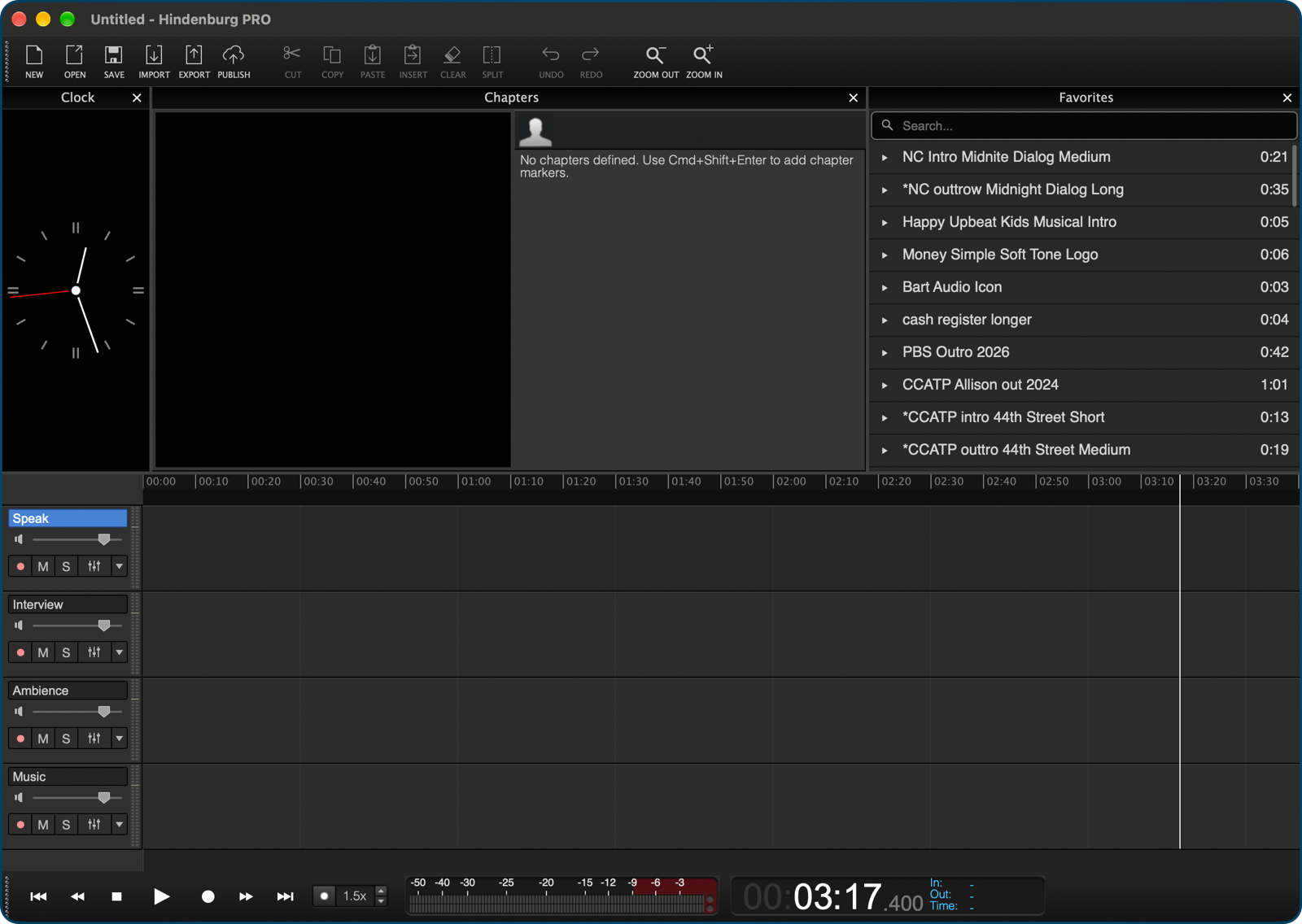
In Hindenburg, the application I use to record the podcast, I have a set of audio files preconfigured inside the app, such as the Chit Chat music, the NosillaCast music, Bart’s audio icon that plays after any segments he’s on, and my spoken outro for Chit Chat Across the Pond. For the first time ever, I did not have to import those audio files back into Hindenburg. They were all there … except one. No idea why that one got left behind, but I keep a copy of it in Keep It, so it was quick work to put it back.
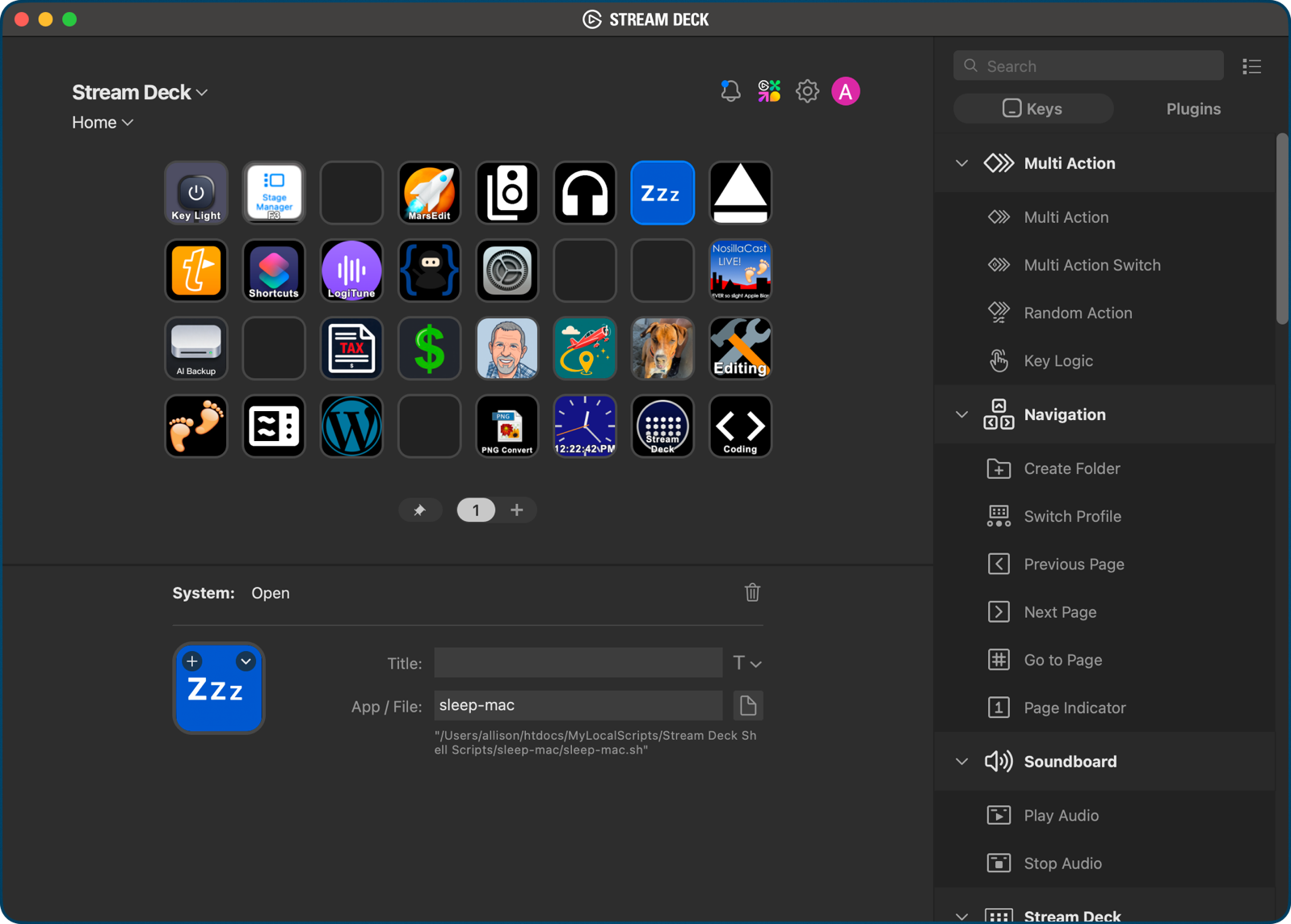
I have a love/hate relationship with my Stream Deck, and one of the things I hate is that I can’t iCloud sync my profiles between two Macs. Profiles contain separate “pages” that you can flip through to add additional buttons. You have to export each page one by one, then import them manually on the second computer. But after Migration Assistant and then a fresh install of Stream Deck, all of my lovely profiles were there.
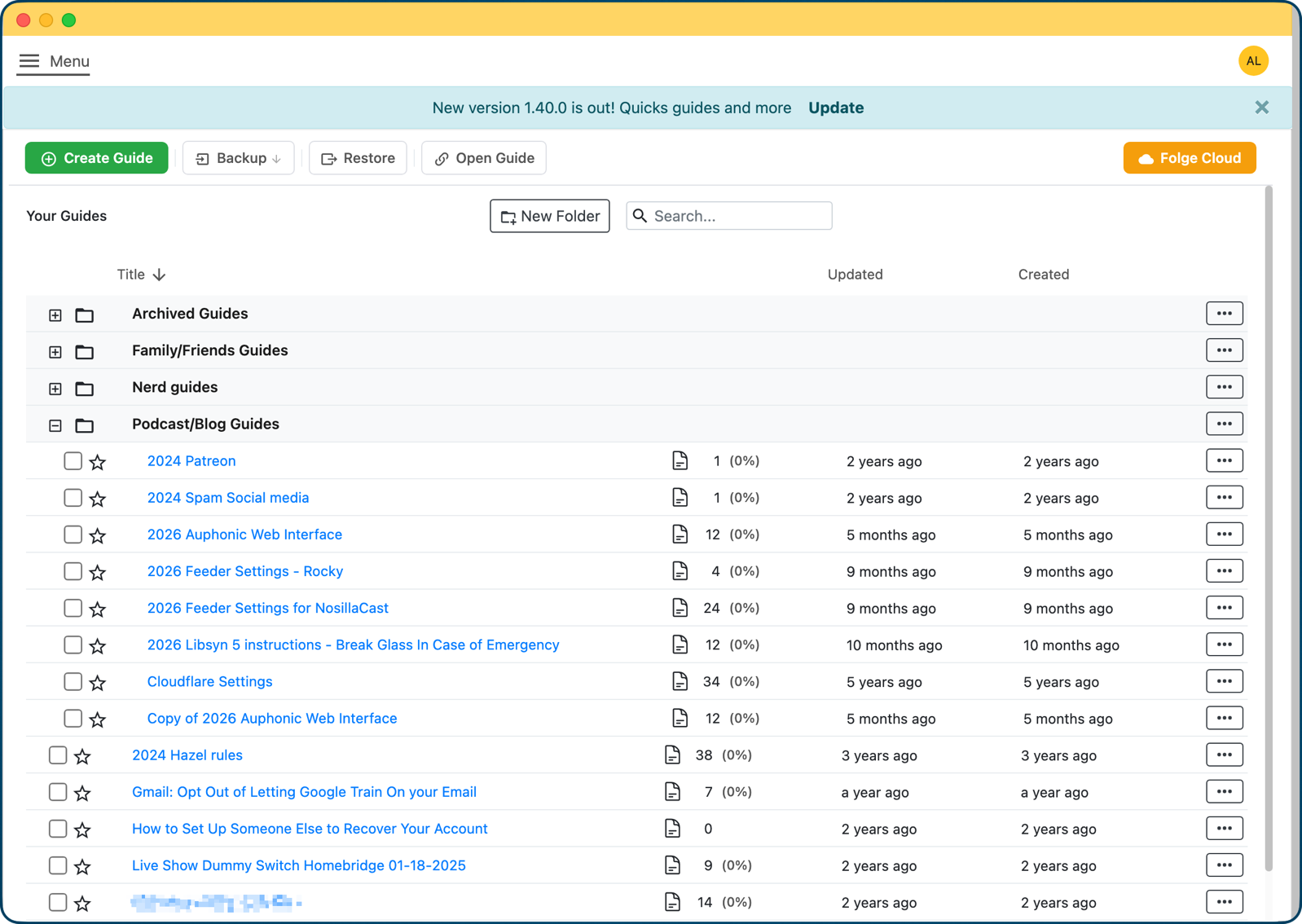
My favorite app for making guides with screenshots, Folge, is much like Stream Deck, where it’s tricky to move between computers, but I opened it to see all of my happy guides just as I’d left them. I should mention that Oleksii has recently added a cloud sync tool, but I haven’t really given it a good play just yet.
To open Under My Roof and immediately see my entire home inventory without any faffing about — pure joy. Now I just have to remember to get Steve to take a photo of me with my new Mac and put the receipts into Under My Roof.
In Terminal, you can choose a profile, which changes how it looks. I prefer the old-school Homebrew profile with bright green monospaced text on a jet-black background. I didn’t have to install Terminal, of course, but I was no less delighted when it opened looking like it should. Speaking of Homebrew, I figured I’d have to reinstall it from the command line and reinstall all of my command line apps, but that wasn’t the case.
Homebrew was already there, but when I entered brew update, it said:
% brew update

Error: /opt/homebrew is not writable. You should change the

ownership and permissions of /opt/homebrew back to your

user account:

  sudo chown -R allison /opt/homebrew
A quick change of ownership following its instructions sorted things, and it worked properly.
Photos — Why Did This Work?
I have one outstanding question with this new and improved process: why did Photos migrate beautifully?
Let’s go back up to why I would ask such a question. I have a 1.53 TB Photos library, and I keep the originals resident locally on my Mac. Over the years, various operating-system catastrophes have inspired AppleCare to suggest to me that I log out and back into my iCloud account.
The problem is that when you reconnect to iCloud, Photos checks every single photo, one-by-one, to see if the originals are indeed still local. Imagine it: “Here’s a photo, hey iCloud, is this the original? Yeah? Ok. How about this one? Yeah? Ok.” For more than 100K images and videos!
Since the slowdown is checking each photo, it doesn’t matter how fast your Internet connection is. Back when my Photos library was closer to 1TB, that process would take around 3 weeks. Even worse, while you wait for the originals to all get checked, no new photos would come in from your phone!
Apple acknowledged the issue, and for the size of my library, they said 3 weeks sounded just about right. One level two support specialist suggested an interesting workaround. He said to delete the local Photos library and set Photos to use Optimize Mac Storage. It would only take a few hours. After that, I was free to turn on Download Originals to this Mac, and they would come streaming down like a firehose on my fast network connection.

To my great joy, that process worked, and I’ve been using it ever since when things go wonky, and more importantly, when I do a clean install.
My prep notes in my mind map quite clearly say that when moving the data from the backup to the new Mac not to drag over the Photos Library, this disaster will occur. But when I went to use Migration Assistant to move my data, I couldn’t find an option to exclude moving Photos. I carried on and figured I’d fight that nightmare later.
But when I opened Photos on the new Mac, all of my glorious photos were there in full original size, and zero network traffic was occurring checking the images and videos.
Evidently, some switch or setting somewhere told iCloud, don’t worry about this Mac; it’s all good.
Bottom Line
I fully expect that most, if not all, of you will write to me and say, “Duh, Allison, this is the way everyone does it.” But that’s ok, I’m delighted to have this figured out.
But there is a caveat. I do realize that by using Migration Assistant to move all of my data, especially the data associated with my applications, I have moved over every bit of cruft from those apps to my new Mac.
Also, the reason to do a clean install of Apps is to only install apps I actually use, instead of every cool little thing I’ve installed in the last couple of years. By migrating all of the data over, it means I moved the cruft from apps I don’t actually have installed on the new Mac!
But I think I can live with this compromise. I didn’t suffer the vagaries of Migration Assistant like what happened last time, and I didn’t go through the pain of configuring every single weird app I use. It’s only been 2 days, and my new Mac is just about ready to go!