
Last week, I regaled you with tales of excitement running VisiCalc in a browser-based emulator for the Apple II. This was great fun. This week I was on the Clockwise podcast, and my question to the other participants was whether they enjoy dusting off super old technologies and playing with them. Jason Snell told us during this conversation about a standalone Apple II emulator app made just for modern Macs!
The app is called Virtual ][ (spelled with two back-facing square brackets for the “2”) and you can download it from www.virtualii.com/…
As much fun as it was to play with VisiCalc in a Chromium browser, every time I sat down to play with it, I had to start over. The joy of Virtual ][ is that, with a paid-for license, you can save the state of the machine. This means you can play with VisiCalc and have a fancy spreadsheet going and save the machine state with that spreadsheet active and filled out, so you can come back to play with it later.
Not sure how many of you want to continue to play along with me, but I like to document how I do things so that I can come back to these posts later. I’m going to walk you through how to install this app and how to get Virtual disk images to load into the emulator for the Apple ][.
Install & Configure Virtual ][
You download the disk image for the trial version of Virtual ][ just like installing any other application on your Mac. After you drag the app icon into your Applications directory, you’ll notice a few other files you can optionally drag into a folder of your choosing. Since this operating system worked on a system of plugging in floppies and later cassettes, you’re going to need a folder anyway where you’ll put your virtual applications, such as VisiCalc.
The folder includes a valuable Readme file that explains how to get started. You’ll also see a file called Welcome tape.cass, and the icon looks like a cassette tape. That’s gotta be fun. Finally, there’s a folder called ADT, and I don’t yet know what it’s for, but I imagine it was included for a good reason.
For reference, I’ve included a link to the Virtual ][ documentation in the shownotes.
When you first launch the Virtual ][ app, you’ll see that it’s emulating the Apple //e, which is an advanced version of the model. You’ll see a toolbar across the top and some thumbnails down the right of your attached virtual floppy drives and cassette drive. We’ll come back to those later. But the dominant part of the interface is the computer screen itself, which has a giant bright green banner that says, “NO SUITABLE ROM FILE COULD BE FOUND”.
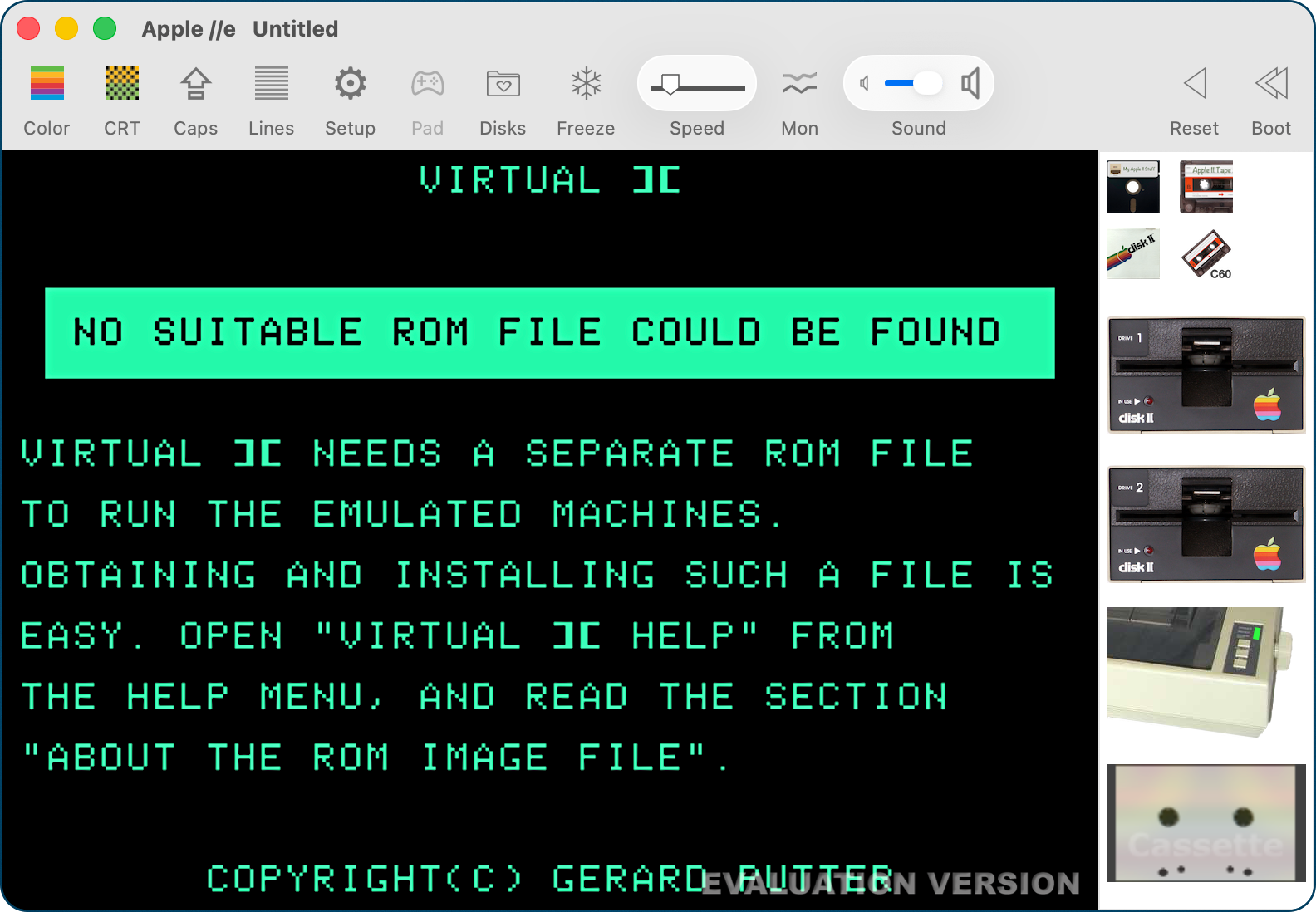
It helpfully suggests you open the help file to see how to proceed. To really hit home that this is a proper Mac app, the help file opens in Apple’s Tips app (or you can open it on the web). The help file explains that Apple ][ machines came with built-in software in ROM (read-only memory), so you have to download the ROM image file separately from the virtual machine. It’s not hard, but it is an extra step.
In the docs, they give you a link to download all five supported machines in one zip file. When you expand the zip file, you get ROMs for 5 different versions of the Apple ][ computer.
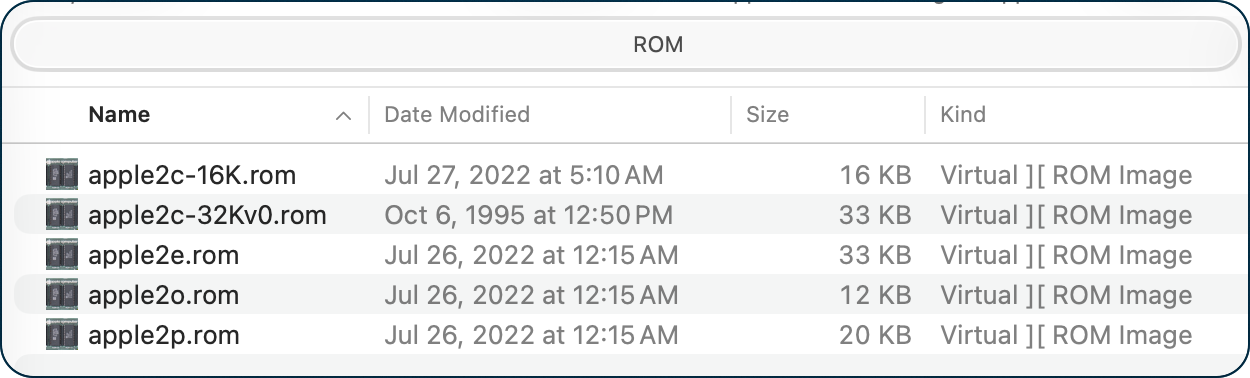
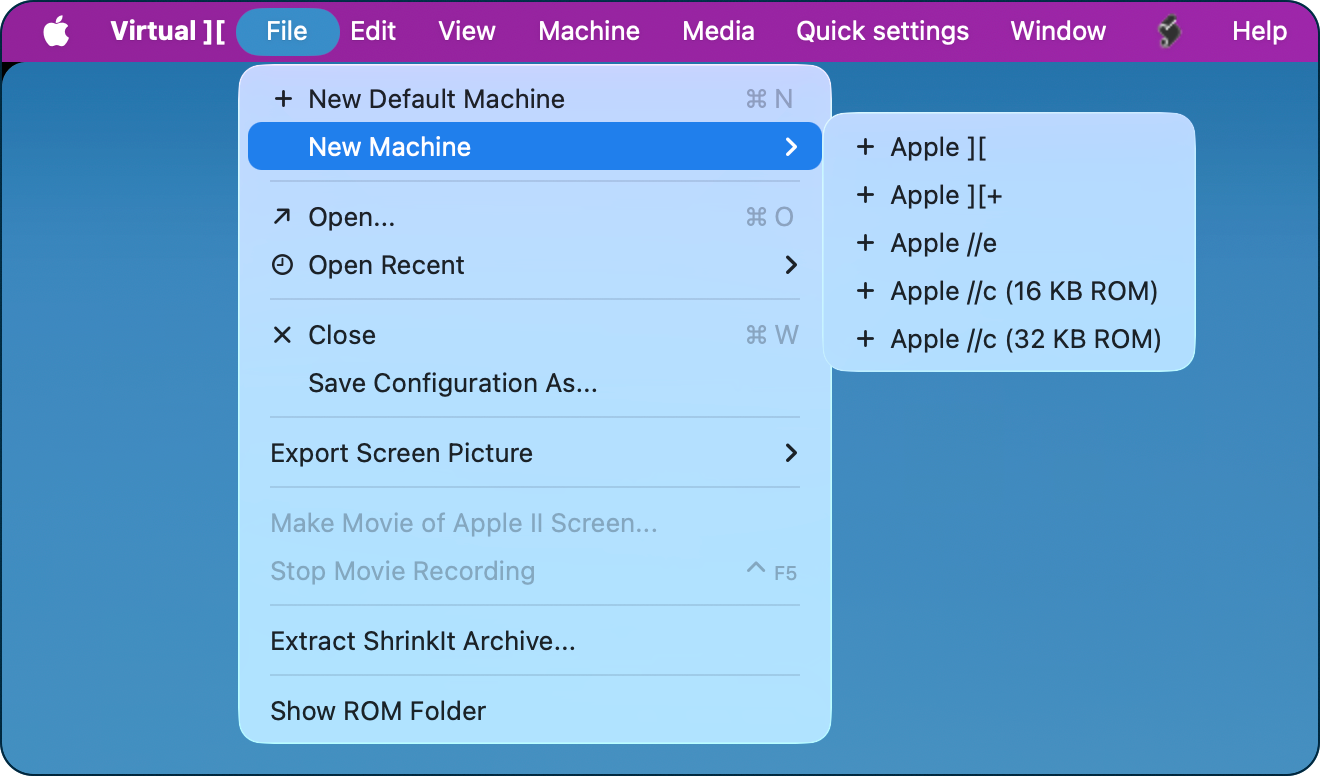
Back in Virtual ][, under the File menu, you’ll find “Show ROM Folder”. This will open ~/Library/Application Support/Virtual][/ROM in Finder, allowing you to drag in the ROM images you just downloaded.
Now you’re ready to start a virtual Apple ][ machine in Virtual ][! This is the easy part. In the File menu, choose New Machine, and you’ll see the 5 virtual Apple ][ machines we just downloaded. I chose to honor that young boy named Ken Case and go with the pure Apple ][, not the +, e, or either of the c versions with their fancy 16 and 32KB of ROM.
I haven’t yet been able to figure out how to get the vanilla Apple ][ to do anything — it fills the screen with question marks and then gives me a * prompt. I’m not sure there’s anything wrong, but the steps I’m about to describe for the ][e machine didn’t work with the ][. Oh well, an excuse to play with Ken Case again soon!
The ][e machine option starts with a blinking green ] prompt. (If it doesn’t go to the prompt, press the Reset button.)
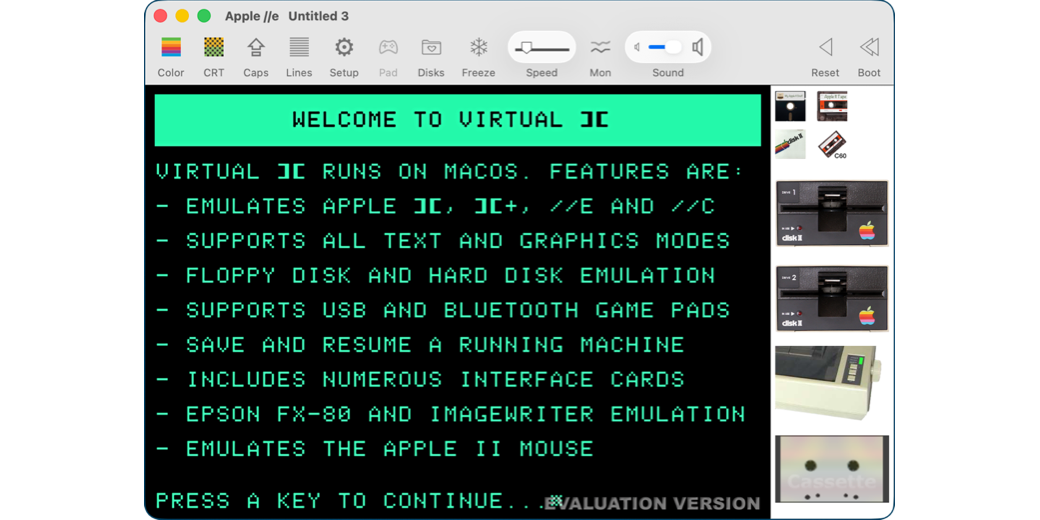
The help documentation explains that you can get some instructions by loading the welcome cassette we saw earlier. The interface to load the tape is fun: you drag the .cass file onto the thumbnail of a cassette in the main window interface. It gets a “play” arrow on it after you drag the file to show that it’s ready. Next, you type LOAD and hit Enter, and you hear a series of beeps, and then you click on the cassette tape again to eject it. At this point, you can type RUN.
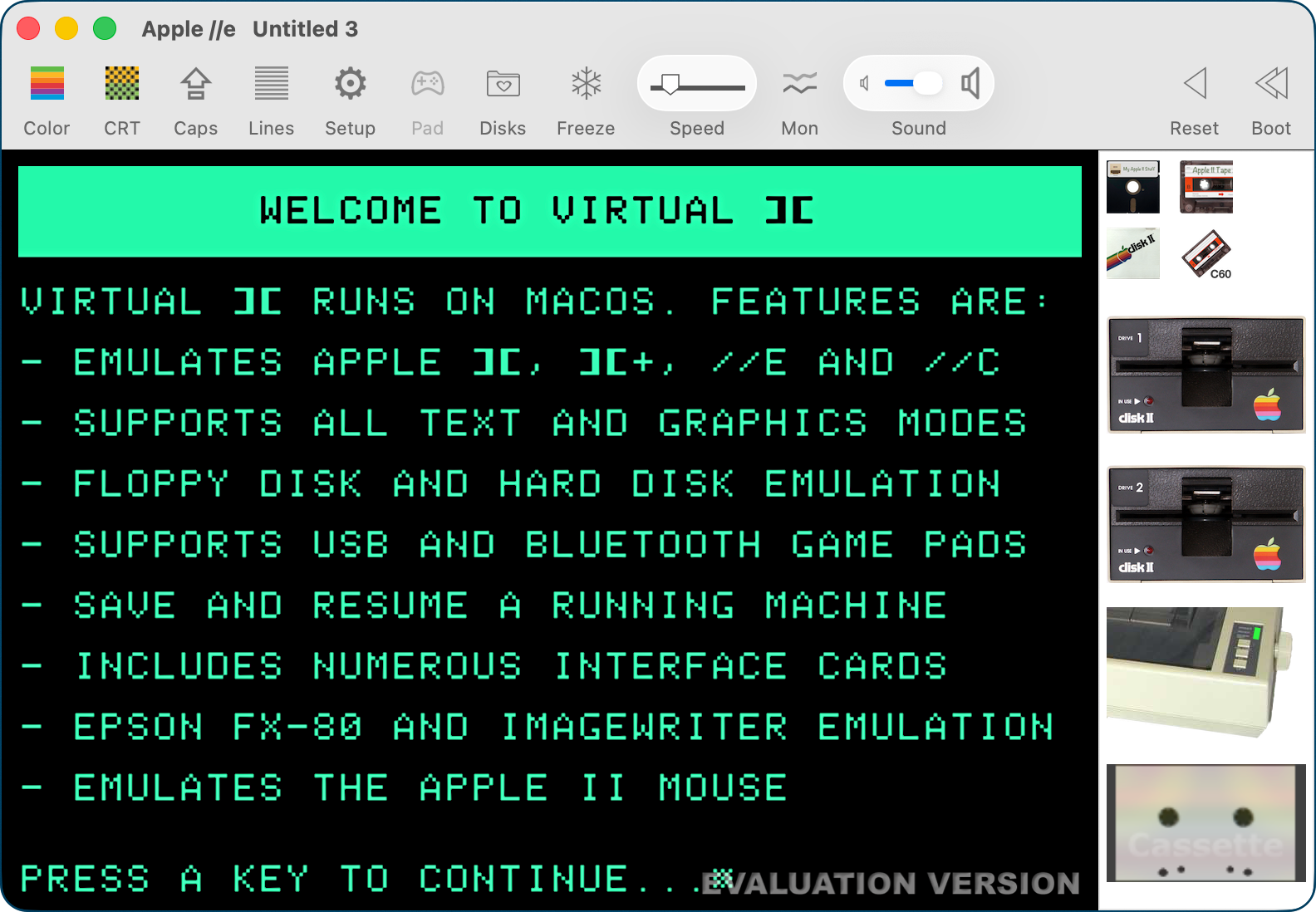
You’ll be rewarded with a screen that explains Virtual ][‘s features on macOS, including:
- support for all text and graphics modes
- floppy disk and hard disk emulation
- USB and Bluetooth game pads
- the ability to save and resume a running machine
- emulation of the old image writer printer and the Apple II mouse
I won’t keep going, but if you press any key, it continues to tell you more things you can do with the emulator. After going through a few screens, it explains that you are running the trial version of Virtual ][, and it will pause for one minute after every 10 minutes of operation.
They sell a Limited license for $16 or a Full license for $33. You can upgrade from Limited to Full at any time with no penalty in price, but I went straight for the Full license because that’s where you can make and restore machine snapshots at any time, which was really important to me. By the time I loaded VisiCalc into this virtual machine, I had already gotten at least $33 worth of entertainment out of this application. Compare licenses: www.virtualii.com/…
Loading Apps into Virtual ][
Now that we’ve got our virtual machine running, we need to find some apps! For this, I headed over to the Internet Archives where I found a page titled Apple II Disk Image Collection. There is no information whatsoever about what’s included in the ZIP (or TORRENT) file, but I took one for the team and downloaded the 500MB ZIP with my fingers crossed, hoping that VisiCalc would be in there amongst the other apps.
After expanding the ZIP file, I suggest you put the Apple II disk images folder into your favorite Apple II emulator folder we created earlier. You’ll find subfolders for:
- communications
- disk utilities
- educational
- games
- graphics
- productivity
- programming
- sound
- miscellaneous
To give you an idea of how much is in here — the educational folder alone has 279 items and a fair number of them are Zip files themselves! Spelunking in the productivity folder revealed a subfolder for spreadsheets, and there was my beloved VisiCalc. Ok, cool. Now we’ve got all of these nifty programs to play with; how do we make them “go” in Virtual ][?
Loading Apps in Virtual ][
Under the Media menu in Virtual ][, you’ll see Open Favorite Disk folder and Search Apple II Disk Images.
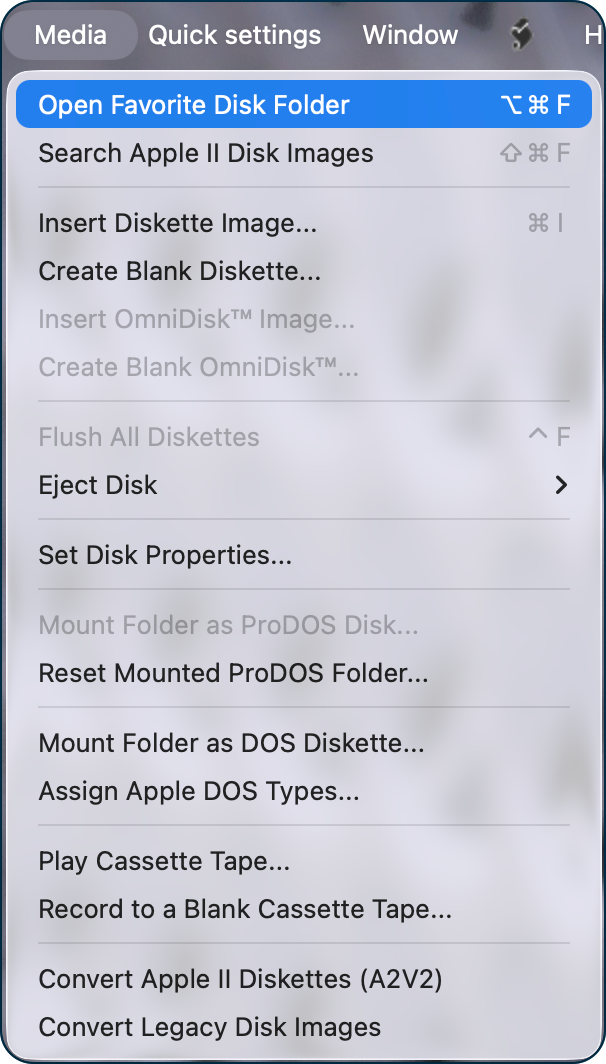
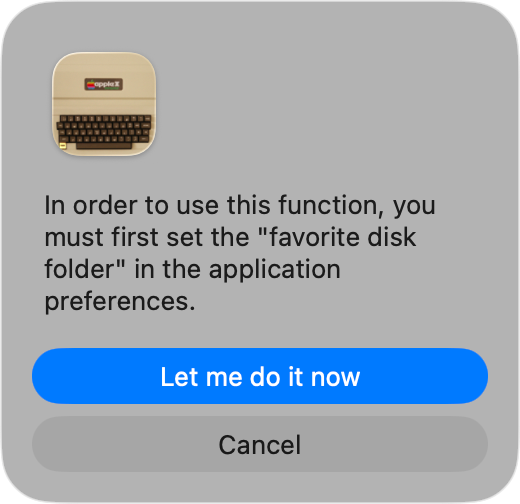
If you select Open Favorite Disk Folder, it will prompt you to tell it where the folder is for future use, and then open Preferences to the Favorites tab, where you can select the folder.
Now we can navigate to our Favorite Disk Folder and either double-click on the program (which is no fun), or we can drag our desired program into the floppy drive. The best part is you can hear the floppy go in, hear and see the door close on the drive. Then you’re rewarded with the ] prompt and that’s it. I tried LOAD, START, RUN, GO — nothing would make VisiCalc start up. I have to confess I went to an LLM for help and learned that typing PR#6 would start the floppy in “Slot 6, Drive 1”. This was fun because I heard lots of whirring and clicking.
VisiCalc will ask you if you want to use 80 columns, and then whether you have the “videx inverse character generator”, whatever that is. In my experience, if you say yes to the 80 columns, no matter how you answer the second question, it will ask you about the 80 columns. If you say no to 80 columns, then you can proceed regardless of how you answer the videx inverse character generator question.
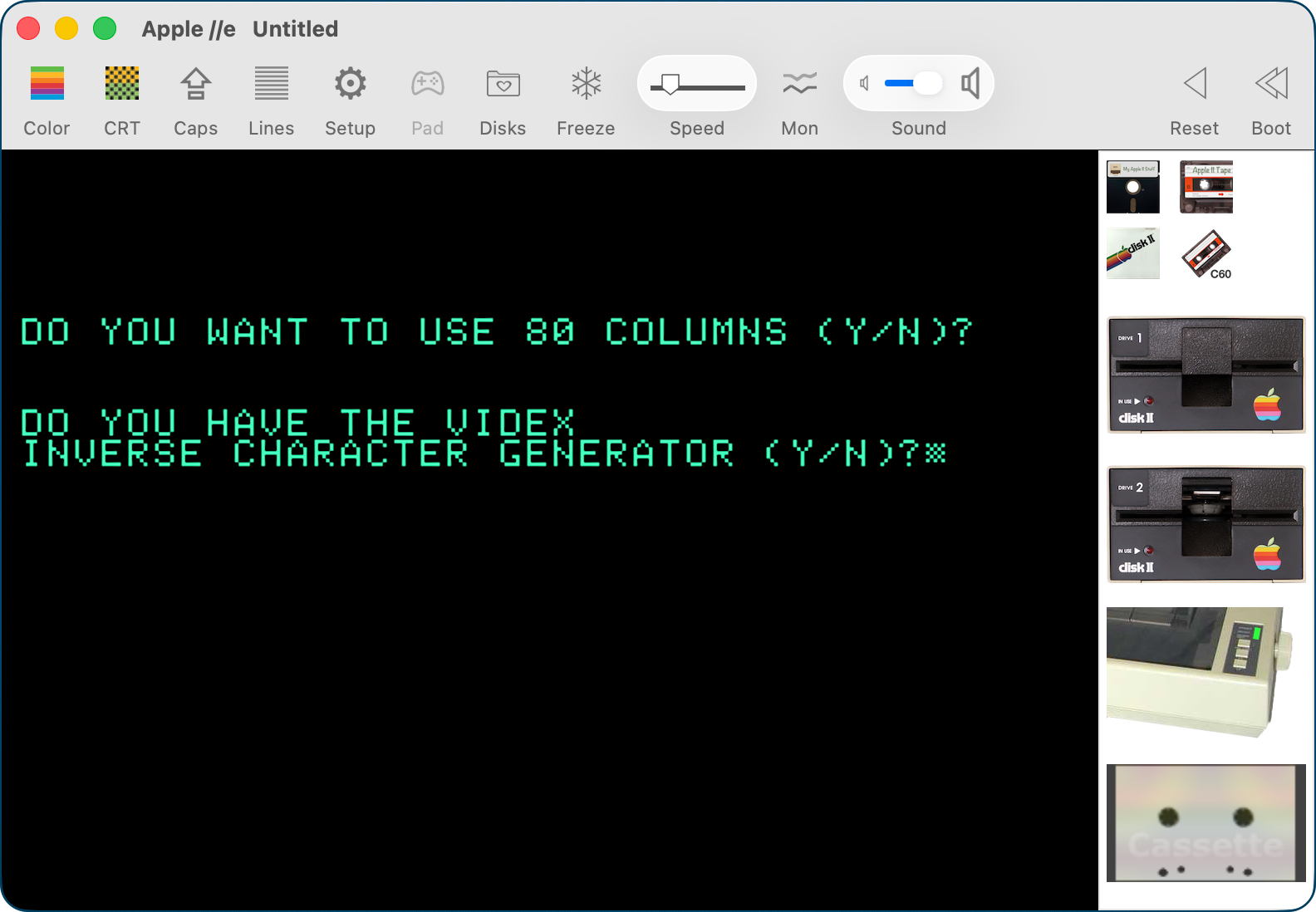
I knew I couldn’t get away with not figuring out what the videx character generator was so I asked an LLM. Perplexity explained that it was “a character ROM or video hardware logic used by a Videx 80-column card to display inverse video text—white-on-black characters instead of normal black-on-white text.” I’ve got green on black text so I’m pretty sure I don’t have that videx card thingy, and I guess I don’t have the 80-column card either. So answering no to the first question was the right answer!
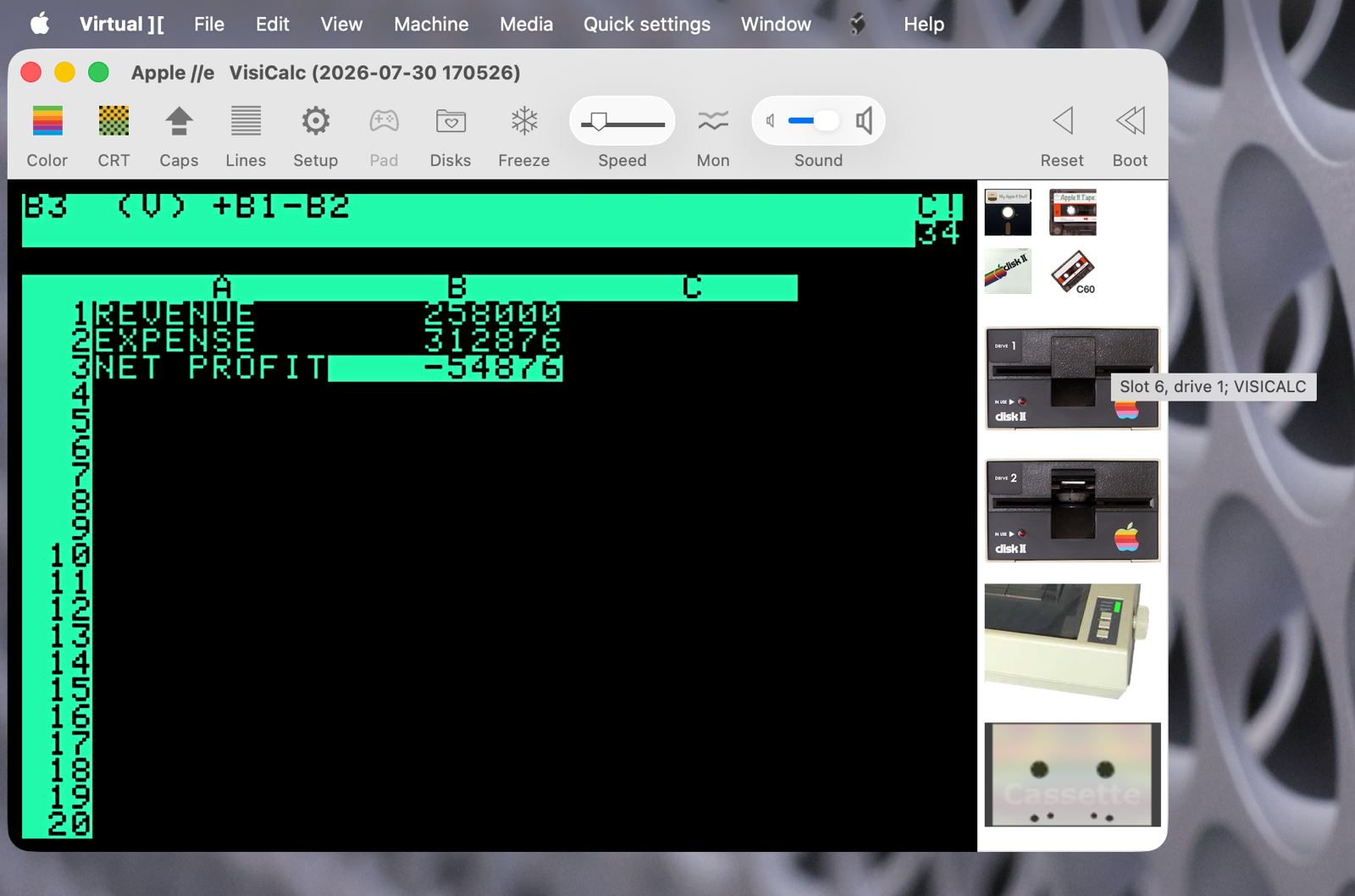
Once we’re past that little confusion, We’re rewarded with my beloved VisiCalc!
Load Lode Runner
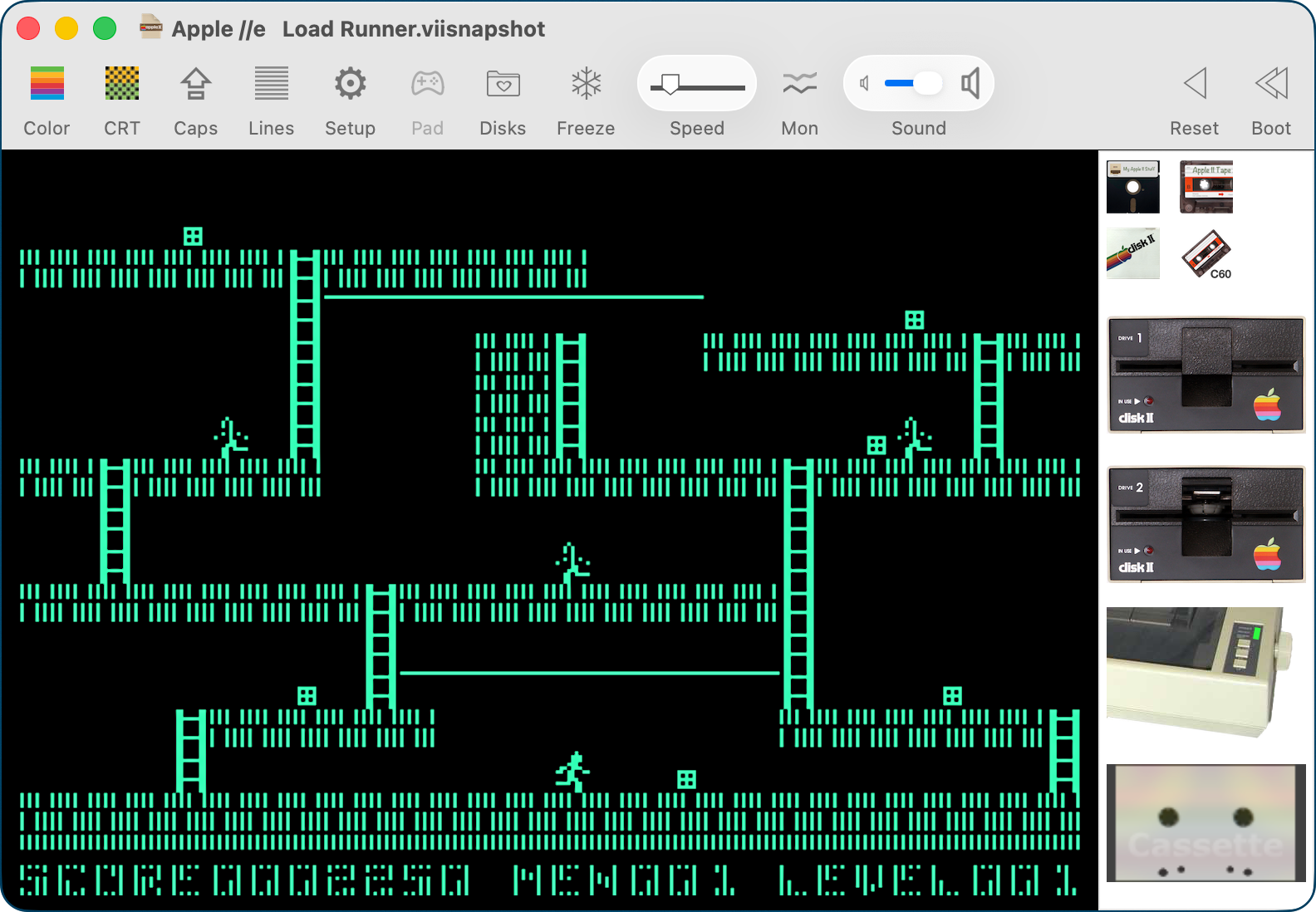
When Jason was telling us about Virtual][ during Clockwise, he mentioned the game Lode Runner. This was the first game we ever played on a Mac, and I have a great memory from our late friend Eric. He took care of our cats while we were away one time, and he started playing Lode Runner and lost track of time. He played for six hours straight!
If you’re unfamiliar with the game, your character’s job is to run back and forth and climb ladders to get to little treasure boxes. But at the same time, other characters are chasing you. Your job is to trick them into following a path where they can’t catch you before you get to the treasure. I found Lode Runner in that giant pile of games in the Apple ][ disk image, and played the game of my youth. And remembered how I was never very good at it — I haven’t yet gotten past the first level!
More
I have barely scratched the surface of the customizations you can make in Virtual ][. The manual is 84 pages long in very small text and covers all kinds of crazy stuff about configuring game controllers and how to enable mouse mode and more. I wonder whether that Videx ROM thingy is in there…
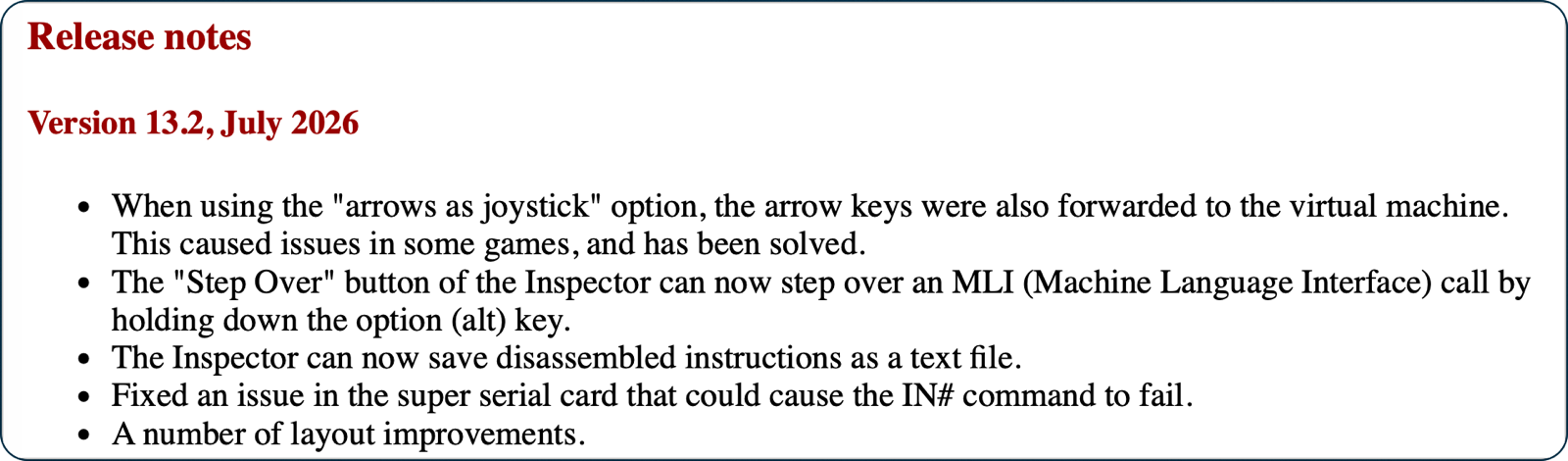
And guess what else? Virtual ][ is still in active development. The latest release notes from developer Gerard Putter are from July 2026! I wrote to him asking how to make the Apple ][ machine actually “go” but he hasn’t gotten back to me yet.
Bottom Line
The bottom line is that now I have a vast array of programs to learn and play with. This article would have been much longer, but I started playing with programs like Alphabet Zoo, Aquarium, Dr. Seuss, Fix Up the Mix, Pub Book Puzzler, and then reviewing Algebra 1, and, like Eric, I lost track of time. Even if you have no sentimental attachment to the Apple ][, this is an opportunity to explore hundreds of free programs, so go have some fun with Virtual ][.
Minor correction: that should be Lode Runner. I actually finished that game (all 150 levels!) back in the day.
Great gamers should also try out Wizardry: Proving Grounds (the first game of the series!), Castle Wolfenstein, and the Infocom adventures (Zork, AMFV, Hitchhiker’s Guide, etc)
Thanks for catching that egregious error, Anonymous! As soon as I saw your spelling, I knew mine was wrong. Thanks for the old-school game recommendations! Did you install the emulator?