

Jump to Tips
- View Web Images Alone in Browsers
- Print to PDF … Faster
- See What List(s) a Contact is In
- Prefer Column View in Finder, But You Can’t Sort … Or Can You?
- Easy Way to See Changes in Photos
- Fun with Volume and Brightness
- Stationery Templates with Get Info
- Force Quit and Activity Monitor
- Reduce File Size with Quartz Filters in PDF Export in Preview
I’m back with Part 10 of Tiny Mac Tips. This is an ongoing series I started in order to teach Jill from the Northwoods how to move from an adequate Mac user to a proficient one. In case you missed the earlier installments, I’ve included links to the first 9 installments:
- Link to Tiny Mac Tips Part 1
- Link to Tiny Mac Tips Part 2
- Link to Tiny Mac Tips Part 3
- Link to Tiny Mac Tips Part 4
- Link to Tiny Mac Tips Part 5
- Link to Tiny Mac Tips Part 6
- Link to Tiny Mac Tips Part 7
- Link to Tiny Mac Tips Part 8
- Link to Tiny Mac Tips Part 9
View Web Images Alone in Browsers
Have you ever been looking at an image on a web page, and maybe it’s pretty small, so you’d like to see it as big as possible in its own tab in the browser?. You can usually right-click on the image, select Copy Image Address, then make a new tab, click in the URL bar, paste the link, and hit Enter. But there’s a faster way.
If you’re using Safari, and if you have at least one other tab open in your browser, simply click and drag the image up to the tab bar. The image will automatically open as big as possible in that tab.
If you’re using Firefox or a Chromium browser like Microsoft Edge, when you drag the image to the tab bar, it creates a new tab for the image.
This Tiny Tip also works with URLs — click and drag on any URL and pull it into the tab bar to open the link. No more right-clicking on a URL and choosing Open in New Tab!
This was definitely not a life-changing tip, but it’s kind of an interesting way to open images and links that might be a bit easier than right-clicking and finding the option in the contextual menu.
Print to PDF … Faster
This next Tiny Mac Tip is life-changing, if you consider saving a few seconds on an operation you do hundreds of times a year to be life-changing. I’m sure you know that with any document or web page, if you choose Print from the File menu, you’ll see an option at the bottom that says “PDF” with a dropdown. If you click the dropdown, it gives you several different options, one of which is “Save as PDF…” I’ve been using this dropdown to save documents to PDFs for ages and ages.
And then I was listening to the Mac Geek Gab when Pilot Pete pointed out something I didn’t know. Instead of clicking on the downward chevron next to the word PDF to get the dropdown, it turns out the word PDF is actually a button that instantly opens the save dialog box.
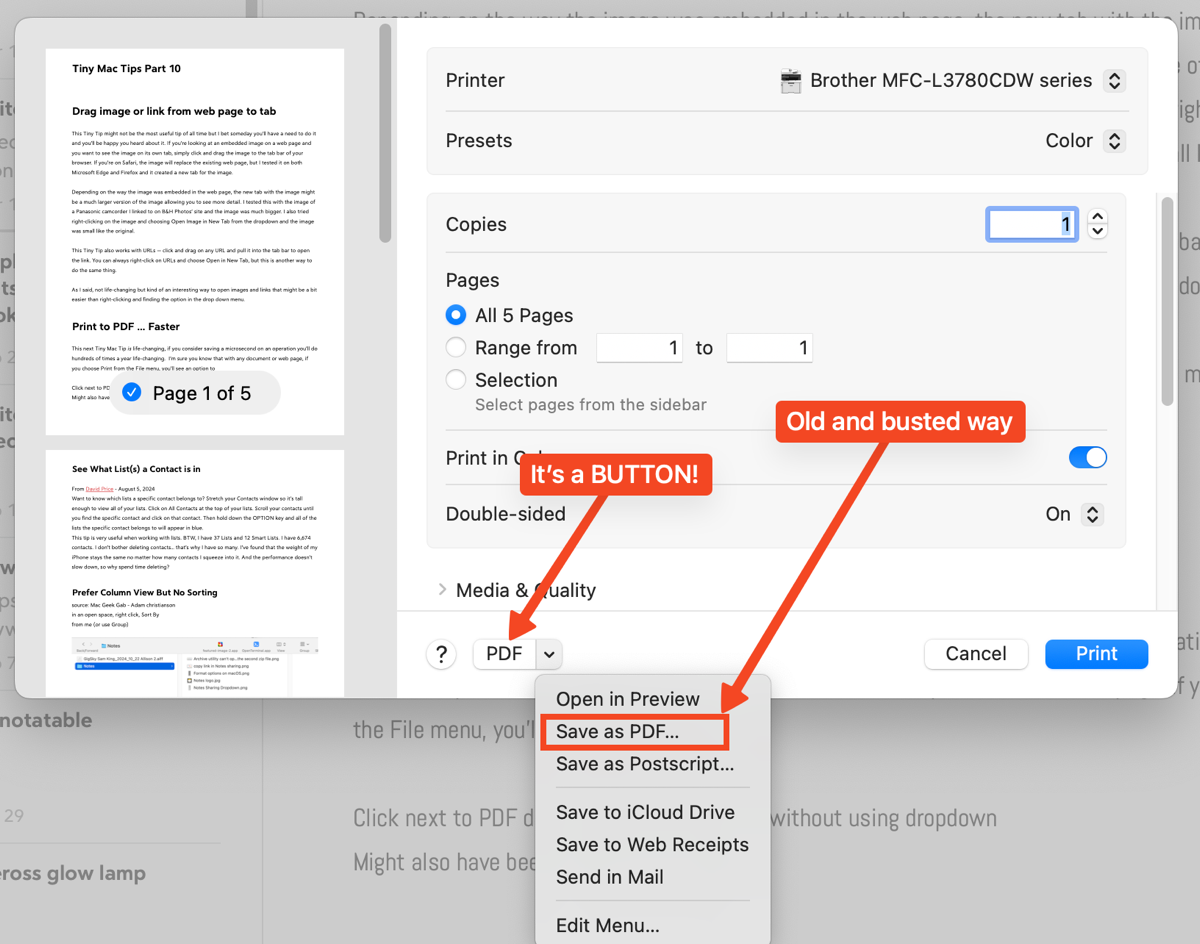
Using the button saves not one click, but two, every single time you want to save a file as a PDF. Maybe this is one where you’ll say, “Geez, Al, everyone knew that but you”, but it made me so darn happy when I heard about it.
See What List(s) a Contact is In
Our next Tiny Mac Tip comes from NosillaCastaway David Price who wrote this up as a comment to my post about Cleaning up Contacts with Smart Lists from a year ago. I’ve had it set aside for the next installment of Tiny Mac Tips all this time.
Let’s say you have someone in your Contacts, and you want to know whether they’re in your Vacation Emails List for your international adventures, or maybe in your Contacts List for Christmas cards. How would you figure that out? David has the answer, and I’ll quote him directly as he explains the steps really well.:
Stretch your Contacts window so it’s tall enough to view all of your lists. Click on All Contacts at the top of your lists. Scroll your contacts (or search) until you find the specific contact and click on that contact. Then hold down the Option key, and all of the lists the specific contact belongs to will turn blue.
This tip is very useful when working with lists. BTW, I have 37 Lists and 12 Smart Lists. I have 6,674 contacts. I don’t bother deleting contacts… that’s why I have so many. I’ve found that the weight of my iPhone stays the same no matter how many contacts I squeeze into it. And the performance doesn’t slow down, so why spend time deleting?
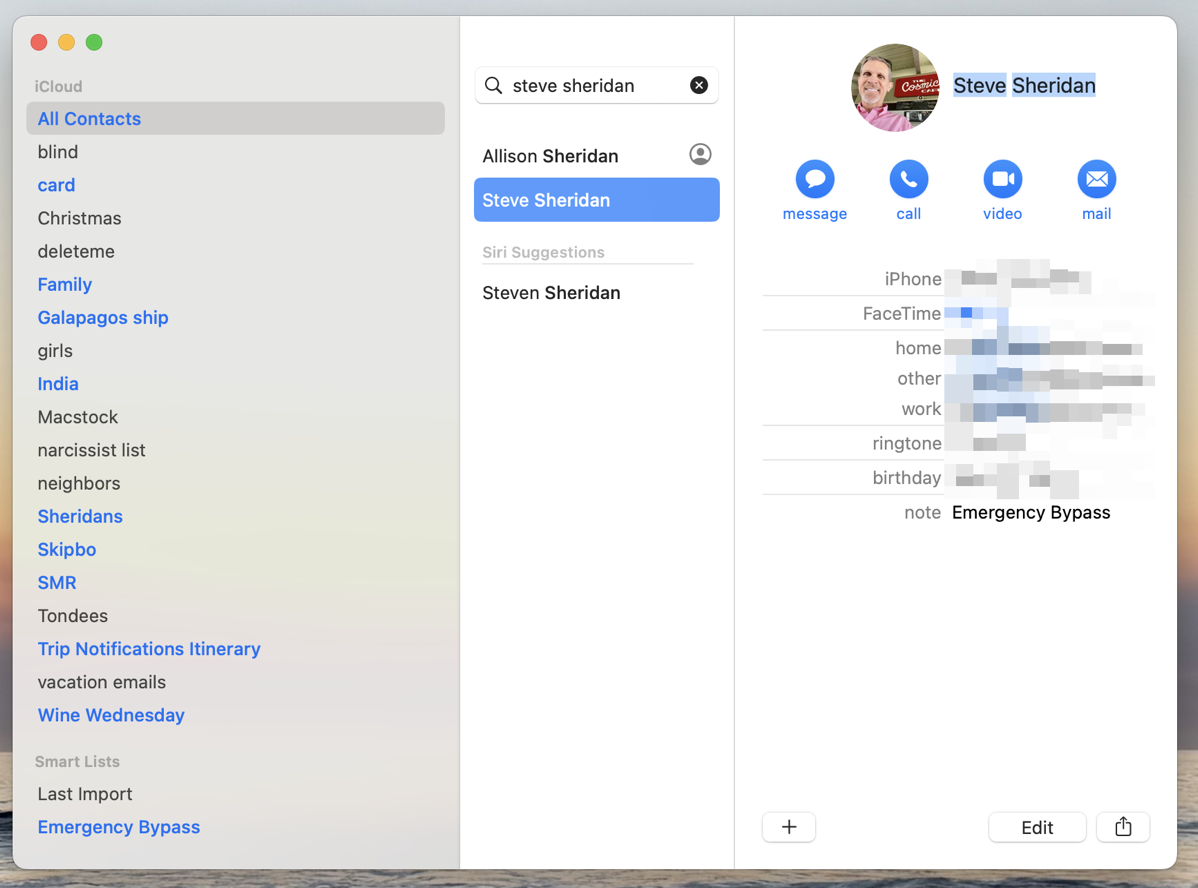
I think this is a terrific Tiny Mac Tip, and thanks to Dave for sending it in.
Prefer Column View in Finder, But You Can’t Sort … Or Can You?
If you want to start a Holy War in computing, it’s pretty easy. Emacs vs. vi (vim), tabs vs. spaces, the list goes on and on. The hill I will die on is that Column View in macOS Finder is the right view. I know a lot of people think List View is superior, but I find it a dreadful waste of clicking and scrolling when folders get deep and full of files.
The only time I ever use List View is when I need to sort by one column. In List View, it’s easy. Simply click on the column title and you’re sorted.
Adam Christianson on the Mac Geek Gab explained that you can sort in Column View, too. My ears perked up when I heard this. The trick is to find some empty space to right-click. Let’s say you’ve got a column of files in a folder. If there’s any empty space below the list, you can right-click there, and in the contextual menu, you’ll see the Sort By option. You don’t have infinite options, but the usual suspects like Date Last Opened, Date Added, Date Modified, and Date Created are all there, along with Kind, Size, Tags, and a few others.
If you don’t have space below the column of files and folders, don’t select any folder, and the empty column to the right can bring up this contextual menu as well.
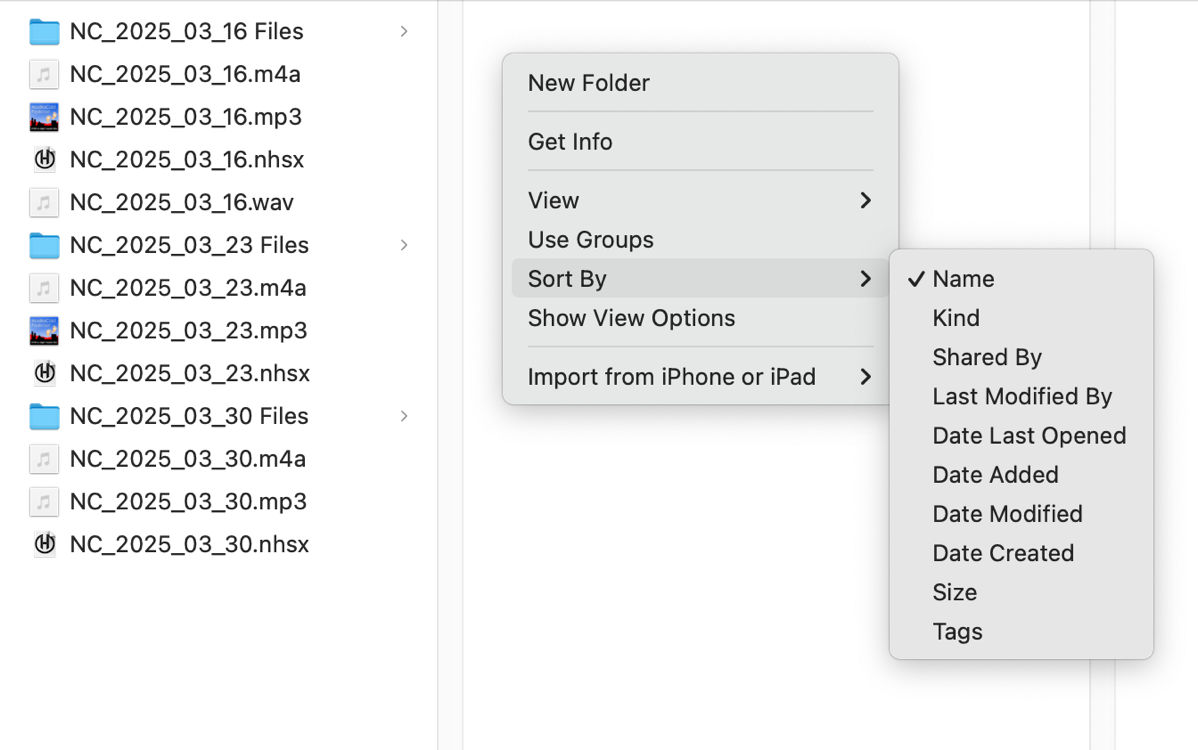
The interesting thing is that this sort-by criterion applies to all Finder windows in their column view. This often confuses me when I open another window, so be sure to put it back to the sort you normally like, say by Name, when you’re done.
Now that we can sort files and folders in my beloved Column View, there is no reason to even continue the discussion about which view is better.
Easy Way to See Changes in Photos
When I’m editing images in macOS on Apple Photos, I have a tendency to swing the sliders too dramatically. I do this most often with things like vibrance and saturation. After you’ve seen vibrance dialed up to 75%, 100% can look even better. But in reality, that’s way too much.
One of the easy ways to make sure you’re not overdoing it is to revert back to the original and let your eyes adjust so you can see how dramatic your changes have been. But then you have to redo the changes to get back to where you were.
There’s an easier way, and it’s by simply holding down the “m” key on your keyboard. While you’re holding it down, you can see the original, and when you let go, your adjustments are reapplied. You can toggle it back and forth as many times as you like. In the upper left, there is a toggle button that looks like a solid square and a hollow square, separated by a vertical line. This button does the same thing as the “m” key. When you click it, you’ll see the screen blink, but if you hold it down, you’ll see the original, and when you let go, you’ll see your changes again.
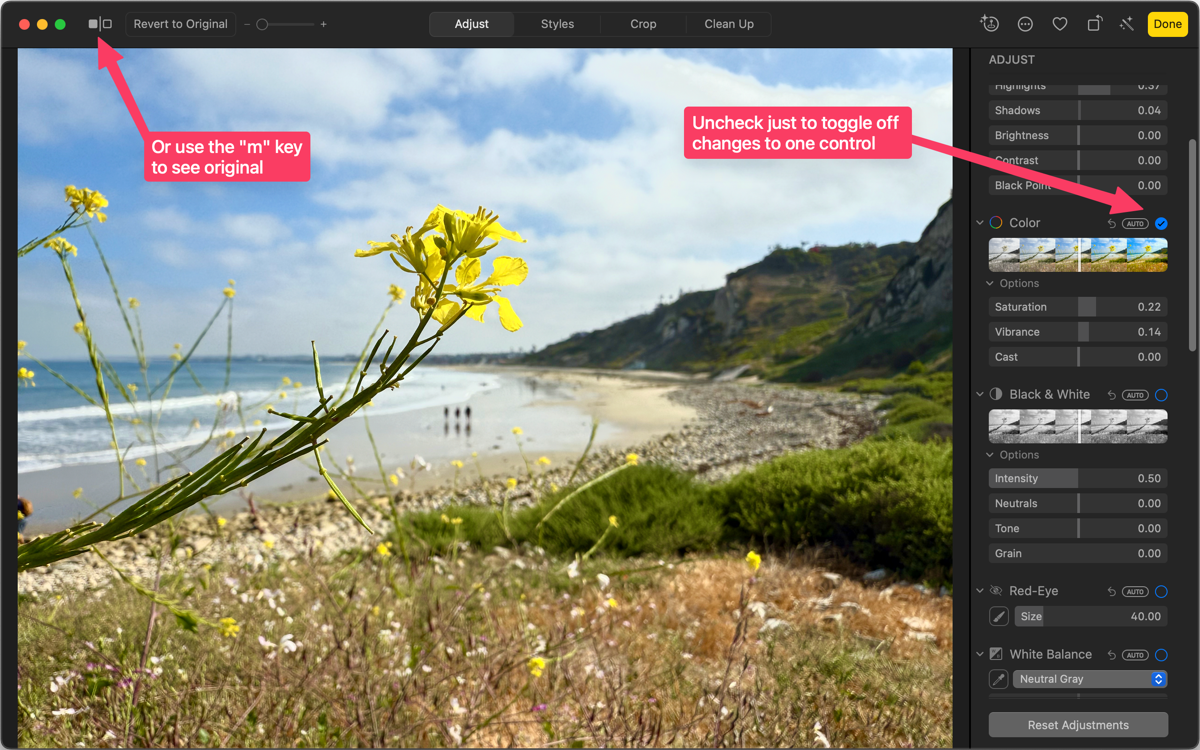
This tip undoes all of your changes temporarily. If you’d like to be more granular in seeing the before and after view of just one set of editing controls, look for a little blue checkmark that appears as soon as you make any changes. You can then toggle off and back on that one control’s changes. I find both of these methods, the “m” key and the blue checkmark, invaluable in seeing when I’ve gone too far with my adjustments in Apple Photos.
Fun with Volume and Brightness
I’ve got a Tiny Mac Tip for the true control freaks amongst us. On a standard Mac keyboard, you have dedicated keys for brightness up and down, and for volume up and down. If the increments you get when changing brightness or volume are not fine-grained enough for you, hold down Option-Shift while hitting those keys, and you’ll get quarter-step changes instead. I’ve racked my brains trying to think of a circumstance when I’ve ever needed this level of control, and I can’t think of one, but I thought you still deserved to learn about it.
Here’s a more mainstream companion tip. If you use the volume up/down keys while audio is playing, it’s easy to hear the change you’re making. But what if you want to set the volume while audio is not playing? Hitting the keys doesn’t make any sound. But if you hold down the Shift key while you make the changes, you get a little boop sound so you can hear the volume changing. I keep forgetting that the Shift key does this, so I’m hoping telling you about it will help me remember.
System Settings has become a quagmire these days, where most settings are hard to find and buried deep within this chasm. If you hold the Option key down and tap one of the volume keys (mute, lower, or higher volume), System Settings will launch right into Sound settings. Likewise, the Option key plus either of the brightness keys opens System Settings to Displays, where you can adjust the brightness and more.
That’s a lot for one tiny tip, so let’s review:
- Option + brightness or volume opens System Settings to the appropriate setting
- Shift + volume keys to hear the changes you’re making
- Option-sift with brightness or volume to embrace your inner control freak.
Stationery Templates with Get Info
We’ve talked about the usefulness of the Get Info window before, but here’s another hidden-in-plain-sight gem. You can create template files by using the Get Info window. Let’s do this one by example.
We’ll pretend you need a template for taking meeting notes. Open TextEdit and create a new rich text format file. Create some headings, like Meeting Title, Key Takeaways, Action Items, and Notes. Make them bold. In between the headings, let’s put a numbered list under Key Takeaways, an unordered list under Action Items, and then for Notes, we’ll just have random text.
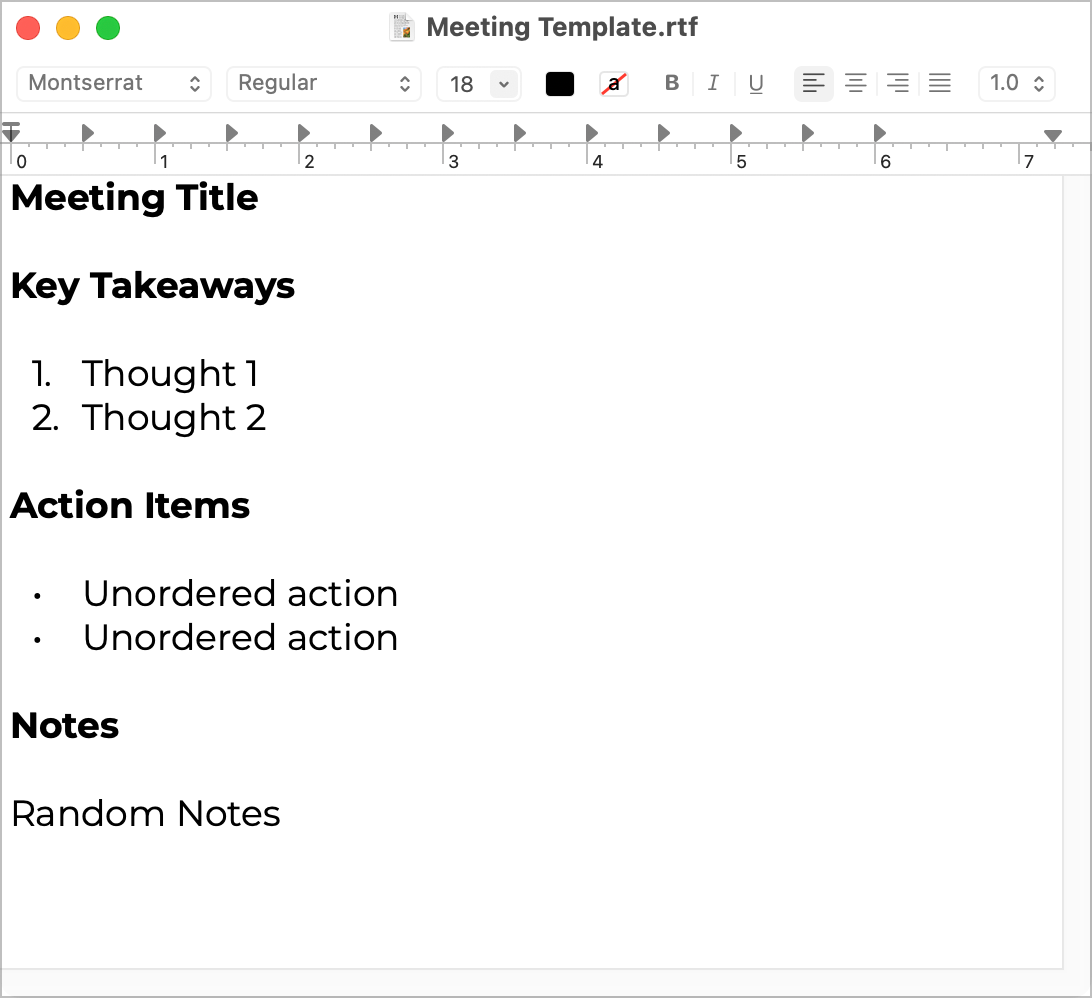
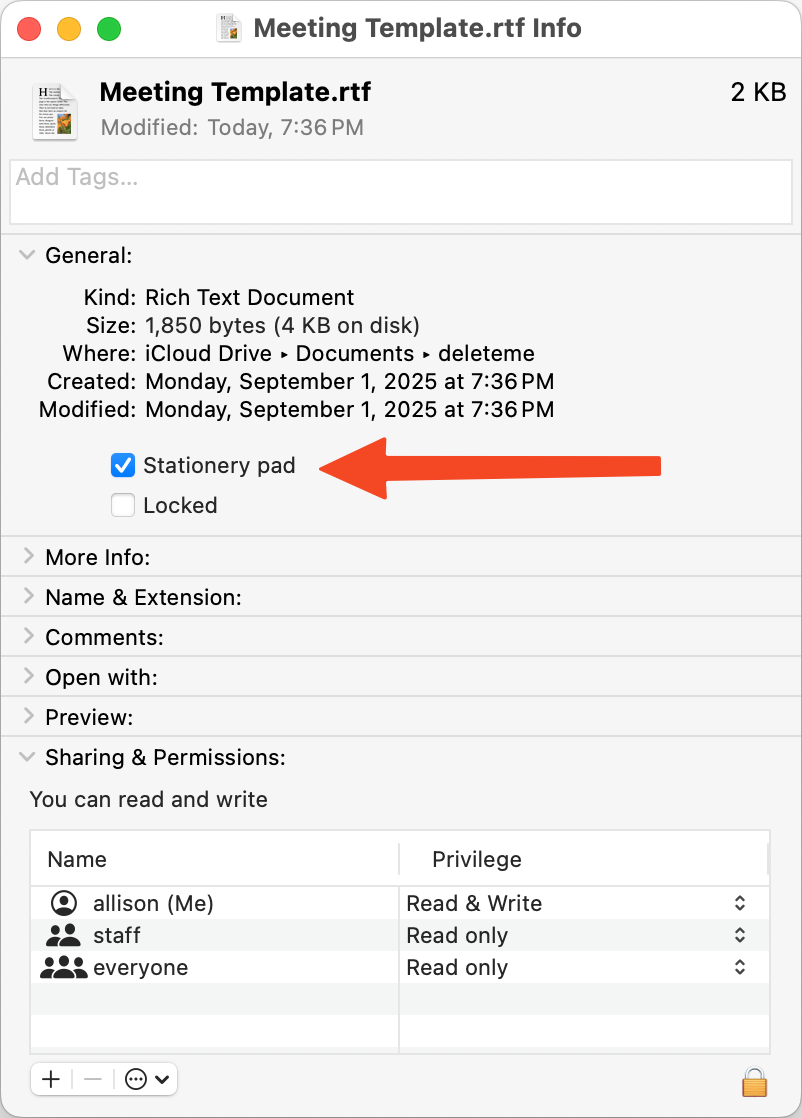
Save the file as Meeting Template.rtf and close the file. Now in Finder, select the file, and use ⌘-I to open Get Info. Under the General section (which may be closed by its disclosure triangle), below the kind, size and dates created and modified, you’ll see a small checkbox that says Stationery pad. Check the box!
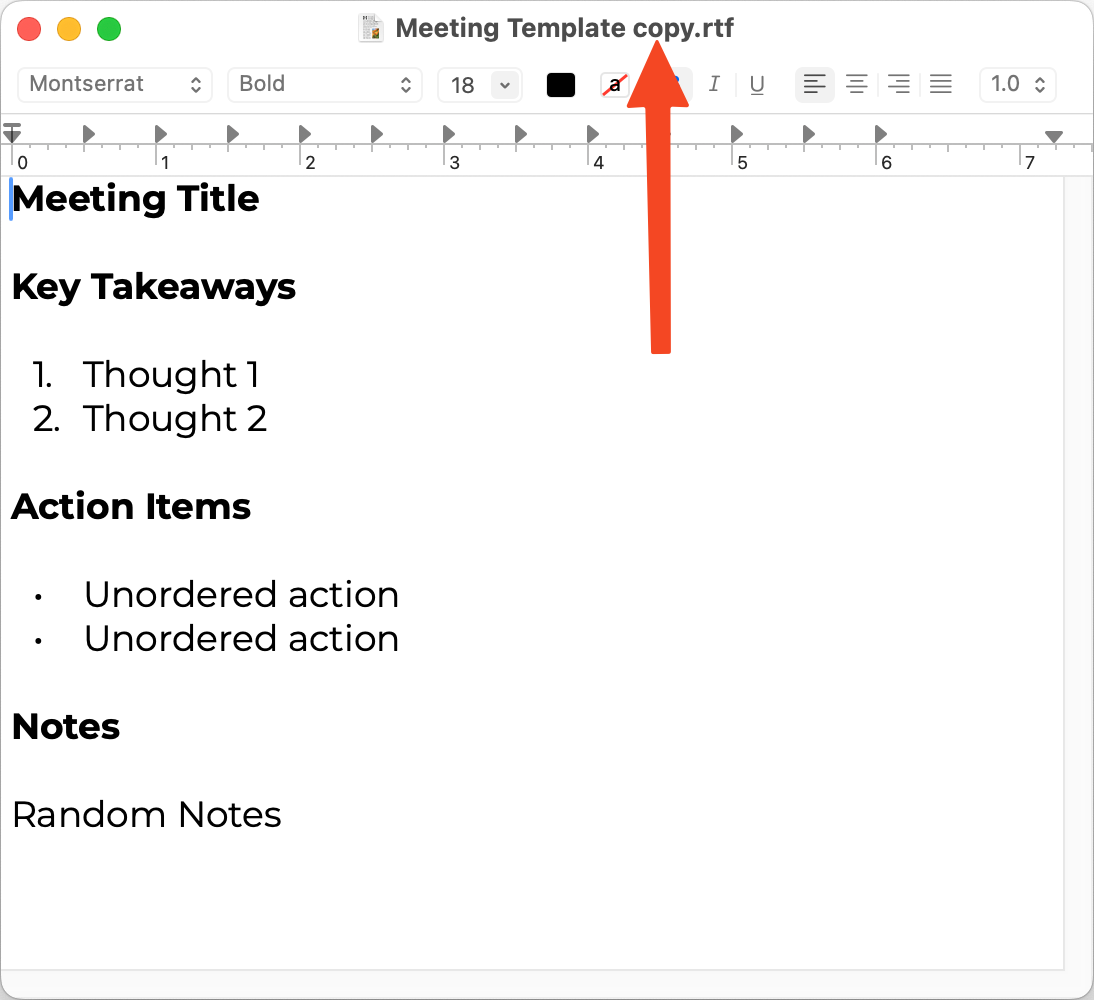
Now double-click the Meeting Template file, and notice that the name of the file is now Meeting Template copy. This means that when you save under a new name, you’re not overwriting your template file.
This cool tip isn’t just for text files; try it out with any other application that works with single files in the file system. I tested it with tools from Apple Numbers to Affinity Designer, and it worked! This stationery pad capability has been available in Get Info for ages and ages — like I said, hiding in plain sight.
Force Quit and Activity Monitor
If you’ve been using a Mac for a long time, now is your opportunity to say, “I knew that!” But remember, the purpose of Tiny Mac Tips is to give users who are relatively new to the Mac a leg up on all of the little ways we make magic happen with our Macs.
You know how Mac users, when pitching how great the Mac is, pretend that nothing ever goes wrong and how nothing is fiddly? Well, we all know that’s not true. Sometimes an app will hang, becoming non-responsive, and eventually you’ll see the dreaded pizza wheel of death.
The solution to this problem is to Force-Quit the application. With any application in focus, go to the Apple menu and choose Force Quit (or use the keystroke Option-Command-Escape). A window will appear, displaying the list of running applications. If you look at it when no apps are misbehaving, it will look like a normal list. But if an app is truly hung, the words “not responding” will be written to the right of the name. Simply select the misbehaving app and click the Force Quit application.
With any luck, relaunching the application will get you back in business.
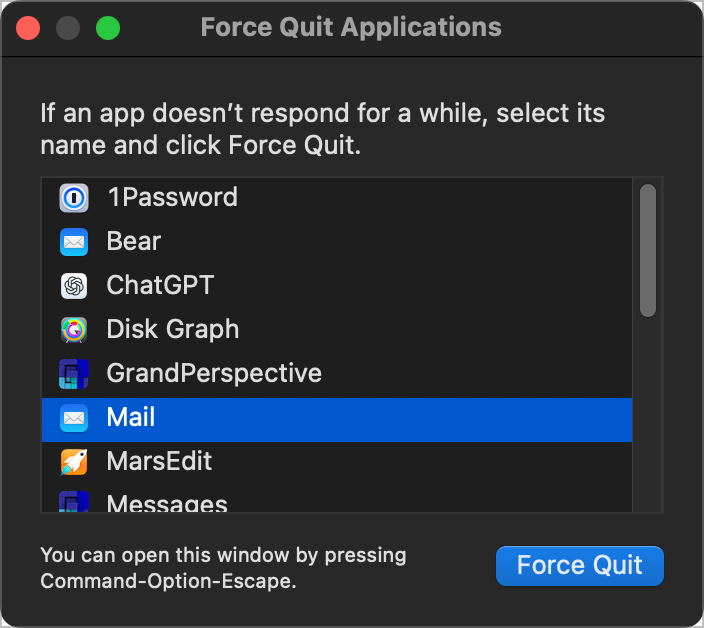
You can also Force-Quit by selecting it in the dock while holding down Control and Option.
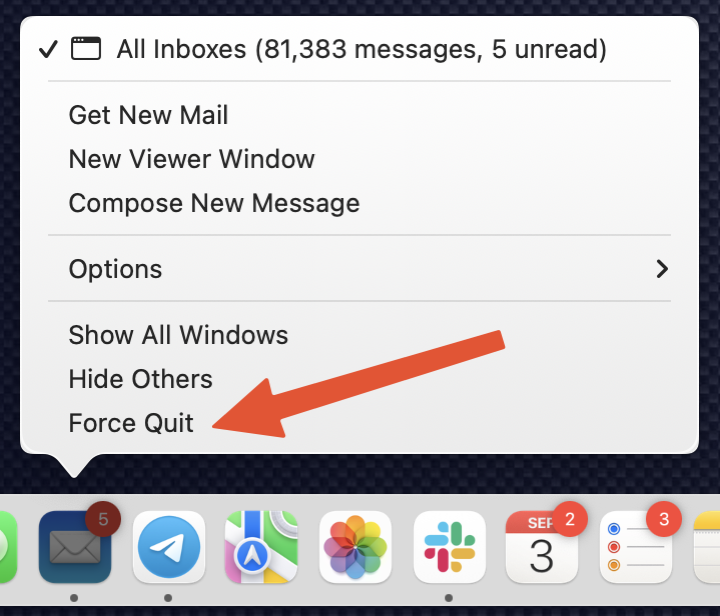
But what if you have a menu bar app that misbehaves? They don’t show up in the Force Quit window. Then it’s time to break out the big guns — Activity Monitor. This app is in the Utilities folder inside Applications.
When Activity Monitor launches, you’ll see five tabs across the top: CPU, Memory, Energy, Disk, and Network. These are five different ways to view all of the running processes on your Mac. On each tab, you can tap the various column headings to sort by that value. If you want to make the list more manageable, you can go to the View menu and change it from All Processes to My Processes. This is valuable when you know the problem is an app you intentionally have running and want to weed out most of the mysterious macOS daemons and such, like “mds” and “coreaudiod”.
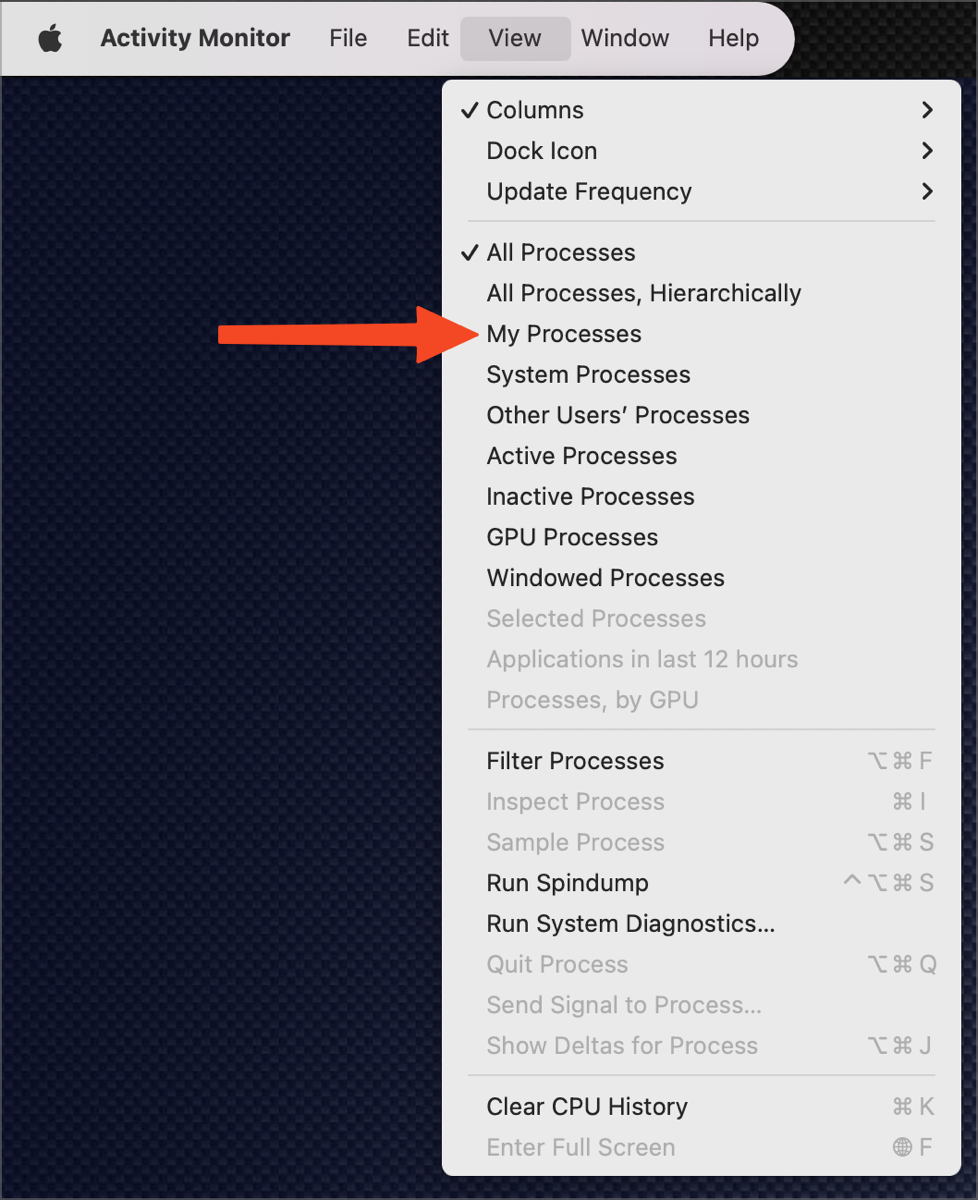
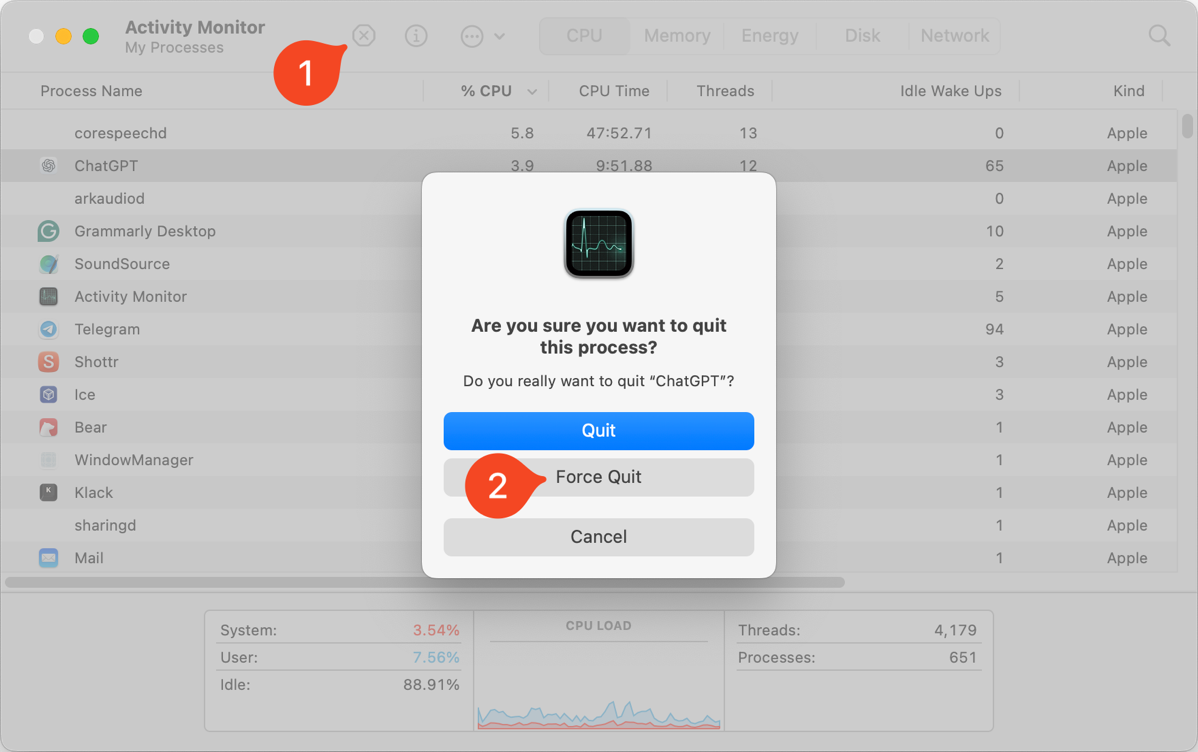
If you sort by % CPU, you’re quite likely to find the misbehaving app near the top, but however you sort, you can simply scroll till you find an app in red text. Select the app, and in the toolbar of Activity Monitor, tap the first icon that looks like a little stop sign octagon with an x in it. This will bring up a window offering to quit the app, but you can change it to Force Quit.
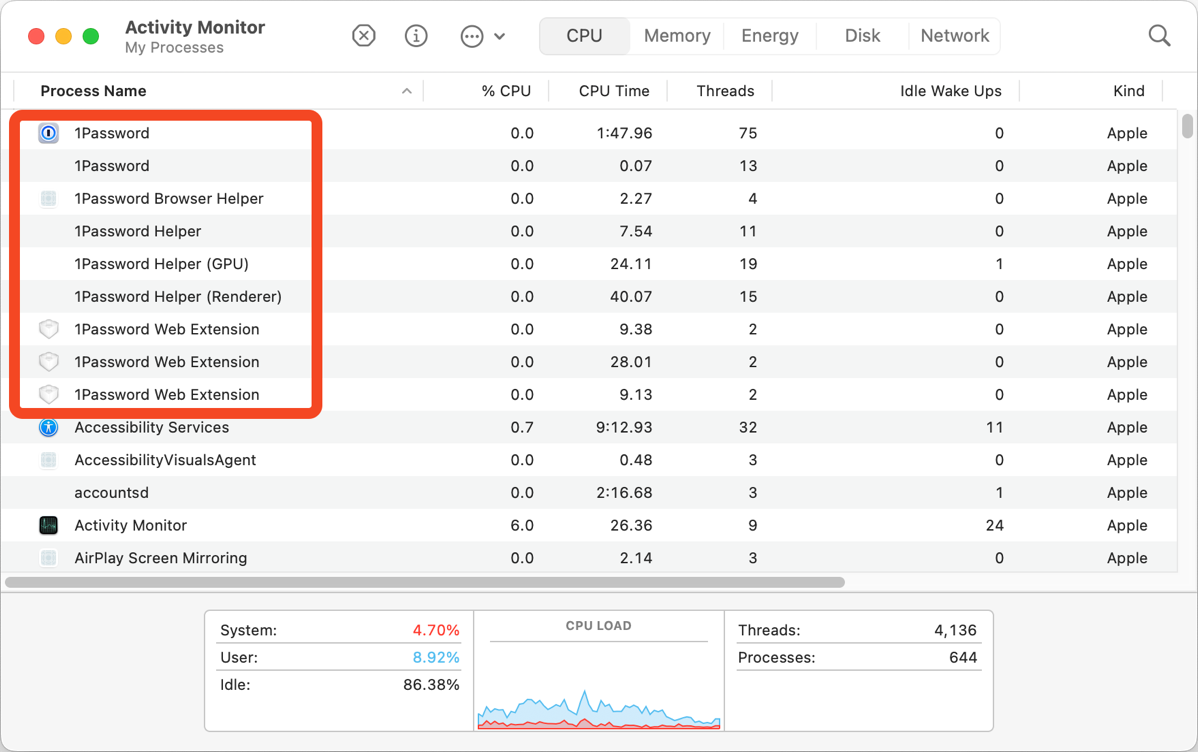
The beauty of Force-Quitting apps from Activity Monitor is that sometimes they come with helper apps that are also running and need to be stopped. To see all of the associated processes, sort by Process name. In the example in the screenshot, you can see that 1Password actually has nine active processes. Killing only the main app process might kill the rest, but sometimes one of the associated processes will also get stuck. You can shift-select all of the associated items and force quit them all.
Now that you’ve learned how to Force-Quit applications on the Mac, remember the secret code: always tell non-Mac users that nothing ever goes wrong on the Mac.
Reduce File Size with Quartz Filters in PDF Export in Preview
This next solution was explained in my article entitled All My Travelogues Are Belong to You in May 2025, but I wanted to pull it out as a standalone tip. The problem to be solved is that you’ve created a PDF with images in it, and the resulting file is massive. That is certainly the problem I have when I create my travelogues from our international adventures. Our Japan trip wasn’t super long, and yet my travelogue was a whopping 85MB because of all of the high-resolution images embedded within.
With very little effort, you can reduce the file size of PDFs without a perceptible visual change to the images in the document. I’m going to give you the basic steps, and then we’ll go through a worked example together.
With your massive PDF open in Preview, from the menu bar choose File → Export. In the resulting Save dialog box, leave the Format set to PDF. Below that is another dropdown labeled Quartz Filter. The Quartz Filter dropdown contains quite a few options, including exports such as black and white, and blue, grey, or sepia tone. But the one we’re interested in is Reduce File Size.
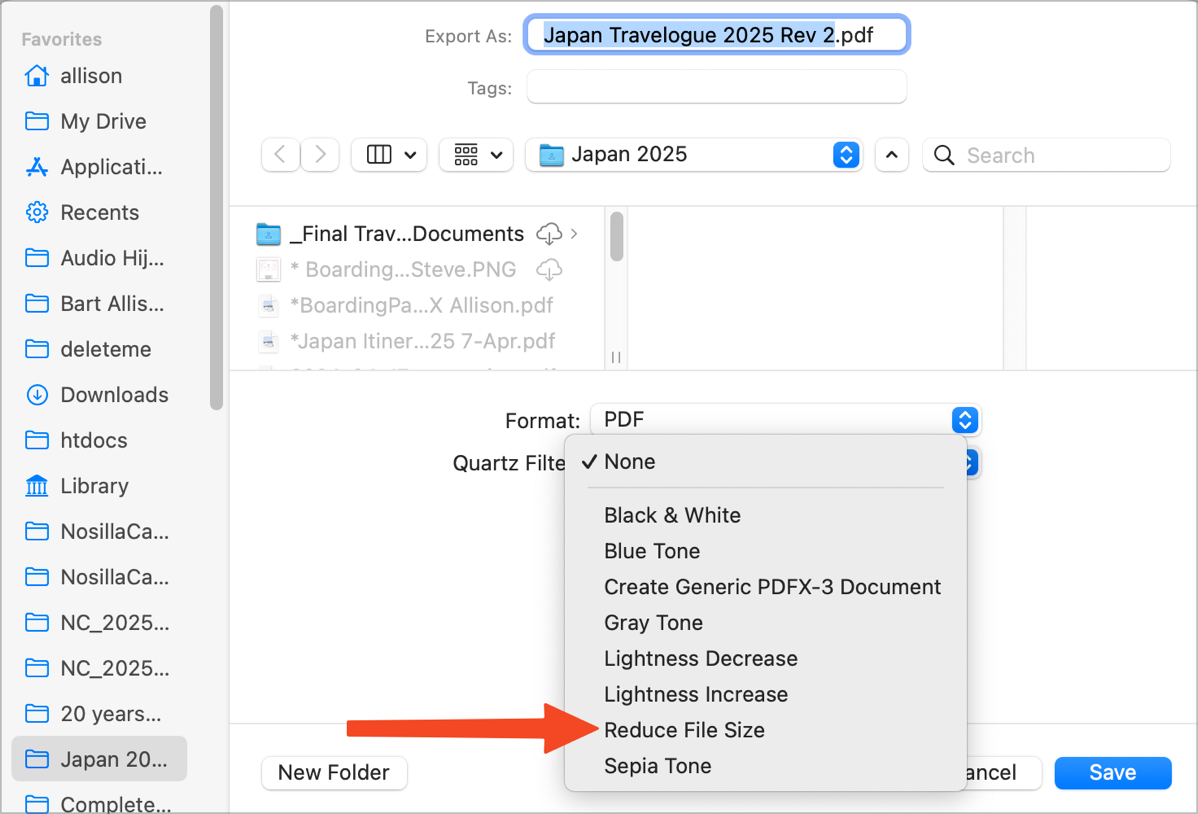
When I used this trick on my Japan Travelogue, it reduced the file size from 85MB to 36MB.
Now let’s do the worked example together. Open Apple Pages (download it for free from the Mac App Store if you haven’t already). Start a new document, and when it offers to let you start with a template, choose the one called School Newsletter. We’re going to use this template because it’s easy to drop photos into placeholders. Save the file, and then from Finder, do a Get Info on it and see how big it is. It should be around 300KB. Not MB, KB.
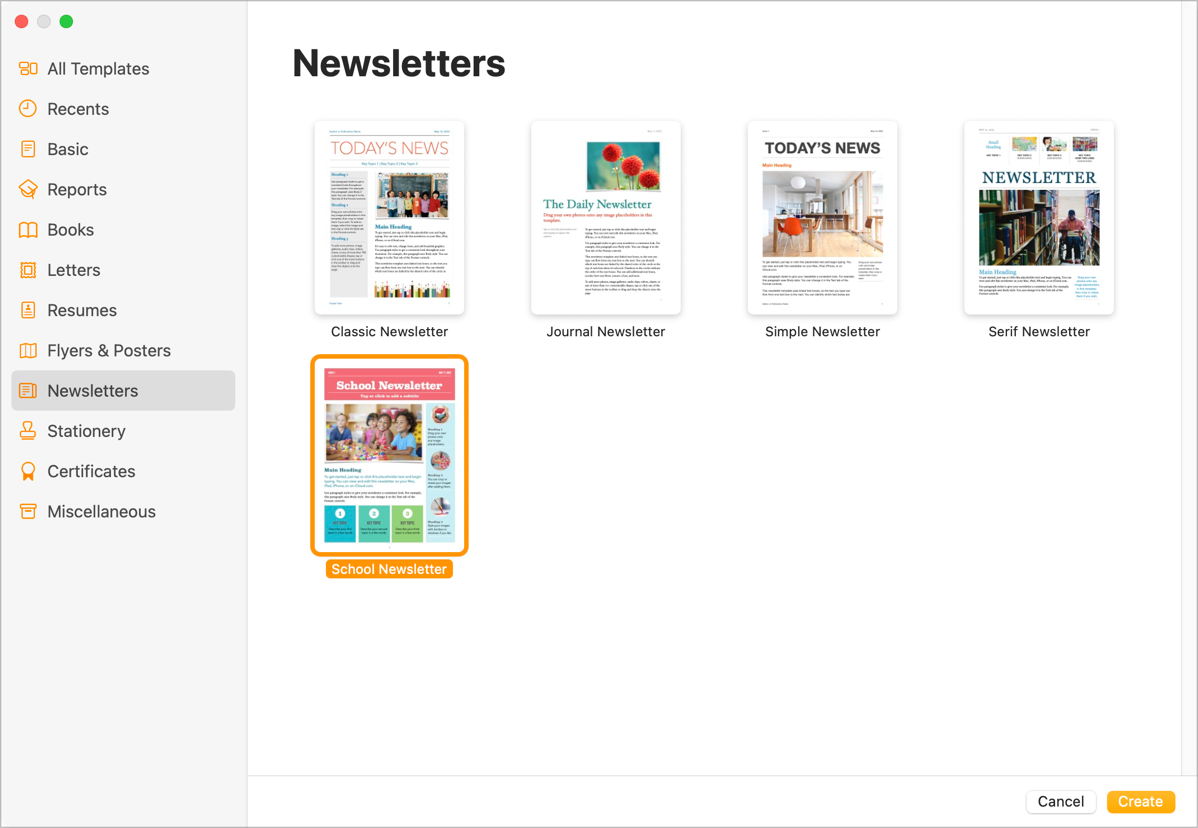
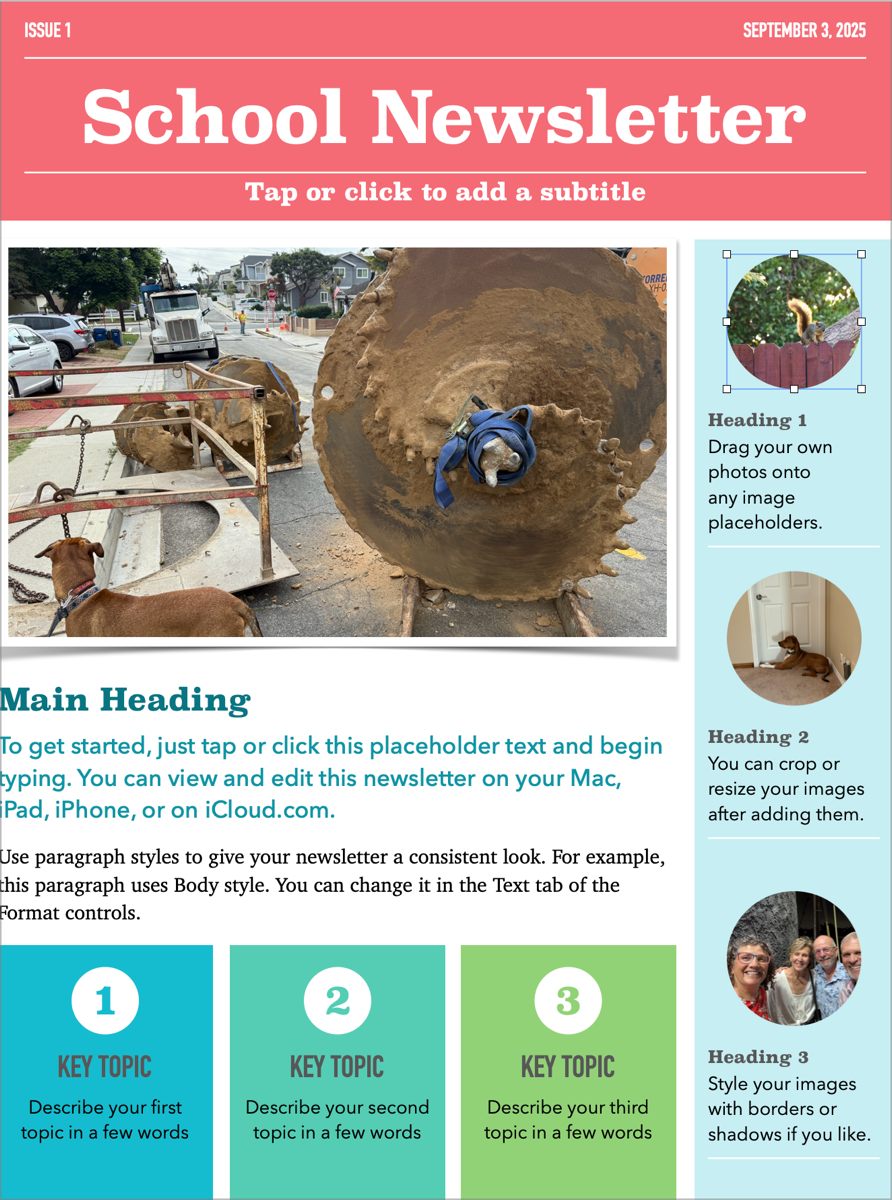
Ok, now with the School Newsletter open, also open your Photos library, and simply drag random full-resolution photos from your camera roll into Pages on top of the placeholders. They should have an image icon and say something like “Drag your own photos onto any image placeholders”. There should be three little round image placeholders and two bigger ones.

When you’ve replaced all of the image placeholders, save the file again, and check the file size again. The size will depend on the complexity and resolution of the images you dragged in, but the file should be tens of megabytes now. Mine became 28.7MB with just those 5 images embedded into the Pages file.
Next, print the file to PDF, and again check the file size. My PDF was about the same as the Pages version, weighing in at 28.3MB.
We’re finally at the fun step. With the PDF open in Preview, go to File → Export, and choose the Quartz Filter for Reduce File Size. Save the exported file to a new name, just in case it doesn’t look as you’d hoped. Pro tip: I always added something like “reduced” to the end so I can tell which one is which.

When I used Reduce File Size with my 5-image School Newsletter file, the resulting exported PDF was a grand total of 563KB! That’s 50 times smaller than it was before we did the Reduce File Size export. Now you might be wondering why the Japan Travelogue only went down by a factor of around 2.5, but the newsletter was a factor of 50. The image placeholders on this template are wee tiny, so the huge images can be compressed down much further than they can in my travelogues.
Because I’m a scientist, I printed both versions of the PDF for the newsletter on my color laser printer to see if I could tell the difference. I didn’t spend money on good paper, but they looked identical to me.
Maybe you’ve got tons of disk space, and your data isn’t capped, and you have high-speed Internet, and you don’t have to worry about storage on your mail provider, but the people you send your PDFs with images in them will surely appreciate that you took the care to make the files small and snappy without perceptibly lowering the image quality.
Bottom Line
I know this was a heavy lift with NINE Tiny Mac Tips, but I think each one of them was relatively simple. Plus, it’s been ten months since I gave you any tips!
If you enjoyed these tips, here’s a link to the next set of tips: Link to Tiny Mac Tips Part 11
Thanks for these great tips, Allison. I learned something today! That “View Web Images Alone in Browsers” tip is neat (plus the URL one, too).
I recently discovered the “Print to PDF … Faster” tip myself and wondered if it’s a feature I had missed or if it had been available for a while. I remember when the feature was introduced in the first Mac OS X version in 2000, and what a boon it was. This feature makes it even betterer!