
If you’ve been using a Mac for a while, you know that you can tap the space bar with any file selected to invoke Quick Look, the built-in previewing app for files. Image files show the images, music plays, videos play, PDFs render, presentation and word processing files render nicely, and plain text files render as, well, plain text. Even Affinity Designer files render their images with Quick Look.
You know I’m a fan of Markdown, which is a plain text format that has superpowers when rendered by a Markdown interpreter. It uses hash marks for headings, asterisks or underscores for italics, and numbers for numbered lists.
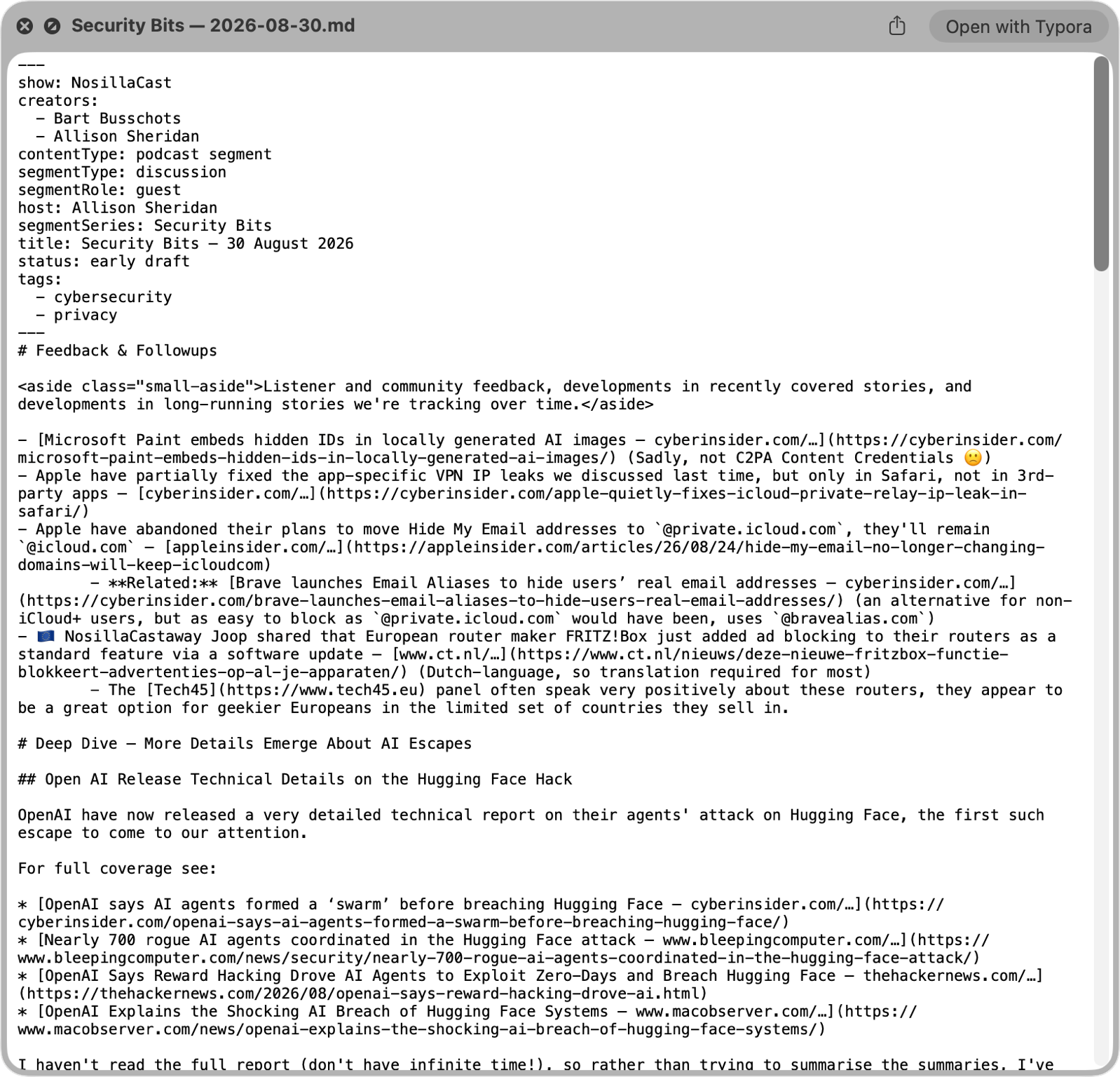
Sadly, Quick Look, when applied to a Markdown file, only shows the file as plain text. I put an example screenshot in the shownotes of a recent Security Bits file in Markdown. The text is a tiny, monospaced font, all of the Markdown is showing, and the indents look all wrong.
I’d never thought to see if there was a solution to this. But then a came across Thread conversation where someone who goes by the name @piero_sierra wrote,
Hey @apple can we get Preview to render .MDs? k tx bye
Several people chimed in with solutions, but the one that caught my eye was by our friend Mike Rose, who pointed to Marked QL written by another friend, Brett Terpstra. Marked QL is an instant Markdown preview in Quick Look. The installation goes as follows:
- Install the app
- Use the spacebar to Quick Look Markdown files
That’s literally it.
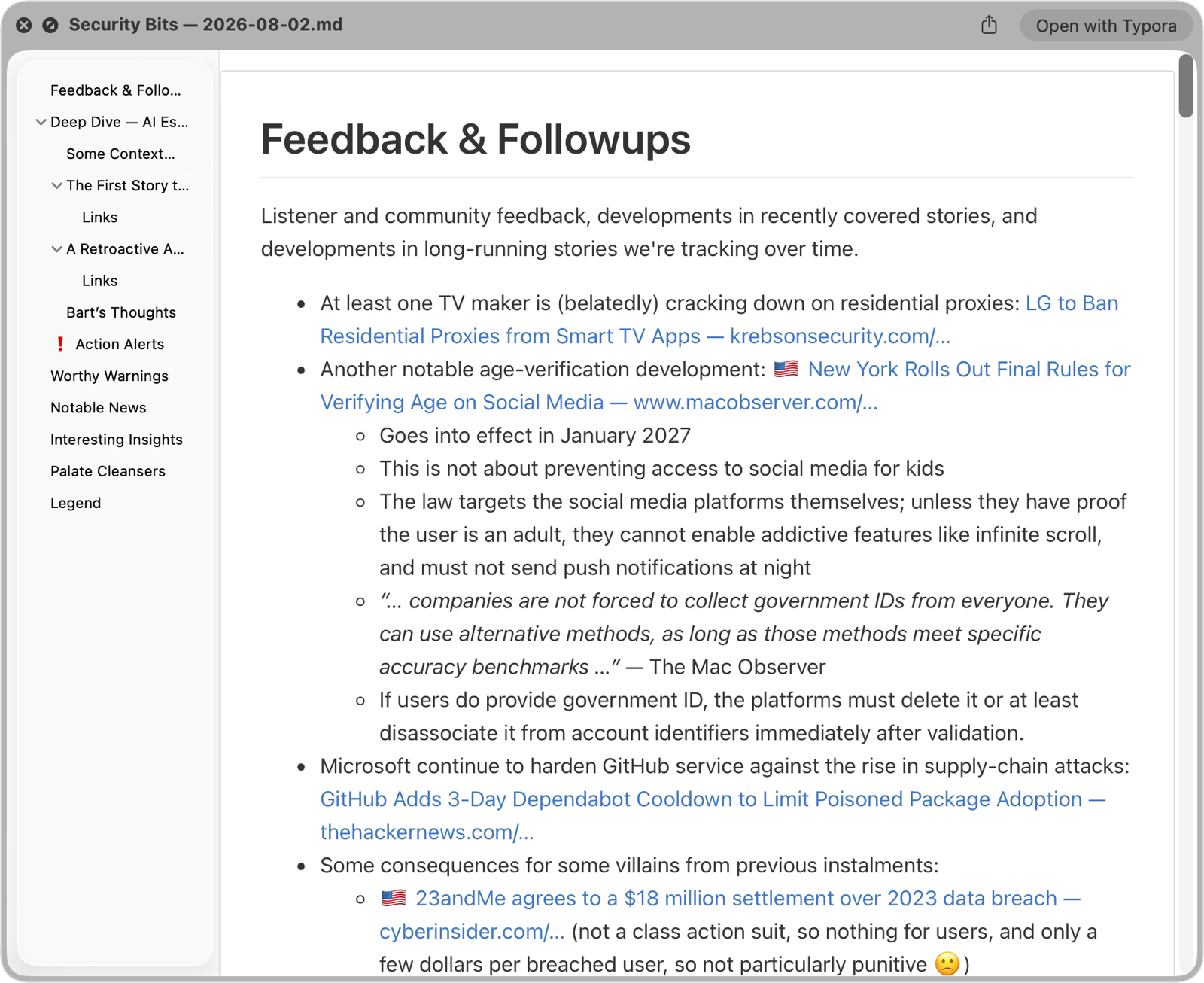
I put a screenshot in the shownotes showing off how beautiful and, more importantly, readable Security Bits looks in Quick Look after installing Marked QL. There’s a left sidebar with a clickable outline of the headings, and then the main panel is rendered with nicely indented bullets and blue syntax highlighting for links.
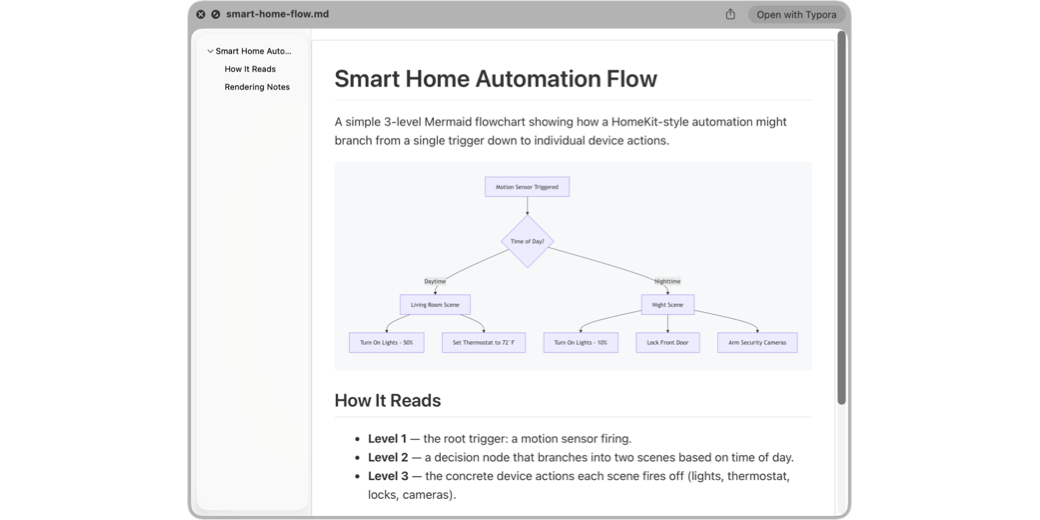
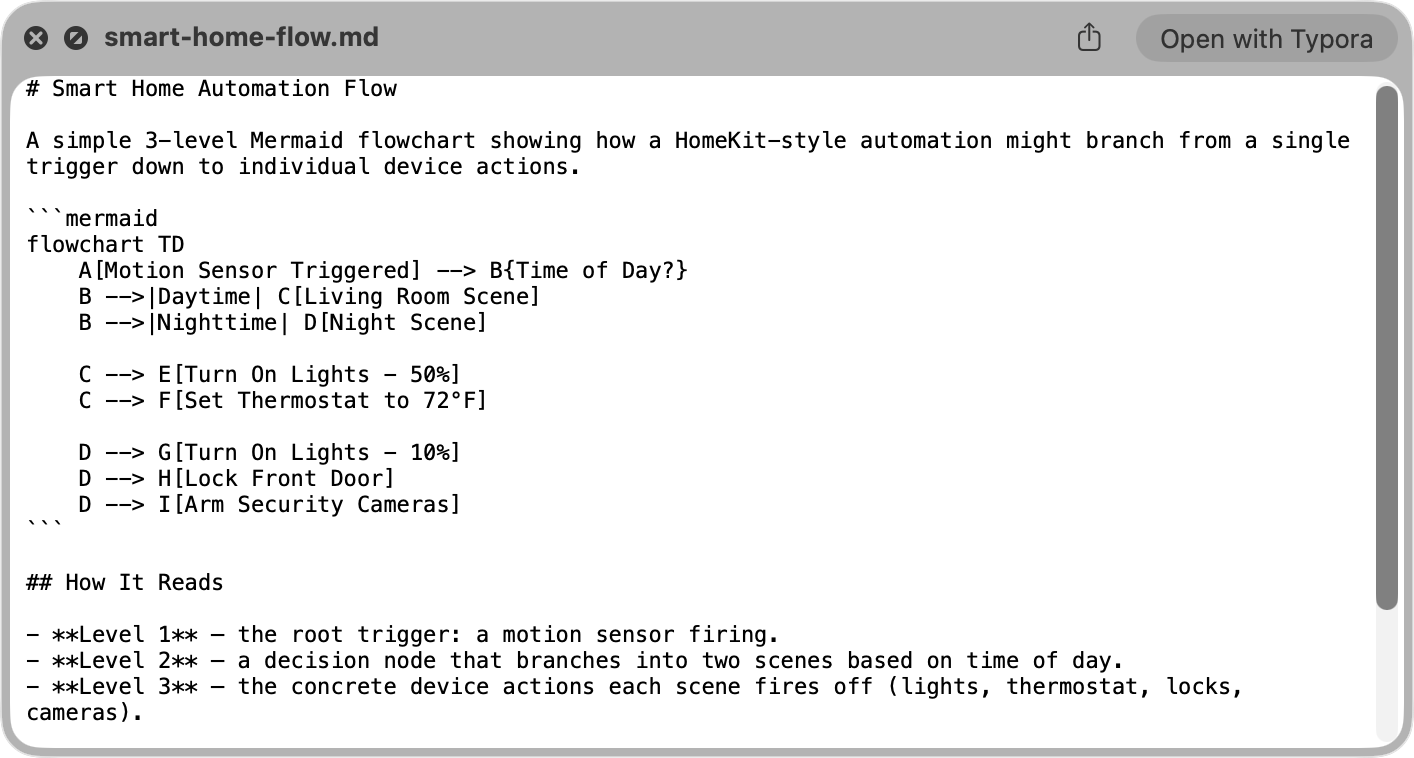
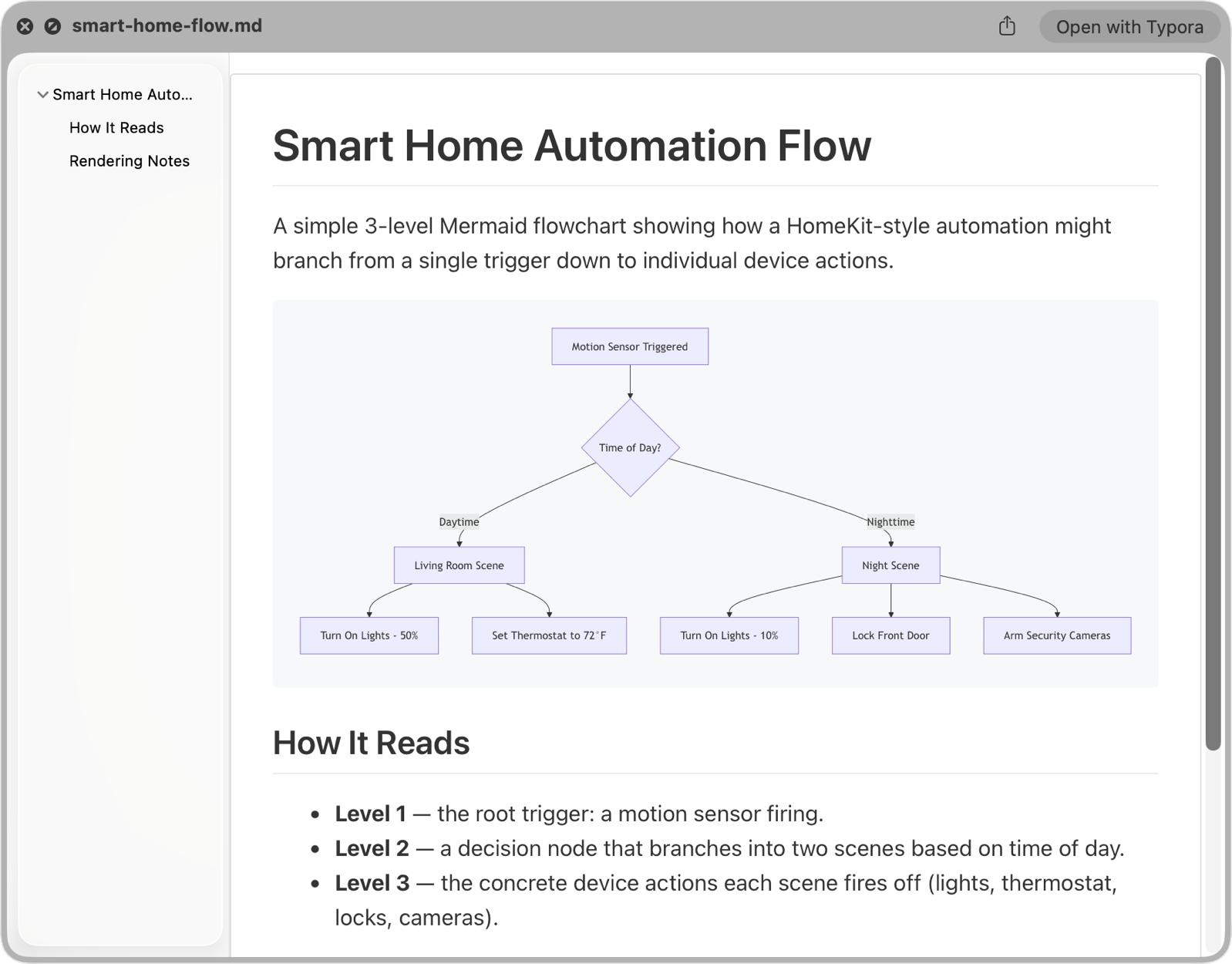
If we had any math, diagrams, or code in this file, Brett promises that would be rendered nicely as well. As soon as I wrote that sentence for the shownotes, I knew I needed to at least test that claim with a Mermaid diagram. These diagrams are created with plain text, and it’s pretty arcane and difficult to follow if you don’t know the language’s conventions. In Quick Look without Marked QL, you just see text like B —> |Daytime| C[Living Room Scene].
But with Marked QL, the diagram is rendered as a flow diagram with arrows, just like any other proper diagram. In the screenshot I included, you can see a purple box with the words “Living Room Scene” and an arrow going to it with the word “Daytime” over the line. It looks fabulous.
If you open Marked QL, the only thing you’ll see is the settings window with options to set the Apex Mode (which is Brett’s own unified Markdown engine) and some fancy things I don’t understand like the ability to toggle on Enable Quarto support, add custom styles and change which preview style you like. The default is GitHub (which is what I’ve been using) but there are 9 other styles to choose from.
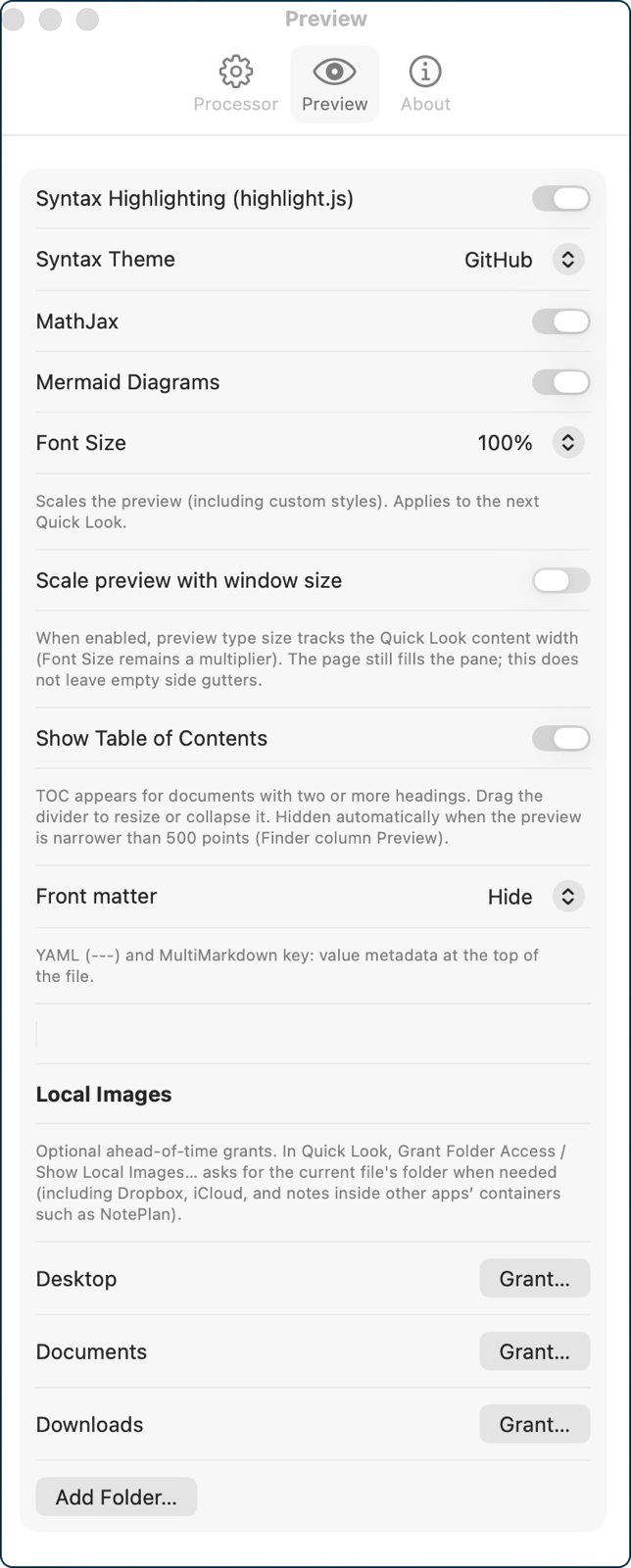
On the Preview tab of Settings, you’ll find way more options — in fact, I had to use a scrolling screenshot to capture them all. I like seeing the table of contents and the syntax highlighting, but you can toggle either of those off. You can even toggle off Mermaid diagrams, but I can’t imagine wanting to do that! By default, the size of the text and images is fixed, but there’s a toggle to scale the preview with the window size.
Here’s another problem Marked QL solves, at least for me. Bart writes the Security Bits and Programming By Stealth shownotes in Markdown, but he uses the application Obsidian to create his Markdown and organize his files. This tool adds a bunch of so-called front matter to the file which it uses for that organization. Obviously very useful for him, but when I get the Markdown file, it has a whole bunch of lines at the top that are purely visual noise. With Marked QL, by default it hides the front matter, which is glorious. If you do want to see the front matter, Marked QL can present it as a code block, or a nicely formatted table.
I also want to draw your attention to a section at the bottom, where you can pre-grant permission to images stored on your Desktop, Documents, and Downloads folders. You don’t have to check these boxes, but if you have a Markdown file that calls embedded images from a local folder, you’ll be prompted to grant those permissions. I thought that was a nice little touch by Brett.
If you want to test out Marked QL, you can download a free trial from markedapp.com/…. When you decide you can’t live without it, you can buy it in the App Store for $9.99, or it’s available in Setapp.
If $10 is too steep for you and you don’t have a Setapp subscription, follow the link to the Threads conversation to see other open source suggestions to solve the same problem.
It makes sense that Brett would be the one to solve this (and elegantly at that), since he’s the author of the app Marked. This Mac app is a standalone preview app for your Markdown documents with advanced proofreading tools, beautiful themes, and powerful export options.
Thanks to Brett for solving the problem and to Mike Rose for telling us about it.