
Sometimes I like to circle back to an app that I’ve told you about before, because it has advanced in functionality or added some fun new features. These might not even be life-changing productivity apps; rather, they’re just apps that make me happy.
The perfect example of a non-life-changing app that makes me happy is Klack (spelled with a “K”) from tryklack.com. Klack’s entire job is to make your keyboard sound like one of those fun mechanical switch clicky-clacky keyboards.
When I told you about it 3 years ago, it never occurred to me that the developer, Henrik, would be able to think of more features for the app. Back then, there was very little to the app. You selected one of the three available mechanical switch sounds and then chose a volume for the sounds separate from your system sound. You could also toggle Klack on and off with a switch. But now, it’s so much more!
Lest you dismiss this $5 one-time menu bar app as something you don’t need, let me remind you that Bill Reveal, after seeing my article three years ago, immediately bought it and wrote in Slack,
I am sitting here just loving the idiocy of hearing my MacBook clickity klack away. It will drive me crazy every so often but it also lets me know I have actually typed something which is a good thing. Even this post is making me giggle with the sounds of a mechanical keyboard… I swear my keyboard even feels better.
He’s right about that — somehow, your keyboard will actually feel different. When Klack is disabled, my keyboard feels mushy.
A month or so ago, Barry Fulk came to visit, and we were nerding out in our dining room (as we do), and he asked me what was making my keyboard make clicking sounds. I told him about Klack, and a day after he left, he dropped me a note:
That “Klack” app has become rather addictive, especially when I am wearing headphones.
Let’s dig into how Klack does even more now to enhance your typing experience.
More Switches
Where Klack had three switches to choose from in 2023, there are now 7 options: Japanese Black, Crystal Purple, Oreo, Cardboard, Milky Yellow, Super Red, and Cream. If you’re a mechanical switch aficionado, you’ll recognize those names and know how they sound, but for the rest of us, you merely have to hover over each name in the dropdown from the menu bar to hear them. You only hear a very few clicks, but there are other ways to sample the sounds.
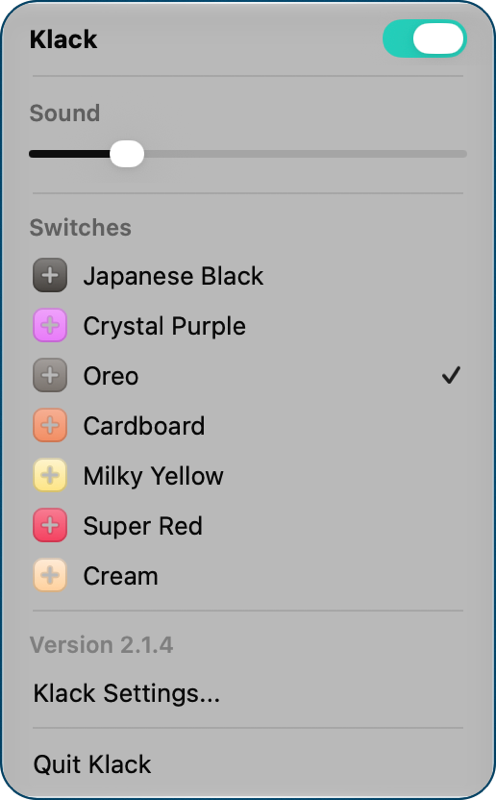
The dropdown menu allows quicker access to features now. Instead of sliding over to switches, they’re right there in the menu. Instead of sliding over to change the volume, it’s just a simple slider in the dropdown. Those are minor changes, but they make the app more usable.
Settings
The bigger enhancements are all in Klack Settings.
General
On the General tab in Settings, we can choose to launch at login, which of course you’ll want turned on. Next is Show in menu bar, but that section requires understanding some of the features before it will make sense, so we’ll circle back.
By default, when you disable Klack, the menu bar item changes from a white box with a black K inside to a muted grey box. I find that a great way to instantly tell if my typing is going to be loud or silent before I start typing. But if for some reason that translucent grey icon bugs you, in General Settings you can disable menu bar icon opacity.
Remember I said that as you hover over each of the switches in the menu bar app, you can hear what those switches sound like. In General Settings, you can disable that switch preview on hover.
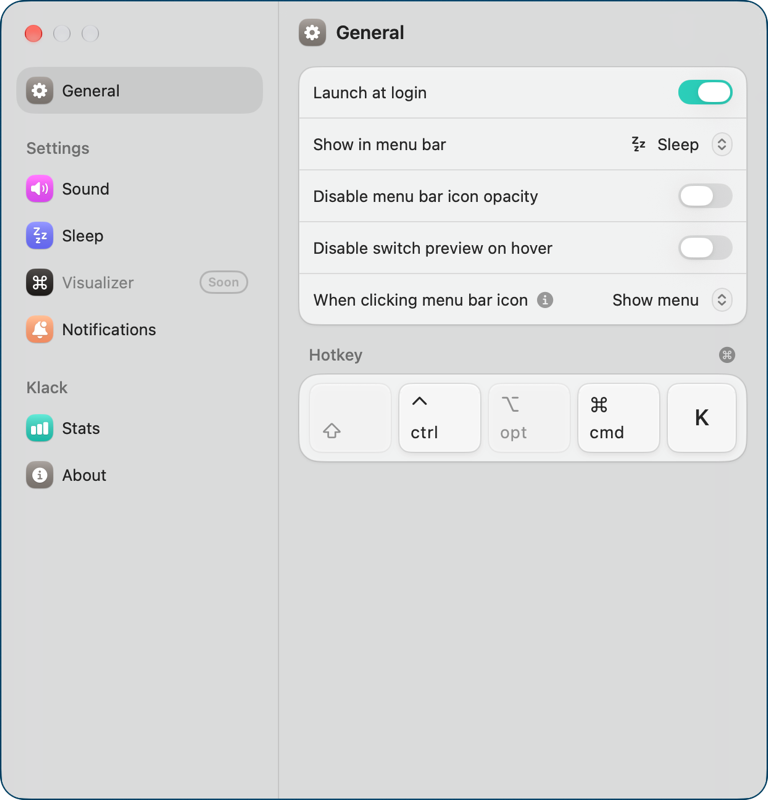
By default, when you tap on the menu bar icon, it shows you the dropdown menu. To be honest, once you have Klack set up, you probably don’t really need to go into the menus very often. If you find that you’re only using the menu bar icon to toggle Klack on and off, in Settings, we can change “when clicking menu bar icon” to “toggle Klack”. Now when you tap the icon, it toggles Klack off. Tap again, and it’s back on. You can always right-click the menu bar items to trigger the opposite behavior. So with the default behavior, right-clicking on the Klack icon will disable/enable your clicky-clacky keyboard.
Lastly, for the keyboard junkies amongst us, you can assign a hotkey to disable/enable Klack.
Sound Settings
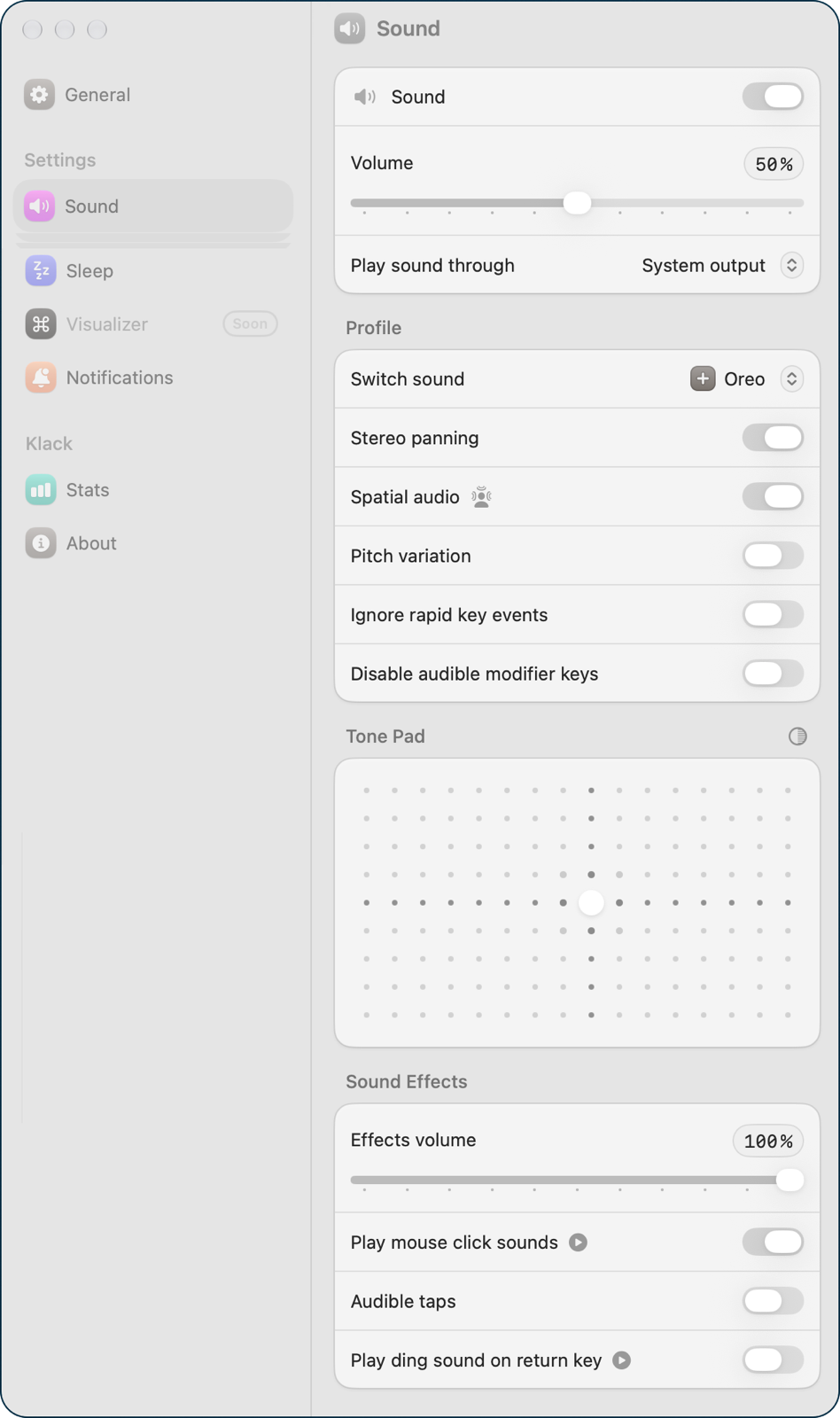
The next section in Settings for Klack is titled Sound. First, we have yet another place to toggle off sound, and you can set the volume just like you can in the menu bar app. But you can also choose a system output. Let’s say you’re using your external speakers for most sounds, but your officemate is going batty with your clicky-clacky keyboard. You could change the system output to your headphones. Note that the sound will be quite different depending on the fidelity of the different audio outputs.
The next section in Sound allows you to modify the profile of a chosen switch sound. I confess that these effects are subtle enough that my ears have trouble picking some of them up, but let’s go through each option for those who can discern the difference.
Profile
At the top of the profile settings, you’ll see the switch that you have chosen to simulate, and then a series of toggles I’m going to describe down below. You can’t set different profiles based on which switch you choose, but the choices you’re going to make affect all of the profiles the same way
Stereo panning shifts the sound slightly to the left or right depending on where the key is located on your keyboard.
To prove to myself this was really happening, I opened up Loopback and added the app Klack as a virtual audio source. Using this configuration, I can watch the stereo sounds of the left and right channels. Sure enough, tapping the back tick on the far left of my keyboard triggered a higher green line on the left channel than the right. When I tried the pipe key on the far right of my keyboard, the right channel’s green line went higher.
Spatial audio creates a more immersive, three-dimensional soundscape if you are wearing supported headphones. If you have headphones that support Spatial Audio, such as the AirPods Pro, and you like that effect, you can toggle this on and turn your head 90° while you type to enjoy the effect. I don’t have AirPods Pro so I wasn’t able to test it myself.
Pitch variation slightly alters the pitch of the sound for each keystroke so it doesn’t sound the same every time.
This is another subtle effect, but with pitch variation enabled, if you hit the same key over and over again and listen very closely, you’ll notice a very slight variation in the pitch. I think it’s simulating the way a mechanical key has some variability in angle as it goes up and down, so the way it lands can change. This app is all about reproducing that lovely sound.
Ignore rapid key events is intended to prevent the app from playing overlapping sounds if you type very quickly or hold down a key.
Key repeat in recent versions of macOS only affects the Delete key, spacebar, and punctuation. However, in my experiments, even with Ignore Rapid Key Events toggled off, I still don’t hear the sound of the key being repeated. I wrote a note to Henrik, the developer of Klack, to see if maybe I’m misunderstanding how this should work.
Disable audible modifier keys mutes the sound for keys like Shift, Control, Option, and Command.
I don’t see why the modifier keys should be relegated to being second-class citizens like this, but if hearing the Control key upsets you, then you should certainly disable that sound. It’s all about you, right?
Tone Pad
Next up in Sound settings is something really fun, and again completely unnecessary. It’s called Tone Pad, and it’s for the uber key switch fans. The Tone Pad is a grid of dots on a white background, with one larger white circle in the center. As you drag the center button to the left on the grid, it gets more “thocky” sounding. Drag it to the right, and it becomes more “clacky”. It’s a two-dimensional grid, so if you go to the extreme bottom left corner … it’s really thocky! I encourage you to play around with it till you find the sound you like.
Sound Effects
The last section of Sound Settings is Sound effects. In addition to thocky/clacky sounds when you type, you can have Klack give you audio feedback when you click with your mouse (a true click), or only when you tap on your pointing device.
If you’re old school like me, and learned to type on a manual typewriter, you might enjoy the sound effect feature to toggle on “Play ding sound on return key”.
Klack has a slider that allows independent volume of these sound effects from the regular clacky (or thocky) key presses. Even if I have the volume for Klack up nice and loud (mostly to irritate Steve), I can have mouse clicks be more delicate.
Sleep
Sleep is one of the coolest additions to Klack. I mentioned early on that we can toggle Klack on and off from the menu bar, or use a keyboard shortcut. But with the options in Sleep, you can trigger Klack to sleep automatically depending on what’s happening on your Mac.
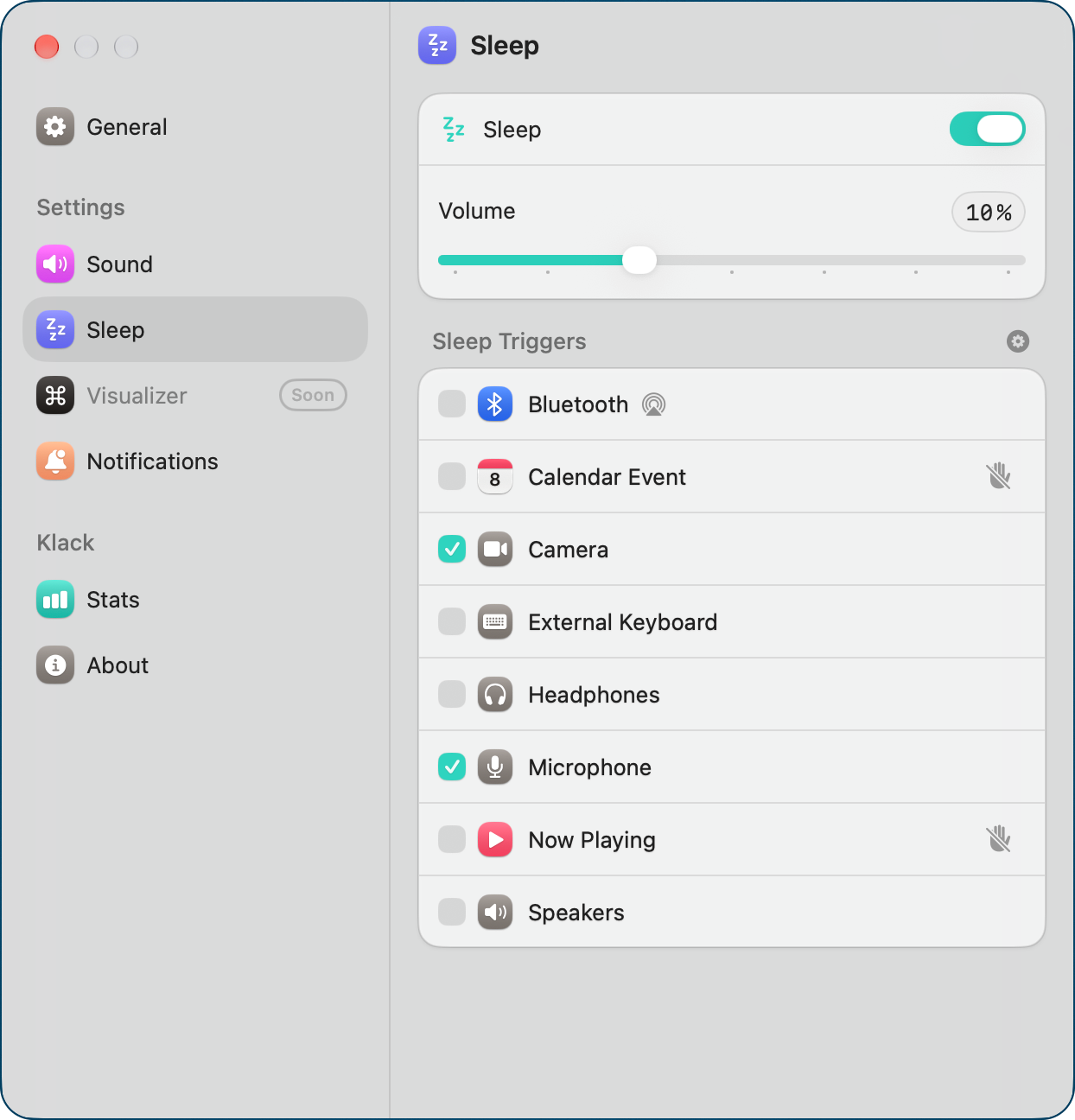
For example, you can have Klack automatically go to sleep if you change your audio output to an external Bluetooth device. You can also trigger Klack to go to sleep for wired devices like microphones, speakers, and headphones when they become active.
For example, I have a wired microphone always attached to my MacBook Pro, but with Microphone set as a sleep trigger, I can still hear my clicky keyboard. But as soon as I start actively using it in an application, the clicks stop. I think that’s brilliant.
I definitely want Klack to go to sleep for my microphone, but I also enabled the camera trigger so my clicky/thocky entertainment won’t disturb video calls. That might be double protection, but I like having a separate toggle just for the camera.
Unfortunately, I have had intermittent success with the camera sleep trigger. I definitely saw it work once, but on two different Macs, one with an internal camera and one external – now Klack doesn’t sleep on either one. I’ve written to Henrik about this too.
If you don’t want Klack clicking or thocking away when you’re attending a meeting, you can have Klack go to sleep with a scheduled Calendar event, and wake back up when it’s over. Klack doesn’t demand all kinds of permissions when you first install it, so it will only ask for Calendar permission when you set it as a trigger. I wish all apps were so polite.
You probably don’t want a thocky keyboard when you’re listening to Apple Music, so there’s an option to sleep for “Now Playing”. This option also politely requests your permission.
At the top of the Sleep panel, there’s a toggle for the entire feature, but there’s also a sleep volume. By default, it’s set to zero, but maybe you want to still just barely hear your typing for that visceral positive reinforcement. Sleep volume has a limit of 30%, which seems more than enough. I tested it at 10%, and that was just about perfect for me.
Notifications
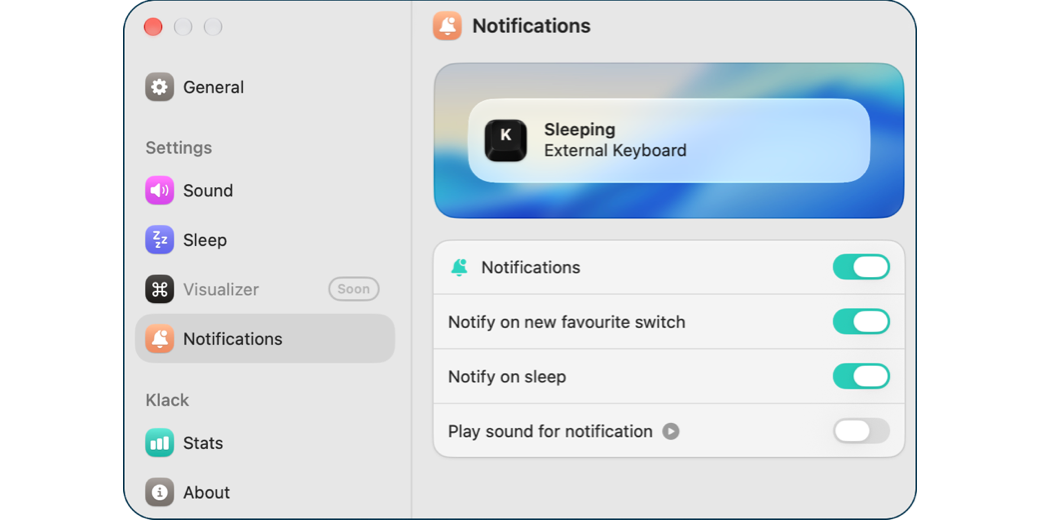
If you toggle on notifications in Settings, it politely asks permission and then reveals 3 options. The first is to notify on “new favourite switch”. I’m not sure what that’s supposed to do, because changing your selected switch doesn’t send a notification. It may be that when Henrik develops a new switch simulation, you’d be notified. I sent him yet another an email to him asking if that’s what this notification is all about. Each new switch is a lot of work, so they don’t come out very often.
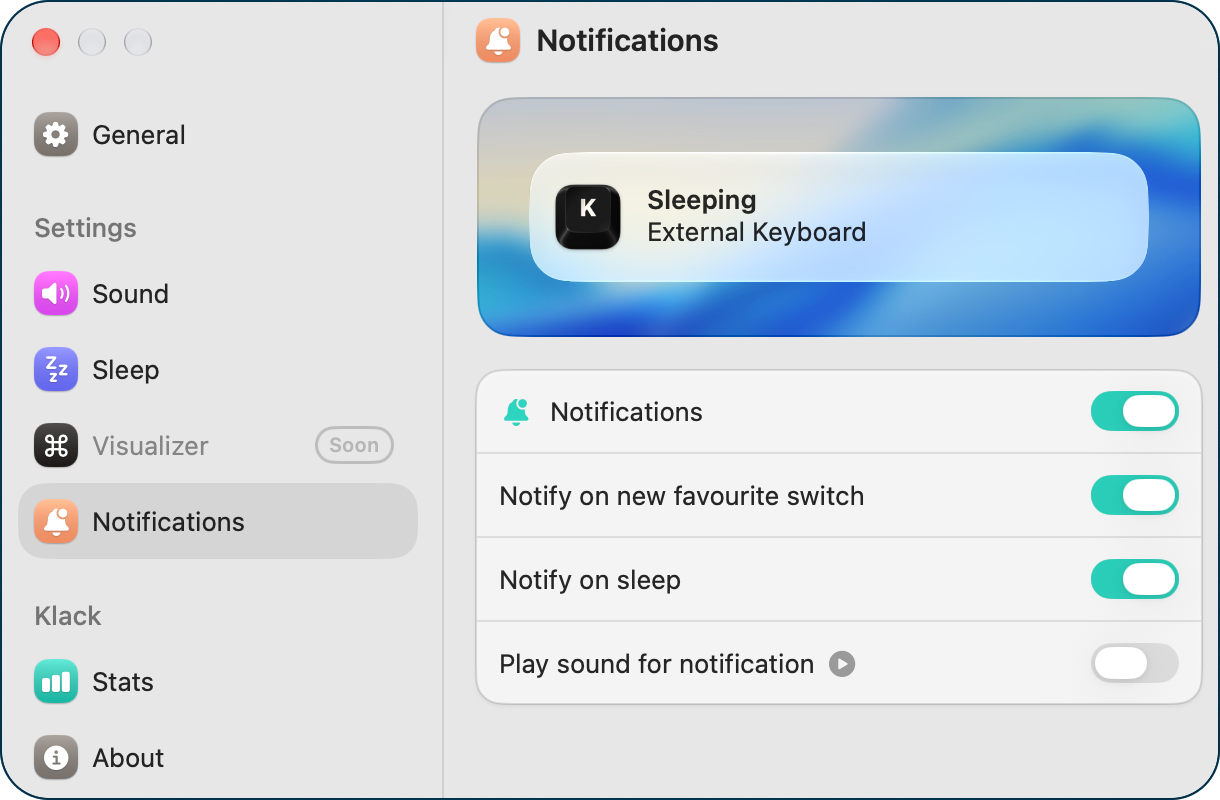
You can get a notification when Klack goes to sleep. I think that’s a good feature to enable so you’re sure that your sleep triggers are working properly. Again, it’s not great to be surprised by some clicky/thocky typing at the wrong time so you might want to be notified that the trigger worked properly.
You can also have sound played along with the notification, but it seems to me getting an audio notification that your clicky/thocky typing might not be what you’re looking for.
Stats
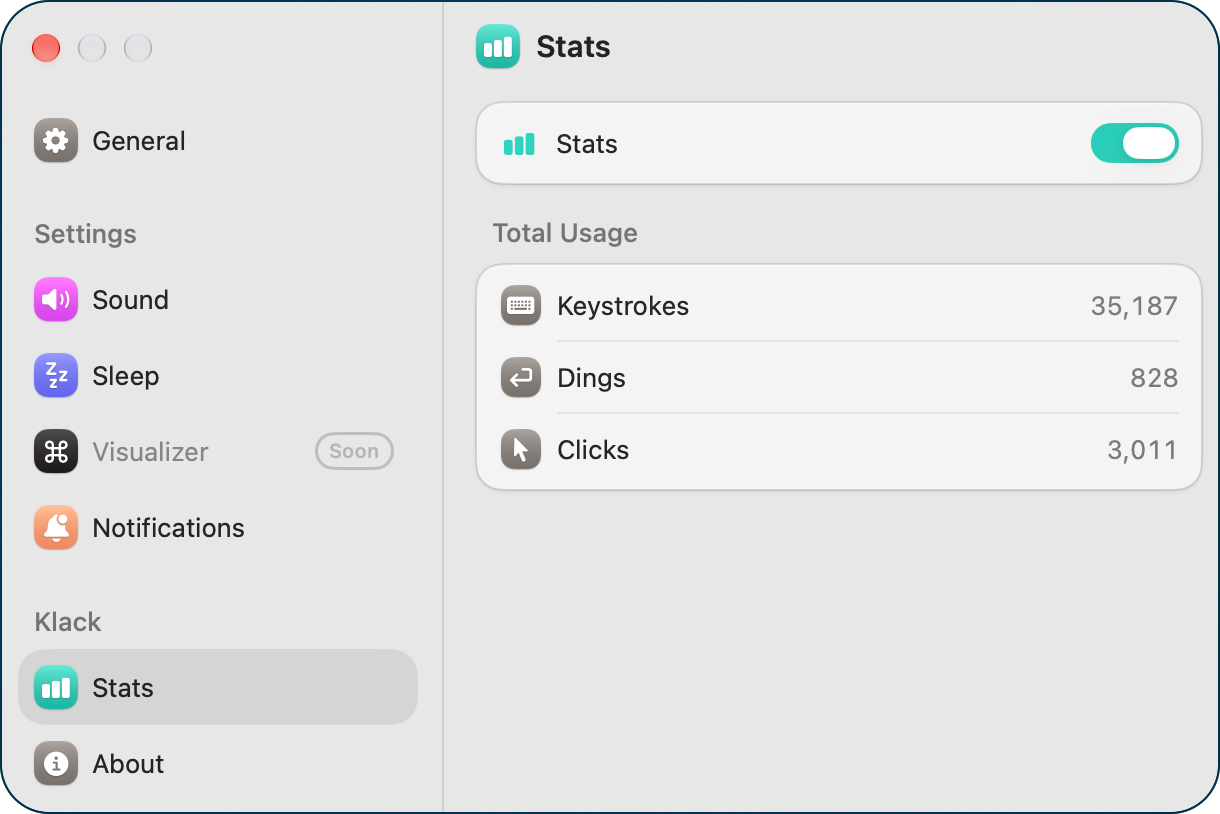
In the spirit of an app that’s simply for our entertainment, Klak has a Stats section in settings. The stats you can see are how many keystrokes, dings, and clicks it has registered. I can’t think of a single reason you need this information, but it’s all about fun.
Show in Menu Bar
Remember way back when we started going through Settings, and I said I’d circle back to what “Show in menu bar” does? Even if you don’t remember, I like to tie up loose ends.
Show in menu bar has four options. The silliest one is actually keystrokes. As of the time I wrote up this article, the Stats section showed I’d typed 35,187 keystrokes, so when I select to “show keystrokes in menu bar, it shows “35k” next to the K icon for Klack. This makes me wonder what will happen if I leave this on and I type hundreds of thousands of keystrokes, or even millions? Maybe it will eventually take over my entire menu bar!
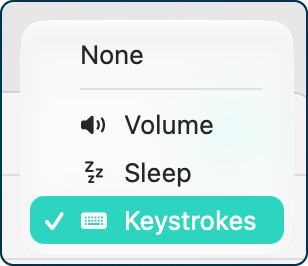
And then you see this:
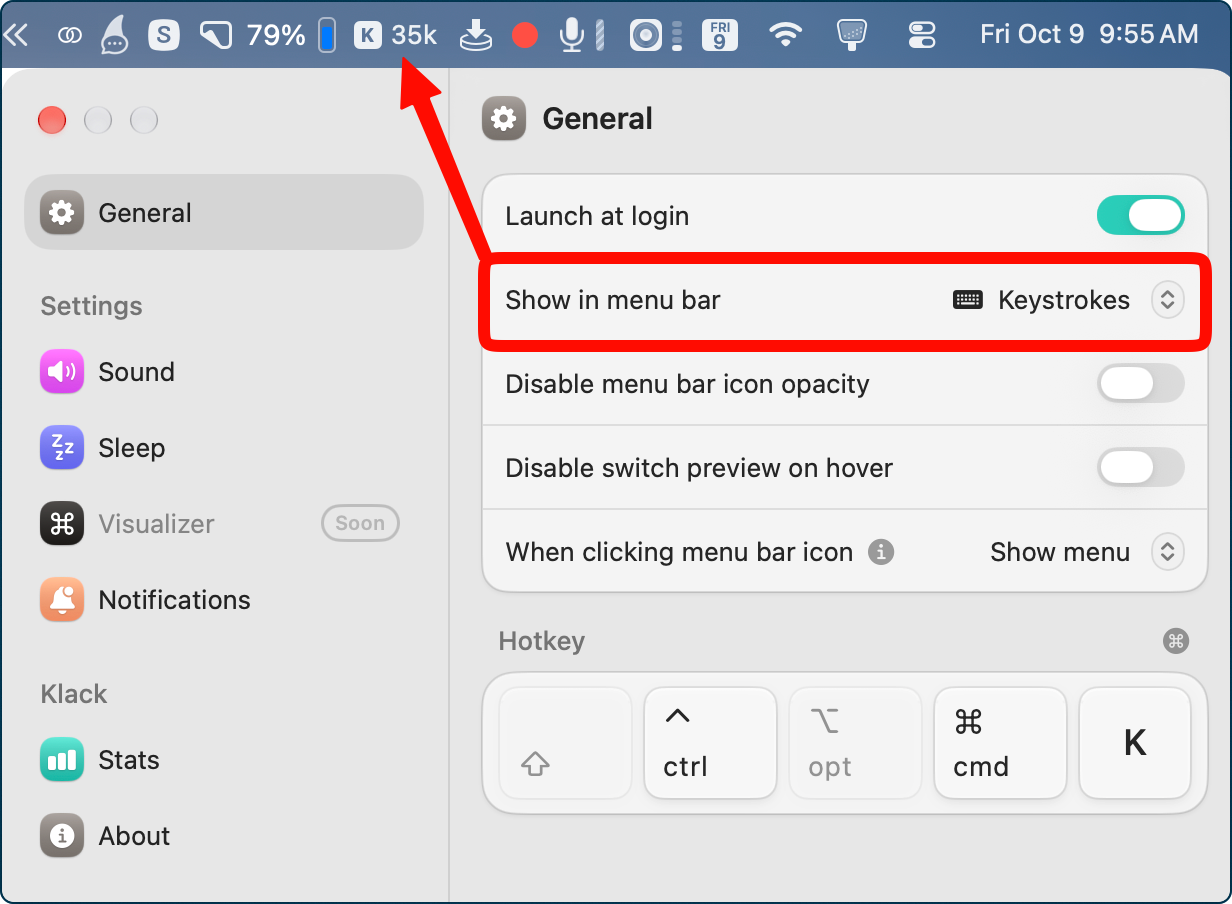
I thought maybe toggling stats off and back on would clear it, but it keeps that count going.
There are two more useful things you could choose to show in menu bar. The volume you have set for Klack, or three little Zs indicating Klack has been triggered to go to sleep.
There appear to be a few bugs right now. When I first started testing, triggering Klack to go to sleep for a calendar event did put it to sleep, gave me the notification, and showed the cute little Zs in the menu bar. But in later testing, the triggers stopped working to put Klack to sleep.
In my previous review, Klack was accessible with VoiceOver, but there are issues with it now that I’ve reported back to Henrik.
Henrik did tell me that he’s been flooded with support requests this week but I have all the confidence that he’ll get these features sorted quickly, including accessibility fixes.
Bottom Line
The bottom line is that Klack won’t make you more productive, it doesn’t use AI to do any tasks for you, and it won’t make your cholesterol go down. But it might make you smile and it might make your keyboard feel more responsive. I’ve been running Klack for years now and I love it. Check it out at tryklack.com or look for it in the Mac App Store. It might just be the happiest $5 you’ll spend today