

Jump to Tips
- Get Info vs. Show Inspector
- Smart Searches, aka Smart Folders
- Fun with Tabs
- Embiggen Text Windows in Web Forms in Safari
- Terminal to See a Calendar
I’m back with Part 11 of Tiny Mac Tips. This is an ongoing series I started in order to teach Jill from the Northwoods how to move from an adequate Mac user to a proficient one. In case you missed the earlier installments, I’ve included links to the first 10 installments:
- Link to Tiny Mac Tips Part 1
- Link to Tiny Mac Tips Part 2
- Link to Tiny Mac Tips Part 3
- Link to Tiny Mac Tips Part 4
- Link to Tiny Mac Tips Part 5
- Link to Tiny Mac Tips Part 6
- Link to Tiny Mac Tips Part 7
- Link to Tiny Mac Tips Part 8
- Link to Tiny Mac Tips Part 9
- Link to Tiny Mac Tips Part 10
Get Info vs. Show Inspector
I told you Everything You Ever Wanted to Know About Get Info, so you’d think I was done talking about it, but you’d be wrong. Get Info is a hidden gateway to something called Show Inspector.
When you select a file or folder and hold down ⌘I or select Get Info from the File menu, it brings up the Info window. If you select a second file and use ⌘I, you’ll get a second Info window. If you ever have a big pile of files selected and hit ⌘I, you’ll be treated to piles of separate windows littering your screen. This mistake can be tedious to clean up, unless you remember the tiny tip to hold down the Option key while selecting the red close button on one of them and see them all whoosh away.
The same friendly neighborhood Option key is how you enable Show Inspector. Select a file, go up to the File menu, and you’ll see Get Info, but if you hold down the Option key, you’ll see it change to Show Inspector. Likewise, you can hold down ⌥⌘I to Show Inspector.
At first, you may not see any difference because Show Inspector presents you with the exact same information as Get Info. It’s the behavior of the window itself that is different.
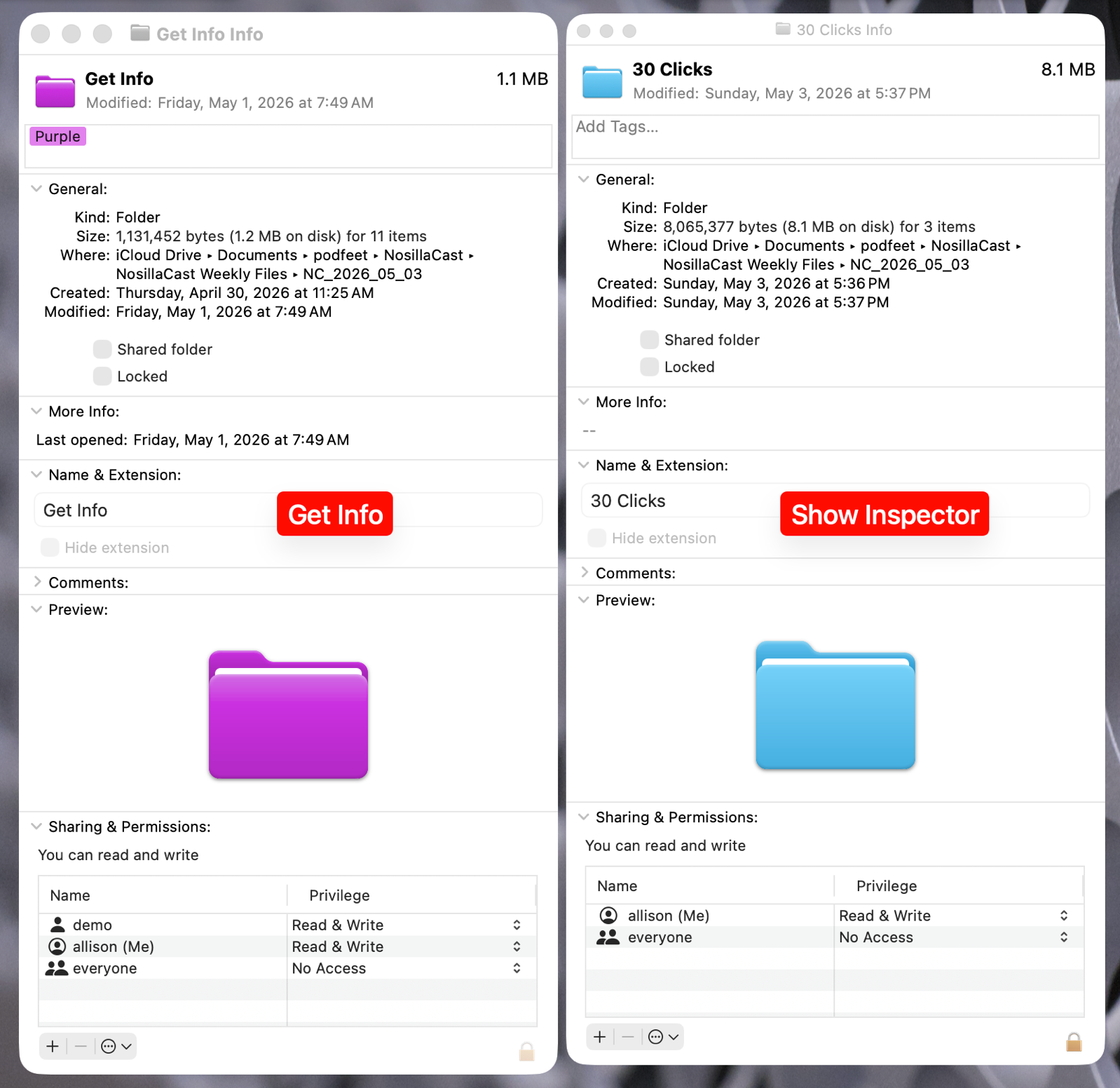
Get Info opens a new window for every file you select, which can be a good thing if you want to compare the properties of two files or folders side-by-side. The downside is that you can end up with your screen littered with Info windows.
In contrast, if you launch the Inspector once on a file, and then simply click on a different file (or folder), the Inspector will now show you the properties of that new file. This means you won’t have your desktop littered with windows.
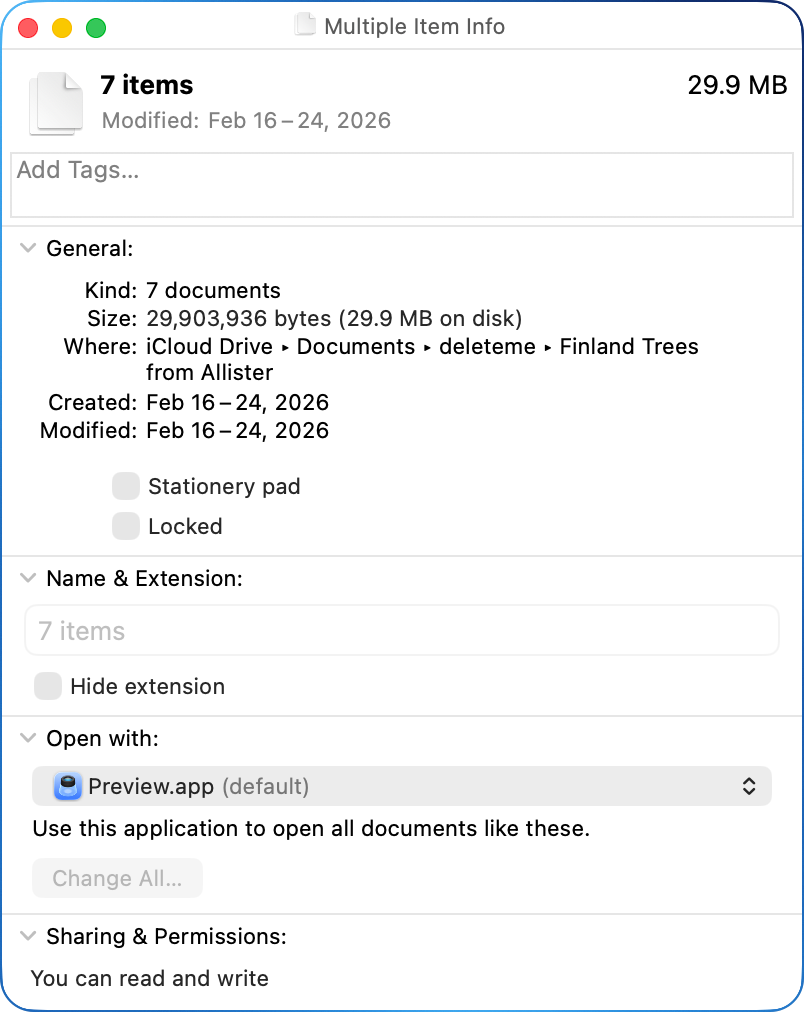
Let’s take it up a notch. If you select a group of files and then use ⌘I, you’ll get separate Info windows for every single file. If you use ⌥⌘I instead, you’ll get one summarized pane about all of them. In the shownotes, I selected 7 image files for a project Allister Jenks was helping me with, and in the Inspector, next to “Kind”, it shows that I have 7 items selected. For Size, it gives me the combined size of all 7 files. Since these files were created and modified at different times, the dates are shown as ranges. Because all 7 files are images, the Open with section says Preview.app is the default. If the files had been of different types, the Open with section simply wouldn’t appear.
The Inspector is one of those little hidden gems that I forget is there, so I’m hoping that by telling you about it, I can remember to use it when I want to flip through some files to learn about them without popping open dozens of windows I have to close later. The only thing that saves me is remembering that holding down the Option key and closing one of those Get Info windows closes all of them, along with all Finder windows.
Smart Searches, aka Smart Folders
In Tiny Mac Tips Part 5 of X, I explained how to do advanced searching right from Finder windows. I also mentioned that after you do a search, you can create a Smart Folder from that search. I didn’t give you much of a reason to ever do that, or explain what you can do with Smart Folders.
I’ve come up with a problem I need to solve that maybe will tickle your brain to realize it can solve some problems for you, too.
My problem is the folder structure for the work I do with Bart. For both Security Bits and Programming By Stealth, every episode is a separate Markdown folder in a directory that we keep in sync using Git. If you’re not a programmer, that sentence might not make much sense. Rather than suggesting you go listen to and read our entire miniseries on Programming By Stealth about Git, let’s just say it’s a system where you push and pull changes to documents.
It works great to create our shownotes in this manner, but the number of files is starting to make it difficult to navigate to open the correct file. For example, Security Bits now has 166 files in one directory. They’re named with the year, month, and day, so they sort alphabetically quite nicely. However, by default, they sort with the newest on top. Every single time I open the Security Bits folder, I have to scroll to the bottom, or faff about changing the sort order. When it was 20 files, it wasn’t a problem. Even 50 was manageable. But now that we’re pushing 200 files, it’s like sandpaper under my fingernails every time I open that darn directory.
My solution is to create a Smart Folder and put it in my Dock. The Security Bits directory and the Programming By Stealth directory are in a folder for all of my programming stuff, so I can do a search of that folder to narrow down the results for both in one Smart Folder.
Since Bart and I record every fortnight, and all of our shownotes are in Markdown format, it was a simple task to search this overarching folder for file names that included .md, and which have a creation date within the last 14 days.
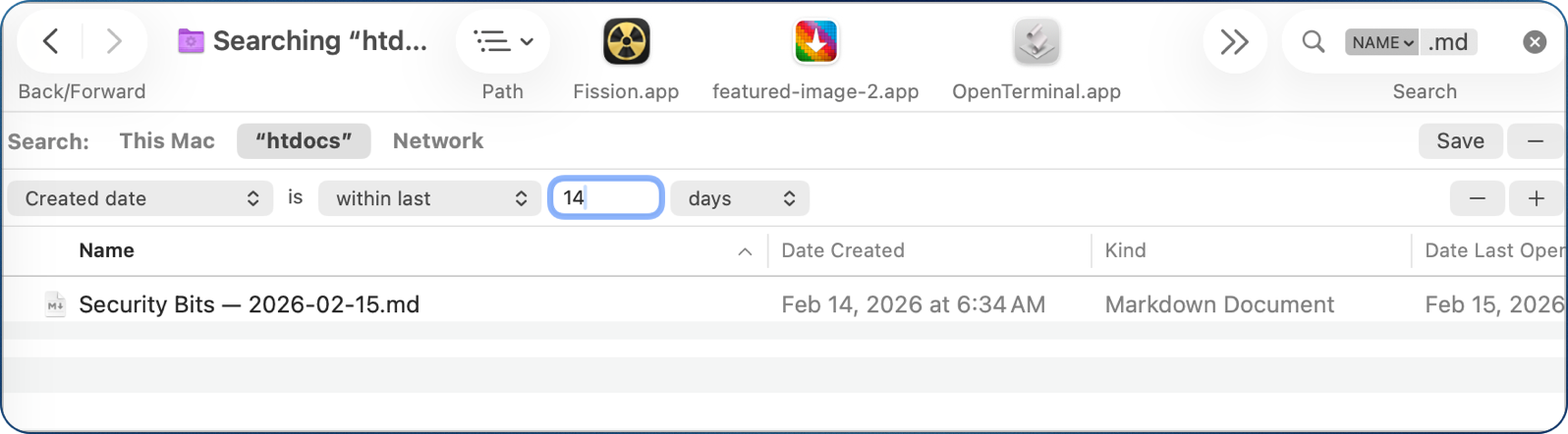
As soon as you perform any search in a Finder window, you’ll see a Save button in the upper right. This brings up a window that allows you to rename the search with a file name extension of .savedSearch. By default, all Saved Searches will be saved in your user-level Library under the Saved Searches folder. By default, it will also “Add to Sidebar”.
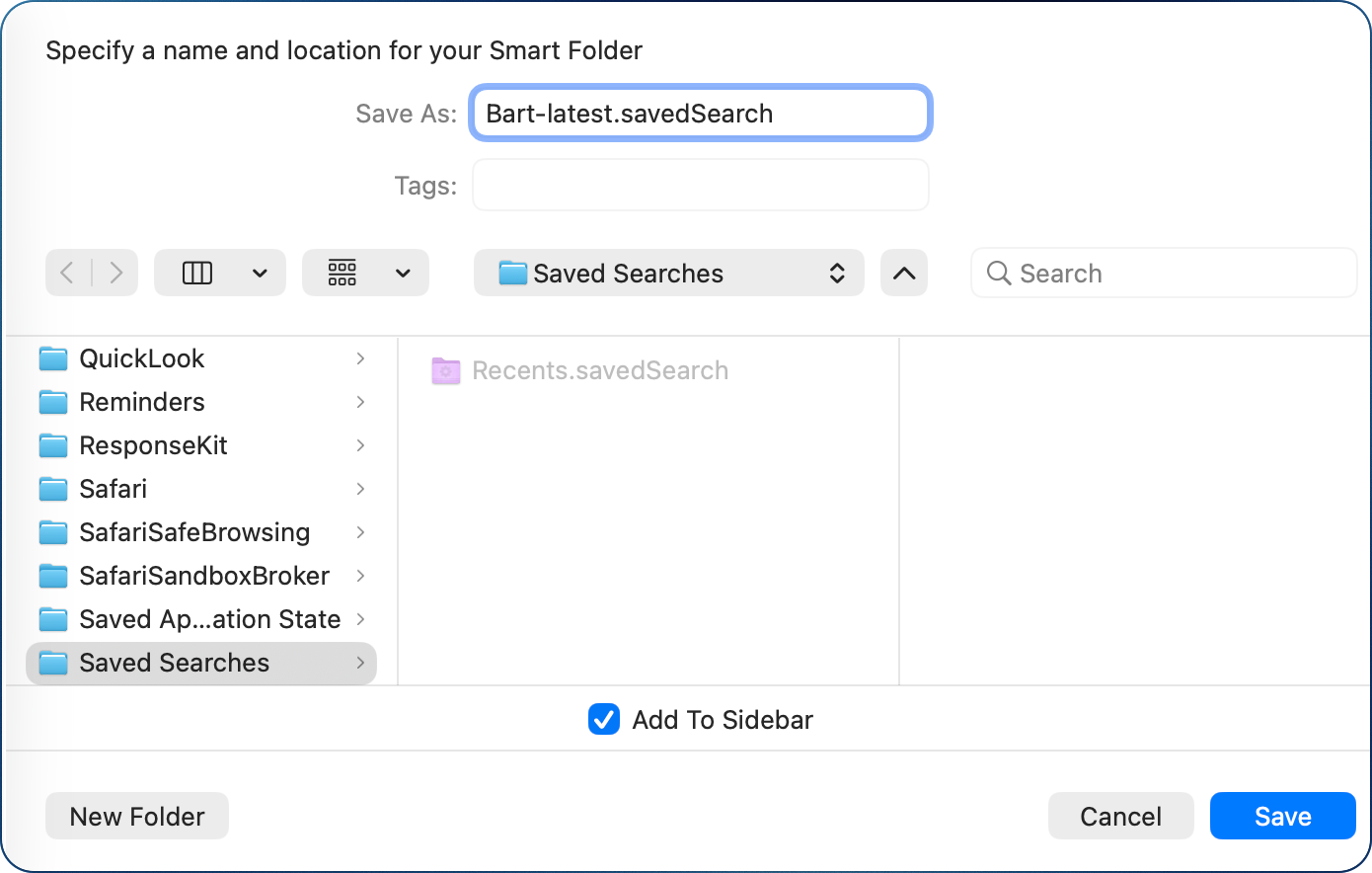
The Sidebar for all Finder windows is a super useful place to keep folders you need to navigate all the time, but maybe you’d rather have your Saved Search in the Dock. After saving to the Sidebar, you can right-click on the Saved Search and choose the option to Save to Dock. My sidebar is getting pretty crowded, so that’s a better option for me.
When your Saved Search appears in the Dock, by default, it is represented by a messy Stack of documents. Visually, I don’t find this very appealing, and it doesn’t help me recognize this is a special folder. If you right-click on the Smart Search in the Dock, one of the options is to change it to Display as Folder instead of Stack. This changes the icon into a file drawer, like from a file cabinet. That’s a pretty skeuomorphic icon from the past, but at least it looks way different from all of my other icons in my Dock!

I’ve hesitated to tell you about this idea because there’s currently a bug in macOS Tahoe that affects Saved Searches in the Dock. This Dock icon’s whole job is to show me the files changed or added in the last 14 days, but quite often, when I select it, there’s nothing in it at all, even when I know there are new shownotes.
The only solution I can find to solve this problem is to use drastic measures and kill the Dock. This is a Tiny Tip within a Tiny Tip. To kill the Dock, open the Terminal (/Applications/Utilities) and type:
killall Dock
You’ll see the Dock disappear and your wallpaper turn black (which is scary), but in a split second, everything will be back to normal. As soon as I do that, my Dock icon for Saved Search correctly finds the files from the last two weeks. You might be thinking this is harder than finding the files manually … and you’d be right. So maybe don’t use the Dock icon idea, but the Finder sidebar idea is still cool!
You most likely don’t have a giant pile of Markdown documents you have to sift through as I do, but at some point in your Mac journey, you’ll find that Smart Searches (aka Smart Folders) can make you more productive in finding what you need.
Fun with Tabs
Finder
While we’re playing around in Finder windows, let’s talk about tabs. Back in Tiny Mac Tips #3, I taught you how to copy items between tabs in Finder, and as part of that tip, I explained that you can use ⌘T to create new Tabs.
Let’s say you have a lot of tabs open in a single Finder window, and you want to cycle through them. You could tap on each tab to see its contents, or you can use ⌃Tab to cycle through them without moving your hands from the keyboard.
If you have the dexterity to pull it off, adding the shift key into the mix, so ⌃⇧Tab, will cycle backwards through your tabs. You’ve really got to hate moving your hands from the keyboard to like that one.
If you have multiple tabs open, you can right-click on any tab and choose from some interesting options. In a single click, you can close all other tabs. That could be very useful. You can also move the current tab to a new window. If that sounds like too much work, you can click on the tab and drag to tear it off and make it its own window.
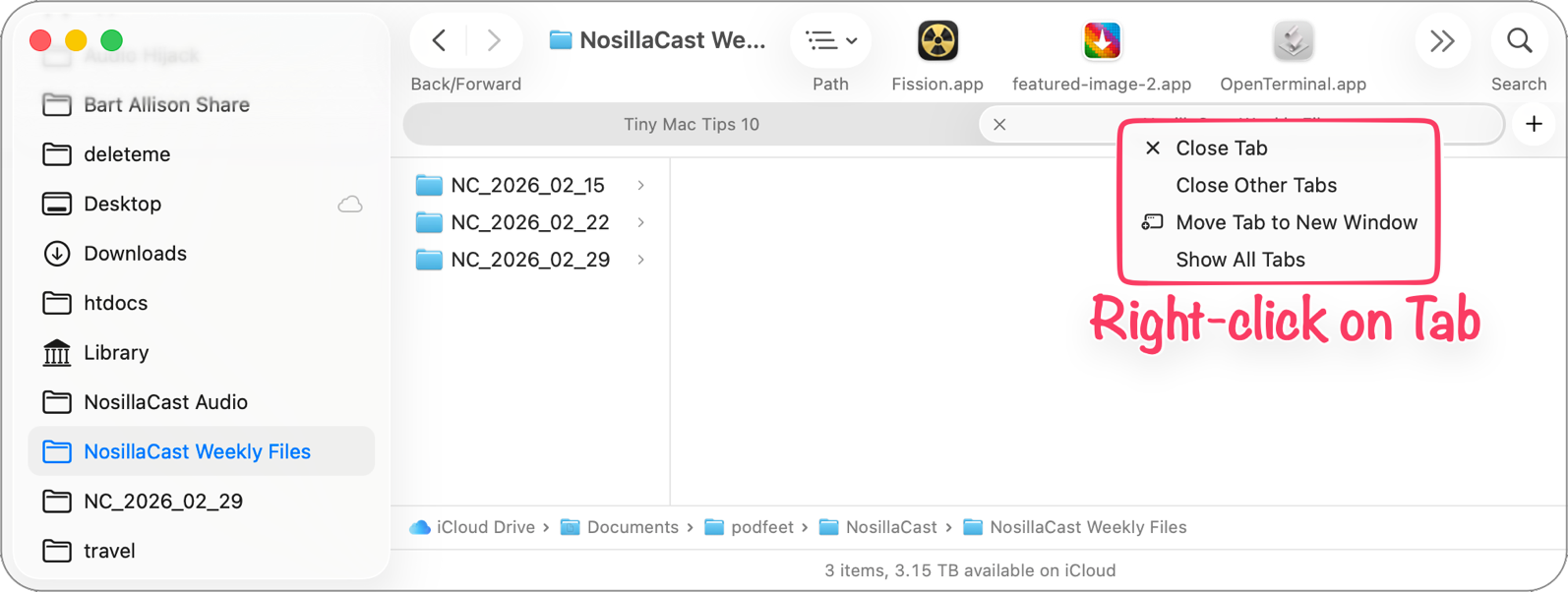
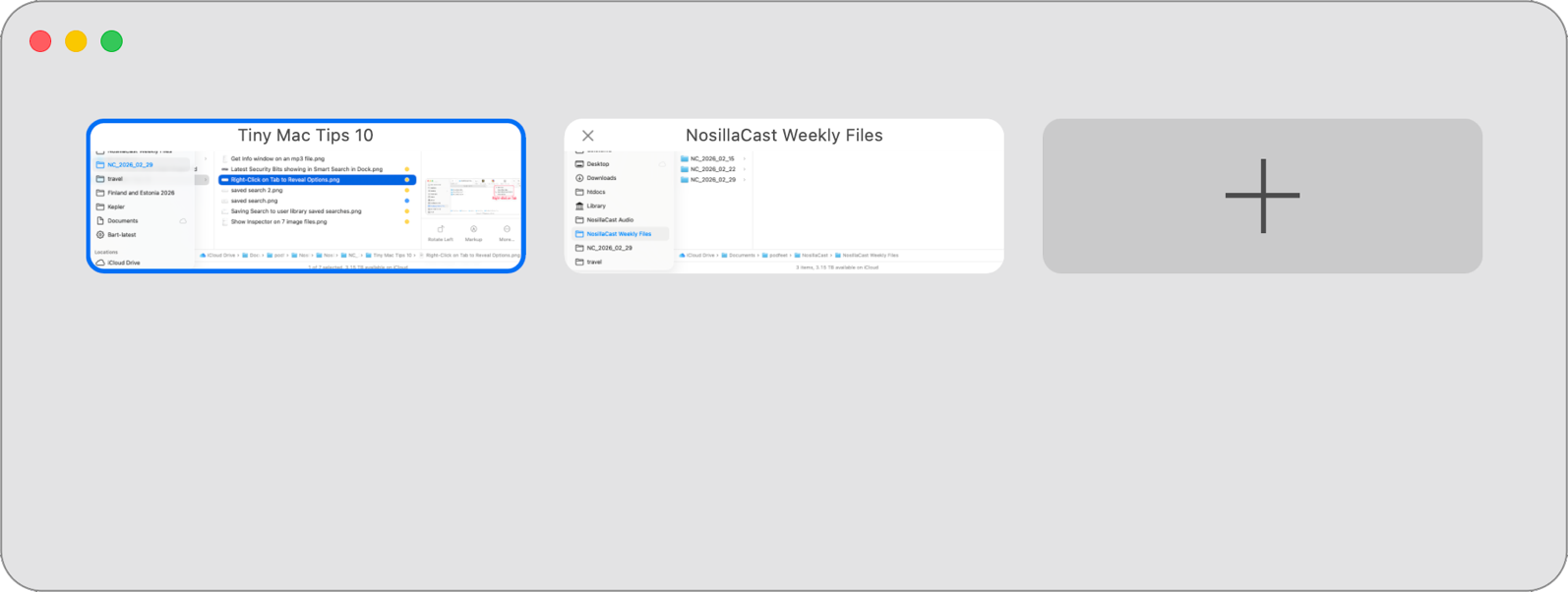
The last option under this dropdown menu is to Show All Tabs. This brings up a grey background window, similar to what you see at the top of the screen when you use Spaces. Each of your tabs is represented in small boxes, and it even has a giant plus button to add another tab.
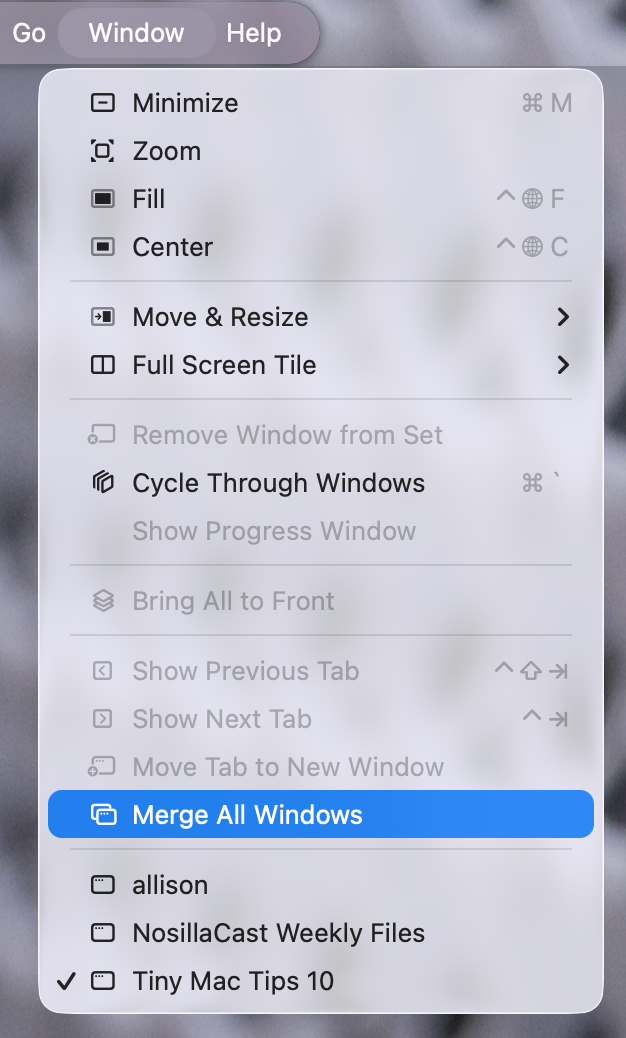
Let’s say you’ve gone wild with opening new Finder windows and they’re scattered all over your screen. If you go to the Window menu in Finder, you’ll see an option to Merge All Windows. I wish I could remember that this option is available, because I have a bad habit of littering my screen with Finder windows. Usually, I just hold down the option key and hit the close button on one window, declaring Finder window bankruptcy!
Safari
Keeping with our theme of Fun with Tabs, let’s talk about what you can do in Safari. Like Finder, ⌘T creates a new tab, and ⌃Tab cycles through your open tabs. You can do the finger twister of ⇧⌃Tab to go backwards through your tabs as well. But in Safari only, you can jump right to a specific tab with a single keystroke. Let’s say you want to go to the third tab, ⌘3, and boom, you’re there. Keep in mind that if you have any Pinned Tabs, they get counted in the sequence starting at ⌘1.
Well, hang on a second, I haven’t told you about Pinned Tabs yet, have I? If you have a site you go to all the time, why not have it ready and waiting for you instead of having to manually go to it or select it from Bookmarks? To pin a tab, simply navigate to the URL you want to pin, and select the Window menu and then Pin Tab.
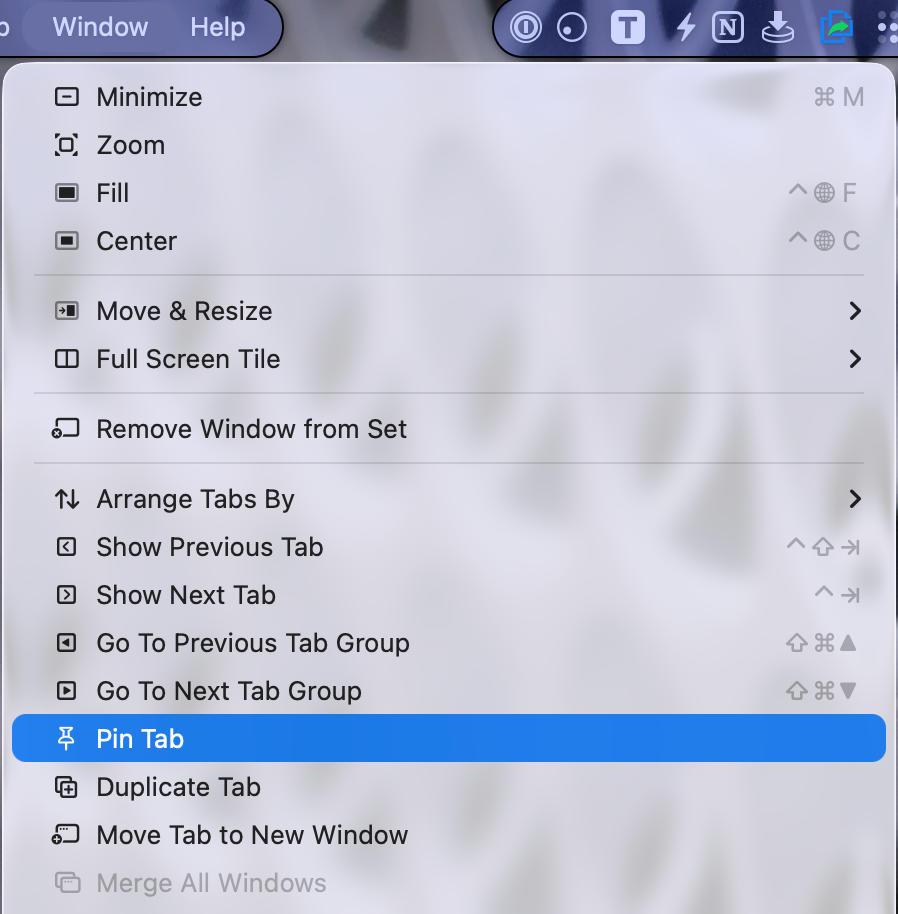
Instantly, your normal tab will disappear, and on the far left side of the tab bar, you’ll see tiny circle icons representing your pinned tabs. Inside the circle will be the Favicon, the tiny icon the web developer chose to show on tabs to their site.

I keep Bart’s fabulous XKPasswd tool as a pinned tab so that whenever I need to generate a strong, memorable password, there is no friction to keep me from creating a good one.
If you’re a keyboard junkie, you know that ⌘W closes the current window in an app. In Safari (and Finder), if you have more than one tab open, it will first start closing tabs one by one before closing the entire window. Have you ever closed a tab in Safari and wished you hadn’t? Instead of ⌘T, which opens a new tab, add the shift key, and ⇧⌘T brings back the tab you just closed.
Now let’s say you’ve opened a ton of tabs and you only want to keep the tab you’re on. You could tear that tab off to a new window, then flip back to the Safari window with all the tabs open you don’t need, tap the red close button to close the whole window, and then go back to the window with the one tab you want. Or with the tab you want to keep selected, use ⌥⌘W, and it will close all other tabs. It sounds tricky to remember, but we know ⌘W closes the current tab, so adding the Option key does the opposite.
But what if you closed them prematurely, and you want all of them back? Just like ⇧⌘T brought back one tab if you closed it manually, ⇧⌘T brings them all back if you closed them all with ⌥⌘W.
I know that’s a lot to remember, so I put them in a handy-dandy list of Safari tab keystrokes:
⌘T    New tab
⌘1-9  Cyle through open tabs
⌘W    Close current tab (or entire window if it's the last tab open)
⇧⌘T   Bring back most recently closed tab
⌥⌘W   Close all tabs except the selected one
⇧⌘T   After ⌥⌘W brings back all closed tabs
Finally, if all this Safari Fun With Tabs wasn’t enough excitement for you, try right-clicking on any Safari tab and you’ll get quick access to some of what I’ve described without needing to memorize keystrokes, and you’ll find a few more tricks like close just the tabs to the left, and arrange tabs by title or by website.

Embiggen Text Windows in Web Forms in Safari
Have you ever been filling out a web form using Safari and the developer made a free-form text window too small? Let’s say it’s to describe a problem you’re having, and they give you only enough room to see three lines tall and 50 characters wide. You’re allowed to put in more text, but it starts scrolling, so you can’t see everything you’ve written.
If the text box really can contain more text, you’ll see two very small diagonal lines in the bottom right corner. They’re telling you that there’s a grab handle that allows you to embiggen that little text box!

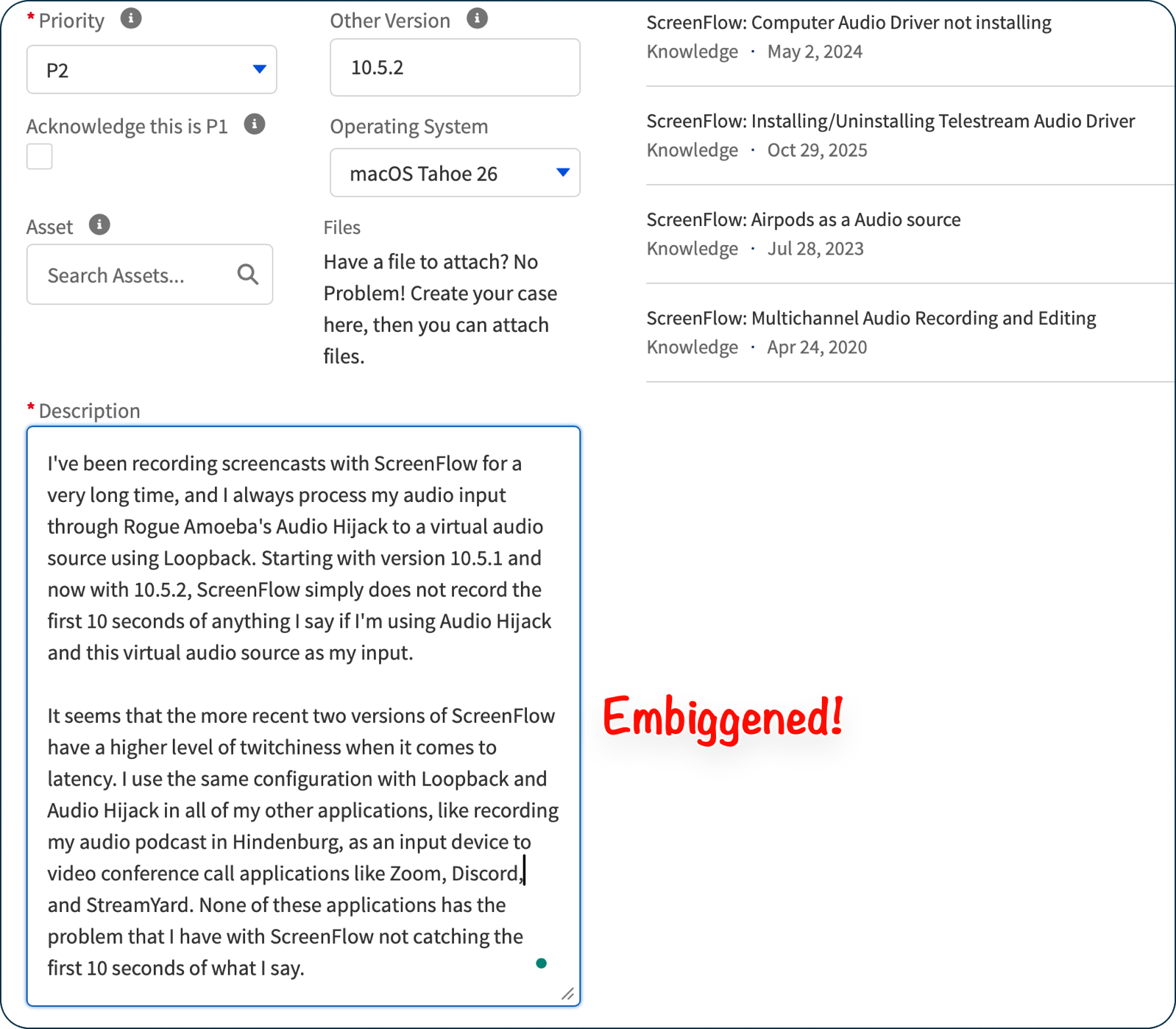
It’s one of those things that when you know what it’s for, it’s super obvious, but if nobody pointed it out you may never know.
Terminal to See a Calendar
Every once in a while, I need to see a 12-month calendar. I know I can launch Apple Calendar and switch to the month view, but I’m easily distracted by all of the appointments I see, and it stresses me out. There’s a really quick and easy way to see a 12-month calendar.
Launch the Terminal (/Applications/Utilities) and type in one simple command: cal 2026. Boom, I’ve got all 12 months of the current year nicely labeled, and I can count weeks or figure out which day of the week February 19th was.
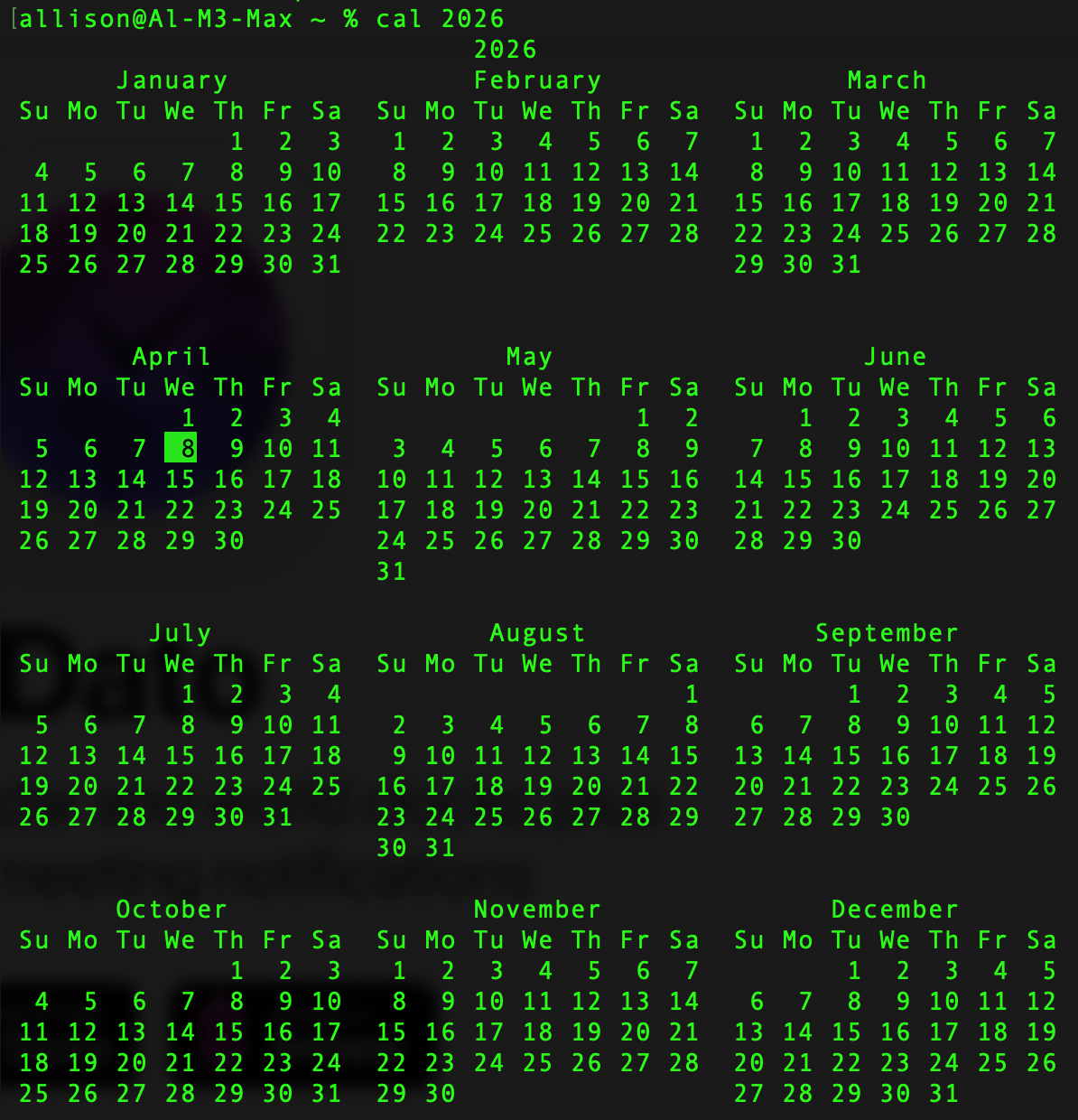
You’ll notice in the command I gave it the year. That means I can type cal 1958 and see if my memory is correct that I was born on a Sunday. Yep, I was. If I didn’t want to dig through all of the months looking for April, I could type cal 04 1958.
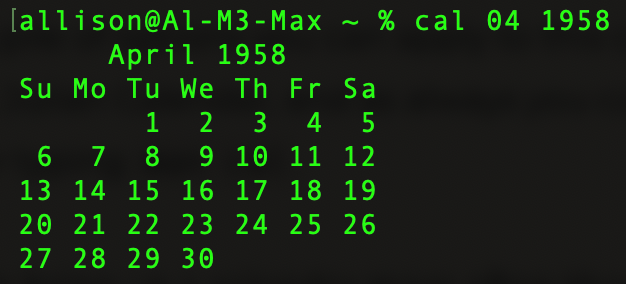
What if you just want to see the current month? cal is all it takes, and it even highlights the current day.

There are many options for this command, but it wouldn’t be a Tiny Tip if I taught them all to you. Instead, I’ll teach you how to see the options in the manual. In Terminal, simply type man cal.
I use this Tiny Tip to bring up a calendar more often than you would think. Practice it a couple of times, and maybe your fingers will remember it next time you need a calendar.
Bottom Line
That winds up our Tiny Mac Tips Part 11 — I bet you thought I’d run out of these by now, didn’t you? Might be a bit of time till the next Tiny Mac Tips, but I bet there’ll be more.